
This
Use the following menu options to navigate the Skylar One user interface:
- To view a pop-out list of menu options, click the menu icon (
 ).
). - To view a page containing all of the menu options, click the Advanced menu icon (
 ).
).
NOTE: Monitoring with the Skylar One agent is available only in the Extended Architecture.
What is a Skylar One Agent?
The Skylar One agent is a program that you can install on a device monitored by Skylar One (formerly SL1). There is a Windows agent, an AIX agent, a Solaris agent, and a Linux agent. The agent collects data from the device and pushes that data back to Skylar One.
Similar to a Data Collector or Message Collector, the agent collects data about infrastructure and applications.
You can configure an agent to communicate with either the Message Collector or the Compute Cluster.
The following minimum agent versions are required for Skylar One 12.1.1 and later: Windows version 131; Linux version 174; AIX version 180; and Solaris version 180. Users who require agent-based log collection on a device with a Windows agent or a Linux agent must have the minimum Windows agent (131), or for a Linux agent (174). ScienceLogic recommends that users perform an upgrade, if they do not have the minimum required agent versions, via the Upgrade button on the Agent page in the current user interface, or by downloading and upgrading the agent manually.
For more information, see the Monitoring with the Skylar One Agent
Agent-Compatible PowerPacks
The following PowerPacks include the Skylar One Agent PowerShell Default credential and Skylar One Agent device template, which you can use to execute the Skylar One Agent on Windows devices with PowerShell:
- Microsoft: Windows Server
- Skylar One Agent Templates for Microsoft PowerPacks, which includes templates for the following:
- Microsoft: DHCP Server
- Microsoft: DNS Server
- Microsoft: Exchange Server
The Microsoft: Exchange Server PowerPack has two device templates. If the Exchange server monitored contains all Exchange roles, use the "Skylar One Agent for Microsoft: Exchange Server Template." If your Exchange server has an Exchange Transport role, use the Skylar One Agent for Microsoft: Exchange Transport Server Template."
- Microsoft: IIS Server
- Microsoft: Lync Server
- Microsoft: SharePoint Server
- Microsoft: SQL Server
- Microsoft: Windows Server
The Credential for the Skylar One Agent
The "Skylar One Agent PowerShell Default" credential does not need to be configured and can be used as-is. You can find the credential in the Credentials page (Manage > Credentials):
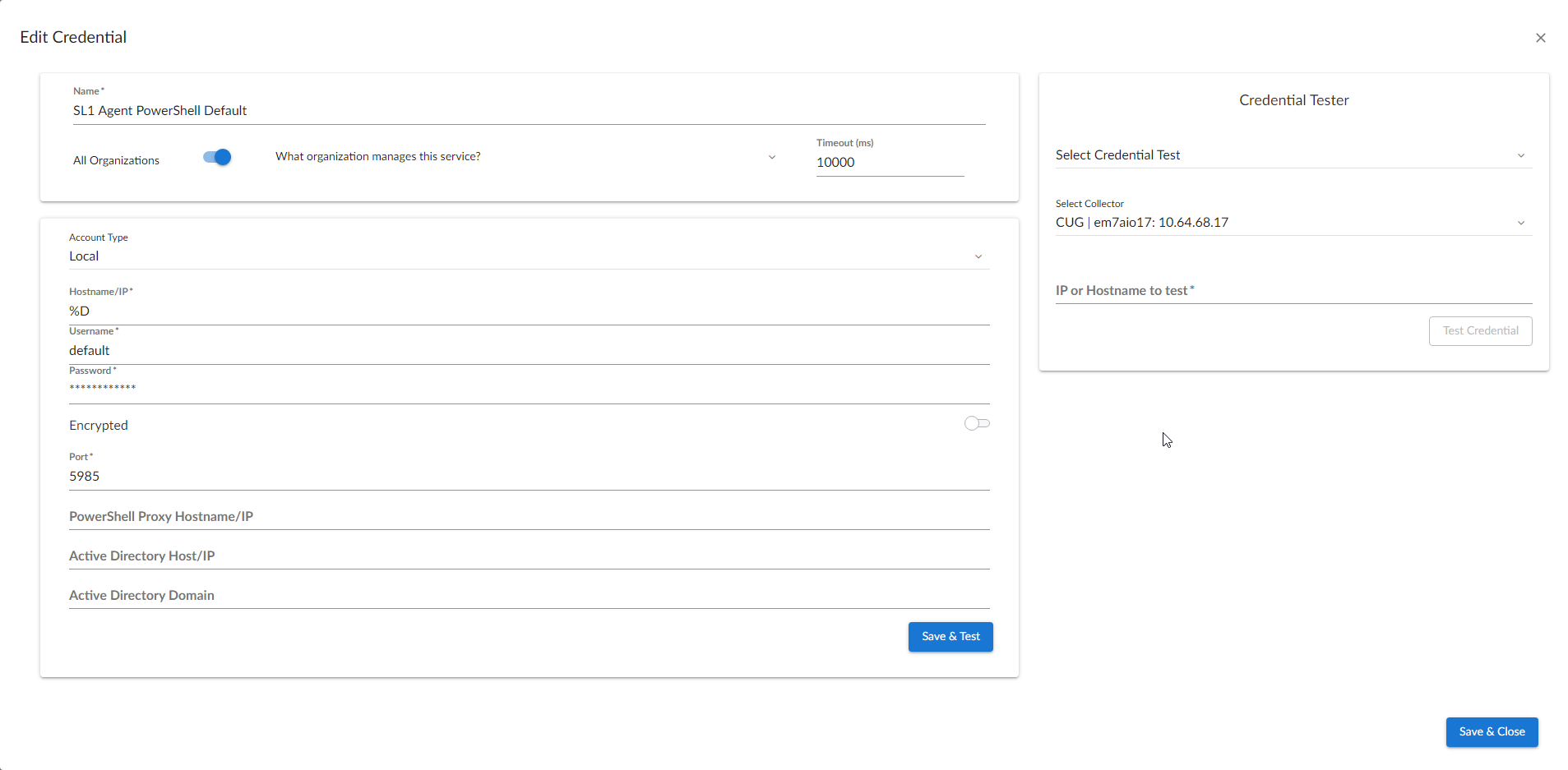
You can also find the credential on the Credential Management page (System > Manage > Credentials) in the Skylar One classic user interface.
Configuring the Skylar One Agent Device Templates
A device template allows you to save a device configuration and apply it to multiple devices. Windows PowerPacks include a device template for executing the Skylar One Agent with PowerShell. If you apply this device template during discovery, Skylar One aligns the appropriate Dynamic Applications to the discovered PowerShell device.
This device template does not need to be edited and will work as-is, unless you would like to remove a Dynamic Application from the template. To remove any Dynamic Applications you may not need:
- Go to the Configuration Templates page (Devices > Templates, or Registry > Devices > Templates in the classic SL1 user interface, or Devices > Templates, or Registry > Devices > Templates in the classic SL1 user interface).
- Locate the Skylar One Agent template (for example, "Skylar One Agent for Microsoft: Windows Server Template") and click its wrench icon (
 ). The Device Template Editor page appears.
- Click the tab. The Editing Dynamic Application Subtemplates page appears.
- Modify the Template Name field, as you will not want to overwrite the sample template.
- To remove a Dynamic Application listed in the Subtemplate Selection section on the left side of the page, click its bomb icon (
 ), and then click when asked to confirm.
 - Click .
Any time a cache-producing Dynamic Application aligned to the Skylar One agent runs, all cache-consuming Dynamic Applications will run as well. The cache-consuming Dynamic Application with the shortest Polling Frequency will control when all the other cache-consuming Dynamic Applications for the same cache producer will run.
ScienceLogic requires you to manually update the threshold values for the "Skylar One Agent for Microsoft: Windows Server Template" device template after updating the PowerPack.