
Use the following menu options to navigate the Skylar One user interface:
- To view a pop-out list of menu options, click the menu icon (
 ).
). - To view a page containing all of the menu options, click the Advanced menu icon (
 ).
).
What is a Location?
Locations provide a centralized way to define geographic and organizational context for devices and services. By creating locations and aligning devices or services to them, you enable features such as geographic maps, filtering, and location‑based visibility throughout the platform.
The Locations Page
The Locations page (Manage > Locations) is the primary interface for creating, editing, and managing locations, as well as aligning devices and services to those locations. All location‑based associations made here are reflected across features that rely on location data, including geographic maps.
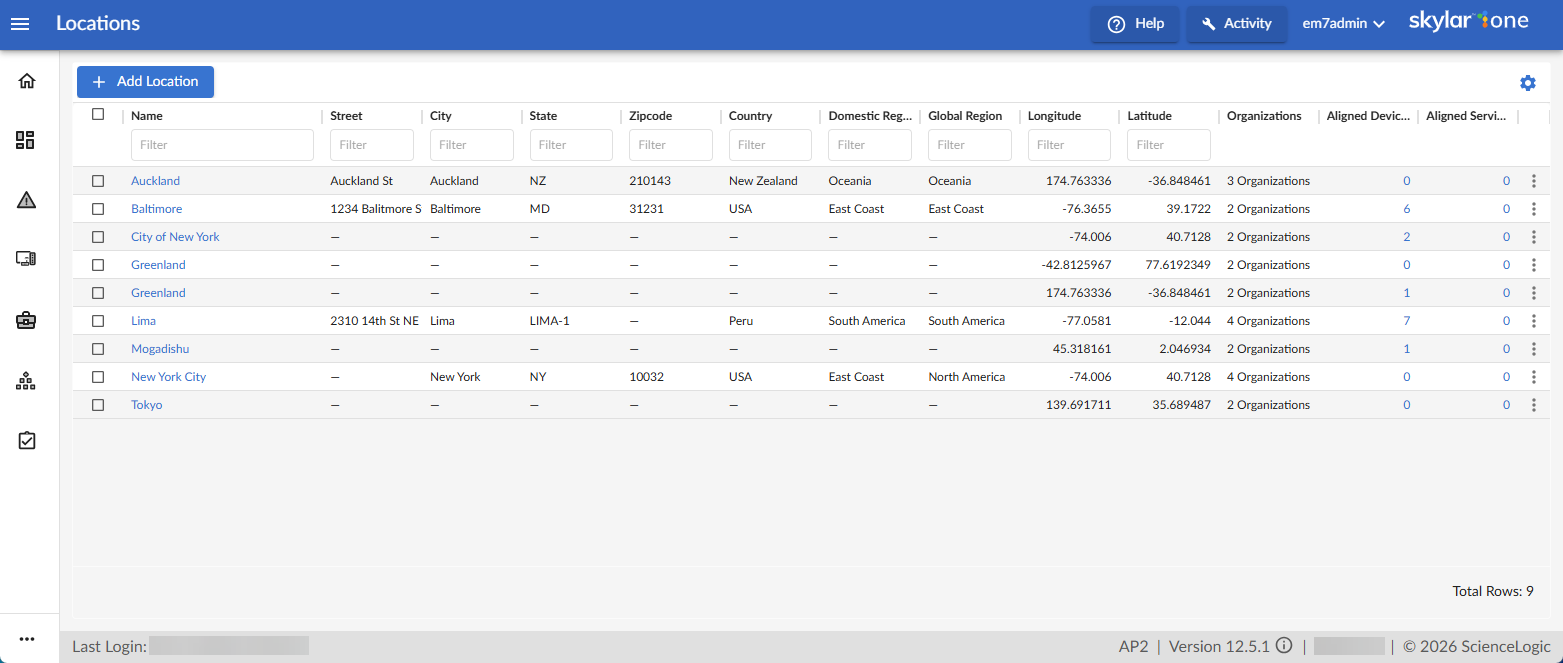
You can save the current list of items as a comma-separated list by clicking the gear icon ( ) and selecting Export to CSV.
Managing Locations on the Locations Page
You can add, edit, and delete locations on the Locations page (Manage > Locations).
Adding New Locations
- Go to the Locations page (Manage > Locations).
- Click the button. The Add Location modal appears.
- Supply values to the fields listed below. Required fields are marked with an asterisk:
- Location Name. Enter the location name of the device or service that will appear on your geographic map. This field is required.
- Organizations. Select one or more organizations to align with the location. This field is required.
- Latitude. Enter the geographic latitude of the location. This field is required.
- Longitude. Enter the geographic longitude of the location. This field is required.
- Street Address. Enter the street address for the location.
- City. Enter the city where the location is situated.
- State. Enter the state or province where the location is located.
- Zip/Postal Code. Enter the ZIP or postal code for the location.
- Country. Enter the country where the location is located.
- Domestic Region. Enter the regional area within the country, such as Northeast or West Coast.
- Global Region. Enter the broader geographic region, such as North America or Asia‑Pacific.
- Description. Enter a brief description of the location.
- Notes. Enter any additional information related to the location.
- Click .
Editing Existing Location Details
- Go to the Locations page (Manage > Locations).
- Click the location name under the Name column.
- Make any updates you want to make.
- Click .
Alternatively, you can click the Actions icon ( ) and select Edit.
Deleting Locations
- Go to the Locations page (Manage > Locations).
- Click the Actions icon () and select Delete
To delete multiple locations, select the checkboxes for the locations you want to remove, then click "Delete Locations" at the top of the page.
Assigning Location Data Through the Locations Page
Assigning location data through the Locations page (Manage > Locations) allows you to manage location associations directly through the Skylar One user interface, without using spreadsheets or bulk import scripts. By selecting an organization and aligning its devices or services to locations, you can immediately make those entities available for location‑based features such as geographic maps.
Aligning Devices or Services
To align devices or services to location through the Locations (Manage > Locations) page:
- Go to the Locations page (Manage > Locations).
- Click the Actions icon () and select Align. The Align Location modal appears.
- In the Align Location modal, use the tab to select one or more devices and the tab to select one or more services you want to align to the location, then click .
The Aligned Devices and Aligned Services columns display the number of devices and services aligned to each location.
You can only view locations that are aligned with organizations you have access to. The Align Location modal displays devices and services based on the organizations associated with each visible location. For example, if a user belongs to multiple organizations, the modal shows locations and related objects aligned with any of those organizations. If a location is aligned with only a single organization, the modal displays only the devices or services associated with that organization.
Unaligning Devices or Services
To unalign devices or services to location through the Locations (Manage > Locations) page:
- Go to the Locations page (Manage > Locations).
- Click the Actions icon () and select Unalign. The Unalign Location modal appears.
- In the Unalign Location modal, use the tab to select one or more devices and the tab to select one or more services you want to unalign from the location, then click .
Alternatively, you can click the value in the Aligned Devices or Aligned Services column to open the Unalign Location modal and remove alignments from that view.
After you have assigned location data to your devices or services, they will appear as options when creating the map. For more information on using assigned location data to create geographic maps, see the section on