
The Predictive Alerting component of Skylar Analytics helps to avoid problems such as file systems running out of space. The alerts appear as enriched events in Skylar One, and they are generated in advance of the problem and can provide days, weeks, or months of notice depending upon the conditions.
The Predictive Alerting component monitors file systems (SNMP, PowerShell, and SSH).
What is Predictive Alerting?
Predictive alerts help to avoid problems such as file systems running out of space. The alerts are generated in advance of the problem and can provide days, weeks, or months of notice depending upon the conditions.
Skylar Analytics will start generating predictive alerts about 48 hours after data starts getting exported from Skylar One to Skylar AI.
A prediction cannot be made less than three times of the observation window. In other words, if you have one day of information, Skylar AI will not generate a prediction more than three days in the future.
How Predictive Alerting Works
To generate predictive alerts, Skylar AI looks at utilization trends over the past 30 days. In the case of file systems, Skylar AI looks at maximum value. Skylar AI uses these values to compute a linear trend, which provides a very simple slope to predict when a threshold will be reached.
Starting with version 1.8.0, Skylar Analytics uses the same approach for both the 30-day trend and the "breakout" or 1-day trend, which is to calculate the slope of the data over that time period.
Then, to choose the best slope for generating the prediction on, Skylar AI calculates root mean square deviation (RMSE) and the "R squared" (R^2) error rates for both slopes as well as a flat slope, across all 30 days of data as well as the last day of data. Skylar AI finds the best match, weighted towards the daily slope then the flat slope.
If none of the predictions are above the threshold, or if the flat slope is determined to be the best, then Skylar AI will not generate a prediction. Otherwise, Skylar AI generates a prediction based on the slope that has the best fit against the data.
Viewing Predictive Alerts in Skylar One
When your Skylar One system is connected to Skylar AI, you can start viewing predictive alerts in Skylar One. The alerts appear as enriched events in Skylar One, and they are generated in advance of the problem. No additional configuration is needed.
Predictive alerts display the Skylar icon ( ) to the left of the event message in the Message column of the Events page. The filter text in the Message column and thetext of the message contains the word "Prediction":
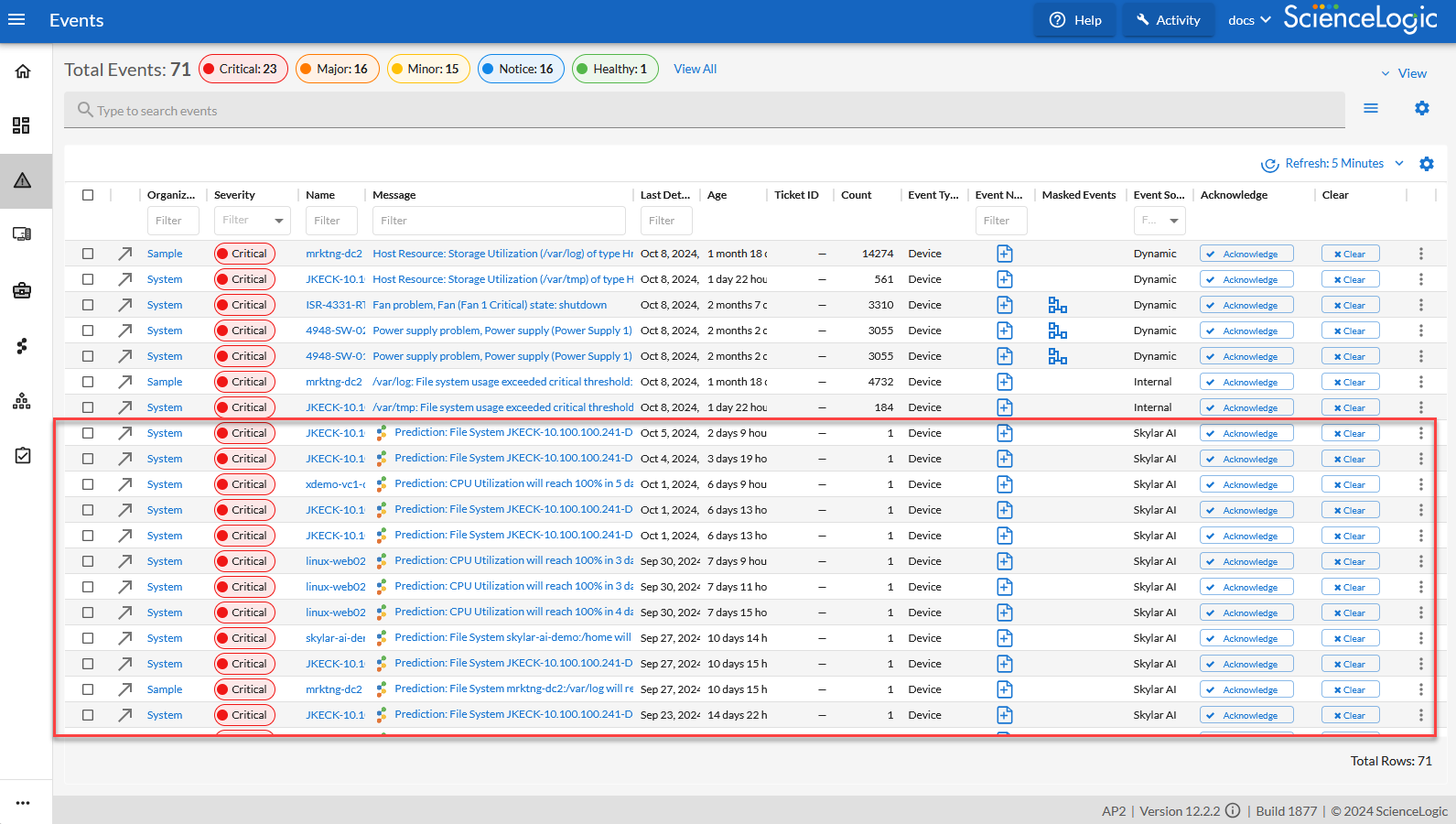
The filtered list will appear blank until an active predictive alert triggers an event.
To view details about a predictive alert:
-
In Skylar One, go to the Skylar AI page (
 ) and click the button for Skylar Predictive Alerting. A filtered Events page displays a list of predictive alerts.
The word "Prediction" appears in the filter field for the Message column. To clear the list of predictive alerts to view all events, click the X button in the filter.
-
On the Events page, click the message for a predictive alert with the Skylar icon (
). The Event Investigator page for that alert appears. -
On the Event Investigator page, the Skylar Analytics Summary panel displays a timeline of data from Skylar AI about a specific metric:
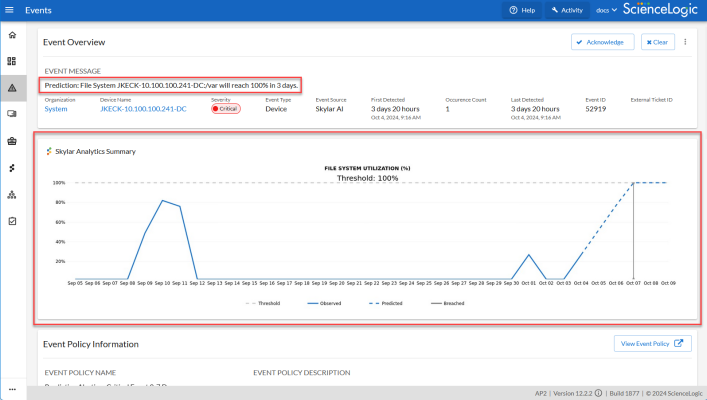
The dotted line on the graph in the Skylar Analytics Summary panel represents a time frame in the future that Skylar AI is forecasting, based on pattern recognition.
The blue line represents the activity observed so far by Skylar One, and the gray dotted line represents the threshold set in Skylar One.The blue dotted line represents where Skylar AI is predicting a potential alert in the future, with the gray line representing a potential problem in the future, also predicted by Skylar AI.
In the example above, Skylar AI predicts that the file system utilization will hit the threshold of 100% in three days, on October 7th. By tracking the timeline on the graph, you can see when a potential event might happen, and you can take action now to prevent it.
In addition, if you have an event policy monitoring a metric that is now being tracked by Predictive Alerting, you can disable that event policy.
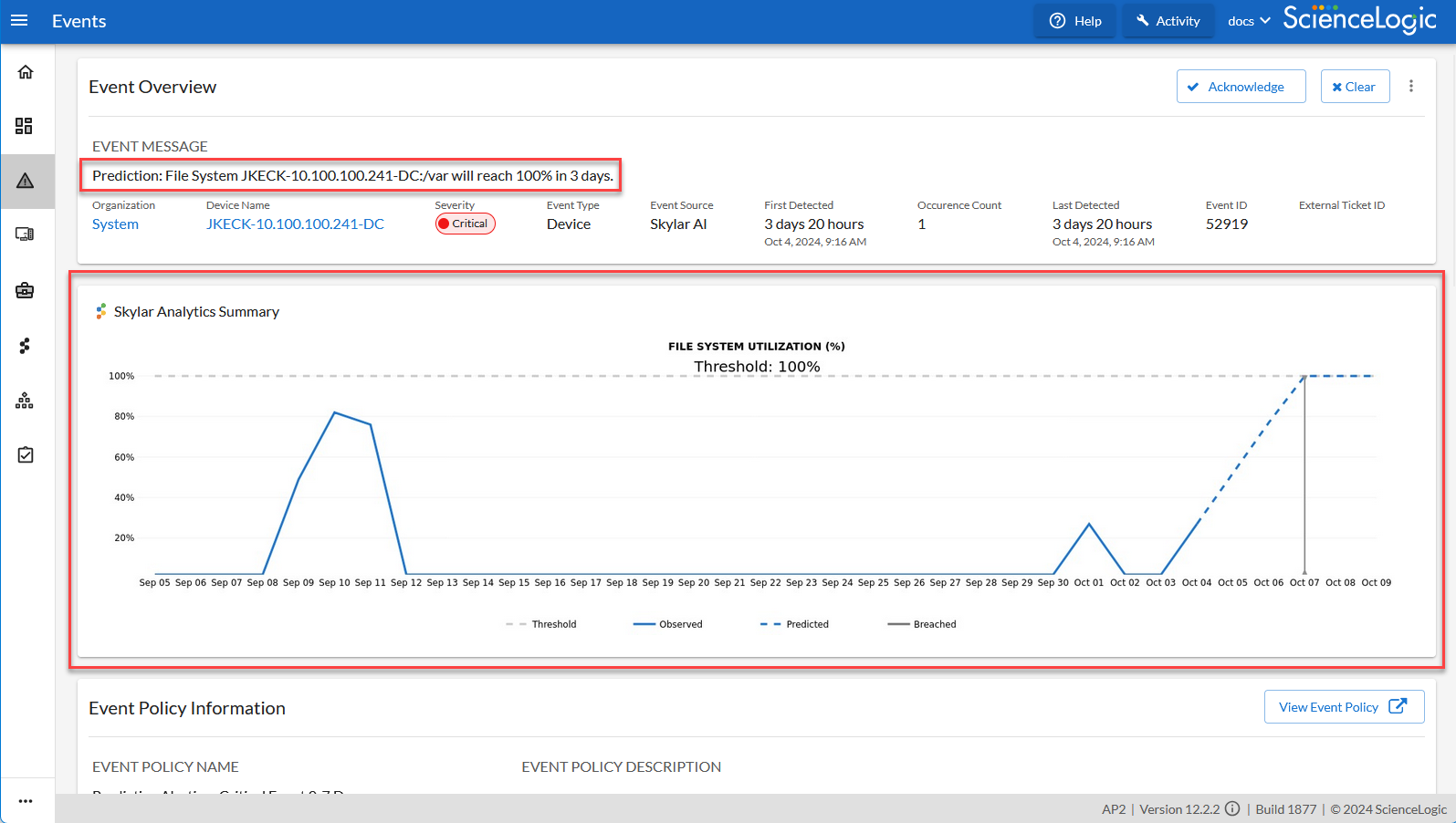
Because the data for the chart on the Skylar Analytics Summary panel is coming from Skylar AI, you will not be able to use that data in a Skylar One dashboard. Also, this chart is rendered at prediction time and is static, so that when opening an event, you can see the state and prediction at the time of prediction.
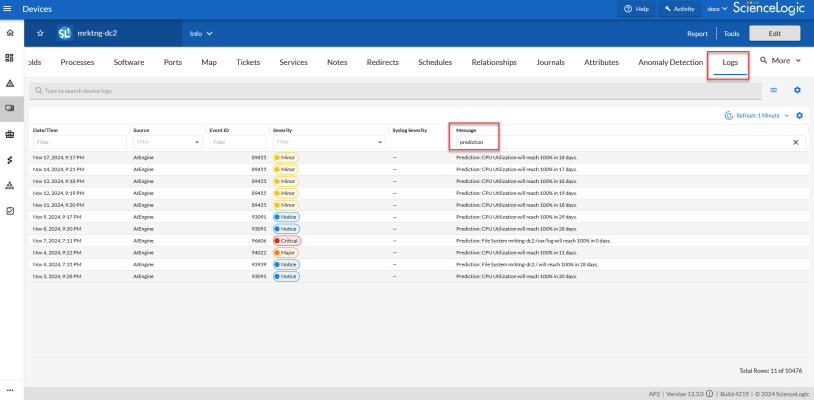
You can also review the logs for a specific device to view the history of the predictions:
-
On the Devices page or the Events page, select the device with the predictive alerts. The Device Investigator page for that device appears.
-
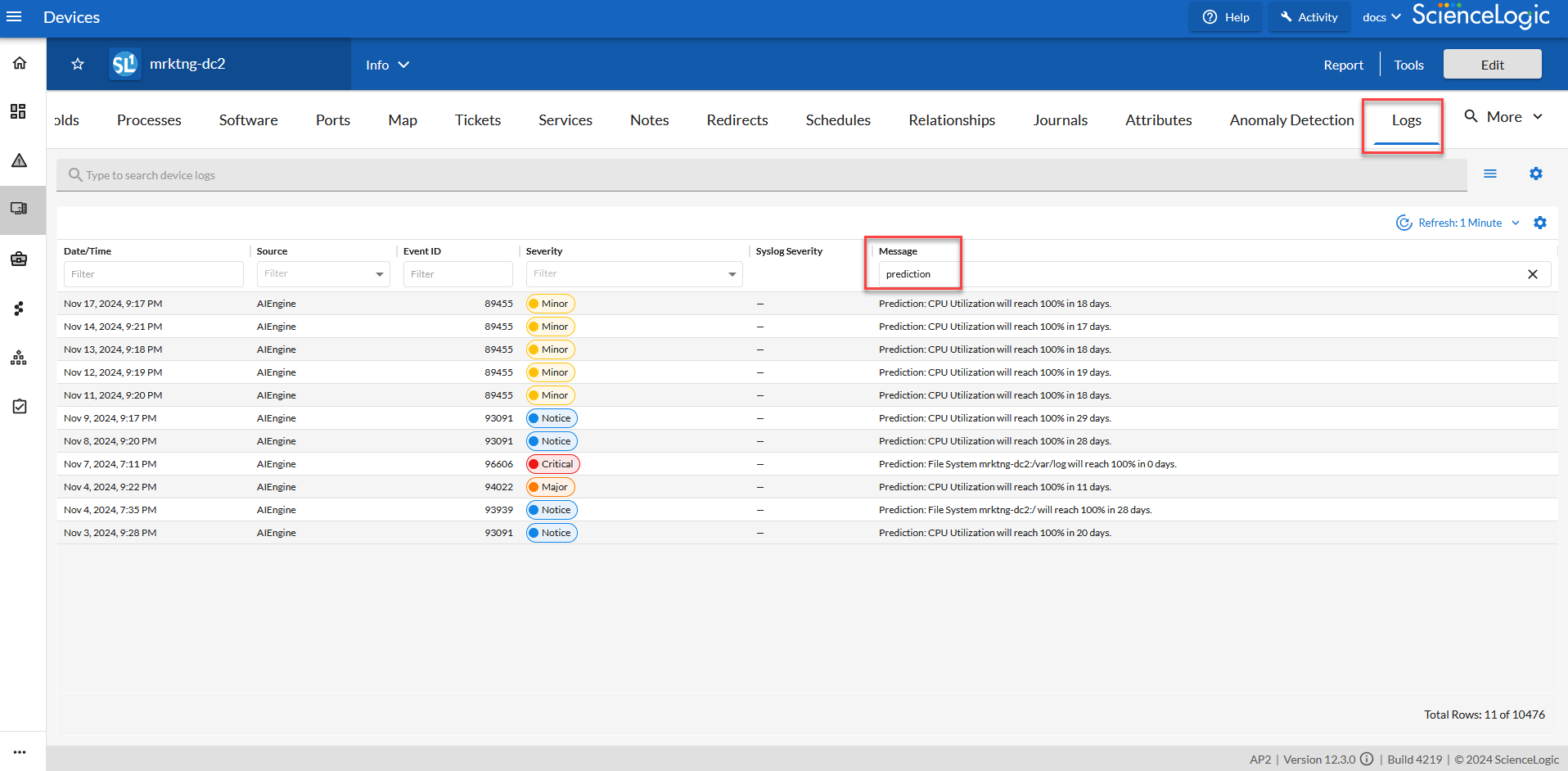
Click the tab. A list of recent logs displays:
-
If needed, type "prediction" in the Message column to view only the predictive alerts.
Using Predictive Alerts to Trigger Automated Run Book Actions
After Skylar AI creates a Skylar One event for a predictive alert, you can create a run book automation policy that runs one or more run book actions when a predictive alert is generated.
The predictive alert must have an Event Type of Device and an Event Source of Skylar AI.
To use predictive alerts to trigger automated run book actions:
-
Go to the Automation Policy Manager page (Registry > Run Book > Automation).
-
Click the button. The Automation Policy Editor page appears:
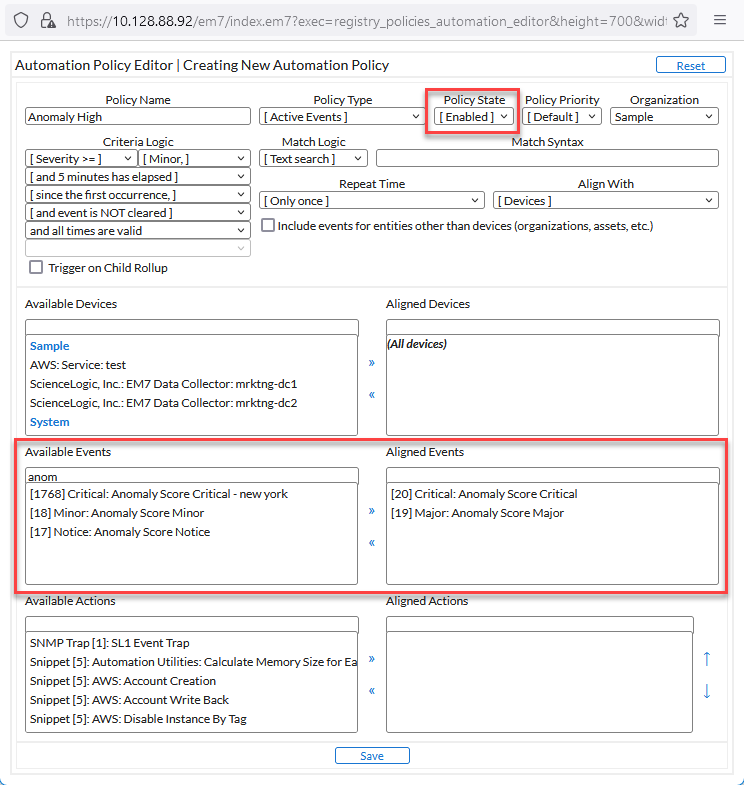
- In the Policy State field, select Enabled.
- In the Available Events field, search for and select one or more event policies related to predictive alerts, and then click the right-arrow icon to move each event to the Aligned Events field.
- In the Available Actions field, search for and select one or more run book actions that you want to run when the predictive alert event from step 4 occurs. Click the right-arrow icon to move each action to the Aligned Actions field. For example, you might want to send an email or create a ticket for that predictive alert.
- Complete the remaining fields on the Automation Policy Editor page based on the specific parameters that you want to establish for the automation policy. For more information about the fields on the Automation Policy Editor page, see Automation Policies.
- When you are finished, click .