
This section describes how to configure and discover your Oracle Database instances for monitoring by Skylar One using the "Oracle: Database" PowerPack.
Prerequisites for Monitoring Oracle Database Instances
To configure the Skylar One system to monitor Oracle Database instances using the "Oracle: Database" PowerPack, you must have a minimum of two users:
- SSH user to access archived files-related data from the server hosting the Oracle Database instance.
- Oracle Database user to access the instance.
On a multi-tenant instance like a Database Server, there can be multiple users to access Database Servers and pluggable databases.
- Minimal permissions for SSH user access:
- Read Archived and Non-Archived files
For more information about the minimum permissions needed, and why they are required, see the
r= read; w= write; x= execute; –= denied. All files and directories can be owned by another non-credential user in Skylar One. However, the permissions must be given to the credential user's group, or to everyone else (Other).
If you do not want to configure permissions, you can move the SSH user to the group used by the Oracle installer.
The Oracle database user must have access to the following tables:
- dba_data_files
- dba_free_space
- dba_registry
- dba_scheduler_jobs
- dba_tablespaces
- dba_temp_files
- gv$sort_segment
- sys.dba_ind_partitions
- sys.dba_ind_subpartitions
- sys.dba_indexes
- sys.dba_objects
- sys.v_$database_block_corruption
- sys.v_$lock
- v$archive_dest
- v$archived_log
- v$block_change_tracking
- v$controlfile
- v$database
- v$datafile
- v$datafile_header
- v$diag_alert_text
- v$dispatcher
- v$instance
- v$latch
- v$librarycache
- v$log
- v$log_history
- v$logfile
- v$open_cursor
- v$parameter
- v$resource_limit
- v$rman_backup_job_details
- v$rollstat
- v$rowcache
- v$session
- v$sesstat
- v$statname
- v$sysstat
- v$tablespace
- v$tempfile
- v$version
- v$asm_client (required for ASM Dynamic Applications)
- v$asm_disk (required for ASM Dynamic Applications)
- v$asm_diskgroup (required for ASM Dynamic Applications)
- v$recovery_file_dest(required for ASM/RAC Dynamic Applications)
Required Ports
To monitor Oracle Database instances using the "Oracle: Database" PowerPack, your Data Collectors must be able to access the UNIX host on port 22, as well as the port that is configured for the databases that you will be monitoring, as defined in the tnsnames.ora file.
Required Privileges
All Oracle database users must have the following privileges:
- System Privileges: CREATE SESSION
- Role Privileges: SELECT_CATALOG_ROLE
- Table Privileges:
- SELECT ON SYS.V_$DIAG_ALERT_EXT
- SELECT ON SYS.TS$
- Other: Permission to alter sessions to alter sessions.
Monitoring Pluggable Databases (PDBs)
To monitor pluggable databases (PDBs), you must have permissions to view `DBA_PDBS` and `V_$PDBS`.
NOTE: You can create multiple users to access a CDB and all PDBs by creating a minimum of two Database Credentials, one for the CDB, and one for each PDB.
Creating Users and Assigning Privileges
If you want to monitor a container database (CDB) and PDB, log in to the CDB and create a user and grant access to containers using the following permissions:
- Create a user: CREATE USER C##[USERNAME] IDENTIFIED BY [PASSWORD] CONTAINER=ALL;
- Grant access to query tables: GRANT CREATE SESSION TO C##[USERNAME] CONTAINER=ALL;
- Grant access to all common tables and views on a CDB: GRANT SELECT_CATALOG_ROLE TO C##[USERNAME] CONTAINER=ALL;
- Grant access for "Oracle: DB Tablespace Temp Stats" Dynamic Application: GRANT SELECT ON SYS.TS$ TO C##[USERNAME] CONTAINER=ALL;
- Grant access for "Oracle: DB Log Alerts Config" Dynamic Application: GRANT SELECT ON SYS.V_$DIAG_ALERT_EXT TO C##[USERNAME] CONTAINER=ALL;
- Show PDBs:
- ALTER USER C##[USERNAME] SET CONTAINER_DATA=(CDB$ROOT,PDB1,PDB2) FOR DBA_PDBS CONTAINER=CURRENT;
- ALTER USER C##[USERNAME] SET CONTAINER_DATA=(CDB$ROOT,PDB1,PDB2) FOR V_$PDBS CONTAINER=CURRENT;
For Non-Container Databases (Non-CDBs):
- Create a user: CREATE USER [USERNAME] IDENTIFIED BY [PASSWORD];
- Grant access to query tables: GRANT CREATE SESSION TO [USERNAME];
- Grant access to all common tables and views on a CDB: GRANT SELECT_CATALOG_ROLE TO [USERNAME];
- Grant access for "Oracle: DB Tablespace Temp Stats" Dynamic Application: GRANT SELECT ON SYS.TS$ TO [USERNAME];
- Grant access for "Oracle: DB Log Alerts Config" Dynamic Application: GRANT SELECT ON SYS.V_$DIAG_ALERT_EXT TO [USERNAME];
NOTE: If you are monitoring RAC and ASM instances, no additional permissions are required.
NOTE: Each Oracle database user will need a corresponding Skylar One database credential for database access.
Prerequisites to Monitor Using Transport Layer Security (TLS/TCPS)
To monitor using TCPS you must configure the collector with Oracle Instant Client, Oracle Database libraries, wallet and network files.
You need to configure every collector that the PowerPack will use. Alternatively, you can change the Collector Affinity of every Dynamic Application to use the “root device’s collector” to use only one single collector.
For the workflow below, assume the following example:
| Oracle Database | Skylar One Collector | |
|---|---|---|
| Version | Oracle Database 21c | Oracle Instant Client 21.15 |
| ORACLE_HOME | /u01/app/oracle/product/21.0.0/dbhome_1 | /opt/oracle/instant_client_21_15 |
- Download the Oracle Instant Client that matches your Oracle Database version.
- Install the Oracle Instant Client on your Skylar One Collector, typically at /opt/oracle.
- Using SSH, connect to your Oracle Database and copy the following folders:
- $ORACLE_HOME/jdk
- $ORACLE_HOME/jlib
- $ORACLE_HOME/bin/orapki
- Transfer the folders to your Skylar One Collector:
- Copy jdk to /opt/oracle/jdk
- Copy jlib to /opt/oracle/jlib
- Copy orapki to /opt/oracle/instant_client_21_15/orapki
- Confirm proper installation by running the following commands on your collector:
which orapki
which sqlplus
- Create a configuration file called "sqlnet.ora" at the location /opt/oracle/instant_client_21_15/network/admin/sqlnet.ora.
- Create a network file called "tnsnames.ora" at the location /opt/oracle/instant_client_21_15/network/admin/tnsnames.ora. The contents of this file will control your connections from Skylar One to Oracle: Database.
- On your collector, create an Oracle wallet for Skylar One using the following command:
orapki wallet create -wallet /opt/oracle/instant_client_21_15/wallet -pwd YOUR_PASSWORD -auto_login
Use the -auto_login option so Python can access the wallet. Do not use -auto_login_local, as this will cause issues.
- Create or add your SSL certificate to the Skylar One wallet. The certificate must have a key size of 2048 bits or greater.
- Exchange certificates between the Oracle Database wallet and the Skylar One wallet if needed.
- Change the collector's Instant Client owner and permissions for monitoring:
- sudo chown -R ‘em7admin:s-em7-core' /opt/oracle
- chmod -v 640 /opt/oracle/instant_client_21_15/wallet/*
Monitoring TCPS Use Case
Assume this Oracle DB:
| Instance | Host | Port | Protocol |
|---|---|---|---|
| cdb1 (SID) | 192.0.2.110 | 2484 | TCPS |
| silo_pdb (SERVICE_NAME) | 192.0.2.110 | 2484 | TCPS |
You must configure the collector's tnsnames.ora file to point to these instances. The tnsnames.ora file should have a format similar to the following:
AN_ALIAS_YOU_LIKE=
(DESCRIPTION=
(ADDRESS=
(PROTOCOL=TCPS)
(HOST=YOUR_ORACLE_ADDRESS)
(PORT=YOUR_ORACLE_PORT)
)
(CONNECT_DATA=(SERVER=dedicated)
(SID=YOUR_ORACLE_SID)
)
)
Modifying the collector's Skylar One tnsnames.ora file with the example Oracle Database above, the tnsnames.ora file should look like this:
cdb1_ssl=
(DESCRIPTION=
(ADDRESS=
(PROTOCOL=TCPS)
(HOST=192.0.2.110)
(PORT=2484)
)
(CONNECT_DATA=(SERVER=dedicated)
(SID=cdb1)
)
)
silo_pdb_tcps=
(DESCRIPTION=
(ADDRESS=
(PROTOCOL=TCPS)
(HOST=192.0.2.110)
(PORT=2484)
)
(CONNECT_DATA=(SERVER=dedicated)
(SERVICE_NAME=silo_pdb)
)
)
After configuring the tnsnames.ora file, fill the Skylar One database credential with the following:
- In the Oracle Connect Type field, enter "Oracle Real Application Clusters (SERVICE_NAME)"
- In the Oracle Database SID field, enter the tnsnames.ora alias you created above. For example, "cdb1_ssl" or "silo_pdb_tcps".
- Complete the other fields of the Database Credential as described in the Creating a Database Credential section.
Configuring Oracle Credentials
To monitor Oracle Database instances using Skylar One, you must create at least three credentials. The types of credentials that are required for monitoring depend on the type of server that is hosting the Oracle Database:
- Linux and Unix users must use an SSH/Key credential for access
- You must also use a Database credential for each CDB, PDB, Non-CDB, or ASM
- All users must use a SOAP/XML credential to link all credentials
NOTE: The SOAP/XML credential is the only credential that is used for discovery.
Suggested Timeout Configuration
There are current platform limitations to implementing a timeout for Database Server sessions.
To prevent issues and perform the suggested configuration:
- Create a new profile for the DB user in the Database.
- Configure the profile with these queries:
- ALTER PROFILE <profile> LIMIT IDLE_TIME 3
- ALTER PROFILE <profile> LIMIT CONNECT_TIME 3
With this configuration implemented, a three-minute minute timeout session is established. This allows the user time to stop the collection if it prevents Skylar One from creating SIGTERMs.
Creating an SSH/Key Credential (Linux Users)
Linux and Unix users must create an SSH/Key credential.
To create an SSH/Key credential:
- Go to the Credentials page (Manage > Credentials).
- Locate the "Oracle: DB Example SSH" sample credential, then click its icon (
 ) and select Duplicate. A copy of the credential, called Oracle: DB Example SSH copy appears.
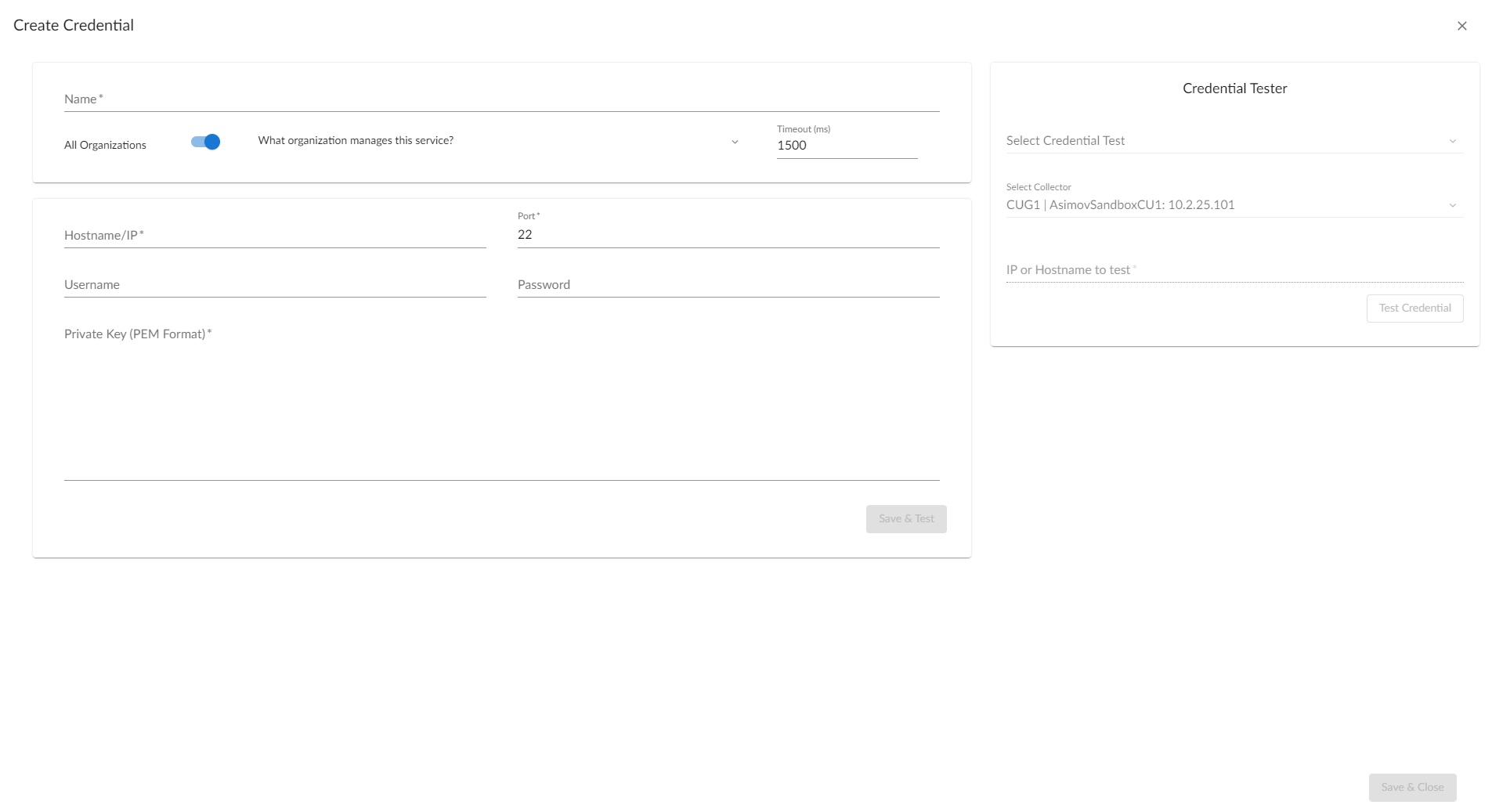
- Supply values in the following fields:
- Name. Type a new name for the credential.
- All Organizations. Toggle on (blue) to align the credential to all organizations, or toggle off (gray) and then select one or more specific organizations from the What organization manages this service? drop-down field to align the credential with those specific organizations.
- Hostname/IP. Type "%D" or the IP address of the server that is hosting the Oracle Database.
- Port. Type "22".
- Username. Type the username for the Linux server that is hosting the Oracle Database.
- Password. Type the password for the Linux server that is hosting the Oracle Database.
- Private Key (PEM Format). Optional. Use if required for SSH authentication. For information on gathering a private key, see the section on Enabling PEM on a Linux Machine.
The private key can have a maximum of 64 characters per line. Therefore, you cannot use keys in the OpenSSH format, because that format uses 70 characters per line. When you attempt to save the credential, Skylar One will validate that the private key entered is in the correct format. You will be able to save the credential only if the private key is correctly formatted.
- Click .
NOTE: The credential ID will appear in the ID column of the Credentials page after it has been saved. Take note of the ID as you will need it when creating the SOAP/XML credential.
Creating an SSH/Key Credential (Linux Users) in the Classic Skylar One User Interface
To create an SSH/Key credential :
- Go to the Credential Management page (System > Manage > Credentials).
- Click the wrench icon (
 ) for the "Oracle: DB Example SSH" credential. The Credential Editor modal page appears.
 - Supply values in the following fields:
- Credential Name. Type a new name for the credential.
- Hostname/IP. Type "%D" or the IP address of the server that is hosting the Oracle Database.
- Port. Type the default port for SSH (22).
- Username. Type the username for the Linux server that is hosting the Oracle Database.
- Password. Type the password for the Linux server that is hosting the Oracle Database.
- Private Key (PEM Format). Optional. Use if required for SSH authentication. For information on gathering a private key, see the section on Enabling PEM on a Linux Machine.
The private key can have a maximum of 64 characters per line. Therefore, you cannot use keys in the OpenSSH format, because that format uses 70 characters per line. When you attempt to save the credential, Skylar One will validate that the private key entered is in the correct format. You will be able to save the credential only if the private key is correctly formatted.
- Click the button.
- When the confirmation message appears, click .
NOTE: The credential ID will appear at the top of the window after it has been saved. Take note of the ID as you will need it when creating the SOAP/XML credential.
Creating a Database Credential
To monitor multiple CDB or PDB instances, you must create a database credential.
To create a database credential:
- Go to the Credentials page (Manage > Credentials).
- Click the button and then select Create Database Credential. The Create Credential modal page appears:
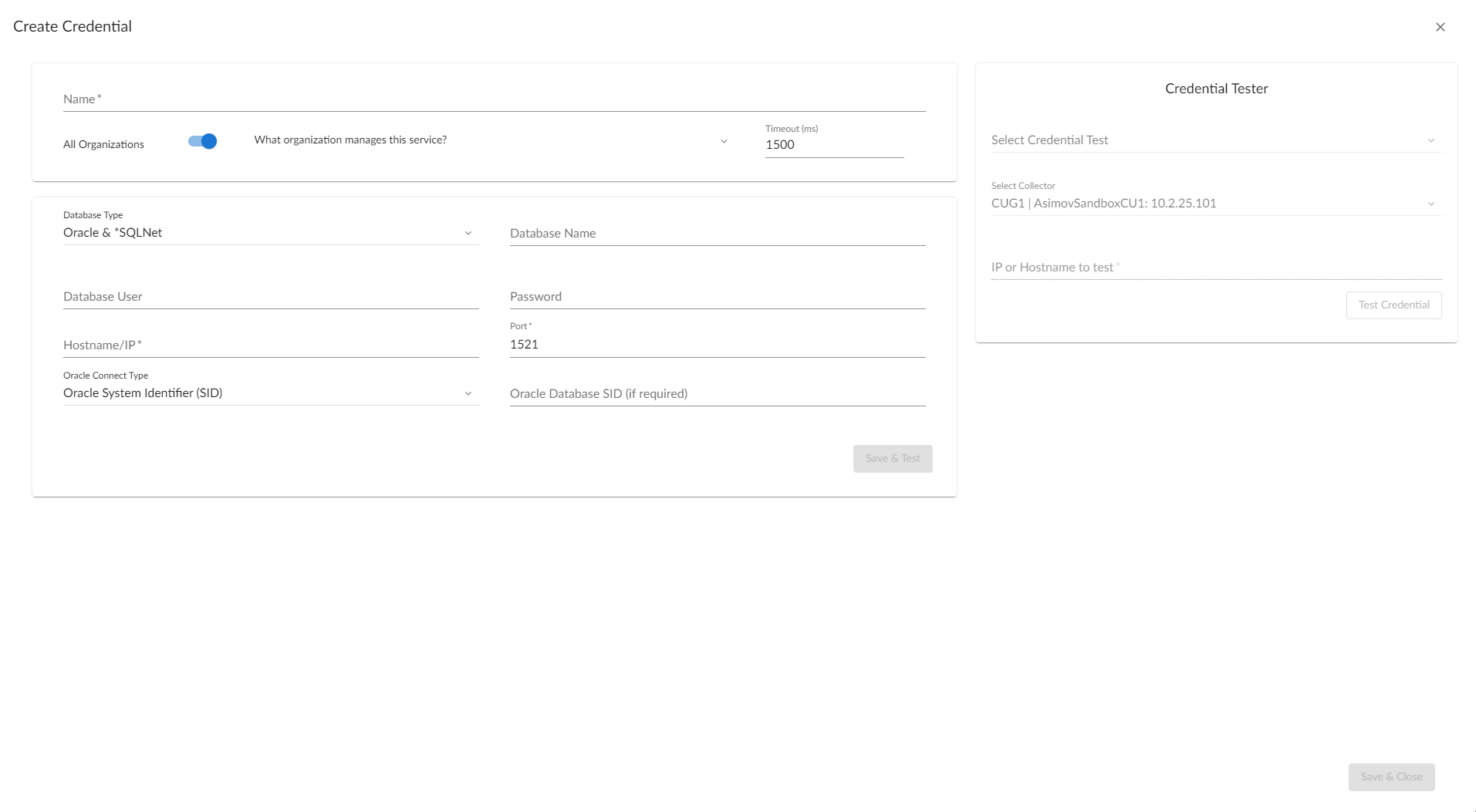
- Supply values in the following fields:
- Name. Type a name for the credential.
- All Organizations. Toggle on (blue) to align the credential to all organizations, or toggle off (gray) and then select one or more specific organizations from the What organization manages this service? drop-down field to align the credential with those specific organizations.
- Timeout (ms). Type a time, in milliseconds, after which Skylar One will stop trying to communicate with the database.
- Database Type. Select Oracle & *SQLNet.
- Database Name. Type the name of the database parent. If the database does not have a parent, type the name of the database to access.
- To discover CDBs, type the CDB's SID.
- To discover PDBs, type the SID of the parent CDB.
- To discover ASMs, type the SID of the ASM instance
- DB User. Type the username for the Oracle Database account.
- To discover CDBs, type the instance username.
- To discover PDBs, type the PDB instance username.
- To discover ASMs, use the recommended “ASMSNMP” username.
- Password. Type the password for the Oracle Database account.
- To discover CDBs, type the instance password.
- To discover PDBs, type the PDB instance password.
- To discover ASMs, type the ASM instance password.
- Hostname/IP. Type "%D" or the IP address where the database resides.
- Port. Type the port number associated with the database you want to access with this credential. For the Oracle and *SQLNet database type, the default value is 1521.
- To discover CDBs, type the listener port value.
- To discover PDBs, type the PDB listener port value.
- To discover ASMs, type the ASM listener port value.
Oracle Settings
- Oracle Connect Type. Select the method Skylar One should use to connect to the Oracle database, depending on your Oracle database setup. The choices supported by this PowerPack are:
- Oracle System Identifier (SID). Select this option if you want to discover a CDB or Non-CDB instance. PDBs do not typically have a SID.
- Oracle Real Application Clusters (SERVICE_NAME). Select this option if you want to discover a PDB instance, or if your setup uses SERVICE_NAME. Ensure that SERVICE_NAME points to a single instance for more precise monitoring.
ScienceLogic recommends selecting "Oracle System Identifier (SID) for better instance control, or "Oracle Real Application Clusters (SERVICE_NAME) if mapping to a single instance. The "Oracle Real Application Clusters (SERVICE_NAME)" field represents SERVICE_NAME, regardless of whether the database is RAC or not.
- Oracle Database SID. Type the SID or SERVICE_NAME, depending on the Oracle Connect Type selected in the Oracle Connect Type field.
- To discover CDBs, type the instance SID.
- To discover PDBs, type the PDB instance SERVICE_NAME.
- To discover ASMs, type the ASM instance SID
- To discover instances using TCPS, type the alias in your Skylar One tnsnames.ora file for the corresponding instance. Be sure to check the prerequisites for monitoring TCPS before choosing this option.
NOTE: Any PDB instance SERVICE_NAME or SID that you entered in the database credential should match the PDB alias in your Oracle DB tnsnames.ora file.
- Click .
NOTE: The credential ID will appear in the ID column of the Credentials page after it has been saved. Take note of the ID as you will need it when creating the SOAP/XML credential.
Creating a Database Credential in the Classic Skylar One User Interface
You must create a database credential if you want to monitor multiple CDB or PDB instances .
To create a database credential:
- Go to the Credential Management page (System > Manage > Credentials).
- In the Credential Management page, click the menu, then select Create Database Credential.
- The Credential Editor modal page appears. In this page, you can define the new database credential. To define the new credential, supply values in the following fields:
Basic Settings
- Profile Name. Type a name for the credential.
- DB Type. Select Oracle & *SQLNet.
- Database Name. Type the name of the database parent. If the database does not have a parent, type the name of the database to access.
- To discover CDBs, type the CDB's SID.
- To discover PDBs, type the SID of the parent CDB.
- To discover ASMs, type the SID of the ASM instance
- DB User. Type the username for the Oracle Database account.
- To discover CDBs, type the instance username.
- To discover PDBs, type the PDB instance username.
- To discover ASMs, use the recommended “ASMSNMP” username.
- Password. Type the password for the Oracle Database account.
- To discover CDBs, type the instance password.
- To discover PDBs, type the PDB instance password.
- To discover ASMs, type the ASM instance password.
- Hostname/IP. Type "%D" or the IP address where the database resides.
- Port. Type the port number associated with the database you want to access with this credential. For the Oracle and *SQLNet database type, the default value is 1521.
- To discover CDBs, type the listener port value.
- To discover PDBs, type the PDB listener port value.
- To discover ASMs, type the ASM listener port value.
Oracle Settings
- Oracle Connect Type. Select the method Skylar One should use to connect to the Oracle database, depending on your Oracle database setup. The choices supported by this PowerPack are:
- Oracle System Identifier (SID). Select this option if you want to discover a CDB or Non-CDB instance. PDBs do not typically have a SID.
- Oracle Real Application Clusters (SERVICE_NAME). Select this option if you want to discover a PDB instance, or if your setup uses SERVICE_NAME. Ensure that SERVICE_NAME points to a single instance for more precise monitoring.
ScienceLogic recommends selecting "Oracle System Identifier (SID) for better instance control, or "Oracle Real Application Clusters (SERVICE_NAME) if mapping to a single instance. The "Oracle Real Application Clusters (SERVICE_NAME)" field represents SERVICE_NAME, regardless of whether the database is RAC or not.
- Oracle Database SID. Type the SID or SERVICE_NAME, depending on the Oracle Connect Type selected in the Oracle Connect Type field.
- To discover CDBs, type the instance SID.
- To discover PDBs, type the PDB instance SERVICE_NAME.
- To discover ASMs, type the ASM instance SID
- To discover instances using TCPS, type the alias in your Skylar One tnsnames.ora file for the corresponding instance. Be sure to check the prerequisites for monitoring TCPS before choosing this option.
NOTE: Any PDB instance SERVICE_NAME or SID that you entered in the database credential should match the PDB alias in your Oracle DB tnsnames.ora file.
NOTE: Any PDB instance SID that you entered in the database credential should match the SID in your tnsnames.ora file. Your SOAP/XML credential can have the alias of the PDB instance SID.
- Click .
NOTE: The credential ID will appear at the top of the window after it has been saved. Take note of the ID as you will need it when creating the SOAP/XML credential.
Creating a SOAP/XML Credential
To create a SOAP/XML credential:
- Go to the Credentials page (Manage > Credentials).
- Locate the appropriate sample credential for your use case, then click its icon () and select Duplicate. A copy of the credential with its name and copy as a suffix appears.
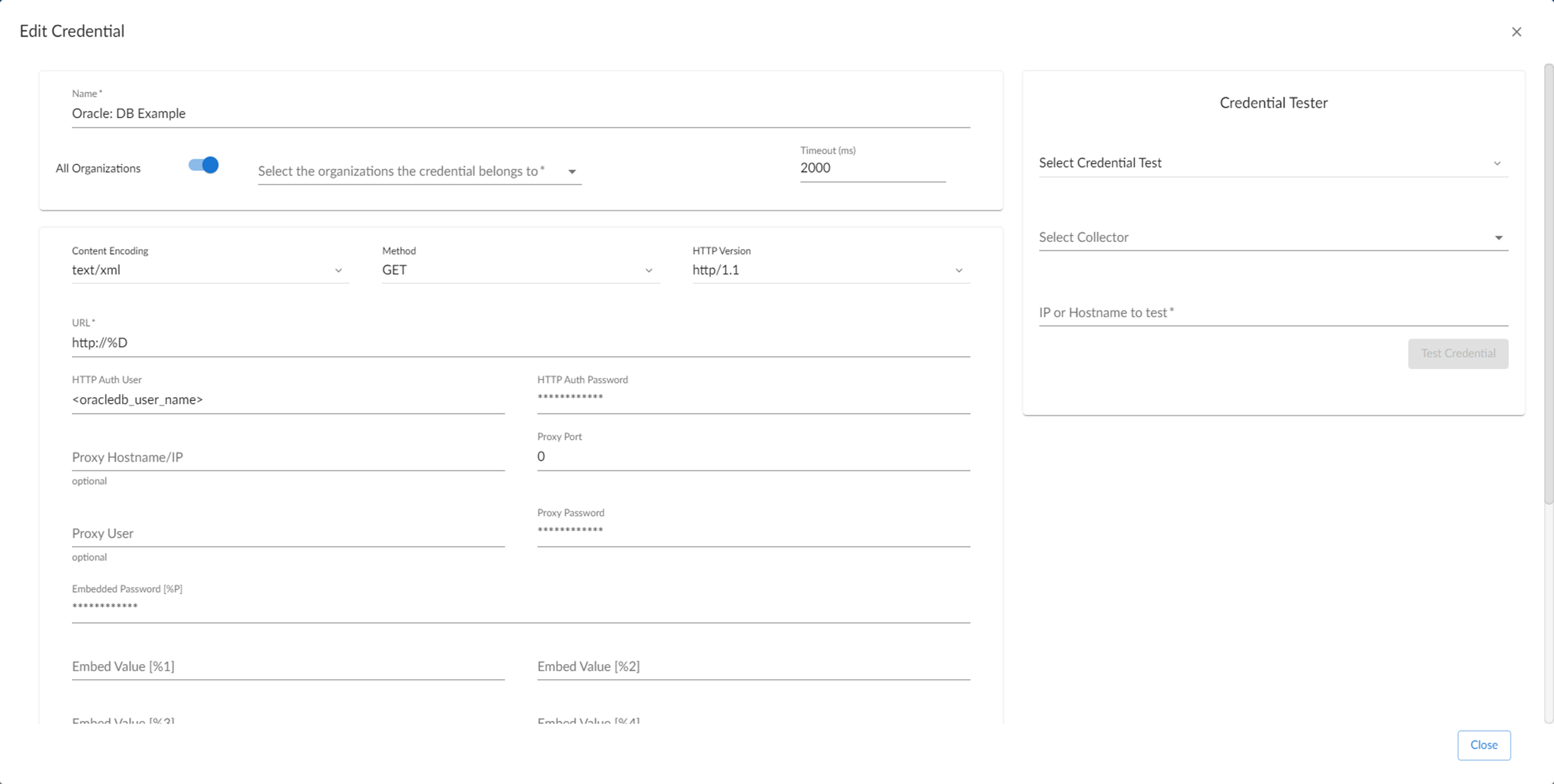
- Supply values in the following fields:
- Name. Type a new name for the credential.
- All Organizations. Toggle on (blue) to align the credential to all organizations, or toggle off (gray) and then select one or more specific organizations from the What organization manages this service? drop-down field to align the credential with those specific organizations.
- URL. Leave the default value of "https://%D".
- HTTP Auth User. This field is not required, but cannot be left blank. Enter any value here.
- HTTP Auth Password. This field is not required, but cannot be left blank. Enter any value here.
- HTTP Headers. Add the following headers by clicking + Add a header and see the following workflow that describes header formats based on the Oracle devices that you are monitoring.
Creating a SOAP/XML Credential in the Classic Skylar One User Interface
To create the SOAP/XML credential:
- Go to the Credential Management page (System > Manage > Credentials).
- Click the wrench icon () for either the chosen sample credential for Windows users. The Credential Editor modal page appears.
- Update the values in the following fields:
Basic Settings
- Profile Name. Type a new name for the credential.
- URL. Leave the default value of https://%D.
- HTTP Auth User. This field is not required, but cannot be left blank. Enter any value here.
- HTTP Auth Password. This field is not required, but cannot be left blank. Enter any value here.
NOTE: Discovering multiple instances on a single database server is supported, but all instances must share the same credentials entered in the SOAP/XML credential's HTTP Auth User and HTTP Auth Password fields.
- HTTP Headers. Add the following headers by clicking + Add a header and see the following workflow that describes header formats based on the Oracle devices that you are monitoring:
HTTP Headers
HTTP Headers allow you to register the Oracle Database servers you want to discover. Additionally, there are special keywords that can be used, described in the HTTP Headers Special Keywords section.
A header should be added for each Oracle Database instance that you are monitoring.
Only the SIDs listed in the credential will be discovered.
Do not end the HTTP header with a backslash.
Headers for Oracle DB Server OS:
-
SSH. <cred_id> for the SSH/Key credential you created.
Only one OS type is supported per credential.
Headers for PDBs
-
CDB SID. The SID of the CDB where the PDB is plugged in.
-
PDB NAME. Must always be in upper case. This can be retrieved with the following commands:
show pdbs
SELECT PDB_ID, DBID, GUID, PDB_NAME, STATUS FROM DBA_PDBS;
-
DB_CID. The ID of the Database credentials for the CDB and PDB
For the SID, the CDB value will always be either "True" or "False". For a PDB, the CDB value will be the container SID.
Example Use Case 1, assuming this Oracle DB:
| Instance | DB Credential ID | Parent CDB |
|---|---|---|
| cdb1 | 122 | N/A |
| PDB1 | 123 | cdb1 |
| PDB2 | 23456 | cdb1 |
SSH: 77
SID:cdb1:DB_CID:122:CBD:True
PDB:PDB1:DB_CID:123:CDB:cdb1
PDB:PDB2:DB_CID:23456:CDB:cdb1
Example Use Case 2, assuming this Oracle DB:
| Instance | DB Credential ID | Parent CDB |
|---|---|---|
| cdb2 | 332 | N/A |
| PDB3 | 333 | cdb2 |
SSH:78
SID:cdb2:DB_CID:332:CDB:true
PDB:PDB3:DB_CID:333:CDB:cdb2
Example Use Case 3, assuming this Oracle DB:
| Instance | DB Credential ID | Parent CDB |
|---|---|---|
| silo_cdb | 1241 | N/A |
| SILO_PDB55 | 1242 | silo_cdb |
SSH:55
SID:silo_cdb:DB_CID:1241:CDB:true
PDB:SILO_PDB55:DB_CID:1242:CDB:silo_cdb
Example Use Case 4, assuming this Oracle DB:
| Instance | DB Credential ID | Parent CDB |
|---|---|---|
| cdb1 | 56 | N/A |
| PDB1 | 111 | cdb1 |
| PDB2 | 222 | cdb1 |
| PDB3 | 333 | cdb1 |
| cdb2 | 77 | N/A |
| PDB1 | 90 | cdb2 |
SSH:100
SID:cdb1:DB_CID:56:CDB:true
PDB:PDB1:DB_CID:111:CDB:cdb1
PDB:PDB2:DB_CID:222:CDB:cdb1
PDB:PDB3:DB_CID:333:CDB:cdb1
SID:cdb2:DB_CID:77:CDB:true
PDB:PDB1:DB_CID:90:CDB:cdb2
Example Use Case 5, assuming this Oracle DB:
| Instance | DB Credential ID | Parent CDB |
|---|---|---|
| oraclecdb | 56 | N/A |
| PDB1 | 111 | oraclecdb |
| PDB2 | 222 | oraclecdb |
SSH:99
SID:oraclecdb:DB_CID:56:CDB:true
PDB:PDB1:DB_CID:111:CDB:oraclecdb
PDB:PDB2:DB_CID:222:CDB:oraclecdb
Be sure to put CDB:true as the last element in the header. If you do not, the PowerPack may report incorrectly that the SOAP credential is incorrect.
PDB headers must always be followed by their parent CDB.
Headers for RAC
This version of the Oracle: DatabasePowerPack is designed to monitor Oracle Real Application Clusters (RAC) environments. While comprehensive cluster-wide monitoring is limited, you can effectively monitor each RAC node individually by discovering and configuring them separately.
This section includes instructions for discovering Container Databases (CDBs). If your cluster includes Pluggable Databases (PDBs), please refer to the Monitoring Pluggable Databases (PDBs) section after completing this section. This section is also applicable to non-CDB environments.
- SID. The node SID.
- DB_CID. The ID of the database credential you created.
Example Use Case 1, assuming this Oracle DB:
| Instance | DB Credential ID | Parent CDB |
|---|---|---|
| cdbrac1 | 51 | N/A |
| cdbrac2 | 52 | N/A |
OS information will only be gathered from one node.
SSH:50
SID:cdbrac1:DB_CID:51
SID:cdbrac2:DB_CID:52
Example Use Case 2, assuming this Oracle DB:
| Instance | DB Credential ID | Parent CDB |
|---|---|---|
| cdbrac1 | 51 | N/A |
| PDB1 | 53 | cdbrac1 |
| cdbrac2 | 52 | N/A |
| PDB1 | 54 | cdbrac2 |
SSH:50
SID:cdbrac1:DB_CID:51:CDB:true
PDB:PDB1:DB_CID:53:CDB:cdbrac1
SID:cdbrac2:DB_CID:52:CDB:true
PDB:PDB1:DB_CID:54:CDB:cdbrac2
Example Use Case 3, assuming this Oracle DB:
| Instance | DB Credential ID | Parent CDB |
|---|---|---|
| cdbrac1 | 51 | N/A |
| PDB1 | 53 | cdbrac1 |
| cdbrac2 | 52 | N/A |
| PDB1 | 54 | cdbrac2 |
| cdbrac3 | 55 | N/A |
| +ASM1 | 56 | N/A |
| +ASM2 | 57 | N/A |
SSH:50
SID:cdbrac1:DB_CID:51:CDB:true
PDB:PDB1:DB_CID:53:CDB:cdbrac1
SID:cdbrac2:DB_CID:52:CDB:true
PDB:PDB1:DB_CID:54:CDB:cdbrac2
SID:cdbrac3:DB_CID:55
ASM:56
ASM:57
Example Use Case 4, assuming this Oracle DB and multiple SOAP/XML credentials to gather OS information from multiple nodes:
| Instance | DB Credential ID | Parent CDB |
|---|---|---|
| cdbrac1 | 51 | N/A |
| PDB1 | 53 | cdbrac1 |
| cdbrac2 | 52 | N/A |
| PDB1 | 54 | cdbrac2 |
| cdbrac3 | 55 | N/A |
SOAP/XML Credential 1:
SSH:50
SID:cdbrac1:DB_CID:51:CDB:true
PDB:PDB1:DB_CID:53:CDB:cdbrac1
SOAP/XML Credential 2:
SSH:56
SID:cdbrac2:DB_CID:52:CDB:true
PDB:PDB1:DB_CID:54:CDB:cdbrac2
SOAP/XML Credential 3:
SSH:57
SID:cdbrac3:DB_CID:55
This configuration will likely cause duplicate collection and event generation.
Headers for Non-CDB
Headers for non-CDBs are handled like the headers for CDBs, but the PDB header is not included.
Example Use Case 1, assuming this Oracle DB:
| Instance | DB Credential ID |
|---|---|
| rac1 | 51 |
| rac2 | 52 |
SSH:50
SID:rac1:DB_CID:51
SID:rac2:DB_CID:52
Example Use Case 2, assuming this Oracle DB:
| Instance | DB Credential ID |
|---|---|
| orcl | 52 |
SSH:51
SID:orcl:DB_CID:52
Example Use Case 3, assuming this Oracle DB:
| Instance | DB Credential ID |
|---|---|
| devdb | 52 |
| testdb | 54 |
| prod1 | 56 |
| staging | 59 |
| qaenv | 57 |
SSH:51
SID:devdb:DB_CID:52
SID:testdb:DB_CID:54
SID:prod1:DB_CID:56
SID:staging:DB_CID:59
SID:qaenv:DB_CID:57
Headers for ASM
Headers for ASMs only need to include the credential ID.
Example Use Case 1, assuming this Oracle DB:
| Instance | DB Credential ID |
|---|---|
| cdbrac1 | 51 |
| cdbrac2 | 52 |
| +ASM1 | 53 |
| +ASM2 | 54 |
SSH:50
SID:cdbrac1:DB_CID:51
SID:cdbrac2:DB_CID:52
ASM:53
ASM:54
Example Use Case 2, assuming this Oracle DB:
| Instance | DB Credential ID |
|---|---|
| orcl | 52 |
| +ASM1 | 53 |
SSH:51
SID:orcl:DB_CID:52
ASM:53
Headers for TCPS
To force the PowerPack use TCPS, you must add a header with “TCPS:/path/to/instant_client”. By adding this header, every instance listed in the headers will reference the Skylar One tnsnames.ora file, so it is important to ensure that all required instances are included in the tnsnames.ora file.
Example Use Case 1, assuming this Oracle DB:
-
Skylar One Collector's Oracle Instant Client path: /opt/oracle/instant_client_21_15
| Instance | DB Credential ID | Parent CDB |
|---|---|---|
| cdbrac1 | 51 | N/A |
| PDB1 | 53 | cdbrac1 |
SSH:50
SID:cdbrac1:DB_CID:51:CDB:true
PDB:PDB1:DB_CID:53:CDB:cdbrac1
TCPS:/opt/oracle/instant_client_21_15
Example Use Case 2, assuming this Oracle DB:
-
Skylar One Collector's Oracle Instant Client path: /opt/oracle/instant_client_19_24
| Instance | DB Credential ID | Parent CDB |
|---|---|---|
| orcl | 52 | N/A |
| PDBPROD | 54 | orcl |
| +ASM1 | 53 | N/A |
SSH:51
SID:orcl:DB_CID:52:CDB:true
PDB:PDBPROD:DB_CID:54:CDB:orcl
ASM:53
TCPS:/opt/oracle/instant_client_19_24
Deprecated HTTP Configuration Headers
The following headers have been deprecated and will no longer function:
- HOST. This header was previously used to specify a default host for all SIDs listed under a SOAP/XML credential. This was useful if your Oracle DB was hosted on a different machine than the OS server.
- PORT. This header was used to specify the port number for database instances in the SOAP/XML credential. This method is retained for compatibility but is now outdated. ScienceLogic recommends using DB_CID for new configurations.
- SERVICE_NAME. This header was used to specify the service name of the Oracle database. This header was part of an older configuration method and is now obsolete with the introduction of DB_CID. ScienceLogic does not recommend using SERVICE_NAME with DB_CID.
- TNS_ADMIN. This header was used to specify the Oracle network path.
- GRID_PATH. This header was used to specify the Oracle GRID network path.
- TYPE_OF_OS. This header was used to specify the Operating System type.
- PSH. This header was used to specify the PowerShell credential.
Enabling PEM on a Linux Machine
Linux and Unix users can create an SSH/Key credential in order to monitor Oracle Database instances in Skylar One. The Private Key (PEM Format) field may be filled when creating an SSH/Key credential. To enable PEM on a Linux machine, perform the following steps:
- Create a PEM folder to place the identity keys by running the following command:
mkdir -p ~s/.ssh
ScienceLogic suggests that you create a PEM folder inside the .ssh folder of the user that will use the PEM authentication.
- Run the following command on your Linux machine to create the SSH key. This command will create public and private keys:
ssh-keygen -b 2048 -t rsa -f ~/.ssh/identity
When prompted for a password, you can press to leave it blank and move forward. You will be prompted for a password every time the system runs a Dynamic Application.
The value "identity" in the command above will be the name of the file that is generated. This value can be replaced with any file name.
- The private key generated from this command is the .pem file needed for the SSH/Key credential. Copy the contents of the file to input into the Skylar One credential.
- Add the generated public key to the authorized_keys file that is found in ~/.ssh/authorized_keys manually or by using the following command:
cat ~/.ssh/identity.pub >> ~/.ssh/authorized_keys
- Restart the SSH service by running the following command:
sudo service ssh restart
After completing the steps above, you can create an SSH/Key credential in Skylar One by entering your Linux server username, Linux server password, and private key. If you would like to create an SSH/Key credential by entering only your Linux server username and private key, perform the following steps on your Linux machine:
- Find the sshd_config file.
- Find the PasswordAuthentication command line, delete yes, and input no.
- Restart the SSH service by running the following command:
sudo service ssh restart
Discovering Oracle Database Instances
To create and run a discovery session that will discover an Oracle instance, perform the following steps:
- On the Devices page (
 ) or the Discovery Sessions page (Devices > Discovery Sessions), click the button. The Select page appears:
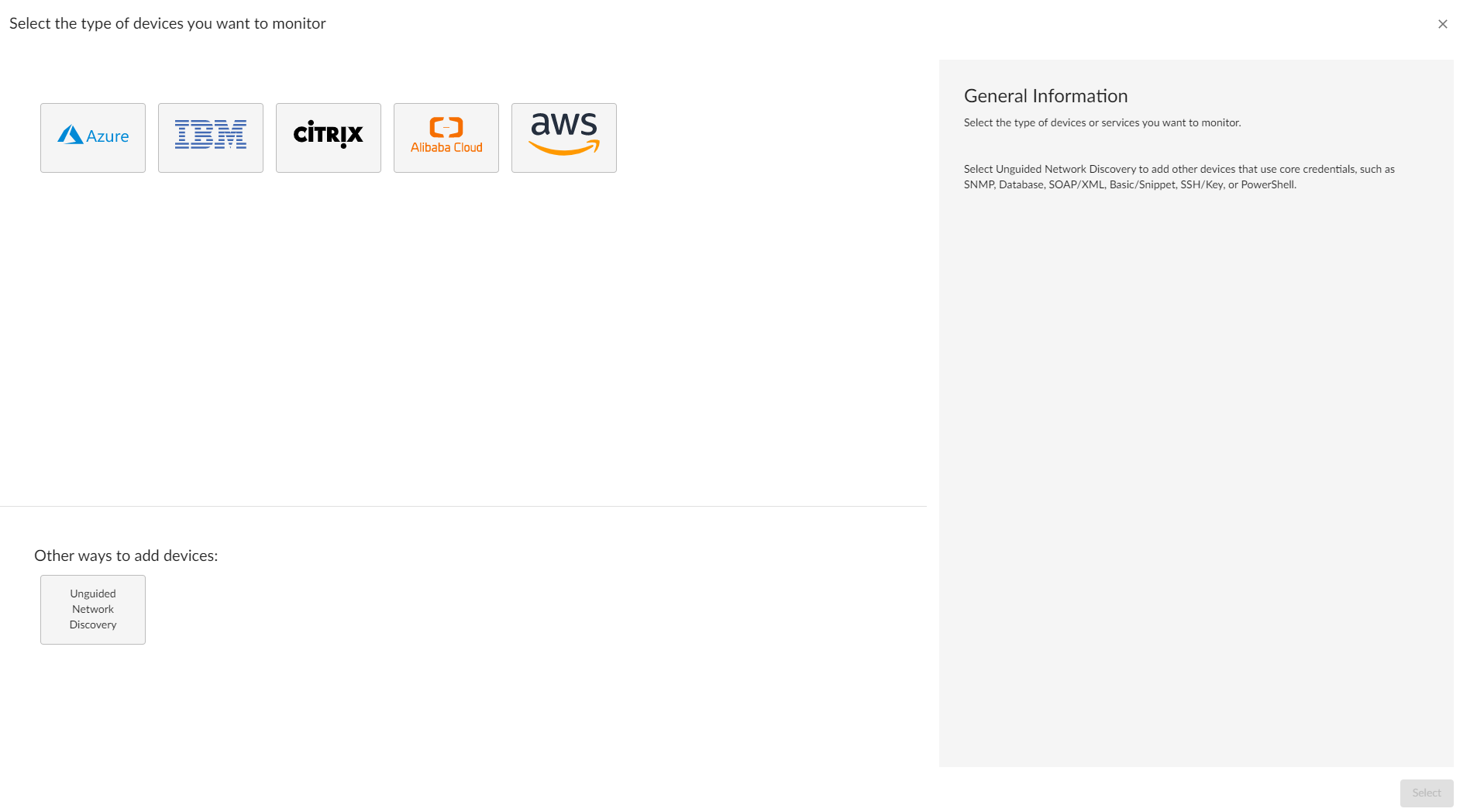
- Click the button. Additional information about the requirements for discovery appears in the General Information pane to the right.
- Click . The Add Devices page appears:
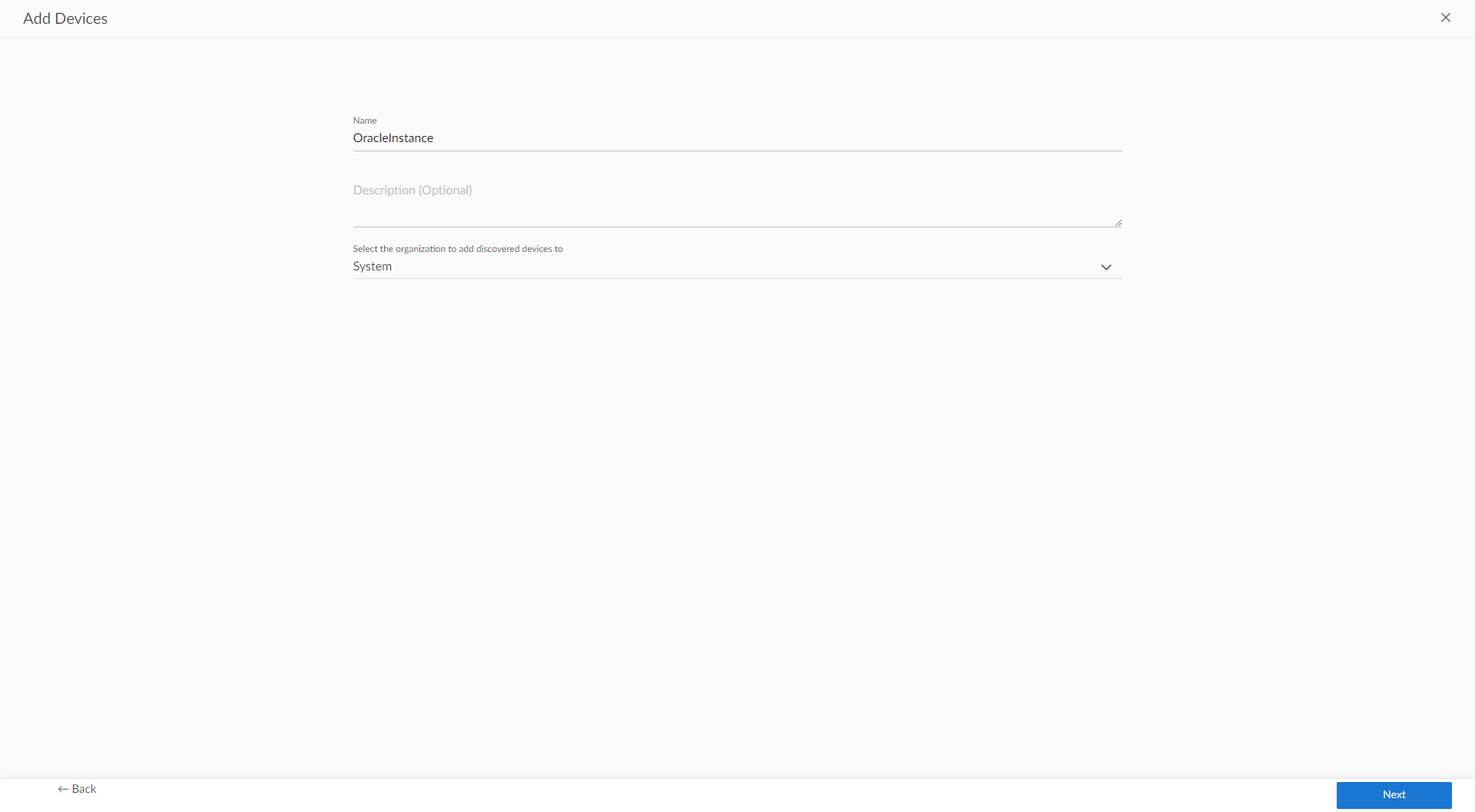
- Complete the following fields:
- Name. Type a unique name for this discovery session. This name is displayed in the list of discovery sessions on the tab.
- Description. Optional. Type a short description of the discovery session. You can use the text in this description to search for the discovery session on the tab.
- Select the organization to add discovered devices to. Select the name of the organization to which you want to add the discovered devices.
- Click . The Credentials page of the Add Devices wizard appears:
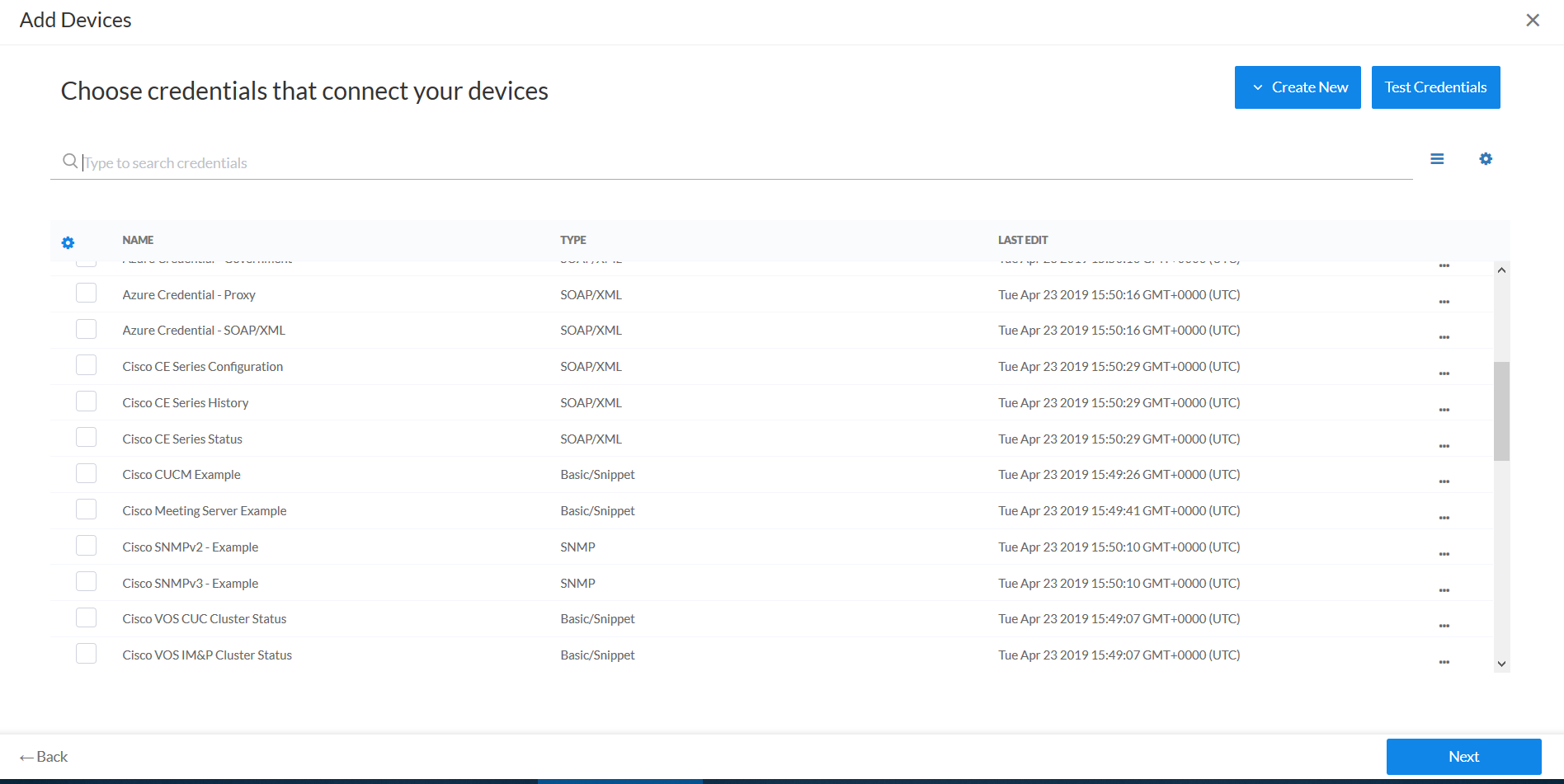
- On the Credentials page, select the SOAP/XML credential you created.
- Click . The Discovery Session Details page of the Add Devices wizard appears:
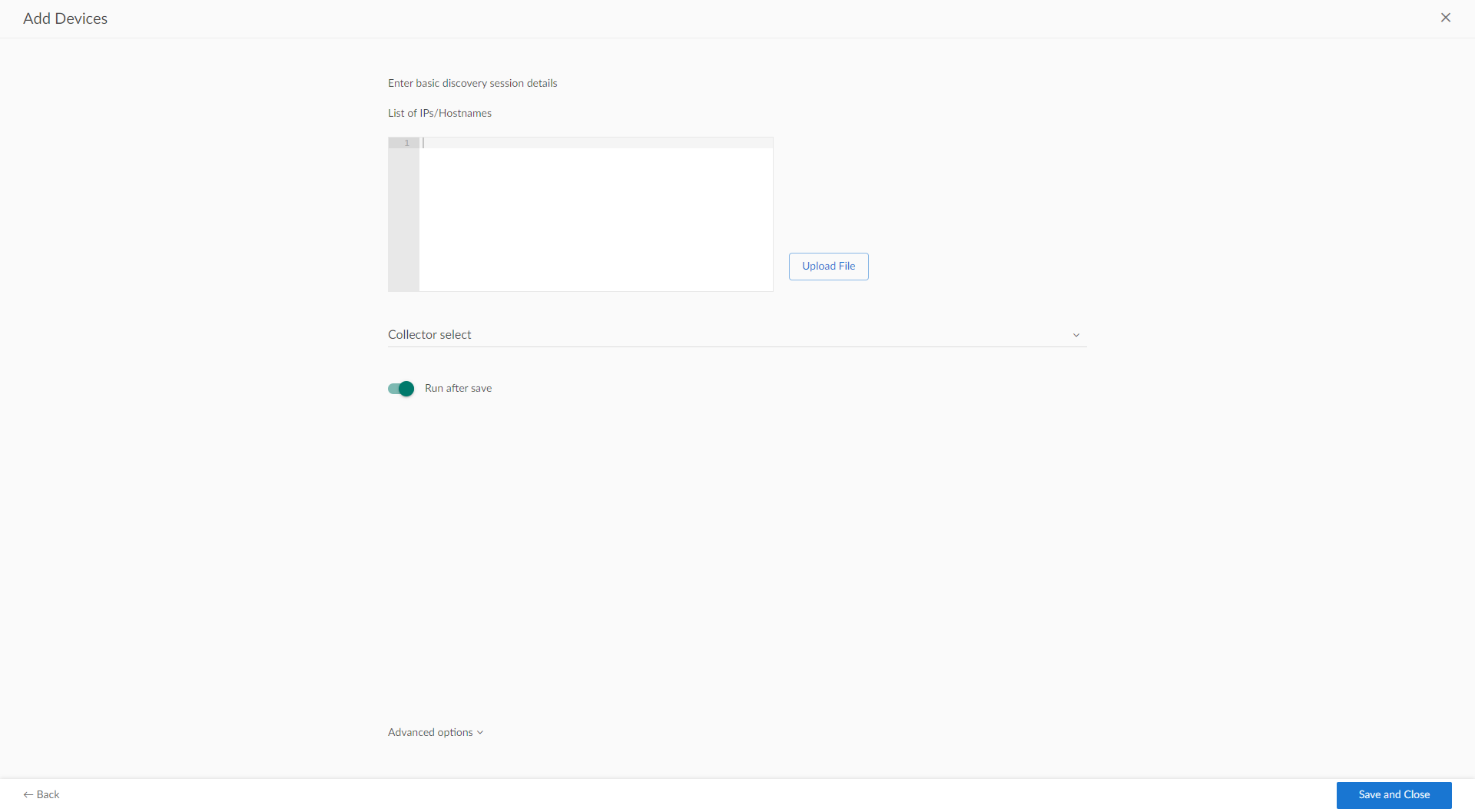
- Complete the following fields:
- List of IPs/Hostnames. Type the IP address for the server that is hosting your Oracle Database.
- Which collector will monitor these devices?. Select an existing collector to monitor the discovered devices. Required.
- Run after save. Select this option to run this discovery session as soon as you click .
In the Advanced options section, click the down arrow icon ( ) to complete the following fields:
- Discover Non-SNMP. Enable this setting.
- Model Devices. Enable this setting.
- Click to save the discovery session. The Discovery Sessions page (Devices > Discovery Sessions) displays the new discovery session.
- If you selected the Run after save option on this page, the discovery session runs, and the Discovery Logs page displays any relevant log messages. If the discovery session locates and adds any devices, the Discovery Logs page includes a link to the Device Investigator page for the discovered device.
Discovering Oracle Database Instances in the Skylar One Classic User Interface
To model and monitor your Oracle Database instances, you must run a discovery session. To create and run a discovery session that will discover your Oracle Database instances, perform the following steps:
- Go to the Discovery Control Panel page (System > Manage > Classic Discovery or System > Manage > Discovery in the classic user interface).
- Click the button to create a new discovery session. The Discovery Session Editor window appears:
- Enter values in the following fields:
- IP Address Discovery List. Type the IP address for the server that is hosting your Oracle Database. One discovery session per server is supported.
- Other Credentials. Select the SOAP/XML credential that you configured in the previous section.
- Discover Non-SNMP. Select this checkbox.
- Model Devices. Select this checkbox.
- You can enter values in the other fields on this page, but are not required to and can simply accept the default values. For more information about the other fields on this page,
- Click the button and then close the Discovery Session Editor window.
- The discovery session you created will appear at the top of the Discovery Control Panel page. Click its lightning-bolt icon (
 ) to run the discovery session.
 - The Discovery Session window will be displayed.
- When the server that is hosting the Oracle Database is discovered, click its device icon (
 ) to view the Device Properties page for that device.
 - After the server hosting the Oracle Database is discovered, the "Oracle: DB Instance Discovery" Dynamic Application will automatically be aligned. This Dynamic Application will discover the Oracle Database instances which will appear in the Device Manager page.
Verifying Discovery and Dynamic Application Alignment
During discovery, Skylar One will first identify the root device, followed by the associated Oracle Database instance, whether it's a CDB, PDB, non-CDB, or RAC node, depending on the configuration in the SOAP/XML credential header. All relevant Dynamic Applications will then be automatically aligned to the discovered components, ensuring accurate monitoring and configuration.
If you discovered a non-CDB in a Windows instance, the "Oracle: DB Archived File System Stats" and "Oracle: DB Non-Archived File System Stats" Dynamic Applications will not be aligned.
To verify alignment of the Oracle Database Dynamic Applications:
- After discovery has completed, click the device icon for the Oracle device (). From the Device Properties page for the Oracle device, click the tab. The Dynamic Application Collections page appears.
It can take two to three polling cycles after the discovery session has completed for Dynamic Applications to appear in the Dynamic Application Collections page.
- All applicable Dynamic Applications are automatically aligned to the root device and component devices during discovery:
You should see the following Dynamic Applications aligned to the root device:
- Oracle: DB Instance Discovery
- Oracle: DB Server Config
- Oracle: DB ASM Discovery
- Oracle: DB ASM Diskgroup Config
- Oracle: DB ASM Diskgroup Stats
- Oracle: DB ASM Disks Config
- Oracle: DB ASM Disks Stats
- Oracle: DB RAC Disk Group Space Stats
- Oracle: DB RAC Flash Recovery Stats
- Oracle: DB RAC Global Cache Stats
Using an Oracle PP on an existing Linux device will not interfere with the historical data on the device. Instead, the Oracle will align at the root with the other Linux Dynamic Applications.
You should see the following Dynamic Applications aligned to ASM:
- Oracle: DB ASM Instance Config
You should see the following Dynamic Applications aligned to CDB:
- Oracle: DB Archived File System Stats
- Oracle: DB Non-Archived File System Stats
- Oracle: DB Instance Config
- Oracle: DB PDB Discovery
- Oracle: DB RMAN Backup Status Config
You should see the following Dynamic Applications aligned to PDB Oracle Database instances:
- Oracle: DB Archived File System Stats
- Oracle: DB Blocking Session
- Oracle: DB Non-Archived File System Stats
- Oracle: DB Instance Config
- Oracle: DB Chained Row Stats
- Oracle: DB Data Guard Gap Stats
- Oracle: DB Database Size Stats
- Oracle: DB Instance Invalid Object Stats
- Oracle: DB Integrity Metrics Stats
- Oracle: DB Logswitch Rate Stats
- Oracle: DB Long Running Session
- Oracle: DB Open Cursors per Session Stats
- Oracle: DB Performance Stats
- Oracle: DB Resource Stats
- Oracle: DB Session Stats
- Oracle: DB Tablespace Stats
- Oracle: DB Tablespace Temp Stats
- Oracle: DB Components Status Config
- Oracle: DB Log Alerts Config
- Oracle: DB Tablespaces and Datafiles Status Config
You should see the following Dynamic Applications aligned to non-CDB Oracle Database instances:
- Oracle: DB Archived File System Stats
- Oracle: DB Blocking Session
- Oracle: DB Non-Archived File System Stats
- Oracle: DB Instance Config
- Oracle: DB Chained Row Stats
- Oracle: DB Data Guard Gap Stats
- Oracle: DB Database Size Stats
- Oracle: DB Instance Invalid Object Stats
- Oracle: DB Integrity Metrics Stats
- Oracle: DB Logswitch Rate Stats
- Oracle: DB Long Running Session
- Oracle: DB Open Cursors per Session Stats
- Oracle: DB Performance Stats
- Oracle: DB Resource Stats
- Oracle: DB Session Stats
- Oracle: DB Tablespace Stats
- Oracle: DB Tablespace Temp Stats
- Oracle: DB Components Status Config
- Oracle: DB Log Alerts Config
- Oracle: DB Tablespaces and Datafiles Status Config
Snippet and Snippet Argument Configuration for New Oracle Dynamic Applications
Snippet arguments can be used for simple queries consisting of only SELECT and WHERE. Complex queries must be defined in the snippet.
Running Raw SQL Queries from the Snippet
You can run raw SQL queries in the snippets in Dynamic Applications by going to the tab on your Dynamic Application (Manage > Applications > Dynamic Application > Snippet Editor & Registry) and selecting the snippet from the Snippet Registry.
For Discovery Dynamic Applications, you can use the following:
- SQLDiscovery class
- ASMDiscovery class
For Collection Dynamic Applications, you can use the following:
- SQLCollector class
- ASMCollector class
Step 1: What Do You Want to Collect?
To run raw SQL queries from a snippet you first need to know what you want to collect. ScienceLogic recommends that you start with a list of simple queries that you want to run against Oracle. You can add more queries to the list later. For example:
SELECT dbms_utility.port_string AS port_string FROM dual;
Complex or nested subqueries in the example below are not supported:
SELECT (SELECT username FROM dba_users WHERE ROWNUM =1) AS user_example FROM dual;
ScienceLogic recommends using SELECT column FROM table patterns when running SQL queries from a snippet.
Step 2: How Do I Set Up the SQL_LIST
In your Python Dynamic Application script, you must define the list of SQL queries you want to execute. For example:
SQL_LIST = [
"SELECT dbms_utility.port_string AS port_string FROM dual",
"SELECT platform_name FROM v$database"
]
Step 3: What Does the SLQCollector Class Do?
The SQLCollector class is a helper class that handles the following processes:
- connecting to the database
- executing your queries
- mapping the results back to the collection objects for the Dynamic Applications
Step 4: How Do I Use the SQLCollector Correctly?
After you narrow down which data you want to collect and have defined your list of SQL queries, you can use the SQLCollector inside the Dynamic Application script. For example:
from silo.apps.errors import ErrorManager
from silo.oracle_db.sql_manager import SQLCollector
SQL_LIST = [
"SELECT dbms_utility.port_string AS port_string FROM dual",
"SELECT platform_name FROM v$database"
]
with ErrorManager(self):
manager = SQLCollector(
self,
cluster_wide=True,
as_sysdba=False,
first_column_is_index=False
)
manager.collect (SQL_LIST)
Step 5: How Do I Match SQL Columns to Skylar One Collection Objects?
It is critical that each column returned by your SQL query must match a collection object in the tab of the Dynamic Application. For example, if your query is:
SELECT dbms_utility.port_string AS port_string FROM dual;
Your collection object OID must exactly match as:
port_string
If the query does not match the collection object listed in the Dynamic Application, the Dynamic Application cannot collect any data.
Column names are case-sensitive in Skylar One. To clarify, Port_String is not the same as port_string.
Parameters for Running Raw SQL Queries
To run raw SQL queries, you can use the following parameters to optimize your query:
- cluster_wide (default: False). Run this query once per RAC cluster instead of once per instance.
- If True: the query is executed only once per RAC cluster, usually on the first instance.
- If False: the query is executed on each Oracle instance individually.
- as_sysdba (default: False). Connect using SYSDBA privileges which is required for some views.
- If True: connects to Oracle using the SYSDBA role.
- Required for some views (e.g., v$archived_log), especially when connecting as a non-privileged user.
ScienceLogic recommends that you only enable as_sysdba if your Oracle credentials require SYSDBA access. Otherwise, the connection might fail.
- first_column_is_index (default: False). The first column is a unique index for multiple rows.
- If True: Skylar One will treat the first column returned by the query as the index for a multi-instance collection object.
- Useful when returning multiple rows, e.g., SELECT name, value FROM v$parameter.
- If False, Skylar One assumes this is a single-instance value or ignores the first column for indexing.
- If True: Skylar One will treat the first column returned by the query as the index for a multi-instance collection object.
- current_instance_only (default: False). Limit query results to the current Oracle instance only.
- If True: restricts the query to return data only for the current Oracle instance.
- Useful in RAC environments to avoid collecting data from other nodes or shared views.
- If True: restricts the query to return data only for the current Oracle instance.
Running SSH Commands from a Snippet
You can run SSH commands the snippets in Dynamic Applications by going to the tab and selecting the snippet from the Snippet Registry.
For example, in the "Oracle: DB Non-Archived File System Stats" Dynamic Application, you can edit the snippet to include an SSH command in the following way:
ssh.append("your_ssh_command")
ssh_results = ssh_collector.run_commands(ssh)
Viewing Oracle Component Devices
In addition to the Devices page, you can view the Oracle Database and all associated component devices in the following places in the user interface:
- The Device Investigator Map page (click Map in the Device Investigator page) displays a map of a particular device and all of the devices with which it has parent-child relationships. Double-clicking any of the listed devices reloads the page to make the selected device the primary device.
- The Device Components page (Devices > Device Components) displays a list of all root devices and component devices discovered by Skylar One. The Device Components page displays all root devices and component devices in an indented view, so you can easily view the hierarchy and relationships between child devices, parent devices, and root devices. To view the component devices associated with an Oracle Database, find the Oracle Database and click its plus icon (+).
- The Component Map page (Classic Maps > Device Maps > Components) allows you to view devices by root node and view the relationships between root nodes, parent components, and child components in a map. This makes it easy to visualize and manage root nodes and their components. Skylar One automatically updates the Component Map as new component devices are discovered. The platform also updates each map with the latest status and event information. To view the map for an Oracle Database, go to the Component Map page and select the map from the list in the left NavBar. To learn more about the Component Map page,
Viewing Oracle Component Devices in the Classic Skylar One User Interface
In addition to the Device Manager page (Devices > Classic Devices, or Registry > Devices > Device Manager in the classic user interface), you can view the Oracle Database instances and all associated component devices in the following places in the user interface:
- The Device View modal page (click the bar-graph icon [
 ] for a device, then click the Topology tab) displays a map of a particular device and all of the devices with which it has parent-child relationships. Double-clicking any of the devices listed reloads the page to make the selected device the primary device.
- The Device Components page (Devices > Device Components) displays a list of all root devices and component devices discovered by Skylar One in an indented view, so you can easily view the hierarchy and relationships between child devices, parent devices, and root devices. To view the component devices associated with an Oracle Database instance, find the Oracle device and click its plus icon (+).
- The Component Map page (Classic Maps > Device Maps > Components) allows you to view devices by root node and view the relationships between root nodes, parent components, and child components in a map. This makes it easy to visualize and manage root nodes and their components. Skylar One automatically updates the Component Map as new component devices are discovered. The platform also updates each map with the latest status and event information. To view the map for an Oracle Database instance, go to the Component Map page and select the map from the list in the left NavBar. To learn more about the Component Map page,