
This
After you align the Skylar Automation applications in this SyncPack with the corresponding run book automation in Skylar One, whenever Skylar One detects a new, acknowledged, or cleared event, Skylar Automation creates or updates a corresponding incident in ServiceNow.
Workflow for Configuring the SyncPack
The following workflows describe how to configure ServiceNow, Skylar One and Skylar Automation to work with Incident Sync.
Configuring ServiceNow
Use the Guided Setup process to configure an integration user account, configure a Skylar One Incident Integration Application role, and connect to Skylar Automation.
Configuring Skylar One
- Create a ServiceNow credential in Skylar One
- Enable the following run book automation policies in Skylar One:
- "ServiceNow: [Incident] - Add/Update"
- "ServiceNow: [Incident] - Event Acknowledged"
- "ServiceNow: [Incident] - Event Cleared
- Enable and customize the "ServiceNow: Add/Update/Clear Incident" run book action policy
- Optionally, send custom data to ServiceNow using the passthrough option
- Optionally, enable and configure the "ServiceNow: Click to Create Incident" policy
- Optionally, enable run book automation queue retries
Configuring Skylar Automation
- Create a configuration object in the Skylar Automation user interface
- Configure the following Skylar Automation applications:
- "Cache Skylar One Users"
- "Sync Cached Events to ServiceNow"
- "Sync Skylar One Event to ServiceNow Incident"
- "Sync Incident Details from ServiceNow to Skylar One Events"
Overview of the Run Book Automation for Incident Sync
You can configure a run book automation to ensure that whenever Skylar One detects a new, acknowledged, or cleared event, a corresponding incident is created or updated in ServiceNow.
The "ServiceNow: Add/Update/Clear Incident" run book action policy is responsible for sending the Skylar One payload to Skylar Automation. Skylar Automation then sends that payload to ServiceNow and creates, updates, acknowledges, or clears an incident, as needed.
Skylar One features three run book automation policies that facilitate this process:
- ServiceNow: [Incident] Add/Update
- ServiceNow: [Incident] Event Acknowledged
- ServiceNow: [Incident] Event Cleared
A fourth run book automation policy, "ServiceNow: [Incident] Click to Create" lets you manually create an incident in ServiceNow by clicking the life-preserver icon ( ) in Skylar One. For more information, see Configuring the "ServiceNow: [Incident] Click to Create" Automation Policy.
The "Sync Incident State from ServiceNow to Skylar One Event" application does not have an associated run book action that triggers Incident Sync. You must schedule this application to run every minute, or to a time suitable for your requirements. You can use a cron job to trigger this schedule, or you can use the Skylar Automation user interface to schedule the application. For more information about scheduling, see Scheduling a Skylar Automation Application.
Each run book automation policy calls a single action in Skylar One. Ensure that the configuration object aligned with the Skylar Automation application points to the relevant Skylar One system and ServiceNow instance. The run book action then calls a Skylar Automation application that determines the workflow to execute.
Events in Skylar One frequently occur and resolve due to fluctuations in the network and other changing conditions. However, the run book automation policies above use a de-duplication algorithm to ensure that only a single open ServiceNow incident exists per device.
If a device already has an existing ServiceNow incident, the following updates are made:
- The "Work Notes" is updated when there is an Acknowledge action.
- Impact and Urgency are updated, if they are different.
- The State is updated, and the Assigned to field is cleared when an incident state moves from Resolved to In Progress.
- If an event is cleared in Skylar One and then later reoccurs before the incident has been "Closed" in ServiceNow, then the subsequent events appear in the original ServiceNow incident record for that device. If an incident record has been "Closed," then ServiceNow will create a new incident record when a cleared event reoccurs in Skylar One.
- By default, if an event is acknowledged in Skylar One, the ServiceNow incident record will be updated with the work notes and the acknowledging user. Clearing a Skylar One event will move the ServiceNow incident record state to "Resolved". If all Skylar One events associated with a ServiceNow incident record are clear, the ServiceNow incident record will, by default, move to a "Resolved" state.
You can edit the snippet code in the run book action to adjust the behavior for changing states when a Skylar One event is acknowledged or cleared. For more information, see Customizing the Snippet Code in the Input Parameters Pane.
Configuring ServiceNow
In ServiceNow, you can use the Guided Setup process to configure an integration user account, configure a Skylar One Incident Integration Application role, and connect to Skylar Automation .
To use the Guided Setup process in ServiceNow
-
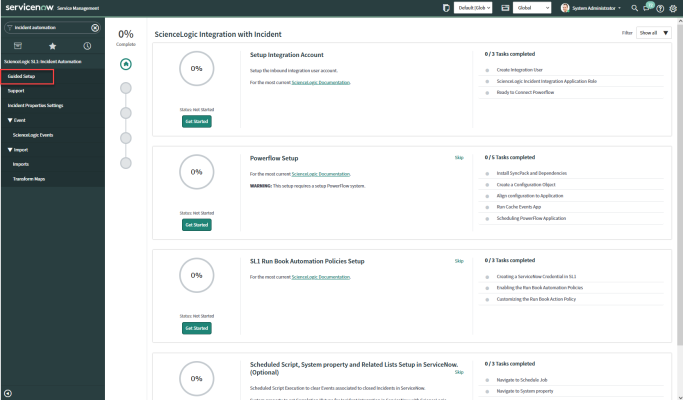
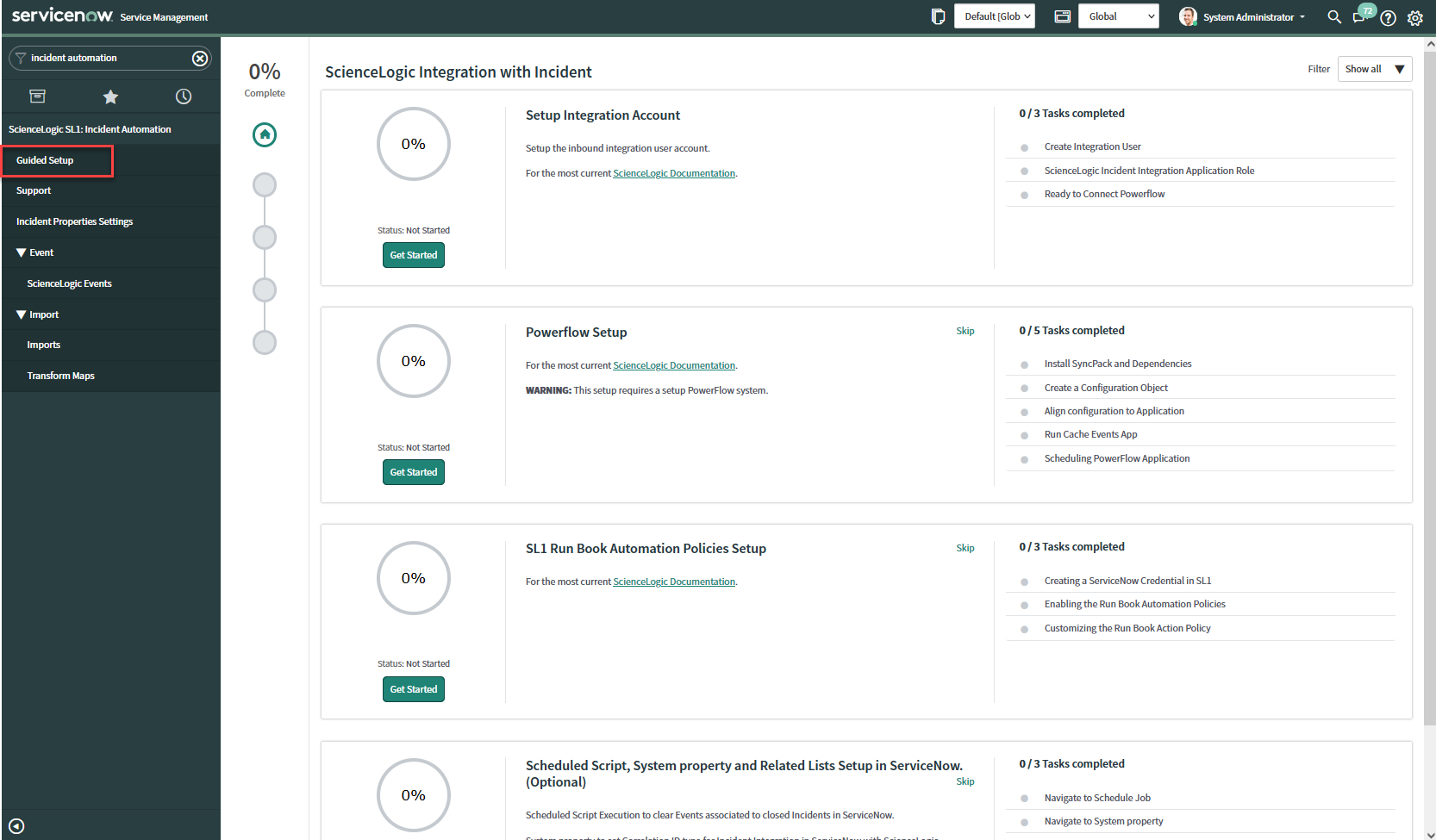
In ServiceNow, go to ScienceLogic Skylar One: Incident Automation > Guided Setup. The ScienceLogic Integration with Incident page appears:
-
In the Setup Integration Account section, click and complete the tasks in order.
-
Click button to configure each task.
-
After you complete each task, click .
-
After you finish all the tasks in the Setup Integration Account section, complete the steps in the Skylar Automation Setup section and Skylar One Run Book Automation Policies Setup section.
These tasks are explained in the Guided Setup sections in ServiceNow , and they are also explained in this manual.
-
Optionally, you can run the steps in the Scheduled Script, System property and Related Lists Setup in ServiceNow section.
Configuring Skylar One
The following topics cover how to set up your Skylar One instance to work with Incident Sync.
Creating a ServiceNow Credential in Skylar One
To configure Skylar One to communicate with ServiceNow, you must first create a SOAP/XML credential. This credential allows the run book automations in the "ServiceNow Base Pack" PowerPack to connect with your ServiceNow instance. These run book automations are responsible for sending the Skylar One event data to Skylar Automation, which ultimately sends the data to ServiceNow.
The ServiceNow RBA - Example credential from the "ServiceNow Base Pack" PowerPack is an example SOAP/XML credential that you can configure for your own use.
To configure the ServiceNow RBA - Example credential:
- In Skylar One, go to the Credential Management page (System > Manage > Credentials).
-
Locate the ServiceNow RBA - Example credential and click its wrench icon (
 ). The Edit SOAP/XML Credential page appears.
- Complete the following fields:
- Profile Name. Type a new name for the ServiceNow credential.
- Timeout. Leave as the default of "5000" ms.
- Content Encoding. Make sure text/xml is selected.
- Method. Make sure POST is selected.
- HTTP Version. Select http/1.1.
- URL. Type the URL for your Skylar Automation instance.
- HTTP Auth User. Type the username of your Skylar Automation instance.
- HTTP Auth Password. Type the password of your Skylar Automation instance.
-
Click . The credential is added to the Credentials page
-
On the Credentials page, make a note of the value in the ID column for the credential you just created. You will use this value with the sl1_credential_id parameter when you enable the snippet code of the "ServiceNow: Add/Update/Clear (Case/Event/Incident)" run book action policy.
Enabling the Run Book Automation Policies
Versions 104 and later of the "ServiceNow Base Pack" PowerPack separated these run book action policies by Cases, Events, and Incident, such as "ServiceNow: [Incidents] - Add/Update".
Before you can run the "ServiceNow: Add/Update/Clear" run book action, you must enable the incident specific run book automation policies in Skylar One:
- ServiceNow: [Incident] - Add/Update
- ServiceNow: [Incident] - Event Acknowledged
- ServiceNow: [Incident] - Event Cleared
Version 106 and later of the "ServiceNow Base Pack" PowerPack aligned all default Incident Automation policies with the new "ServiceNow: Send to Skylar Automation" action type. If you have upgraded to the "ServiceNow Base Pack" PowerPack version 106 or later, but not the "ServiceNow Incident" SyncPack version 4.0.0 or later, you will need to update those default automation policies to align with the older action type. If you made copies of the automation policies, you will not need to update them.
To enable the three ServiceNow run book automation policies:
- In Skylar One, go to the Automation Policy Manager page (Registry > Run Book > Automation).
-
Locate the "ServiceNow: [Incident] - Add/Update" automation policy and click its wrench icon (
 ). The Automation Policy Editor page appears.
- Update the following fields:
-
Policy State. Select Enabled.
-
Policy Priority. Select High to ensure that this Skylar Automation automation policy is added to the top of the queue.
-
Available Actions. If it is not already selected, select the corresponding ServiceNow run book action policy. Filter the Available Actions section by typing "ServiceNow" in the search field.
By default, the "ServiceNow: [Incidents] Add/Update" automation policy will create ServiceNow Incidents for all devices. You can limit the devices affected by making changes to the Organization, Severity, Match Logic, Aligned Devices, and/or Aligned Events fields.
ScienceLogic highly recommends that you do not make changes to the Policy Type, Repeat Time, or Align With fields or the And event is NOT acknowledged setting.
- Click .
- Repeat steps 2-4 for the "ServiceNow: [Incident] - Event Acknowledged" and "ServiceNow: [Incident] - Event Cleared" run book automation policies.
Enabling and Customizing the Run Book Action Policy
The "ServiceNow: Add/Update/Clear Incident" run book action policy contains snippet code that you can customize to use with the "ServiceNow Incident" SyncPack.
You can edit these values in the Input Parameters pane of the Actions page for this policy.
Make sure you are using the most recent version of the run book action policy. If there are two policies with the same name, always use the policy with the higher number in the ID column of the Actions page.
To enable and customize the Incident run book action policy:
- In Skylar One, go to the Actions page (Registry > Run Book > Actions).
-
Locate the "ServiceNow: Add/Update/Clear Incident" policy and click its wrench icon (
). The Action Policy Editor page appears: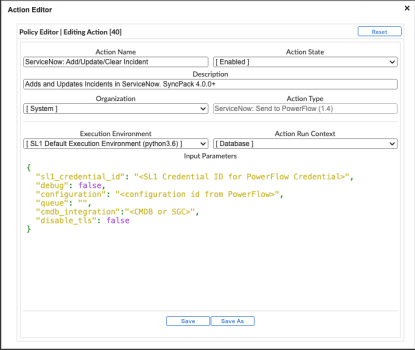
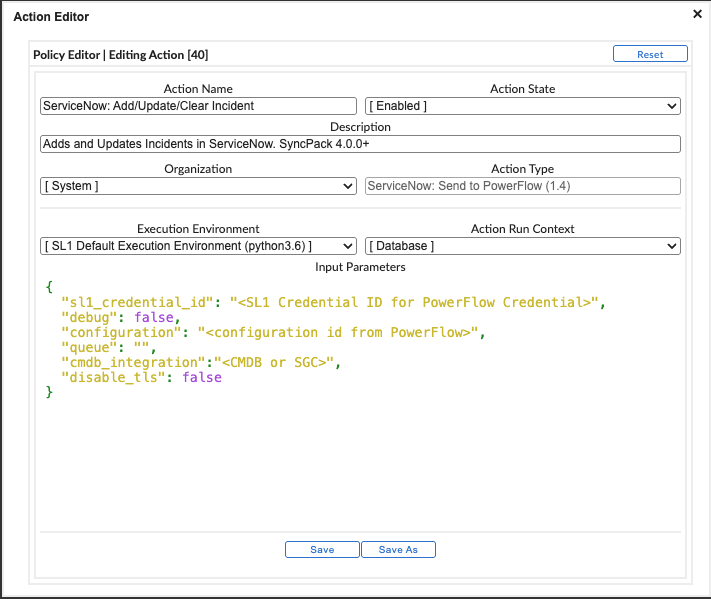
- For the Action State filed select Enabled.
- For the sl1_credential_id field in the Input Parameters pane, specify the credential ID form the ID column on the Credential Management page (System > Manage > Credentials). For example: "sl1_credential_id": "107"
- Edit the snippet code as necessary, using the information in the Customizing the Snippet Code in the Input Parameters Pane section, below.
- When you are finished, click .
Customizing the Snippet Code in the Input Parameters Pane
Skylar One Run Book Action snippets are written in Python. In the event of a syntax error, the policies will no longer run. As a result, you must ensure that all edits adhere to Python standards. True and False options are case-sensitive and must not contain quotes.
The Correlation ID (correlation _type in the run book action Input Parameters) is no longer set in Skylar One or Skylar Automation starting with version 4.0.0 of the "ServiceNow Incidents" SyncPack. The Correlation ID is now set in the transformation map within ServiceNow. The preset Correlation IDs that were provided in past applications are also included and can be set by using the Properties page in the ServiceNow Application. You can address custom behavior within the transformation map.
You can customize the following values in the "ServiceNow: Add/Update/Clear Incident" run book action snippet code:
-
sl1_credential_id. Specifies the ID of the credential object. You can find this value in the ID column of the Credentials page (System > Manage > Credentials of Skylar One. For example: "sl1_credential_id": "107"
-
debug. A true/false value that determines if the action is logged in Skylar One and if the application is run in Debug Mode on Skylar Automation. Troubleshooting logs are written to /data/tmp/servicenow_rba.log.
-
configuration. Specifies the ID of the configuration object used on Skylar Automation. The configuration ID is all lower-case, with spaces in the configuration object "friendly" name replaced by underscores. For example: "configuration": "servicenow_syncpack_configs"
To find the configuration ID with the API, make a GET request on this endpoint: https://<skylar_automation_hostname>/api/v1/configurations.
- queue. Specifies the worker queue on which the application runs. Leave this as default.
- cmdb_integration. Specifies which CMDB SyncPack you are using to ensure that Skylar Automation sends the correct identifiers to ServiceNow.
- If you are using the "ServiceNow CMDB" SyncPack version 3.5.0 or later, use "SGC" to allow CIs to attach to incidents. For example: "cmdb_integration":"SGC"
- If you are using versions of the "ServiceNow CMDB" SyncPack before version 3.5.0, use "CMDB".
- If you are using the "ServiceNow Service Graph Connector" SyncPack, use "SGC".
Starting with version 4.1.0 of this SyncPack, the following fields have been deprecated. If you still want to sync these fields, see Sending Custom Data to ServiceNow Using the Passthrough Option.
- pf_app_override. If you are using a custom Skylar Automation application to consume Skylar One Events, add the system name of that application to this parameter. Optional. If this parameter is not present and populated, Skylar Automation will use the default application for consuming events.
- discard_if_no_ci. Deprecated. Previous versions let you specify whether Skylar Automation should create cases, events, or incidents in ServiceNow for devices that do not have a matching CI record.
- servicenow_state_new:
- 1. Incident state is "New". This is the default value.
- 2. Incident state is "In Progress".
- 3. Incident state is "On Hold".
- 6. Incident state is "Resolved".
- 7. Incident state is "Closed".
- 8. Incident state is "Canceled".
- servicenow_state_ack:
- 1. Incident state is "New". There is no default value.
- 2. Incident state is "In Progress".
- 3. Incident state is "On Hold".
- 6. Incident state is "Resolved".
- 7. Incident state is "Closed".
- 8. Incident state is "Canceled".
- servicenow_state_clear:
- 1. Incident state is "New".
- 2. Incident state is "In Progress".
- 3. Incident state is "On Hold".
- 6. Incident state is "Resolved". This is the default value.
- 7. Incident state is "Closed".
- 8. Incident state is "Canceled".
-
To assign an assignment group, set the variable value to the sys_id of the ServiceNow Assignment Group. In the following example, the assignment group is assigned to incidents that are cleared:
"assignment_group_new": "",
"assignment_group_ack": "",
"assignment_group_clear": "sys_id"
Customizing Logging in the Run Book Action
You can customize the following logging-related items in the "ServiceNow: Add/Update/Clear" Run Book Action snippet code:
- logfile = /data/tmp/ServiceNow_add_update_clear_incident.log
- Location for logging output.
- Will be created if it does not exist.
- Will be appended with each Run Book job.
- Is case-sensitive.
- do_debug_logging = True
- True is on, False is off.
- Is case-sensitive.
- For troubleshooting, these can be enabled or changed.
- Writes logs to /data/tmp/servicenow_rba.log.
Sending Custom Data to ServiceNow Using the Passthrough Option
You can use the "ServiceNow: [(Cases/Events/Incidents)] Add/Update" run book automation and the "ServiceNow: Add/Update/Clear (Case/Event/Incident)" run book action to "pass through" custom data about Skylar One cases, events, or incidents to ServiceNow (depending on the SyncPack you are using with Skylar Automation).
For example, you might want to use the passthrough functionality to overwrite the impact and urgency of a ServiceNow incident, which is the only way to change the priority of the incident.
To pass custom data to ServiceNow:
- Create a new run book action that pulls the relevant data and adds it to a dictionary called EM7_RESULT.
- Add the new run book action to the "ServiceNow: [(Cases, Events, or Incident)] Add/Update " run book automation Policy, ahead of the "ServiceNow: Add/Update/Clear (Case/Event/Incident)" run book action so that the new action runs first, and then is consumed by the ServiceNow action.
Passing Custom Data to ServiceNow
The following procedure describes how to configure the passthrough functionality, using the "ServiceNow: [Incident] Add/Update" run book automation and the "ServiceNow: Add/Update/Clear Incident" run book action as examples.
To pass custom data to ServiceNow:
-
In Skylar One, go to the Actions page (Registry > Run Book > Actions) and click to create a new run book action policy.
- Complete the following fields:
- Action Name. Type a unique name for the action.
- Action State. Select Enabled.
- Action Type. Select Run a Snippet.
- Execution Environment. Select ServiceNow Base Pack.
- Complete the other fields as needed, or leave them at their default settings.
-
In the Snippet Code pane, add the snippet code you want to include for the EM7_RESULT dictionary. For example, the following snippet code lets you override the ServiceNow Incident work notes with a hardcoded note:
EM7_RESULT = {"work_notes": "This is a new note"}
Additional notes about the structure of the EM7_RESULT dictionary:
- EM7_RESULT = is required for the dictionary, and the formatting of the keys should match the example above.
- All keys defined in the EM7_RESULT dictionary need to map to field IDs on the ScienceLogic Events table in ServiceNow.
- You can hard-code the values in the EM7_RESULT dictionary, or you can use variables and functions, like the "Snippet Code Example", below.
- As a best practice, avoid sending null passthrough values to ServiceNow. If you must send 'null' or 'NULL' values to ServiceNow, pass through that value as an empty string, such as
"location":"". Also, only pass through values that you need. For example, instead of sending{"location": "", "work_notes": "stuff"}, simply send{"work_notes": "stuff"}. -
A long snippet might delay the ticket being created
- Click .
- Go to the Automation Policy Manager page (Registry > Run Book > Automation) and open the "ServiceNow: Add/Update Incident" run book automation Policy.
-
In the Available Actions section, add the new run book action before the "ServiceNow: Create, Update, Clear Incident" run book action:
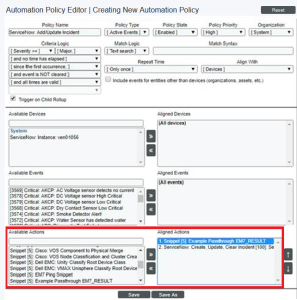
The output of this new run book action will be consumed by the "ServiceNow: Create, Update, Clear Incident" run book action, ensuring that the EM7_RESULT dictionary is passed through to ServiceNow. The "ServiceNow: Create, Update, Clear Incident" run book action automatically populates the passthrough values with any values from EM7_LAST_RESULT. The passthrough overwrites any other previously defined fields, such as assignment group.
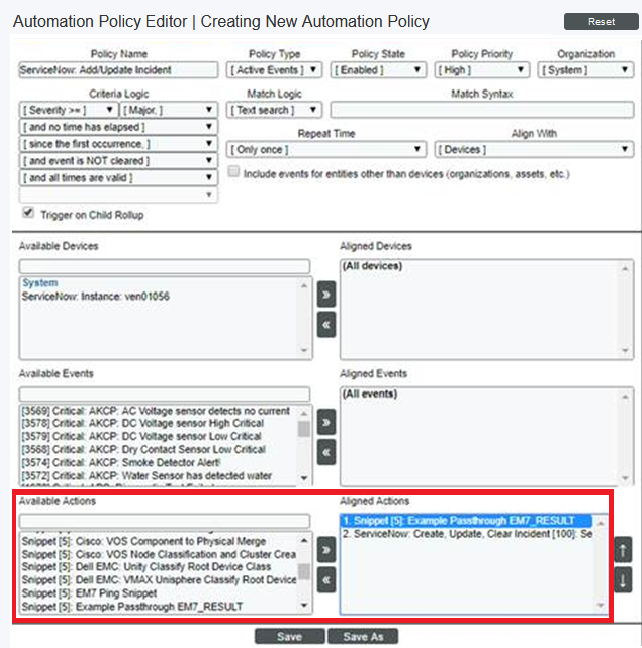
- You can add additional run book actions to the run book automation Policy for any additional workflows that you might want to run. The Automation Policy execute these Actions in a sequential, top-down order. However, the "ServiceNow: Create, Update, Clear Incident" run book action only consumes the EM7_RESULT dictionary from the run book action directly above it.
Passthrough Example
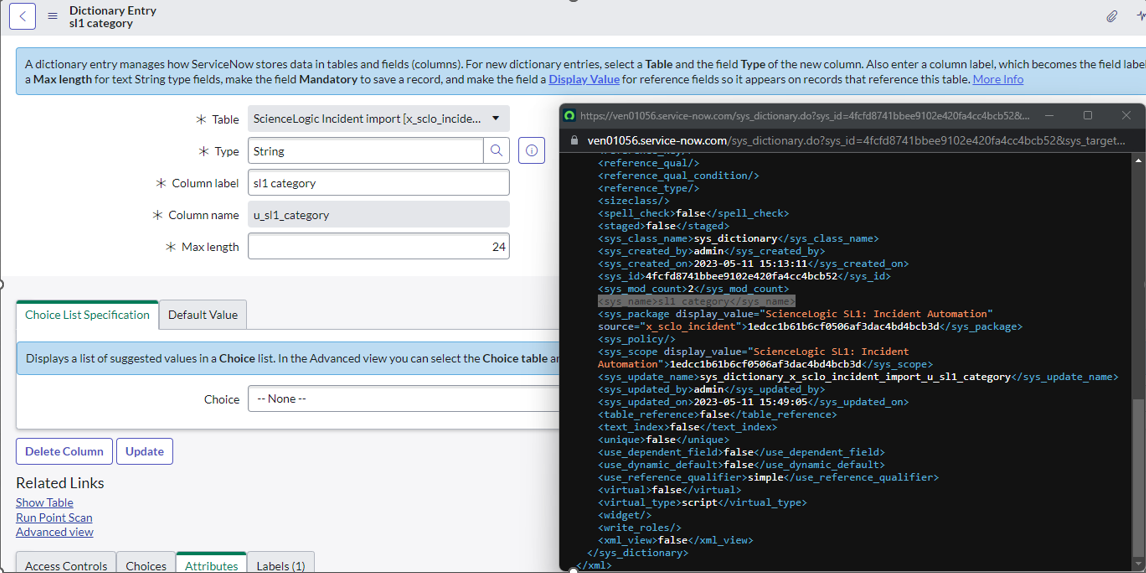
For the Dictionary Entry of the ServiceNow field on the import table, you can reference the XML of the record. You will need to copy the <sys_name> value so you can use that as the key for the passthrough.
In this example, you want to bring in an additional field called sl1 category.
-
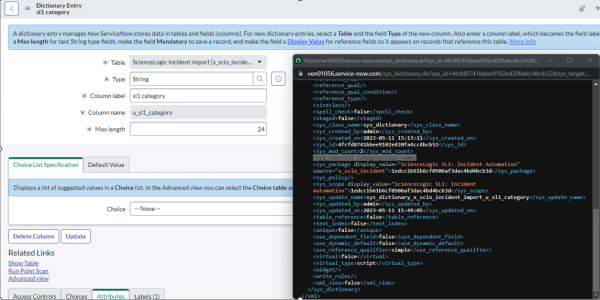
Create the new sl1 category field on the import table in ServiceNow. You can right-click on the header of the form to view the XML:
-
Look for the <sys_name> value.
-
Copy that value directly out and use that in your EM7_RESULT for the passthrough value (in the Snippet Code pane):
EM7_RESULT = {'sl1 Category': 'test'}
Snippet Code Example
The following snippet code example shows how to pull additional information and make it available for passthrough. All of the additional information that is going to be sent is contained in a dictionary variable called EM7_RESULT. You can pass through multiple items through in a single run book action by adding additional keys to the EM7_RESULT dictionary.
This example lets you assign assignment groups to an Incident based on certain criteria, such as event policy IDs:
from future.utils import iteritems

def invert_mappings(mappings):
    """
    Invert received one-to-many mappings and converts it into a one-to-one
    mapping.

    Args:
        mappings (dict): Dictionary of mapped values

    Returns:
        dict: inverted dictionary.

    """
    inverted_mappings = dict()
    for key, values in iteritems(mappings):
        for sub_value in values:
            invert_mappings[sub_value] = key
    return inverted_mappings


# Example of assignment group to list of event policy ids mapping.
assignment_groups_to_event_policies = {
    "sys_id_1": [1, 2, 3, 4, 5],
    "sys_id_2": [6, 7, 8, 9, 10],
}
# which sys_id to use if the current event_policy_id isn't mapped
default_sys_id = "sys_id_3"

# invert the mappings
event_policy_to_assignment_group = invert_mappings(assignment_groups_to_event_policies)

# Send assignment group sys_id to IS RBA
EM7_RESULT = {
    "assignment_group": event_policy_to_assignment_group.get(
        EM7_VALUES["%3"], default_sys_id
    )
}
Configuring the "ServiceNow: Click to Create Incident" Automation Policy
The "ServiceNow: [(Cases/Events/Incident)] - Click to Create" automation policy lets you manually create a case, event, or incident in ServiceNow by clicking the Actions button ( ) in Skylar One for an event and selecting "Create External Ticket" (or by clicking the life-preserver icon (
 ) for an event in the classic user interface).
This run book action policy is available in the "ServiceNow Base Pack" PowerPack.
To configure the "ServiceNow: Click to Create" run book action policy:
-
In Skylar One, go to the Behavior Settings page (System > Settings > Behavior) and set the Event Console Ticket Life Ring Button Behavior option to Create/View External Ticket.
-
Click to save your changes. You might need to log out of Skylar One and log back into Skylar One for the changes to update.
-
Go to the Automation page (Registry > Run Book > Automation).
-
Locate the "ServiceNow: (Cases/Events/Incident) - Click to Create" policy and click its wrench icon (
). The Automation Policy Editor page appears: -
Update the following fields:
- Policy State. Select Enabled.
- In the Criteria Logic section, select and external ticket IS requested in the fifth drop-down. Leave the other values in this section at their default settings.
- Repeat Time. Specify the frequency at which Skylar One should execute the automation policy while the conditions are still met. The choices range from "every 30 seconds until satisfied" to "every 2 hours until satisfied", or "only once". By default, the policy only runs once.
- Available Actions. If it is not already selected, select ServiceNow: Send to Skylar Automation: ServiceNow: Add/Update/Clear Incident and add it to the Aligned Actions field.
- Click . The "Click to Create" feature is now available on the Events and Event Investigator pages.
Enabling Run Book Automation Queue Retries
You can enable run book action (RBA) queue retries to keep from losing any data if Skylar Automation is unavailable. Those pending Skylar Automation applications are added to an RBA queue that you can access to retry the applications that failed.
For more information, see Enabling Run Book Automation Queue Retries.
Configuring Skylar Automation
The following topics cover how to set up your Skylar Automation instance to work with Incident Sync.
Creating a Configuration Object
A configuration object supplies the login credentials and other required information needed to execute the steps for a Skylar Automation application. The Configurations page ( ) of the Skylar Automation user interface lists all available configuration objects for that system.
You can create as many configuration objects as you need. A Skylar Automation application can only use one configuration object at a time, but you can use (or "align") the same configuration object with multiple applications.
To use this SyncPack, you will need to use an existing configuration object in the Skylar Automation user interface or create a new configuration object. Next, you need to align that configuration object to the relevant applications that are triggered by the Run Book Actions in Skylar One.
Depending on your Skylar One environment and the third-party environment with which you are syncing data, you might be able to use the same configuration object with more than one SyncPack.
For this SyncPack, you can make a copy of the "ServiceNow SyncPack" configuration object, which is the sample configuration file that was installed with the "ServiceNow Base" SyncPack.
The "ServiceNow SyncPack" configuration object contains all of the required variables. Make a copy of the configuration object and update the variables from that object to match your Skylar One and ServiceNow settings.
To create a configuration object based on the "ServiceNow SyncPack" configuration object:
- In the Skylar Automation user interface, go to the Configurations page ().
-
For the "ServiceNow SyncPack" configuration object, click the button (
 ) and select Edit. The Configuration pane appears.
Click to show the JSON code. Click the button again to see the fields.
-
Click . The Create Configuration pane appears.
This step is required. Do not use the original configuration object to run Skylar Automation applications.
-
Complete the following fields:
- Friendly Name. Name of the configuration object that will display on the Configurations page.
- Description. A brief description of the configuration object.
- Author. User or organization that created the configuration object.
- Version. Version of the configuration object.
-
In the Configuration Data field, include the required block of code to ensure that the applications aligned to this configuration object do not fail:
  {
    "encrypted": false,
    "name": "sl1_db_host",
    "value": "${config.sl1_host}"
  },
For example:
  {
    "encrypted": false,
    "name": "sl1_db_host",
    "value": "10.2.11.42"
  },
-
In the Configuration Data Values field, update the default variable definitions to match your Skylar Automation configuration.
The region value is a user-defined variable that identifies your Skylar One instance within ServiceNow.
- To create a configuration variable in the JSON Editor, define the following keys:
- encrypted. Specifies whether the value will appear in plain text or encrypted in this JSON file. If you set this to "true", when the value is uploaded, Skylar Automation encrypts the value of the variable. The plain text value cannot be retrieved again by an end user. The encryption key is unique to each Skylar Automation system. The value is followed by a comma.
- name. Specifies the name of the configuration file, without the JSON suffix. This value appears in the user interface. The value is surrounded by double-quotes and followed by a comma.
- value. Specifies the value to assign to the variable. The value is surrounded by double-quotes and followed by a comma.
- If you want to use OAuth2 for authentication with ServiceNow, complete the following Configuration Data Values fields:
- snow_oauth_client_id. Enter the OAuth2 Client ID from ServiceNow.
- snow_oauth_client_secret. Enter the OAuth2 Client secret from ServiceNow.
- snow_oauth_token_url. Enter the full authentication URL, including host and protocol from ServiceNow. For example, "https://<test-instance-name>.service-now.com/oauth_token.do".
- snow_auth_method: Enter oauth or http_basic. If no value is provided, http_basic will be used for connection.
The configuration options listed above are included by default with the sample configuration object provided in the "ServiceNow Base" SyncPack. The configuration options are only required in the configuration object if you plan to use OAuth2 to authenticate. If the values are not present in the configuration object, normal "http_basic" authentication will be used.
- Click . You can now align this configuration object with one or more applications.
Creating an OAuth2 Credential Record in ServiceNow
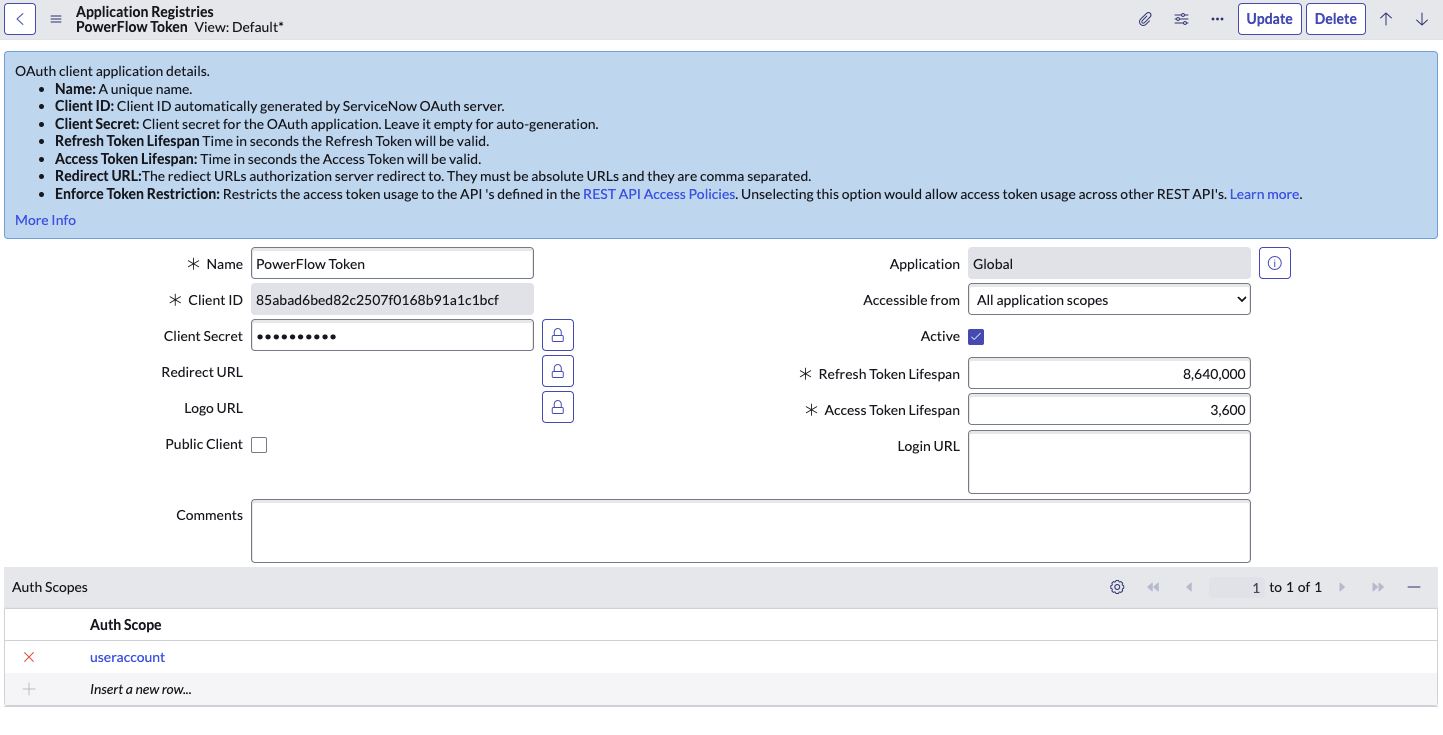
In order to use OAuth2 for authentication with ServiceNow, you must create an OAuth2 credential record in ServiceNow. To configure the ServiceNow credential that will be used by the Connector Instance:
- Navigate to System OAuth > Application Registry. The Application Registries page appears.
- Click .
- Select Create an OAuth API endpoint for external clients. A new record appears.
- Complete the following fields on the new record:
- Name. Type a unique name for the credential. Required.
- Client ID. The Client ID is automatically generated by the ServiceNow OAuth server.
- Client Secret. Leave this empty. ServiceNow will auto-generate this when the record is saved.
- Refresh Token Lifespan. Enter the length of time in seconds the Refresh Token will be valid.
- Access Token Lifespan. Type the length of time in seconds that the Access Token will be valid. ScienceLogic recommends setting this to 3,600 seconds to avoid known issues for longer ServiceNow REST interactions.
In a scenario where the value is shorter than the duration of a Skylar Automation step that makes multiple REST interactions with ServiceNow, the access token will expire and need to be refreshed. As a result, retries were added to several Skylar Automation steps where this issue may occur. This issue will hopefully be addressed in future versions of the Base Steps SyncPack.
- Under the Auth Scope section at the bottom of the page, double click Insert a new row.
- In the search box that appears, click the magnifying glass icon, select the useraccount record, and click the checkmark icon to save.
- Click to save the new record.
Configuring the Skylar Automation Applications
To run Incident Sync, you must "align" the configuration object to run with the following Skylar Automation applications:
-
Cache Skylar One Users. Performs a query for all existing users and writes them to a cache. To maintain the user cache for this SyncPack, ScienceLogic recommends that you schedule this application to run at least once a week.
-
Sync Cached Events to ServiceNow. Bulk processes all of the cached Skylar One Events and posts them to ServiceNow. Sends a "Sync Success" or "Sync Failed" status update to Skylar Automation based on the result of the post. ScienceLogic recommends that you schedule this application to run every 60 seconds or longer.
-
Sync Incident Details from ServiceNow to Skylar One Events. Acknowledges or clears Skylar One Events from ServiceNow, updates the user note, and populates the incident number in the external ticket reference. This application also include the new user_note_template field that accepts a Jinja2 template to generate custom user notes. ScienceLogic recommends that you schedule this application to run every 60 seconds.
In previous releases of this SyncPack, this application was named the "Sync Incident State from ServiceNow to Skylar One Event" application.
-
Sync Skylar One Event to ServiceNow Incident. The "ServiceNow: Add/Update/Clear Incident" Run Book Action triggers this application whenever a Skylar One Event is created, updated, or cleared.
This application processes the Skylar One event, caches it to Skylar Automation to allow for bulk processing for ServiceNow by the "Sync Cached Events to ServiceNow" application, and then sends a status update to Skylar One.
In addition, you can configure additional fields from the Configuration pane for the "Sync Incident Details from ServiceNow to Skylar One Events" and the "Sync Cached Events to ServiceNow" Skylar Automation applications.
If you are using the "ServiceNow CMDB" SyncPack and you want to link incidents with ServiceNow Configuration Items (CIs), you will need to run the "Sync Devices from Skylar One to ServiceNow" application. If this is the first time you are running the Incident Sync, you will need to run the "Sync Devices from Skylar One to ServiceNow" application twice to build the internal cache. For more information, see Running a Device Sync in the ServiceNow CMDB SyncPack section.
To configure the Skylar Automation applications:
- On the Applications page of the Skylar Automation user interface, open the "Sync Skylar One Event to ServiceNow Incident" application and click . The Configuration pane for that application appears.
- From the Configurations drop-down, select the configuration object you want to use.
- Update the following fields, as needed:
- Domain Separation. Select this checkbox to enable domain separation when creating incidents, ensuring that domain-specific variables resolve correctly.
If you want to use domain separation, you must enable it on both the "Sync Skylar One Event to ServiceNow Incident" and "Sync Cached Events to ServiceNow" applications. If you want to use domain separation, do so during a low-activity window, or allow the event cache to drain first. Events cached under the previous user immediately before enabling domain separation may not be picked up by the new per-domain posters and those events will age out of the cache instead of posting.
- Click to align that configuration object with the "Sync Skylar One Event to ServiceNow Incident" application. You do not need to edit any other fields for that application.
- Repeat steps 1-3 for the "Cache Skylar One Users" application. This application is in the "System Utils" SyncPack. ScienceLogic recommends that you schedule this application to run at least once a week.
- Go to the Applications page, open the "Sync Cached Events to ServiceNow" application, and click . The Configuration pane for that application appears.
- From the Configurations drop-down, select the configuration object you want to use.
- Update the following fields, as needed:
- retry_max. The maximum number of times Skylar Automation will retry to execute the step before it stops retrying and logs a step failure. For example, if retry_max is 3, Skylar Automation will retry after 1 second, then 2 seconds, then 4 seconds, and stop if the last retry fails. The default is 0.
- retry_jitter. Instead of using a defined interval between retries, the Skylar Automation system will retry the step execution at random intervals. The default is unselected.
- retry_backoff. Instead of using a defined interval between retries, Skylar Automation will incrementally increase the interval between retries. The default is unselected.
- retry_backoff_max.The maximum time interval for the retry_backoff option, in seconds. For example, This means, if you have retry_max set to 15, the delays will be 1, 2, 4, 8, 16, 32, 64, 120, 240, 480, 600, 600, 600, 600, and 600. The default is 600.
- limit. Specify the number of events to send per batch. The default is 2000.
- Domain Separation. Select this checkbox to enable domain separation when creating incidents, ensuring that domain-specific variables resolve correctly.
If you want to use domain separation, you must enable it on both the "Sync Skylar One Event to ServiceNow Incident" and "Sync Cached Events to ServiceNow" applications. If you want to use domain separation, do so during a low-activity window, or allow the event cache to drain first. Events cached under the previous user immediately before enabling domain separation may not be picked up by the new per-domain posters and those events will age out of the cache instead of posting.
- Click .
-
Go to the Applications page, open the "Sync Incident Details from ServiceNow to Skylar One Events" application, and click . The Configuration pane for that application appears.
This application populates the incident numbers in Skylar One as well as updating other incident behaviors.
- From the Configurations drop-down, select the configuration object you want to use.
- Update the following fields, as needed:
-
resolve_states. Specify one or more state labels that Skylar Automation will consider as "Resolved", separated by commas. Skylar One Events associated with a ServiceNow Incident in these states will be cleared.
-
enable_sl1_ack. Select this option to allow this integration to acknowledge events. The application attempts to acknowledge with the user assigned to the incident.
-
update_user_note. De-select this option if you do not want this application to update the User Note in Skylar One.
-
user_note_template. Lets you add a Jinja2 template to define a customer format for populating the User Notes in Skylar One. If you leave this field blank, Skylar Automation uses the state label that displays in gray text. For more information about Jinja2 filters, see the List of Built-in Filters in the Jinja2 documentation.
The following is an example of a Jinja2 template that you can use in this field:
{{'Incident {} is assigned to {} has {} events aligned to it and is currently in state {}'.format(incident.incident_number, incident.user.user|default(None), incident.events|length, incident.state)}}
- Click .
Scheduling Skylar Automation Applications
ScienceLogic recommends that you schedule the following Skylar Automation applications:
- "Cache Skylar One Users": at least once a week
- "Sync Incident Details from ServiceNow to Skylar One Events": every 60 seconds
- "Sync Cached Events to ServiceNow": every 60 seconds; less than 60 seconds might cause adverse performance issues within ServiceNow
You do not need to schedule or run the "Sync Skylar One Event to ServiceNow Incident" application, as the "ServiceNow: Add/Update/Clear Incident" Run Book Action triggers this application whenever a Skylar One Event is created, updated, or cleared
For more information about scheduling applications, see Scheduling a Skylar Automation Application.
Incident Topology Suppression
Incident topology suppression is used when ServiceNow incidents that have been synced with Skylar One devices occur on devices that have a parent/child relationship. If you choose to enable incident topology suppression in Skylar One, child events synced with ServiceNow incidents do not appear in the Skylar One Event Console as separate events. Instead, the child events are nested under the parent event.
The steps in this process use the Classic user interface for Skylar One.
To enable incident topology suppression:
- In Skylar One, navigate to the Event Policy Manager page (Registry > Events > Event Manager) and click the button. The Event Policy Editor modal appears:
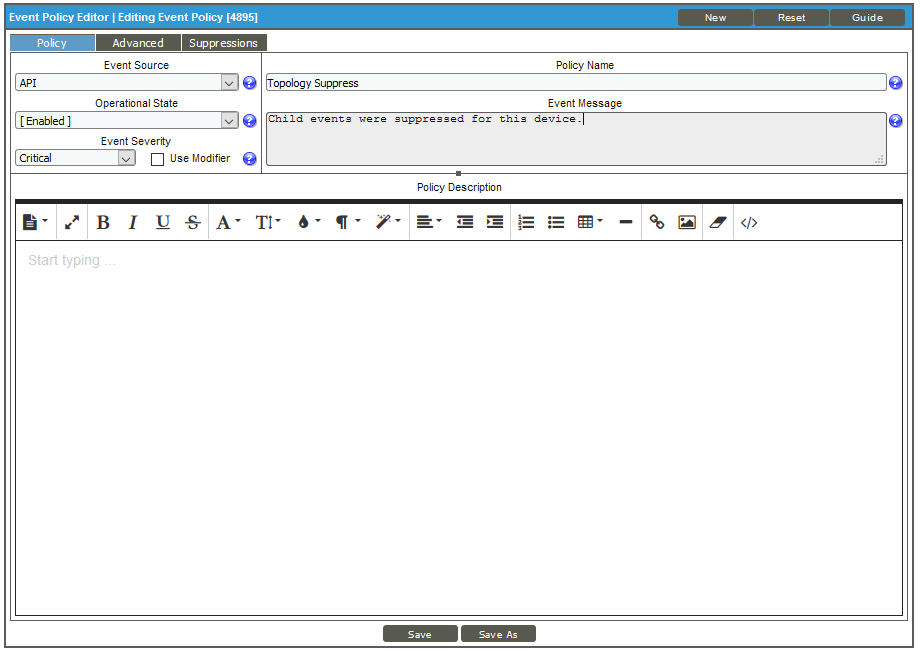
- On the tab, update the following fields:
- Event Source: Select API.
- Operational State: Select Enabled.
- Event Severity: Select Critical as the severity of the event.
- Policy Name. Type the name of the event. Can be any combination of alphanumeric characters, up to 48 characters in length
- Event Message. Type the message that will appear when this event occurs.
- Click the tab.
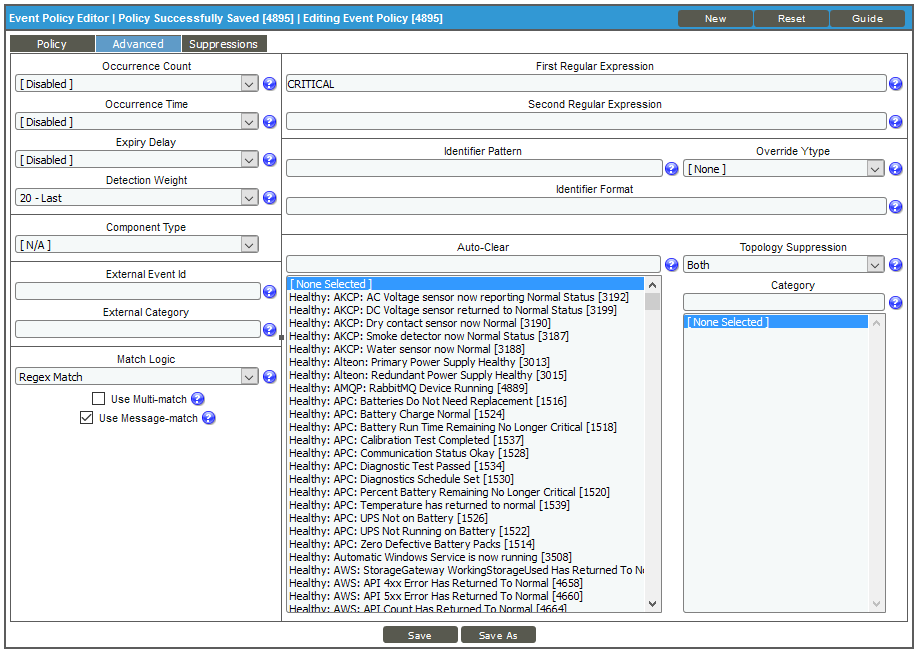
- On the tab, update the following fields:
- Detection Weight. Select 20 - Last. If two event definitions are very similar, the weight field specifies the order in which Skylar One should match messages against the similar event definitions. The event definition with the lowest weight will be matched first. This field is most useful for events that use expression matching. Options range from 0 (first) - 20 (last).
- Match Logic. Select Regex Match. Specifies whether Skylar Oneshould process the First Match String field and Second Match String as regular expressions or as simple text matches. Because you selected Regex Match, you cannot define a "match all" expression by leaving the First Match String and Second Match String fields empty.
- Use Message-match. Select this option. If Skylar One has generated an event and then a second log message or alert matches the same event policy for the same entity, Skylar One will not generate a second event, but will increase the count value for the original event. This behavior will occur only if the log messages or alerts contain the same message.
- First Regular Expression. Type "CRITICAL" as the string used to correlate the event with a log message.
- Topology Suppression. Select Both. If this event occurs on a parent device, it behaves as a suppressing event. If this event occurs on a child device, it behaves as a suppressible event.
- Click and close the Event Policy Editor modal.
- Next, go to the Device Groups page (Registry > Device Groups) and click the button. A Device Group Editor page appears:
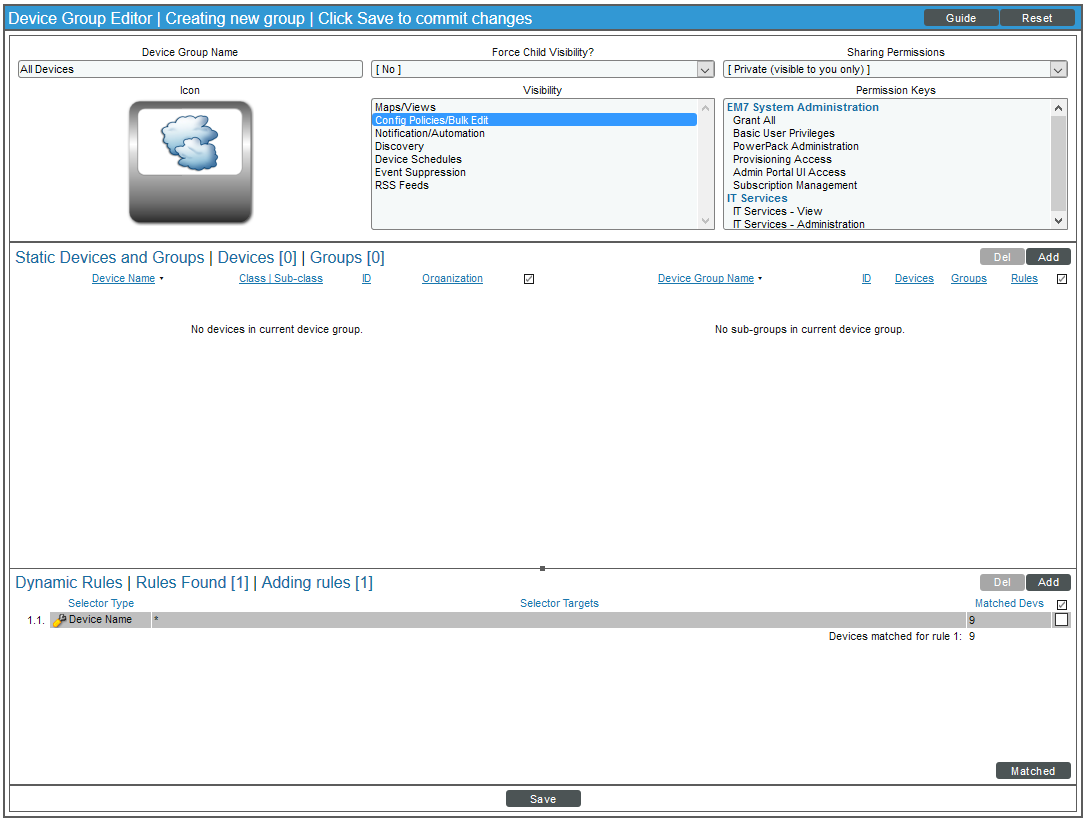
- Complete the following fields, and leave the default settings for the remaining fields:
- Template Name. Specify the name of the new device group.
- Force Child Visibility. Select "No".
- Visibility. Select Config Policies/Bulk Edit to let you configure all the devices in the new device group using a device template.
- Click the button and then click the button in the Dynamic Rules pane to add dynamic rules to the new device group. The Device Group Rule Editor modal page appears:
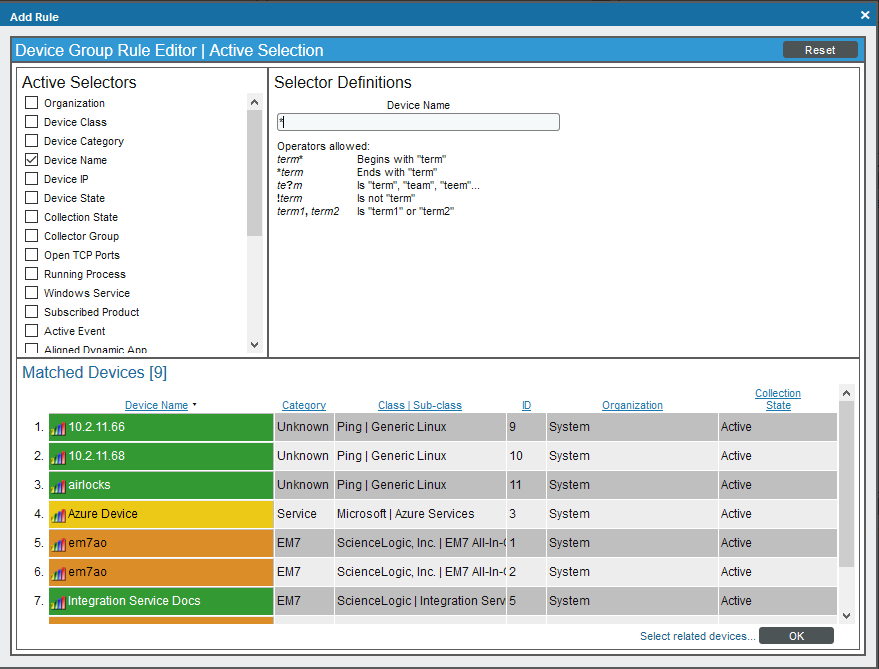
- In the Active Selectors pane, select Device Name.
- Optionally, in the Selector Definitions pane, type an asterisk (*) in the Device Name field. Using the * includes all devices by Device Name. In the Matched Devices pane, a list of all devices appears.
- Click to close the modal page.
- On the Device Group Editor modal page, click and close the page.
- Next, create a Device Group Template that will disable Event Masking for all devices in the new Device Group. Click the building blocks icon (
 ) for the new device group. A Device Template Editor page appears:
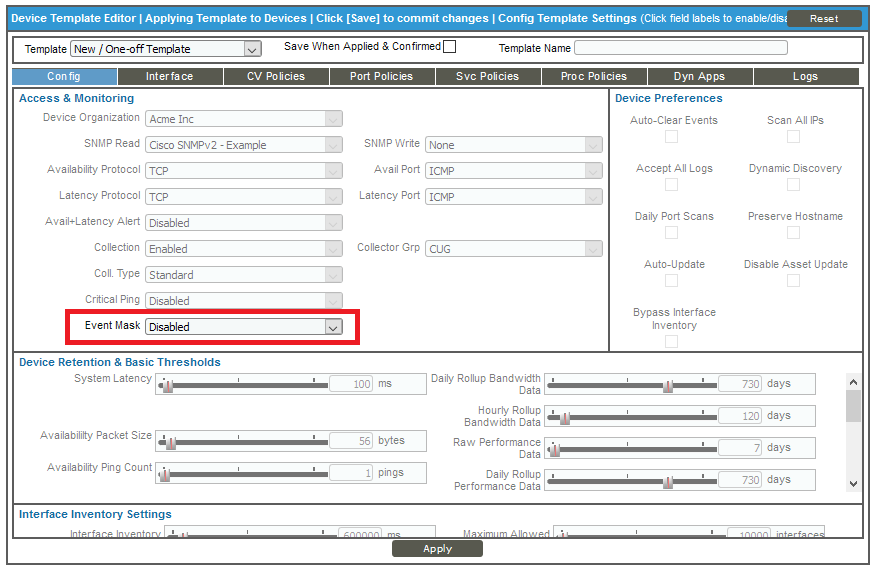
- Because all of the fields are disabled (grayed-out) by default, click the Event Mask field name to enable the field. Use the default setting of Disabled.
- Click and click on the Device Template Editor page.
- Next, turn off the Trigger on Child Rollup option on the "ServiceNow: Add/Update Incident" Run Book Automation. Go to the Automation Policy Manager page (Registry > Run Book > Automation) and click the wrench icon (
 ) for the "ServiceNow: Add/Update Incident" Run Book Automation. The Automation Policy Editor page appears:
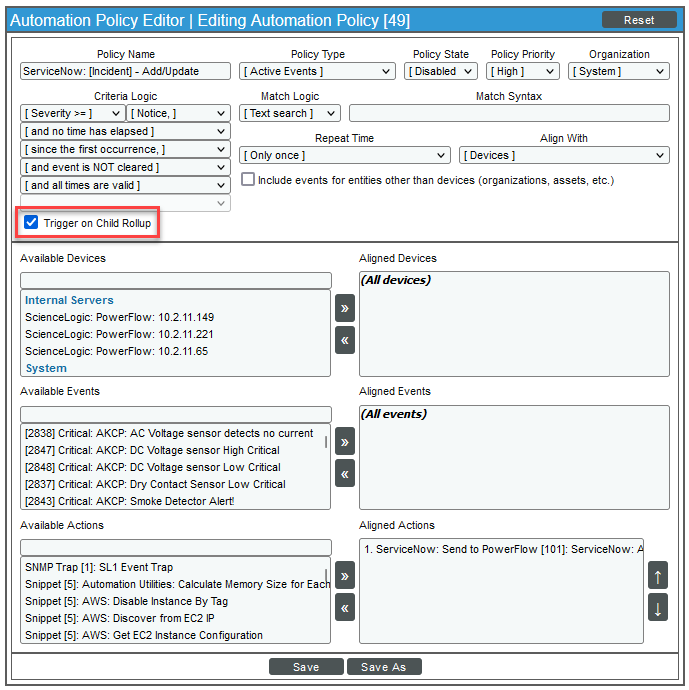
- Make sure the Trigger on Child Rollup option is not selected and click . Close the Automation Policy Editor page.
Additional Options in ServiceNow
Viewing Events with ServiceNow
Within ServiceNow, the Incident Sync sends as much data as possible, but limits what is sent or updated directly to the incident table. All Skylar One Event-specific data is mapped to a separate record and custom application-specific table. A related list option is available to provide event record data that you can view from the incident.
The related list [Skylar One] Events is not configured when you install the Certified application. You need to add that related list to the incident form.
You can also view the actual Event records at ScienceLogic Skylar One: Incident Automation > Event > ScienceLogic Events.
Hyperlinking Events
Both ServiceNow and Skylar One provide mechanisms for hyperlinking to multiple active events and incidents.
Each Incident in ServiceNow will have one or more events aligned with it through a related list: [Skylar One] Event.
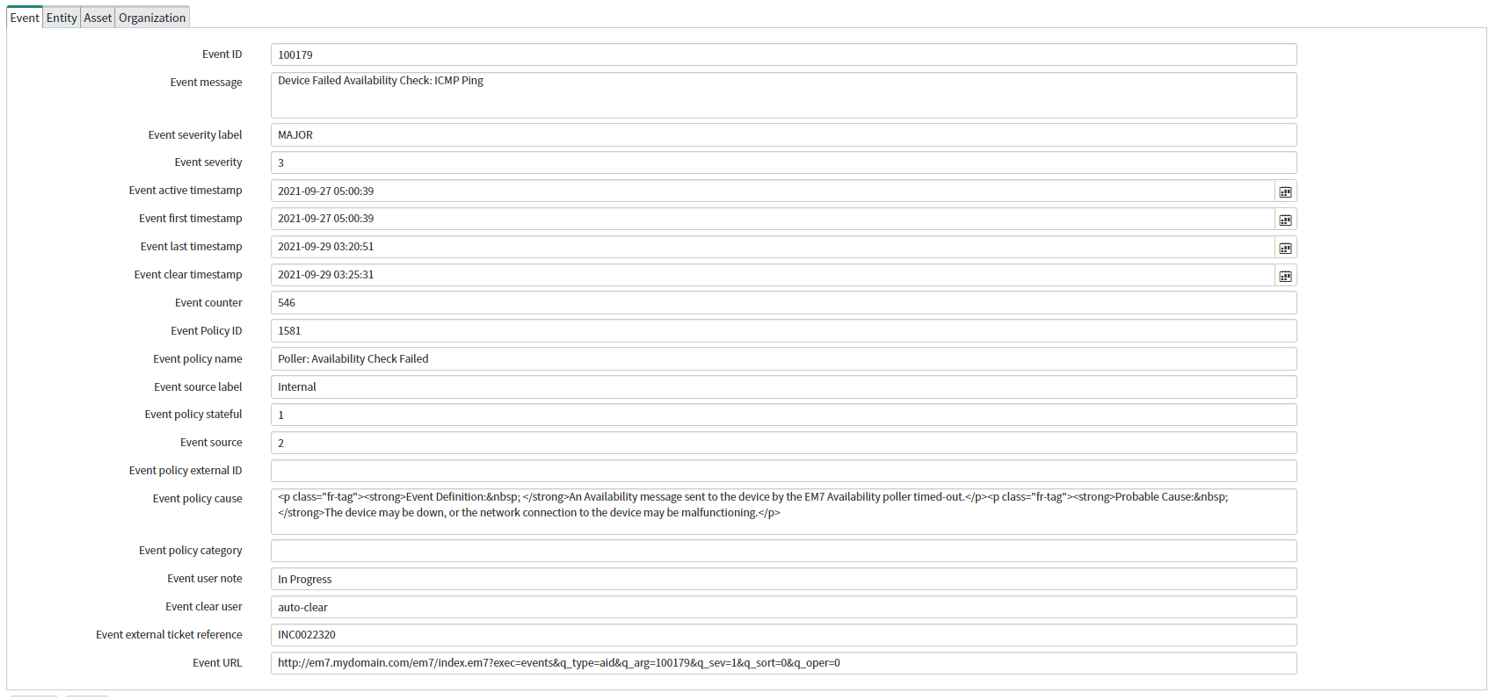
By default the Hyperlink field "Event URL" only appears on the Event (x_sclo_incident_event) custom table provided by the Certified application. If a URL link is required, you would need to customize it to be applied to different location.
The following image shows the Event record for an event aligned with an Incident:
Viewing the Incident Import Table in ServiceNow
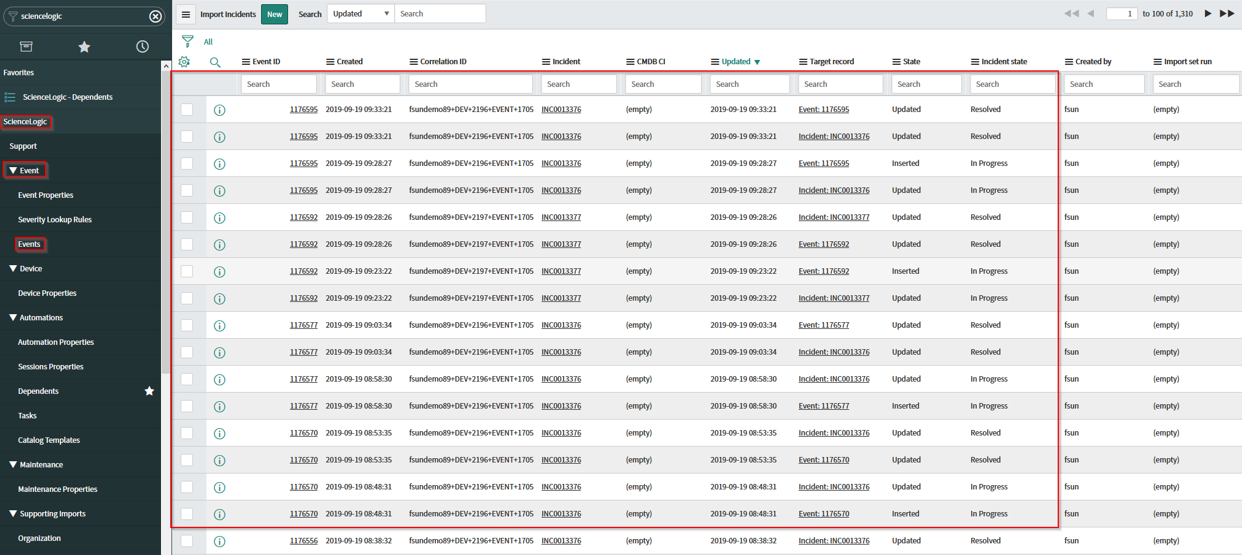
Each time Skylar One creates or changes an incident in ServiceNow, data is inserted into a temporary import table on the ServiceNow system. This table displays all inbound data from Skylar One and is a useful tool to determine what data is being sent and imported. The incident import table is created automatically when you install the ScienceLogic Certified (Scoped) Application.
To view the data and the status of the import process, go to the Import Incidents page (ScienceLogic > Event > Events) in ServiceNow:
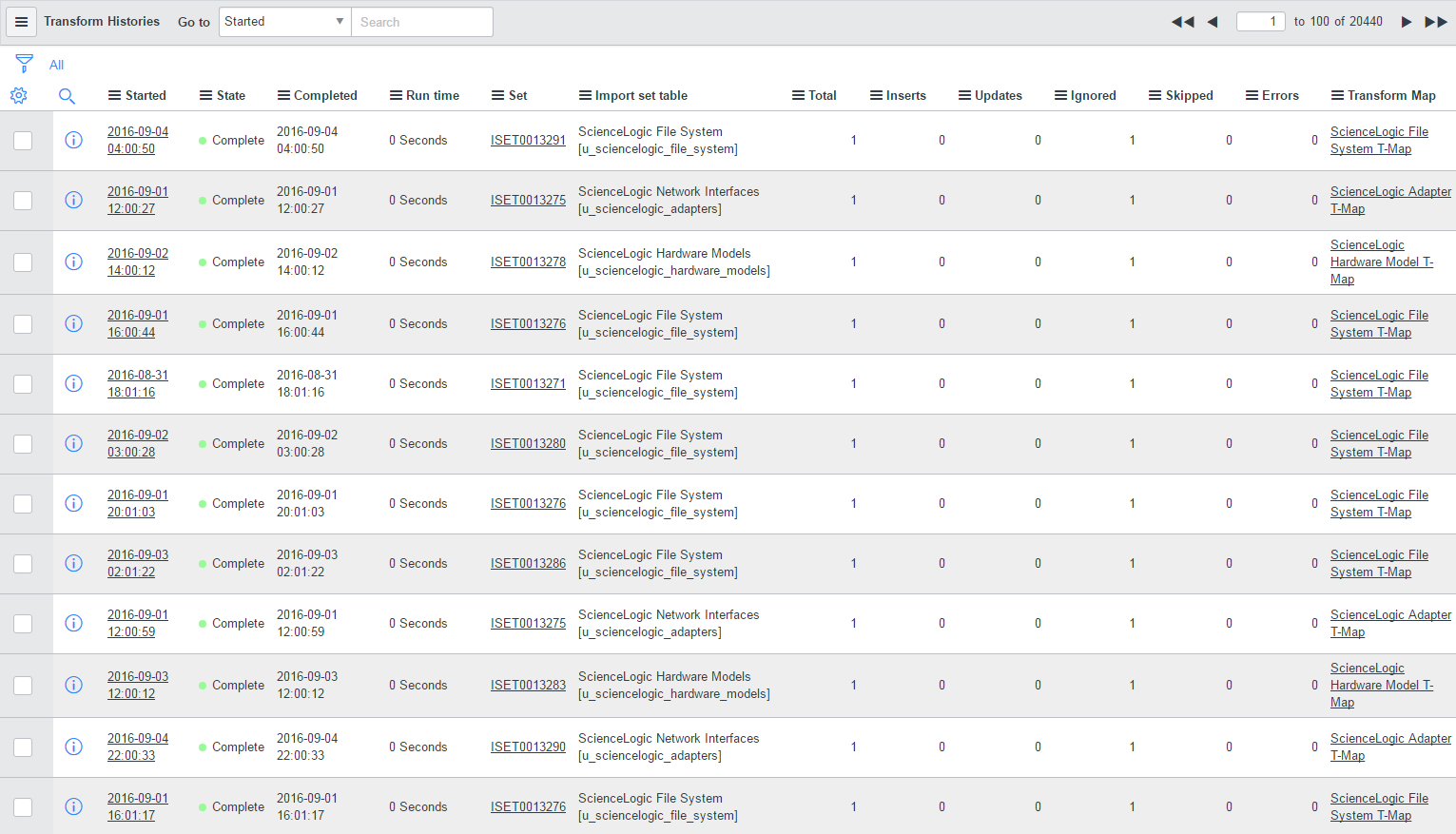
You can view a complete audit of all import data and transforms by going to the Transform Histories page (System Import Sets > Advanced > Transform History):
Skylar One Event to ServiceNow Incident Impact/Urgency Matrix
By default, when Skylar One triggers an Event, the Event is sent to ServiceNow through Skylar Automation. The following mappings are currently in place for mapping the Severity of a Skylar One Event to the Impact and Urgency of a ServiceNow Incident:
| Skylar One Event Severity | ServiceNow Incident Impact | ServiceNow Incident Urgency |
|---|---|---|
| Critical | 1-High | 1-High |
| Major | 2-Medium | 2-Medium |
| Minor | 2-Medium | 3-Low |
| Notice | 3-Low | 3-Low |
| Healthy | 3-Low | 3-Low |
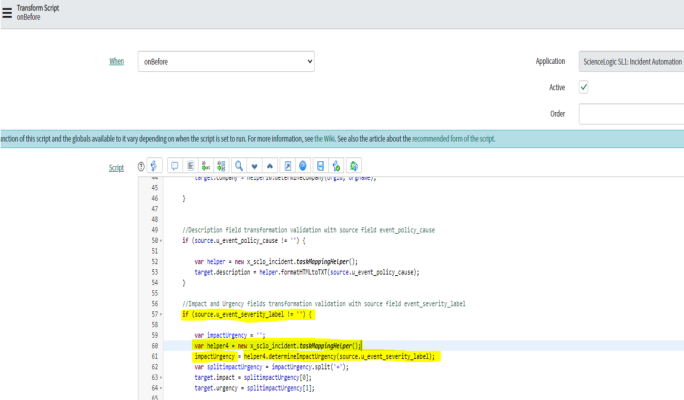
The Severity conversions are handled in an "onBefore" transform script under the "ScienceLogic (Skylar One) Incident" transform map that automatically deploys with the ScienceLogic Certified (Scoped) Application.
The "onBefore" transform script calls a script include called "taskMappingHelper" that handles the conversion from Severity to Impact or Urgency.
To customize a Severity to Impact or Urgency conversion rule:
-
In ServiceNow, create a new script include with new conversion rules. You can change the return values for Skylar One Severity labels to the desired Impact and Urgency values. The following is an example:
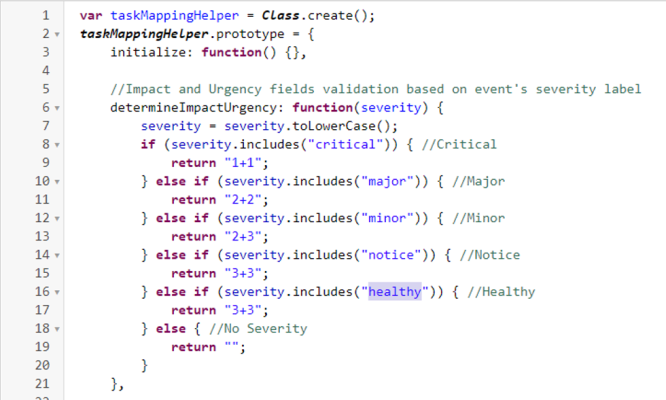
In the above example, if the Skylar One Severity label is Minor, return the corresponding ServiceNow Incident Impact of 2 and Urgency of 3.
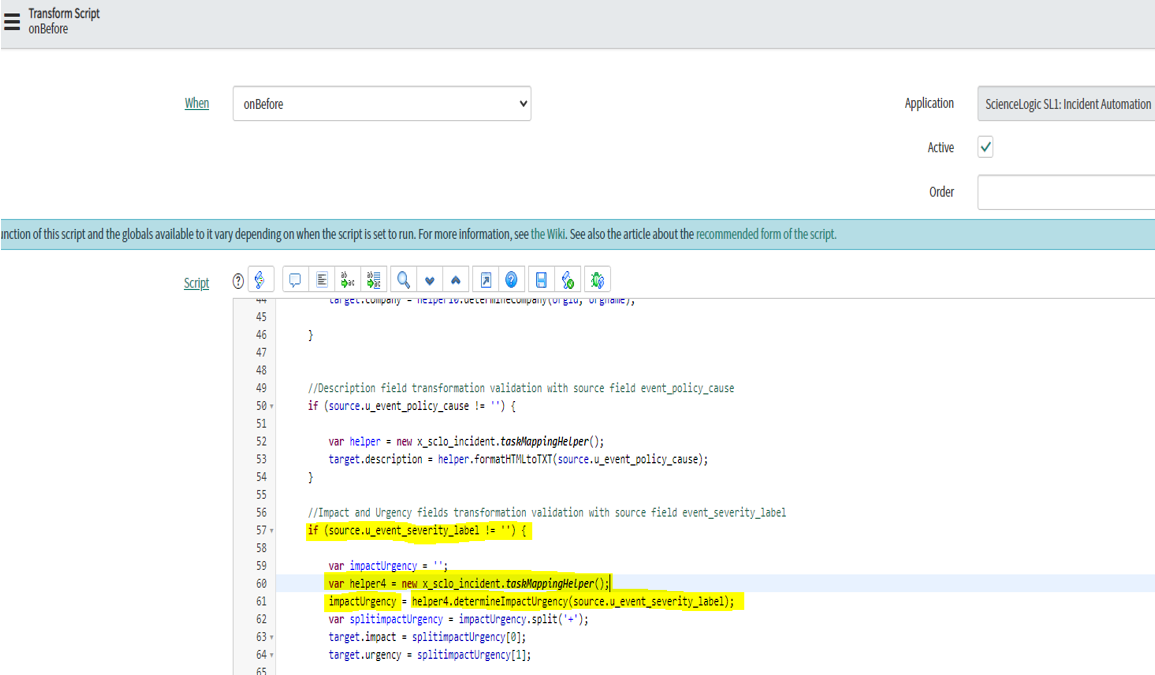
- In the "onBefore" transform script under the "ScienceLogic (Skylar One) Incident" transform map:
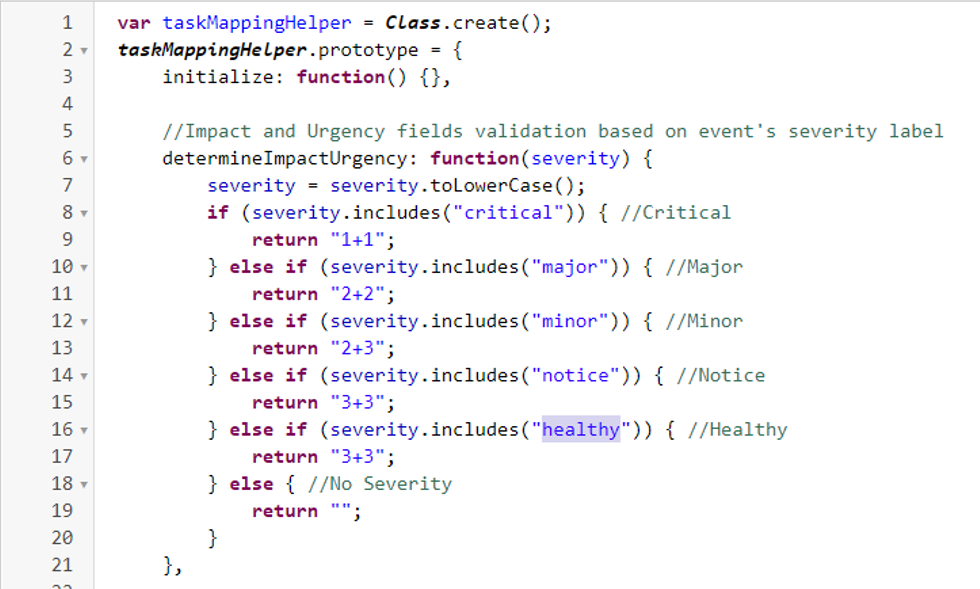
- Modify line 60 to call the newly created script include.
-
Modify line 61 to call the newly created function under script include with the same parameter source.u_event_severity_label.
For example:
By default, the Incident Priority field is read-only and must be set by selecting the Impact and Urgency values.
Adding Additional Fields to the Transform Map
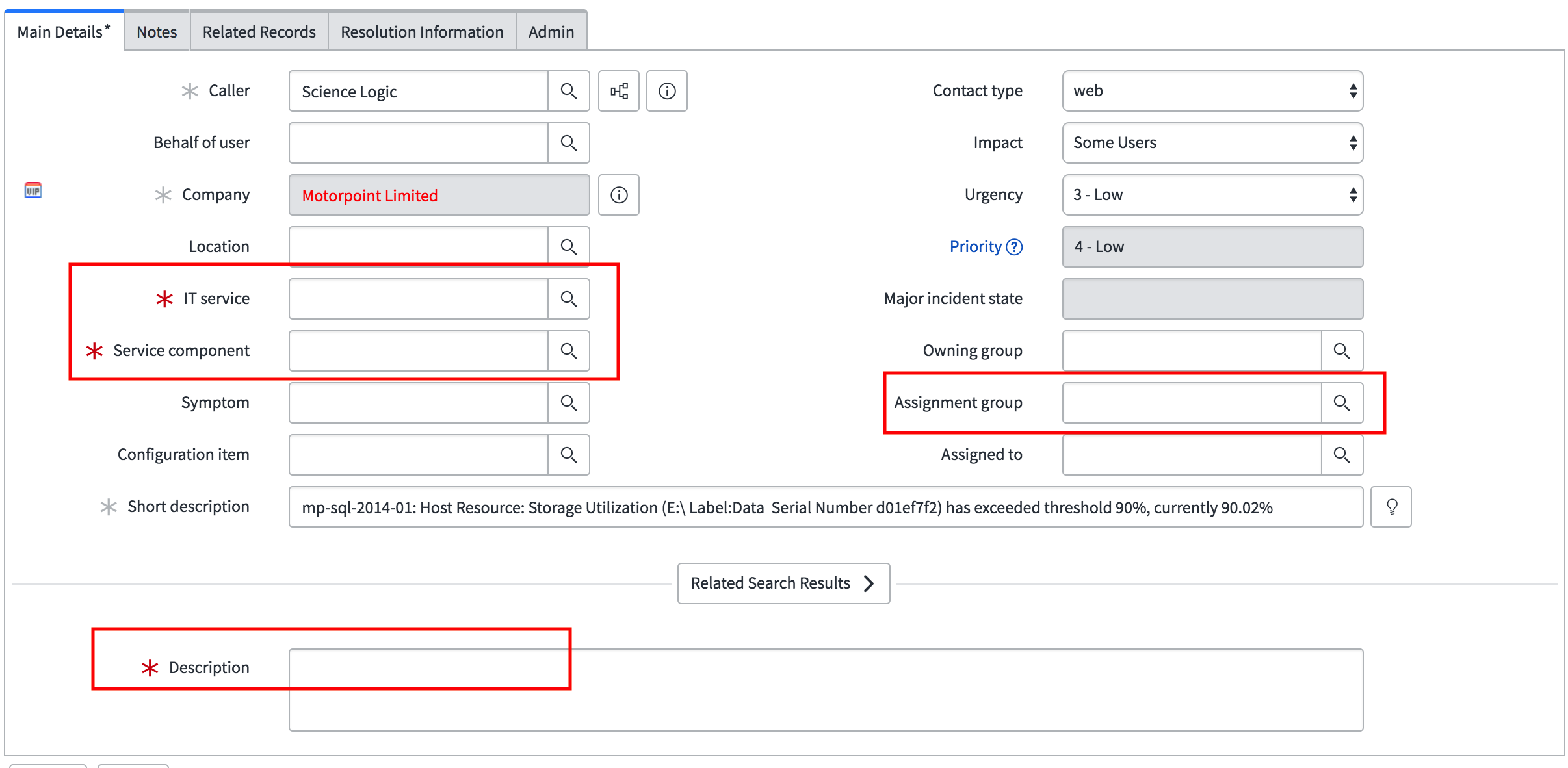
If you require additional mandatory fields to be filled out to resolve an incident, you can add those fields to the transform map in ServiceNow.
For example, if you require four mandatory fields in the ServiceNow Incident—Assignment Group, IT Service, Service Component, and Description—to be filled out before that incident can be resolved in Skylar One, you would perform the following steps.
To add an assignment group:
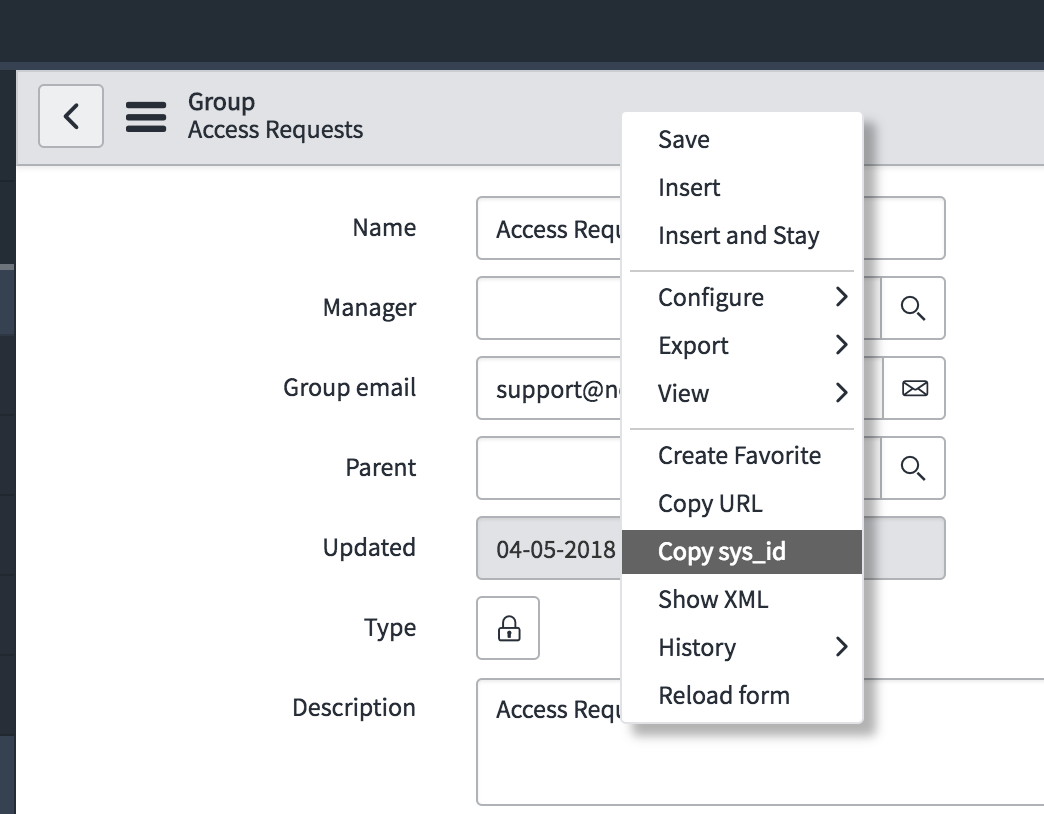
- Navigate to User Administration > Groups and select the assignment group you want to add. The Group record appears.
- Right-click the gray task bar at the top and select Copy sys_id.
-
In Skylar One, open to the "ServiceNow: Add/Update/Clear Incident" Run Book Action (Registry > Run Book > Actions).
-
Edit the Input Parameters of the Run Book Action to add the sys_id to the relevant parameter or parameters to assign the assignment group to one of the new, acknowledged, or cleared incidents that are mapped. After an incident is created, the assignment group value will not be changed by the Run Book Action.
In the following example, the assignment group is assigned to incidents that are cleared:"assignment_group_new": "",
"assignment_group_ack": "",
"assignment_group_clear": "sys_id"
The IT Service, Service Component, and Description fields in our example must be filled in before an Incident can be closed. To do this, changes must be made in the transform maps that are provided in the form of update sets from ScienceLogic.
For more information about mapping new fields and other mappings options, see https://docs.servicenow.com/bundle/newyork-platform-administration/page/script/server-scripting/concept/c_MappingOptions.html.
To add the Description field:
- In ServiceNow, search for "transform map" in the filter navigator. Click Transform Maps.
- In the list of transform maps, search for "ScienceLogic" in the field above the Name column.
- Open the "ScienceLogic Incident" map:
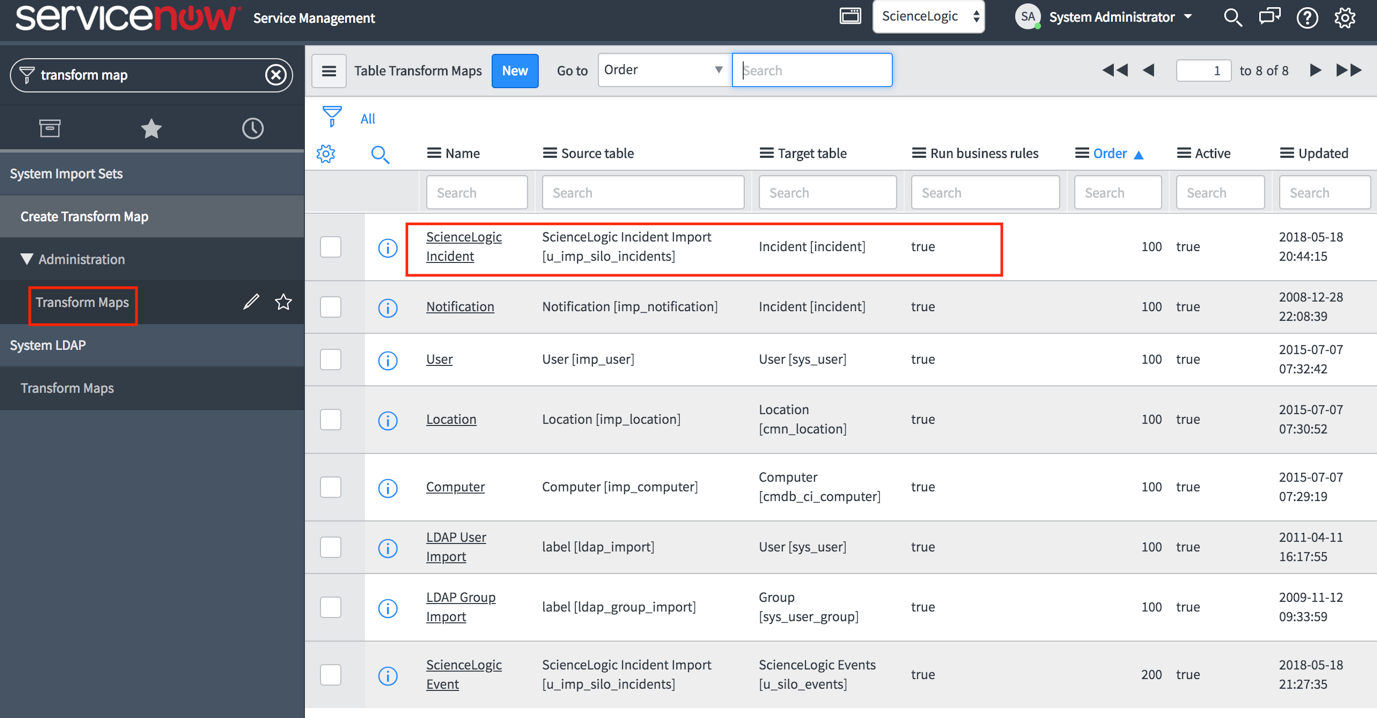
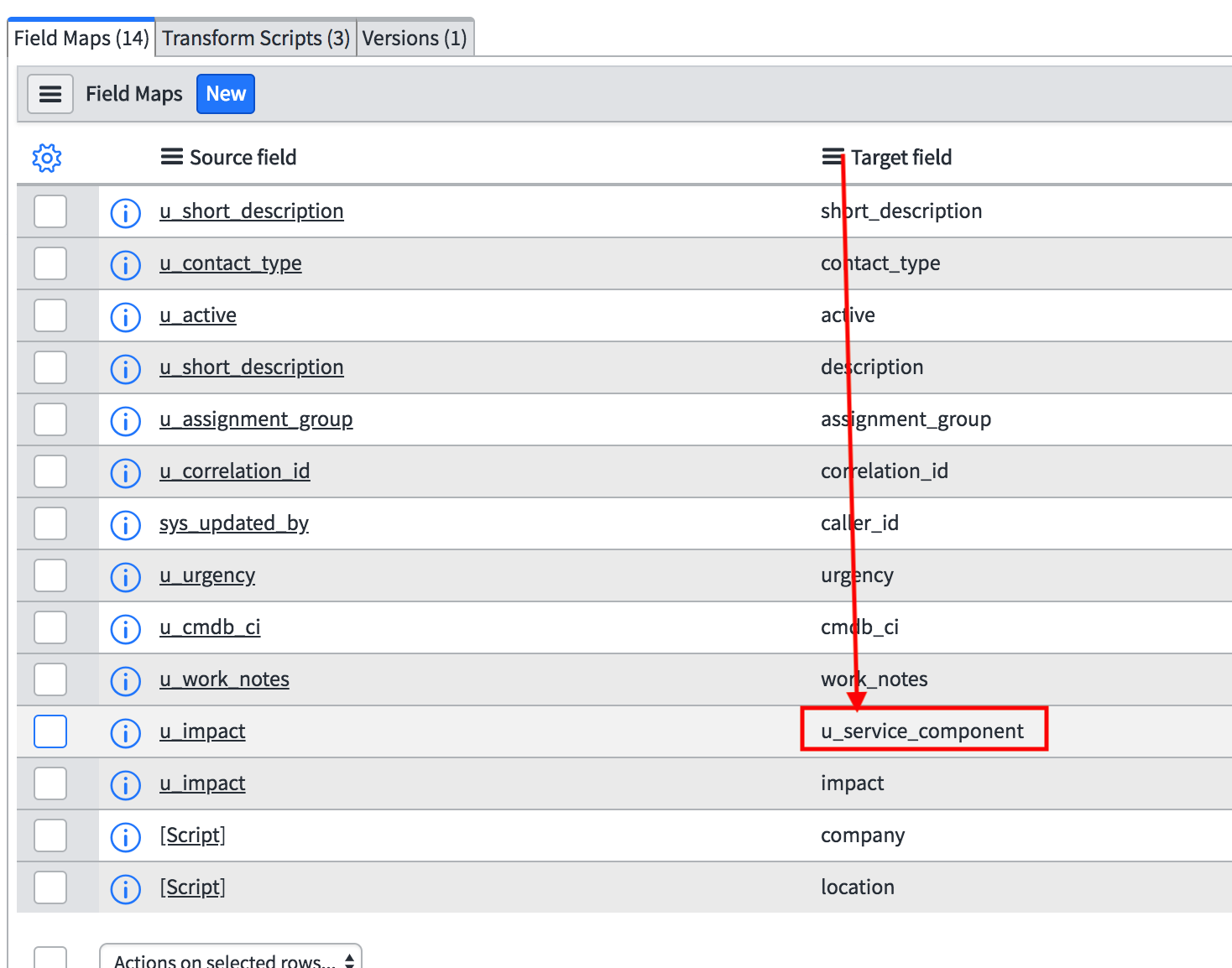
- The Field Maps table at the bottom of the page allows you to edit or create mappings from the ScienceLogic Incident Import table to the ServiceNow Incident table. Click to create a new field mapping.
- The Source table field should contain the ScienceLogic Incident Import and the Target table should include the ServiceNow Incident table:
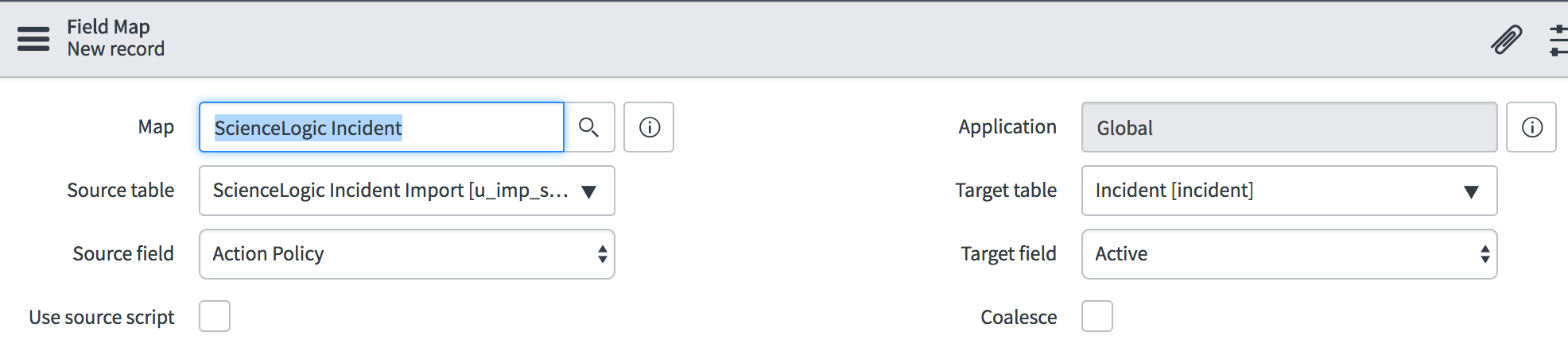
- To create a new mapping to copy the contents of the Short description field to the Description field, select Short description from the Source field drop-down menu.
- In the Target field drop-down menu, select Description.
- Click Update to save your changes.
The IT Service and Service Component fields in our example are set in the Transform Script in the "ScienceLogic Event" transform map. To set the fields:
- In ServiceNow, make sure you have the sys_id value for the target fields. If a field contains a magnifying glass, it will require a sys_id. If a field has a drop-down, type in the field you wish to apply from the drop-down. In the case of our example, the sys_id values of the two fields are required.
- In your ServiceNow instance, navigate to the Transform Maps table and select "ScienceLogic Event".
- In the ScienceLogic Event transform map page, click the tab and open the "onAfter" script.
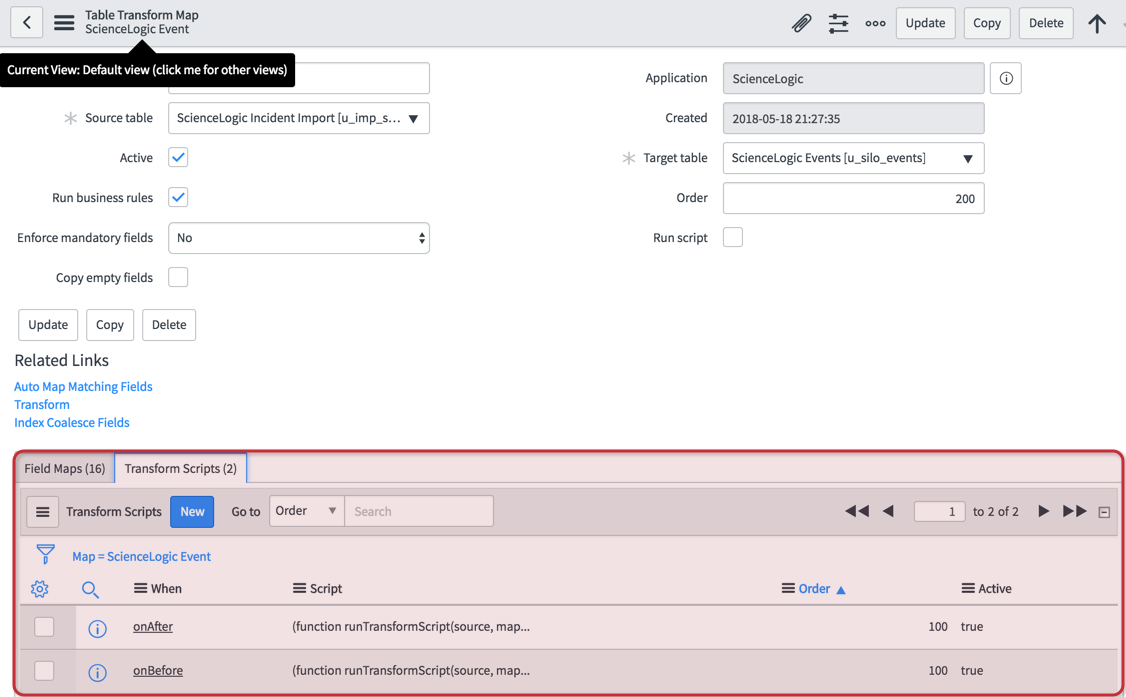
- Add the following under the "//Update target record when the Event was cleared from Sciencelogic" text:
sl_INT.(target field) = '[sys_id of the source field]'; //(IT service field)
sl_INT.(target field) = '[sys_id of the source field]'; //(Service component)
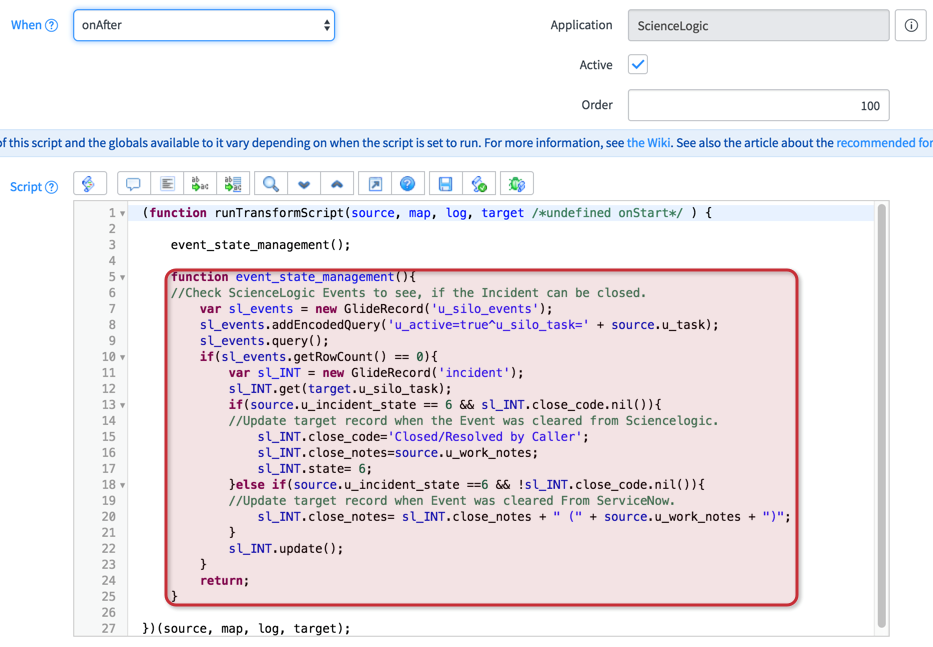
- To find the target field, make a temporary mapping to see what the target field is. This mapping can be deleted once you know the target field.
- Click to save your changes. The selected fields will be added into an Incident on closure.