
The Device Control page (Device > Device Control) features a more powerful way to interact with devices using the Lua programming language. Instead of sending a single command to a device, Lua offers control structures, loops, conditionals, match functions, and more. Using Lua, you can perform more complex tasks, including making decisions based on the device output.
The syntax does not require any specific programming experience or knowledge of markup languages like XML. For more information about Lua, see https://www.lua.org/docs.html.
Creating a Lua Function Action
To create a Lua Function action:
-
Go to the Device Control page (Devices > Device Control).
-
Click . The Add Command modal appears.
-
Complete the following fields:
-
Name. Type a name for your action.
-
Description. Type a unique description for your action.
-
Type. Select Lua Functions from the drop-down field.
-
Log Transcript. Select this checkbox to capture and store transcripts for successful device commands.
-
By default, transcripts are captured and stored only for failed device commands. Enabling the Log Transcript option will increase the number of stored records and overall storage usage in Skylar Compliance.
-
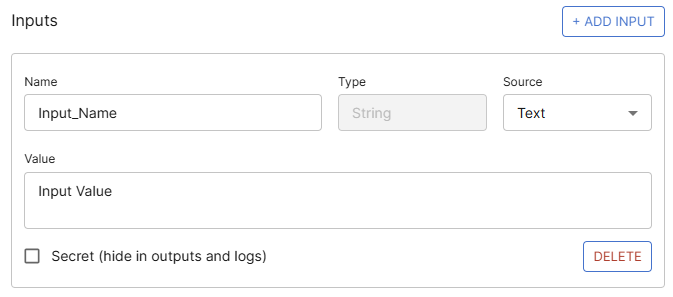
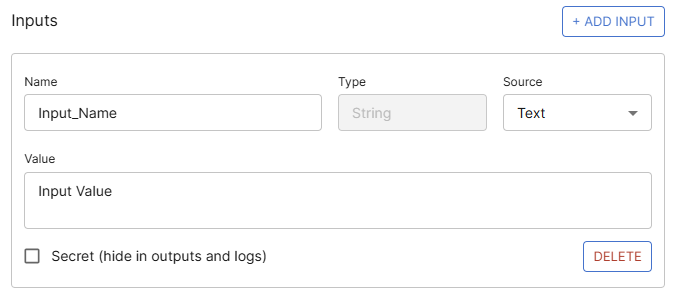
Click . A new add input panel is added to the modal each time you click this button. Complete the following fields for each input:
-
Name. Type a name for the input.
-
Source. Select a source option from the drop-down field. The available options are:
-
Text. The normal, hardcoded variable added in the command.
-
Prompt. This variable is prompted and filled by the user when the action is performed.
-
CSV. This variable uses the format {name,value,deviceaddress/devicename}, where the value is the value of the variable, and the name is the unique name of the variable.
-
-
Value. Enter the value of the variable you want to add to the command. This field is only editable if the Source type is Text.
-
Secret. Select this box to stop the value from returning or displaying in the Skylar Compliance user interface. The value is also redacted from the output.
-
-
In the Function field, enter the code for the function(s) you want to use.
Your code will be wrapped in a function automatically. Do not wrap the code yourself.
-
From the Devices table, select the device(s) on which you want to execute the functions. You can use the Device Type and Domains drop-down fields to filter the devices available for selection.
-
Click to finalize your changes, or to execute the commands immediately.
Error Handling for Lua Functions
You can use specific commands to help troubleshoot errors that might occur when executing Lua Function actions in Skylar Compliance.
The error(message) command sets an error on the current run of the action. This does not stop the action from executing. You can use the return command to stop the action from executing.
error("Something went wrong")
return
The error() command returns the current error string, or "" if none has been defined.
if error() ~= "" then
    return
end
Below are two examples that use these commands for practical error handling.
Example: Device Rejected a Command
This example uses error(message) to set an error when the device output contains a known failure string. In the example, if out matches "Invalid command", error() is called to record what went wrong, and then return is used to stop execution of the action. Without return, the action would continue running after setting the error.
sendget("show config", "$")
local out = before()
if out:match("Invalid command") then
    error("Device rejected 'show config'")
    return
end
print(out)
Example: Session Failure (Timeout, Connection Error)
This example uses error() with no arguments to read whether Skylar Compliance has already set an error. In the example, after waitprompt(), error() is checked before attempting to read the output of the action. If the session failed, there is nothing in before() worth outputting, so the action is exited early rather than outputting an empty or incomplete response.
send("show config")
waitprompt()
if error() ~= "" then
    return
end
print(before())