
This chapter describes how you can use Skylar Compliance to send a command-line interface (CLI) command to a device or group of devices and capture the output of the command. This tool can be used to perform a task concurrently on a group of devices.
Controlling a Device
You can use Skylar Compliance to send a CLI command to a device or group of devices and capture the output of the command. This tool can be used to perform a task concurrently on a group of devices, such as changing the administrator password.
To use this function:
-
On the Device List page (Devices > Device List), click to check your device, and click the button. The Control Devices modal appears.
-
Select New Action from the drop-down menu, then complete the following fields:
-
Name. Type a name for your action.
-
Description. Give a unique descriptions for your action.
-
Type. Select the type of command from the drop-down menu.
-
Variable Delimiter. Select the variable delimiter from the drop-down menu.
-
Wait Duration (s). Type the number of seconds for Skylar Compliance to wait for a response from the device for each entered command.
Skylar Compliance will wait for the entire duration, even if the device outputs a response sooner than the configured duration. If multiple commands are entered, the wait duration should be configured to accommodate the command for which the device will take the most time to generate an output.
-
Log Transcript. Select this checkbox to capture and store transcripts for successful device commands.
By default, transcripts are captured and stored only for failed device commands. Enabling the Log Transcript option will increase the number of stored records and overall storage usage in Skylar Compliance.
-
Type your commands in the text area.
-
Click or .
Device Control Actions can also be defined from the Device Control page (Devices > Device Control), by clicking New Action. If required, you can Save these commands as an Action for later execution, or for use in Compliance Remediation. Stored Actions can also be scheduled. For more information, see Scheduled Actions. Click Perform to execute the commands. Skylar Compliance will display the output of the commands for each of the selected devices. Device Control outputs are stored in the Output tab of the Device Control page.
Scheduled Actions
Actions can be scheduled and run automatically.
To add a new schedule to your device:
-
Go to the Device Control (Devices > Device Control) page and click the tab. Next, click the button. The New Schedule modal appears.
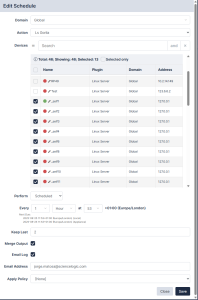
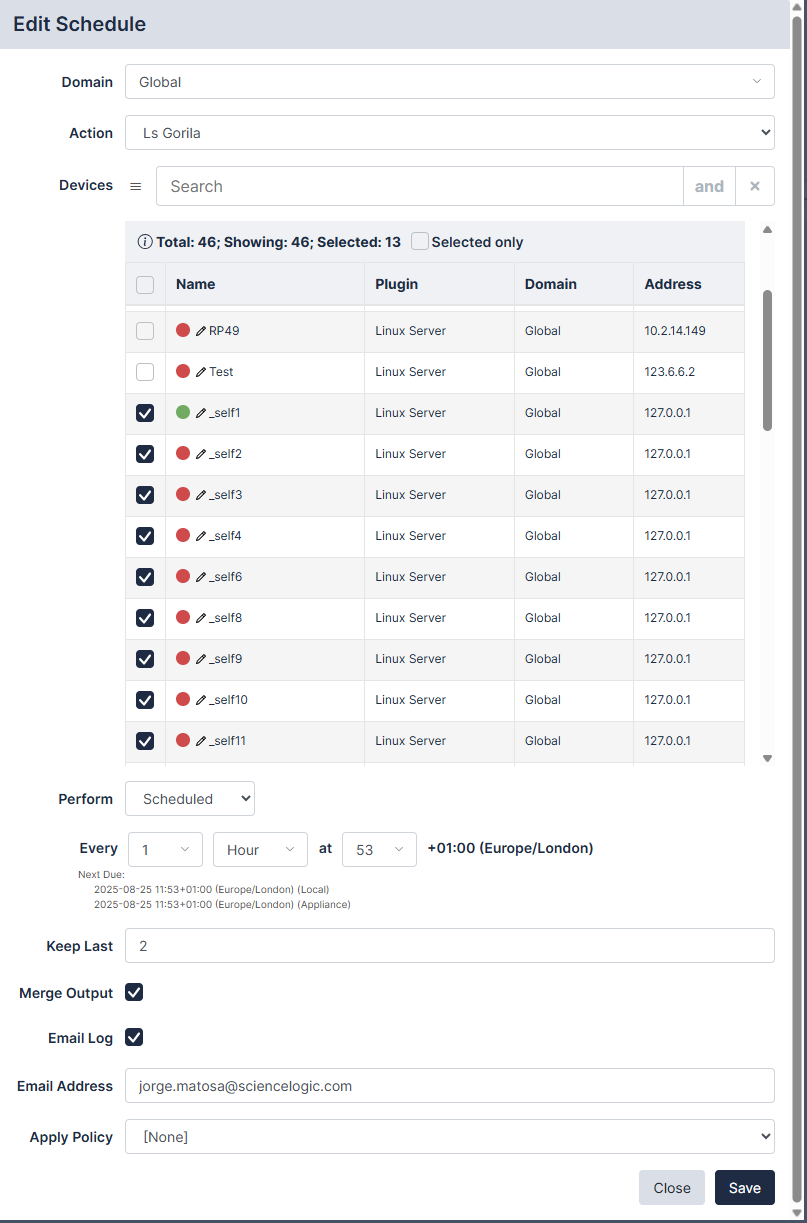
- Complete the following fields:
- Action. Choose a option from the Actions drop-down field.
- Devices. Select the device or devices on which to perform the action
- Perform. Select a frequency, either Scheduled or Once At and a time interval or date.
- Keep Last. Set the number of recent output runs you want to retain. Type "1" to keep all outputs from the most recent run. Type "2" to keep the outputs from the last two runs, and so on.
- Merge Output. Select the Merge Output checkbox if you want to merge the output.
- Email Log. Select the Email Log check box and enter an email address if you want to email the output of an action after execution.
- Apply Policy. (Optional) Select a compliance policy to apply to the output of the action. For more information, see Device Policies.
All logs are now stored in Skylar Compliance.
- Click and the updated Scheduled Action page appears.
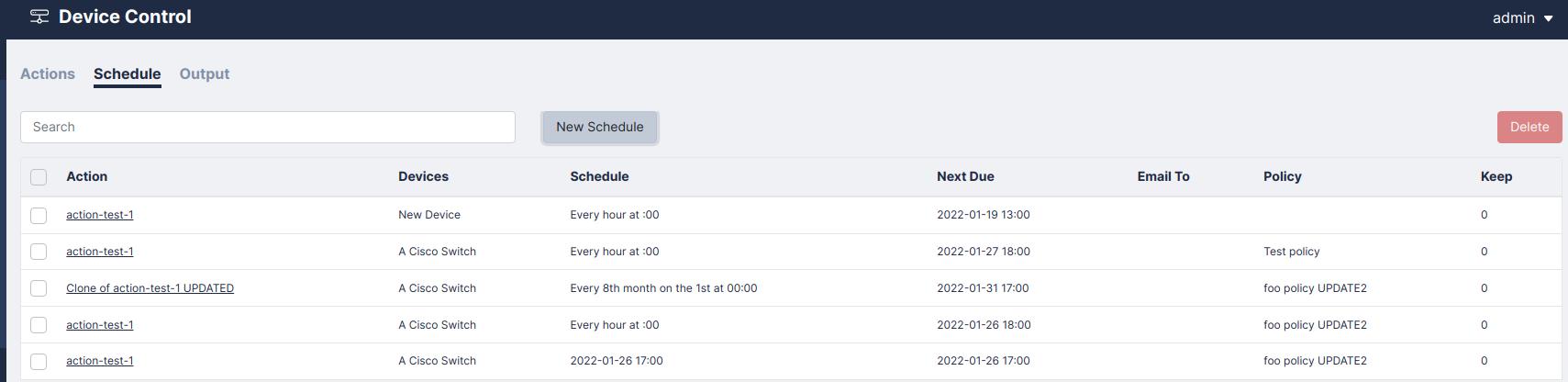
Scheduled Actions cannot contain parameters.
Lua Functions
The Device Control page (Device > Device Control) features a more powerful way to interact with devices using the Lua programming language. Instead of sending a single command to a device, Lua offers control structures, loops, conditionals, match functions, and more. Using Lua, you can perform more complex tasks, including making decisions based on the device output.
The syntax does not require any specific programming experience or knowledge of markup languages like XML. For more information about Lua, see https://www.lua.org/docs.html.
Creating a Lua Function Action
To create a Lua Function action:
-
Go to the Device Control page (Devices > Device Control).
-
Click . The Add Command modal appears.
-
Complete the following fields:
-
Name. Type a name for your action.
-
Description. Type a unique description for your action.
-
Type. Select Lua Functions from the drop-down field.
-
Log Transcript. Select this checkbox to capture and store transcripts for successful device commands.
-
By default, transcripts are captured and stored only for failed device commands. Enabling the Log Transcript option will increase the number of stored records and overall storage usage in Skylar Compliance.
-
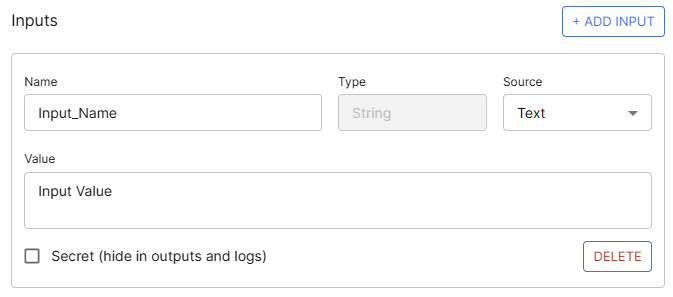
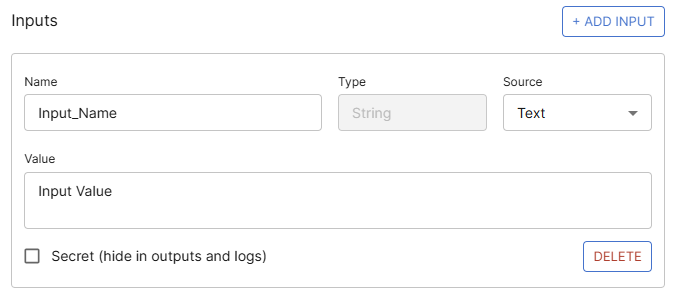
Click . A new add input panel is added to the modal each time you click this button. Complete the following fields for each input:
-
Name. Type a name for the input.
-
Source. Select a source option from the drop-down field. The available options are:
-
Text. The normal, hardcoded variable added in the command.
-
Prompt. This variable is prompted and filled by the user when the action is performed.
-
CSV. This variable uses the format {name,value,deviceaddress/devicename}, where the value is the value of the variable, and the name is the unique name of the variable.
-
-
Value. Enter the value of the variable you want to add to the command. This field is only editable if the Source type is Text.
-
Secret. Select this box to stop the value from returning or displaying in the Skylar Compliance user interface. The value is also redacted from the output.
-
-
In the Function field, enter the code for the function(s) you want to use.
Your code will be wrapped in a function automatically. Do not wrap the code yourself.
-
From the Devices table, select the device(s) on which you want to execute the functions. You can use the Device Type and Domains drop-down fields to filter the devices available for selection.
-
Click to finalize your changes, or to execute the commands immediately.
Error Handling for Lua Functions
You can use specific commands to help troubleshoot errors that might occur when executing Lua Function actions in Skylar Compliance.
The error(message) command sets an error on the current run of the action. This does not stop the action from executing. You can use the return command to stop the action from executing.
error("Something went wrong")
return
The error() command returns the current error string, or "" if none has been defined.
if error() ~= "" then
    return
end
Below are two examples that use these commands for practical error handling.
Example: Device Rejected a Command
This example uses error(message) to set an error when the device output contains a known failure string. In the example, if out matches "Invalid command", error() is called to record what went wrong, and then return is used to stop execution of the action. Without return, the action would continue running after setting the error.
sendget("show config", "$")
local out = before()
if out:match("Invalid command") then
    error("Device rejected 'show config'")
    return
end
print(out)
Example: Session Failure (Timeout, Connection Error)
This example uses error() with no arguments to read whether Skylar Compliance has already set an error. In the example, after waitprompt(), error() is checked before attempting to read the output of the action. If the session failed, there is nothing in before() worth outputting, so the action is exited early rather than outputting an empty or incomplete response.
send("show config")
waitprompt()
if error() ~= "" then
    return
end
print(before())
Lua Applets
Device Control (Device > Device Control) features a more powerful way to interact with devices using the Lua programming language. Instead of sending a single command to a device, Lua offers control structures loops, conditionals, match functions, etc. Using Lua, you can perform more complex tasks, including making decisions based on the device output.
To create a Lua action, go to the Device Control page (Devices > Device Control) and click . Then select Lua from the Type drop-down menu.
The syntax is straightforward, and it does not require any specific programming experience or knowledge of markup languages like XML. For more information about Lua, see https://www.lua.org/docs.html.
Starting with the 5.6 20260715 maintenance release, you can no longer create device control actions using Lua Applets. Existing Lua Applet functions will continue to work, and you can use the Lua Functions action type to create new device control actions.
Using Parameters
You can use action parameters for different devices, using the format $''parameter''$, where $ is the Variable Delimiter you’ve set for your Action.
For instance, to change the administrative password for a number of ScreenOS devices, select the devices and enter the command:
setadminpassword$password$
After you click Perform, you will be asked for a replacement string for each device. An unlimited number of parameters can be replaced this way.
A parameter can only consist of letters, numbers, and the underscore character _. If the replacement string contains escape sequences (such as \n), they must be double-escaped (\\n).