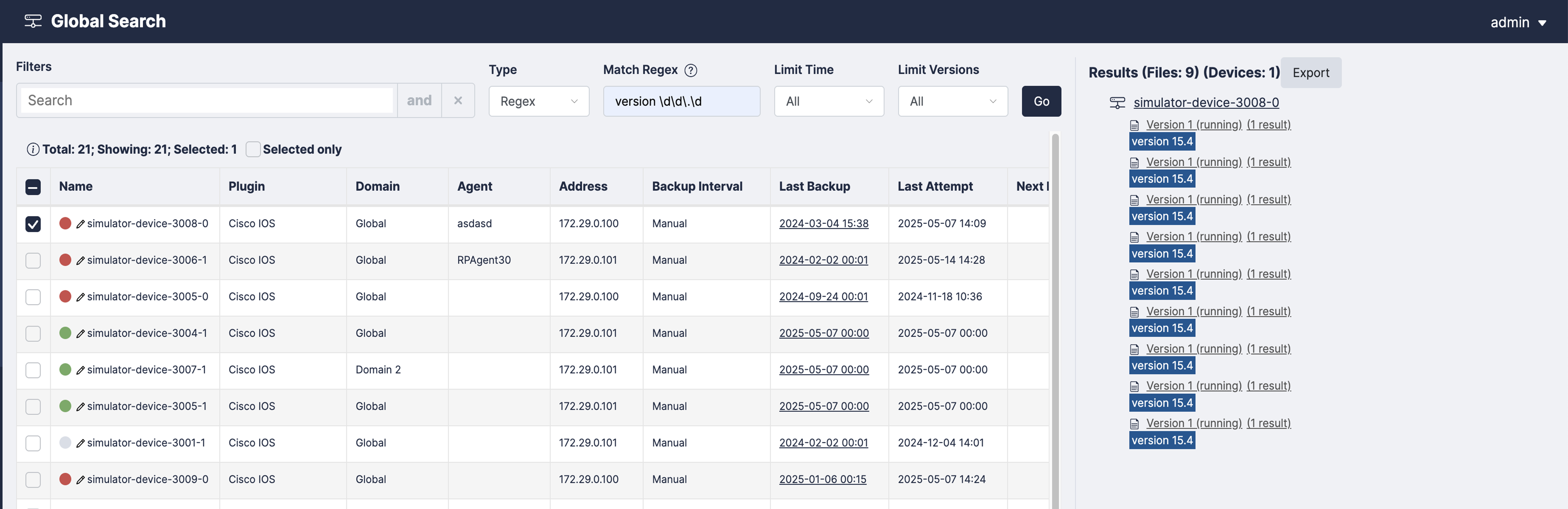
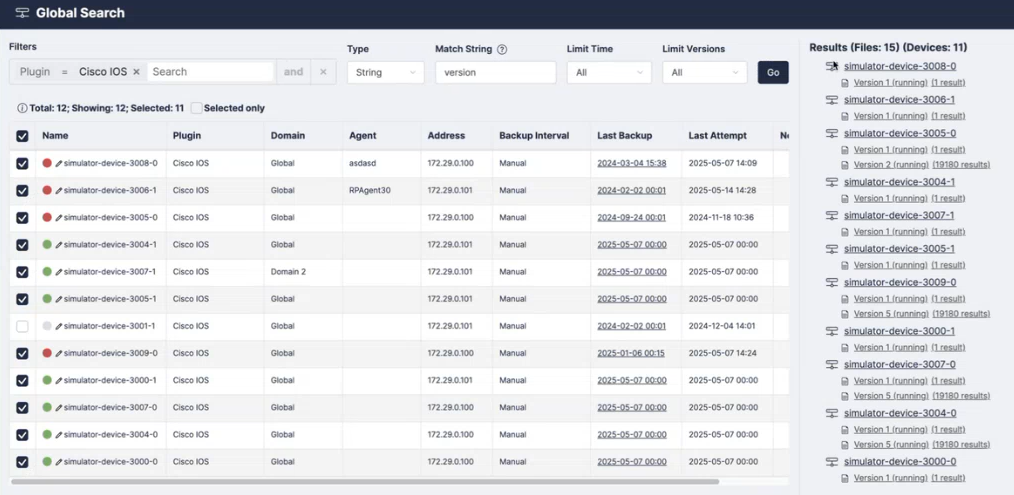
Skylar Compliance offers two types of searches to find the correct configuration backups on the Global Search page (Devices > Global Search). You can search via a string search or with a regular expression search.
Global Search
Skylar Compliance offers two types of searches to find the correct configuration backups on the Global Search page (Devices > Global Search). You can search via a string search or with a regular expression search.
To perform a string search:
- Select the search criteria in the Filter field that you want to search for. Click the and/or operator toggle to narrow your search. The Filter field will filter as you select or type your search criteria and will update the results in the table below the search modal.
- Select String from the drop-down menu and type in any text you want to match specifically in the Match String field. For more information, click (
 ) for String Search Criteria help.
- If desired, select a time limit and version limit from the Limit Time and Limit Versions drop-down menus.
- Select the devices you want to search and click . The Global Search will display a preview of every search result in the Results pane on the right.
To perform Regex search:
- Select Regex from the drop-down menu to search by regular expression for a more advanced search.
- Type in any text you want to match specifically in the Match Regex field. For more information, click () for Regex Search Criteria help.
- If desired, select a time limit and version limit from the Limit Time and Limit Versions drop-down menus.
- Select the devices you want to search and click . The Global Search will display a preview of every search result in the Results pane on the right.
- Select the results that you want to export and click the button to export to a .csv file.