
This
VMware Automation Policies
The "VMware Automation" PowerPack includes the following automation policies:
- VMware Automation: Get vCenter Service Logs
- VMware Automation: Get VMKernel Log and Syslog
- VMware Automation: Get VMware hostd and vCenter Agent ESXi Logs
These automation policies are tied to included ScienceLogic Skylar One events generated by the Dynamic Applications from the "VMware: vSphere Base Pack" PowerPack.
The automation policies have a Policy Type of Active Events/User Initiated, which enables all of the features of the "Active Events" and the "User Initiated" policy types. As a result, this automation policy can be triggered by active events that meet the criteria in the policy, or you can manually trigger the automation.
You can run this automation policy as needed from the Devices page, the Events page, and the Service Investigator page. If there is an event policy specified in the automation policy, that event must be active for the policy to be run manually, and the policy can only be run on that event type. The same applies for the device groups list.
The automation policies trigger one of the following run book actions:
- Get All Available VMware Diagnostic Logs
- Get vCenter Service Logs
- Get VMware hostd and vCenter Agent ESXi Logs
- Get VMWare VMKernel Log and Syslog
These run book actions collect logs and syslog files, along with a "Datacenter Automation" run book action that formats the output as HTML.
All of the run book actions use the "Get VMware Diagnostic Logs" run book action type, which is also supplied in the PowerPack.
The "Get All Available VMware Diagnostic Logs" run book action is not aligned to any of the automation policies in this PowerPack by default. As a result, you will need to add this action to a policy, and the action will retrieve data from all available log files on the target device.
If the log files specified in a run book action are not present on the target vCenter or standalone ESXi host device, the automation policies will output an empty response instead of actual log data.
The following table shows the automation policy, its aligned events, and the run book actions that run in response to the events.
The aligned events are included as part of the "VMware: vSphere Base Pack" PowerPack and are not installed with the Skylar One platform. You must install the PowerPack to obtain these events.
| Automation Policy | Aligned Events | Run Book Action |
|---|---|---|
|
VMware Automation: Get vCenter Service Logs |
|
|
|
VMware Automation: Get VMKernel Log and Syslog |
Same list of events as above. |
|
|
VMware Automation: Get VMware hostd and vCenter Agent ESXi Logs |
Same list of events as above. |
|
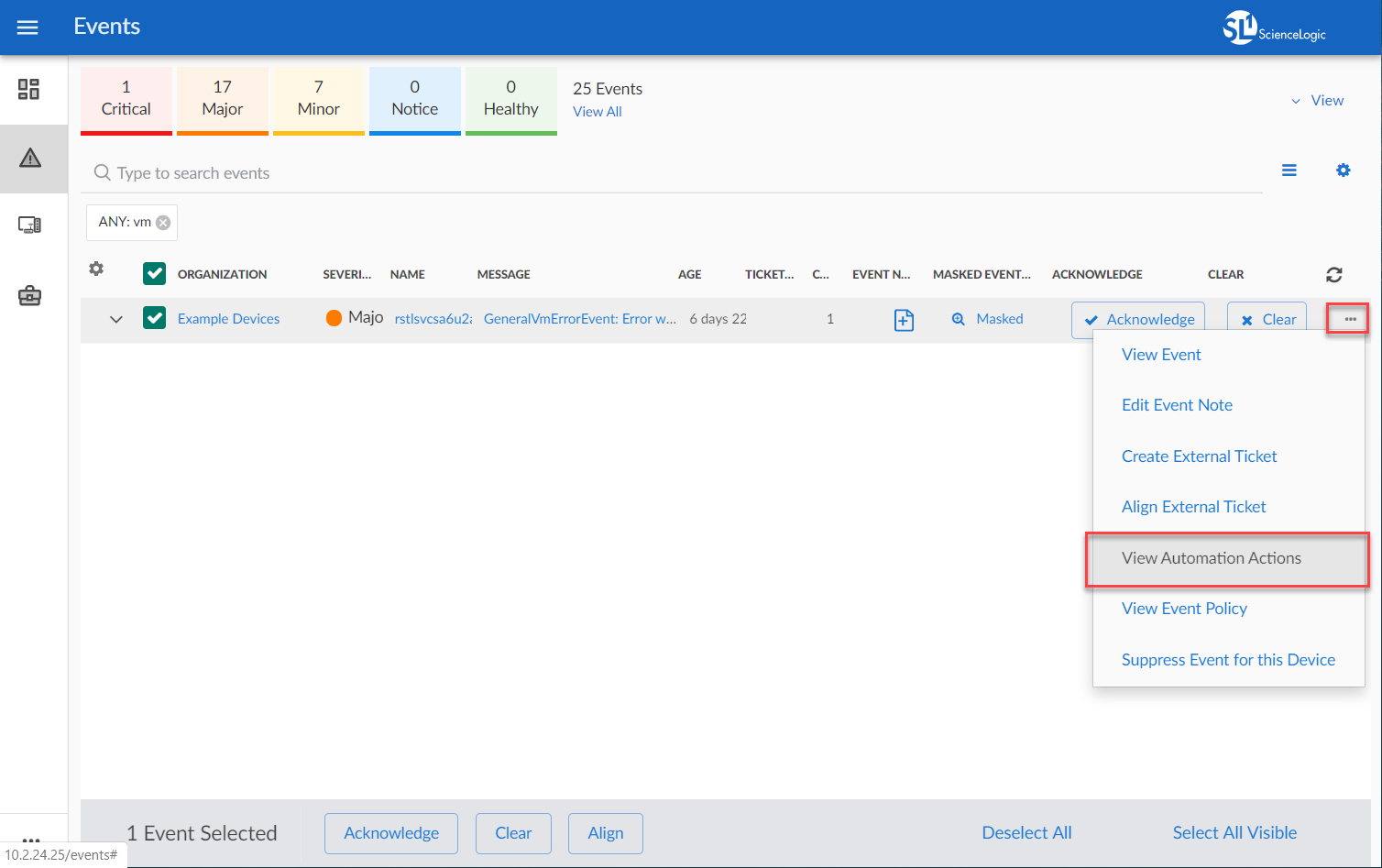
The following figure shows a VMware event with major criticality on the Events page. Click the [Actions] button ( ) for an event, and select View Automation Actions to see the run book actions triggered by the events.
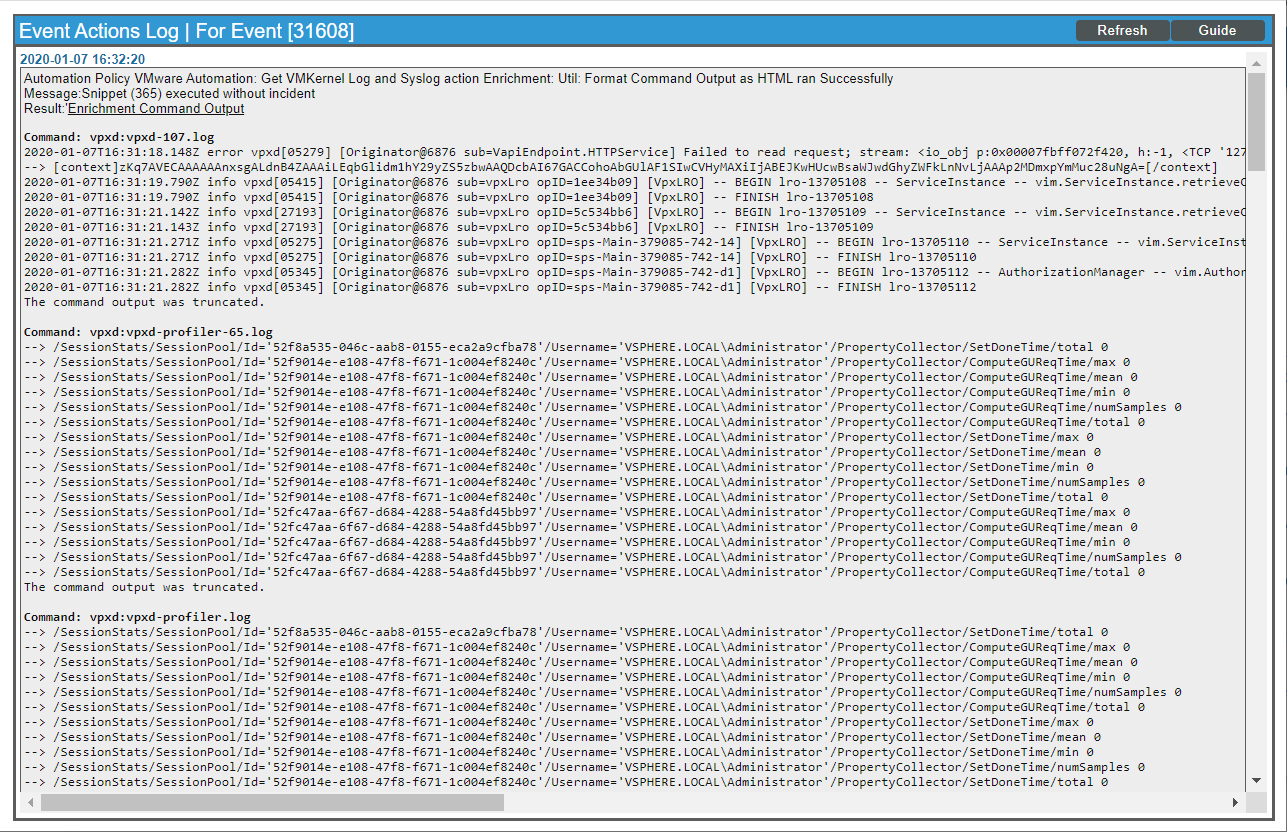
The results shown for this event, in the Event Actions Log, include the automation policy that ran (shown at the top of the following figure), along with the log files collected.
To learn more about which logs are collected by default for a given run book action, see Configuring VMware Run Book Actions.
Although you can edit the automation policies described in this section, it is a best practice to use "Save As" to create a new automation policy, rather than to customize the standard automation policies.
Creating and Customizing Automation Policies
You can use the default run book automation policies in this PowerPack, or you can create and customize the policies as needed.
You might need to configure a run book action policy before you can add it to the automation policy. For more information, see Configuring VMware Run Book Actions.
Before you create an automation policy using the run book actions in this PowerPack, you must determine:
- Which log files you want to collect from vCenter when this action runs. The run book actions in the PowerPack run the "Get VMware Diagnostic Logs" action type with different parameters. You can also create your own run book actions using the custom action type supplied in the PowerPack.
- How many lines of the log file you want returned. The action goes to the end of the log file and returns the last n number of lines. For a description of all the options that are available in Automation Policies, see the
To create an automation policy that uses the run book actions in this PowerPack:
-
Go to the Automation Policy Manager page (Registry > Run Book > Automation).
-
Click the button to create an automation policy, or search for an existing automation policy that you want to edit and click the wrench icon (
 ) for that policy. The Automation Policy Editor page appears:
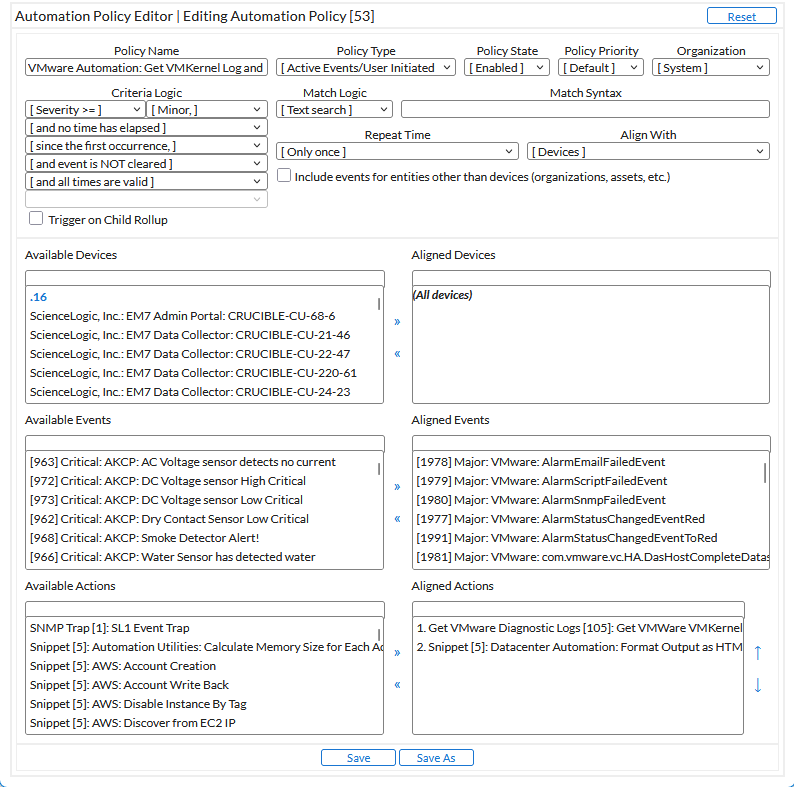
- Complete the following required fields:
-
Policy Name. Enter a name for the automation policy.
-
Policy Type. Select whether the automation policy will match events that are active, match when events are cleared, or run on a scheduled basis. Typically, you would select Active Events or Active Events/User Inititiated in this field.
-
Policy State. Specifies whether the policy will be evaluated against the events in the system. If you want this policy to begin matching events immediately, select Enabled.
-
Policy Priority. Specifies whether the policy is high-priority or default priority. These options determine how the policy is queued.
-
Organization. Select one or more organizations to associate with the automation policy. The automation policy will execute only for devices in the selected organizations (that also match the other criteria in the policy). To configure a policy to execute for all organizations , select System without specifying individual devices to align to.
-
Aligned Actions. This field includes the actions from the "VMware Automation" PowerPack. To add an action to the Aligned Actions field, select the action in the Available Actions field and click the right arrow (>>). To re-order the actions in the Aligned Actions field, select an action and use the up arrow or down arrow buttons to change that action's position in the sequence.
You must have at least two Aligned Actions: one that runs the run book action and one that provides the output format. The actions providing the output formats are contained in the "Datacenter Automation Utilities" PowerPack, which is a prerequisite for running automations in this PowerPack.
-
Optionally, supply values in the other fields on this page to refine when the automation will trigger.
-
Click or click if you are customizing an existing policy. If you modify one of the included automation policies and save it with the original name, any customizations you made to that policy will be overwritten when you upgrade the PowerPack.
If the log files specified in a run book action are not present on the target vCenter or standalone ESXi host device, the automation policies will output an empty response instead of actual log data.
Removing an Automation Policy from a PowerPack
If you have customized a policy from the "VMware Automation" PowerPack, you might want to remove that policy from the PowerPack to prevent your changes from being overwritten if you update the PowerPack later. If you have the license key with author's privileges for a PowerPack or if you have owner or administrator privileges with your license key, you can remove content from a PowerPack.
To remove content from a PowerPack:
- Go to the PowerPack Manager page (System > Manage > PowerPacks).
- Find the "VMware Automation" PowerPack. Click its wrench icon (
 ).
). - In the PowerPack Properties page, in the navigation bar on the left side, click Run Book Policies.
- In the Embedded Run Book Polices pane, locate the policy you updated, and click the bomb icon (
 ) for that policy. The policy will be removed from the PowerPack and will now appear in the bottom pane.