
Skylar AI is a software services suite powered by artificial intelligence (AI) that is designed to automatically manage and anticipate IT incidents. Skylar AI reasons over telemetry and the stored knowledge of an organization to deliver accurate insights, recommendations, and predictions.
Skylar AI includes Skylar Advisor or Skylar Analytics, or both if you have licenses for both applications.
The following table lists the minimum and recommended versions of ScienceLogic software required for Skylar AI and its components:
| Product | Minimum Version | Recommended Version |
|---|---|---|
| Skylar One | 12.3.2 | 12.5.1 or later |
| AP2 | 8.18.43-81 (Jelly Bean) | 8.29.41 (Nougat) or later |
Skylar Advisor currently requires Skylar Analytics. For more information, see the Skylar AI Release Notes.
What is Skylar AI?
Autonomic IT leverages artificial intelligence (AI), automation, and data to intelligently self-manage an entire IT stack. Autonomic IT drives autonomous businesses with rapid decision-making, cost-optimized scalability, and innovative experiences that empower organizations to focus on core innovation. The Skylar AI platform, which includes Skylar Analytics and Skylar Advisor, helps customers with their journey towards Autonomic IT.
Skylar AI is a software services suite powered by artificial intelligence (AI) that is designed to automatically manage and anticipate IT incidents. Skylar AI reasons over telemetry and the stored knowledge of an organization to deliver accurate insights, recommendations, and predictions.
Skylar One collects data and leverages Skylar AI to learn the patterns for a particular device metric over a period of time. Skylar uses the resulting data to build a device metric-specific model that is used to define a scope of expected behavior as well as anomalous data points.
Features of Skylar AI
Skylar AI is the engine that powers several different software components. The components in the Skylar family of services share the following characteristics:
- Reactive. When something fails, Skylar AI tells you in plain language what happened and how to fix it with relevant context.
- Predictive. Skylar AI alerts you in advance to an expected out-of-capacity condition.
- Proactive. Skylar AI accurately answers any question asked of it with context drawn from company knowledge sources, such as bugs, support tickets, Knowledge Base articles, and Product Documentation, and recommends next steps.
Skylar AI integrates seamlessly with the Skylar One platform and other IT management tools. You can interact with Skylar AI through these familiar environments, where it enhances existing workflows with AI-driven insights and automation capabilities. Skylar AI can send you alerts and notifications, which can be customized to suit individual preferences or organizational needs. These alerts help you stay informed about potential issues, ongoing incidents, or opportunities for optimization.
Components of Skylar AI
The Skylar AI family of services includes the following components:
- Skylar Advisor, an AI-powered feature within the Skylar AI ecosystem that provides proactive, tailored guidance based on real-time data.
- Skylar Analytics, an advanced reporting and custom analytics service that combines AI-powered analytics with deep data exploration and visualization.
Data Analyzed by Skylar AI
The following image shows the flow of data into and out of Skylar One and Skylar AI:
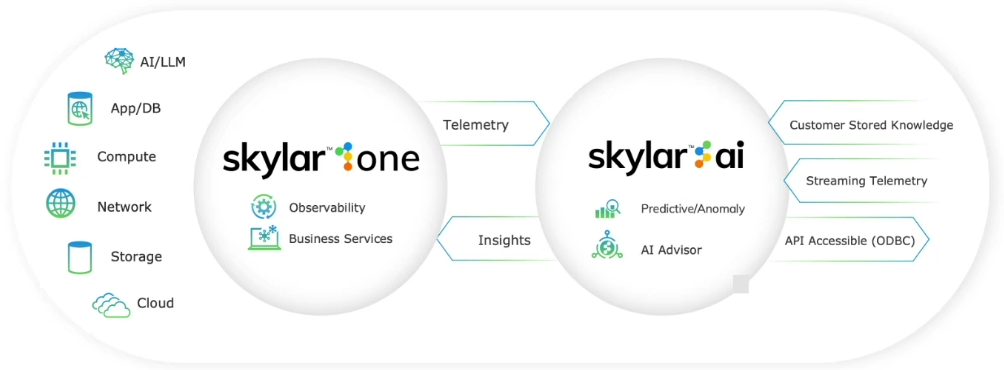
The following list contains some of the types of data that Skylar One can send to the Skylar AI engine, where the data is analyzed and used by Skylar Advisor and Skylar Analytics:
- Alert and event logs
- Asset data
- Availability data collected by Skylar One
- Business Service health, availability, and risk metrics from Skylar One
- Class-Based Quality-of-Service (CBQoS) metadata and CBQoS time series data
- Custom attributes for devices
- Device category and device group data
- DCM(+R) relationships and topology
- Dynamic Application mapping and performance data, and journals
- Email round trip data
- Event data, including event policy name
- Interface billing metrics, metadata, and tags
- Internal Collection processes, collection services, and CBQoS
- Journal Dynamic Application data
- Metadata for web content, SOAP/XML transaction, and domain name monitors
- Presentation objects, labels, and metrics collected by Dynamic Applications that include SNMP index collection objects
- Process and service data
- Skylar One Agent data, including Gen 1 (Skylar One Distributed Environment) and Gen 3 (Skylar One Extended Architecture) agents
- Thresholds
- Topology data for L2, L3, CDP, LLDP, and ad-hoc relationships between devices
Configuring Skylar One for Skylar AI
If you or your site administrator needs to install Skylar AI in your environment, see Appendix A: Installing and Configuring Skylar AI.
Before you can start using Skylar AI components, you will need to perform the following configurations in Skylar One to enable the export of data from Skylar One to Skylar:
- Create a Service Connection
- Enable Skylar Analytics for One or More Organizations
- Enabling Skylar AI Event Policies
After you perform these configurations, you can access Skylar Analytics, Skylar Advisor, and other key Skylar AI components from the Skylar AI page ( ) in Skylar One.
For information about setting up users, user groups, and user roles, see Configuring Skylar AI System Settings.
If you are connecting Skylar AI with a Skylar One system, ScienceLogic strongly recommends that you always use the most recent Skylar One and AP2 releases. Using the most recent releases will ensure that your Skylar AI system has access to the latest datasets and features. For more information, see the Skylar One Platform and AP2 Release Notes.
Creating a Service Connection
If you are using AP2 Mochi or later with your Skylar One system, you can create a service connection for the Skylar AI engine on the Service Connections page (Manage > Service Connections) in Skylar One. ScienceLogic strongly recommends upgrading to Mochi or later. For more information, see the AP2 Mochi release notes.
The service connection enables communication between your Skylar One system and Skylar AI. This process replaces the Running the Skylar Management Tool process in previous releases of Skylar Analytics and Skylar One.
To create a Skylar AI Engine service connection:
-
In Skylar One, go to the Service Connections page (Manage > Service Connections).
-
Click Add Service Connection and select Skylar AI Engine. The Create Skylar AI Engine Credential window appears.
-
Complete the following fields:
- Name. Type a name for the new service connection.
- API Key. Add the access token for Skylar AI, which you can generate on the Access Tokens page (
 > Instances > Access Tokens) on the Skylar AI User Settings. For more information, see Creating Access Tokens for Users.
 - Skylar AI Engine URL. Add the URL for your Skylar AI system.
-
Click . The service connection is added to the Service Connections page, and a modal displays a link to the Organizations page, where you can enable Skylar Analytics for one or more organizations. See the following procedure for more information.
-
Refresh or reload the browser to add all updates to Skylar One.
Newer releases of Skylar One include a Status and Status Updated column, along with a Service Check column that displays a button for "Skylar AI Engine" service connection types. Click to run a script to check the status of the Skylar AI connection and display the results in a modal.
Enabling Skylar AI for One or More Organizations
You will need to select one or more organizations in Skylar One that will share data with Skylar AI. This data will come from all of the devices in a selected organization. By default, the Skylar AI features are disabled.
You can see which organizations are currently sending data to Skylar AI by going to the Organizations page (Registry > Accounts > Organizations) and looking at the Skylar AI Status column for the organizations.
To enable Skylar AI with Skylar One organizations:
-
In Skylar One, go to the Organizations page (Registry > Accounts > Organizations) and click the check box for one or more organizations.
-
In the Select Action drop-down, select Send Data from Selected Orgs to Skylar AI and click to start sending data about the selected organizations to Skylar AI. The Skylar AI Status column for the selected organizations changes to Enabled.
-
If you want to override the hard-coded default options for exporting metadata to Skylar AI, you can add the JSON values in the Skylar Options (JSON) text field on the Behavior Settings page (System > Settings > Behavior). The values entered must be in the same JSON structure as those that appear in the config.py file:
DEFAULT_OPTIONS = { "metadata": { "intervals": {"snapshot": 60,
"cleared_events": 5}, "snapshot": { "batch_sizes": { "asset_basic":
500, "asset_ip_config": 10000, "perf_index_label": 5000, "device_
config": 20000, }, }, "cleared_events": { "query_range": 60, }, } }
You can use the "Skylar: Failed" event policy in the "Skylar One Default Internal Events" PowerPack to raise an event in Skylar One if Skylar AI fails. If you installed Skylar One version 12.5.1 from an ISO file, this PowerPack will be included with the installation. If you are upgrading to Skylar One version 12.5.1, you will need to download the most recent "Skylar One Default Internal Events" PowerPack from the PowerPacks page on the ScienceLogic Support Center (Skylar One > PowerPacks) and then install the PowerPack.
A generic, internal alert definition is generated in Skylar One to indicate whenever a Skylar AI connection is successful or encounters a problem.
For Older Versions: Running the Skylar Management Tool
If you are using a version of AP2 before Mochi, you will need to set up Skylar AI with the steps below for the Skylar SL1 Management Tool instead of the Service Connections page in Skylar One. ScienceLogic strongly recommends that you upgrade to Mochi. For more information, see the AP2 Mochi release notes.
The Management Tool configures Skylar One data and Skylar One processes, and it starts monitoring the Skylar connection and configuration. The script is named sl-otelcol-mgmt.py, and it is included in the sl-otelcol RPM package.
To run the Skylar SL1 Management Tool:
-
Use the following command to run the Management script on the Database Server (a Skylar One Central Database or a Skylar One Data Engine):
sudo sl-otelcol-mgmt.py -vv skylar --skylar-all --skylar-endpoint "<URL_for_skylar_system>" --skylar-api-key "<skylar-access-token>" --ap2-feature-flags
where:
- <URL_for_skylar_system> is the URL for your Skylar AI system
- <skylar-access-token> is the access token for Skylar AI, which you can generate on the tab of the Skylar Settings page. For more information, see Creating Access Tokens for Users.
This command configures the OpenTelemetry Collector, restarts services that export data, and checks that connectivity to the supplied endpoints is healthy.
You can also use the following configuration options if needed:
- --verify-cert false. Allows users in on-premises environments to connect to Skylar AI using self-signed certificates.
- --ca-bundle /<path>/bundle.pem. Allows users to specify a path to a .pem file and assign it to the REQUESTS_CA_BUNDLE environment variable.
- --skylar-disable. Stops all Skylar AI exports and services. This flag performs the same operations as the pause command (see step 3, below) and also removes any Skylar AI pages from the Skylar One user interface.
If you have already run setup before and are not changing the connection details, you do not need to include --skylar-endpoint "<URL_for_skylar_system>" --skylar-api-key "<skylar-access-token>".
In addition, --ap2-feature-flags is only needed the first time you install Skylar AI.
After successfully running the script, on the System Logs page (System > Monitor > System Logs), you will see "Info" messages for each configuration change (filter on sl-otelcol-mgmt). You will also see "Major" system log messages whenever connectivity fails for the Skylar endpoint or the OpenTelemetry Collector.
After data streams into the Data Visualization dashboards, and other Skylar AI components, they will populate with data. Please note that this process might take several minutes.
-
If you have run the setup script before, run the following command to enable Skylar AI and make sure that everything is working as expected:
sudo sl-otelcol-mgmt.py -vv skylar --skylar-all
-
If you need to pause Skylar AI, run the following command:
sudo sl-otelcol-mgmt.py -vv skylar
Pausing sets all Skylar AI toggle fields to disabled, restarts the event engine and data pull services to reflect the changed configuration, stops Skylar One managed services such as the Metadata Exporter, Alerts Poller, and sl-otel-mgmt.timer, and stops and disables the sl-otelcol systemd service.
-
To check the status of the installation, run the following command:
sudo sl-otelcol-mgmt.py -vv status
You should look for the following messages in the output:
---------- checking feature toggles
SL_EXPORT_EVENTS = False
SL_EXPORT_METRICS = True
SL_EXPORT_CONFIG = True
---------- checking services
sl-otelcol is enabled and running
---------- checking connectivity
checking: Skylar endpoint is healthy
checking: local OTELCOL endpoint is healthyIf you need to turn off the Skylar AI connection, run the following command:
sudo sl-otelcol-mgmt.py -vv skylar --skip-status-service -
Go to the previous procedure to specify the organizations you want to use for exporting data to Skylar.
Enabling Skylar AI Event Policies
In addition, the Predictive Alerting and Anomaly Detection components of Skylar Analytics require the "Skylar Analytics Event Policies" PowerPack. This PowerPack includes the Skylar One event policies from the "Skylar - Predictive events", "SL1: Skylar Anomaly Score Event Monitoring", and "SL1: Anomaly Index Event Monitoring" PowerPacks.
Older versions of this PowerPack were named "Skylar Predictive Analysis".
To install the "Skylar Analytics Event Policies" PowerPack:
- Search for and download the PowerPack from the PowerPacks page at the ScienceLogic Support Center (Skylar One > PowerPacks, login required). Alternatively, you can use the link provided by ScienceLogic, if applicable.
- Browse and select the downloaded PowerPack and click .
- On the next screen, click and, when prompted for confirmation, click .
- To confirm that the PowerPack was installed properly by go to the Event Policies page (Events > Event Policies) and type the word "predictive" into the Name search field. You should see a number of "Predictive Alerting" event policies.
The "Skylar Analytics Event Policies" PowerPack replaces the event policies in the following PowerPacks:
- Skylar Analytics
- Skylar - Predictive events
- SL1: Anomaly Score Event Monitoring
- SL1: Anomaly Index Event Monitoring
If you are still using event policies from those PowerPacks, ScienceLogic recommends that you complete the following steps to avoid disrupting existing events and Skylar AI links for predictive alerts:
- In Skylar One, open each of the older PowerPacks on the PowerPacks page, go to the Event Policies tab, and click the remove or bomb icon (
 ) for each event policy to remove the older policies.
 - Import and install the latest "Skylar Analytics Event Policies" PowerPack.
- Edit the "Skylar Analytics Event Policies" PowerPack and click the lightning icon (
 ) next to all of the event policies that start with "anom" or "pred" are aligned to the new PowerPack.
 - Delete the older PowerPacks.
Going forward, upgrades and installs will not require you to repeat these steps.
Importing ServiceNow Data into Skylar AI
If you use ServiceNow to track incidents, alerts, or cases, or if you want to sync your ServiceNow Knowledge Base (KB) articles, you can import that ServiceNow data into Skylar AI using Skylar Automation.
The Skylar Advisor SyncPack retrieves KB article content from ServiceNow and sends those articles to Skylar AI for ingestion.
For more information, see the Skylar Advisor SyncPack manual.