
This chapter covers how to configure the various settings for Skylar AI products by using the Skylar Settings page to update your user profile, edit the user interface theme, and specify your password and multi-factor authentication settings for Skylar AI.
You can also use the Skylar AI menu ( ) at the top left of every page to access additional pages for the current Skylar AI application, along with User Settings and Account Settings for your Skylar AI applications.
The content in this chapter corresponds with the user interface for Skylar AI version 2.0.0 or later.
If you or your site administrator needs to install Skylar AI in your environment, see Appendix A: Installing and Configuring Skylar AI.
Logging In to the Skylar AI User Interface
You can access Skylar AI components from a link in Skylar One, or if you know the URL of your Skylar AI system, you can go directly to that location instead of using Skylar One.
The login process might vary slightly, depending on the versions of Skylar AI, Skylar One, and AP2 currently running in your environment.
-
From Skylar One, go to the Skylar AI page (
 ) and click the button for the Skylar AI component you want to use, such as Skylar Analytics or Skylar Advisor. If you are not currently logged in to Skylar AI, the Skylar AI sign-in page appears.
Clicking the button for Skylar Predictive Alerting and Skylar Anomaly Detection opens new pages for those components in Skylar One.
-
If you need to log in to Skylar AI, type your email address and password and click . The Skylar AI landing page appears.
-
If your Skylar AI site requires multi-factor authentication, but you have not set it up, you will need to scan the QR code that displays or enter the "secret key". This is a one-time-only step.
-
Click the name of the Skylar AI component you want to use, such as Advisor, Analytics, or Skylar Settings.
Navigating the Skylar AI User Interface
Use the following buttons and icons to help you navigate the Skylar AI user interface:
- Click the Skylar AI menu icon () at top left to access additional pages for the current Skylar AI application, along with the User Settings page, the Account Settings pages, and the Persona page (Skylar Advisor only). The User Settings link takes you to the same Profile page that displays when you select Skylar Settings from the login page.
- Click the "Skylar AI" icon at top left to return to the Skylar AI login page.
- If you have multiple instances of Skylar AI running, you can switch between those instances by clicking the drop-down next to "Viewing Instance" at the top right.
- Click the user icon (
 ) at top right to view the email address and role for the current user in the Skylar AI user interface. On this drop-down menu, you can click the button to sign out of this session.
 - Click the Versions link in the footer of any page to view version information for the Skylar Settings user interface. From the footer, you can also click links to view the Terms of Service and information about licenses and open-source packages.
Overview of Authentication in Skylar AI
Authentication for Skylar AI has the following features:
- Multi-tenant support, including a Super User login for host management .
- Multiple instances that represent separate domains of data access within an account.
- Pre-defined roles for access control.
- Email and password (local accounts) authorization by default, and Security Assertion Markup Language (SAML) single sign-on (SSO) authorization configured as needed.
- Access tokens for integration with external tools.
When a user is logged in to a Skylar AI component, that session uses the following rules:
- Email domains and SAML are configured per account (tenant).
- The first login for any new user starts with a prompt to create a new password.
- Logging into a user session requires either an email and password combination or a successful SAML2 redirect workflow.
- User passwords must be at least 15 characters long.
- New user passwords must be different from the last five passwords for this user.
- Users will be prompted to reset their passwords every 60 days.
- Users cannot change their passwords twice in 24 hours, and an error message displays if they try to do so.
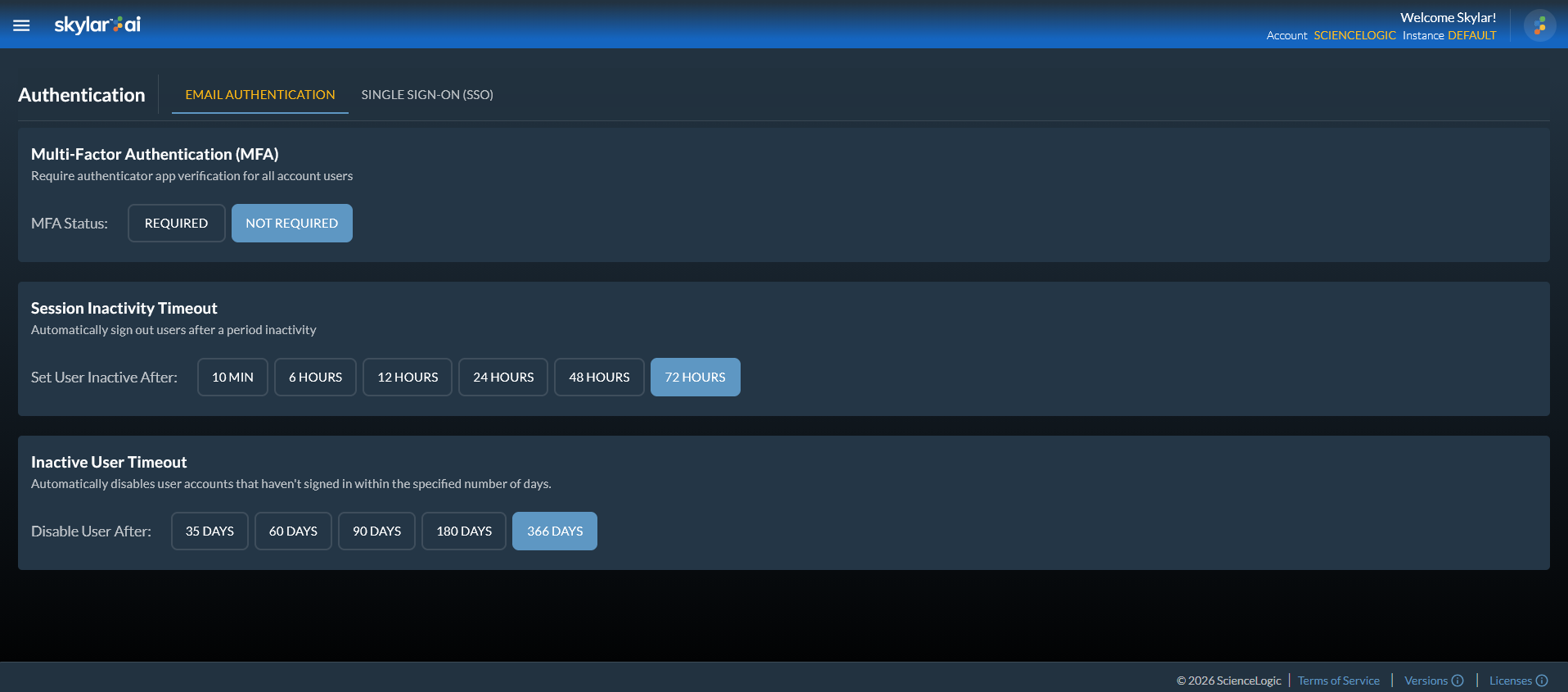
- User sessions that have been idle for 15 minutes are automatically terminated. Administrator user sessions that have been idle for ten minutes are automatically terminated. An Admin user can adjust the timeout value on the Authentication page ( > Account Access > Authentication) in User Settings.
- If a user has three failed login attempts within a 15-minute interval, the user's account is locked for 15 minutes. An administrator user can unlock that user account from the Edit User dialog on the Users page ( > Account Access > Users) in User Settings.
- User accounts that have not been active for 35 days are automatically locked. Administrators can configure the inactivity timeout by using the Inactive User Timeout option on the Authentication page ( > Account Settings > Account Access > Authentication).
Role-Based Access Control in Skylar AI
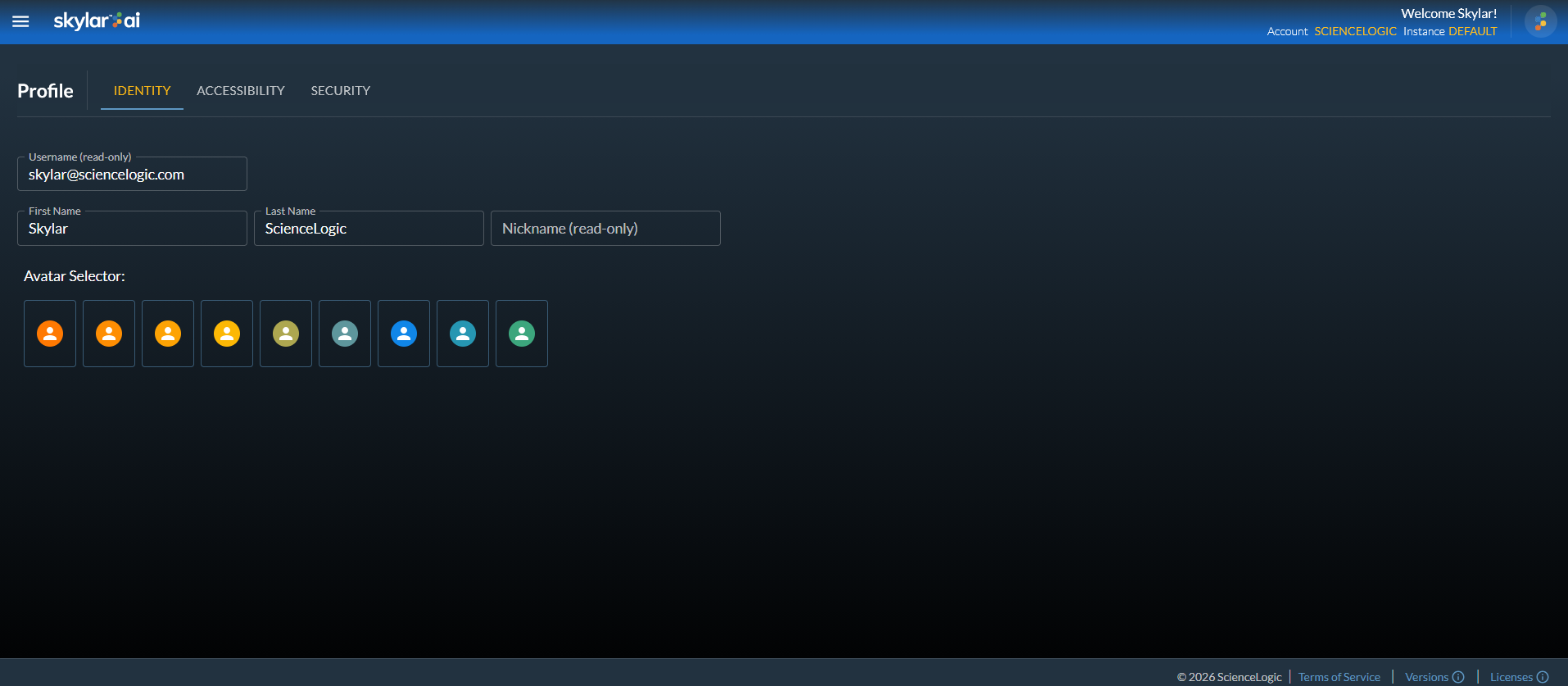
To access the role-based access control settings, log into the Skylar AI user interface and click Skylar Settings. You can also access this page when you are logged in by clicking the Skylar AI menu icon () at top left and selecting User Settings.
The following image displays the Profile page in Skylar Settings:
Elements of Role-Based User Accounts in Skylar AI
An account in a Skylar AI system represents a complete Skylar AI configuration for a company. You can have multiple instances of Skylar AI in a single account.
An account contains a combination of the following:
-
Instances. An instance is a logical store for account data. In other words, an instance is a complete Skylar AI system with its own set of login credentials and user settings. Examples of instances include a production instance, a QA instance, and a testing instance. An account can contain multiple instances. A user can view only the instances that are specified on the groups to which that user is a member. If only one instance is available, you will use the instance labeled "default".
On the Available Instances page (
> Instances > Available Instances) in Skylar Settings , you can view a list of instances for the current user. An admin user can also access the ODBC connection information for an instance, which contains the Microsoft Open Database Connectivity (ODBC) host, password, port, and user information for Data Exploration using ODBC on the ODBC Users page (Analytics Admin > ODBC Users > ODBC Connection Info).If your system is using more than one instance, you will be able to select an instance after you log into Skylar Analytics.
-
Access Tokens. You can add access tokens to connect Skylar AI with Skylar One or a third-party application. The scope of an access token determines which application or service you can connect to with the access token. You can select more than one scope for an access token. You will need a different access token for each Skylar AI instance you are connecting to with an access token. You can set an expiration date for an access token, and you can also regenerate a token if needed.
On the Access Tokens page (
> Instances > Access Tokens) in Account Settings, you can view and add access tokens. For more information, see Using Access Tokens for Users. -
Users. Everyone using Skylar AI should have their own user accounts. A user must belong to at least one group.
On the Users page (
> Account Access > Users) in Account Settings, you can view, edit, and add users for an account, and you can also reset the password for a user. -
Groups. A group controls which areas of Skylar AI a user can access. User groups are configured with a role and either a list of specific instances or All instances. If you select All instances, any instances that are created later are aligned with this group. Users can belong to more than one group. The active role for a user is based on the highest privilege from the groups aligned with that user.
On the Groups page (
> Account Access > Groups) in Account Settings, you can view, edit, and add user groups for an account. -
Roles. A role controls what features a user can access. You assign a role by creating or editing a user, and then aligning a group to that user. The active role for a user is based on the highest privilege from the groups aligned with that user.
The types of roles include the following:
-
Super User. Assigned to the admin user that can manage all user accounts. The default login is skylar@sciencelogic.com. The Super User role can create and manage customer accounts, manage multiple instances, and set up SAML authentication for a customer.
-
Service Provider. This role lets you provision new accounts and set up SSO for accounts. This role cannot edit the user with the Super User role.
-
Owner. This role lets you monitor user management and user access, including the creation and assignment of instances. The Owner role also has the privilege to reset a user password.
-
Admin. This role lets you perform day-to-day configuration tasks, including integrations and customization.
-
Editor. For a future release, this role will let a user edit (create, update, and delete) objects, particularly incident type metadata.
For this release of Skylar AI, the Editor and Viewer roles are the same. In future releases, these roles will be further defined.
-
Viewer. For a future release, this role will give a user read-only access to Skylar AI. Viewer users can edit their own profiles.
-
-
Authentication. Each Skylar AI system is configured by the Owner user by default for email authentication, which uses an email address and password combination. An Owner user can also set up authentication with a shared Identity Provider through the SAML2 protocol. If you enable single sign-on (SSO) with SAML, users that log in with the specified domain will be redirected to the SAML provider for this account.
On the Authentication page in Account Settings (
> Account Access > Authentication), you can configure SAML for this account. For more information, see Configuring SSO Authentication with SAML.
Configuring Multi-Factor Authentication
Skylar AI owner users can enable multi-factor authentication (MFA) for all users on a Skylar AI instance. On a site where MFA is required, users will need to scan a QR code or type in a secret key to set up MFA the next time they log in (if MFA is not already set up for their user accounts). Users will need to download an authenticator application like Google Authenticator or Authy to finish setting up MFA.
MFA is set to Required by default for all new Skylar AI systems.
To require MFA for all users:
-
As an owner user, go to the Authentication page and go to the tab (
> Account Access > Authentication > Email Authentication):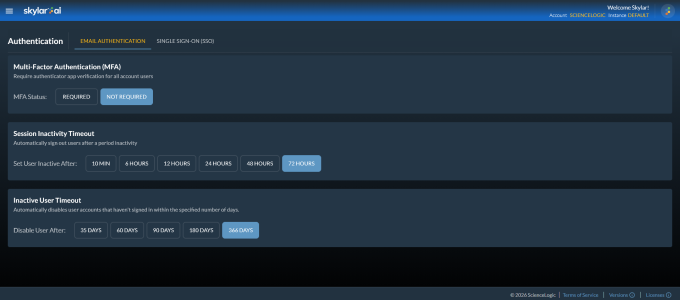
-
Click Required next to the MFA Status field. The Require Multi-Factor Authentication modal appears.
-
Click . All account users will need to set up an authenticator app on their next sign-in.
Users on a Skylar AI instance that does not have MFA required can set MFA for their account:
-
If needed, click the "Skylar AI" icon at top left to return to the Skylar AI login page and switch to Skylar Settings.
-
In Skylar Settings, go to the tab of the Profile page (User Preferences > Profile > Security).
-
Click the button.
-
Follow the instructions on the Configure Multi-Factor Authentication page to set up MFA.
Current MFA users can click the button on the tab of the Profile page to change their MFA settings.
-
An owner user can click the Reset MFA option for a user on the Users page (
> Account Access > Users); for example, if a user loses his or her phone.
A Super User can turn off MFA for all other users on a Skylar AI instance.
Configuring SSO Authentication with SAML
Users with the Owner role can configure single sign-on (SSO) authentication with SAML for their accounts. When SSO authentication with SAML is enabled, all logins for that customer will be authenticated by the SAML identity provider, such as Auth0, Okta, or JumpCloud.
If you have an issue with authenticating, you can contact ScienceLogic to disable SAML for the account and potentially reset the owner's local (non-SAML) password if needed.
Before you can set up SSO authentication with SAML in Skylar AI, you will first need to create your user groups with your SAML identity provider if you do not already have them set up. Be sure to use the same names for your user groups with your SAML provider and with Skylar AI.
Do not switch the account to SAML until you have confirmed that the owner of the account has properly configured their SSO provider to recognize the Skylar platform.
To set up SSO Authentication with SAML in the Skylar AI user interface:
-
Go to the Groups page (
> Account Access > Groups) in Account Settings and click . The Add Group dialog appears. -
Type a name for the group, select a role of Admin, and select one or more instances.
-
Click . The group is added to the Groups page.
-
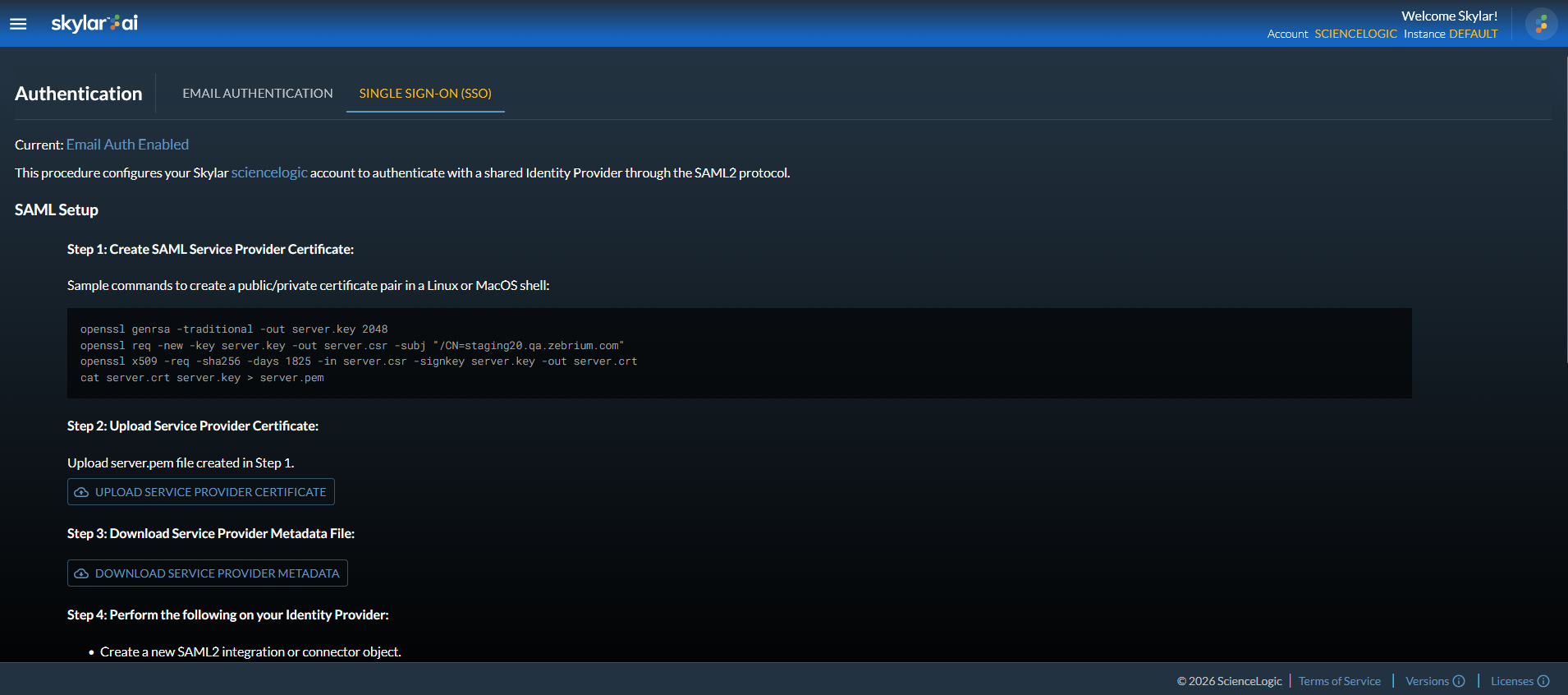
Go to the Authentication page (
> Account Access > Authentication), click the tab, and review the instructions for SAML setup: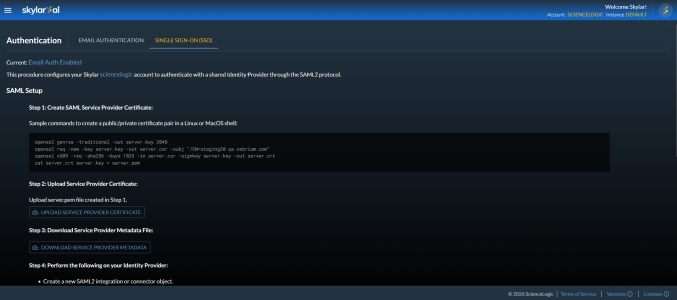
-
Follow steps 1-7 from the tab.
For step 7 on the tab, after you click the button, you can select Enable SAML Test Mode for 10 minutes to test the new authentication configuration. If the authentication works as expected, you can come back to step 7 and select SAML to make the configuration permanent.
Creating Access Tokens for Users
You can use the Access Tokens page in Skylar Settings (Instances > Access Tokens) to add access tokens to connect Skylar AI with Skylar One or a third-party application. A Skylar access token is used for authentication in place of an API key.
You can set an expiration date for an access token, and you can also regenerate a token if needed.
To create an access token:
-
Log in to Skylar AI and go to the Access Tokens page ( > Instances > Access Tokens).
- Click the button. The Add Access Token window appears.
- Complete the following fields:
- Name. Type a name for the token, such as "Skylar One Collector".
- Scopes. The scope of an access token determines which application or service you can connect to with the access token. You can select more than one scope for an access token. You will need a different access token for each Skylar AI instance you are connecting with access token. If you are creating this access token to Create a Service Connection in Skylar One , select both sl1_connector and telemetry.
- Expiration Date. Select an expiration date.
- Click the button. The access token is added to the Access Tokens page.
- Click the copy icon (
 ) to copy the access token to the clipboard.
Managing Dashboards
A user with an owner role can manage the Skylar Analytics dashboards on the tab of the Dashboards page ( > Analytics > Settings > Dashboard Mgmt):
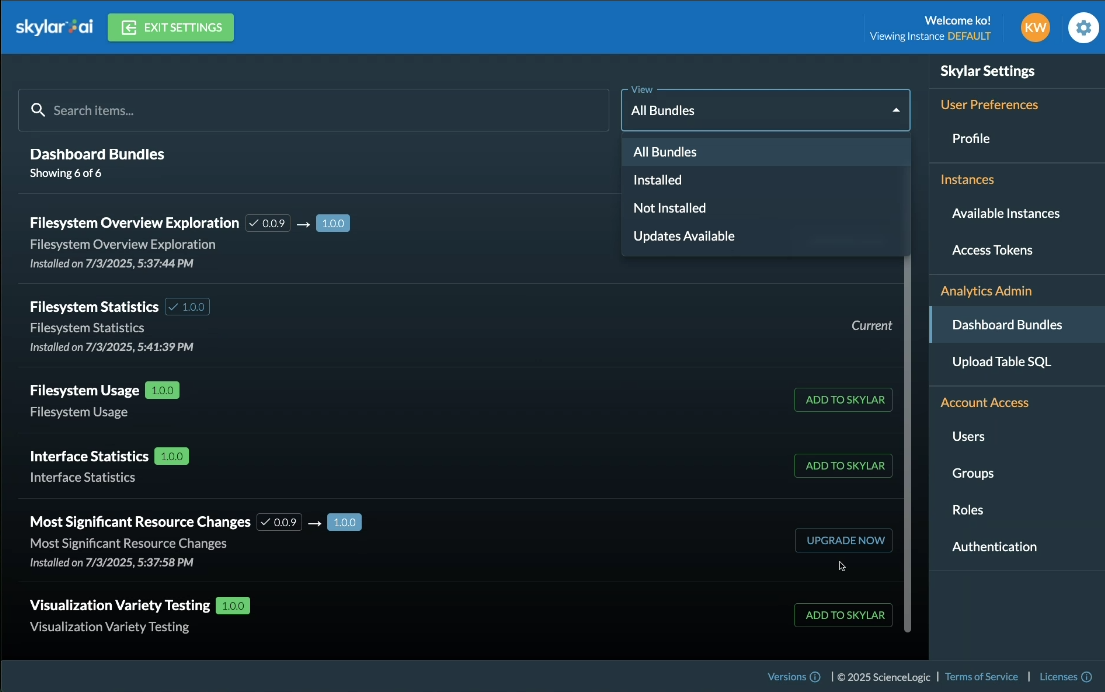
You can search for dashboard bundles and sort the list of bundles by All Bundles, Installed, Not Installed, and Updates Available.
Owner users can install dashboards with (Sample) in their names by clicking the button. These dashboards display a variety of visualization or chart configurations to show users different ways to display data, and users can reference these dashboards as examples. Many of the (Sample) dashboard layouts display multiple visualizations of the same raw data that would not typically be used at the same time on a production dashboard. These charts can also be copied and modified as needed, saving development time when building new dashboards.
ScienceLogic recommends that you keep the original versions of these (Sample) dashboard as unpublished draft dashboards and use them only for reference. For more information, see Adding and Upgrading Dashboards.
Other Dashboard Options
You have the following options on the tab of the Dashboards page:
- . Upload a .zip file containing a Skylar Analytics dashboard that has been exported from a Skylar Analytics system. This feature lets you share dashboards that were created and then exported by other users, for example.
- . Click this button to install a new dashboard for Skylar Analytics
- . Click this button to upgrade an existing dashboard. Current displays next to a dashboard to show that you are running the most recent version of that dashboard.
- . Remove this bundle from the Skylar Analytics system.
Update All Datasets
In addition, you can use the button on the tab on the Dashboards page to update all of your datasets based on Skylar One PowerPacks, including PowerPacks that have been updated in Skylar One.
If all datasets have been updated, the button does not appear, and the text "Datasets are current" appears instead. This button is only available to owner users in Skylar AI.