
Skylar Advisor is an AI‑powered application within the Skylar AI ecosystem that provides proactive, tailored guidance based on real‑time data sent from your Skylar One system to Skylar AI. You can interact with Skylar Advisor by reviewing and following its proactive suggestions, called "Advisories." Additionally, you can query Skylar Advisor for advice and use it to perform deeper investigations of the issues and events in your environment.
For an overview of Skylar AI, see Introduction to Skylar AI.
What is Skylar Advisor?
Skylar Advisor is an AI-powered application that offers tailored guidance based on real-time data sent to Skylar AI from Skylar One, which lets you make informed decisions quickly and efficiently.
What Skylar Advisor is not is a "chatbot" or "assistant" that you have to query to get answers. Skylar Advisor uses its gathered knowledge to give you the potential answers before you get around to typing a question. Skylar Advisor can also forecast for issues that might occur, and create requests for upgrades.
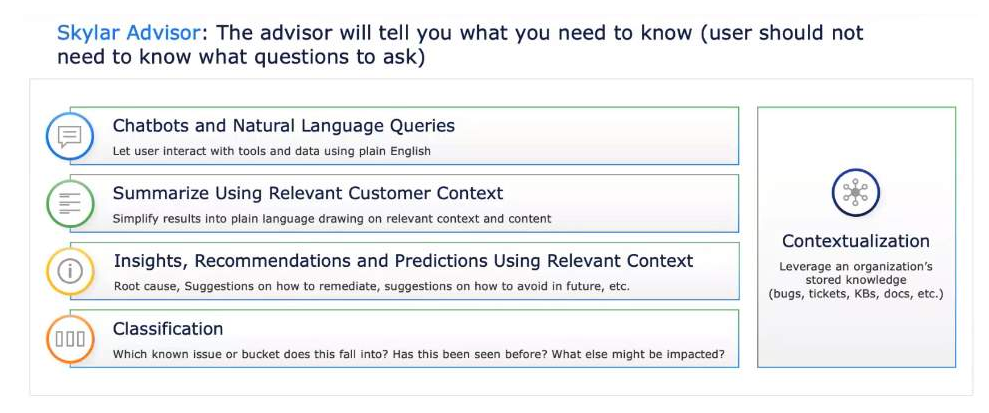
Similar to large-language models (LLMs) like ChatGPT or Microsoft Copilot, you can also use the Ask Skylar feature in Skylar Advisor to start a conversion with Skylar AI to get more information.
Logging In to the Skylar AI User Interface
You can access Skylar AI components from a link in Skylar One, or if you know the URL of your Skylar AI system, you can go directly to that location instead of using Skylar One.
The login process might vary slightly, depending on the versions of Skylar AI, Skylar One, and AP2 currently running in your environment.
-
From Skylar One, go to the Skylar AI page (
 ) and click the button for the Skylar AI component you want to use, such as Skylar Analytics or Skylar Advisor. If you are not currently logged in to Skylar AI, the Skylar AI sign-in page appears.
Clicking the button for Skylar Predictive Alerting and Skylar Anomaly Detection opens new pages for those components in Skylar One.
-
If you need to log in to Skylar AI, type your email address and password and click . The Skylar AI landing page appears.
-
If your Skylar AI site requires multi-factor authentication, but you have not set it up, you will need to scan the QR code that displays or enter the "secret key". This is a one-time-only step.
-
Click the name of the Skylar AI component you want to use, such as Advisor, Analytics, or Skylar Settings.