
This
Microsoft Hyper-V Automation Policies
The "Microsoft Hyper-V Automations" PowerPack includes the following run book automation policies:
- Hyper-V: CPU & Memory Diagnostic Commands
- Hyper-V: Disk & Storage Diagnostic Commands
- Hyper-V: Guests Below Threshold Diagnostic Commands
- Hyper-V: Guests Below Threshold Diagnostic Commands
Each policy triggers three run book actions that collect diagnostic data within a PowerShell session, and an action that formats the output in HTML. All of the run book actions use the same custom action type, "Execute PowerShell Request", which is supplied in the "Windows PowerShell Automations" PowerPack.
All of the standard automation policies are tied to included ScienceLogic Skylar One events generated by the Dynamic Applications from the "Microsoft: Hyper-V" Server PowerPack.
Several of the run book actions use the substitution character feature of the “Execute PowerShell Request” custom action type. If an event variable is included in a command (such as "%Y" for the sub-entity name), the custom action type automatically replaces that variable with the value from the triggering event.
The following table shows the standard automation policies, their aligned events, and the run book actions that run in response to the events.
The aligned events are included as part of the "Microsoft: Hyper-V Server" PowerPack and are not installed with the Skylar One platform. You must install the "Microsoft: Hyper-V Server" PowerPack to obtain these events.
| Automation Policy Name | Aligned Events | Run Book Actions |
|---|---|---|
| Hyper-V: CPU & Memory Diagnostic Commands |
|
|
| Hyper-V: Disk & Storage Diagnostic Commands |
|
|
| Hyper-V: Guests Below Threshold Diagnostic Commands |
|
|
| Hyper-V: Run Time Capacity Diagnostic Commands |
|
|
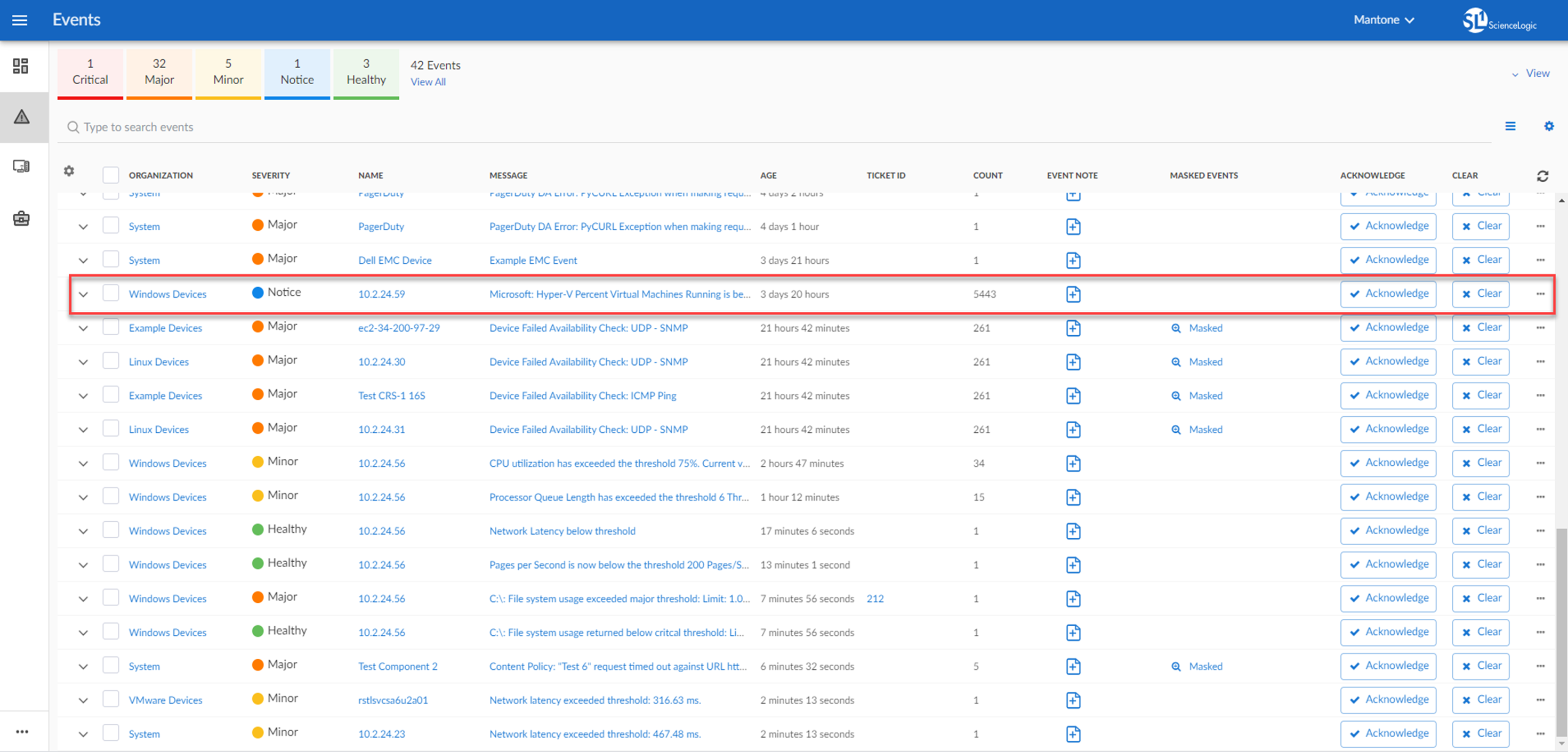
The following figure shows a memory event with a classification of "Major" appears on the Events page. Click the [Actions] button ( ) for an event, and select View Automation Actions to see the run book actions triggered by the events.
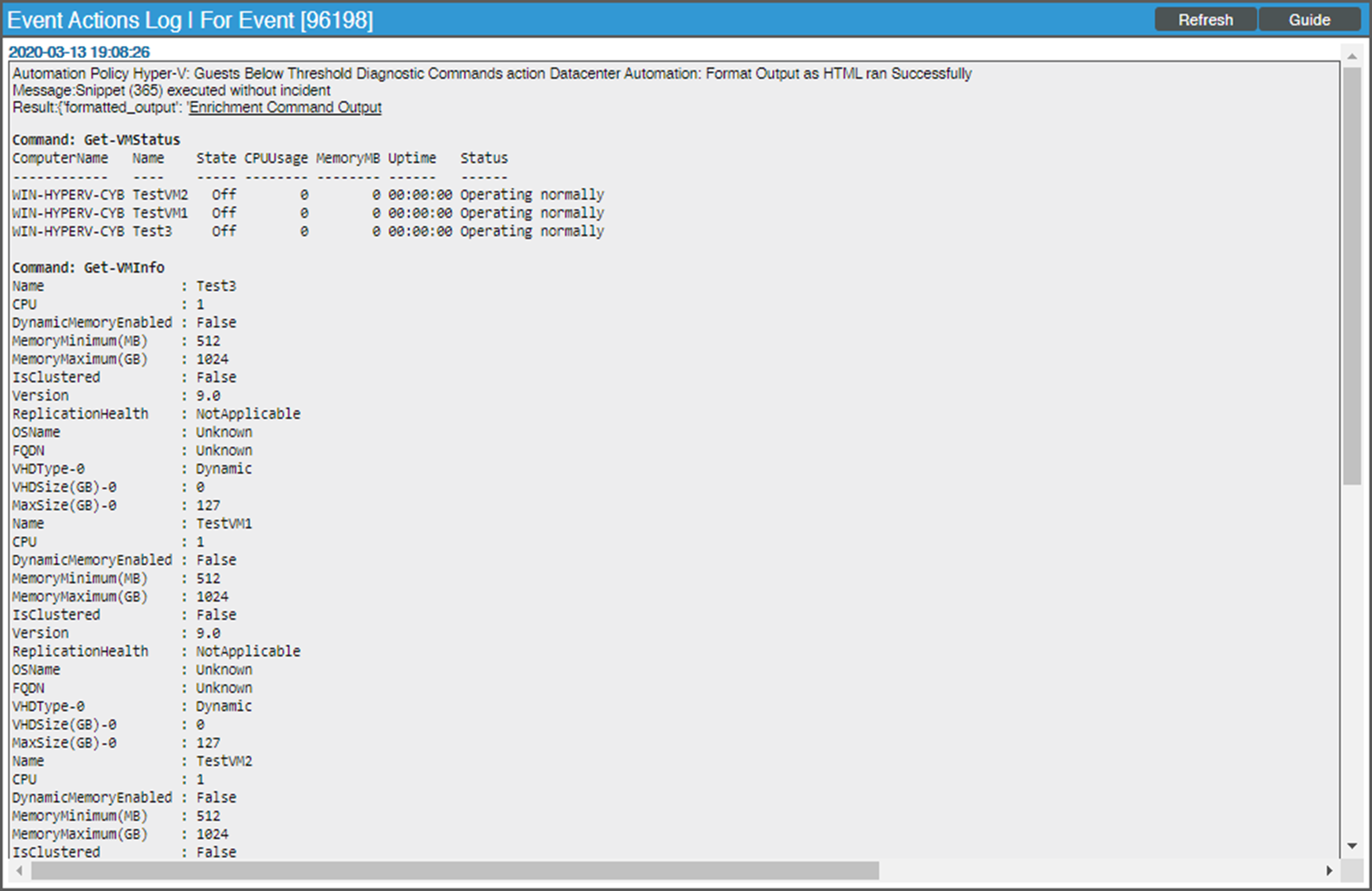
The results shown for this event, in the Event Actions Log, include the automation policy that ran (shown at the top of the following figure), along with the run book actions (commands) that ran. Results for each command are also displayed. The following figure shows an example of this HTML output.
To learn more about which commands are executed by default for a given run book action, see Customizing Run Book Actions.
Although you can edit the automation policies described in this section, it is a best practice to use "Save As" to create a new run book action, rather than to customize the standard automation policies.
Prerequisites
Before you create an automation policy using the run book actions in this PowerPack, you must determine:
- Which set of commands you want to run on a monitored device when an event occurs. There are ten run book actions in the PowerPack that run the "Execute PowerShell Request" action type with different commands. You can also create your own run book actions using the custom action type supplied in the PowerPack.
- What event criteria you want to use to determine when the run book actions will trigger, or the set of rules that an event must match before the automation is executed. This can include matching only specific event policies, event severity, associated devices, and so on. For a description of all the options that are available in Automation Policies, see the
Creating an Automation Policy
To create an automation policy that uses the run book actions in this PowerPack:
- Go to the Automation Policy Manager page (Registry > Run Book > Automation).
- Click . The Automation Policy Editor page appears.
- Complete the following required fields:
-
Policy Name. Enter a name for the automation policy.
-
Policy Type. Select whether the automation policy will match events that are active, match when events are cleared, or run on a scheduled basis. Typically, you would select Active Events in this field.
-
Policy State. Specifies whether the policy will be evaluated against the events in the system. If you want this policy to begin matching events immediately, select Enabled.
-
Policy Priority. Specifies whether the policy is high-priority or default priority. These options determine how the policy is queued.
-
Organization. Select one or more organizations to associate with the automation policy. The automation policy will execute only for devices in the selected organizations (that also match the other criteria in the policy). To configure a policy to execute for all organizations , select System without specifying individual devices to align to.
-
Aligned Actions. This field includes the actions from the PowerPack. To add an action to the Aligned Actions field, select the action in the Available Actions field and click the right arrow (>>). To re-order the actions in the Aligned Actions field, select an action and use the up arrow or down arrow buttons to change that action's position in the sequence.
You must have at least two Aligned Actions: one that runs the run book action and one that provides the output format. The actions providing the output formats are contained in the "Datacenter Automation Utilities" PowerPack, which is a prerequisite for running automations in this PowerPack.
If you are selecting multiple collection actions that use the "Execute PowerShell Request" action type, you may want to include the “Calculate Memory Size for Each Action” automation action, found in the "Datacenter Automation Utilities" PowerPack, in your automation policy.
- To align the policy with the Windows Automation device group, which is supplied in the PowerPack, do the following:
- In the Align With drop-down menu, select "Device Groups".
- In the Available Device Groups field, select, the "Windows Automation" device group, and click the right arrow (>>).
- Optionally, supply values in the other fields on this page to refine when the automation will trigger.
- Click or . If you modify one of the included automation policies and save it with the original name, the customizations in that policy will be overwritten when you upgrade the PowerPack unless you remove the association between the automation policy and the PowerPack before upgrading. The best practice is to use option to create a new, renamed automation policy, instead of customizing the standard automation policies.
Removing an Automation Policy from a PowerPack
After you have customized a policy from a PowerPack, you might want to remove that policy from that PowerPack to prevent your changes from being overwritten if you update the PowerPack later. If you have the license key with author's privileges for a PowerPack or if you have owner/administrator privileges with your license key, you can remove content from a PowerPack.
To remove content from a PowerPack:
- Go to the PowerPack Manager page (System > Manage > PowerPacks).
- Find the PowerPack. Click its wrench icon (
 ).
). - In the PowerPack Properties page, in the navigation bar on the left side, click Run Book Policies.
- In the Embedded Run Book Policies pane, locate the policy you updated, and click the delete icon (
 ) for that policy. The policy will be removed from the PowerPack and will now appear in the bottom pane.