
The following sections describe how to configure and discover CheckPoint component devices for monitoring by Skylar One using the "CheckPoint Base Pack" PowerPack:
Prerequisites for Monitoring CheckPoint Base Pack
Before you can monitor CheckPoint device components in Skylar One, you must have the following:
- Skylar One version 12.3.1 or later.
- The sample SNMP credential that is already provided with this PowerPack.
- New collector groups and the alignment of message collectors to these collector groups.
Creating an SNMP Credential for CheckPoint Base Pack
To use the Dynamic Applications in the "CheckPoint Base Pack" PowerPack, you must first define a SNMP credential in Skylar One. This credential allows Skylar One to collect data from your CheckPoint devices.
The PowerPack includes an example SNMP credential that you can edit for your own use.
SNMP credentials allow Skylar One to access SNMP data on a managed device. Skylar One uses SNMP credentials to perform discovery, run auto-discovery, and gather information from SNMP Dynamic Applications.
To create an SNMP credential:
- Go to the Credentials page (Manage > Credentials).
- Click the button and then select Create SNMP Credential. The Create Credential modal page appears:
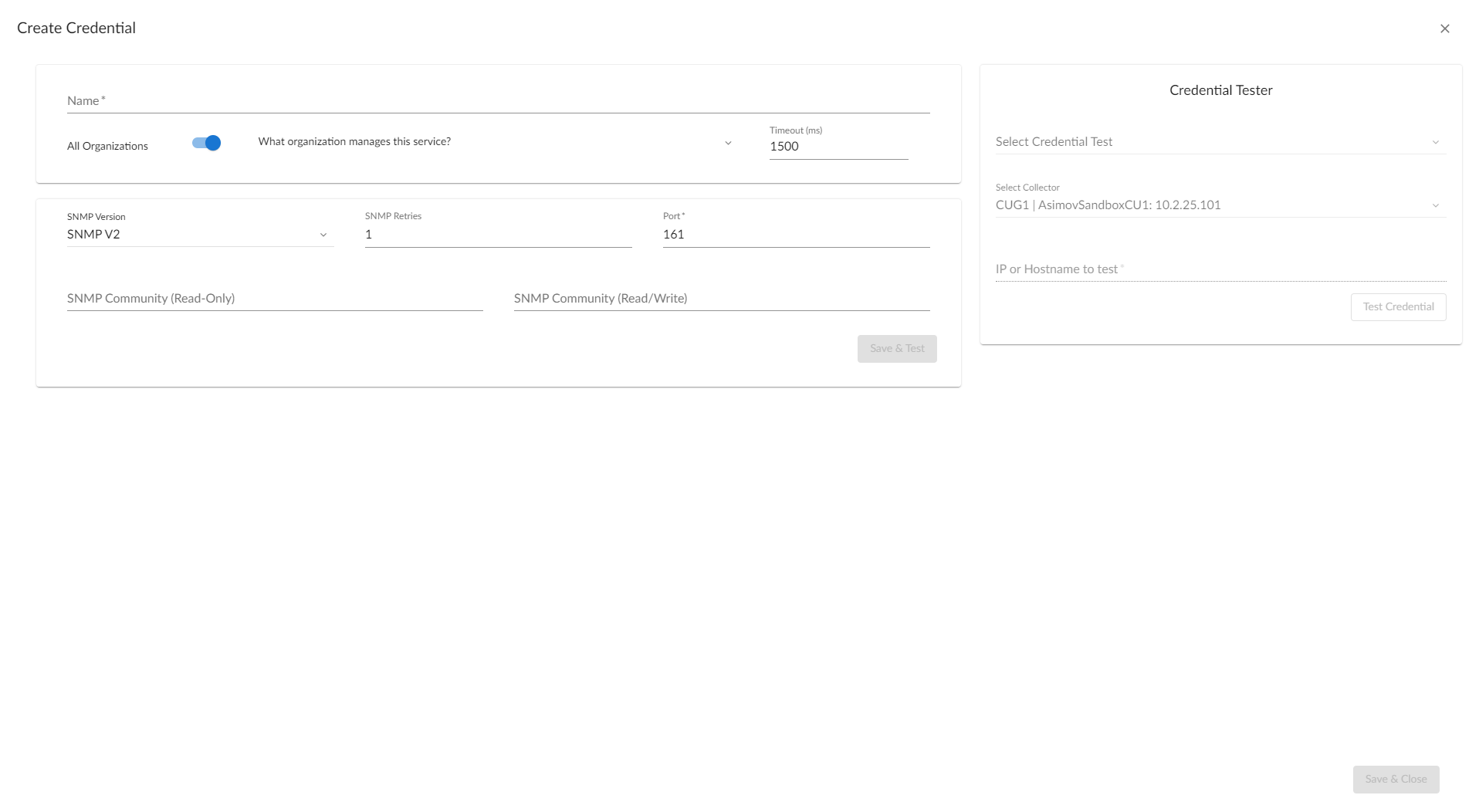
- Supply values in the following fields:
- Name. Name of the credential. Can be any combination of alphanumeric characters, up to 64 characters. This is a required field.
- All Organizations. Toggle on (blue) to align the credential to all organizations, or toggle off (gray) and then select one or more specific organizations from the What organization manages this service? drop-down field to align the credential with those specific organizations. This field is required.
To learn more about credentials and organizations, see the section Aligning Organizations With a Credential.
- Timeout (ms). Time, in milliseconds, after which Skylar One will stop trying to communicate with the device. The default value is 1500.
- SNMP Version. SNMP version. Choices are SNMP V1, SNMP V2, and SNMP V3. The default value is SNMP V2.
- Port. The port Skylar One will use to communicate with the external device or application. The default value is 161. This field is required.
- SNMP Retries. Number of times Skylar One will try to authenticate and communicate with the external device. The default value is 1.
SNMP V1/V2 Settings
If you selected SNMP V1 or SNMP V2 in the SNMP Version field, complete these fields. These fields are inactive if you selected SNMP V3.
- SNMP Community (Read-Only). The SNMP community string (password) required for read-only access of SNMP data on the remote device or application. For SNMP V1 and SNMP V2 credentials, you must supply a community string, either in this field or in the SNMP Community (Read/Write) field.
- SNMP Community (Read/Write). The SNMP community string (password) required for read and write access of SNMP data on the remote device or application. For SNMP V1 and SNMP V2 credentials, you must supply a community string, either in this field or in the SNMP Community (Read Only) field.
By default, this PowerPack uses a SNMP V2 credential.
- Security Level. Specifies the combination of security features for the credentials. This field is required. Choices are:
- No Authentication / No Encryption.
- Authentication Only. This is the default value.
- Authentication and Encryption.
- Engine ID. The unique engine ID for the SNMP agent you want to communicate with. (SNMPv3 authentication and encryption keys are generated based on the associated passwords and the engine ID.) This field is optional.
- Context. A context is a mechanism within SNMPv3 (and AgentX) that allows you to use parallel versions of the same MIB objects. For example, one version of a MIB might be associated with SNMP Version 2 and another version of the same MIB might be associated with SNMP Version 3. For SNMP Version 3, specify the context name in this field. This field is optional.
- Privacy Protocol. The privacy service encryption and decryption algorithm. This field is required. Choices are:
- DES. This is the default value.
- AES-128
- AES-192
- AES-256
- AES-256-C. This option is for discovering Cisco devices only.
- Privacy Protocol Passphrase. Privacy password for the credential. This field is optional.
- Click .
If you would like to test your credential using the Credential Tester panel, click . For detailed instructions on using the Credential Tester panel, see the Using the Credential Tester Panel section.
Verifying Discovery and Dynamic Application Alignment
To verify that Skylar One has automatically aligned the correct Dynamic Applications during discovery:
- After creating the virtual device and aligning the credential to the template, go to the Devices page and click the virtual device you have previously created. From the Device Investigator page, click the tab.
- All applicable Dynamic Applications for the switch are automatically aligned during discovery and will appear in the tab.
You should see the following Dynamic Applications aligned to the virtual device:
- CheckPoint FileSystem Inventory
- CheckPoint FileSystem Performance
- CheckPoint: AntiBot
- CheckPoint: AntiSpam
- CheckPoint: AntiVirus
- CheckPoint: Application Control
- CheckPoint: BGP Peers
- Checkpoint: Connections
- CheckPoint: Correlation Unit
- Checkpoint: cpsemd
- CheckPoint: Device
- CheckPoint: GW: Logging
- CheckPoint: HA
- Checkpoint: Memory
- CheckPoint MGR: Gateway
- CheckPoint: MGR: Logs
- CheckPoint: MultiDisk
- CheckPoint: Processor
- Checkpoint: RAID Disks
- Checkpoint: RAID Volumes
- Checkpoint: Sensors
- CheckPoint: SmartEvent Server
- Checkpoint: Stats
- CheckPoint: Temperature
- CheckPoint: ThreatEmulation
- CheckPoint: URLfiltering