
The following sections describe how to configure and discover Cisco Unity Express voice mailboxes for monitoring by Skylar One using the "Cisco: Unity Express" PowerPack:
Prerequisites for Monitoring Cisco Unity Express
To configure the Skylar One system to monitor Cisco Unity Express voice mailboxes using the "Cisco: Unity Express" PowerPack, you must first have the following information about the Unity Express voice mailboxes that you want to monitor:
- IP addresses for the voice mailboxes
- SNMP community strings for the voice mailboxes
Creating an SNMP Credential for Cisco Unity Express
Skylar One uses SNMP to collect information about Cisco Unity Express services. To monitor Unity Express , you must first create an SNMP credential that enables Skylar One to communicate with these services.
- Go to the Credentials page (Manage > Credentials).
- Click the button and select Create SNMP Credential from the drop-down list that appears.
- Complete the following fields:
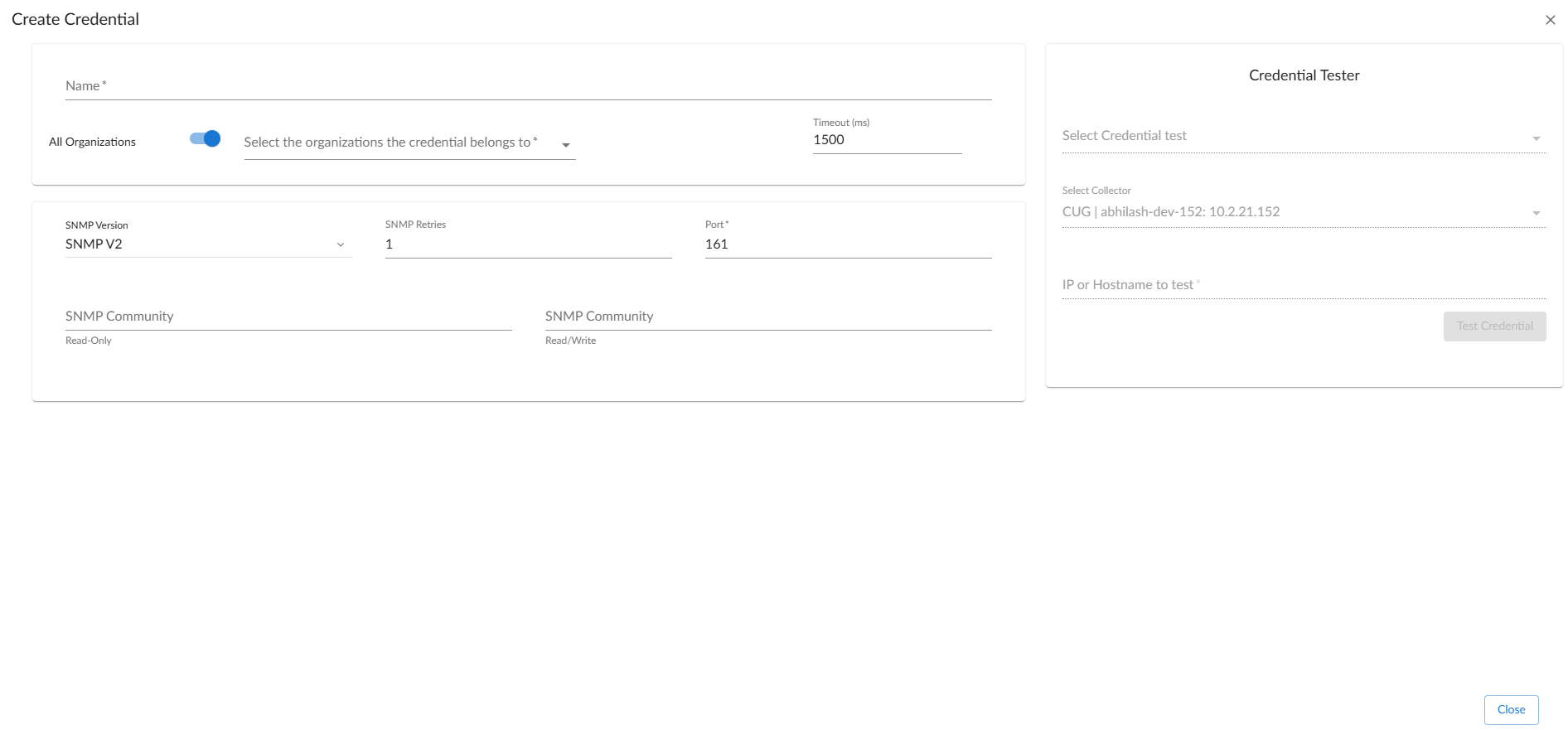
- Name. Enter a new name for the credential. This field is required.
- All Organizations. Toggle on (blue) to align the credential to all organizations, or toggle off (gray) and then select one or more specific organizations from the Select the organizations the credential belongs to drop-down field to align the credential with those specific organizations.
- Timeout (ms). Enter the time, in milliseconds, after which Skylar One will stop trying to communicate with the Cisco Unity Express device. The default value is 1500. This field is required.
- SNMP Version. Select SNMP V2 from the drop-down list.
- SNMP Retries. Keep the default. The default value is "1".
- Port. Keep the default. The default port is "161".
- SNMP Community (Read Only). Enter the community string for the Cisco Unity Express voice mailbox you want to monitor.
- SNMP Community (Read/Write). Optional. Enter the community string for the Cisco Unity Express to grant Read/Write permissions.
- Click .
Creating an SNMP Credential for Cisco Unity Express in the Skylar One Classic User Interface
Skylar One uses SNMP to collect information about Cisco Unity Express services. To monitor Unity Express in the classic user interface, you must first create an SNMP credential that enables Skylar One to communicate with these services.
To create an SNMP credential for Cisco Unity Express in the classic user interface:
- Go to the Credential Management page (System > Manage > Credentials).
- Click the button.
- In the drop-down list that appears, select SNMP Credential. The Credential Editor page appears.
- In the Profile Name field, enter a name for the credential.
- In the SNMP Version field, select SNMP V2.
- In the SNMP Community (Read Only) field, enter the community string for the Cisco Unity Express voice mailbox you want to monitor.
- Optionally, supply values in the other fields in this page. In most cases, you can accept the default values for the other fields.
- Click the button.
Discovering Cisco Unity Express Services
To monitor your Nimble Storage system, you must run a discovery session to discover the server on which Nimble Storage is installed.
To create and run a discovery session that will discover a Nimble Storage appliance:
- Go to the Devices page (
 ) or the Discovery Sessions page (Devices > Discovery Sessions) and click the button.
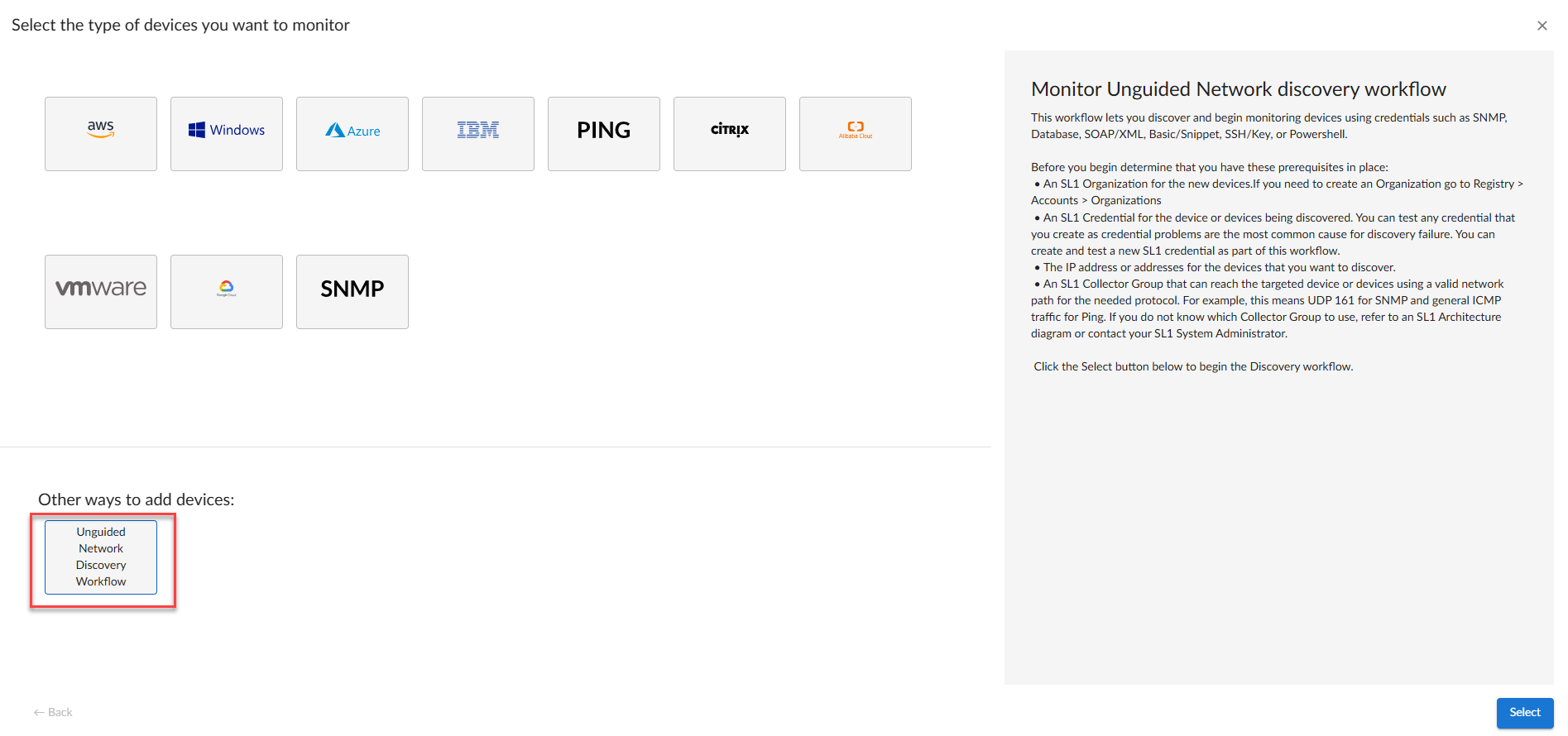
 - Click the button. Additional information about that requirements for discovery appears in the General Information pane to the right.
- Click . The three-step wizard appears starting with the tab.
- Complete the following fields:
- Discovery Session Name. Type a unique name for this discovery session. This name is displayed in the list of discovery sessions on the tab.
- Description.Optional. Type a short description of the discovery session. You can use the text in this description to search for the discovery session on the tab.
- Select the organization to add discovered devices to. Select the name of the organization to which you want to add the discovered devices.
- Click . The tab of the wizard appears.
- On the tab, locate and select the SNMP credential you created for Nimble Storage appliances.
- Click . The tab of the wizard appears.
- Complete the following fields:
- List of IP/Hostnames. Type the IP address for the Nimble Storage appliance.
- Which collector will discover these devices?. Required. Select an existing collector to monitor the discovered devices.
- Run after save. Toggle on (blue) to run this discovery session as soon as you save the session.
- Advanced options. Click the down arrow (
 ) to complete the following fields:
- Discover Non-SNMP. Toggle on (blue) to enable this setting.
- Model Devices. Toggle on (blue) to enable this setting.
- Select Device Template. If you configured a Nimble Storage device template, select it here. Otherwise, leave the default selection.
- If you enabled the Run after save option, click the button. The discovery session will run and the Discovery Logs page will display any relevant log messages. If the discovery session locates and adds any devices, the Discovery Logs page will include a link to the Device Investigator page for the discovered device.
- If you did not enable the Run after save option, click the button. The Discovery Sessions page (Devices > Discovery Sessions) will display the new discovery session.
Discovering Cisco Unity Express Services in the Skylar One Classic User Interface
To create and run a discovery session that will discover Cisco Unity Express services in the classic user interface, perform the following steps:
- Go to the Discovery Control Panel page (System > Manage > Classic Discovery or System > Manage > Discovery in the classic user interface).
- Click the button to create a new discovery session. The Discovery Session Editor page appears.
- Enter values in the following fields:
- IP Address Discovery List. Enter the IP address(es) for the Cisco Unity Express voice mailbox(es).
- SNMP Credential. Select the SNMP credential that you created for Cisco Unity Express.
- You can enter values in the other fields on this page, but are not required to and can simply accept the default values. For more information about the other fields on this page,
- Click and then close the Discovery Session Editor window.
- The discovery session you created appears at the top of the Discovery Control Panel page. Click its lightning bolt icon (
 ) to run the discovery session.
 - The Discovery Session window appears.
- When the Cisco Unity Express voice mailbox is discovered, click its device icon (
 ) to view its Device Properties page.