
This section describes how to configure Dell EMC Isilon storage arrays for monitoring by Skylar One using the "Dell EMC: Isilon" PowerPack.
Prerequisites for Monitoring Dell EMC Isilon
To configure the Skylar One system to monitor Dell EMC Isilon storage arrays using the "Dell EMC: Isilon" PowerPack, you must first do the following:
-
Install and configure the storage arrays that you want to monitor.
-
Take note of the SNMP community string used by the Isilon storage arrays you want to monitor.
-
If you are using a Secure Sockets Layer (SSL) certificate to communicate with the Isilon storage arrays you are monitoring, you must add an Isilon SSL certificate on your Skylar One appliance in the following file:
/var/lib/em7/Content/Release_Notes/Silo_core_rest/certs.crt
If you are not using an SSL certificate to communicate with the Isilon storage arrays, then you do not need to add a certificate.
-
Use either an administrator account, or a custom read-only account on OneFS that has the following minimum privileges to access the Dell: EMC Isilon array:
-
ISI_PRIV_LOGIN_PAPI. Allows the user to log in to the REST API.
-
ISI_PRIV_STATISTICS. Allows the user to collect performance statistics.
-
ISI_PRIV_CLUSTER. Allows the user to discover and monitor nodes.
-
ISI_PRIV_QUOTA. Allows the user to monitor quotas.
-
ISI_PRIV_DEVICES. Allows the user to monitor NVRAM hardware status.
-
-
Because the "Dell EMC: Isilon" PowerPack only communicates with the Isilon array using GET requests, and does not make any changes to the array, you must ensure the user account has access to the following API endpoints that are used by the PowerPack:
-
GET /platform/1/statistics/current. Uses the ISI_PRIV_STATISTICS permission.
-
GET /platform/1/statistics/history. Uses the ISI_PRIV_STATISTICS permission.
-
GET /platform/1/cluster/config. Uses the ISI_PRIV_CLUSTER permission.
-
GET /platform/3/cluster/nodes. Uses the ISI_PRIV_CLUSTER permission.
-
GET /platform/1/quota/quotas. Uses the ISI_PRIV_QUOTA permission.
-
GET /platform/10/cluster/nodes/{lnn}/status/nvram. Uses the ISI_PRIV_DEVICES permission.
-
Creating a SOAP/XML Credential for Dell EMC Isilon
To configure Skylar One to monitor Dell EMC Isilon storage arrays, you must first create a credential that allows the Dynamic Applications in the "Dell EMC: Isilon" PowerPack to communicate with your Isilon storage devices. The PowerPack includes an example SOAP/XML credential that you can edit for your own use.
To create a SOAP/XML credential:
- Go to the Credential Management page (Manage > Credentials).
- Locate the "Dell EMC: Isilion SOAP - Example" credential, then click its icon (
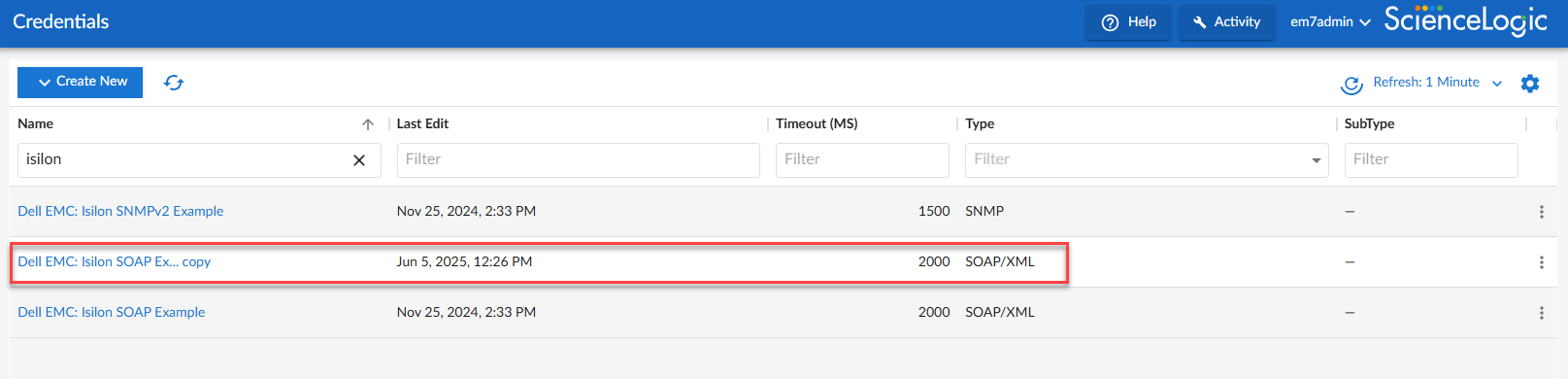
 ). Select Duplicate from the drop-down field. The "Dell EMC: Isilion SOAP - Example copy" credential appears.
 - Click the icon () for the "Dell EMC: Isilion SOAP - Example copy" credential. Select Edit and the Edit Credential page appears.
- Enter values in the following fields:
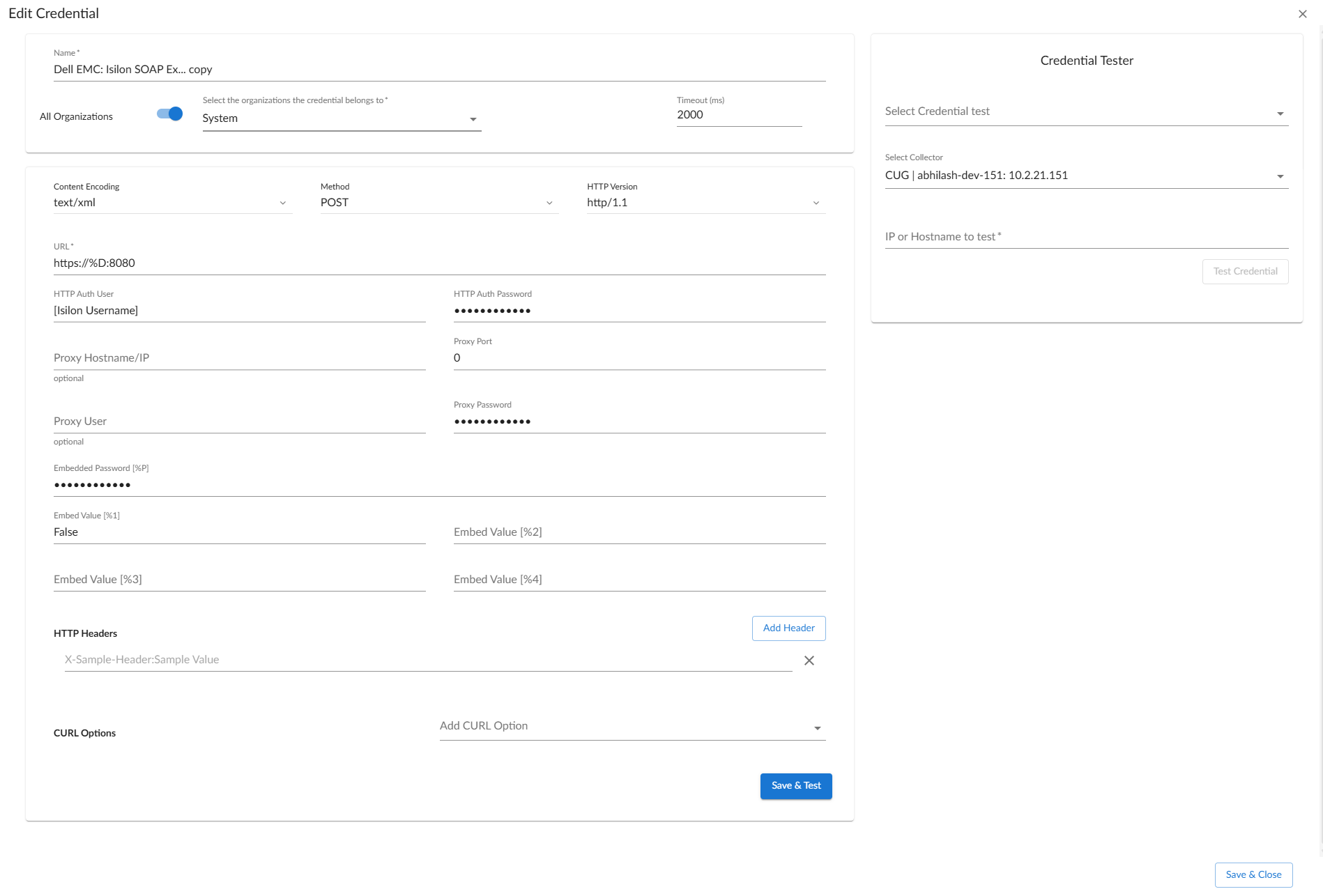
- Name. Type a new name for the credential. This field is required.
- All Organizations. Toggle on (blue) to align the credential to all organizations, or toggle off (gray) and then select one or more specific organizations from the Select the organizations the credential belongs to drop-down field to align the credential with those specific organizations.
- Timeout. Time, in milliseconds, after which Skylar One will stop trying to communicate with the Isilon device. The default value is 2000. This field is required.
- URL. Type the Dell EMC Isilon url and port.
- HTTP Auth User. Type the Dell EMC Isilon username associated with the user account that can access the Isilon array.
- HTTP Auth Password. Type the Dell EMC Isilon password associated with the user account that can access the Isilon array.
- For all remaining fields, use the default values.
- Click .
Creating a SOAP/XML Credential for Dell EMC Isilon in the Skylar One Classic User Interface
To configure Skylar One to monitor Dell EMC Isilon storage arrays, you must first create a credential that allows the Dynamic Applications in the "Dell EMC: Isilon" PowerPack to communicate with your Isilon storage devices. The PowerPack includes an example SOAP/XML credential that you can edit for your own use.
To configure the SOAP/XML credential to access Dell EMC Isilon devices:
- Go to the Credential Management page (System > Manage > Credentials).
- Locate the "Dell EMC: Isilon SOAP Example" credential, and then click its wrench icon (
 ). The Edit SOAP/XML Credential modal page appears.
 - Update the values in the following fields:
Basic Settings
- Profile Name. Type a new name for the credential.
- HTTP Auth User. Type the Isilon user account that can access the Isilon array.
- HTTP Auth Password. Type the password for the Isilon user account that can access the Isilon array.
SOAP Options
- Embed Value [%1]. Do one of the following:
- Type "True" to enable verification of the storage array's SSL certificate.
- Type "False" or leave this field blank to disable SSL verification.
This field is not case-sensitive.
- Click .
Creating an SNMP Credential for Dell EMC Isilon
In addition to the SOAP/XML credential, you will also need to configure an SNMP credential to enable Skylar One to monitor Dell EMC Isilon storage arrays. The "Dell EMC: Isilon" PowerPack includes an example SNMP credential that you can edit for your own use.
To create a SNMP credential:
- Go to the Credential Management page (Manage > Credentials).
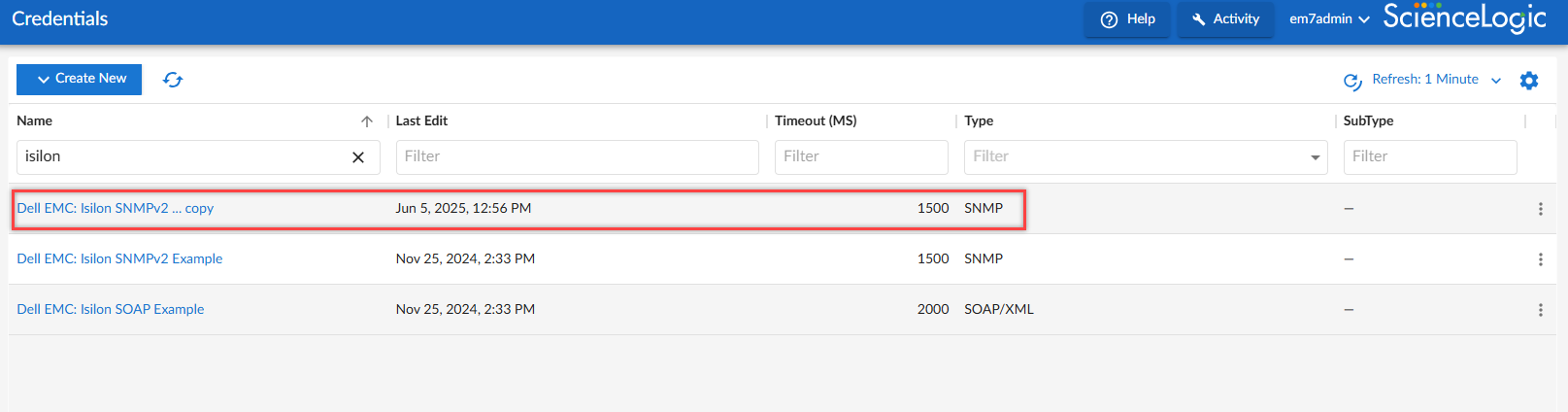
- Locate the "Dell EMC: Isilon SNMPv2- Example" credential, then click its icon (). Select Duplicate from the drop-down field. The "Dell EMC: Isilon SNMPv2- Example copy" credential appears.
- Click the icon () for the "Dell EMC: Isilon SNMPv2- Example" credential. Select Edit and the Edit Credential page appears.
- Enter values in the following fields:
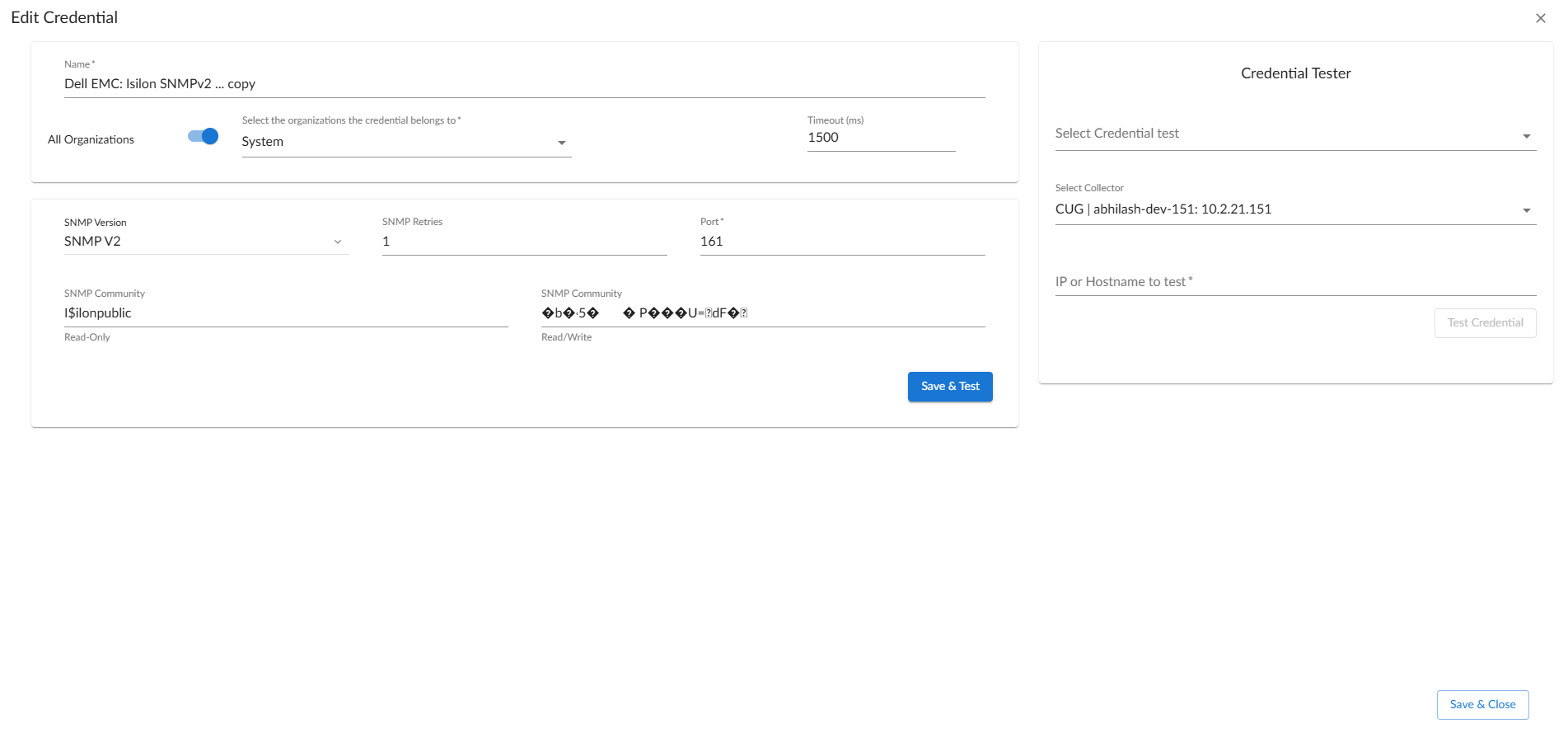
- Name. Type a new name for the credential. This field is required.
- All Organizations. Toggle on (blue) to align the credential to all organizations, or toggle off (gray) and then select one or more specific organizations from the Select the organizations the credential belongs to drop-down field to align the credential with those specific organizations.
- Timeout. Time, in milliseconds, after which Skylar One will stop trying to communicate with the Isilondevice. The default value is 1500. This field is required.
- SNMP Version. SNMP version. Choices are SNMP V1, SNMP V2, and SNMP V3. The default value is SNMP V2. This field is required.
- Retries. Number of times Skylar One will try to authenticate and communicate with the external device. The default value is 1. This field is required.
- Port. The port Skylar One will use to communicate with the external device or application. The default value is 161. This field is required.
- HTTP Auth Password. Type the Dell EMC Isilon password associated with the user account that can access the Isilon array.
- Click .
Creating an SNMP Credential for Dell EMC Isilon in the Skylar One Classic User Interface
In addition to the SOAP/XML credential, you will also need to configure an SNMP credential to enable Skylar One to monitor Dell EMC Isilon storage arrays. The "Dell EMC: Isilon" PowerPack includes an example SNMP credential that you can edit for your own use.
To configure the SNMP credential to access Dell EMC Isilon devices:
- Go to the Credential Management page (System > Manage > Credentials).
- Locate the "Dell EMC: Isilon SNMPv2- Example" credential, and then click its wrench icon (). The Edit SNMP Credential modal page appears.
- Update the values in the following fields:
Basic Settings
- Profile Name. Type a new name for the credential.
SNMP V1/V2 Settings
- SNMP Community (Read-Only). Type the Isilon storage array's SNMP community string.
- Click .