
This section describes how to configure Cisco Tandberg C Series devices for monitoring by Skylar One using the "Cisco: Video Endpoint" PowerPack.
Configuring Cisco Tandberg C Series Codecs for Monitoring by Skylar One
Skylar One uses two protocols to monitor Cisco Tandberg C Series Codecs: SNMP and HTTP. This section describes how to configure a Cisco Tandberg C Series Codec to respond to both protocols. This section also describes how to configure a user account that Skylar One uses to connect to the Cisco Tandberg C Series Codec.
These instructions assume that the Cisco Tandberg C Series Codec has an IP address and a Data Collector on the network can reach it.
To configure a Cisco Tandberg C Series Codec for monitoring by Skylar One:
- Connect to the Cisco Tandberg C Series Codec using an SSH client as a user that has ADMIN permissions. Cisco Tandberg C Series Codecs have SSH enabled by default. The default username is admin, which does not have a password by default.
- Run the following command to enable SNMP:
xConfiguration NetworkServices SNMP Mode: ReadOnly
The default monitoring content for Cisco Tandberg that ScienceLogic supplies does not require SNMP Write access. However, if you plan to perform SNMP Write operations on this Cisco Tandberg C Series Codec, type ReadWrite instead of ReadOnly in the above command.
- Run the following command to change the SNMP community string, substituting <community_string> with the community string you want to assign to this device:
xConfiguration NetworkServices SNMP CommunityName: <community_string>
When you configure an SNMP credential for this Cisco Tandberg C Series Codec in Skylar One, you enter the community string that you just configured in the SNMP Community (Read-Only) field.
- Run the following command to configure the device to send SNMP trap messages to Skylar One. Substitute <collector_ip_address> with the IP address of the Message Collector or Data Collector that collects the SNMP trap messages from the device:
xConfiguration NetworkServices SNMP Host 1 Address: <collector_ip_address>
If the device is already configured to send SNMP traps to another IP address and you want to retain those settings, replace Host 1 with either Host 2 or Host 3 in the above command.
- Optionally, you can run the following two commands to change the SNMP system contact and SNMP system location. Substitute <system_contact> and <system_location> with the system contact and system location you want to assign to this device:
xConfiguration NetworkServices SNMP SystemContact: <system_contact>
xConfiguration NetworkServices SNMP SystemLocation: <system_location>
- Run the following command to enable the HTTP service:
xConfiguration NetworkServices HTTP Mode: On
By default, Skylar One uses regular HTTP to connect to Cisco Tandberg C Series Codecs. If you want to use HTTPS instead of regular HTTP, type HTTPS instead of HTTP in the above command. When you configure a SOAP/XML credential for this device, you must perform the steps that describe how to change the credential to use HTTPS instead of regular HTTP.
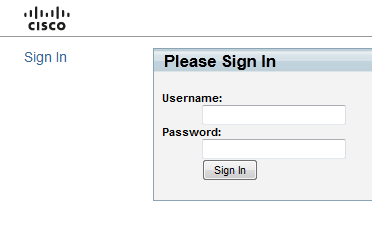
- In a browser window, go to the IP address of the Cisco Tandberg C Series Codec. A login screen appears:
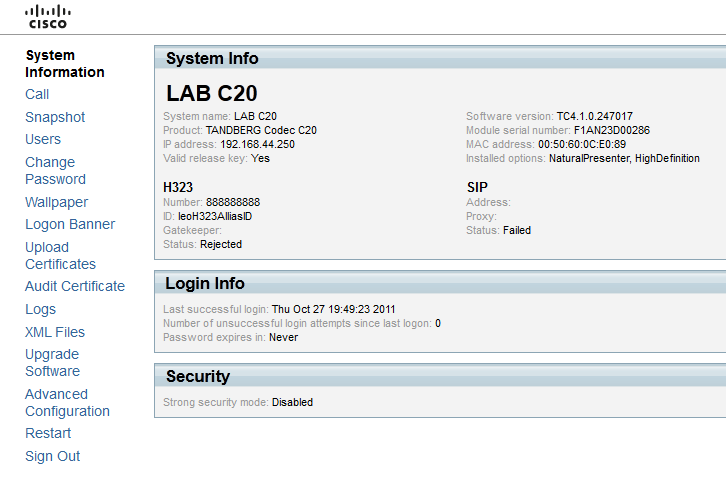
- Log in as a user that has ADMIN permissions. The System Information page appears:
- In the left navigation bar, click Users. The User Management page appears:
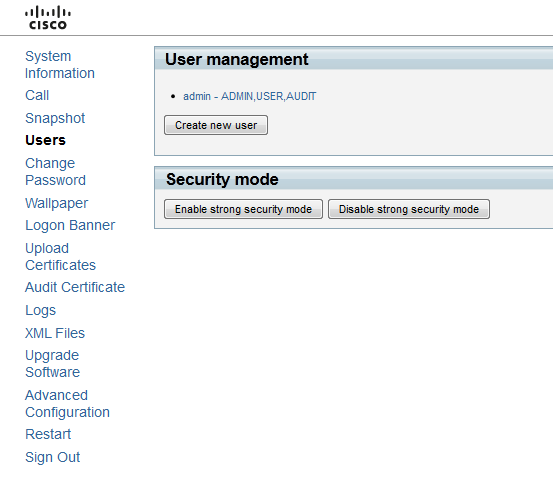
- Click the button. The Create New User page appears:
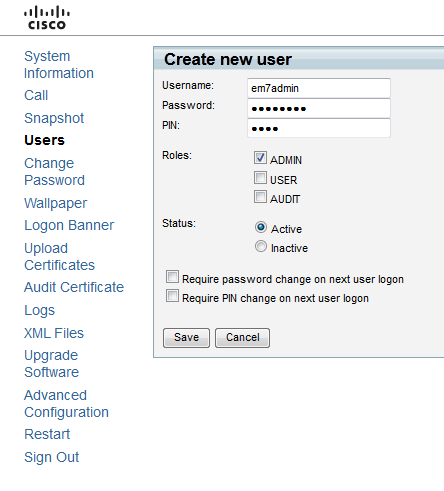
- Enter a value in the following fields:
- Username. Enter a username for the new user. When you configure a SOAP/XML credential for this device in Skylar One, you enter this value in the HTTP Auth User field.
- Password. Enter a password for the new user. When you configure a SOAP/XML credential for this device in Skylar One, you enter this value in the HTTP Auth Password field.
- PIN. Enter any valid PIN in this field. Skylar One does not use this value.
- Roles. Select the ADMIN checkbox.
- Status. Select the Active radio button.
- Require password change on next user logon. Clear this checkbox.
- Require PIN change on next user logon. Clear this checkbox.
- Click the button to save the new user.
Creating an SNMP Credential
To monitor Cisco Tandberg C Series Codecs in Skylar One, you must create an SNMP credential for each Codec.
To create an SNMP credential for a Cisco Tandberg C Series Codec in Skylar One:
- Go to the Credentials page (Manage > Credentials).
- Click the button and select SNMP Credential from the drop-down list that appears.
- Complete the following fields:
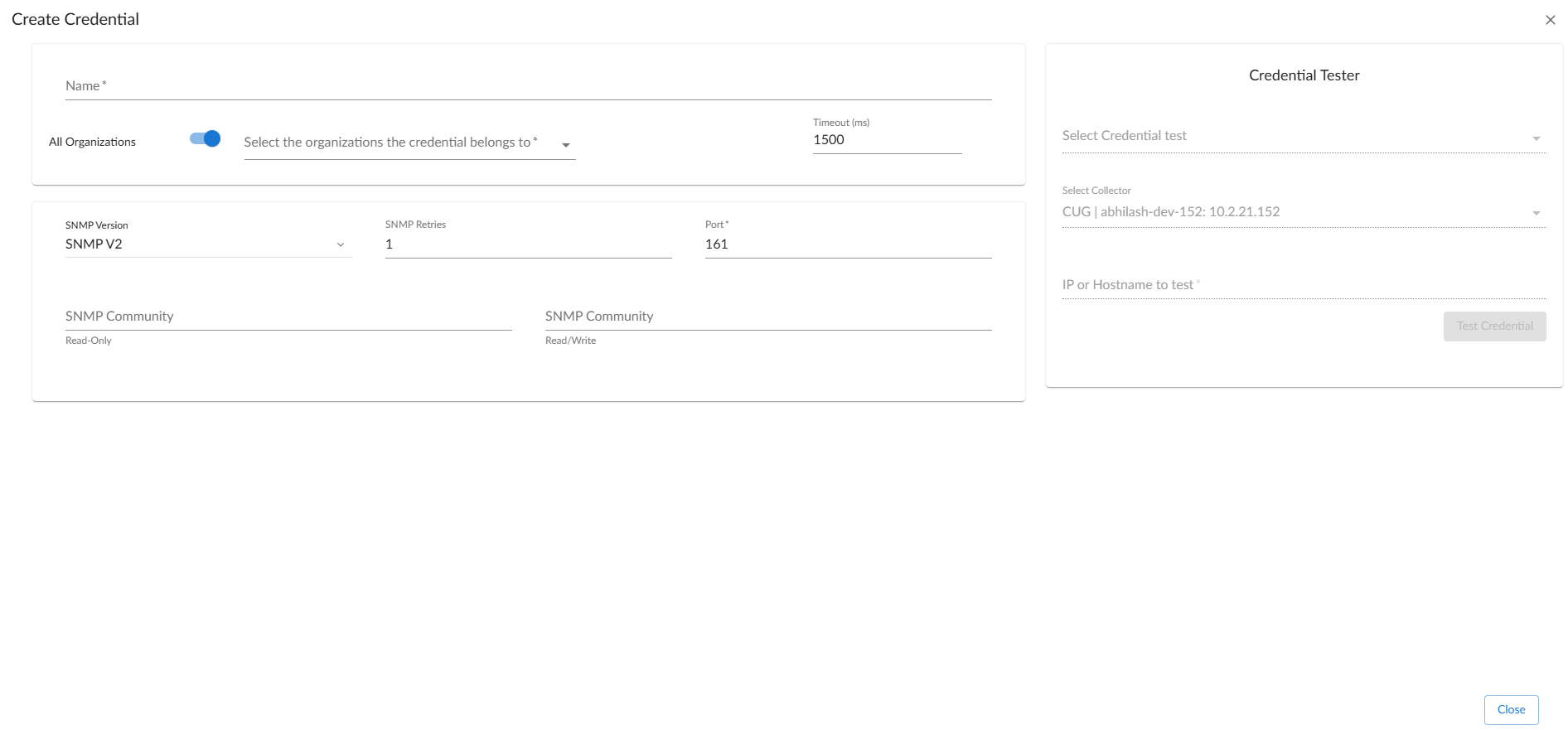
- Name. Enter a new name for the credential. This field is required.
- All Organizations. Toggle on (blue) to align the credential to all organizations, or toggle off (gray) and then select one or more specific organizations from the Select the organizations the credential belongs to drop-down field to align the credential with those specific organizations.
- Timeout (ms). Enter the time, in milliseconds, after which Skylar One stops trying to communicate with the Cisco Tandberg C Series Codec device. The default value is 1500. This field is required.
- SNMP Version. Select SNMP V2 from the drop-down list.
- SNMP Retries. Keep the default. The default value is 1.
- Port. Keep the default. The default port is 161.
- SNMP Community (Read-Only). Enter the community string you configured on the Cisco Tandberg C Series Codec.
- SNMP Community (Read/Write). Optional. Enter the community string for the Cisco Tandberg C Series Codec to grant Read/Write permissions.
- Click .
Creating an SNMP Credential in the Classic Skylar One User Interface
To monitor Cisco Tandberg C Series Codecs in the classic Skylar One user interface, you must create an SNMP credential for each Codec.
To create an SNMP credential for a Cisco Tandberg C Series Codec in the classic Skylar One user interface:
- Go to the Credential Management page (System > Manage > Credentials).
- Click , and then select Create SNMP Credential. The Credential Editor page appears.
- Enter values in the following fields:
- Profile Name. Enter a name for the credential.
- SNMP Version. Select SNMP V2.
- SNMP Community (Read-Only). Enter the SNMP community string you configured on the Cisco Tandberg C Series Codec.
You can optionally change the values in the Timeout (ms) and Retries fields.
- Click .
Configuring SOAP/XML Credentials
To use the Dynamic Applications in the "Cisco: Video Endpoint" PowerPack in Skylar One, you must configure three SOAP/XML credentials for your Cisco Tandberg C Series Codec. The three credentials are:
- "Tandberg Endpoint - Configuration"
- "Tandberg Endpoint - History"
- "Tandberg Endpoint - Status"
These credentials enable Skylar One to collect configuration and performance data along with call detail records using a unique combination of URL, username, and password.
If you have multiple Cisco Tandberg C Series Codecs, you need one set of credentials for each unique username and password. For example, if you have configured three Cisco Tandberg C Series Codecs with the same username and password, you need only one set of credentials.
The "Cisco: Video Endpoint" PowerPack includes a template for each SOAP/XML credential that you can edit for use with your Cisco Tandberg C Series devices.
To create a SOAP/XML credential:
- Go to the Credentials page (Manage > Credentials).
- Locate the "Tandberg Endpoint - Configuration" credential, then click its actions icon (
 ) and select Duplicate from the drop-down field. The "Tandberg Endpoint-Credential copy" credential appears.
 - Click the actions icon () for the "Tandberg Endpoint-Credential copy" credential, then select Edit. The Edit Credential page appears.
- Enter values in the following fields:
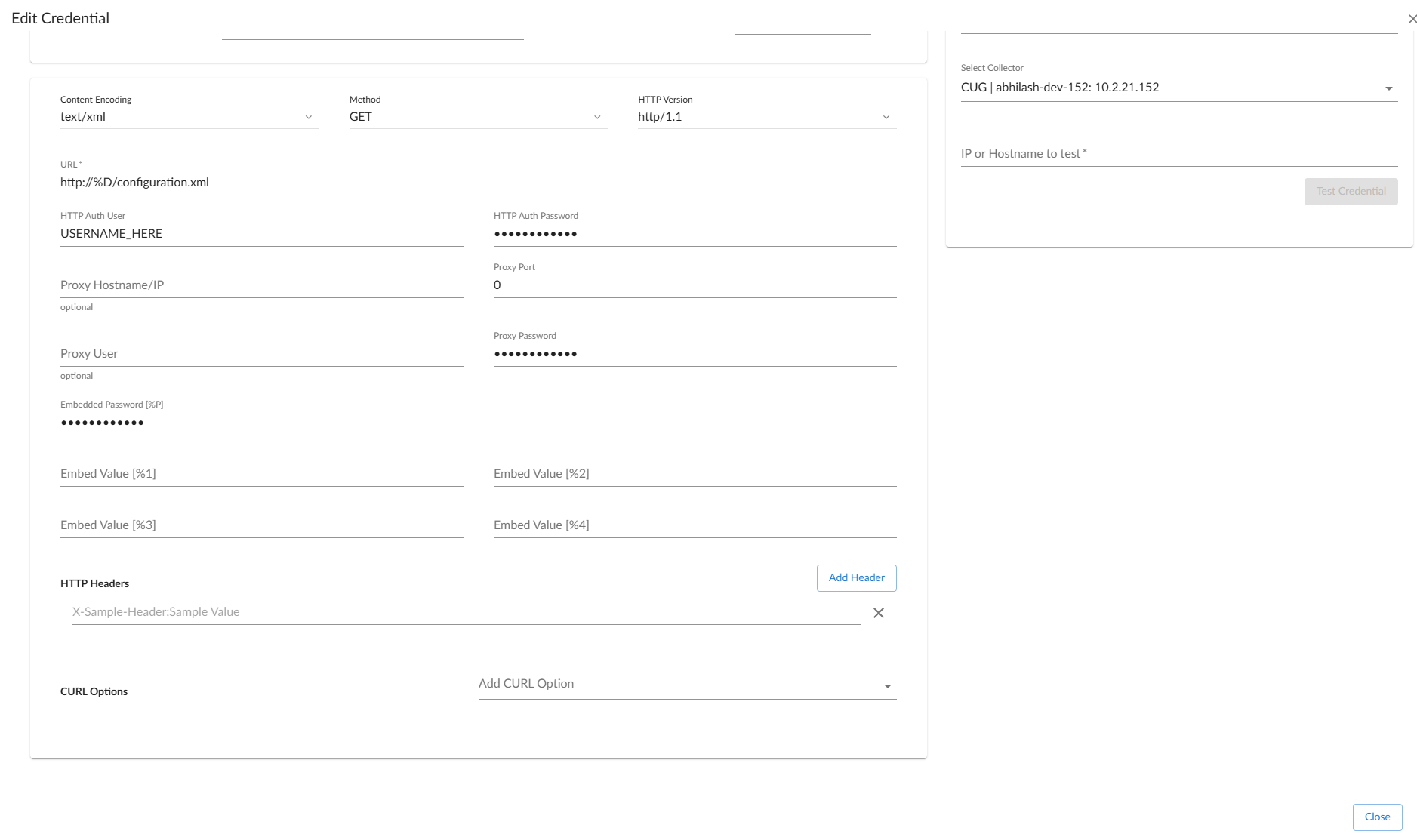
- Name. Enter a new name for the credential. This field is required.
- All Organizations. Toggle on (blue) to align the credential to all organizations, or toggle off (gray) and then select one or more specific organizations from the Select the organizations the credential belongs to drop-down field to align the credential with those specific organizations.
- Timeout. Enter the time, in milliseconds, after which Skylar One stops trying to communicate with the Video Endpoint device. The default value is 10000. This field is required.
- URL. Keep the default URL as http://%D/configuration.xml.
- HTTP Auth User. Enter the Video Endpoint username associated with the administrator account.
- HTTP Auth Password. Enter the password associated with the Video Endpoint administrator account.
- Embedded Password [%P]. Enter the embedded password associated with the Video Endpoint administrator account.
- Embed Value [%1]. Keep the default.
- Click .
- Repeat steps 2 - 5 for the "Tandberg Endpoint - History" and "Tandberg Endpoint - Status" credentials.
Configuring SOAP/XML Credentials in the Classic Skylar One User Interface
To use the Dynamic Applications in the "Cisco: Video Endpoint" PowerPack in Skylar One, you must configure three SOAP/XML credentials for your Cisco Tandberg C Series Codec. The three credentials are:
- "Tandberg Endpoint - Configuration"
- "Tandberg Endpoint - History"
- "Tandberg Endpoint - Status"
These credentials enable Skylar One to collect configuration and performance data along with call detail records using a unique combination of URL, username, and password.
If you have multiple Cisco Tandberg C Series Codecs, you need one set of credentials for each unique username and password. For example, if you have configured three Cisco Tandberg C Series Codecs with the same username and password, you need only one set of credentials.
The "Cisco: Video Endpoint" PowerPack includes a template for each SOAP/XML credential that you can edit for use with your Cisco Tandberg C Series devices.
To configure these credentials in the classic Skylar One user interface:
- Go to the Credential Management page (System > Manage > Credentials).
- Click the wrench icon (
 ) for the "Tandberg Endpoint - Configuration" credential. The Credential Editor modal appears.
- In the Profile Name field, enter a new name for the credential.
- In the HTTP Auth User field, enter the username of the user you configured on your Cisco Tandberg C Series Codec.
- In the HTTP Auth Password field, enter the password for the username you entered in the HTTP Auth User field.
- Click the button.
- Repeat steps 2 - 6 for the "Tandberg Endpoint - History" and "Tandberg Endpoint - Status" credentials.
Dynamic Applications for Cisco Tandberg C Series Codecs
The "Cisco: Video Endpoint" PowerPack contains 10 Dynamic Applications that you can use to monitor Cisco Tandberg C Series Codecs. Some of the Dynamic Applications for Cisco Tandberg C Series Codecs use the caching feature:
- Two Dynamic Applications only collect and cache data from Cisco Tandberg C Series Codecs.
- Seven Dynamic Applications use the cached data. For these Dynamic Applications to display data, you must align the Dynamic Applications that collect and cache data to the same device.
- One Dynamic Application for Cisco Tandberg C Series Codecs does not use the caching feature.
The Dynamic Applications in the "Cisco: Video Endpoint" PowerPack include discovery objects. If you discover your Cisco Tandberg C Series Codec as an SNMP device and include all of its SOAP/XML credentials in the Other Credentials field on the Discovery Session Editor page, Skylar One automatically aligns the Dynamic Applications from the "Cisco: Video Endpoint" PowerPack to the Codec. However, the Dynamic Applications in the "Cisco: Video Endpoint" PowerPack might take a significant amount of time to align with Cisco Tandberg C Series devices during discovery. If you are discovering multiple Cisco Tandberg endpoints or your Cisco Tandberg endpoints take several seconds to respond to HTTP requests, ScienceLogic recommends that you do not include SOAP/XML credentials in the discovery session.
If you do not include SOAP/XML credentials in the discovery session for your Cisco Tandberg C Series Codecs, you can manually align the Tandberg Dynamic Applications using a device template. To create a device template for a Cisco Tandberg C Series Codec:
- Go to the Configuration Templates page (Devices > Templates, or Registry > Devices > Templates in the classic user interface).
- Click the button. The Device Template Editor page appears.
- Enter a name for your device template in the Template Name field.
- Click the tab.
- For each Dynamic Application listed in the table below:
- In the Subtemplate Selection pane, select Add New Dynamic App Sub-Template.
- Click the Dynamic Application in the Dynamic Application field.
- Click the Credentials field, then select the credential listed for the Dynamic Application in the table below.
- Click the button.
If your discovery session includes IP addresses for only Cisco Tandberg C Series Codecs, you can apply the device template to all devices that the discovery session discovers. To apply a device template to all devices that a discovery session discovers, select the device template in the Apply Device Template field on the Discovery Session Editor page.
If your discovery session includes IP addresses for other types of devices in addition to Cisco Tandberg C Series Codecs, you can apply the device template to your Cisco Tandberg C Series Codecs after discovery on the Device Manager page.
To apply the device template to the Codecs:
- Go to the Device Manager page (Devices > Classic Devices, or Registry > Devices > Device Manager in the classic user interface).
- Select the checkbox for each Cisco Tandberg C Series Codec.
- In the Select Action drop-down list, select Modify By Template. Click the button. The Bulk Device Configuration modal appears.
- Select the device template in the Template field.
- Click the button.
- In the confirmation page that appears, click the button.
The following table lists the Dynamic Applications for Cisco Tandberg C Series Codecs, the dependencies between the Dynamic Applications that populate the cache and the Dynamic Applications that use the cache, and the credential that you must align with each Dynamic Application:
| Dynamic Application | Credential | Caching Type | Dependencies |
| Cisco: Active Call (Tandberg C Series) | N/A | Consumes Cache | Cisco: Status Cache (Tandberg C Series) |
| Cisco: Audio/Video (Tandberg C Series) | N/A | Consumes Cache | Cisco: Status Cache (Tandberg C Series) |
| Cisco: Call Detail Records (Tandberg C Series) | Tandberg Endpoint - History | No Caching | N/A |
| Cisco: Call Quality Statistics (Tandberg C Series) | N/A | Consumes Cache | Cisco: Status Cache (Tandberg C Series) |
| Cisco: Configuration (Tandberg C Series) | N/A | Consumes Cache | Cisco: Status Cache (Tandberg C Series) and Cisco: Configuration Cache (Tandberg C Series) |
| Cisco: Configuration Cache (Tandberg C Series) | Tandberg Endpoint - Configuration | Populates Cache | N/A |
|
Cisco: Device Discovery (Tandberg C Series) |
N/A | Consumes Cache | Cisco: Configuration Cache (Tandberg C Series) |
| Cisco: Environmental (Tandberg C Series) | N/A | Consumes Cache | Cisco: Configuration Cache (Tandberg C Series) |
| Cisco: Remote Management (Tandberg C Series) | N/A | Consumes Cache | Cisco: Status Cache (Tandberg C Series) and Cisco: Configuration Cache (Tandberg C Series) |
| Cisco: Status Cache (Tandberg C Series) | Tandberg Endpoint - Status | Populates Cache | N/A |
When Skylar One runs the "Cisco: Device Discovery (Tandberg C Series)" Dynamic Application, the Dynamic Application triggers a run book action that aligns the appropriate Cisco Tandberg C Series Device Classes to your devices.