
This section describes how to configure Poly HDX and VSX Series endpoints for monitoring by Skylar One using the "Poly: Endpoint" PowerPack.
Configuring Poly Endpoints for Monitoring by Skylar One
Skylar One uses two protocols for monitoring Poly Endpoints: SNMP and HTTP. Poly Endpoints respond to HTTP requests that use the "admin" username and the room password that you or another administrator set in the initial Setup Wizard on the device. The default room password for the "admin" user is the 14-digit serial number of the system.
This section describes how to:
- password for the "admin" user.
- Configure SNMP on a Poly Endpoint.
This section describes how to perform these tasks remotely from the web interface on a Poly Endpoint. To perform these tasks, you must know the current room password for the "admin" user on the device.
These instructions assume that you assigned an IP address to the Poly Endpoint and that a Data Collector on the network can reach it.
To log in to the web interface on a Poly Endpoint:
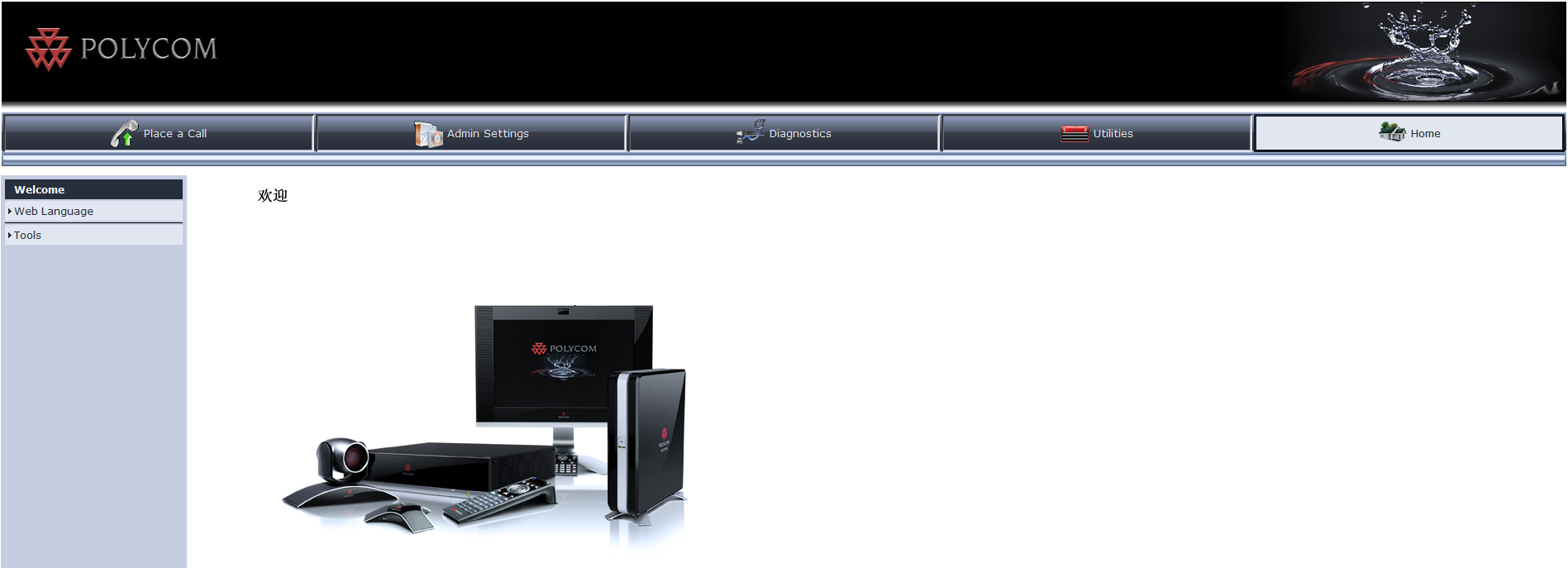
- In a browser window, Poly Endpoint. The Poly Welcome page appears:
- Click on the top navigation bar. A prompt for a username and password appears.
- In the username field, type "admin".
- In the password field, enter the room password for the "admin" user.
- Click .
To change the password that Skylar One uses to perform HTTP requests on this device:
If you enter a new password, the password changes for all administrators that use the "admin" user on this device.
- In the left navigation bar, click General Settings > Security > Security Settings. The Security page appears:
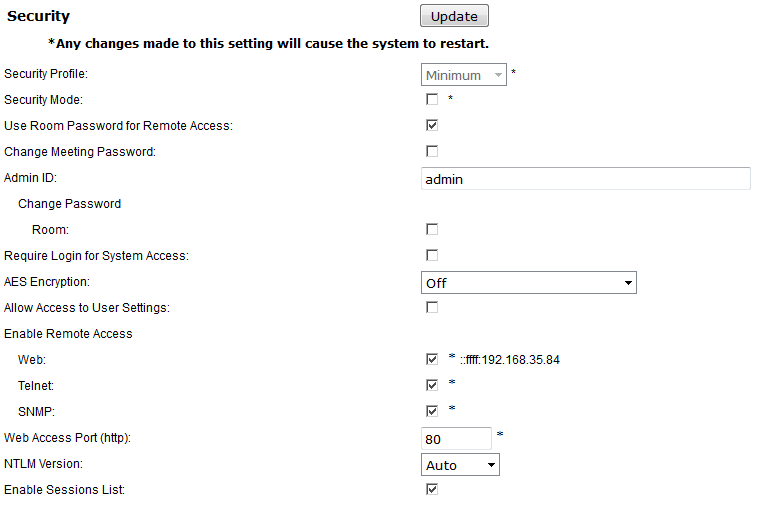
- Select the Change Password - Room checkbox.
- Supply values in the following fields:
- Current Password. Enter the current room password for the "admin" user.
- New Password. Enter the new password for the "admin" user.
- Confirm Password. Enter the new password for the "admin" user again.
- Click the button.
To configure the SNMP settings on a Poly HDX or VSX Series Endpoint:
The device restarts automatically after you perform these steps.
- In the left navigation bar, click Global Services > SNMP. The SNMP page appears:
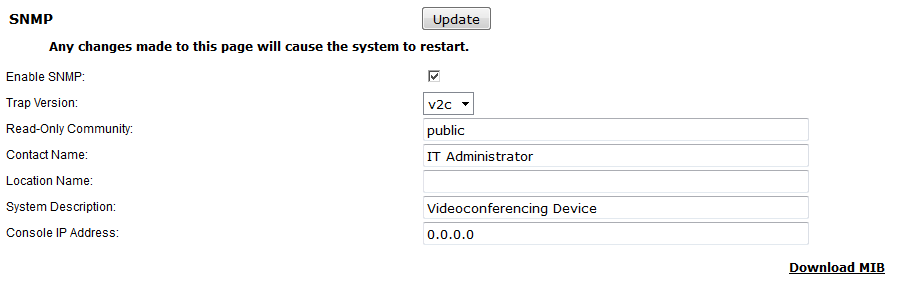
- Supply values in the following fields:
- Enable SNMP. Select this checkbox if it is not already selected.
- Trap Version. Select v2c in this field.
- Read-Only Community. Enter the new SNMP community string for this device. When you configure an SNMP credential for this Poly Endpoint in Skylar One, you enter this community string in the SNMP Community (Read-Only) field.
- Contact Name. Optionally, enter the contact information for the administrator of this device.
- Location Name. Optionally, enter the location of this device.
- System Description. Enter device.
- Console IP Address. Enter the IP address of the Message Collector or Data Collector that collects SNMP trap messages from the device.
- Click the button to save the new SNMP settings. The device restarts automatically.
Creating an SNMP Credential
SNMP credentials allow Skylar One to access SNMP data on a managed device. Skylar One uses SNMP credentials to perform discovery, run auto-discovery, and gather information from SNMP Dynamic Applications.
Creating an SNMPv2 Credential
To create an SNMPv2 credential:
- Go to the Credentials page (Manage > Credentials).
- Click the button. Select Create SNMP Credential. The Create Credential modal appears:
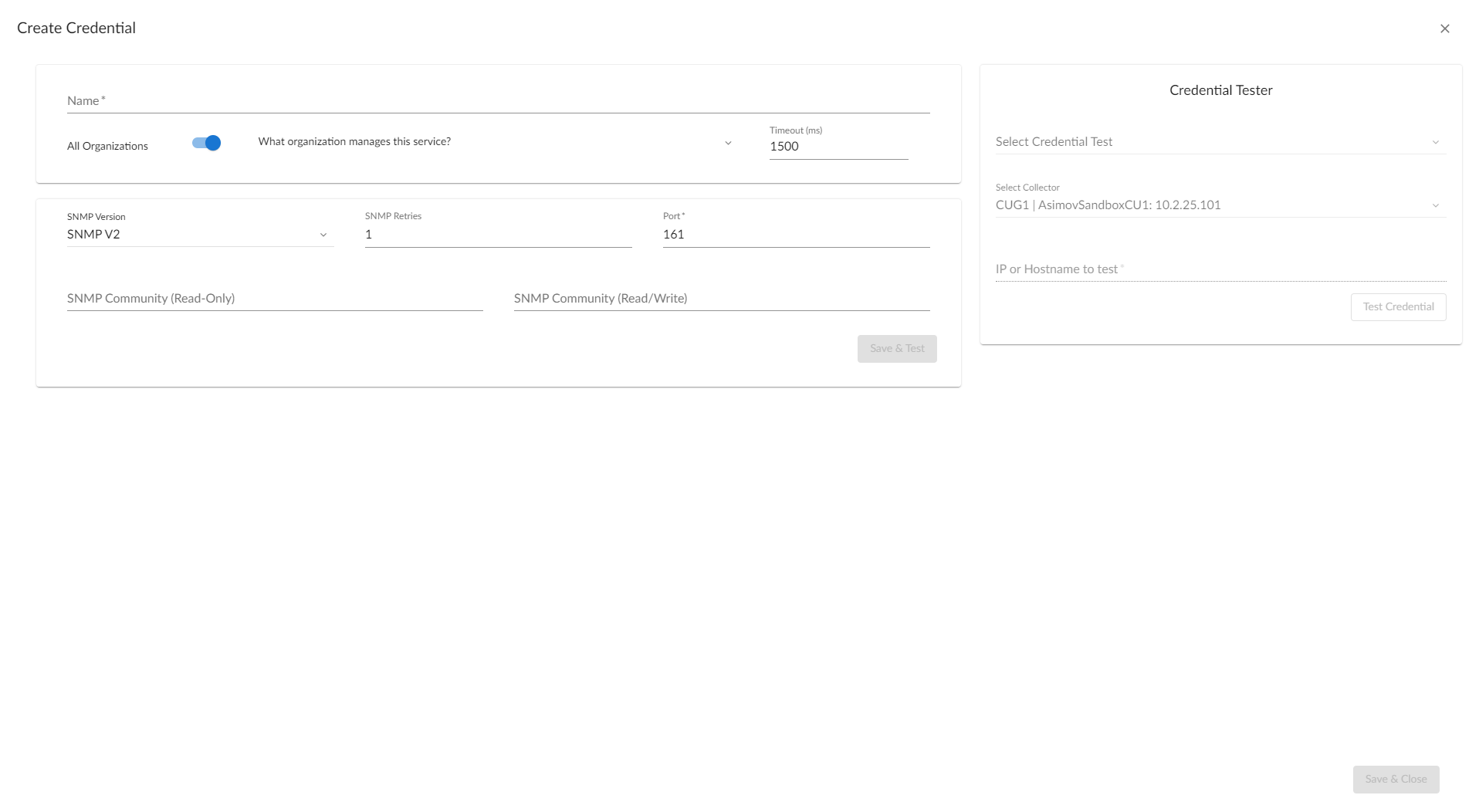
- Supply values in the following fields:
- Name. Name of the credential. Can be any combination of alphanumeric characters, up to 64 characters. This is a required field.
- All Organizations. Toggle on (blue) to align the credential to all organizations. Toggle off (gray) to align the credential to specific organizations, and then select one or more organizations from the What organization manages this service? drop-down list. This field is required.
- Timeout (ms). Time, in milliseconds, after which Skylar One stops trying to communicate with the device. The default value is 1500.
- SNMP Version. SNMP version. Choices are SNMP V1, SNMP V2, and SNMP V3. The default value is SNMP V2.
- Port. The port that Skylar One uses to communicate with the external device or application. The default value is 161. This field is required.
- SNMP Retries. Number of times Skylar One tries to authenticate and communicate with the external device. The default value is 1.
SNMP V1/V2 Settings
If you selected SNMP V1 or SNMP V2 in the SNMP Version field, complete these fields. These fields are inactive if you selected SNMP V3.
- SNMP Community (Read-Only). The SNMP community string (password) required for read-only access of SNMP data on the remote device or application. For SNMP V1 and SNMP V2 credentials, you must supply a community string, either in this field or in the SNMP Community (Read/Write) field.
- SNMP Community (Read/Write). The SNMP community string (password) required for read and write access of SNMP data on the remote device or application. For SNMP V1 and SNMP V2 credentials, you must supply a community string, either in this field or in the SNMP Community (Read-Only) field.
- Click .
Creating an SNMPv2 Credential in the Classic Skylar One User Interface
To monitor Poly Endpoints in Skylar One, create an SNMP credential for each Endpoint.
To create an SNMP Credential for a Poly Endpoint in Skylar One:
- Go to the Credential Management page (System > Manage > Credentials).
- Click the button. Select SNMP Credential. The Credential Editor page appears.
- Supply values in the following fields:
- Profile Name. Enter a name for the credential.
- SNMP Version. Select SNMP V2.
- SNMP Community (Read-Only). Enter the SNMP Read-Only community string you configured on the Poly Endpoint.
You can optionally change the values in the Timeout (ms) and Retries fields.
- Click the button.
- When you configure a discovery session that includes the IP address of the Poly Endpoint, select the SNMP credential you created in the SNMP Credentials field. For more information, see
Creating an SNMPv3 Credential
SNMP credentials allow Skylar One to access SNMP data on a managed device. Skylar One uses SNMP credentials to perform discovery, run auto-discovery, and gather information from SNMP Dynamic Applications.
To create an SNMPv3 credential:
- Go to the Credentials page (Manage > Credentials).
- Click the button. Select Create SNMP Credential. The Create Credential modal appears:
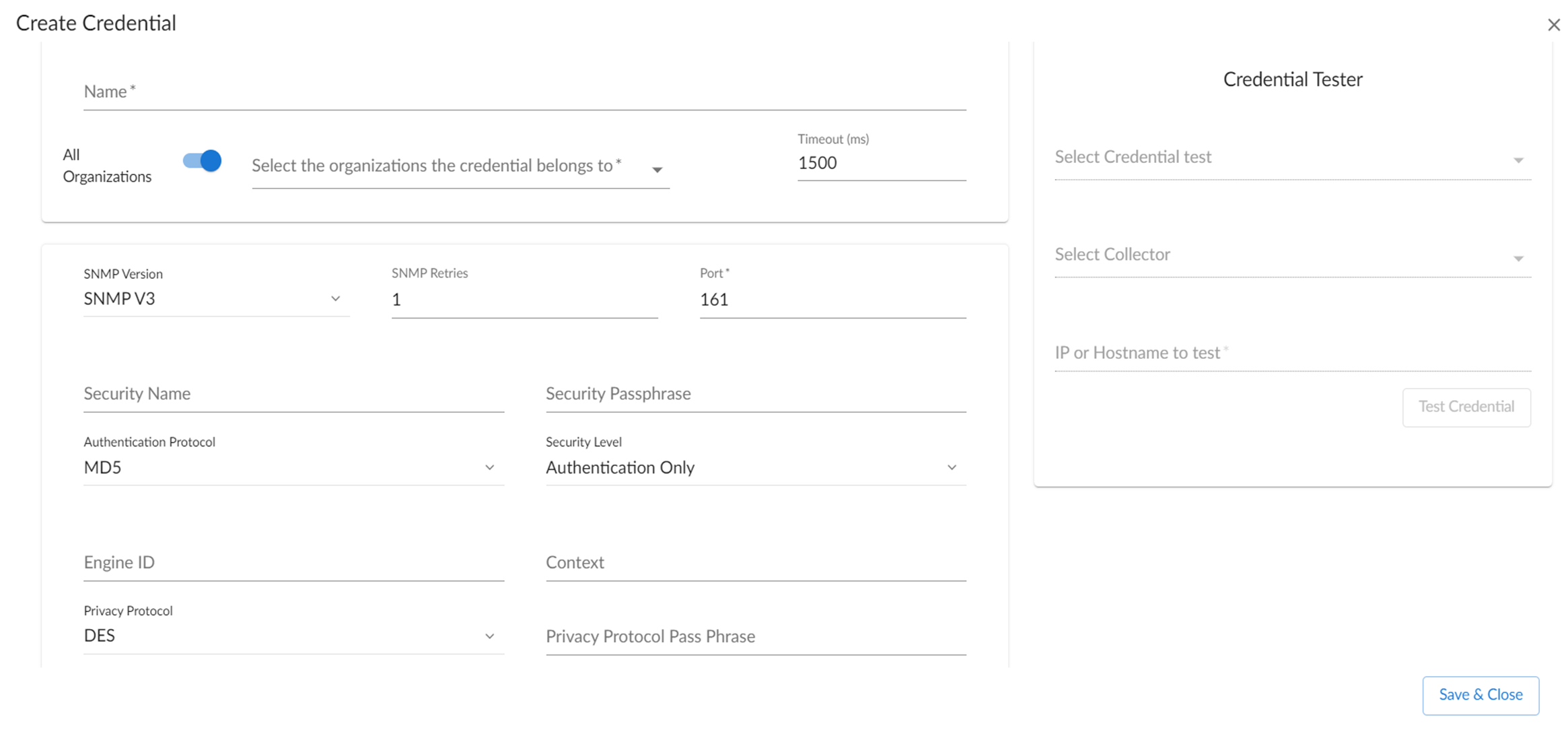
- Supply values in the following fields:
- Name. Name of the credential. Can be any combination of alphanumeric characters, up to 64 characters. This is a required field.
- All Organizations. Toggle on (blue) to align the credential to all organizations. Toggle off (gray) to align the credential to specific organizations, and then select one or more organizations from the What organization manages this service? drop-down list. This field is required.
- Timeout (ms). Time, in milliseconds, after which Skylar One stops trying to communicate with the device. The default value is 1500.
- SNMP Version. SNMP version. Choices are SNMP V1, SNMP V2, and SNMP V3. The default value is SNMP V2.
- Port. The port that Skylar One uses to communicate with the external device or application. The default value is 161. This field is required.
- SNMP Retries. Number of times Skylar One tries to authenticate and communicate with the external device. The default value is 1.
SNMP V3 Settings
If you selected SNMP V3 in the SNMP Version field, complete these fields. These fields are inactive if you selected SNMP V1 or SNMP V2.
- Security Name. Name for SNMP authentication. This field is required.
- Security Passphrase. Password to authenticate the credential. This value must contain at least 8 characters. This value is required if you use a Security Level that includes authentication.
In addition to alphanumeric characters, you can also use the following special characters in an SNMP V3 security passphrase: ? - _ = , . : # + % $ [ ] { } & ! ( ) | /
You cannot use the following special characters in an SNMP V3 security passphrase: " ' \
- Authentication Protocol. Select an authentication algorithm for the credential. This field is required. Choices are:
- MD5. This is the default value.
- SHA
- SHA-224
- SHA-256
- SHA-384
- SHA-512
The SHA option is SHA-128.
- Security Level. Specifies the combination of security features for the credentials. This field is required. Choices are:
- No Authentication / No Encryption.
- Authentication Only. This is the default value.
- Authentication and Encryption.
- Engine ID. The unique engine ID for the SNMP agent you want to communicate with. (SNMPv3 generates the authentication and encryption keys from the associated passwords and the engine ID.) This field is optional.
- Context. A context is a mechanism within SNMPv3 (and AgentX) that you can use to run parallel versions of the same MIB objects. For example, one version of a MIB might be associated with SNMP Version 2 and another version of the same MIB might be associated with SNMP Version 3. For SNMP Version 3, specify the context name in this field. This field is optional.
- Privacy Protocol. The privacy service encryption and decryption algorithm. This field is required. Choices are:
- DES. This is the default value.
- AES-128
- AES-192
- AES-256
- AES-256-C. This option is for discovering Cisco devices only.
- Privacy Protocol Passphrase. Privacy password for the credential. This field is optional.
- Click .
SNMPv3 Credential in the Classic Skylar One User Interface
To monitor Poly Endpoints in Skylar One, create an SNMP credential for each Endpoint.
To create an SNMP Credential for a Poly Endpoint in Skylar One:
- Go to the Credential Management page (System > Manage > Credentials).
- Click the button. Select SNMP Credential. The Credential Editor page appears.
- Supply values in the following fields:
- Profile Name. Enter a name for the credential.
- SNMP Version. Select SNMP V3.
- SNMP Community (Read-Only). Enter the SNMP Read-Only community string you configured on the Poly Endpoint.
You can optionally change the values in the Timeout (ms) and Retries fields.
- Click the button.
- When you configure a discovery session that includes the IP address of the Poly Endpoint, select the SNMP credential you created in the SNMP Credentials field. For more information, see
Performing Bulk Retrieval Using SNMPv3
Use the snmpbulkwalk command to perform a bulk retrieval of SNMP data from a device that uses SNMPv3. You can use this command for device discovery and inventory tasks in network management, as it efficiently gathers detailed information from network devices.
At the shell prompt, run the following command:
snmpbulkwalk -v3 -n <context> -l authPriv -u <security_name> -a <authentication_protocol> -A <security_passphrase> -x <privacy_protocol> -X <privacy_protocol_pass_phrase> -ObentU <device_ip> .1 > device.walk
where:
- -v3: Specifies the SNMP version (v3).
- -n <context>: Specifies the context name for SNMPv3 (optional, typically used in multi-context environments).
- -l authPriv: Specifies the security level. authPriv means both authentication and encryption (privacy) are used.
- -u <security name>: Specifies the username for SNMPv3.
- -a <authentication protocol>: Specifies the authentication protocol (for example, MD5 or SHA).
- -A <security_passphrase>: Specifies the passphrase for authentication.
- -x <privacy_protocol>: Specifies the privacy (encryption) protocol (for example, DES, AES).
- -X <privacy_protocol_pass_phrase>: Specifies the passphrase for the privacy protocol.
- -ObentU: Specifies options to format the output, such as showing numeric OIDs (-O), and excluding the leading dot from OIDs (-Ob).
- <device_ip>: Specifies the IP address of the device to query.
- .1: Indicates that the SNMP walk should start from the root of the MIB tree.
- >device.walk: Redirects the output to a file named device.walk.
Configuring SOAP/XML Credentials
SOAP/XML credentials allow Skylar One to access a web server on a managed device. Skylar One uses SOAP/XML credentials in several places, including:
- With Dynamic Applications of type "SOAP".
- With Dynamic Applications of type "XML".
- With Dynamic Applications of type "XSLT".
- With Dynamic Applications of type "snippet". The snippet code must define the authentication protocol. Dynamic Applications of type "snippet" can use any type of credential.
Creating SOAP/XML Credentials
To create a SOAP/XML credential:
- Go to the Credentials page (Manage > Credentials).
- Click the button. Select Create SOAP/XML Credential. The Create Credential modal appears:
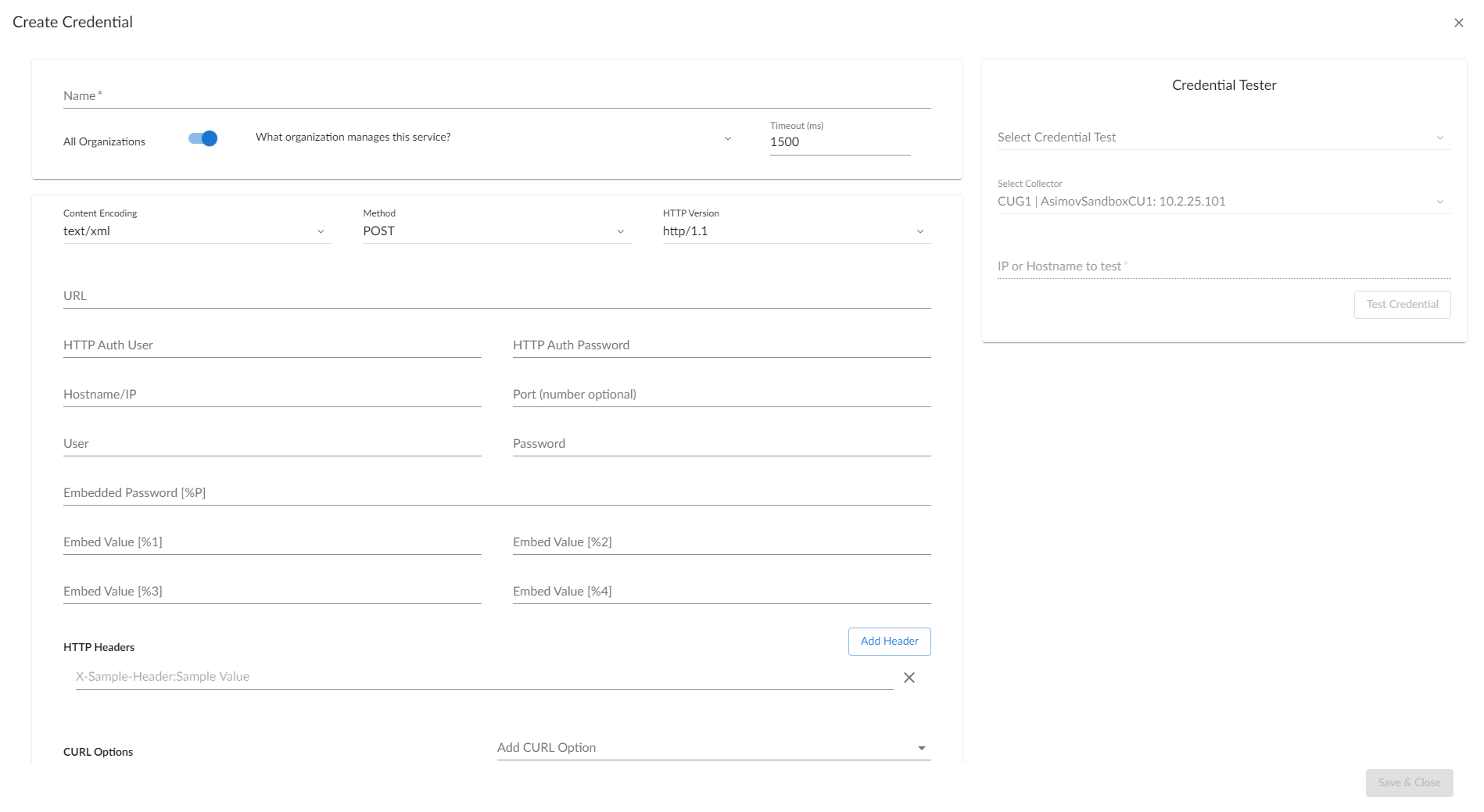
- Supply values in the following fields:
- Name. Name of the credential. Can be any combination of alphanumeric characters, up to 64 characters. This field is required.
- All Organizations. Toggle on (blue) to align the credential to all organizations. Toggle off (gray) to align the credential to specific organizations, and then select one or more organizations from the What organization manages this service? drop-down list. This field is required.
- Timeout (ms). Time, in milliseconds, after which Skylar One stops trying to communicate with the web service.
- Content Encoding. Tells the SOAP server or XML data-store how the content is encoded, so the SOAP server or XML data-store knows how to decode the message. Select the encoding that is appropriate for your request and response.
- Method. HTTP method to use to exchange credential data from the managed device. Choices are GET or POST.
Typically, Dynamic Applications of type "XML" use GET methods. Dynamic Applications of type "SOAP" and of type "XSLT" use POST methods.
- HTTP Version. Version of HTTP to use. Choices are 1.0 or 1.1.
- URL. Address of the SOAP server, HTML document, or XML document. This field is required and should be of the following format:
https://IP address:port/full path to desired SOAP, HTML, or XML document
If you specify a port in the URL, Skylar One stores the port. If you do not specify a port, Skylar One uses the default port values 80 for HTTP and 443 for HTTPS.
- You can include the variable %D in this field. Skylar One replaces the variable with the IP address of the current device (the device that currently uses the credential).
For component devices, Skylar One replaces %D with the IP address of the root device.
- You can include the variable %N in this field. Skylar One replaces the variable with the hostname of the current device (the device that currently uses the credential). If Skylar One cannot determine the hostname, Skylar One replaces the variable with the primary management IP address for the current device.
- HTTP Auth User. Username with which to log in to the web server.
- HTTP Auth Password. Password with which to access the web server.
Proxy Settings
If you use a proxy server in front of the SOAP server(s) or XML data-store(s) you want to communicate with, enter values in these fields. Otherwise, you can skip these fields.
- Hostname/IP. The host name or IP address of the proxy server.
- Port. Port on the proxy server to which you connect.
- User. Username to use to access the proxy server.
- Password. Password to use to access the proxy server.
SOAP Options
These fields are optional. When a SOAP/XML credential is aligned with a SOAP or XSLT Dynamic Application, the requests defined in the Dynamic Application can use the values defined in these fields. To use a value defined in one of these fields, the request must include the substitution character associated with that value. For example, suppose a Dynamic Application request includes the XML tag <high_value=%1>. Suppose you specified "100" in the Embed Value [%1] field in the credential aligned with that Dynamic Application. Skylar One sends the request with the XML tag <high_value=100>.
- Embedded Password [%P]. Specifies a password value to include in a request. The value defined in this field is substituted in to the %P substitution character. Skylar One encrypts the value in the request, masks it in the Credential Editor, and stores it in encrypted form in the database.
- Embed Value [%1]. The value defined in this field is substituted in to the %1 substitution character.
- Embed Value [%2]. The value defined in this field is substituted in to the %2 substitution character.
- Embed Value [%3]. The value defined in this field is substituted in to the %3 substitution character.
- Embed Value [%4]. The value defined in this field is substituted in to the %4 substitution character.
HTTP Headers
- If you require custom HTTP headers to communicate with the SOAP server, you can build the custom header here. To add a header, click the button.
cURL Options
- You can include the cURL command and various options in your credential. The list of cURL options lists all the options you can include in your credential. To include a cURL option in the credential, click the Add CURL Option drop-down list and then select it from the list. You can then supply arguments in the blank text field to the right of the option.
- For more information, see the cURL manpage at http://curl.haxx.se/docs/manpage.html.
- Click .
Creating SOAP/XML Credentials in the Classic Skylar One User Interface
To use the Dynamic Applications in the "Poly: Endpoint" PowerPack, you must configure five SOAP/XML credentials for your Poly device. The five credentials are:
- "Poly - Advanced"
- "Poly - Interface"
- "Poly - Network"
- "Poly - System"
- "Poly CDR"
Skylar One uses these credentials to monitor Poly Endpoints and to collect call detail records. Each credential uses a unique combination of URL, username, and password.
If you have multiple Poly Endpoints, you need one set of credentials for each unique room password for the "admin" user. For example, if you have configured three Poly Endpoints with the same room password for the "admin" user, you need only one set of credentials.
To modify the credentials:
- Go to the Credential Management page (System > Manage > Credentials).
- Click the wrench icon (
 ) for the "Poly - Advanced" credential. The Credential Editor modal appears.
 - In the Profile Name field, enter a new name for the credential.
- In the HTTP Auth Password field, enter the room password you configured for the "admin" user on the Poly Endpoint.
- Click the button.
- Repeat steps 2 - 5 for the following credentials:
- "Poly - CDR"
- "Poly - Interface"
- "Poly - Network"
- "Poly - System"
Dynamic Applications for Poly Endpoints
The "Poly: Endpoint" PowerPack contains 13 Dynamic Applications that you can use to monitor Poly Endpoints and Group Series (GS) devices. Some of the Dynamic Applications for Poly Endpoints use the caching feature:
- Four Dynamic Applications only collect and cache data from Poly Endpoints.
- Three Dynamic Applications use the cached data. For these Dynamic Applications to display data, you must align the Dynamic Applications that collect and cache data to the same device.
Six Dynamic Applications for Poly Endpoints and GS devices do not use the caching feature.
The Dynamic Applications in the "Poly: Endpoint" PowerPack include discovery objects. If you discover your Poly Endpoint as an SNMP device, you can include all the SOAP/XML credentials that you configured for your Poly Endpoint in the Other Credentials field of the Discovery Session Editor page. Skylar One then automatically aligns the Dynamic Applications from the "Poly: Endpoint" PowerPack to your Poly Endpoint. However, the Dynamic Applications in the "Poly: Endpoint" PowerPack might take a significant amount of time to align with Poly devices during discovery. If you are discovering multiple Poly Endpoints or your Poly Endpoints take several seconds to respond to HTTP requests, ScienceLogic recommends that you do not include SOAP/XML credentials in the discovery session.
If you do not include SOAP/XML credentials in the discovery session for your Poly Endpoints, you can manually align the Poly Dynamic Applications using a device template. To create a device template for a Poly Endpoint:
- Go to the Configuration Templates page (Devices > Templates, or Registry > Devices > Templates in the classic user interface).
- Click the button. The Template Editor page appears.
- Enter a name for your device template in the Template Name field.
- Click the tab.
- For each Dynamic Application listed in the table below:
- Select Add New Dynamic App Sub-Template.
- Select the Dynamic Application in the Dynamic Application field.
- Click the Credentials field. Select the credential listed for the Dynamic Application in the table below.
- Click the button.
If your discovery session includes IP addresses for only Poly Endpoints, you can apply the device template to all devices discovered by that discovery session. To apply a device template to all devices discovered by a discovery session, select the device template in the Apply Device Template field in the Discovery Session Editor page.
If your discovery session includes IP addresses for other types of devices in addition to Poly Endpoints, you can apply the device template to your Poly Endpoints after discovery in the Device Manager page. To apply the device template to your Poly Endpoints:
- Go to the Device Manager page (Devices > Classic Devices, or Registry > Devices > Device Manager in the classic user interface).
- Select the checkbox for each Poly Endpoint.
- In the Select Action drop-down list, select Modify By Template. Click the button. The Bulk Device Configuration modal appears.
- Select the device template in the Template field.
- Click the button.
- In the confirmation page that appears, click the button.
The following table lists the Dynamic Applications in the "Poly: Endpoint" PowerPack. The table also lists the dependencies between the Dynamic Applications that populate the cache and the Dynamic Applications that consume the cache. Each row lists the credential that you must align with the Dynamic Application:
| Dynamic Application | Credential | Caching Type | Dependencies |
| Poly: Active Call | N/A | Consumes Cache | Poly: Cache Network |
| Poly: Cache Advanced | Poly - Advanced | Populates Cache | N/A |
| Poly: Cache Interface | Poly - Interface | Populates Cache | N/A |
| Poly: Cache Network | Poly - Network | Populates Cache | N/A |
| Poly: Cache System | Poly - System | Populates Cache | N/A |
| Poly: Call Detail Records | Poly CDR | No Caching | N/A |
| Poly: Call Quality Statistics | N/A | Consumes Cache | Poly: Cache Network and Poly: Cache Advanced |
| Poly: Configuration | N/A | Consumes Cache | Poly: Cache System and Poly: Cache Interface |
| Poly: SNMP Configuration | SNMP Credential for Device | No Caching | N/A |
| Poly GS: Active Call | SNMP Credential for Device | No Caching | N/A |
| Poly GS: Asset and Network Service | SNMP Credential for Device | No Caching | N/A |
| Poly GS: Call Quality | SNMP Credential for Device | No Caching | N/A |
| Poly GS: Status | SNMP Credential for Device | No Caching | N/A |