
The following sections describe how to configure Cisco TelePresence Conductor devices for monitoring by Skylar One using the "Cisco: TelePresence Conductor" PowerPack:
Prerequisites
Before you perform the tasks in this
Additionally, if you are using SNMP to monitor the Conductor, then you must enable SNMP in the Conductor. Use this SNMP information when you create an SNMP credential in Skylar One to monitor the Conductor.
Monitoring Cluster Configurations vs. Non-Cluster Configurations
Skylar OneYou can monitor Cisco TelePresence Conductor in either a cluster configuration or a non-cluster configuration. However, the monitoring method is different for each configuration.
For cluster configurations, ScienceLogic recommends that you use a virtual device to model the cluster. If you model the cluster using an IP device and that IP device becomes unresponsive, then all Dynamic Applications stop collecting data until the IP responds. Modeling the cluster using a virtual device, however, maintains monitoring integrity if one or more nodes become unresponsive to Skylar One. To model the cluster using a virtual device, first create the virtual device in Skylar One. Then manually align a Dynamic Application to the virtual device to discover and model the devices in the cluster.
For non-cluster configurations, you can discover the Conductor as an SNMP-enabled IP device or an IP device that responds to ping. When you discover the IP address using the appropriate credential(s), Skylar One automatically aligns a Dynamic Application to discover and model the Conductor devices.
Creating Credentials
To monitor Cisco TelePresence Conductor, you must create a SOAP/XML credential with the appropriate API information. This credential enables Skylar One to communicate with the Conductor, regardless of whether you are discovering an IP device or creating a virtual device to act as the cluster root device.
If you are monitoring SNMP-enabled IP devices, then you must also create an SNMP credential.
This section describes how to create both credentials.
Creating a SOAP/XML Credential
Skylar One uses REST API and RPC API queries to monitor cluster operations for Cisco TelePresence Conductor. Therefore, you must align the Dynamic Applications in the "Cisco: TelePresence Conductor" PowerPack with a SOAP/XML credential that includes the REST API and RPC API login information.
The "Cisco: TelePresence Conductor" PowerPack includes two example SOAP/XML credentials (one for virtual devices and one for IP devices) that you can edit for your own use.
To create a SOAP/XML credential with one of the two example credentials:
- Go to the Credentials page (Manage > Credentials).
- If you are using a virtual device, locate the "Cisco: Conductor Example (Virtua" credential. If you are discovering an IP device, locate the "Cisco: Conductor Example (Discov" credential. Click its icon (
 ) and select Duplicate from the drop-down field. The "Cisco: Conductor Example copy" credential appears, whether you chose a virtual device or an IP device.
 - Click the icon () for the "Cisco: Conductor Example (Discov" or "Cisco: Conductor Example (Virtua" credential, then select Edit. The Edit Credential page appears.
- Enter values in the following fields:
- Name. Enter a name for your TelePresence Conductor credential.
- All Organizations. Toggle on (blue) to align the credential to all organizations. To align the credential to specific organizations, toggle off (gray), and then select one or more organizations from the Select the organizations the credential belongs to drop-down list.
- Timeout. Enter the time, in milliseconds, after which Skylar One stops trying to communicate with the TelePresence device. The default value is 5000. This field is required.
- Content Encoding. Leave the default value "text/xml".
- Method. Leave the default set to "POST".
- HTTP Version. Leave the default value "HTTP/1.1".
- URL. If you are creating a virtual device as the root device, enter the URL of the master Conductor system. If you are discovering an IP device as the root device, enter "http://%D".
- HTTP Auth User. Enter the username for a Conductor account with API access.
- HTTP Auth Password. Enter the password for a Conductor account with API access.
- Embedded Password [%P]. Enter the embedded password associated with the TelePresence administrator account.
- Click the button.
Creating a SOAP/XML Credential in the Classic Skylar One User Interface
Skylar One uses REST API and RPC API queries to monitor cluster operations for Cisco TelePresence Conductor. Therefore, you must align the Dynamic Applications in the "Cisco: TelePresence Conductor" PowerPack with a SOAP/XML credential that includes the REST API and RPC API login information.
The "Cisco: TelePresence Conductor" PowerPack includes two example SOAP/XML credentials (one for virtual devices and one for IP devices) that you can edit for your own use.
To create a SOAP/XML credential in the classic Skylar One user interface:
- Go to the Credential Management page (System > Manage > Credentials).
- If you are using a virtual device, locate the "Cisco: Conductor Example (Virtua" credential. If you are discovering an IP device, locate the "Cisco: Conductor Example (Discov" credential. Click its wrench icon (
 ). The Edit SOAP/XML Credential modal page appears.
- Enter values in the following fields:
- Profile Name. Enter a name for your TelePresence Conductor credential.
- Content Encoding. Select text/xml.
- Method. Select POST.
- HTTP Version. Select HTTP/1.1.
- URL. If you are creating a virtual device as the root device, enter the URL of the master Conductor system. If you are discovering an IP device as the root device, enter "http://%D".
- HTTP Auth User. Enter the username for a Conductor account with API access.
- HTTP Auth Password. Enter the password for a Conductor account with API access.
- Timeout(seconds). Enter "10".
- Click the button.
Creating an SNMP Credential
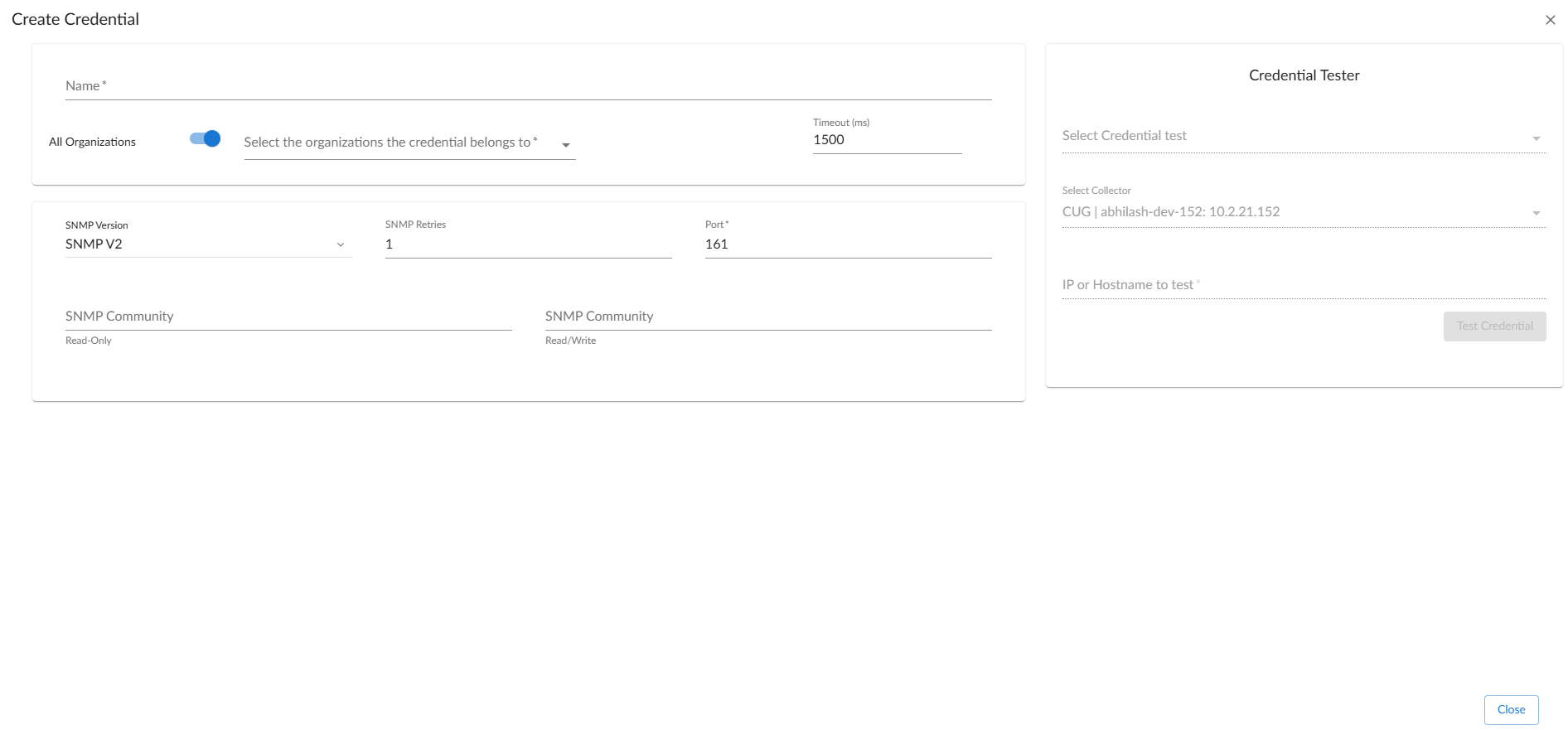
If you want to monitor SNMP-enabled Conductor devices, then you must also create an SNMP credential to enable Skylar One to communicate with those devices.
To create an SNMP credential:
-
Go to the Credentials page (Manage > Credentials).
-
Click the button and select Create SNMP Credential from the drop-down menu.
-
Enter values in the following fields:
-
Name. Enter a new name for the credential. This field is required.
-
All Organizations. Toggle on (blue) to align the credential to all organizations. To align the credential to specific organizations, toggle off (gray), and then select one or more organizations from the Select the organizations the credential belongs to drop-down list.
-
Timeout (ms). Enter the time, in milliseconds, after which Skylar One stops trying to communicate with the Conductor device. The default value is 1500. This field is required.
-
SNMP Version. Select SNMP V2 from the drop-down list.
-
SNMP Retries. Keep the default. The default value is "1".
-
Port. Keep the default. The default port is "161".
-
SNMP Community (Read-Only). Enter the community string for the Cisco Unity ExpressConductor devices you want to monitor.
-
SNMP Community (Read/Write). Optional. Enter the community string for the Cisco Unity ExpressConductor devices to grant Read/Write permissions.
-
For the other optional fields, you can use the default values.
-
Click .
Creating an SNMP Credential in the Classic Skylar One User Interface
If you want to monitor SNMP-enabled Conductor devices, then you must also create an SNMP credential to enable Skylar One to communicate with those devices.
To create an SNMP credential in the classic Skylar One user interface:
- Go to the Credential Management page (System > Manage > Credentials).
- Click the actions icon ().
- In the drop-down list that appears, select Create SNMP Credential. The Credential Editor page appears.
- Enter values in the following fields:
- SNMP Version. Select SNMP V2.
- Profile Name. Enter a name for the credential.
- SNMP Community (Read Only). Enter the community string for the Conductor devices.
- Optionally, supply values in the other fields in this page. You can use the default values for the other fields.
- Click the button.
Creating and Discovering Virtual Devices
For Conductor cluster configurations, ScienceLogic recommends that you use a virtual device to represent the cluster.
A virtual device is a user-defined container that represents a device or service that cannot be discovered by Skylar One. You can use the virtual device to store information gathered by policies or Dynamic Applications.
To model and monitor Cisco TelePresence Conductor using a virtual device to represent the cluster, you must first create the virtual device and then manually align the "Cisco: TelePresence Conductor Discovery" Dynamic Application to the virtual device. When you do so, Skylar One discovers the cluster first, and then automatically aligns the other Dynamic Applications in the "Cisco: TelePresence Conductor" PowerPack to the cluster virtual device. These additional Dynamic Applications discover, model, and monitor the remaining Conductor component devices.
To create a virtual device that represents your TelePresence Conductor cluster:
- Go to the Device Manager page (Devices > Classic Devices, or Registry > Devices > Device Manager in the classic user interface).
- Click the actions icon () and select Create Virtual Device from the menu. The Virtual Device modal page appears.
- Enter values in the following fields:
- Device Name. Enter a name for the virtual device. For example, you could enter "Conductor Cluster" in this field.
- Organization. Select the organization for this device. The organization that you select limits which users can view and edit the device.
- Device Class. Select Cisco Systems| TelePresence Conductor Cluster.
- Collector. Select the collector group to monitor the cluster.
- Click the button to create the virtual device.
After you create the Conductor cluster virtual device, you must manually align the "Cisco: TelePresence Conductor Discovery" Dynamic Application with the virtual device.
To align the Dynamic Application with the virtual device:
- Go to the Device Manager page (Devices > Classic Devices, or Registry > Devices > Device Manager in the classic user interface).
- Click the wrench icon () for your Conductor cluster virtual device.
- In the Device Administration panel, click the tab. The Dynamic Application Collections page appears.
- Click the button and select Add Dynamic Application from the menu.
- In the Dynamic Application Alignment modal page, enter values in the following fields:
- Dynamic Applications. Select the Cisco: TelePresence Conductor Discovery Dynamic Application.
- Credentials. Select the SOAP/XML credential you created for the Conductor devices.
- Click the button to align the Dynamic Application with the Conductor cluster virtual device.
Discovering IP Devices
To model and monitor Cisco TelePresence Conductor IP devices, you must run a discovery session to discover a Conductor root device.
Several minutes after the discovery session completes, the Dynamic Applications in the "Cisco: TelePresence Conductor" PowerPack automatically align to the Conductor root device and then discover, model, and monitor the remaining Conductor component devices.
To discover the Cisco TelePresence Conductor devices that you want to monitor:
- Go to the Discovery Control Panel page (System > Manage > Classic Discovery or System > Manage > Discovery in the classic user interface).
- In the Discovery Control Panel page, click the button. The Discovery Session Editor page appears.
- Discovery Session EditorIn the Discovery Session Editor page, enter values in the following fields:
- IP Address/Hostname Discovery List. Enter the IP address(es) for the Conductor root device(s) you want to discover.
- SNMP Credentials. If the devices are SNMP-enabled, select the SNMP credential you created for the Conductor devices.
- Other Credentials. Select the SOAP/XML credential you created for the Conductor devices.
- Discover Non-SNMP. Select this checkbox.
- Model Devices. Select this checkbox.
- Optionally, you can enter values in the other fields on this page. For more information,
- Click the button to save the discovery session. Close the Discovery Session Editor window.
- The discovery session you created appears at the top of the Discovery Control Panel page. Click its lightning-bolt icon (
 ) to run the discovery session.
 - The Discovery Session window appears. When Skylar One discovers the Conductor root device, click the device icon (
 ) to view the Device Properties page for the root device.
Viewing Cisco TelePresence Conductor Devices
When Skylar One discovers your TelePresence Conductor devices, Skylar One creates component devices that represent each component in your Conductor cluster.
In addition to the Device Manager page, you can view component devices in the following places in the user interface:
- The Device View modal page (click the bar-graph icon [
 ] for a device, then click the tab) displays a map of the selected device and all of the devices with which it has parent-child relationships. If you double-click a device, the page reloads with that device as the primary device.
- The Device Components page (Devices > Device Components) displays a list of all root devices and component devices discovered by Skylar One, in an indented view. The list shows the hierarchy and relationships between child devices, parent devices, and root devices. To view the component devices associated with your Conductor cluster, find a cluster and click its plus icon (+).
- On the Component Map page (Classic Maps > Device Maps > Components), you can view devices by root node. The map shows the relationships between root nodes, parent components, and child components. Skylar One automatically updates the Component Map as it discovers new component devices. Skylar One also updates each map with the latest status and event information. To view the map for your Conductor cluster, go to the Component Map page and select the map from the list in the left navigation bar. For more information,Component Map