
The following sections describe how to configure Cisco TelePresence endpoints for monitoring by Skylar One using the "Cisco: TelePresence: Endpoints" PowerPack:
Configuring TelePresence Endpoints for Monitoring by Skylar One
To configure a TelePresence endpoint for monitoring by Skylar One:
- Log in to Cisco Unified Communications Manager.
- Select Device > Phone. The Find and List Phones page appears.

- In the Find and List Phones page, search for the phone, or click the button to see all phones.

- Click the Device name link for your TelePresence Endpoint. The Phone Configuration page appears.
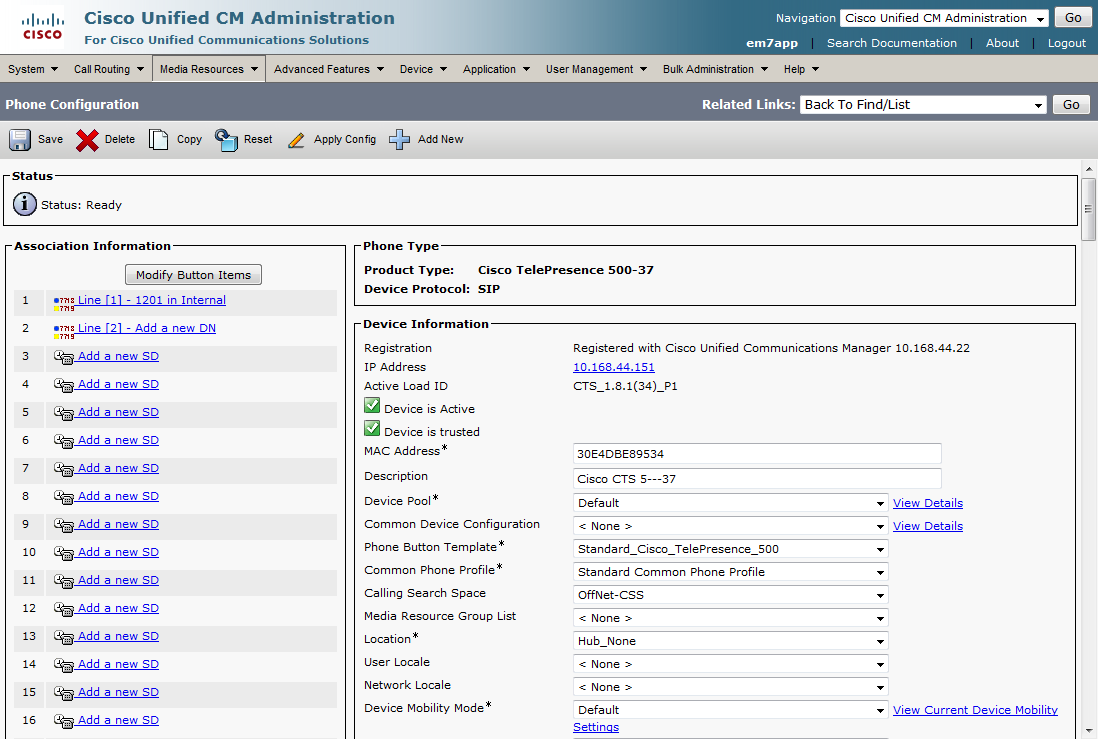
- Scroll down the Phone Configuration page until the SNMP Configuration Parameters section appears. Enter values in the SNMP Configuration Parameters section in the following fields:
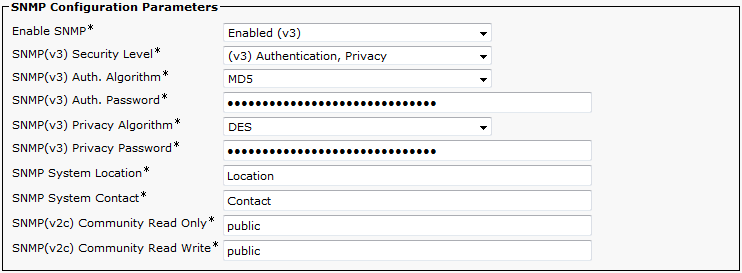
- Enable SNMP. Select Enabled (v3).
- SNMP(v3) Security Level. You can use one of three security levels with an SNMP v3 security name. Select the security level that is appropriate for your environment.
- SNMP(v3) Auth. Algorithm. Select an authentication protocol for transmission of the authentication password. Skylar One supports both the MD5 and SHA options.
- SNMP(v3) Auth. Password. Enter an authentication password. The password must be at least 8 characters.
- SNMP(v3) Privacy Algorithm. Select a privacy protocol for the encryption of SNMP messages. Skylar One supports the DES and AES128 options. Do not select AES192 or AES256 in this field.
- SNMP(v3) Privacy Password. Enter a privacy password. The password must be at least 8 characters.
- SNMP System Location. Enter the location of the device.
- SNMP System Contact. Enter the contact information for the administrator of this device.
- SNMP(v2c) Community Read Only. This field is not used. Leave this field set to the default value.
- SNMP(v2c) Community Read Write. This field is not used. Leave this field set to the default value.
- Continue to scroll down the Phone Configuration page until the SNMP Trap Receiver Parameters section appears. Enter values in the SNMP Trap Receiver Parameters section in the following fields:
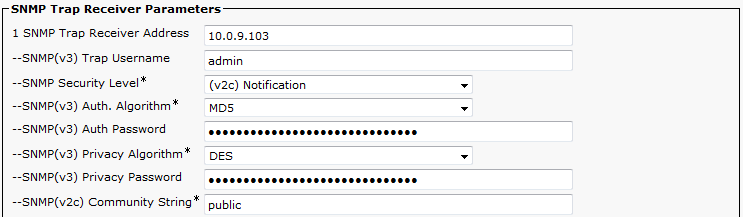
- SNMP Trap Receiver Address. Enter the IP address of the Message Collector or Data Collector that collects SNMP trap messages from the device.
- SNMP Security Level. Select (v2c) Notification.
- SNMP(v3) Auth. Algorithm. Leave this required field at its default setting.
- SNMP(v3) Privacy Algorithm. Leave this required field at its default setting.
- SNMP(v2c) Community String. Leave this required field at its default setting.
- Scroll down the Phone Configuration page again and click the button, then click the button in the pop-up window.
- Click . A confirmation window appears.
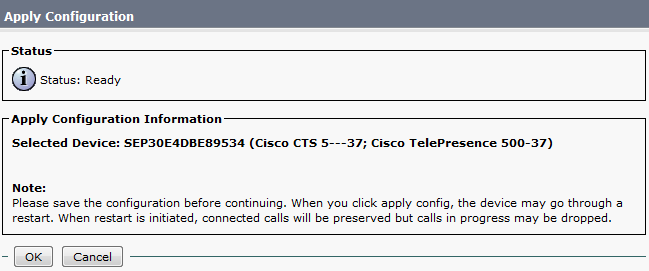
- Click the button in the Apply Configuration window.
Creating an SNMP Credential
To create an SNMP Credential for a TelePresence Endpoint in Skylar One:
- Go to the Credential Management page (System > Manage > Credentials).
- Click the button, and then select SNMP Credential. The Credential Editor page appears.
- Supply values in the following fields:
- Profile Name. Enter a name for the credential.
- SNMP Version. Select SNMP V3.
You can optionally change the values in the Timeout (ms) and Retries fields.
- Security Name. Enter the SNMP authentication name.
- Security Passphrase. If you are using the Authentication Only or Authentication and Encryption security levels, enter the value you configured in the SNMP(v3) Auth. Password field in the SNMP Configuration Parameters section.
- Authentication Protocol. If you are using the Authentication Only or Authentication and Encryption security levels, select the value you configured in the SNMP(v3) Auth. Algorithm field in the SNMP Configuration Parameters section.
- Security Level. Select the security level you configured for the security name.
- Privacy Protocol. If you are using the Authentication and Encryption security level, select the value you configured in the SNMP(v3) Privacy Algorithm field in the SNMP Configuration Parameters section.
- Privacy Protocol Pass Phrase. If you are using the Authentication and Encryption security level, enter the value you configured in the SNMP(v3) Privacy Password field in the SNMP Configuration Parameters section.
- Select the button.
- When you configure a discovery session that includes the IP address of the TelePresence Endpoint, select the SNMP credential you created in the SNMP Credentials field. For more informationSkylar One, see