
The following sections describe the default custom reports that display data collected from video devices:
You can generate the reports in this
TelePresence Inventory Report
This report displays a summary of TelePresence servers, including the location name, system name, server type, serial number, model, and model number for each server.
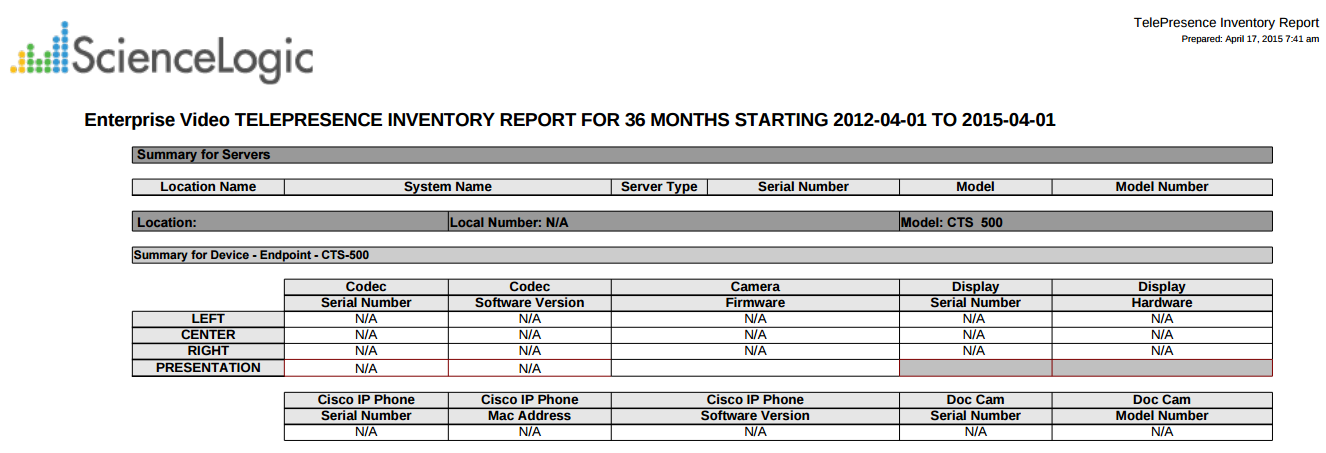
The following options are available when generating the report:
- Tandberg and TelePresence Organization Selection. Select the organization to include in the report.
- Report Span. Specify a Daily, Weekly, or Monthly span to include in the report. Specify a Starting date and a Duration for the report.
This description covers the latest version of this report as shipped by ScienceLogic in the "Video Reports" PowerPack. You or another user might have modified this report on your Skylar One system.
Video Calls by Device Group, Call Type, and Bandwidth Report
This report displays usage information for Tandberg, Polycom, LifeSize and Cisco TelePresence devices. For each device included in the report, the report displays a table for each type of call. For each type of call, the report displays the number of calls and total hours the device was on a call for each bandwidth type. The report includes only calls that were made during the time period selected for the report.
You can customize the output to include only specific devices. You can also specify the time span of information to include in the report.
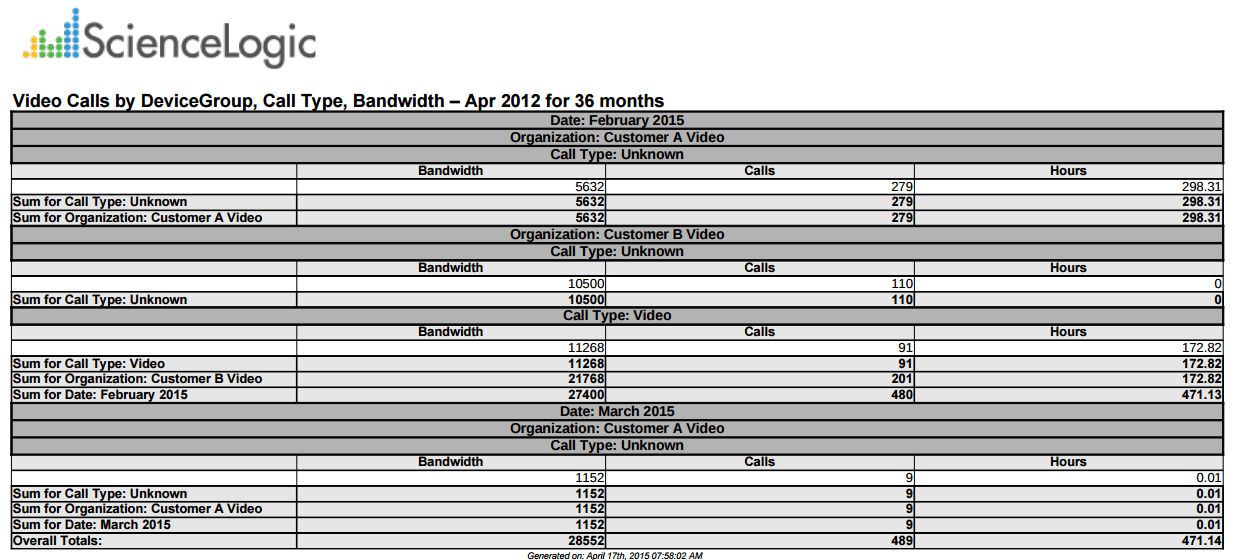
The following input options are available when generating the report:
- Branding. Optionally, enter text to display at the top of the report. If you do not enter a value in this field, "Video Endpoint Report" displays at the top of the report.
- Device Selection. Select the devices to include in the report. The following options are available:
- All devices. Select this checkbox if you want all devices in the system to be included in this report.
- Organizations. If you do not select the All devices checkbox, select one or more organizations. The report contains only the devices in the organizations you select. You can further filter the list of devices to include in the report by selecting devices in the Devices by Organization field.
- Select individual devices. If you do not select the All devices checkbox, the Select individual devices checkbox is available. Select this checkbox to use the Devices by Organization field to select the individual devices to include in the report.
- Devices by Organization. This field displays a list of all devices in the organizations selected in the Organizations field. If the Select individual devices checkbox is selected, you can select one or more devices to include in the report.
- Device Group Selector. Select the device groups that will appear in the report. The following options are available:
- Select By Device Group. Select this checkbox if you want to select which device groups to include in the report.
- Device Groups. If the Select By Device Group checkbox is selected, select one or more device groups. The report contains only the devices in the device groups you select.
- Device Categories. By default, the All Device Categories checkbox is selected. To limit the report to one or more specific device categories, select one or more device categories from the list of Device Categories.
- General Display Options. Specify how the report is arranged:
- Separated By. Select whether the report separates the data into multiple tables. The report can be separated to include one table per organization, one table per device group, one table per device category, or one table per device.
- Naming. Select whether the Device ID or the Organization ID appears in the report.
- Report Sections. Select whether you want the report to display Details Only, Totals Only, or Both.
- Report Span. Specify a Daily, Weekly, or Monthly span to include in the report. Starting. Use the Year, Month, and Date fields to specify a start date for the report. Skylar One uses data from that date as the starting point of the report.Duration. Specify the duration for the report, from 1 month to 36 months. Skylar One uses data from the Starting date as the start point of the report and data from the last day of the Duration as the ending point of the report.Timezone. Specify the time zone to use for date and time values in the report. Specify the time zone as the number of hours offset from Coordinated Universal Time (UTC).
- Report Type. Specify whether the report includes all selected devices or only a set number of the devices with the highest utilization.
This description covers the latest version of this report as shipped by ScienceLogic in the "Video Reports" PowerPack. You or another user might have modified this report on your Skylar One system.
Video Endpoint Availability Chart Report
This report displays a bar graph of device availability for Tandberg, LifeSize, Cisco, and Polycom video endpoints. For each device included in the report, the report displays availability in percentage for the time period selected for the report.
You can customize the output to include only specific devices or to limit the number of devices in the report. You can also specify the time span to include in the report, the text at the top of the report, and how the report sorts and arranges the devices.
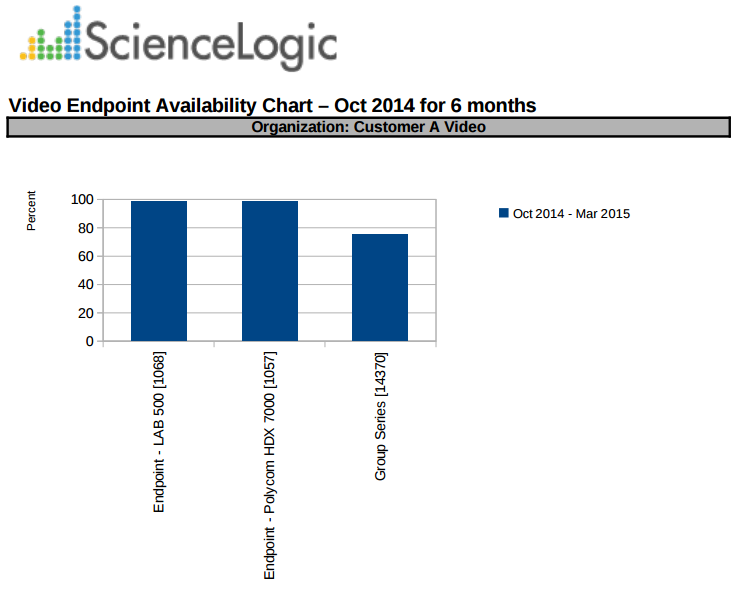
The following input options are available when generating the report:
- Branding. Optionally, enter text to display at the top of the report. If you do not enter a value in this field, "Video Endpoint Report" displays at the top of the report.
- Device Selection. Select the devices to include in the report. The following options are available:
- All devices. Select this checkbox if you want all devices in the system to be included in this report.
- Organizations. If you do not select the All devices checkbox, select one or more organizations. The report contains only the devices in the organizations you select. You can further filter the list of devices to include in the report by selecting devices in the Devices by Organization field.
- Select individual devices. If you do not select the All devices checkbox, the Select individual devices checkbox is available. Select this checkbox to use the Devices by Organization field to select the individual devices to include in the report.
- Devices by Organization. This field displays a list of all devices in the organizations selected in the Organizations field. If the Select individual devices checkbox is selected, you can select one or more devices to include in the report.
- Device Group Selector. Select the device groups that will appear in the report. The following options are available:
- Select By Device Group. Select this checkbox if you want to select which device groups to include in the report.
- Device Groups. If the Select By Device Group checkbox is selected, select one or more device groups. The report contains only the devices in the device groups you select.
- Device Categories. By default, the All Device Categories checkbox is selected. To limit the report to one or more specific device categories, select one or more device categories from the list of Device Categories.
- General Display Options. Specify how the report is arranged:
- Separated By. Select whether the report separates the data into multiple tables. The report can be separated to include one table per organization, one table per device group, one table per device category, or one table per device.
- Naming. Select whether the Device ID or the Organization ID appears in the report.
- Stacking. Select the Enable Stacking checkbox to stack the data.
- Report Span. Specify a Daily, Weekly, or Monthly span to include in the report. Starting. Use the Year, Month, and Date fields to specify a start date for the report. Skylar One uses data from that date as the starting point of the report.Duration. Specify the duration for the report, from 1 month to 36 months. Skylar One uses data from the Starting date as the start point of the report and data from the last day of the Duration as the ending point of the report.Timezone. Specify the time zone to use for date and time values in the report. Specify the time zone as the number of hours offset from Coordinated Universal Time (UTC).
- Report Type. Specify whether the report includes all selected devices or only a set number of the devices with the highest utilization.
This description covers the latest version of this report as shipped by ScienceLogic in the "Video Reports" PowerPack. You or another user might have modified this report on your Skylar One system.
Video Endpoint Availability Table Report
This report displays an overview of device availability for Tandberg, Polycom, LifeSize and Cisco TelePresence devices. For each device included in the report, the report displays availability in percentage for the time period selected for the report.
You can customize the output to include only specific devices or to limit the number of devices in the report. You can also specify the time span to include in the report, the text at the top of the report, and how the report sorts and arranges the devices.
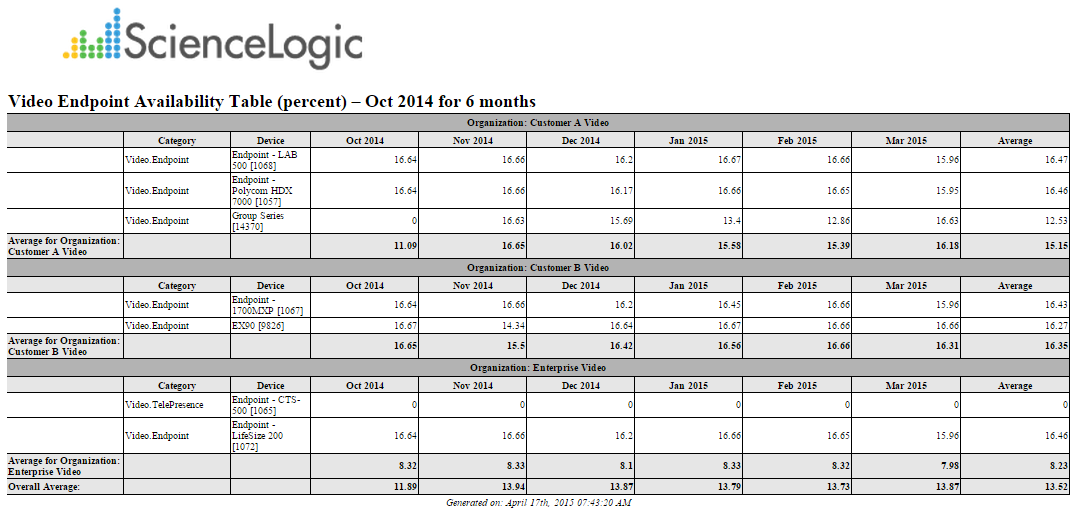
The following input options are available when generating the report:
- Branding. Optionally, enter text to display at the top of the report. If you do not enter a value in this field, "Video Endpoint Report" displays at the top of the report.
- Device Selection. Select the devices to include in the report. The following options are available:
- All devices. Select this checkbox if you want all devices in the system to be included in this report.
- Organizations. If you do not select the All devices checkbox, select one or more organizations. The report contains only the devices in the organizations you select. You can further filter the list of devices to include in the report by selecting devices in the Devices by Organization field.
- Select individual devices. If you do not select the All devices checkbox, the Select individual devices checkbox is available. Select this checkbox to use the Devices by Organization field to select the individual devices to include in the report.
- Devices by Organization. This field displays a list of all devices in the organizations selected in the Organizations field. If the Select individual devices checkbox is selected, you can select one or more devices to include in the report.
- Device Group Selector. Select the device groups that will appear in the report. The following options are available:
- Select By Device Group. Select this checkbox if you want to select which device groups to include in the report.
- Device Groups. If the Select By Device Group checkbox is selected, select one or more device groups. The report contains only the devices in the device groups you select.
- Device Categories. By default, the All Device Categories checkbox is selected. To limit the report to one or more specific device categories, select one or more device categories from the list of Device Categories.
- General Display Options. Specify how the report is arranged:
- Separated By. Select whether the report separates the data into multiple tables. The report can be separated to include one table per organization, one table per device group, one table per device category, or one table per device.
- Naming. Select whether the Device ID or the Organization ID appears in the report.
- Report Sections. Select whether you want the report to display Details Only, Totals Only, or Both.
- Report Span. Specify a Daily, Weekly, or Monthly span to include in the report. Starting. Use the Year, Month, and Date fields to specify a start date for the report. Skylar One uses data from that date as the starting point of the report.Duration. Specify the duration for the report, from 1 month to 36 months. Skylar One uses data from the Starting date as the start point of the report and data from the last day of the Duration as the ending point of the report.Timezone. Specify the time zone to use for date and time values in the report. Specify the time zone as the number of hours offset from Coordinated Universal Time (UTC).
- Report Type. Specify whether the report includes all selected devices or only a set number of the devices with the highest utilization.
This description covers the latest version of this report as shipped by ScienceLogic in the "Video Reports" PowerPack. You or another user might have modified this report on your Skylar One system.
Video Endpoint Avg Jitter Column Chart Report
This report displays the average jitter for Tandberg, Polycom, LifeSize and Cisco TelePresence devices. For each device included in the report, the report displays the jitter average in milliseconds for the time period selected for the report.
You can customize the output to include only specific devices or to limit the number of devices in the report. You can also specify the time span to include in the report, the text at the top of the report, and how the report sorts and arranges the devices.
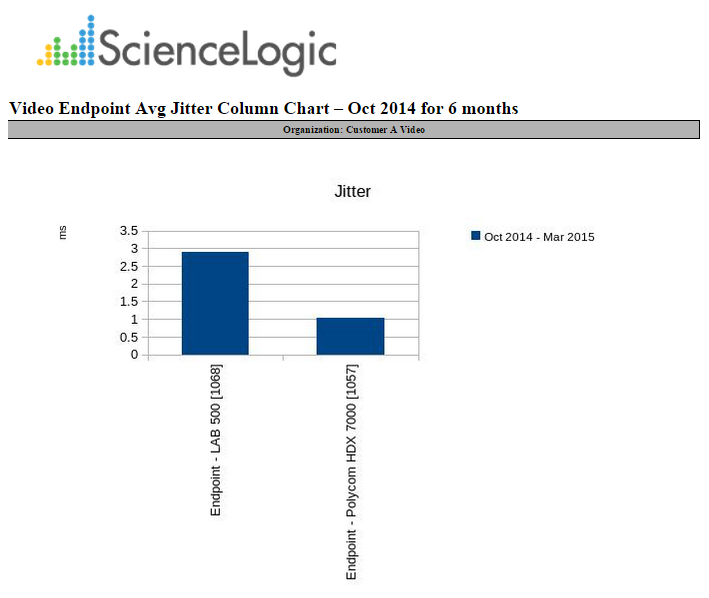
The following input options are available when generating the report:
- Branding. Optionally, enter text to display at the top of the report. If you do not enter a value in this field, "Video Endpoint Report" displays at the top of the report.
- Device Selection. Select the devices to include in the report. The following options are available:
- All devices. Select this checkbox if you want all devices in the system to be included in this report.
- Organizations. If you do not select the All devices checkbox, select one or more organizations. The report contains only the devices in the organizations you select. You can further filter the list of devices to include in the report by selecting devices in the Devices by Organization field.
- Select individual devices. If you do not select the All devices checkbox, the Select individual devices checkbox is available. Select this checkbox to use the Devices by Organization field to select the individual devices to include in the report.
- Devices by Organization. This field displays a list of all devices in the organizations selected in the Organizations field. If the Select individual devices checkbox is selected, you can select one or more devices to include in the report.
- Device Group Selector. Select the device groups that will appear in the report. The following options are available:
- Select By Device Group. Select this checkbox if you want to select which device groups to include in the report.
- Device Groups. If the Select By Device Group checkbox is selected, select one or more device groups. The report contains only the devices in the device groups you select.
- Device Categories. By default, the All Device Categories checkbox is selected. To limit the report to one or more specific device categories, select one or more device categories from the list of Device Categories.
- General Display Options. Specify how the report is arranged:
- Separated By. Select whether the report separates the data into multiple tables. The report can be separated to include one table per organization, one table per device group, one table per device category, or one table per device.
- Naming. Select whether the Device ID or the Organization ID appears in the report.
- Stacking. Select the Enable Stacking checkbox to stack the data.
- Report Span. Specify a Daily, Weekly, or Monthly span to include in the report.
- Starting. Use the Year, Month, and Date fields to specify a start date for the report. Skylar One uses data from that date as the starting point of the report.
- Duration. Specify the duration for the report, from 1 month to 36 months. Skylar One uses data from the Starting date as the start point of the report and data from the last day of the Duration as the ending point of the report.
- Timezone. Specify the time zone to use for date and time values in the report. Specify the time zone as the number of hours offset from Coordinated Universal Time (UTC).
- Report Type. Specify whether the report includes all selected devices or only a set number of the devices with the highest utilization.
This description covers the latest version of this report as shipped by ScienceLogic in the "Video Reports" PowerPack. You or another user might have modified this report on your Skylar One system.
Video Endpoint Avg Jitter Line Chart Report
This report displays the average jitter for Tandberg, Polycom, LifeSize and Cisco TelePresence devices. For each device included in the report, the report displays the jitter average in milliseconds for the time period selected for the report.
You can customize the output to include only specific devices or to limit the number of devices in the report. You can also specify the time span to include in the report, the text at the top of the report, and how the report sorts and arranges the devices.
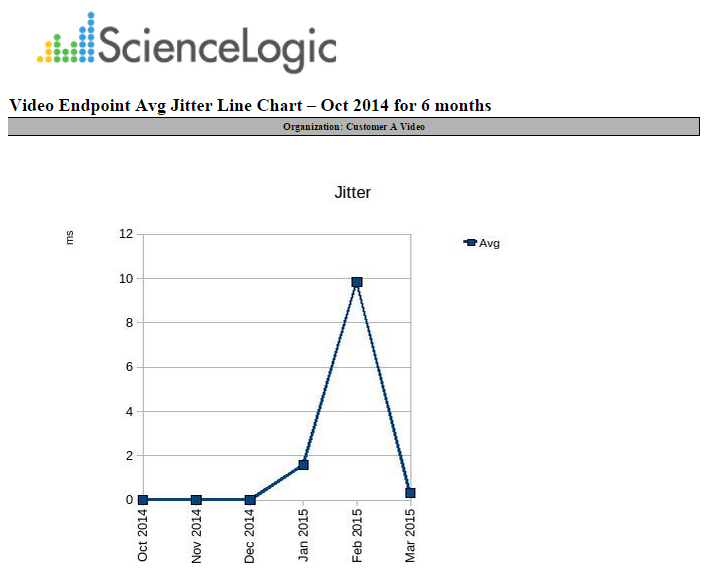
The following input options are available when generating the report:
- Branding. Optionally, enter text to display at the top of the report. If you do not enter a value in this field, "Video Endpoint Report" displays at the top of the report.
- Device Selection. Select the devices to include in the report. The following options are available:
- All devices. Select this checkbox if you want all devices in the system to be included in this report.
- Organizations. If you do not select the All devices checkbox, select one or more organizations. The report contains only the devices in the organizations you select. You can further filter the list of devices to include in the report by selecting devices in the Devices by Organization field.
- Select individual devices. If you do not select the All devices checkbox, the Select individual devices checkbox is available. Select this checkbox to use the Devices by Organization field to select the individual devices to include in the report.
- Devices by Organization. This field displays a list of all devices in the organizations selected in the Organizations field. If the Select individual devices checkbox is selected, you can select one or more devices to include in the report.
- Device Group Selector. Select the device groups that will appear in the report. The following options are available:
- Select By Device Group. Select this checkbox if you want to select which device groups to include in the report.
- Device Groups. If the Select By Device Group checkbox is selected, select one or more device groups. The report contains only the devices in the device groups you select.
- Device Categories. By default, the All Device Categories checkbox is selected. To limit the report to one or more specific device categories, select one or more device categories from the list of Device Categories.
- General Display Options. Specify how the report is arranged:
- Separated By. Select whether the report separates the data into multiple tables. The report can be separated to include one table per organization, one table per device group, one table per device category, or one table per device.
- Naming. Select whether the Device ID or the Organization ID appears in the report.
- Stacking. Select the Enable Stacking checkbox to stack the data.
- Report Span. Specify a Daily, Weekly, or Monthly span to include in the report. Starting. Use the Year, Month, and Date fields to specify a start date for the report. Skylar One uses data from that date as the starting point of the report.Duration. Specify the duration for the report, from 1 month to 36 months. Skylar One uses data from the Starting date as the start point of the report and data from the last day of the Duration as the ending point of the report.Timezone. Specify the time zone to use for date and time values in the report. Specify the time zone as the number of hours offset from Coordinated Universal Time (UTC).
- Report Type. Specify whether the report includes all selected devices or only a set number of the devices with the highest utilization.
This description covers the latest version of this report as shipped by ScienceLogic in the "Video Reports" PowerPack. You or another user might have modified this report on your Skylar One system.
Video Endpoint Avg Jitter Table Report
This report displays the average jitter for Tandberg, LifeSize, Cisco, and Polycom video endpoints. For each device included in the report, the report displays the jitter average in milliseconds for the time period selected for the report.
You can customize the output to include only specific devices or to limit the number of devices in the report. You can also specify the time span to include in the report, the text at the top of the report, and how the report sorts and arranges the devices.
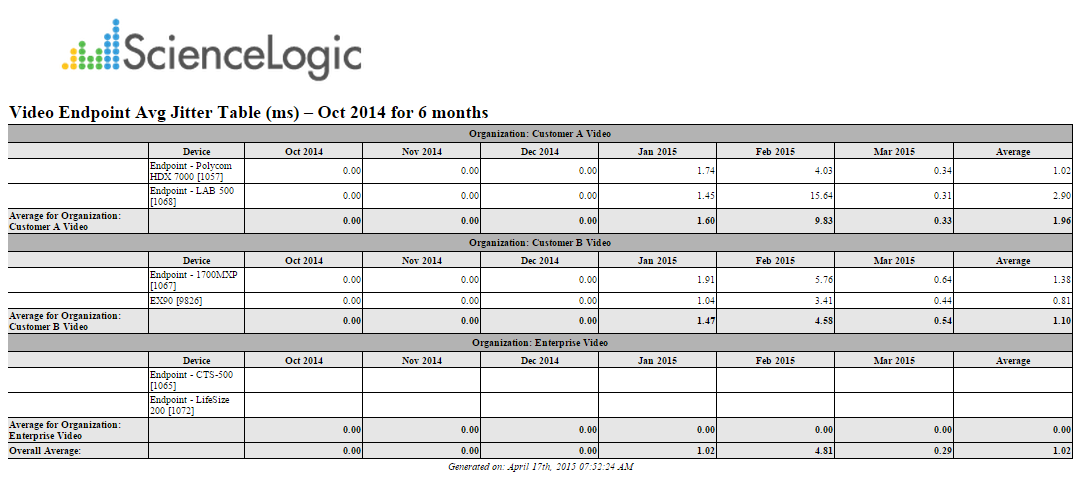
The following input options are available when generating the report:
- Branding. Optionally, enter text to display at the top of the report. If you do not enter a value in this field, "Video Endpoint Report" displays at the top of the report.
- Device Selection. Select the devices to include in the report. The following options are available:
- All devices. Select this checkbox if you want all devices in the system to be included in this report.
- Organizations. If you do not select the All devices checkbox, select one or more organizations. The report contains only the devices in the organizations you select. You can further filter the list of devices to include in the report by selecting devices in the Devices by Organization field.
- Select individual devices. If you do not select the All devices checkbox, the Select individual devices checkbox is available. Select this checkbox to use the Devices by Organization field to select the individual devices to include in the report.
- Devices by Organization. This field displays a list of all devices in the organizations selected in the Organizations field. If the Select individual devices checkbox is selected, you can select one or more devices to include in the report.
- Device Group Selector. Select the device groups that will appear in the report. The following options are available:
- Select By Device Group. Select this checkbox if you want to select which device groups to include in the report.
- Device Groups. If the Select By Device Group checkbox is selected, select one or more device groups. The report contains only the devices in the device groups you select.
- Device Categories. By default, the All Device Categories checkbox is selected. To limit the report to one or more specific device categories, select one or more device categories from the list of Device Categories.
- General Display Options. Specify how the report is arranged:
- Separated By. Select whether the report separates the data into multiple tables. The report can be separated to include one table per organization, one table per device group, or one table per device.
- Naming. Select whether the Device ID or the Organization ID appears in the report.
- Report Sections. Select whether you want the report to display Details Only, Totals Only, or Both.
- Report Span. Specify a Daily, Weekly, or Monthly span to include in the report. Starting. Use the Year, Month, and Date fields to specify a start date for the report. Skylar One uses data from that date as the starting point of the report.Duration. Specify the duration for the report, from 1 month to 36 months. Skylar One uses data from the Starting date as the start point of the report and data from the last day of the Duration as the ending point of the report.Timezone. Specify the time zone to use for date and time values in the report. Specify the time zone as the number of hours offset from Coordinated Universal Time (UTC).
- Report Type. Specify whether the report includes all selected devices or only a set number of the devices with the highest utilization.
This description covers the latest version of this report as shipped by ScienceLogic in the "Video Reports" PowerPack. You or another user might have modified this report on your Skylar One system.
Video Endpoint Call Detail Records Report
This report displays call detail records (CDRs) for Cisco CE Series, Tandberg, LifeSize, and Polycom video endpoints. For each device included in the report, the report displays information about each call during the time period selected for the report. The report displays columns for Call ID, Remote Device, Date, Time, Duration in minutes, Encryption, Protocol, Disconnect Cause Code, Disconnect Cause Value, and Direction (In or Out).
You can customize the output to include only specific devices and call parameters. You can also specify the time span to include in the report, the text at the top of the report, and how the report sorts and arranges the devices.
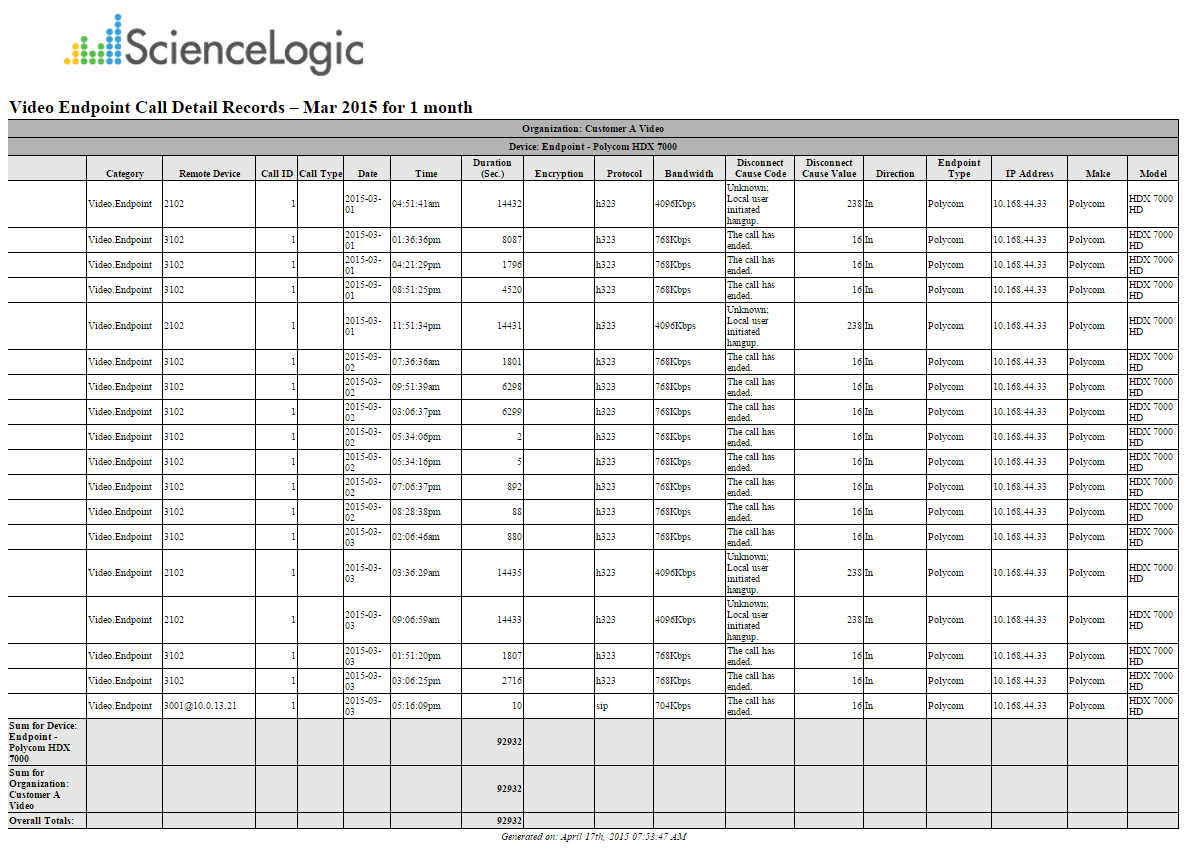
The following input options are available when generating the report:
- Branding. Optionally, enter text to display at the top of the report. If you do not enter a value in this field, "Video Endpoint Report" displays at the top of the report.
- Device Selection. Select the devices to include in the report. The following options are available:
- All devices. Select this checkbox if you want all devices in the system to be included in this report.
- Organizations. If you do not select the All devices checkbox, select one or more organizations. The report contains only the devices in the organizations you select. You can further filter the list of devices to include in the report by selecting devices in the Devices by Organization field.
- Select individual devices. If you do not select the All devices checkbox, the Select individual devices checkbox is available. Select this checkbox to use the Devices by Organization field to select the individual devices to include in the report.
- Devices by Organization. This field displays a list of all devices in the organizations selected in the Organizations field. If the Select individual devices checkbox is selected, you can select one or more devices to include in the report.
- Device Group Selector. Select the device groups that will appear in the report. The following options are available:
- Select By Device Group. Select this checkbox if you want to select which device groups to include in the report.
- Device Groups. If the Select By Device Group checkbox is selected, select one or more device groups. The report contains only the devices in the device groups you select.
- Report Span. Specify a Daily, Weekly, or Monthly span to include in the report.
- Starting. Use the Year, Month, and Date fields to specify a start date for the report. The Skylar One system uses data from that date as the start of the report.
- Duration. Specify the duration for the report, from 1 month to 36 months. The Skylar One system uses data from the Starting date as the start of the report and data from the last day of the Duration as the end of the report.
- Included Columns. Select the All Columns checkbox or select columns individually from the list.
- CDR Output Options. Specify whether the report presents the duration in seconds or in hh:mm:ss format.
- Device Categories. By default, the All Device Categories checkbox is selected. To limit the report to one or more specific device categories, select one or more device categories from the list of Device Categories.
- Separated By. Select whether the report separates the data into multiple tables. The report can be separated to include one table per organization, one table per device group, one table per device category, or one table per device.
- Naming. Select whether the Device ID or the Organization ID appears in the report.
- Report Sections. Select whether you want the report to display Details Only, Totals Only, or Both.
- Filter Options. Specify the calls to include in the report by selecting one or more of the following filters:
- Disconnect Codes. To include only calls that had a specific disconnect code, select a value in this field. If you select Specific disconnect codes in this field, enter a comma-delimited list of disconnect codes in the CSV list of specific codes field.
- Duration. To include only calls that had a specific duration, enter a minimum duration and a maximum duration.
- Encryption Setting. To include only calls that used a specific encryption setting, select an encryption setting in this field.
- Protocol. To include only calls that used a specific protocol, select a protocol in this field.
- Device Specific Columns. Select additional columns from the list for each CDR application type.
This description covers the latest version of this report as shipped by ScienceLogic in the "Video Reports" PowerPack. You or another user might have modified this report on your Skylar One system.
Video Endpoint Detailed Asset Inventory Report
This report displays a detailed inventory of assets for Tandberg, Polycom, LifeSize, and Cisco TelePresence devices. For each device included in the report, the report displays the device group, device name, serial number, model number, and manufacturer.
You can customize the output to include only specific devices or to limit the number of devices in the report. You can also specify the time span to include in the report, the text at the top of the report, and how the report sorts and arranges the devices.

The following input options are available when generating the report:
- Branding. Optionally, enter text to display at the top of the report. If you do not enter a value in this field, "Video Endpoint Report" displays at the top of the report.
- Device Selection. Select the devices to include in the report. The following options are available:
- All devices. Select this checkbox if you want all devices in the system to be included in this report.
- Organizations. If you do not select the All devices checkbox, select one or more organizations. The report contains only the devices in the organizations you select. You can further filter the list of devices to include in the report by selecting devices in the Devices by Organization field.
- Select individual devices. If you do not select the All devices checkbox, the Select individual devices checkbox is available. Select this checkbox to use the Devices by Organization field to select the individual devices to include in the report.
- Devices by Organization. This field displays a list of all devices in the organizations selected in the Organizations field. If the Select individual devices checkbox is selected, you can select one or more devices to include in the report.
- Device Group Selector. Select the device groups that will appear in the report. The following options are available:
- Select By Device Group. Select this checkbox if you want to select which device groups to include in the report.
- Device Groups. If the Select By Device Group checkbox is selected, select one or more device groups. The report contains only the devices in the device groups you select.
- Device Categories. By default, the All Device Categories checkbox is selected. To limit the report to one or more specific device categories, select one or more device categories from the list of Device Categories.
- General Display Options. Specify how the report is arranged:
- Separated By. Select whether the report separates the data into multiple tables. The report can be separated to include one table per organization, one table per device group, one table per device category, or one table per device.
- Naming. Select whether the Device ID or the Organization ID appears in the report.
This description covers the latest version of this report as shipped by ScienceLogic in the "Video Reports" PowerPack. You or another user might have modified this report on your Skylar One system.
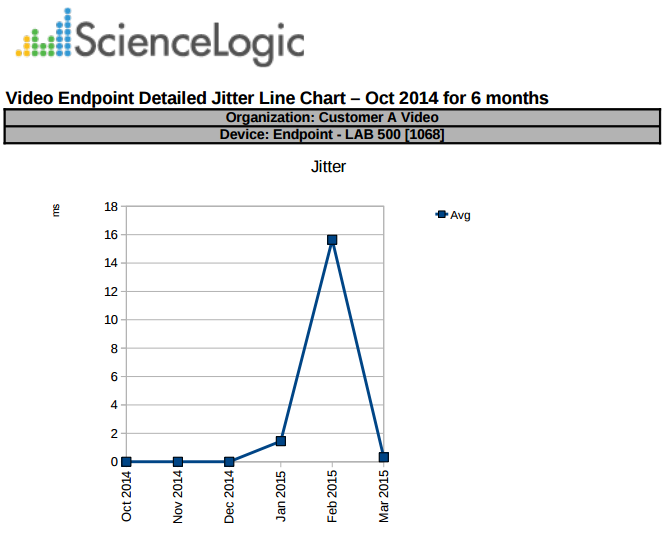
Video Endpoint Detailed Jitter Line Chart Report
This report displays the average jitter for Tandberg, Polycom, LifeSize and Cisco TelePresence devices. For each device included in the report, the report displays the jitter average in milliseconds for the time period selected for the report.
You can customize the output to include only specific devices or to limit the number of devices in the report. You can also specify the time span to include in the report, the text at the top of the report, and how the report sorts and arranges the devices.
The following input options are available when generating the report:
- Branding. Optionally, enter text to display at the top of the report. If you do not enter a value in this field, "Video Endpoint Report" displays at the top of the report.
- Device Selection. Select the devices to include in the report. The following options are available:
- All devices. Select this checkbox if you want all devices in the system to be included in this report.
- Organizations. If you do not select the All devices checkbox, select one or more organizations. The report contains only the devices in the organizations you select. You can further filter the list of devices to include in the report by selecting devices in the Devices by Organization field.
- Select individual devices. If you do not select the All devices checkbox, the Select individual devices checkbox is available. Select this checkbox to use the Devices by Organization field to select the individual devices to include in the report.
- Devices by Organization. This field displays a list of all devices in the organizations selected in the Organizations field. If the Select individual devices checkbox is selected, you can select one or more devices to include in the report.
- Device Group Selector. Select the device groups that will appear in the report. The following options are available:
- Select By Device Group. Select this checkbox if you want to select which device groups to include in the report.
- Device Groups. If the Select By Device Group checkbox is selected, select one or more device groups. The report contains only the devices in the device groups you select.
- Device Categories. By default, the All Device Categories checkbox is selected. To limit the report to one or more specific device categories, select one or more device categories from the list of Device Categories.
- General Display Options. Specify how the report is arranged:
- Separated By. Select whether the report separates the data into multiple tables. The report can be separated to include one table per organization, one table per device group, or one table per device category.
- Naming. Select whether the Device ID or the Organization ID appears in the report.
- Stacking. Select the Enable Stacking checkbox to stack the data.
- Report Span. Specify a Daily, Weekly, or Monthly span to include in the report. Starting. Use the Year, Month, and Date fields to specify a start date for the report. Skylar One uses data from that date as the starting point of the report.Duration. Specify the duration for the report, from 1 month to 36 months. Skylar One uses data from the Starting date as the start point of the report and data from the last day of the Duration as the ending point of the report.Timezone. Specify the time zone to use for date and time values in the report. Specify the time zone as the number of hours offset from Coordinated Universal Time (UTC).
- Report Type. Specify whether the report includes all selected devices or only a set number of the devices with the highest utilization.
This description covers the latest version of this report as shipped by ScienceLogic in the "Video Reports" PowerPack. You or another user might have modified this report on your Skylar One system.
Video Endpoint Detailed Packet Loss Line Chart Report
This report displays the packet loss for Tandberg, LifeSize, Cisco, and Polycom video endpoints. For each device included in the report, the report displays the packet loss by percentage over the time period selected for the report.
You can customize the output to include only specific devices or to limit the number of devices in the report. You can also specify the time span to include in the report, the text at the top of the report, and how the report sorts and arranges the devices.

The following input options are available when generating the report:
- Branding. Optionally, enter text to display at the top of the report. If you do not enter a value in this field, "Video Endpoint Report" displays at the top of the report.
- Device Selection. Select the devices to include in the report. The following options are available:
- All devices. Select this checkbox if you want all devices in the system to be included in this report.
- Organizations. If you do not select the All devices checkbox, select one or more organizations. The report contains only the devices in the organizations you select. You can further filter the list of devices to include in the report by selecting devices in the Devices by Organization field.
- Select individual devices. If you do not select the All devices checkbox, the Select individual devices checkbox is available. Select this checkbox to use the Devices by Organization field to select the individual devices to include in the report.
- Devices by Organization. This field displays a list of all devices in the organizations selected in the Organizations field. If the Select individual devices checkbox is selected, you can select one or more devices to include in the report.
- Device Group Selector. Select the device groups that will appear in the report. The following options are available:
- Select By Device Group. Select this checkbox if you want to select which device groups to include in the report.
- Device Groups. If the Select By Device Group checkbox is selected, select one or more device groups. The report contains only the devices in the device groups you select.
- Device Categories. By default, the All Device Categories checkbox is selected. To limit the report to one or more specific device categories, select one or more device categories from the list of Device Categories.
- General Display Options. Specify how the report is arranged:
- Separated By. Select whether the report separates the data into multiple tables. The report can be separated to include one table per organization, one table per device group, or one table per device category.
- Naming. Select whether the Device ID or the Organization ID appears in the report.
- Stacking. Select the Enable Stacking checkbox to stack the data.
- Report Span. Specify a Daily, Weekly, or Monthly span to include in the report. Starting. Use the Year, Month, and Date fields to specify a start date for the report. Skylar One uses data from that date as the starting point of the report.Duration. Specify the duration for the report, from 1 month to 36 months. Skylar One uses data from the Starting date as the start point of the report and data from the last day of the Duration as the ending point of the report.Timezone. Specify the time zone to use for date and time values in the report. Specify the time zone as the number of hours offset from Coordinated Universal Time (UTC).
- Report Type. Specify whether the report includes all selected devices or only a set number of the devices with the highest utilization.
This description covers the latest version of this report as shipped by ScienceLogic in the "Video Reports" PowerPack. You or another user might have modified this report on your Skylar One system.
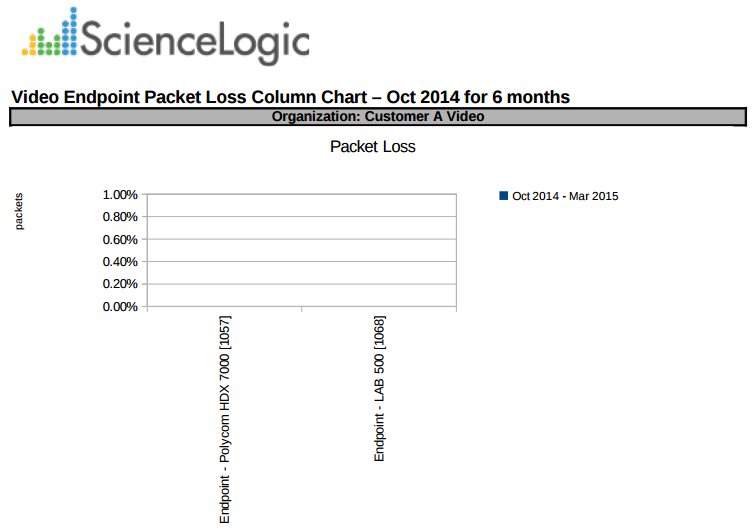
Video Endpoint Packet Loss Column Chart Report
This report displays the packet loss for Tandberg, LifeSize, Cisco, and Polycom video endpoints. For each device included in the report, the report displays the packet loss by percentage over the time period selected for the report.
You can customize the output to include only specific devices or to limit the number of devices in the report. You can also specify the time span to include in the report, the text at the top of the report, and how the report sorts and arranges the devices.
The following input options are available when generating the report:
- Branding. Optionally, enter text to display at the top of the report. If you do not enter a value in this field, "Video Endpoint Report" displays at the top of the report.
- Device Selection. Select the devices to include in the report. The following options are available:
- All devices. Select this checkbox if you want all devices in the system to be included in this report.
- Organizations. If you do not select the All devices checkbox, select one or more organizations. The report contains only the devices in the organizations you select. You can further filter the list of devices to include in the report by selecting devices in the Devices by Organization field.
- Select individual devices. If you do not select the All devices checkbox, the Select individual devices checkbox is available. Select this checkbox to use the Devices by Organization field to select the individual devices to include in the report.
- Devices by Organization. This field displays a list of all devices in the organizations selected in the Organizations field. If the Select individual devices checkbox is selected, you can select one or more devices to include in the report.
- Device Group Selector. Select the device groups that will appear in the report. The following options are available:
- Select By Device Group. Select this checkbox if you want to select which device groups to include in the report.
- Device Groups. If the Select By Device Group checkbox is selected, select one or more device groups. The report contains only the devices in the device groups you select.
- Device Categories. By default, the All Device Categories checkbox is selected. To limit the report to one or more specific device categories, select one or more device categories from the list of Device Categories.
- General Display Options. Specify how the report is arranged:
- Separated By. Select whether the report separates the data into multiple tables. The report can be separated to include one table per organization, one table per device group, one table per device category, or one table per device.
- Naming. Select whether the Device ID or the Organization ID appears in the report.
- Stacking. Select the Enable Stacking checkbox to stack the data.
- Report Span. Specify a Daily, Weekly, or Monthly span to include in the report. Starting. Use the Year, Month, and Date fields to specify a start date for the report. Skylar One uses data from that date as the starting point of the report.Duration. Specify the duration for the report, from 1 month to 36 months. Skylar One uses data from the Starting date as the start point of the report and data from the last day of the Duration as the ending point of the report.Timezone. Specify the time zone to use for date and time values in the report. Specify the time zone as the number of hours offset from Coordinated Universal Time (UTC).
- Report Type. Specify whether the report includes all selected devices or only a set number of the devices with the highest utilization.
This description covers the latest version of this report as shipped by ScienceLogic in the "Video Reports" PowerPack. You or another user might have modified this report on your Skylar One system.
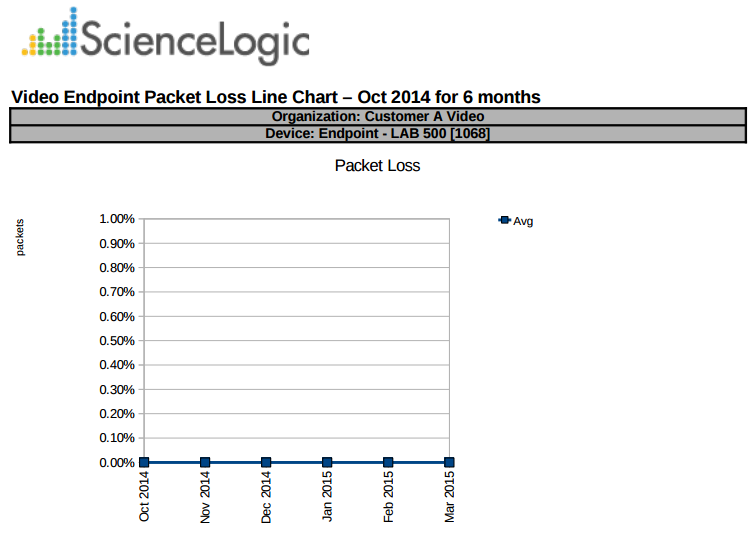
Video Endpoint Packet Loss Line Chart Report
This report displays the packet loss for Tandberg, LifeSize, Cisco, and Polycom video endpoints. For each device included in the report, the report displays the packet loss by percentage over the time period selected for the report.
You can customize the output to include only specific devices or to limit the number of devices in the report. You can also specify the time span to include in the report, the text at the top of the report, and how the report sorts and arranges the devices.
The following input options are available when generating the report:
- Branding. Optionally, enter text to display at the top of the report. If you do not enter a value in this field, "Video Endpoint Report" displays at the top of the report.
- Device Selection. Select the devices to include in the report. The following options are available:
- All devices. Select this checkbox if you want all devices in the system to be included in this report.
- Organizations. If you do not select the All devices checkbox, select one or more organizations. The report contains only the devices in the organizations you select. You can further filter the list of devices to include in the report by selecting devices in the Devices by Organization field.
- Select individual devices. If you do not select the All devices checkbox, the Select individual devices checkbox is available. Select this checkbox to use the Devices by Organization field to select the individual devices to include in the report.
- Devices by Organization. This field displays a list of all devices in the organizations selected in the Organizations field. If the Select individual devices checkbox is selected, you can select one or more devices to include in the report.
- Device Group Selector. Select the device groups that will appear in the report. The following options are available:
- Select By Device Group. Select this checkbox if you want to select which device groups to include in the report.
- Device Groups. If the Select By Device Group checkbox is selected, select one or more device groups. The report contains only the devices in the device groups you select.
- Device Categories. By default, the All Device Categories checkbox is selected. To limit the report to one or more specific device categories, select one or more device categories from the list of Device Categories.
- General Display Options. Specify how the report is arranged:
- Separated By. Select whether the report separates the data into multiple tables. The report can be separated to include one table per organization, one table per device group, one table per device category, or one table per device.
- Naming. Select whether the Device ID or the Organization ID appears in the report.
- Stacking. Select the Enable Stacking checkbox to stack the data.
- Report Span. Specify a Daily, Weekly, or Monthly span to include in the report. Starting. Use the Year, Month, and Date fields to specify a start date for the report. Skylar One uses data from that date as the starting point of the report.Duration. Specify the duration for the report, from 1 month to 36 months. Skylar One uses data from the Starting date as the start point of the report and data from the last day of the Duration as the ending point of the report.Timezone. Specify the time zone to use for date and time values in the report. Specify the time zone as the number of hours offset from Coordinated Universal Time (UTC).
- Report Type. Specify whether the report includes all selected devices or only a set number of the devices with the highest utilization.
This description covers the latest version of this report as shipped by ScienceLogic in the "Video Reports" PowerPack. You or another user might have modified this report on your Skylar One system.
Video Endpoint Packet Loss Table Report
This report displays the packet loss for Tandberg, LifeSize, Cisco, and Polycom video endpoints. For each device included in the report, the report displays the packet loss by percentage over the time period selected for the report.
You can customize the output to include only specific devices or to limit the number of devices in the report. You can also specify the time span to include in the report, the text at the top of the report, and how the report sorts and arranges the devices.

The following input options are available when generating the report:
- Branding. Optionally, enter text to display at the top of the report. If you do not enter a value in this field, "Video Endpoint Report" displays at the top of the report.
- Device Selection. Select the devices to include in the report. The following options are available:
- All devices. Select this checkbox if you want all devices in the system to be included in this report.
- Organizations. If you do not select the All devices checkbox, select one or more organizations. The report contains only the devices in the organizations you select. You can further filter the list of devices to include in the report by selecting devices in the Devices by Organization field.
- Select individual devices. If you do not select the All devices checkbox, the Select individual devices checkbox is available. Select this checkbox to use the Devices by Organization field to select the individual devices to include in the report.
- Devices by Organization. This field displays a list of all devices in the organizations selected in the Organizations field. If the Select individual devices checkbox is selected, you can select one or more devices to include in the report.
- Device Group Selector. Select the device groups that will appear in the report. The following options are available:
- Select By Device Group. Select this checkbox if you want to select which device groups to include in the report.
- Device Groups. If the Select By Device Group checkbox is selected, select one or more device groups. The report contains only the devices in the device groups you select.
- Device Categories. By default, the All Device Categories checkbox is selected. To limit the report to one or more specific device categories, select one or more device categories from the list of Device Categories.
- General Display Options. Specify how the report is arranged:
- Separated By. Select whether the report separates the data into multiple tables. The report can be separated to include one table per organization, one table per device group, one table per device category, or one table per device.
- Naming. Select whether the Device ID or the Organization ID appears in the report.
- Report Sections. Select whether you want the report to display Details Only, Totals Only, or Both.
- Report Span. Specify a Daily, Weekly, or Monthly span to include in the report. Starting. Use the Year, Month, and Date fields to specify a start date for the report. Skylar One uses data from that date as the starting point of the report.Duration. Specify the duration for the report, from 1 month to 36 months. Skylar One uses data from the Starting date as the start point of the report and data from the last day of the Duration as the ending point of the report.Timezone. Specify the time zone to use for date and time values in the report. Specify the time zone as the number of hours offset from Coordinated Universal Time (UTC).
- Report Type. Specify whether the report includes all selected devices or only a set number of the devices with the highest utilization.
This description covers the latest version of this report as shipped by ScienceLogic in the "Video Reports" PowerPack. You or another user might have modified this report on your Skylar One system.
Video Endpoint Performance Detail Report
This report displays performance details for Tandberg, LifeSize, Cisco, and Polycom video endpoints. The report displays the organizations, device groups, device names, average receive (RX) audio and video packet loss, average transmit (TX) audio and video packet loss, average RX audio and video jitter, and average RX and TX bandwidth.
You can customize the output to include only specific devices or to limit the number of devices in the report. You can also specify the time span to include in the report, the text at the top of the report, and how the report sorts and arranges the devices.

The following input options are available when generating the report:
- Branding. Optionally, enter text to display at the top of the report. If you do not enter a value in this field, "Video Endpoint Report" displays at the top of the report.
- Device Selection. Select the devices to include in the report. The following options are available:
- All devices. Select this checkbox if you want all devices in the system to be included in this report.
- Organizations. If you do not select the All devices checkbox, select one or more organizations. The report contains only the devices in the organizations you select. You can further filter the list of devices to include in the report by selecting devices in the Devices by Organization field.
- Select individual devices. If you do not select the All devices checkbox, the Select individual devices checkbox is available. Select this checkbox to use the Devices by Organization field to select the individual devices to include in the report.
- Devices by Organization. This field displays a list of all devices in the organizations selected in the Organizations field. If the Select individual devices checkbox is selected, you can select one or more devices to include in the report.
- Device Group Selector. Select the device groups that will appear in the report. The following options are available:
- Select By Device Group. Select this checkbox if you want to select which device groups to include in the report.
- Device Groups. If the Select By Device Group checkbox is selected, select one or more device groups. The report contains only the devices in the device groups you select.
- Device Categories. By default, the All Device Categories checkbox is selected. To limit the report to one or more specific device categories, select one or more device categories from the list of Device Categories.
- General Display Options. Specify how the report is arranged:
- Separated By. Select whether the report separates the data into multiple tables. The report can be separated to include one table per organization, one table per device group, one table per device category, or one table per device.
- Naming. Select whether the Device ID or the Organization ID appears in the report.
- Report Sections. Select whether you want the report to display Details Only, Totals Only, or Both.
- Sort By. Select whether the report appears in Ascending or Descending order and select the type of packet loss.
- Report Span. Specify a Daily, Weekly, or Monthly span to include in the report. Starting. Use the Year, Month, and Date fields to specify a start date for the report. Skylar One uses data from that date as the starting point of the report.Duration. Specify the duration for the report, from 1 month to 36 months. Skylar One uses data from the Starting date as the start point of the report and data from the last day of the Duration as the ending point of the report.Timezone. Specify the time zone to use for date and time values in the report. Specify the time zone as the number of hours offset from Coordinated Universal Time (UTC).
- Report Type. Specify whether the report includes all selected devices or only a set number of the devices with the highest utilization.
This description covers the latest version of this report as shipped by ScienceLogic in the "Video Reports" PowerPack. You or another user might have modified this report on your Skylar One system.
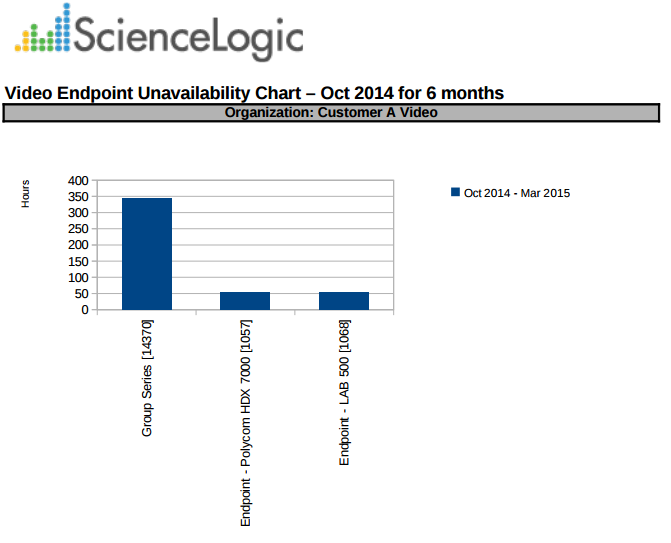
Video Endpoint Unavailability Chart Report
This report displays a bar graph of unavailability for Tandberg, Polycom, LifeSize and Cisco TelePresence devices. For each device included in the report, the report displays the number of hours the device was unavailable during the time period selected for the report.
You can customize the output to include only specific devices or to limit the number of devices in the report. You can also specify the time span to include in the report, the text at the top of the report, and how the report sorts and arranges the devices.
The following input options are available when generating the report:
- Branding. Optionally, enter text to display at the top of the report. If you do not enter a value in this field, "Video Endpoint Report" displays at the top of the report.
- Device Selection. Select the devices to include in the report. The following options are available:
- All devices. Select this checkbox if you want all devices in the system to be included in this report.
- Organizations. If you do not select the All devices checkbox, select one or more organizations. The report contains only the devices in the organizations you select. You can further filter the list of devices to include in the report by selecting devices in the Devices by Organization field.
- Select individual devices. If you do not select the All devices checkbox, the Select individual devices checkbox is available. Select this checkbox to use the Devices by Organization field to select the individual devices to include in the report.
- Devices by Organization. This field displays a list of all devices in the organizations selected in the Organizations field. If the Select individual devices checkbox is selected, you can select one or more devices to include in the report.
- Device Group Selector. Select the device groups that will appear in the report. The following options are available:
- Select By Device Group. Select this checkbox if you want to select which device groups to include in the report.
- Device Groups. If the Select By Device Group checkbox is selected, select one or more device groups. The report contains only the devices in the device groups you select.
- Device Categories. By default, the All Device Categories checkbox is selected. To limit the report to one or more specific device categories, select one or more device categories from the list of Device Categories.
- General Display Options. Specify how the report is arranged:
- Separated By. Select whether the report separates the data into multiple tables. The report can be separated to include one table per organization, one table per device group, one table per device category, or one table per device.
- Naming. Select whether the Device ID or the Organization ID appears in the report.
- Stacking. Select the Enable Stacking checkbox to stack the data.
- Report Span. Specify a Daily, Weekly, or Monthly span to include in the report. Starting. Use the Year, Month, and Date fields to specify a start date for the report. Skylar One uses data from that date as the starting point of the report.Duration. Specify the duration for the report, from 1 month to 36 months. Skylar One uses data from the Starting date as the start point of the report and data from the last day of the Duration as the ending point of the report.Timezone. Specify the time zone to use for date and time values in the report. Specify the time zone as the number of hours offset from Coordinated Universal Time (UTC).
- Report Type. Specify whether the report includes all selected devices or only a set number of the devices with the highest utilization.
This description covers the latest version of this report as shipped by ScienceLogic in the "Video Reports" PowerPack. You or another user might have modified this report on your Skylar One system.
Video Endpoint Unavailability Table Report
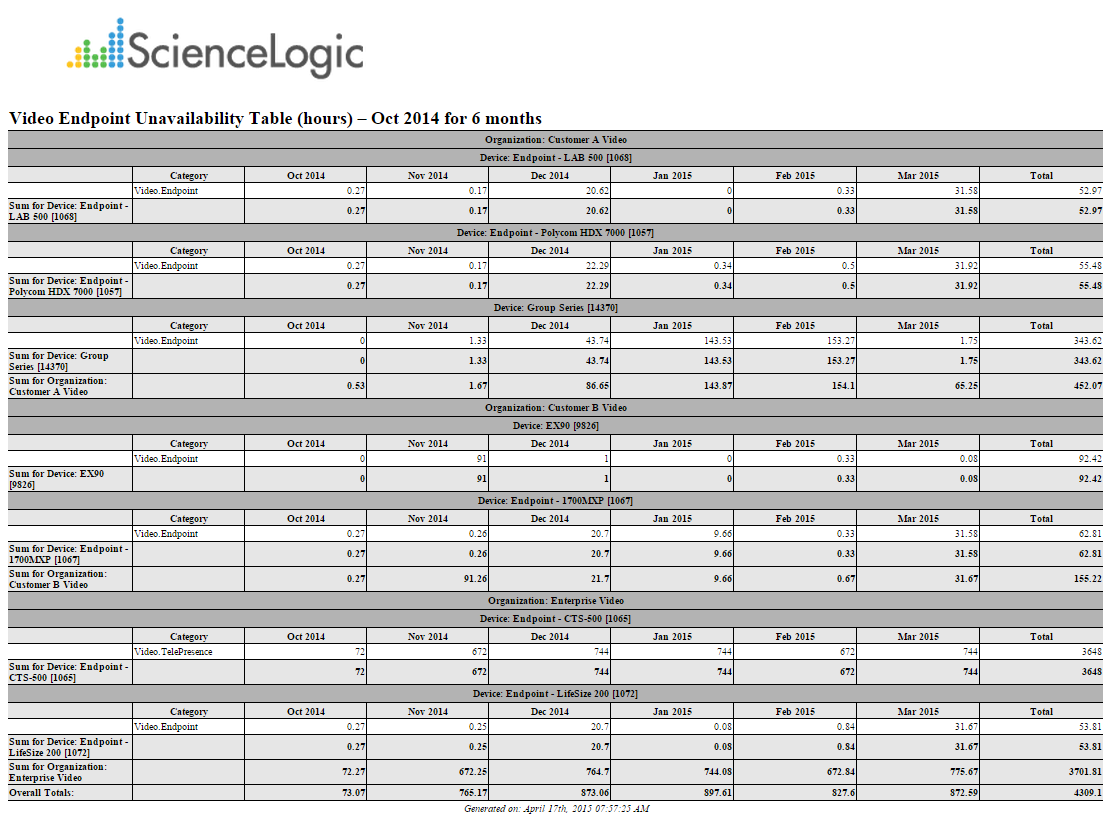
This report displays a table of unavailability for Tandberg, Polycom, LifeSize and Cisco TelePresence devices. For each device included in the report, the report displays the number of hours the device was unavailable during the time period selected for the report.
You can customize the output to include only specific devices or to limit the number of devices in the report. You can also specify the time span to include in the report, the text at the top of the report, and how the report sorts and arranges the devices.
The following input options are available when generating the report:
- Branding. Optionally, enter text to display at the top of the report. If you do not enter a value in this field, "Video Endpoint Report" displays at the top of the report.
- Device Selection. Select the devices to include in the report. The following options are available:
- All devices. Select this checkbox if you want all devices in the system to be included in this report.
- Organizations. If you do not select the All devices checkbox, select one or more organizations. The report contains only the devices in the organizations you select. You can further filter the list of devices to include in the report by selecting devices in the Devices by Organization field.
- Select individual devices. If you do not select the All devices checkbox, the Select individual devices checkbox is available. Select this checkbox to use the Devices by Organization field to select the individual devices to include in the report.
- Devices by Organization. This field displays a list of all devices in the organizations selected in the Organizations field. If the Select individual devices checkbox is selected, you can select one or more devices to include in the report.
- Device Group Selector. Select the device groups that will appear in the report. The following options are available:
- Select By Device Group. Select this checkbox if you want to select which device groups to include in the report.
- Device Groups. If the Select By Device Group checkbox is selected, select one or more device groups. The report contains only the devices in the device groups you select.
- Device Categories. By default, the All Device Categories checkbox is selected. To limit the report to one or more specific device categories, select one or more device categories from the list of Device Categories.
- General Display Options. Specify how the report is arranged:
- Separated By. Select whether the report separates the data into multiple tables. The report can be separated to include one table per organization, one table per device group, one table per device category, or one table per device.
- Naming. Select whether the Device ID or the Organization ID appears in the report.
- Report Sections. Select whether you want the report to display Details Only, Totals Only, or Both.
- Report Span. Specify a Daily, Weekly, or Monthly span to include in the report. Starting. Use the Year, Month, and Date fields to specify a start date for the report. Skylar One uses data from that date as the starting point of the report.Duration. Specify the duration for the report, from 1 month to 36 months. Skylar One uses data from the Starting date as the start point of the report and data from the last day of the Duration as the ending point of the report.Timezone. Specify the time zone to use for date and time values in the report. Specify the time zone as the number of hours offset from Coordinated Universal Time (UTC).
- Report Type. Specify whether the report includes all selected devices or only a set number of the devices with the highest utilization.
This description covers the latest version of this report as shipped by ScienceLogic in the "Video Reports" PowerPack. You or another user might have modified this report on your Skylar One system.
Video Usage Report
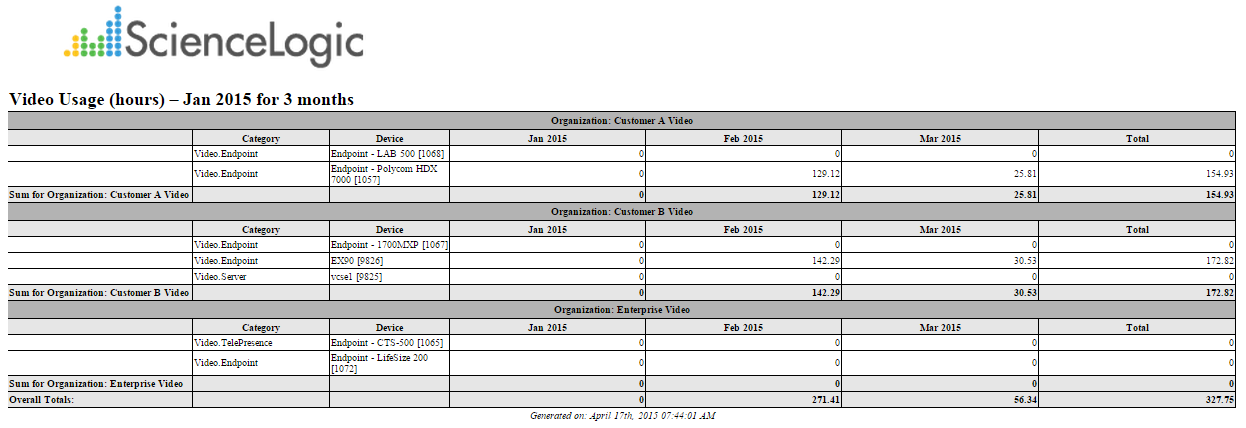
This report displays usage based on call detail records for Tandberg, Polycom, LifeSize and Cisco TelePresence devices. For each device included in the report, the report displays the total number of hours the device was on a call for the time period selected for the report.
You can customize the output to include only specific devices or to limit the number of devices in the report. You can also specify the time span to include in the report, the text at the top of the report, and how the report sorts and arranges the devices.
The following input options are available when generating the report:
- Branding. Optionally, enter text to display at the top of the report. If you do not enter a value in this field, "Video Endpoint Report" displays at the top of the report.
- Device Selection. Select the devices to include in the report. The following options are available:
- All devices. Select this checkbox if you want all devices in the system to be included in this report.
- Organizations. If you do not select the All devices checkbox, select one or more organizations. The report contains only the devices in the organizations you select. You can further filter the list of devices to include in the report by selecting devices in the Devices by Organization field.
- Select individual devices. If you do not select the All devices checkbox, the Select individual devices checkbox is available. Select this checkbox to use the Devices by Organization field to select the individual devices to include in the report.
- Devices by Organization. This field displays a list of all devices in the organizations selected in the Organizations field. If the Select individual devices checkbox is selected, you can select one or more devices to include in the report.
- Device Group Selector. Select the device groups that will appear in the report. The following options are available:
- Select By Device Group. Select this checkbox if you want to select which device groups to include in the report.
- Device Groups. If the Select By Device Group checkbox is selected, select one or more device groups. The report contains only the devices in the device groups you select.
- Device Categories. Select the device categories that will appear in the report. The following input elements appear in this component:
- All Device Categories. Select this checkbox if you want all device categories in the system to be included in this report.
- Device Categories. If you clear the All Device Categories checkbox, you can select one or more device categories to include in the report.
- General Display Options. Specify how the report is arranged:
- Separated By. Select whether the report separates the data into multiple tables. The report can be separated to include one table per organization, one table per device group, one table per device category, or one table per device.
- Naming. Select whether the Device ID or the Organization ID appears in the report.
- Report Sections. Select whether you want the report to display Details Only, Totals Only, or Both.
- Misc. Options. Select this checkbox to aggregate the final separation column.
- Report Span. Specify a Daily, Weekly, or Monthly span to include in the report. Starting. Use the Year, Month, and Date fields to specify a start date for the report. Skylar One uses data from that date as the starting point of the report.Duration. Specify the duration for the report, from 1 month to 36 months. Skylar One uses data from the Starting date as the start point of the report and data from the last day of the Duration as the ending point of the report.Timezone. Specify the time zone to use for date and time values in the report. Specify the time zone as the number of hours offset from Coordinated Universal Time (UTC).
- Report Type. Specify whether the report includes all selected devices or only a set number of the devices with the highest utilization.
This description covers the latest version of this report as shipped by ScienceLogic in the "Video Reports" PowerPack. You or another user might have modified this report on your Skylar One system.
Video Usage Chart Report
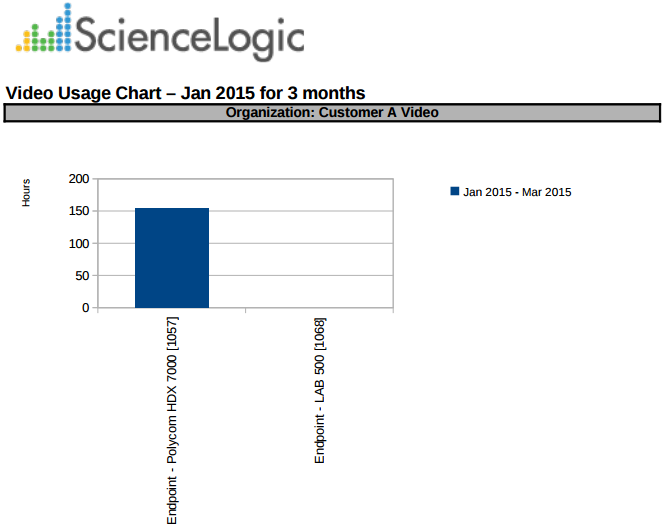
This report displays a bar graph of usage based on call detail records for Tandberg, Polycom, LifeSize and Cisco TelePresence devices. For each device included in the report, the report displays the total number of hours the device was on a call for the time period selected for the report.
You can customize the output to include only specific devices or to limit the number of devices in the report. You can also specify the time span to include in the report, the text at the top of the report, and how the report sorts and arranges the devices.
The following input options are available when generating the report:
- Branding. Optionally, enter text to display at the top of the report. If you do not enter a value in this field, "Video Endpoint Report" displays at the top of the report.
- Device Selection. Select the devices to include in the report. The following options are available:
- All devices. Select this checkbox if you want all devices in the system to be included in this report.
- Organizations. If you do not select the All devices checkbox, select one or more organizations. The report contains only the devices in the organizations you select. You can further filter the list of devices to include in the report by selecting devices in the Devices by Organization field.
- Select individual devices. If you do not select the All devices checkbox, the Select individual devices checkbox is available. Select this checkbox to use the Devices by Organization field to select the individual devices to include in the report.
- Devices by Organization. This field displays a list of all devices in the organizations selected in the Organizations field. If the Select individual devices checkbox is selected, you can select one or more devices to include in the report.
- Device Group Selector. Select the device groups that will appear in the report. The following options are available:
- Select By Device Group. Select this checkbox if you want to select which device groups to include in the report.
- Device Groups. If the Select By Device Group checkbox is selected, select one or more device groups. The report contains only the devices in the device groups you select.
- Device Categories. Select the device categories that will appear in the report. The following input elements appear in this component:
- All Device Categories. Select this checkbox if you want all device categories in the system to be included in this report.
- Device Categories. If you clear the All Device Categories checkbox, you can select one or more device categories to include in the report.
- General Display Options. Specify how the report is arranged:
- Separated By. Select whether the report separates the data into multiple tables. The report can be separated to include one table per organization, one table per device group, one table per device category, or one table per device.
- Naming. Select whether the Device ID or the Organization ID appears in the report.
- Charting Options. Select whether you want the report to aggregate the final separation column, show devices as a series, or enable stacking.
- Report Span. Specify a Daily, Weekly, or Monthly span to include in the report. Starting. Use the Year, Month, and Date fields to specify a start date for the report. Skylar One uses data from that date as the starting point of the report.Duration. Specify the duration for the report, from 1 month to 36 months. Skylar One uses data from the Starting date as the start point of the report and data from the last day of the Duration as the ending point of the report.Timezone. Specify the time zone to use for date and time values in the report. Specify the time zone as the number of hours offset from Coordinated Universal Time (UTC).
- Report Type. Specify whether the report includes all selected devices or only a set number of the devices with the highest utilization.
This description covers the latest version of this report as shipped by ScienceLogic in the "Video Reports" PowerPack. You or another user might have modified this report on your Skylar One system.