
The Agentic Control Plane page ( > Account Settings > Agentic Control Plane) lets you monitor any AI agents and tools that you are using with Skylar Advisor.
On this page, you can view a list of agents, jobs, tools, and health, along with latency information, audit trails, agent limits and bounds, and token spend over time. You can also design and manage multi-step agent flows.
To use the features on the Agentic Control Plane page, enable the Agentic option on the Preview Features page ( > Account Settings > Preview Features > Integrations > Web Search).
The Agentic Control Plane Page
The Agentic Control Plane page ( > Account Settings > Agentic Control Plane) lets you monitor any AI agents that you are using with Skylar Advisor. On this page, you can view a list of agents, jobs, tools, and health, along with latency information, audit trails, agent limits and bounds, and token spend over time.
When you enable an agentic tool, Skylar Advisor routes the relevant questions to that tool instead of searching the documents on the Corpus page. Each agentic tool comes pre-loaded with a list of sample questions.
The Agentic Control Plane page ( > Account Settings > Agentic Control Plane) contains the following tabs:
-
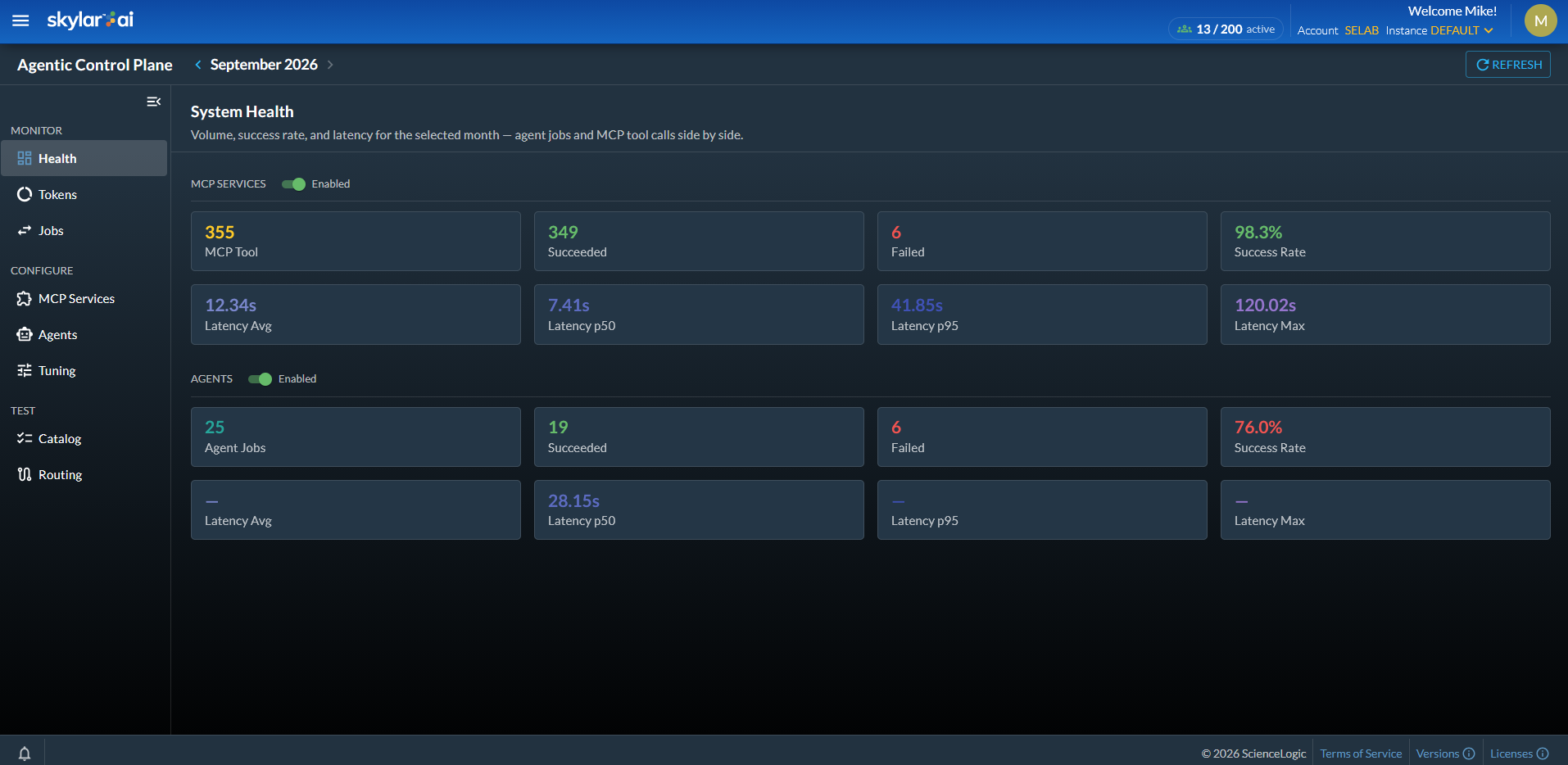
. Displays a system-wide snapshot of the AI agent activity in Skylar Advisor for the selected month: volume, success rate, and latency, compared across agent jobs and direct tool calls. For example, in the Agents section, if the Success Rate is below 90%, an agent might be failing.
This tab has a Kill switch option at the top of the System Health panel that prevents all tools from running and keeps all agents from starting until you enable the option again.
-
. Displays the token consumption for the selected month: totals, per-call averages, range and efficiency, and spend by hour of day.
-
. Every action that uses an AI agent gets a Job ID, which is listed on this page. You can search by job ID, description, or agent to inspect status, duration, and token usage. Select a job to view more information about that job in an Agent Audit pane; on this pane you can click to hide personal data, questions, and device information while still showing resource usage and the complete audit trail. You can also click the button for traces, logs, and SQL queries to troubleshoot agent behavior.
-
. Lets you register and preview external MCP servers that contain a variety of AI tools you can use to analyze your data. When you enable an MCP server, it is added as a resource on the Tools menu of the prompt box and the Quick Prompts toolbar.
-
. Lists the different AI agents that Skylar Advisor runs to answer a question. You can enable and disable existing agents, and in future releases you can register new agents and add them to the list of agents. Select an agent in the list to view more information for that agent, including a description of what the agent does, and its privileges, token limits, and time limits.
If you have Topic Specialists enabled, you can enable, edit, and create specialized AI agents that begins work on an issue as soon as it arrives. For more information, see Agentic: Topic Specialists.
-
. Choose how a question reaches the Skylar Advisor agents. Eager sends more questions to the agents for higher spend, while Cautious sends more to the standard answer for lower spend. Balanced is the default, and it is recommended, as it sends data and chart requests, plus everyday device and metric lookups, to the Skylar Advisor agents.
-
. Lists the different types of agentic tools you can use with Skylar Advisor. The agent tools are grouped into Device Telemetry (for a single device) and Fleet Ranking (for all devices, VMs, or interfaces). Select a tool to view more information about that tool, including sample questions for Ask Skylar.
-
. Displays an inventory of the tools and agents enabled in this Skylar Advisor instances and a list of collision reports.
-
. Shows the path that Skylar Advisor took to generate its answers to your question, displaying the tools used and why it used those tools.
Additional Agentic Features
Selecting the Agentic option on the Preview Features page also enables the following features:
-
Additional device performance data in an Advisory, Investigation, or Prediction, or in an Ask Skylar answer. In these activities, the name of a device will be highlighted in blue text. When you click the device name, a pop-up menu displays options for Memory, Disk, and CPU. Click one of the options for more information, which appears as an answer in an Ask Skylar prompt box.
You can click the button to see a visualization of the data flow that includes events, devices, device groups, and business services, where relevant.
-
AI Agent Quick Prompts. In addition to the standard green Quick Prompts, you can also click one of the yellow Quick Prompts to run an AI Agent tool related to the Ask Skylar conversation. Based on the original question, Skylar Advisor displays additional prompts in green boxes that you can click for additional information.
Questions that were answered using agents have a tag. Clicking this tag opens a Response Audit pane that lists the token usage, the length of the Ask Skylar conversation, and an Audit Logs section with links to the key sections of the conversation. Conversations also have an button, which you can click to view more details on the Thread Audit pane.
To control and enforce the behavior of the Skylar Advisor AI agents, ScienceLogic has placed two gates in front of every agentic capability. The first gate is based on the release, where ScienceLogic only releases capabilities that have been vetted as production-ready, and anything unpublished is invisible to the agents. The second gate is based on customer opt-in, where a Skylar Advisor administrator must deliberately enable an agent before users can access it. As a result, a Skylar Advisor AI agent does not run unless it has cleared both the ScienceLogic release gate and the explicit opt-in by the site administrator.
MCP Services
The tab on the Agentic Control Plane page ( > Account Settings > Agentic Control Plane > MCP Services) provides access to a set of ScienceLogic and external MCP servers that contain a variety of AI tools you can use to analyze your data.
You can register (add) a new MCP server and enable (configure) the AI tools in an MCP server so that you can preview those new features.
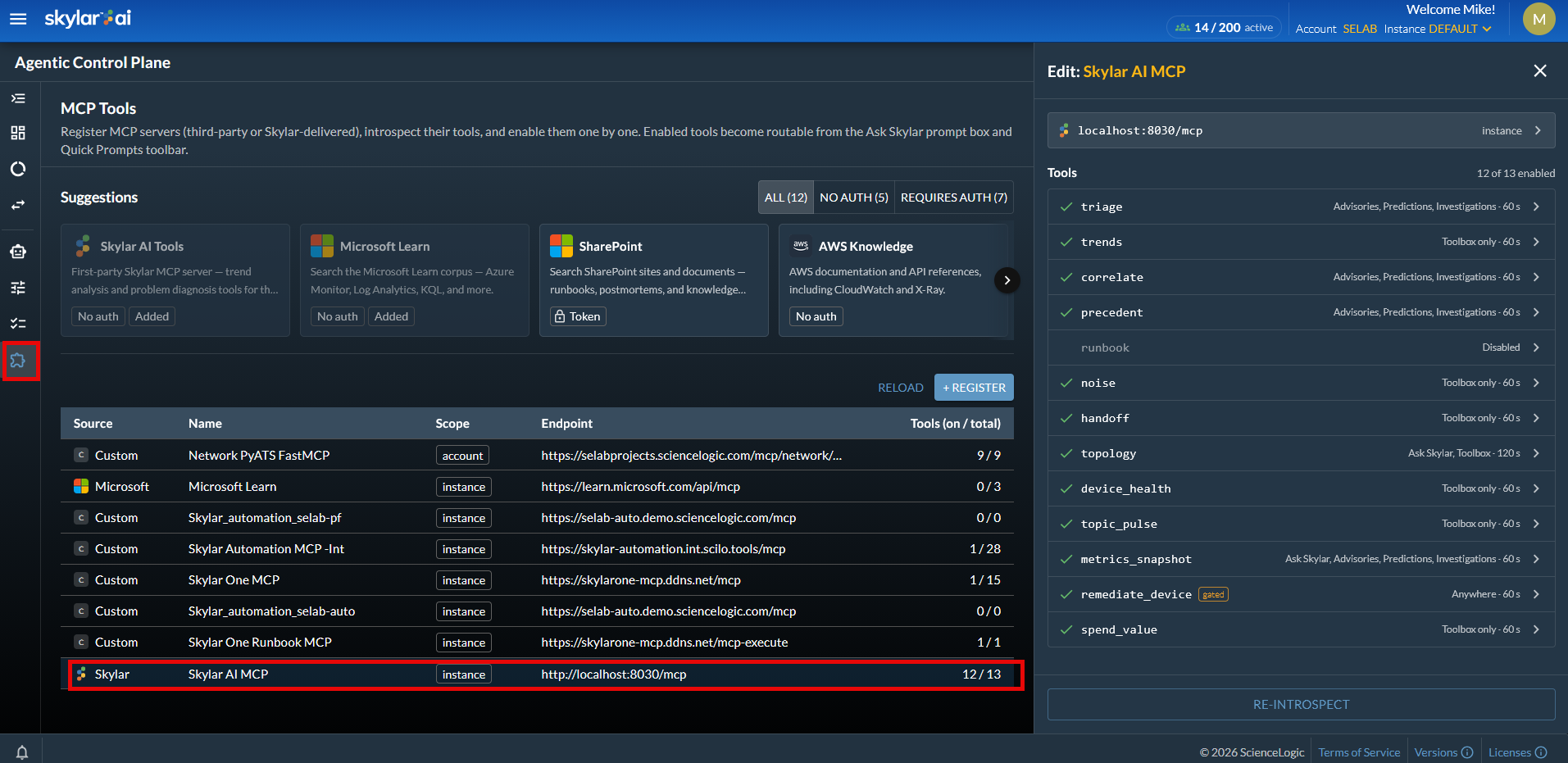
You can add the "Skylar Automation" MCP service from the list of suggested integrations. This tool lets you connect a Skylar Automation instance and bring the Skylar Automation MCP tools directly into the Skylar Advisor interface. For more information, see Configuring the Skylar Automation MCP Server.
If a tool on this page has a tag, then that tool must be part of an approval workflow before you can use it.
The following MCP-related pages and features are available:
-
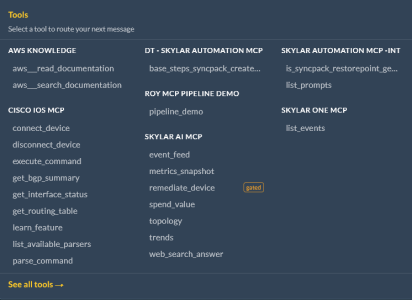
The Tools menu of the prompt box and the Quick Prompts toolbar contain AI tools from the MCP servers that you have enabled. These options expand on what Skylar Advisor can query and act on beyond the uploaded documents on the Corpus page.
-
The Toolbox page (
> Advisor > Toolbox). This page lets you view and test all tools from the MCP servers that have been enabled in Skylar Advisor. Select a tool from the list on the left to view more information about the tool, including a short description and the time frame for the data used by that tool. 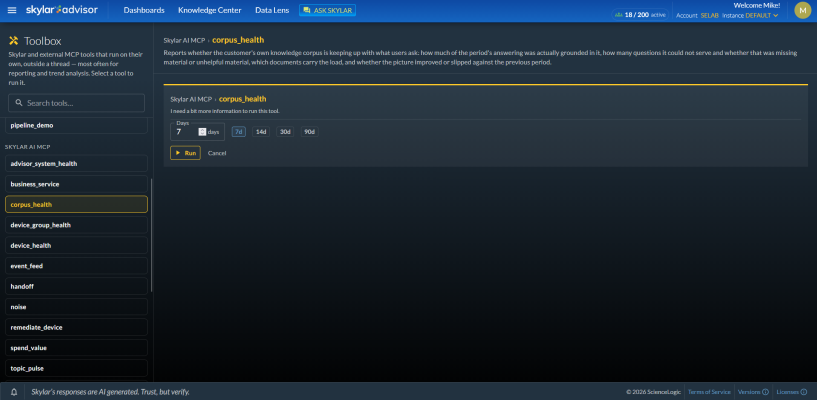
Click the button to run the tool. If you find an issue or other data that you would like to explore further, click the button to send that information to an Ask Skylar conversation.
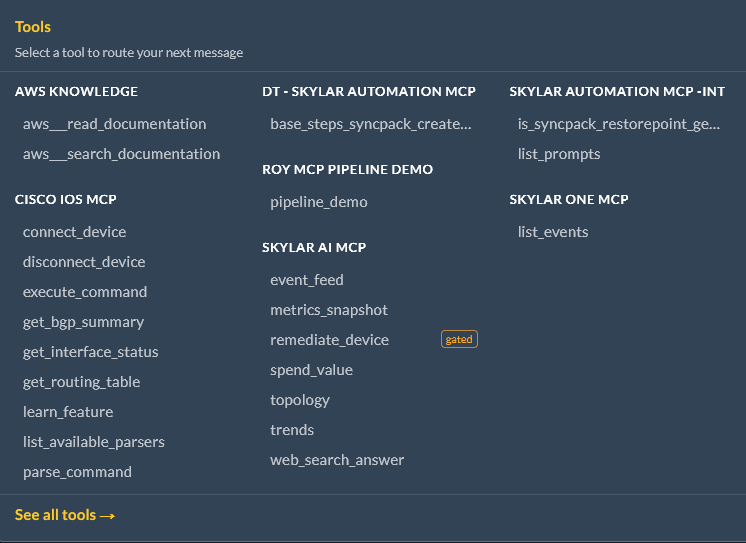

The "Skylar AI MCP" server is a ScienceLogic MCP server that includes a number of diagnosis and analytics tools. The other MCP server tools listed on the MCP Tools page, such as Microsoft Learn, AWS Knowledge, and Cisco DevNet Content Search, are public servers that have been curated by ScienceLogic.