
The Preview Features page ( > Account Settings > Preview Features) in Skylar Advisor lets users toggle on and work with new features. These features are stable, but ScienceLogic is actively developing and improving them in dialogue with users.
The Preview Features Page
The Preview Features page ( > Account Settings > Preview Features) gives users the option to toggle on one or more new features that will be coming to a future release of Skylar Advisor. Please note that these features are stable, and ScienceLogic is actively developing and improving them in dialogue with users.
These toggles apply only to the current instance, not the entire Skylar Advisor account.
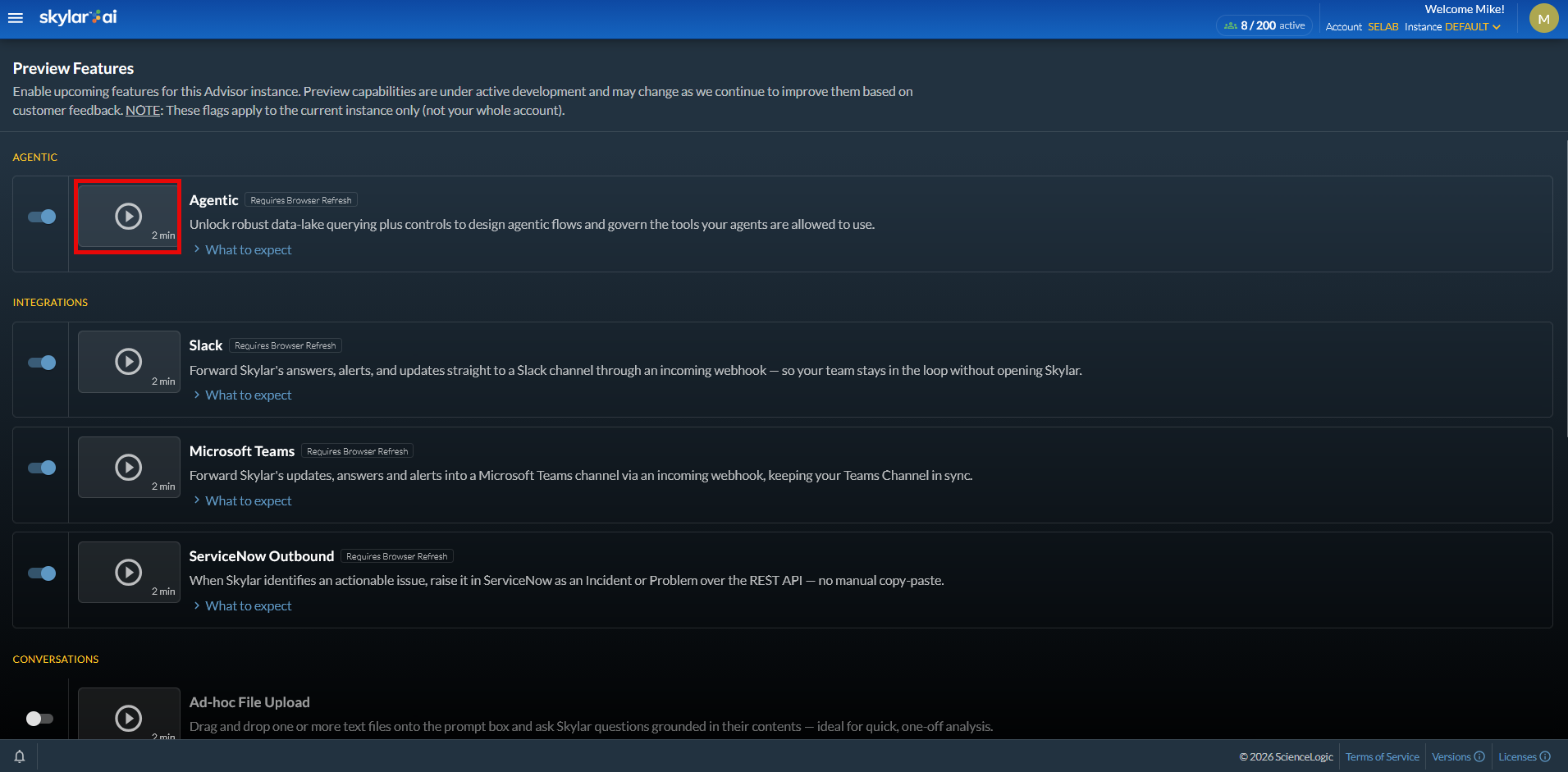
Each preview feature contains a What to expect section that you can click to get more information about that feature and where to use it in the Skylar Advisor user interface.
The left pane of the Preview Features page includes clickable views on the left that organizes the preview features by category, such as , , , and . The views also list the number of features for each set of features.
Click the "Play" icon ( ) next to a preview feature to watch a short demo of that feature. Also, some features might require you to refresh your browser before they appear.
Preview Feature Graduates
The Preview Features page also includes a view for , features that used to be listed on the Preview Features page but are now officially part of the Skylar Advisor user interface. The "graduates" are listed by release.
For Skylar AI 2.8.0, the following preview features were made permanent:
-
Web Search, which is now covered in Using Web Search.
-
Claim & Close, which is now covered in Working an Advisory From Claim to Close.
-
Corpus Tools, which are now covered in Filling Gaps with the Info Gaps View.
For Skylar AI 2.7.0, the following preview features were made permanent:
-
MCP Tools, which are now covered in MCP Services.
-
Scheduled Reports, which are now covered in Scheduling Reports for Skylar Advisor.
-
Ad-hoc File Upload, which is now covered in step 2 of Using the Ask Skylar Feature.
-
Trend Analysis, which is now covered in Trend Analysis.
-
Conversation Audit, which is now covered in Additional Options on the Ask Skylar Page
Agentic: The Agentic Option
Selecting the Agentic option from the view on the Preview Features page enables the Agentic Control Plane page ( > Account Settings > Agentic Control Plane). This page lets you monitor any AI agents that you are using with Skylar Advisor. You can view a list of agents, jobs, tools, and health, along with latency information, audit trails, agent limits and bounds, and token spend over time.
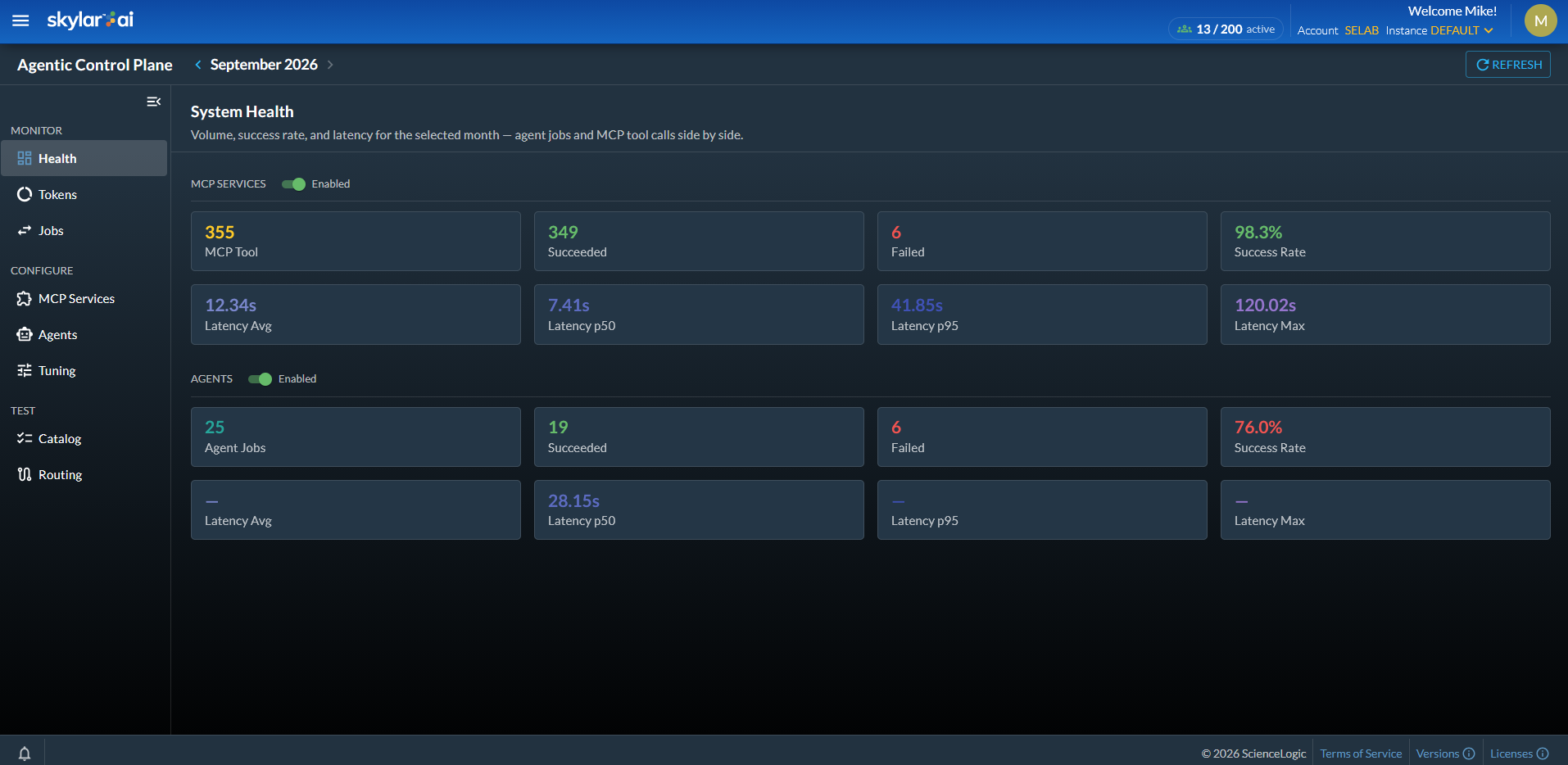
When you enable an agentic tool, Skylar Advisor routes the relevant questions to that tool instead of searching the documents on the Corpus page. Each agentic tool comes pre-loaded with a list of sample questions.
For more information, see Using the Agentic Control Plane Page.
Agentic: Topic Specialists
Selecting the Topic Specialists option on the view of the Preview Features page enables AI agents that are trained on a specific problem domain to review every Advisory, producing a cited verdict, recommendation, or remediation plan.
With the topic specialists, each Advisory is tagged by topic, such as network, CPU, storage, database, latency, memory, authentication, security, temperature, or processor. A matching AI agent or "specialist" investigates against live telemetry and generates an Advisory report. The report combines the monitoring Advisory with the specialist's evidence: what is wrong, why, what argues against it, and what to do next, with KB and web citations.
You can monitor your topic specialists on the tab of the Agentic Control Plane page:
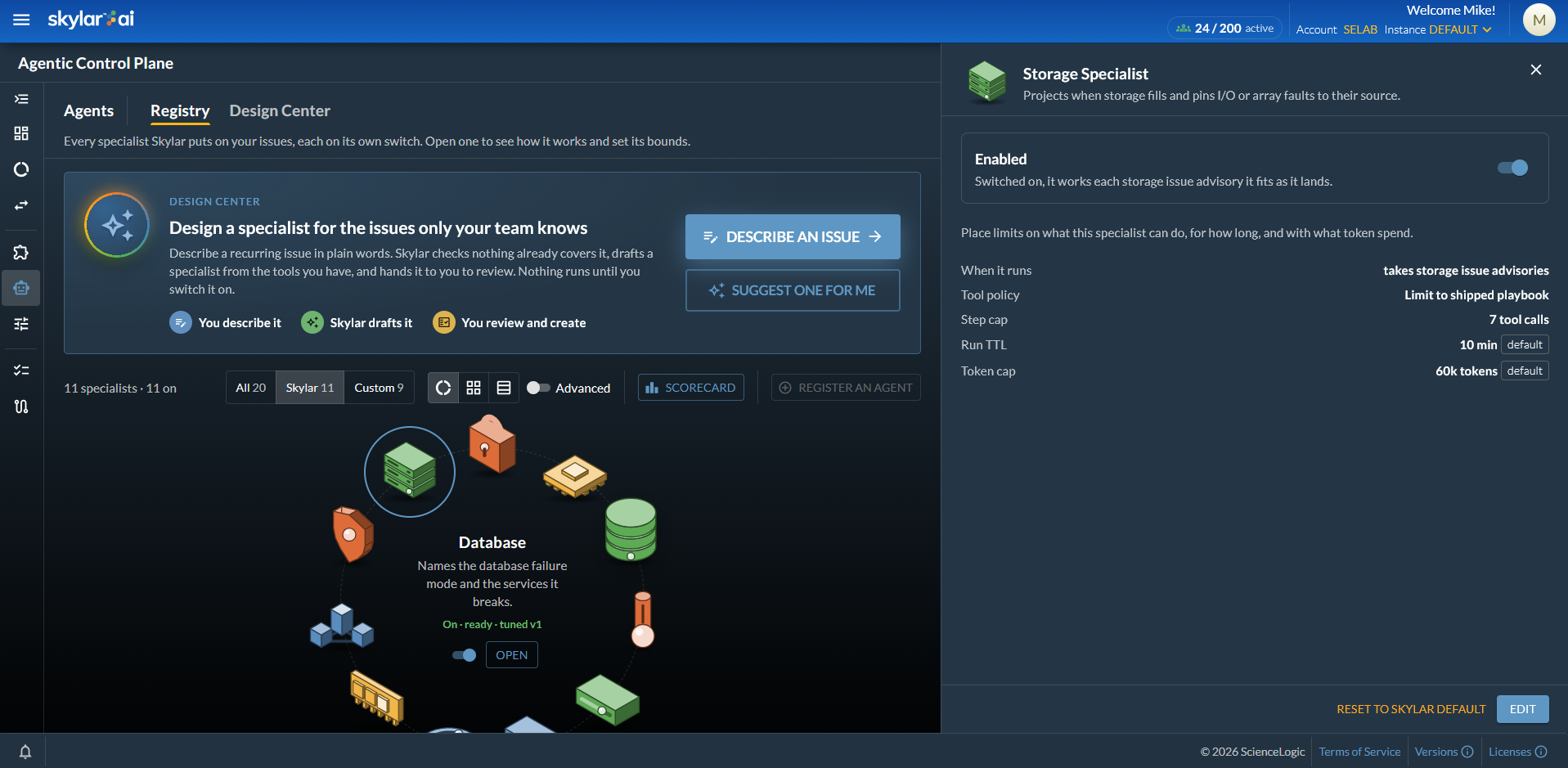
You can specify which specialist to run, how long it might take, and what it may spend. By default, all topic specialists are switched off. You can enable and edit the schedule for when a specialist runs: when a matching Advisory lands, or a scheduled "sweep" of what is new in Skylar Advisor. Admin users can also design their own specialists by describing a recurring problem in plain language.
Topic specialists require that you enable the "MCP Apps" preview feature, with the "Skylar AI MCP" tools enabled on the tab of the Agentic Control Plane page.
For more information, see Agentic Control Plane.
Agentic: MCP Apps
Selecting the MCP Apps option on the view of the Preview Features page enables an MCP tool that ships its own interactive application open it right in the conversation.
You can work in the application and then close it. Skylar Advisor records the tool's answer and every action you took in the app, and nothing else.
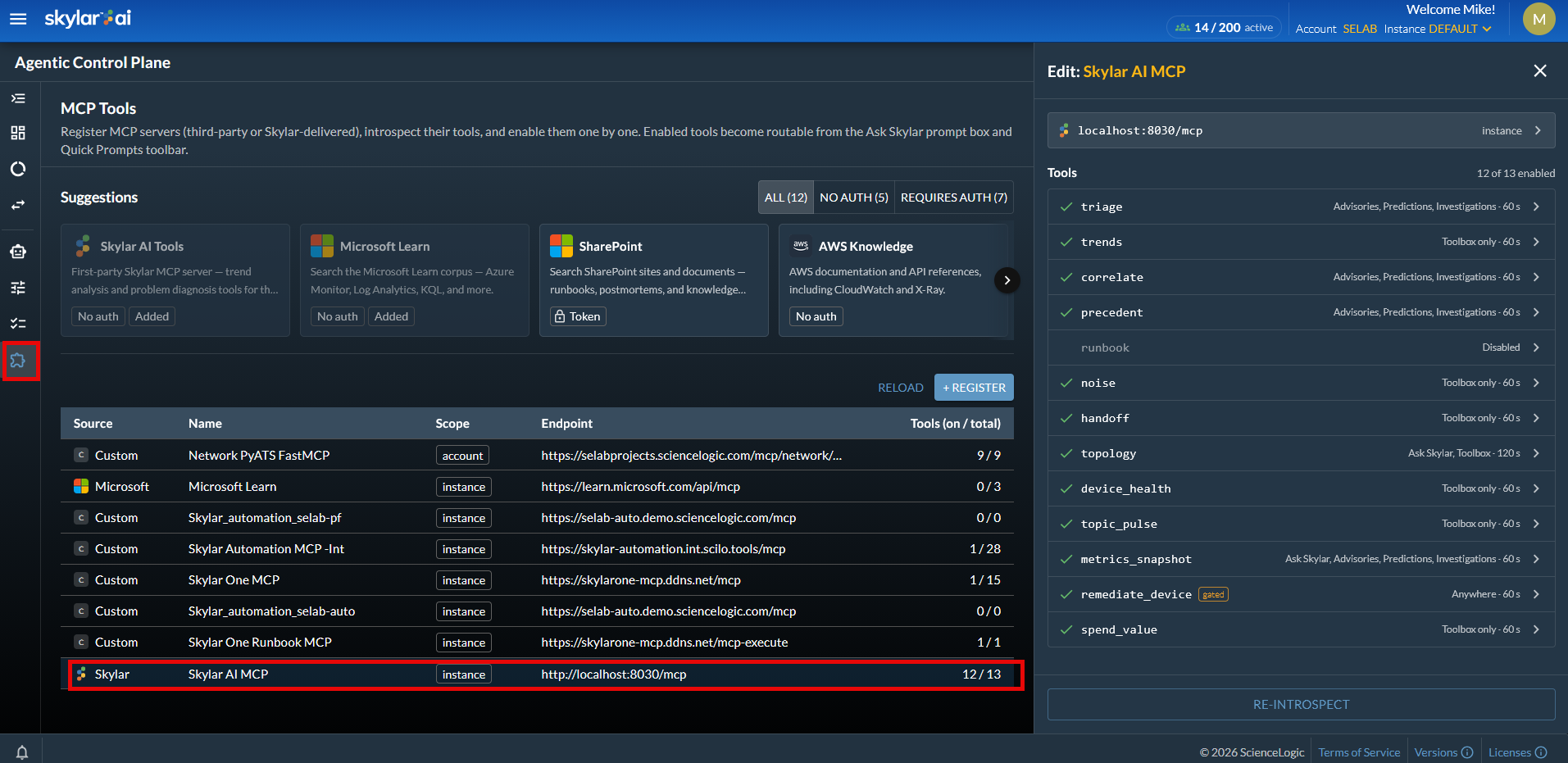
For more information, see MCP Services.
Agentic: Trusted Certificates
Selecting the Trusted Certificates option on the view of the Preview Features page lets you connect to MCP servers whose certificates come from your organization's private certificate authority (CA). After you add the CA's certificate, Skylar Advisor trusts the MCP servers whose certificates that CA issued.
To add, review, or remove a private CA, go to the tab on the Agentic Control Plane page ( > Account Settings > Agentic Control Plane > MCP Services) and click the button:
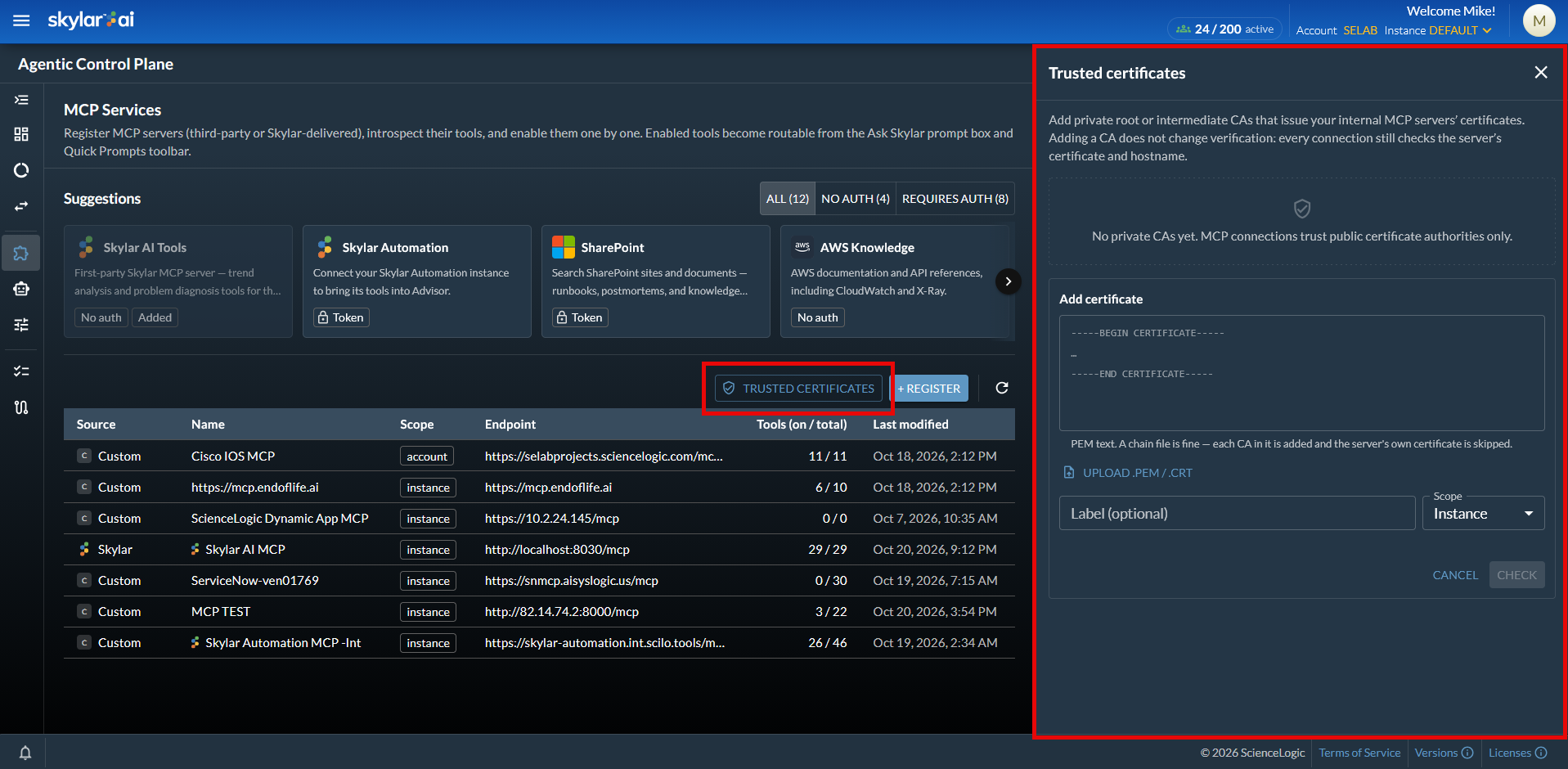
For more information, see MCP Services.
Integrations: ServiceNow Outbound
Selecting the ServiceNow Outbound option from the view on the Integrations view of the Preview Features page enables Skylar AI to automatically create a ServiceNow Incident or Problem from a Skylar AI result, accelerating incident response and reducing manual operational handoffs. This feature is still under development.
Integrations: Alert Builder
Selecting the Alert Builder option on the view of the Preview Features page lets you stream your own OpenTelemetry metrics from an OTel Collector into Skylar AI. OpenTelemetry provides a flexible alternative to using Skylar One for importing observability data into Skylar AI.
You can use the Alert Builder page (Alert Configuration > Alert Builder) to create alert policies based on those metrics.
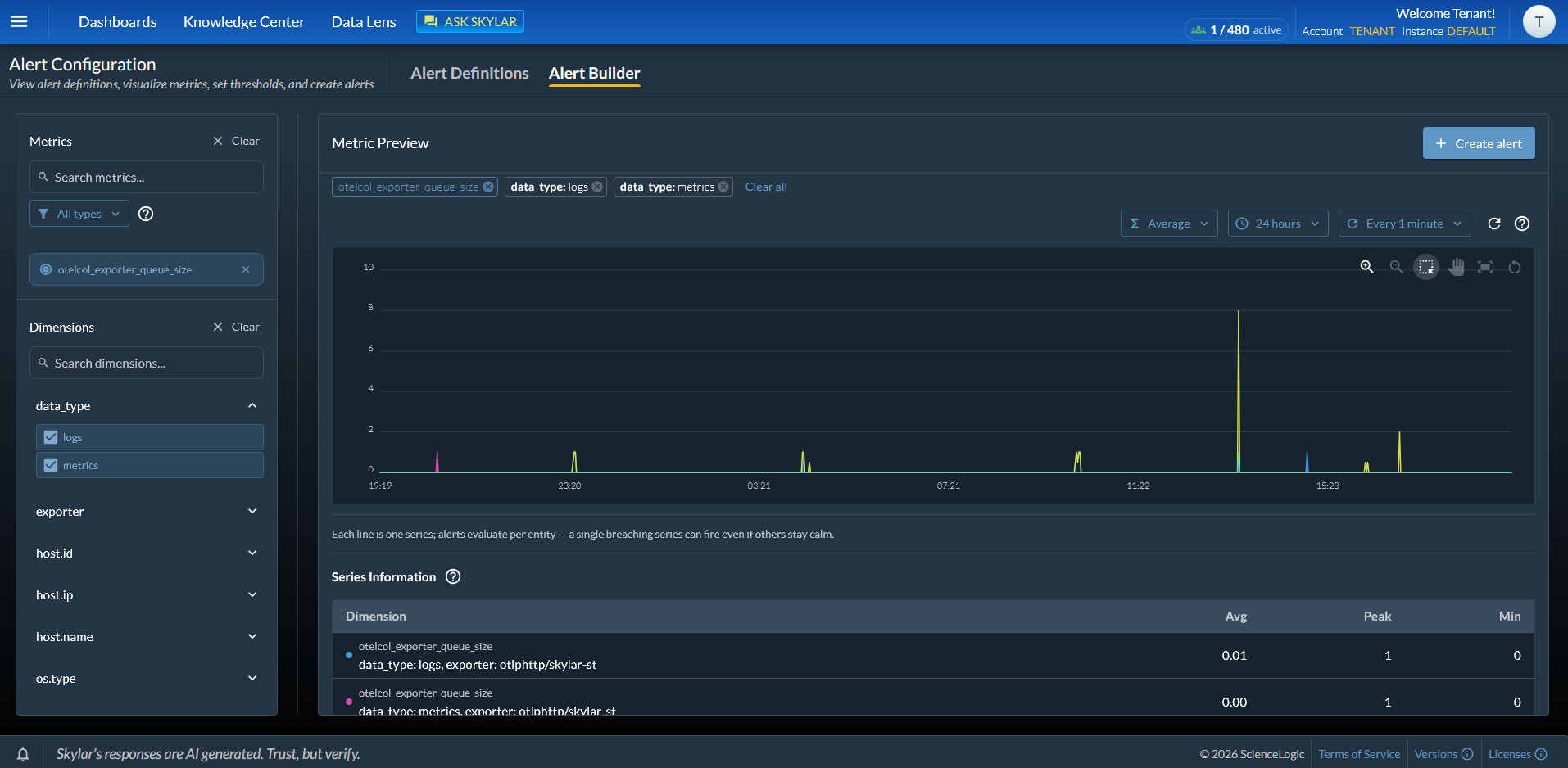
For more information, see Managing OpenTelemetry (OTel) Alert Policies on the Alert Builder Page.
Work Items: Metrics Enhanced Advisories
In the view, you can enable Metrics Enhanced Advisories to add more data to an Advisory or Investigation. When an Advisory or Investigation is generated, Skylar Advisor snapshots the data-lake metrics for the affected devices and adds an AI-analyzed summary to the report. When you click the button, the data displays as a chart on the Metrics Snapshot pane.
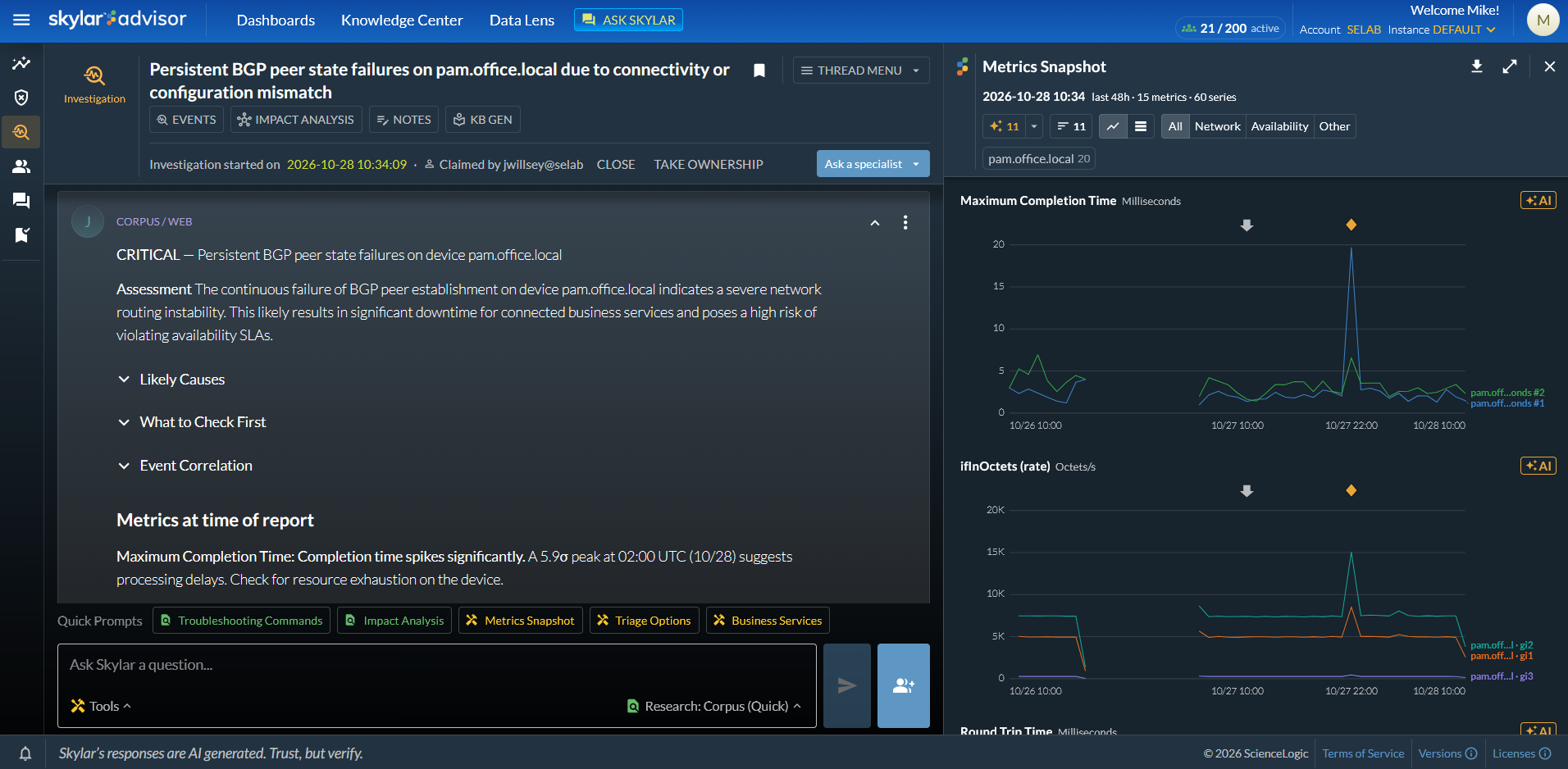
For more information, see Working an Advisory From Claim to Close.
Work Items: Advisory Suppression
In the view, you can enable Advisory Suppression to add a button to an Advisory that prevents Skylar Advisor from reporting on that kind of Advisory again.
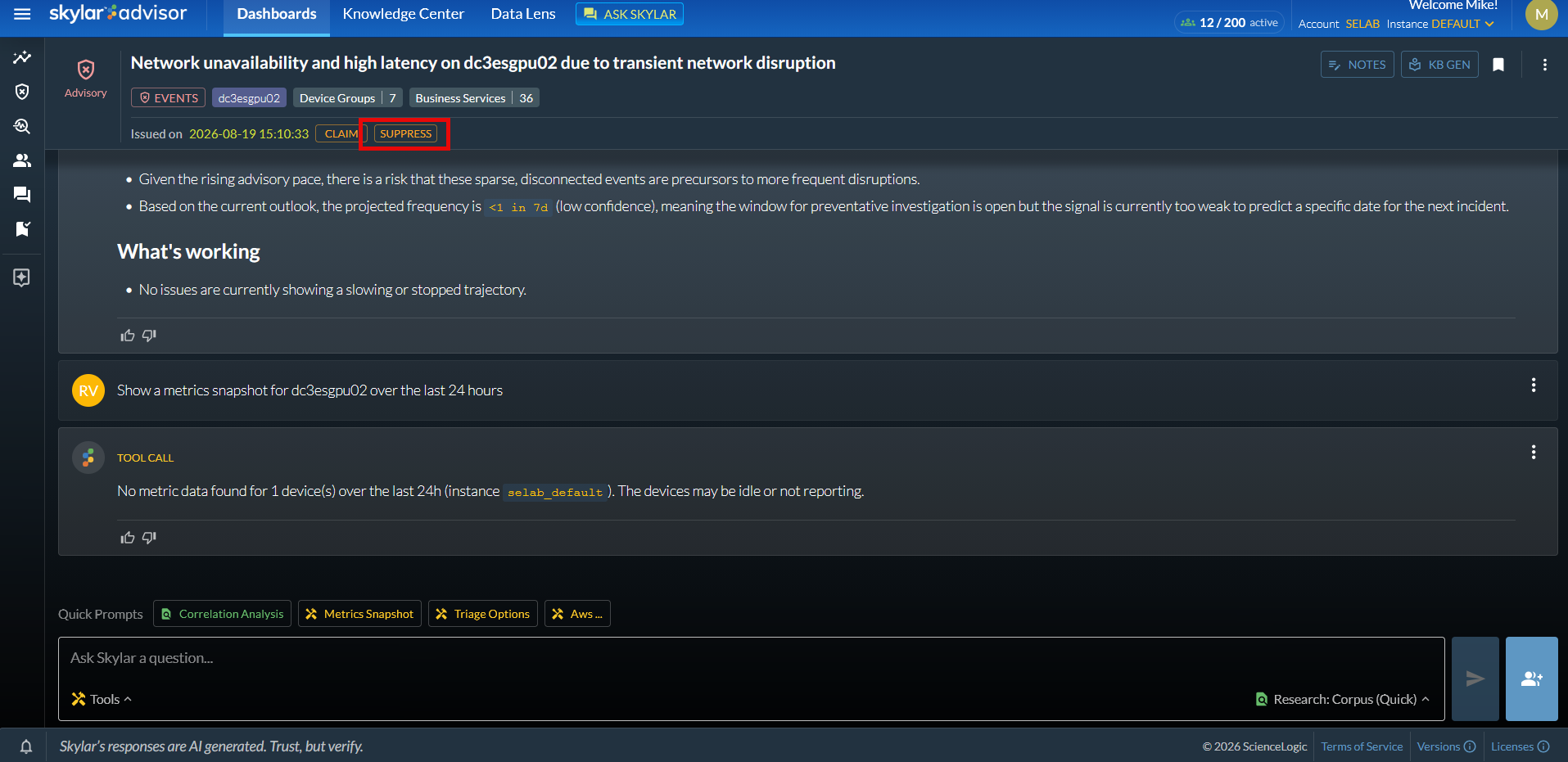
Work Items: Entity Exclusion
In the view, you can enable Entity Exclusion to exclude specific device groups and business services from Skylar Advisor as needed.
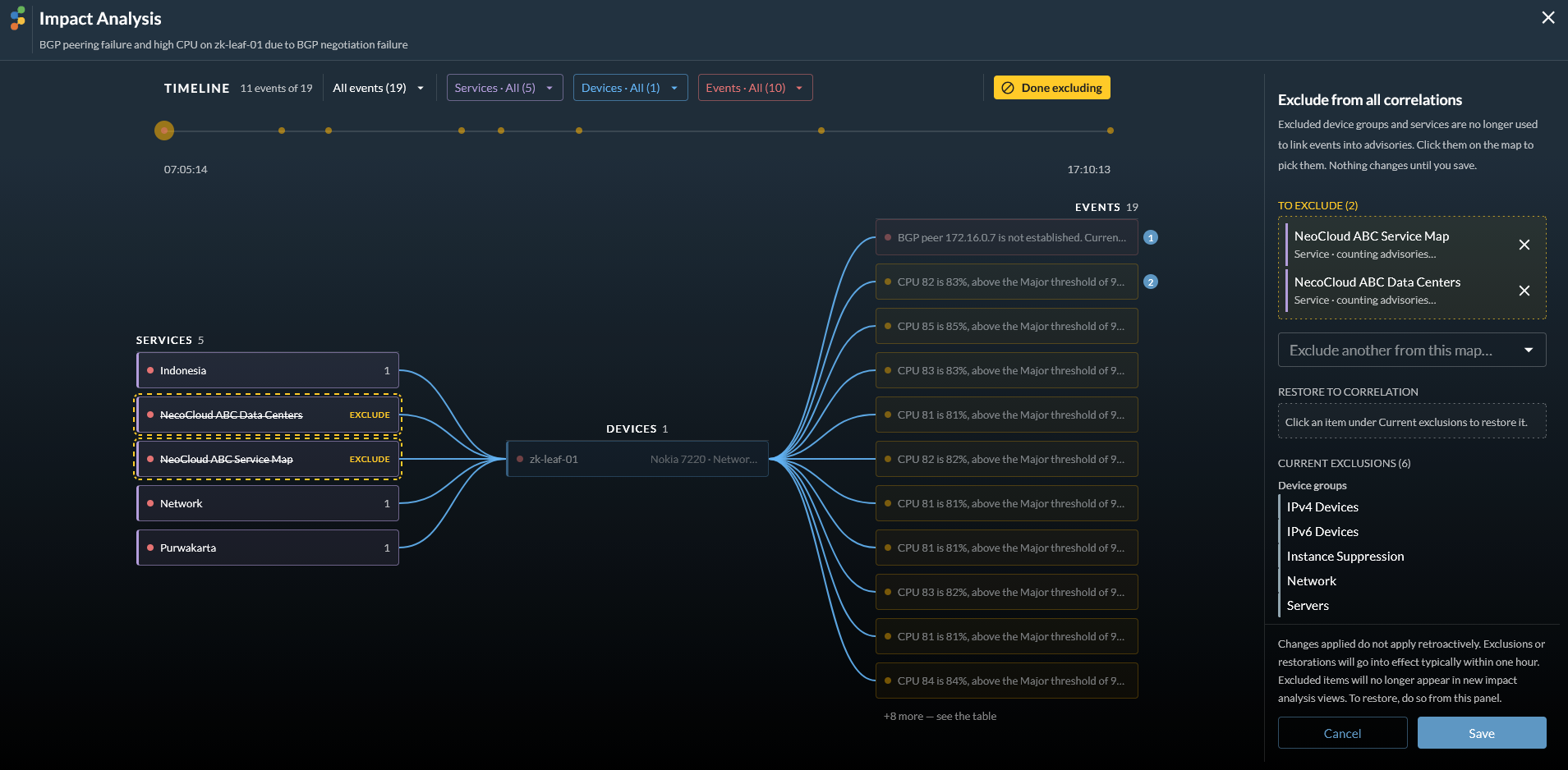
Use the option in the menu at the top of an Advisory to include or exclude "catch-all" device groups and business services from event correlations. This option prevents unrelated events from being merged into a single Advisory and ensures that the entity map displays only meaningful connections.
Skylar Advisor automatically detects and excludes these catch-all groups by default, though you can manually override these exclusions or reset them to automatic via the user interface.
Work Items: Data Lens Events
In the view, you can enable Data Lens Events to add an tab to the Data Lens page that displays a table of events. This feature provides you with better visibility into the specific events being received and considered for signal generation.
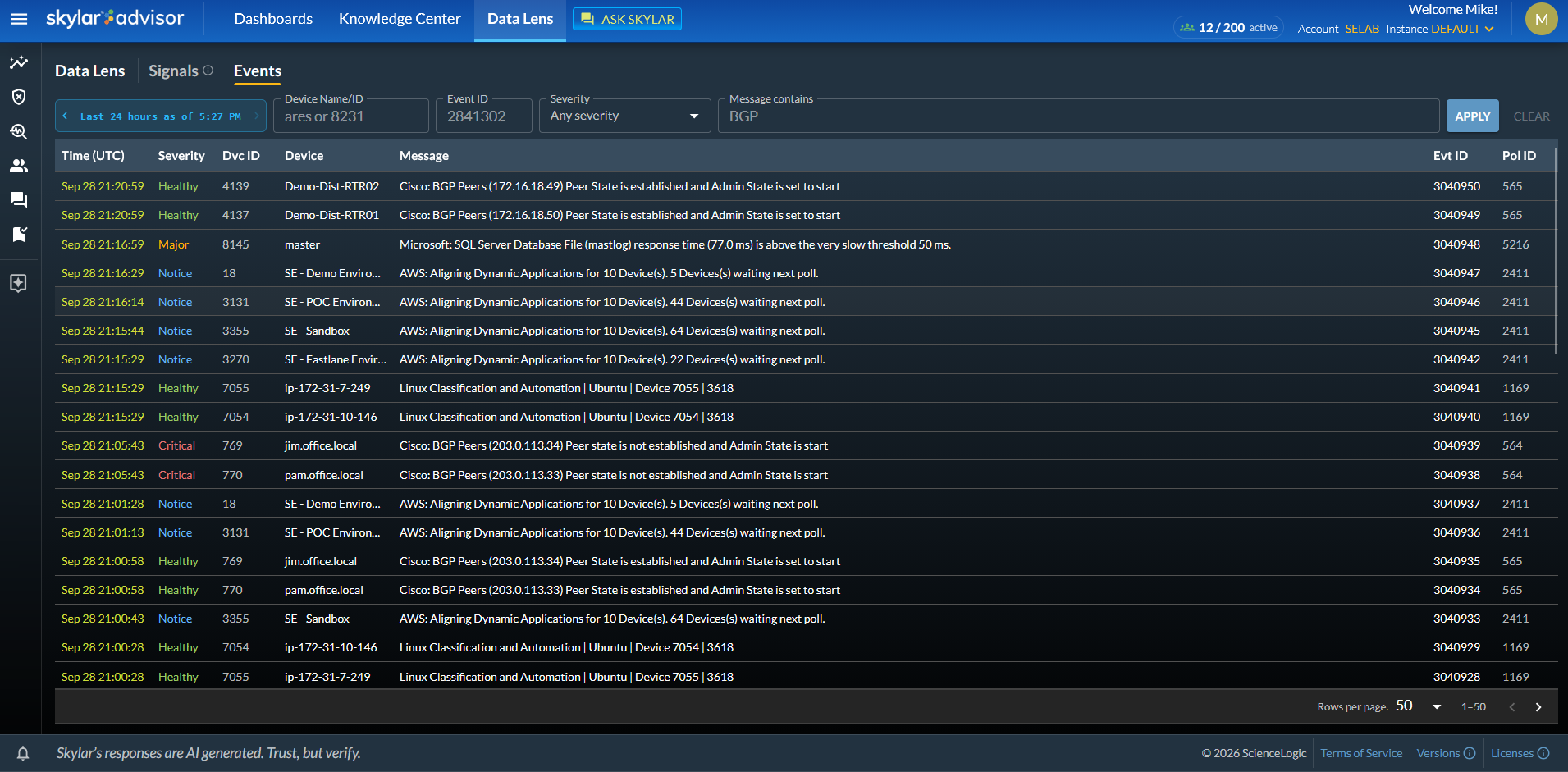
For more information, see Managing Events on the Data Lens Page.
Work Items: SLO Docs
In the view, you can enable SLO Docs to track Service-Level Objectives (SLOs) based on documents that you upload to the slo folder in the Corpus, written in a set format. Advisor impact analysis now ties each issue to its SLO definitions, so you can see which services are at risk of missing their targets.
Work Items: Auto-close
In the view, you can enable Auto-Close to enable a periodic background process that automatically closes idle Advisory, Prediction, and Investigation threads based on instance-specific thresholds. This feature helps maintain accurate workload and health metrics in the tab on the Dashboards page by tagging and closing untouched threads.
Platform: KB Generated Approval Flow
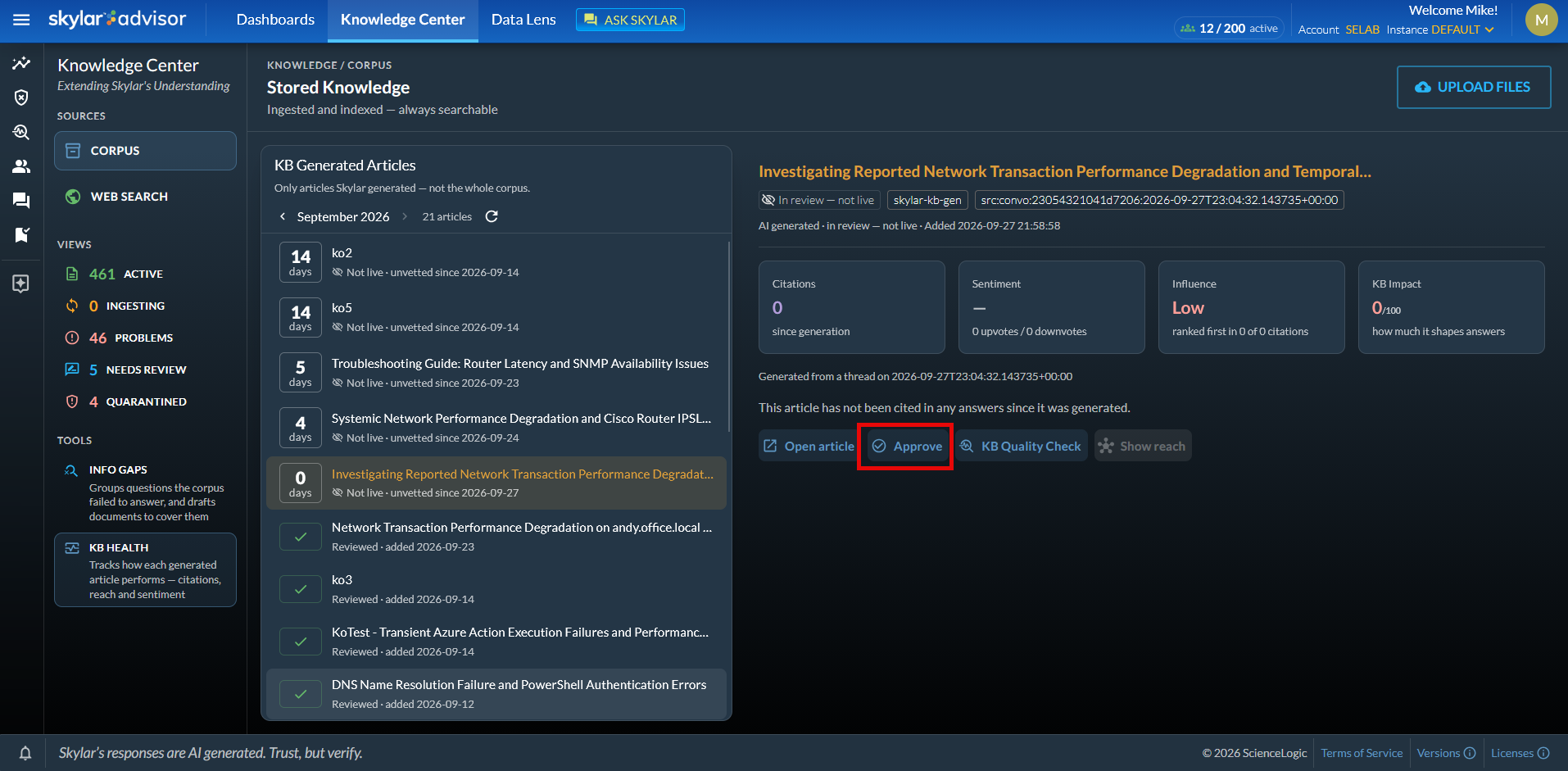
Enabling the KB Generated Approval Flow option on the view of the Preview Features page enables a review workflow for Knowledge Base articles generated within the Corpus. This feature lets Subject Matter Experts (SMEs) approve or reject articles instead of immediately publishing the article. This gives reviewers a chance to read and approve the article first.
You can use the view to the tab on the Knowledge Center page to track citations, sentiment, influence, and impact for each generated article, with an AI quality check and a proposed rewrite. You can also click to add a KB article to the Corpus.
Platform: Knowledge Sentry
Enabling the Knowledge Sentry option on the view of the Preview Features page implements a security gatekeeper layer for document uploads to the Corpus. Files are now automatically scanned for secrets, SQL injection patterns, and adversarial hidden text. Any suspicious files are quarantined until a subject-matter expert reviews them.
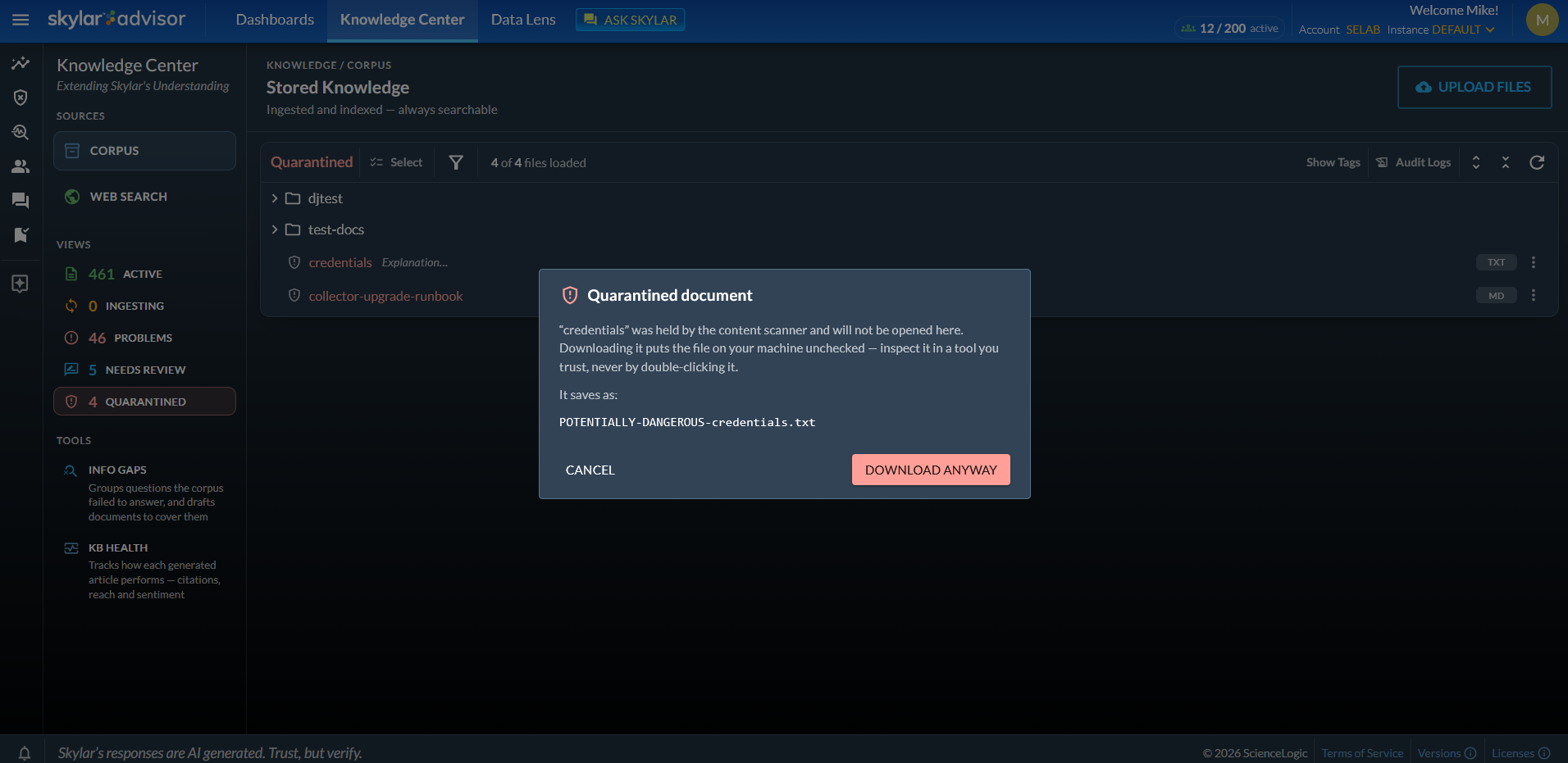
For more information, see The Active View on the Corpus Tab.