
You can query Skylar Advisor for advice using the Ask Skylar feature to perform deeper investigations of your issues and events from Skylar One.
Skylar Advisor offers tailored guidance based on real-time data from Skylar One, helping you make informed decisions quickly and efficiently.
The Ask Skylar prompt box saves you from staring at dashboards that other people made to solve your problems. Instead, it lets you ask your own questions over a data lake that holds your metrics and a knowledge base that contains data on how your company solves problems.
The Ask Skylar Page
The button lets you query Skylar Advisor for tailored guidance based on real-time data, which empowers you to make informed decisions quickly and efficiently.
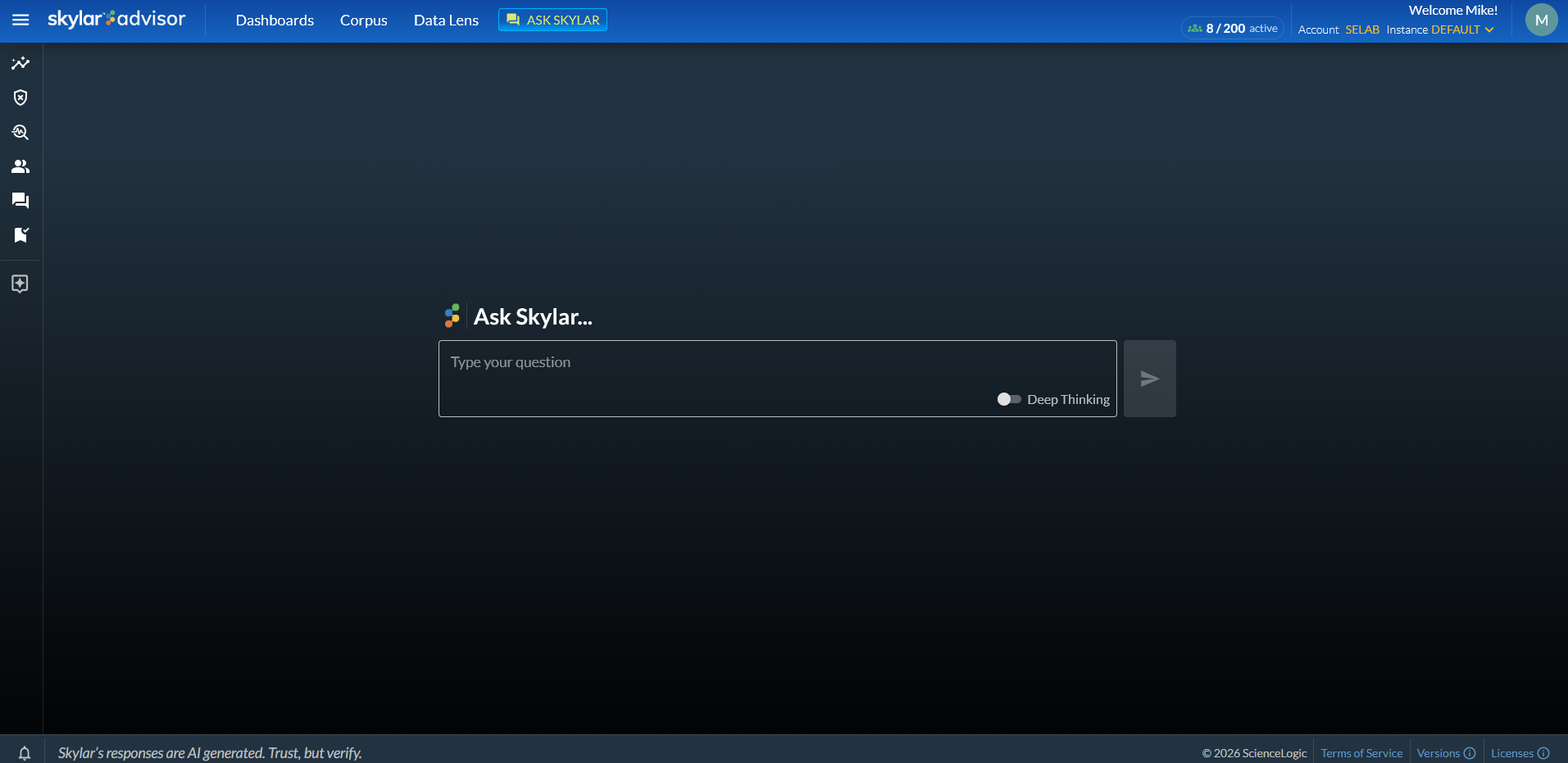
You can ask Skylar Advisor any question, and Skylar Advisor will respond by drawing on everything it has learned from the documents uploaded to the Corpus page to provide you with the most accurate answers to your questions.
Using the Ask Skylar Feature
To use the Ask Skylar feature:
-
Click the button at the top of the Skylar Advisor user interface or at the bottom of an existing activity from the tab of the Dashboards page.
-
In the Ask Skylar prompt box, type your question for Skylar Advisor.
You can drag and drop one or more text (.txt) files onto the Ask Skylar prompt box so you can ask questions using those files as context. For example, you could upload a text file containing log information, and then type your questions about logs in the Ask Skylar prompt box.
-
Before you click the send icon (
 ), you can use the Tools options to select an agentic AI tool to handle your question.
 The Tools options only appear on the Ask Skylar prompt box if you enable one or more MCP servers on the tab of the Agentic Control Plane page (
 > Account Settings > Agentic Control Plane > MCP Services). For more information, see MCP Services.
 -
Before you click the send icon (
), you can use the Research options to specify the depth of research that Skylar Advisor should use when generating its answer. -
Web. Skylar Advisor will only search the websites specified on the Web Search > Configured view of the Knowledge Center page.
-
Quick. Skylar Advisor gives faster, less-technical answers.
-
Deep. Skylar Advisor performs a thorough analysis of the Corpus. This option is more time-consuming than Quick, but you might find it useful for more complex questions.
-
-
Click the send icon (
). Skylar Advisor displays its progress and a timer, along with a button if you would like to cancel the query: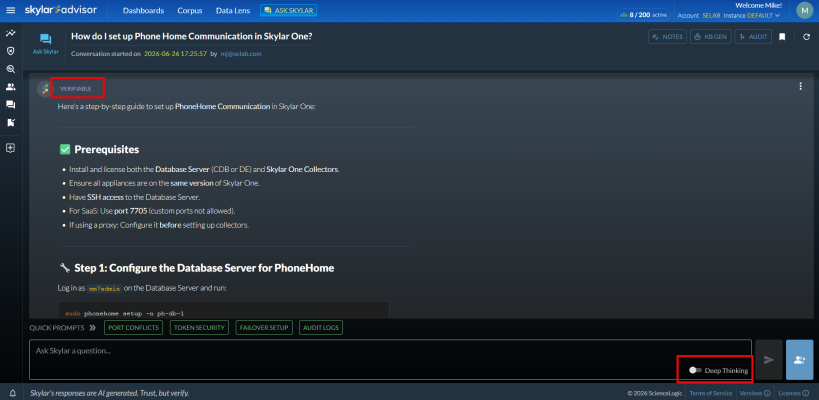
If you would like more information about any text in an answer, highlight and right-click the text and select Quick Take. A Quick Take pane appears, displaying additional information about that text.
-
To view additional features you can use with Ask Skylar, see the following topic.
Additional Options on the Ask Skylar Page
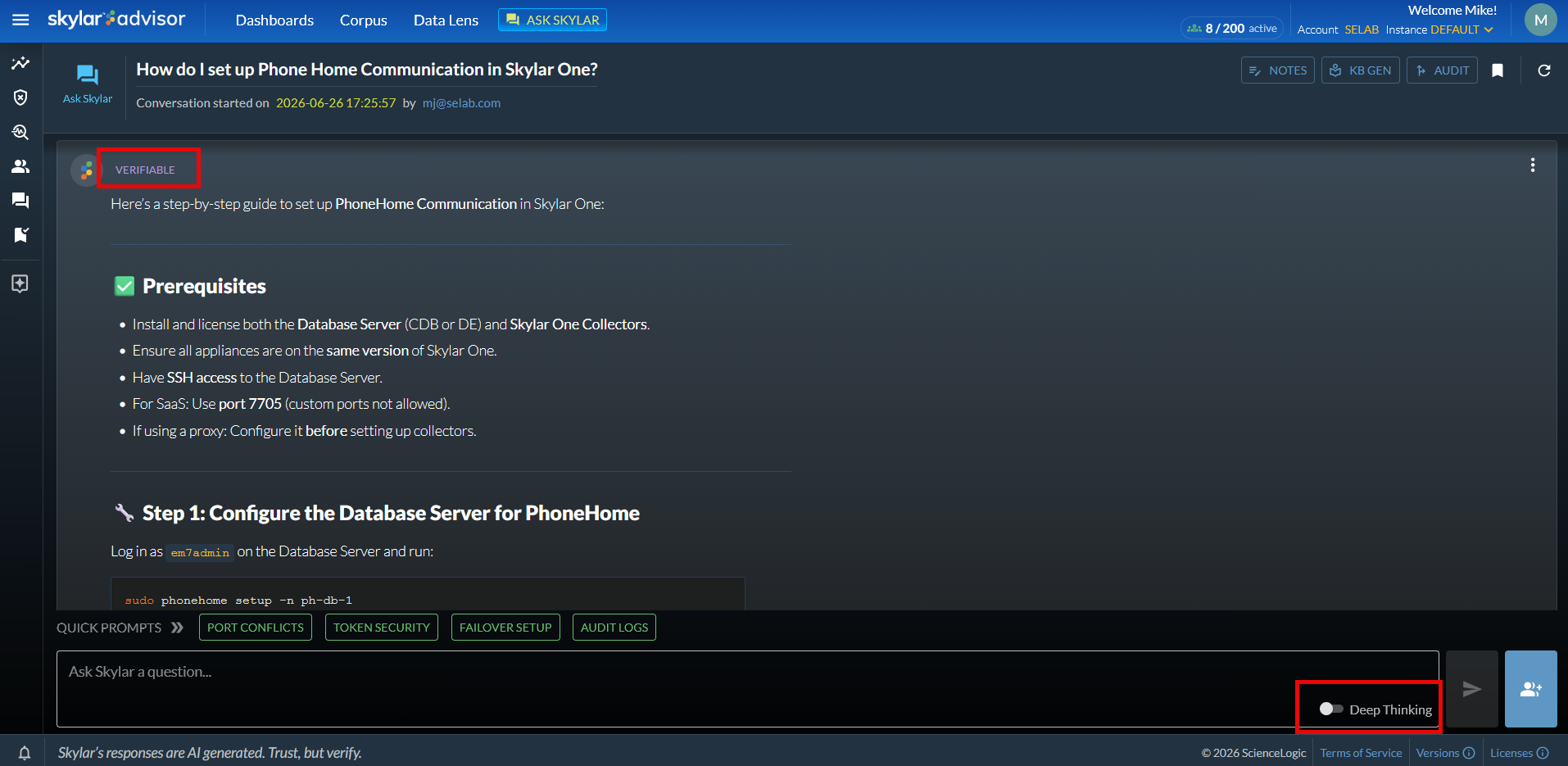
Along with the answer to your question, Skylar Advisor also displays the following buttons and options:
-
Quick Prompts. Based on the original question, Skylar Advisor displays additional prompts in green boxes that you can click for additional information. You can hover over a Quick Prompt to see more information about it.
If you have the Agentic preview feature enabled, you can click one of the yellow agentic tools buttons in the Quick Prompts section to select an AI agent to help with your Ask Skylar questions and conversations.
If you are using the Ask Skylar feature in an Advisory or Investigation detail record, this section displays an Events link that you can click to view the Skylar One events that were used to generate this Advisory.
-
Collaborate with others icon (
 ). Opens the Collaborate pane, where you can share your Skylar AI conversation with another user. Click the button to generate a URL that you can share with another user. You can also click the or buttons to send this conversation to Slack or Microsoft Teams; for more information, see Sharing Information with Slack and Microsoft Teams Integrations. After you share the conversation, it is added to the Shared section on the left-hand navigation on most of the pages.
-
tag. This tag displays at the top of the answer when the information for that answer comes from a document in the Corpus. Click the tag to open the Facts from Corpus pane, which lists the documents from the Corpus used for the answer, along with a link to the document.
You can also click the Show Raw Facts toggle to display the content used for the answer. If an answer did not come from the Corpus but from the general knowledge of Skylar Advisor, this tag displays as .
-
. This tag displays at the top of the answer when the information for that answer comes from an AI agent instead of documents from the Corpus page. You can click this tag to open the Response Audit pane, which lists the number and type of tokens used for that response.
-
Thumbs up and thumbs down icons (
 ). At the bottom of the answer, these buttons let you vote for or against on the quality of the response from Skylar Advisor. You can use the prompt box that appears after you click thumbs up or down to explain your answer.
Try to provide as much feedback as possible, both positive or negative, as that feedback will continue making Skylar Advisor smarter.
-
button. Opens the Scratch Pad pane, where you can add notes in plain text or Markdown format. For more information, see Using the Scratch Pad Feature.
-
button. Tells Skylar Advisor to create a draft Knowledge Base article based on that conversation. For more information, see Creating a Knowledge Base Article Based on an Activity.
-
Add bookmark icon (
 ). Adds the conversation to the Bookmarks section on the left-hand navigation on most of the pages.
 -
The "More options" menu (
 ):
):-
Copy Message. Copies the question you asked Skylar Advisor into the clipboard.
-
Thread Audit. Displays the Thread Audit pane with details about the conversation, including the claimed status, the duration of the conversation, and the full token spend for the conversation thread for cost and performance review. The bottom half of the Thread Audit pane contains links to any part of the conversation.
-
Refresh Messages. Updates the content on the current page.
-
Select messages to archive. Lets you choose which messages you want to archive.
-