
This chapter covers how to set up and schedule reports in Skylar Advisor. These reports include:
- Corpus Health
- Handoff
- Business Services
- Trends
- Spend Value
If you are setting up Skylar Advisor for the first time, perform the activities in this chapter before you build out your Corpus. For more information about the Corpus, see Prerequisites for Corpus Formation.
Prerequisites
The following items are required to set up and schedule reports:
-
Skylar AI version 2.6.0 or later
-
On the Preview Features page (
 > Account Settings > Preview Features), enable the Agentic preview feature. For more information, see The Preview Features Page.
How Report Scheduling Works
While Skylar Advisor answers the questions you ask, scheduled reports answer the questions you might not think to ask. That includes questions about the health of your Corpus, how a shift ran, or the value your organization is getting from Skylar Advisor. You can define when the reports run, so this information reaches you automatically instead of depending on somebody remembering to check.
Skylar Advisor generates reports using MCP tools that ship with the platform. You can run any tool on-demand from the Toolbox page ( > Advisor > Toolbox) to see what that tool might return, and you can schedule a tool so its report runs on a recurring basis.
Scheduled reports appear on the tab of the Dashboards page, and the schedules appear on the Scheduler view within that tab.
Skylar Advisor includes five report tools that you can schedule during the initial setup:
- Corpus Health. Is our Corpus and Knowledge Center page complete?
- Handoff. How did this shift run?
- Business Services. Are our business services healthy?
- Trends. What events are occurring across our Advisories?
- Spend Value. How is Skylar Advisor benefiting your organization?
Each report tool accepts an adjustable "lookback" time frame. The windows described in this chapter are recommended defaults, not limits.
Enabling and Running the Corpus Health Report
The "Corpus Health" report tells you whether your Corpus is complete and representative of the problems your team has been working on. If your system is in a steady state, this report replaces the need to manually mine each Advisory for knowledge gaps in your Corpus.
To enable, run, and schedule the "Corpus Health" report:
-
For Skylar AI 2.6.0 and older: On the Preview Features page (
> Account Settings > Preview Features), enable
MCP Tools (turn the toggle blue). -
On the tab of the Agentic Control Plane page (
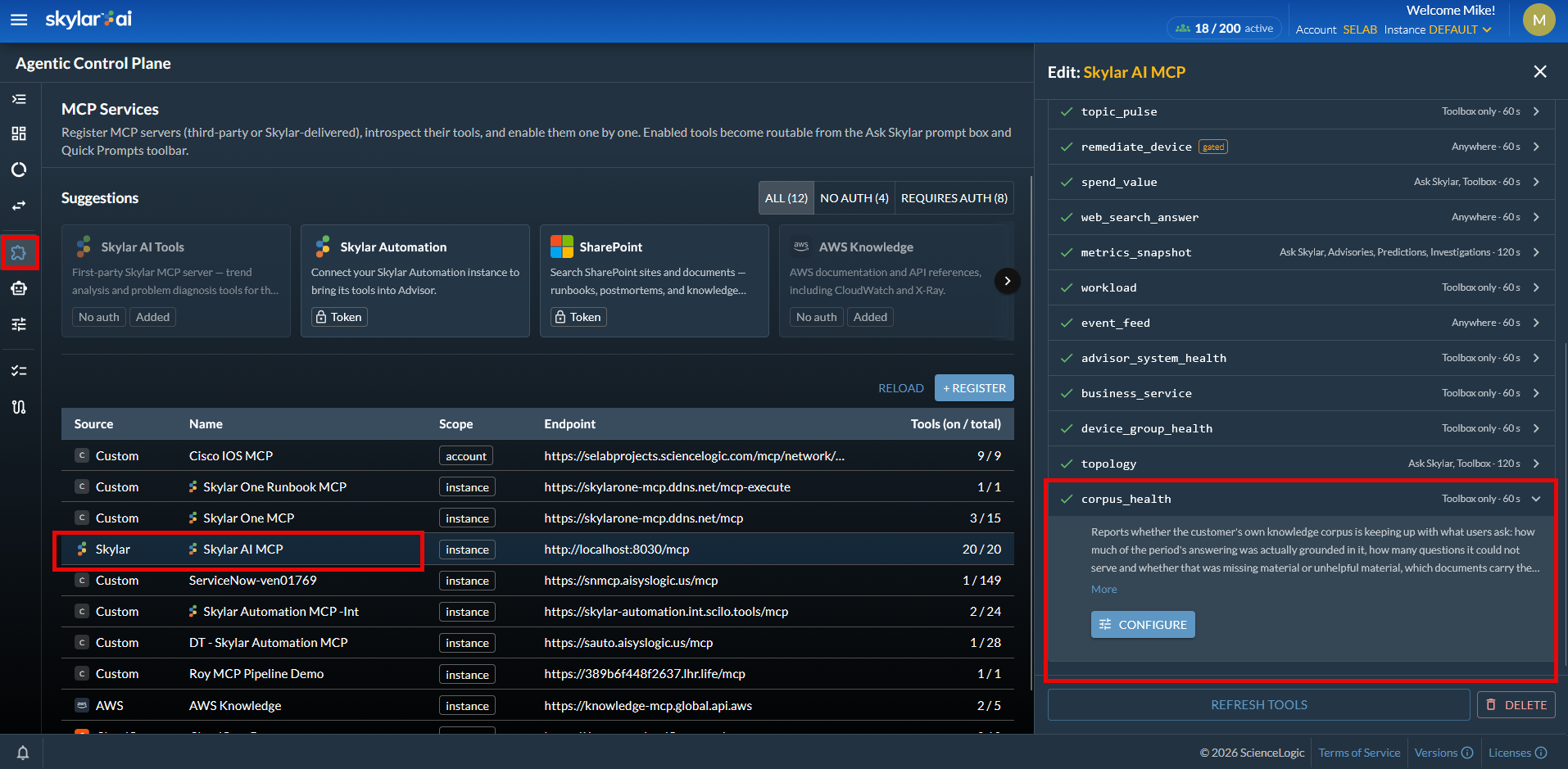
> Account Settings > Agentic Control Plane > MCP Services), select the "Skylar AI MCP" service from the list at the bottom. The Edit: Skylar AI MCP pane appears on the right.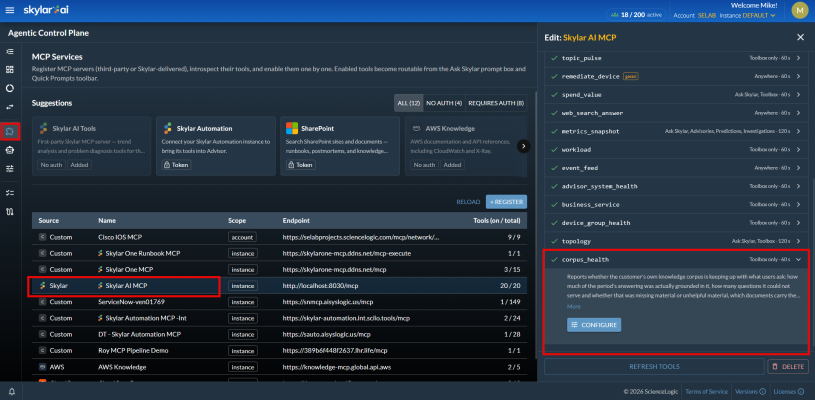
-
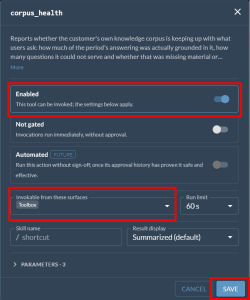
From the Edit: Skylar AI MCP pane, select the corpus_health tool and click the button. A corpus_health modal appears.
 .
. -
On the corpus_health modal, make sure that Enabled is selected, and then set Invokable from these surfaces to Toolbox.
-
Click .
-
As needed, repeat steps 2-5 for each of the remaining four report tools. These report tools are listed as handoff, business_services, trends, and spend_value in the Edit: Skylar AISkylar AI MCP pane.
-
Go to the Toolbox page (
> Advisor > Toolbox) and select the corpus_health tool from the list on the left. A Skylar AI MCP pane appears to the right.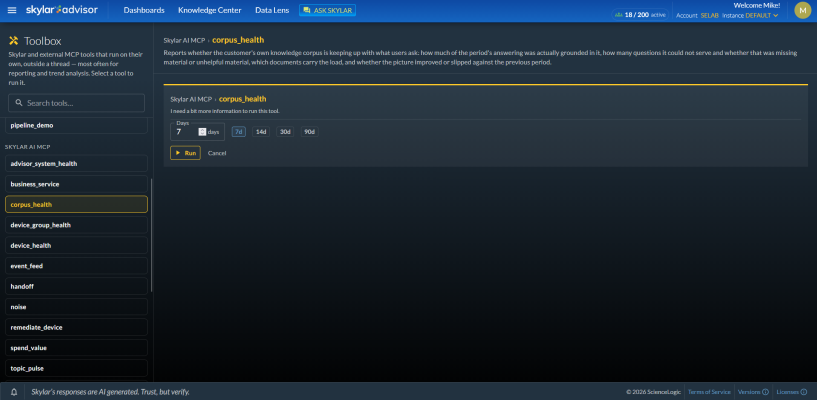
-
Select "7" or click 7d in the Days field and click . Skylar Advisor generates a report describing the Corpus completeness for that time frame. If your Corpus is still empty, this run still gives you a baseline to compare against once you complete corpus formation.
-
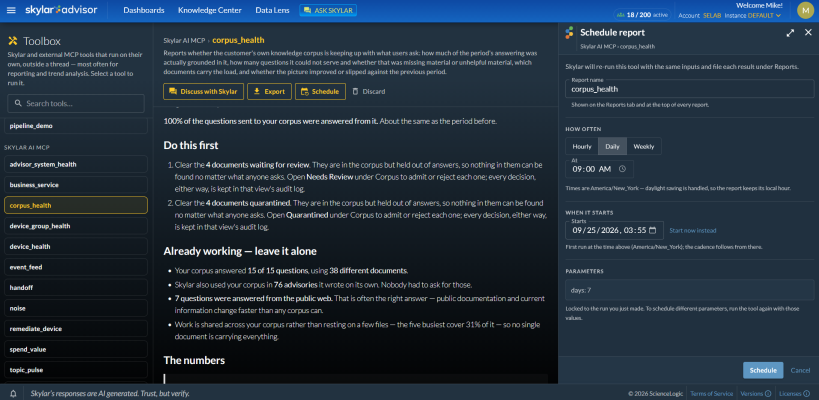
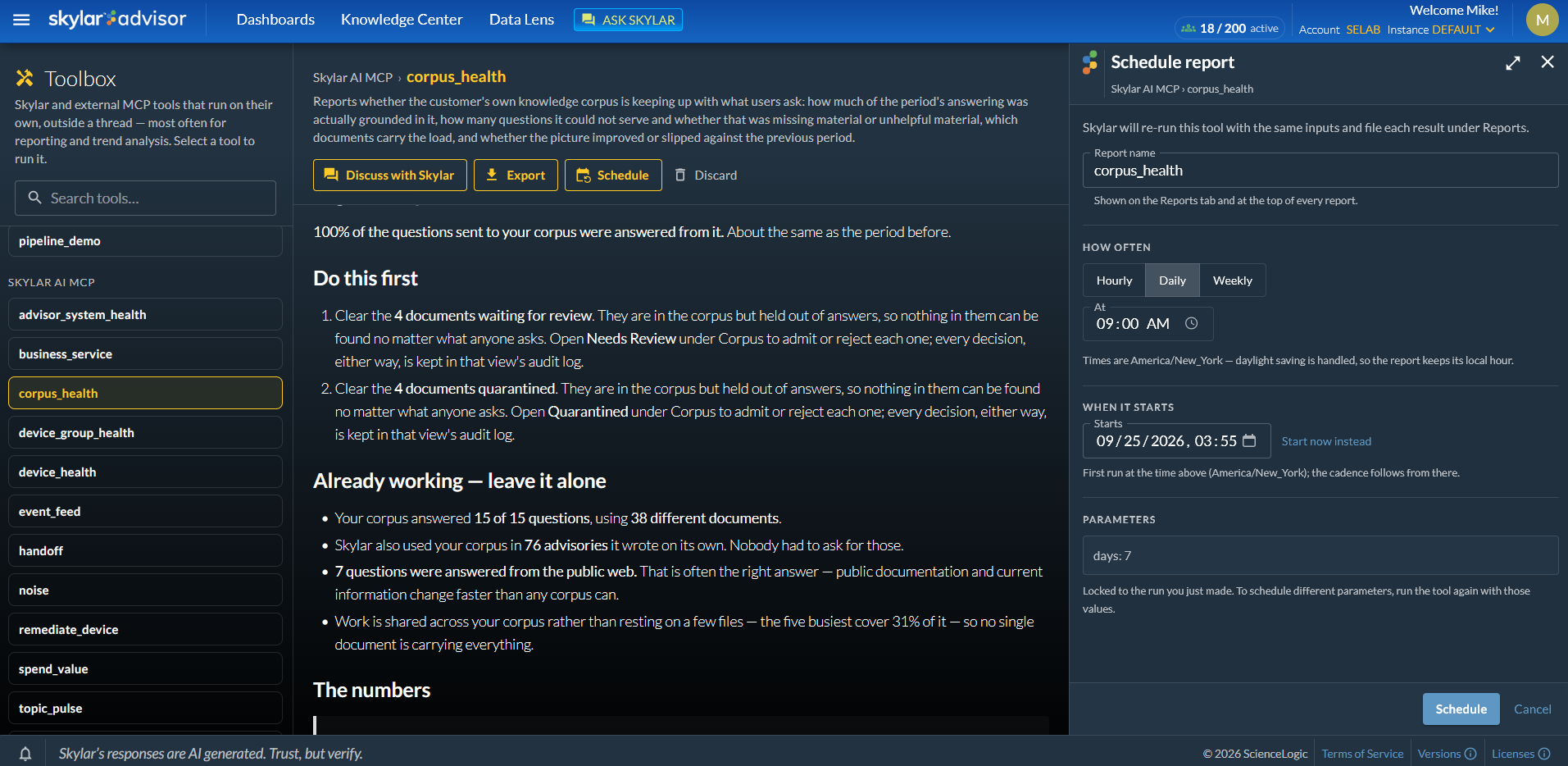
At the top of the report, click the button. The schedule settings appear.
-
Select a cadence for the schedule, using the following suggestions from ScienceLogic:


-
First 30 days. Select a daily cadence. Corpus content changes quickly while you complete corpus formation, so a daily report keeps the feedback loop tight.
-
After 30 days. Relax the cadence to weekly as corpus health and completeness improve. ScienceLogic recommends a Sunday evening time slot so the report is ready for you Monday morning. You can edit a schedule at any time from the Scheduler view of the tab.
Finding Your Scheduled Reports
To locate your scheduled reports:
-
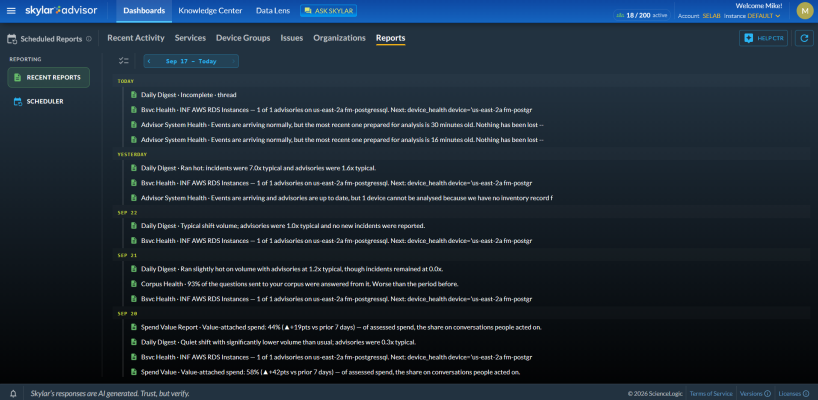
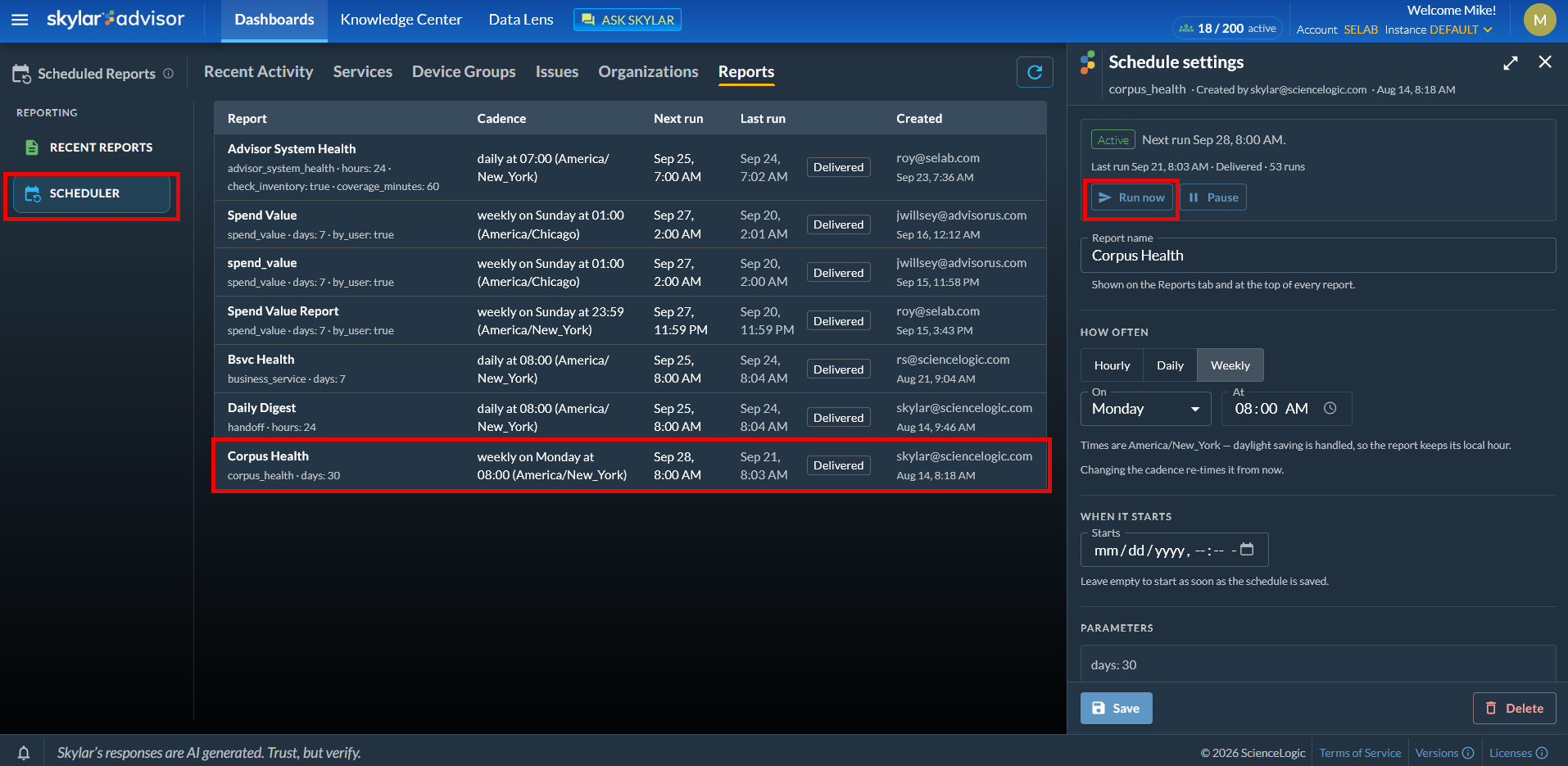
Go to the Dashboards page. A tab appears at the top, displaying a list of your scheduled reports.
-
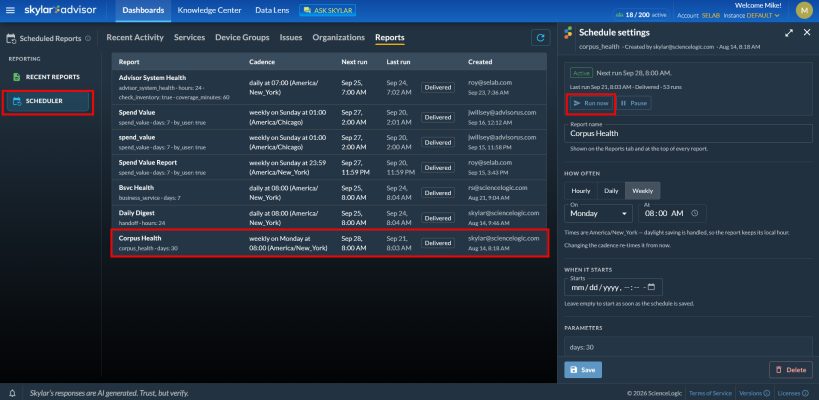
Click the Scheduler view, the second item in the left section of the tab. Your "Corpus Health" schedule appears in the list.
-
Select the report from the Scheduler view to open the Schedule settings pane, and then click so you have a report to read today. After this first run, reports generate automatically on the cadence you defined.
-
Review the report on the Recent Reports view.
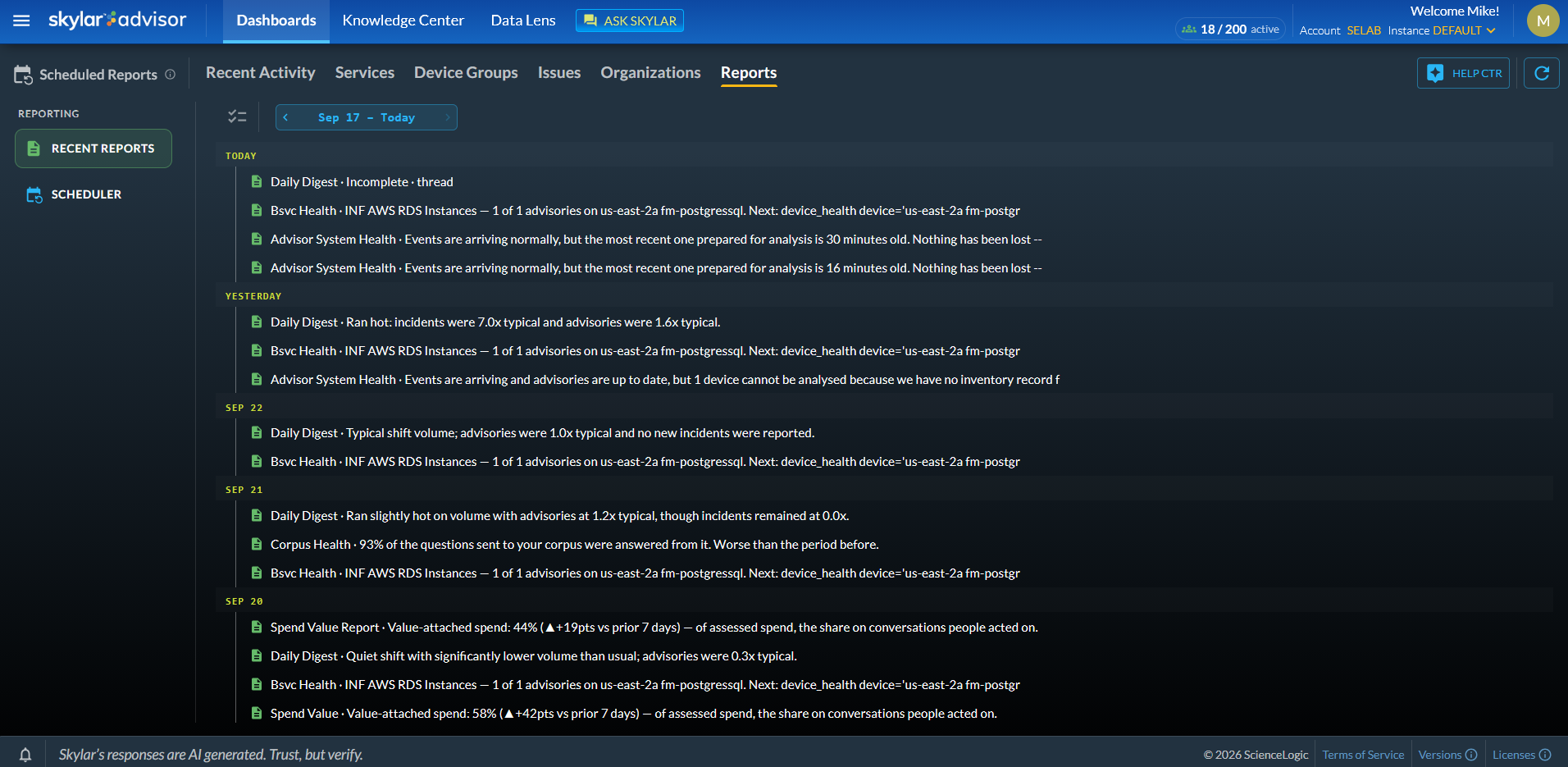
The tab is empty the first time you schedule a report. Reports appear only after the schedule runs, so use the one-time run in the Scheduler view to generate a report immediately.
Scheduling the Remaining Day-One Reports
Enable and schedule the remaining four day-one reports using the same pattern: enable the related MCP tool, run it once from the Toolbox page ( > Advisor > Toolbox) to see what it returns, and then click the button on the report to set its cadence.
Handoff
- What it tells you. How the shift ran: whether it was quiet or high-activity, how many new Advisories opened, how many remain open at the end of the shift, and what the incoming shift needs to know.
- Suggested Cadence. Daily, or every 8 hours if that matches your shift schedule.
- Naming. Name the schedule Handoff if it runs once per shift, or Daily Digest if it runs once a day. You can rename a report schedule later, but the new name does not apply to reports the schedule already generated.
Business Services
- What it tells you. The health of your business services. With a 7-day lookback, the report examines all Advisories and Investigations formed during the period, the rate of change on them, and which business services are in an unhealthy state.
- Suggested Cadence. Daily. You can also run this report on demand at any time.
Trends
- What it tells you. Trends across all Advisories, predictions, and Investigations.
- Lookback. 30 days by default. As with all report tools, you can change the lookback window.
- Suggested Cadence. Weekly.
Spend Value
- What it tells you. How your team is using Skylar Advisor and the value it is generating for them.
- Suggested Cadence. Weekly for the first 30 days, then monthly.
Quick-Reference Cadence Table
The following table summarizes the recommended lookback and cadence for each day-one report:
| Report Name | Lookback (Default) | Cadence — First 30 Days | Cadence — Steady State |
|---|---|---|---|
|
Corpus Health |
7 days |
Daily |
Weekly (Sunday, 8:00 p.m.) |
|
Handoff / Daily Digest |
Shift or day |
Daily or every 8 hours |
Same |
|
Business Services |
7 days |
Daily |
Daily (plus on demand) |
|
Trends |
30 days |
Weekly |
Weekly |
|
Spend Value |
30 days |
Weekly |
Monthly |
Expected Behavior During Initial Setup
Early "Corpus Health" reports might show an incomplete Corpus. This is expected during the first 30 days of setup as you complete Corpus formation. Completeness improves week over week. For more information about setting up your Corpus, see Managing Documents and Data on the Knowledge Center Page.
Also, the "Trends" and "Spend Value" reports might look thin during the first week. Both reports analyze accumulated history, so they provide more insight as Advisories, Investigations, and usage accumulate. For more information about these activities, see Managing Activities on the Dashboards Page.