
This
Use the following menu options to navigate the Skylar One user interface:
- To view a pop-out list of menu options, click the menu icon (
 ).
). - To view a page containing all of the menu options, click the Advanced menu icon (
 ).
).
Monitoring Skylar Automation
You can use a number of ScienceLogic PowerPacks to help you monitor the health of your Skylar Automation system. This section describes those PowerPacks and additional resources and procedures you can use to monitor the components of Skylar Automation.
You can also use the Skylar Automation Control Tower page in the Skylar Automation user interface to monitor the status of the various tasks, workers, and applications that are running on your Skylar Automation system. You can use this information to quickly determine if your Skylar Automation instance is performing as expected.
You can download the following PowerPacks from the PowerPacks page on the ScienceLogic Support Site (Skylar One > PowerPacks) to help you monitor your Skylar Automation system:
- Linux Base Pack PowerPack: This PowerPack monitors your Linux-based Skylar Automation server with SSH (the Skylar Automation ISO is built on top of an Oracle Linux Operating System). This PowerPack provides key performance indicators about how your Skylar Automation server is performing. The only configuration you need to do with this PowerPack is to install the latest version of it.
- Docker PowerPack: This PowerPack monitors the various Docker containers, services, and Swarm that manage the Skylar Automation containers. This PowerPack also monitors Skylar Automation when it is configured for High Availability. Use version 103 or later of the Docker PowerPack to monitor Skylar Automation services in Skylar One. For more information, see Configuring the Docker PowerPack.
-
ScienceLogic: Skylar Automation PowerPack. This PowerPack monitors the status of the applications in your Skylar Automation system. Based on the events generated by this PowerPack, you can diagnose why applications failed on Skylar Automation. For more information, see Configuring the ScienceLogic: Skylar Automation PowerPack.
The "ScienceLogic: Skylar Automation" PowerPack is the main PowerPack that you can use to monitor the critical health of a Skylar Automation system.
- Couchbase PowerPack: This PowerPack monitors the Couchbase database that Skylar Automation uses for storing the cache and various configuration and application data. This data provides insight into the health of the databases and the Couchbase servers. For more information, see Configuring Couchbase for Monitoring in the Skylar One Product Documentation.
- AMQP: RabbitMQ PowerPack. This PowerPack monitors RabbitMQ configuration data and performance metrics using Dynamic Applications. You can use this PowerPack to monitor the RabbitMQ service used by Skylar Automation. For more information, see Configuring the RabbitMQ PowerPack in the Skylar One Product Documentation.
You can use each of the PowerPacks listed above to monitor different aspects of Skylar Automation. Be sure to download and install the latest version of each PowerPack.
Configuring the Docker PowerPack
The "Docker" PowerPack monitors the various Docker containers, services, and Swarm that manage the Skylar Automation containers. This PowerPack also monitors Skylar Automation when it is configured for High Availability. Use version 103 or later of the Docker PowerPack to monitor Skylar Automation services in Skylar One.
To configure the "Docker" PowerPack to monitor Skylar Automation:
- Make sure that you have already installed the "Linux Base Pack" PowerPack and the "Docker" PowerPack.
- In Skylar One, go to the Credential Management page (Manage > Credentials or System > Manage > Credentials in the classic user interface) and selct the Docker Basic - Dev ssh credential. The Edit Credential page appears.
- Complete the following fields, and keep the other fields at their default settings:
- Name. Type a new name for the credential.
- Hostname/IP. Type the hostname or IP address for the Skylar Automation instance, or type "%D".
- Username. Type the username for the Skylar Automation instance.
- Password. Type the password for the Skylar Automation instance.
-
Click .
-
On the Devices page, click to discover your Skylar Automation server using the new Docker SSH new credential.
- Use the Unguided Network Discovery option and search for the new Docker credential on the Choose credentials page of the Discovery wizard. For more information, see the Discovery and Credentialsmanual.
- Select Discover Non-SNMP and Model Devices in the Advanced options section.
- Click . After the discovery is complete, Skylar One creates a new Device record for the Skylar Automation server and new Device Component records for Docker containers.
-
Go to the Devices page and select the new device representing your Skylar Automation server.
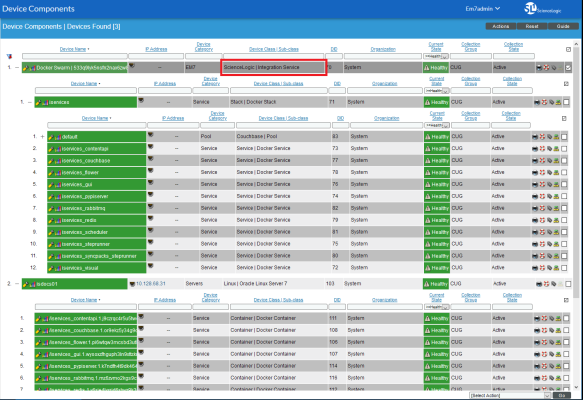
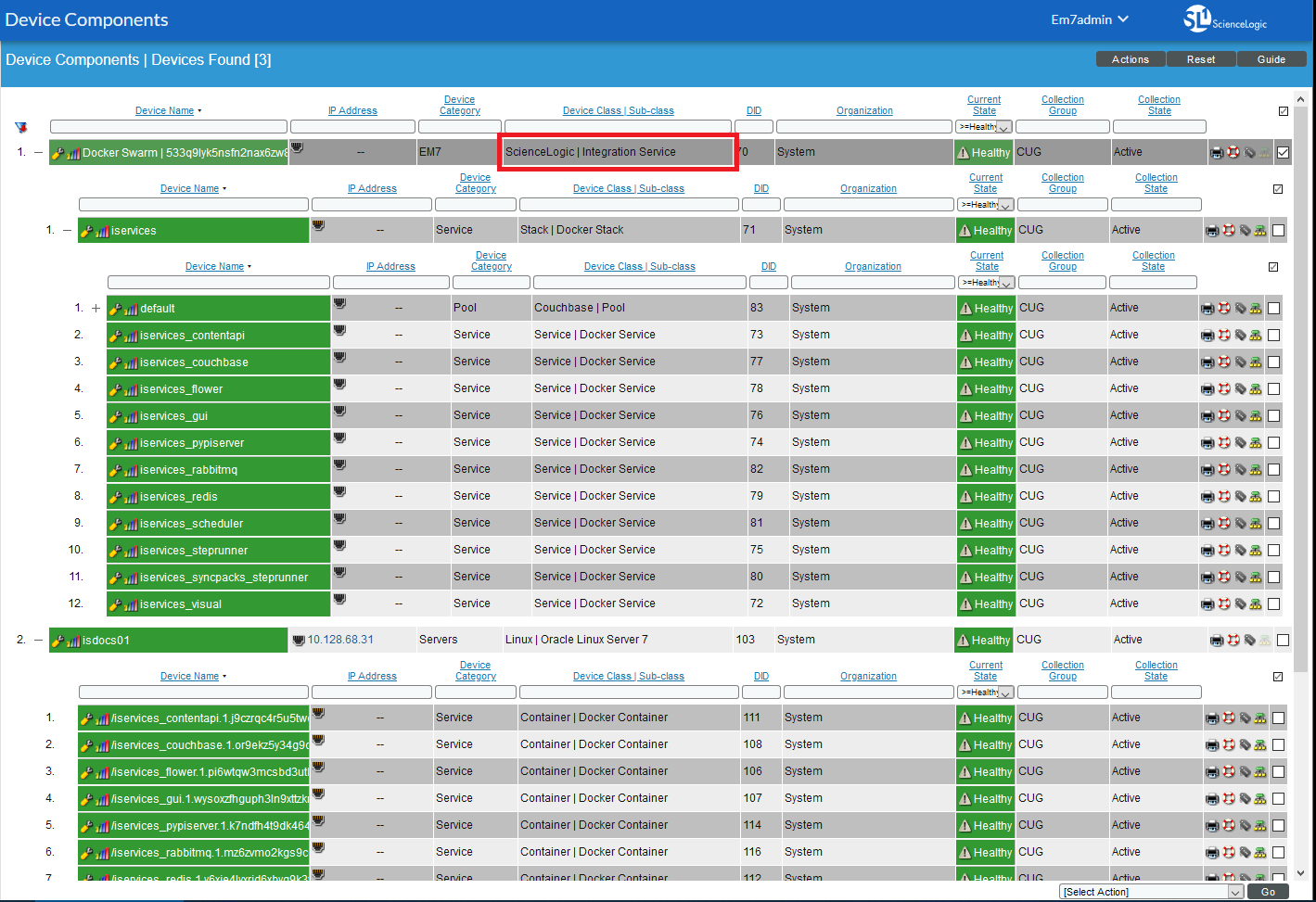
If the Docker Swarm root device is modeled with a different device class, go to the Devices page and select the Docker Swarm root device. Click the button on the Device Investigator page , click the Info drop-down, and edit the Device Class field. From the Select a Device Class window, select ScienceLogic PowerFlow as the Device Class and click . Click on the Device Investigator page to save your changes.
-
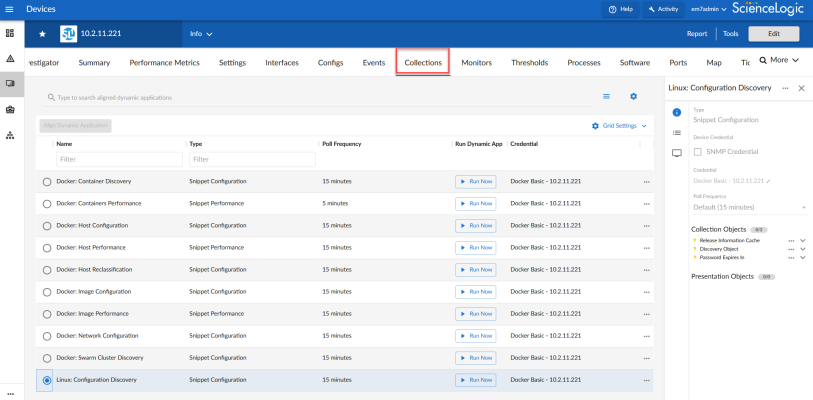
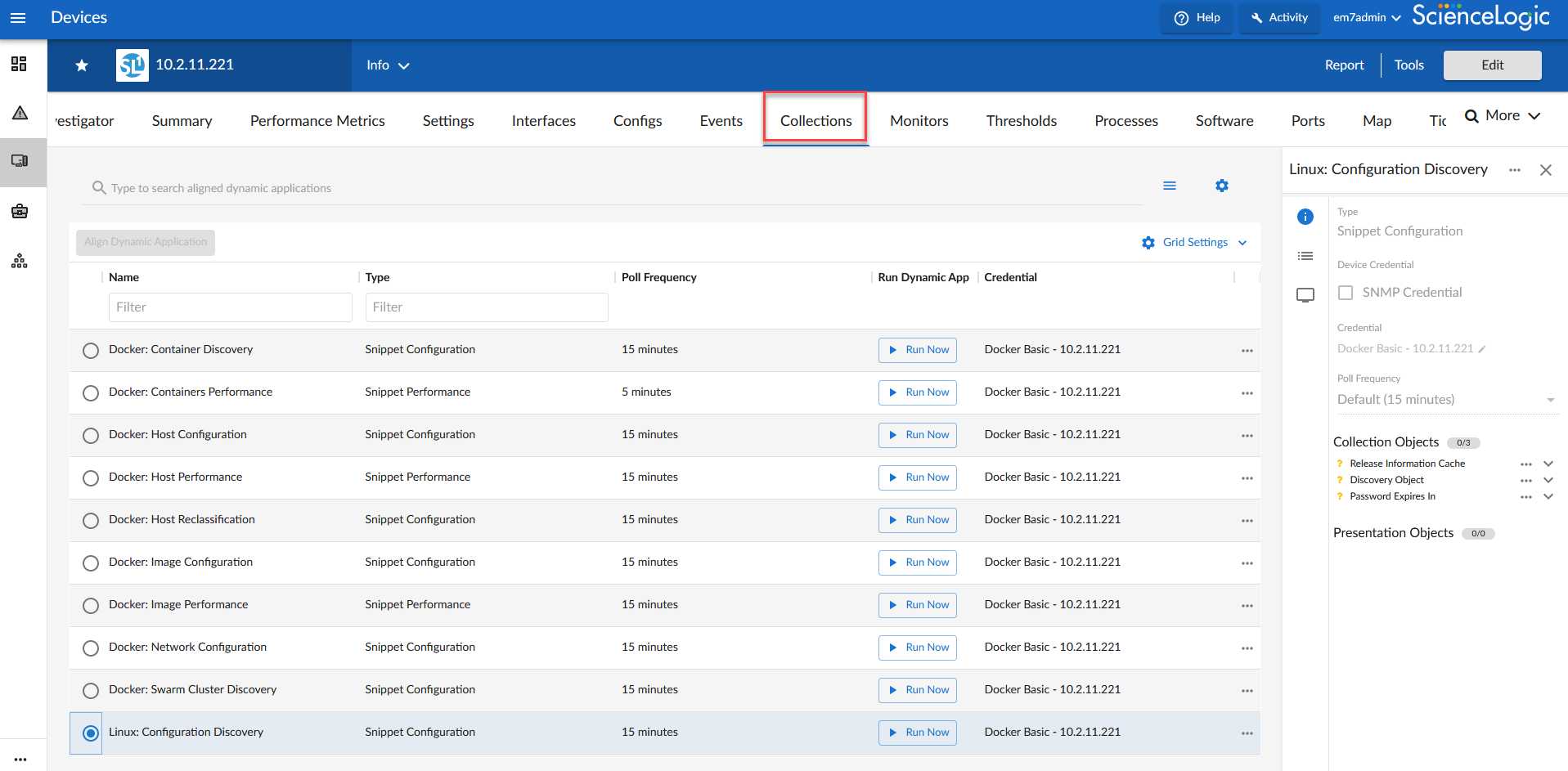
Go to the tab of the Device Investigator page for the new device and make sure that all of the Docker and Linux Dynamic Applications have automatically aligned. This process usually takes a few minutes. A group of Docker and Linux Dynamic Applications should now appear on the tab:
-
To view your newly discovered device components, navigate to the Device Components page (Devices > Device Components). If you do not see your newly discovered Docker Host, wait for the dynamic applications on the Docker host to finish modeling out its component devices. A Docker Swarm virtual root device will also be discovered. After discovery finishes, you should see the following devices representing your Skylar Automation system on the Device Components page (Devices > Device Components):
At times, the advertised host IP for a Docker node might display as "0.0.0.0" instead of the actual external address. This is a known issue in Docker. To work around this issue, remove and rejoin the nodes of the swarm one by one, and use the following argument to add them: --advertise-addr <ip-to-show>. For example, docker swarm join --advertise-addr .... Do not remove a leader node unless there are at least two active leaders available to take its place.
Configuring the ScienceLogic: Skylar Automation PowerPack
The "ScienceLogic: Skylar Automation" PowerPack monitors the status of the applications in your Skylar Automation system. Based on the events generated by this PowerPack, you can diagnose why applications failed in Skylar Automation.
The "ScienceLogic: Skylar Automation" PowerPack is the main PowerPack that you can use to monitor the critical health of a Skylar Automation system.
To configure Skylar One to monitor Skylar Automation, you must first create a SOAP/XML credential. This credential allows the Dynamic Applications in the "ScienceLogic: Skylar Automation" PowerPack to communicate with Skylar Automation.
In addition, before you can run the Dynamic Applications in the "ScienceLogic: Skylar Automation" PowerPack, you must manually align the Dynamic Applications from this PowerPack to your Skylar Automation device in Skylar One. These steps are covered in detail below.
Configuring the PowerPack
To configure the Skylar Automation PowerPack:
- In Skylar One, make sure that you have already installed the "Linux Base Pack" PowerPack, the "Docker" PowerPack, and the "ScienceLogic: Skylar Automation" PowerPack on your Skylar One system.
- In Skylar One, navigate to the Credentials page (Manage > Credentials or System > Manage > Credentials in the classic user interface) and select the "ScienceLogic: Skylar Automation Example" SOAP/XML credential. The Edit Credential page appears.
- Complete the following fields, and keep the other fields at their default settings:
- Name. Type a new name for the credential.
- URL. Type the URL for your Skylar Automation system.
- HTTP Auth User. Type the Skylar Automation administrator username.
- HTTP Auth Password. Type the Skylar Automation administrator password
If you upgrade the PowerPack to version 107 or later, be sure to remove the "False" value in the Embed Value [%1] field. If this field has the "False" value populated, it will trigger a Snippet Framework error.
- Click the button. You will use this new credential to manually align the following Dynamic Applications:
- ScienceLogic: Skylar Automation Queue Configuration
- ScienceLogic: Skylar Automation Workers Configuration
- Go to the Devices page, select the device representing your Skylar Automation server, and click the tab.
- Click , click , and select Choose Dynamic Application. The Choose Dynamic Application window appears.
- In the Search field, type the name of the first of the Skylar Automation Dynamic Applications. Select the Dynamic Application and click .
- Select Choose Dynamic Application. The Choose Credential window appears.
- In the Search field, type the name of the credential you created in steps 2-4, select the new credential, and click . The Align Dynamic Application window appears.
- Click . The Dynamic Application is added to the tab.
- Repeat steps 6-10 for each remaining Dynamic Application for this PowerPack, and click when you are done aligning Dynamic Applications.
Events Generated by the PowerPack
After you align the "ScienceLogic: Skylar Automation Queue Configuration" Dynamic Application in Skylar One, that Dynamic Application will generate a Major event in Skylar One if an application fails in Skylar Automation.
The related event policy includes the name of the application, the Task ID, and the traceback of the failure. You can use the application name to identify the application that failed in Skylar Automation. You can use the Task ID to determine the exact execution of the application that failed, which you can then use for debugging purposes.
To view more information about the execution of an application in Skylar Automation, navigate to the relevant page in Skylar Automation by formatting the URL in the following manner:
https://<Skylar Automation_hostname>/integrations/<application_name>?runid=<task_id>
For example:
https://192.0.2.0/integrations/sync_credentials?runid=c7e157ae-5644-4161-a241-59516feeadec
For additional monitoring options, see Configuring Monitoring for Skylar Automation in the Skylar One Product Documentation.
Stability of the Skylar Automation Platform
This topic defines what a healthy Skylar One system and a healthy Skylar Automation system look like, based on the following settings, metrics, and situations.
What makes up a healthy Skylar One system?
To ensure the stability of your Skylar One system, review the following settings in your Skylar One environment:
- The Skylar One system has been patched to a version that has been released by ScienceLogic within the last 12 months. ScienceLogic issues a software update at least quarterly. It is important for the security and stability of the system that customers regularly consume these software updates.
- The user interface and API response times for standard requests are within five seconds:
- Response time for a specific user interface request.
- Response time for a specific API request.
- At least 20% of local storage is free and available for new data. Free space is a combination of unused available space within InnoDB datafiles and filesystem area into which those files can grow
- The central system is keeping up with all collection processing:
- Performance data stored and available centrally within three minutes of collection
- Event data stored and available centrally within 30 seconds of collection
- Run book automations are completing normally
- Collection is completing normally. Collection tasks are completing without early termination (sigterm).
- All periodic maintenance tasks are completing successfully:
- Successfully completing daily maintenance (pruning) on schedule
- Successfully completing backup on schedule
- High Availability and Disaster Recovery are synchronized (where used):
- Replication synchronized (except when halted / recovering from DR backup).
- Configuration matches between nodes.
What makes up a healthy Skylar Automation system?
To ensure the stability of the Skylar Automation system, review the following settings in your environment:
- The settings from the previous list are being met in your Skylar One system.
- You are running a supported version of Skylar Automation.
- The memory and CPU percentage of the host remains less than 80% on core nodes.
- Task workloads can be accepted by the API and placed onto the queues for execution.
- The Skylar Automation API is responding to POST calls to run applications within the default timeout of 30 seconds. For standard applications triggers, this is usually sub-second.
- The Skylar Automation Scheduler is configured correctly. For example, there are no tasks accidentally set to run every minute or every second.
- Task workloads are actively being pulled from queues for execution by workers. Workers are actively processing tasks, and not just leaving items in queue.
- Worker nodes are all up and available to process tasks.
- Couchbase does not frequently read documents from disk. You can check this value with the “Disk Fetches per second” metric in the Couchbase user interface.
- The Couchbase Memory Data service memory usage is not using all allocated memory, forcing data writes to disk. You can check this value with the "Data service memory allocation" metric in the main Couchbase dashboard.
- Container services are not restarting.
- The RabbitMQ memory usage is not more than 2-3 GB per 10.000 messages in queues. The memory usage might be a little larger if you are running considerably larger tasks.
- RabbitMQ mirrors are synchronized.
- RabbitMQ is only mirroring the dedicated queues, not temporary or TTL queues.
- All Couchbase indexes are populated on all Couchbase nodes.
- The Couchbase nodes are fully rebalanced and distributed.
- The Docker Swarm cluster has at least three active managers in a High Availability cluster.
- For any Swarm node that is also a swarm manager, and that node is running Skylar Automation services :
- At least one CPU with 4 GB of memory is available on the host to actively manage the swarm cluster.
- Any Skylar Automation services running on this host are not able to consume all of the available resources, causing cluster operations to fail.
Some of the following Skylar Automation settings might vary, based on your configuration:
- The number of applications sitting in queue is manageable. A large number of applications sitting in queue could indicate either a large spike in workload, or no workers are processing.
- The number of failed tasks is manageable. A large number of failed tasks could be caused by ServiceNow timeouts, expected failure conditions, and other situations.
- ServiceNow is not overloaded with custom table transformations that cause long delays when Skylar Automation is communicating with ServiceNow.