
This
Workflow for Configuring Skylar One andSkylar Automation
The following workflows describe how to configure Skylar One and Skylar Automation to work with the "Skylar Compliance" SyncPack:
Configuring Skylar One
- Create an SSH credential for discovering devices
- Align the "Restorepoint Connectivity" Dynamic Application with the Skylar One devices you want to add to Skylar Compliance
- Align the "Restorepoint Second Password" Dynamic Application with the Skylar One devices you want to add to Skylar Compliance
Configuring Skylar Automation
- Obtain the API Token in Skylar Compliance
- Use the "Skylar Compliance Base Config" file to create a configuration object
- Configure the "Skylar Compliance: Sync Devices" application
- Configure the "Skylar Compliance: Get the List of Logs from Skylar Compliance" application
- Configure the "Skylar Compliance: Get list of credentials from Skylar One" application
- Configure the "Skylar Compliance: Gather Compliance Logs from Skylar Compliance" application
- Schedule Skylar Automation applications
Configuring Skylar One
The following topics cover how to set up your Skylar One instance to work with the "Skylar Compliance" SyncPack.
Creating an SSH Credential for Discovering Devices
In Skylar One, you will need to create an SSH credential for the devices that you want to discover and add to Skylar Compliance. You will then need to use this credential to manually align the "Restorepoint Connectivity" Dynamic Application, which is used when you discover a device and add it to Skylar Compliance.
If needed, create a new organization in Skylar One for the device you want to discover. For more information, see Creating and Editing Organizations.
To create an SSH/Key credential:
- Go to the Credentials page (Manage > Credentials or System > Manage > Credentials in the classic user interface).
- Click the button and then select Create SSH/Key Credential. The Edit Credential modal page appears.
- Complete the following fields:
- Name. Name of the credential. Can be any combination of alphanumeric characters.
- All Organizations. Toggle on (blue) to align the credential to all organizations, or toggle off (gray) and then select one or more specific organizations from the What organization manages this service? field to align the credential with those specific organizations.
- Timeout (ms). Time, in milliseconds, after which Skylar One will stop trying to communicate with the device from which you want to retrieve data. The default is 1500.
- Hostname/IP. Hostname or IP address of the device you want to discover.
- You can include the variable %D in this field. Skylar One will replace the variable with the IP address of the current device (device that is currently using the credential).
- You can include the variable %N in this field. Skylar One will replace the variable with hostname of the current device (device that is currently using the credential). If Skylar One cannot determine the hostname, Skylar One will replace the variable with the primary, management IP address for the current device.
- Port. Port number associated with the data you want to retrieve. The default TCP port for SSH servers is 22. The protocol attribute of your device in Skylar Compliance is set based on the port specified in this credential. If the port is 23, the attribute is set to telnet/tftp. For all other ports, the attribute is set to ssh/tftp.
- Username. Username for an SSH or user account on the device to be monitored. Make sure that this user has the permissions necessary to query the credentials from Skylar One.
- Password. Password for an SSH or user account on the device to be monitored.
- Private Key (PEM Format). Leave this field blank.
- Click . You will use this new credential in the following procedure, when you align the "Restorepoint Connectivity" Dynamic Application with the Skylar One device.
The Skylar One account that is being used by Skylar Automation to authenticate into Skylar One must have the secondary organization membership set to "(All Organizations)" to enable Skylar Automation to pull device lists from all organizations. For more information, see Account Types.
Align the "Restorepoint Connectivity" Dynamic Application with Skylar One Devices
You will use your new credential to manually align the "Restorepoint Connectivity" Dynamic Application to one or more Skylar One devices so you can add (or "onboard") those devices to Skylar Compliance.
To align the "Restorepoint Connectivity" Dynamic Application:
- Go to the Devices page in Skylar One and select the device you want to add to Skylar Compliance. The Device Investigator page appears.
- On the s tab, click and then click . The Align Dynamic Application window appears.
- Click Choose Dynamic Application. The Choose Dynamic Application window appears.
- Search for the "Restorepoint Connectivity" Dynamic Application, select it, and click . The Dynamic Application now appears in the Align Dynamic Application window.
- Clear the checkbox next to Use Device SNMP Credential and click Choose Credential. The Choose Credential window appears.
- Select the credential for that device (from the previous procedure) and click . The name of the selected credential now appears in the Align Dynamic Application window.
- Click . When the Dynamic Application is successfully aligned, it is added to the Collections tab, and a confirmation message appears at the bottom of the tab.
- Repeat these steps for every device you want to add to Skylar Compliance.
The next time you discover a device in Skylar One and run the "Skylar Compliance: Sync Devices" application in Skylar Automation, any devices you discovered in Skylar One that are aligned with the "Restorepoint Connectivity" Dynamic Application get added to Skylar Compliance. Those devices are also part of the "Restorepoint Devices" Device Group.
Align the "Restorepoint Second Password" Dynamic Application with Skylar One Devices
To sync devices that have multiple sets of credentials with Skylar Compliance, you will need to align those devices to the "Restorepoint Second Password" Dynamic Application.
To align devices to the "Restorepoint Second Password" Dynamic Application:
- Go to the Devices page in Skylar One and select the device with multiple sets of credentials that you want to add to Skylar Compliance. The Device Investigator page appears.
- On the tab, click and then click . The Align Dynamic Application window appears.
- Click Choose Dynamic Application. The Choose Dynamic Application window appears.
- Search for the "Restorepoint Second Password" Dynamic Application, select it, and click . The Dynamic Application now appears in the Align Dynamic Application window.
- Clear the checkbox next to Use Device SNMP Credential and click Choose Credential. The Choose Credential window appears.
- Select the additional credential for that device and click . The name of the selected credential now appears in the Align Dynamic Application window.
- Click . When the Dynamic Application is successfully aligned, it is added to the Collections tab, and a confirmation message appears at the bottom of the tab.
- Repeat these steps for every device with multiple credentials you want to add to Skylar Compliance.
Enabling GUID Identifiers
If you want to use domain-level filtering and routing that allows multiple Skylar One instances to connect to a single Skylar Compliance instance, you must enable the GQL_FORCE_GUIDS feature toggle in the NextUI configuration. Enabling this feature ensures that GraphQL responses consistently return graphically unique identifier (GUID)-based identifiers, which are required for accurate organization and device mapping. To configure the feature toggle:
-
SSH into your Skylar One system and run the following command:
sudo vi /opt/em7/nextui/nextui.conf
-
Add the following line:
GQL_FORCE_GUIDS=enabled
-
Restart NextUI by running the following command:
sudo systemctl restart nextui
Configuring Skylar Automation
The following topics cover how to set up your Skylar Automation instance to work with the "Skylar Compliance" SyncPack.
Obtaining the API Token in Skylar Compliance
The following procedure is relevant for Skylar Compliance 5.4.0 and later.
API tokens that are created by a Skylar Compliance user will be aligned with the account that was used to create it. For instance, if you are logged into Skylar Compliance as an admin when you create the API token, that token will have administrator-level privileges, and any actions performed using the token will be logged under the administrator user. As an alternative, you can create a new user named something like "SL1_API", and then you can create the token while logged in as that user.
To obtain your API token for the restorepoint_api_token Configuration Data field:
- In Skylar Compliance, go to the Users page (Administration > Users) and click the API Tokens tab.
- Click Add Token and give the token a new description.
- Copy and paste the token into the restorepoint_api_token Configuration Data field for the Skylar Compliance configuration object.
Creating a Configuration Object in Skylar Automation
For this SyncPack, you can make a copy of the "Skylar Compliance Base Config" configuration object, which is the sample configuration file that was installed with the "Skylar Compliance" SyncPack.
The "Skylar Compliance Base Config" configuration object contains all of the required variables. Update the variables from that object to match your Skylar One and Skylar Compliance settings.
To create a configuration object based on the "Skylar Compliance Base Config" configuration object:
- In the Skylar Automation user interface, go to the Configurations page (
 ).
). -
Click the button (
 ) for the "Skylar Compliance Base Config" configuration object and select Edit. The Configuration pane appears.
- Click . The Create Configuration pane appears.
- Complete the following fields:
- Friendly Name. Name of the configuration object that will display on the Configurations page.
- Description. A brief description of the configuration object.
- Author. User or organization that created the configuration object.
- Version. Version of the configuration object.
- In the Configuration Data field, update the default variable definitions to match your Skylar Automation configuration:
- sl1_url. Type the URL for your associated Skylar One system.
- sl1_user. Type the username for your Skylar One system. Make sure this user has the permissions necessary to query the credentials from Skylar One.
- sl1_password. Type the password for your Skylar One system.
- sl1_db_host. Type the URL for your associated Skylar One database.
- sl1_db_user. Type the username for your Skylar One database.
- sl1_db_password.Type the password for your Skylar One database.
- restorepoint_url. Type the URL for your associated Skylar Compliance system.
- restorepoint_api_token. Type the API token for your Skylar Compliance system. See the Obtaining the API Token in Skylar Compliance section for steps on getting the token.
- default_restorepoint_device_type. Type the default device type for your Skylar Compliance system.
- default_backup_interval. Type the default time for the Backup Interval for your Skylar Compliance device. The value for the default_backup_interval field uses the following format: second minute hour * * * * @0@@0@0. The default value for version 2.1.0 is 0 15 * * * * *
- create_custom_link. Type a value to create an optional custom link from Skylar One to Skylar Compliance. If you are running Skylar One platform version 10.2.0 or later and have custom links enabled, you can set the value to 1 to automatically add the custom link definition for Skylar Compliance. The default value is False/0.
- restorepoint_ui_url. Type an optional user access URL that is different than the Skylar Compliance URL that is used to integrate with Skylar Automation.
- timestamp. The "Skylar Compliance: Get List of Credentials" application queries Skylar One for updated credentials and stores the last time that Skylar One was queried. Type a value that specifies the number of hours for the application to query Skylar One for updated credentials, if no previous timestamp is available (e.g. the first execution of the application). The application will update the credentials in Skylar Compliance that have been updated in Skylar One within the specified number of hours.
- default_monitoring_monitor_device. Type True or False to enable or disable device monitoring. The default value is True.
- default_monitoring_fail_after. Type how many failed attempts to onboard a device before Skylar Automation will stop attempting to discover the device.
- default_monitoring_is_ping_type. Type True or False to enable or disable ICMP ping rather than TCP connection. The default value is True.
- default_monitoring_email_when_down. Type True or False to enable or disable sending an email when the device is down. The default value is False.
- default_monitoring_email_when_up. Type True or False to enable or disable sending an email when the device is back up. The default value is True.
- region. Enter the unique value used to identify the exact combination of the Skylar Automation, Skylar Compliance, and Skylar One systems involved in the sync. The default value is <SAHost+SkylarComplianceHost+SkylarOneHost>.
-
The other optional values in the Configuration Data field require JSON code to edit their values. Click to show the JSON code.
-
In the Configuration Data field, be sure to include the required block of code to ensure that the applications aligned to this configuration object do not fail:
{
   "encrypted": false,
   "name": "<sl1_db_host>",
   "value": "${<IP address of Skylar One Host>}"
}
For example:
{
   "encrypted": false,
   "name": "sl1_db_host",
   "value": "10.2.11.42"
}
- To create a configuration variable, define the following keys:
- encrypted. Specifies whether the value will appear in plain text or encrypted in the JSON file. If you set this to "true", when the value is uploaded, Skylar Automation encrypts the value of the variable. The plain text value cannot be retrieved again by an end user. The encryption key is unique to each Skylar Automation system. The value is followed by a comma.
- name. Specifies the name of the configuration file, without the JSON suffix. This value appears in the user interface. The value is surrounded by double-quotes and followed by a comma.
- value. Specifies the value to assign to the variable. The value is surrounded by double-quotes and followed by a comma.
- Click . You can now align this configuration object with one or more applications.
Configuring the "Skylar Compliance: Create Domains & Mapping from Cache" Application
The "Skylar Compliance: Create Domains & Mapping from Cache" application compares and creates domains in the Skylar Compliance system and prepares data for mapping by the other applications in the SyncPack. It is used in conjunction with the "Fetch Skylar One Organizations" application introduced in version 1.0.0 of the "Skylar One" SyncPack, along with the other applications in this SyncPack to support domain-level filtering and routing that allows multiple Skylar One instances to connect to a single Skylar Compliance instance.
You must have run the "Fetch Skylar One Organizations" application from the "Skylar One" SyncPack for all Skylar One instances before running the "Skylar Compliance: Create Domains & Mapping from Cache" application, or you will not have organization data to use for creating the domains and mapping them. For more information on configuring and running the "Fetch Skylar One Organizations" application, see Configuring the Fetch Skylar One Organizations Sync for the Skylar OneSyncPack.
To run the "Skylar Compliance: Create Domains & Mapping from Cache" application:
- Go to the Applications page and select the "Skylar Compliance: Create Domains & Mapping from Cache" application.
- Click the button. The Configuration pane appears.
- In the Configuration drop-down, select the configuration object you created earlier.
- Update the remaining fields as needed, and then click .
- Click the button.
- When the application completes, open the Step Log and review the Outgoing Data to view the mapped domains created based on your organization data.
Configuring the "Skylar Compliance: Sync Devices" Application
The next time you discover a device in Skylar One and run the "Skylar Compliance: Sync Devices" application, any devices you discovered in Skylar One that are aligned with the “Restorepoint Connectivity" Dynamic Application are added to Skylar Compliance. Those devices are also part of the "Restorepoint Devices" device group.
If you include the SSH or Telnet credential you created earlier in a discovery session, the "Restorepoint Connectivity" Dynamic Application is automatically aligned. Optionally, you can manually align the Dynamic Application with your devices using the credential. Based on the Dynamic Application alignment, the device is also automatically included in a Restorepoint device group. For more information about discovering a device in Skylar One, see the Discovery and Credentials manual .
If you want to use domain-level filtering and routing that allows multiple Skylar One instances to connect to a single Skylar Compliance instance, the following must be true before you run the "Skylar Compliance: Sync Devices" application:
-
You have installed Skylar One AP2 version 8.18.43-81 (Jellybean) or later.
-
You have enabled the GQL_FORCE_GUIDS feature toggle. For more information, see Enabling GUID Identifiers.
-
You have installed version 1.0.0 or later of the "Skylar One" SyncPack and run the "Fetch Skylar One Organizations" application for all Skylar One i. For more information on configuring and running the "Fetch Skylar One Organizations" application, see Configuring the Fetch Skylar One Organizations Sync for the Skylar OneSyncPack.
-
You have run the "Skylar Compliance: Create Domains & Mapping from Cache" application. For more information, see Configuring the "Skylar Compliance: Create Domains & Mapping from Cache" Application.
To run the "Skylar Compliance: Sync Devices" application:
- Go to the Applications page and select the "Skylar Compliance: Sync Devices" application.
- Click the button. The Configuration pane appears.
- In the Configuration drop-down, select the configuration object you created earlier.
- In the restorepoint_config field, select Enable or Disable to allow device change detection. You should select the same value you entered in the selected configuration object.
- Toggle on (blue) the generate_report configuration option to enable a report to be generated when devices are successfully synced or not.
- Update the remaining fields as needed, and then click .
- Click the button. The following actions occur:
- If the Skylar One organization exists as a domain in Skylar Compliance, the device is added to that domain. Otherwise, a new domain is created in Skylar Compliance that maps to the Skylar One organization.
- If needed, a new credential is created in Skylar Compliance that maps to the new Skylar One credential.
- A new device is added in Skylar Compliance that maps to the new device in Skylar One :
- The device is associated with the appropriate domain and credential.
- The device is associated with an agent that maps to the Skylar One Data Collector monitoring that device, using a pre-defined mapping from the "Skylar Compliance Base Config" configuration object.
- The device is configured with a plugin that maps to the Skylar One Device Class for that device, using a pre-defined mapping from the "Skylar Compliance Base Config" configuration object.
When a device is synced between Skylar One and Skylar Compliance, you can click the button on the Device Investigator page in Skylar One for that synced device. Then you can click a custom "Skylar Compliance" link to navigate to the Device Details page for that device in Skylar Compliance. You can also view automation actions for an event on a synced device in Skylar One to view detailed logs about the event.
Configuring the "Skylar Compliance: Get the List of Logs from Skylar Compliance" Application
The "Skylar Compliance: Get the List of Logs from Skylar Compliance" application queries the Skylar Compliance API to collect backup success and failure logs from Skylar Compliance. These logs are also synced to Skylar One. You can use Skylar Automation to compare the logs to make sure the backups ran successfully in Skylar Compliance.
To run the "Skylar Compliance: Get the List of Logs from Skylar Compliance" application:
- Go to the Applications page and select the "Skylar Compliance: Get the List of Logs from Skylar Compliance" application.
- Click the button. The Configuration pane appears.
- In the Configuration field, select the configuration object you created earlier.
- In the restorepoint_config field, select Enable or Disable to allow device change detection. You should select the same value you entered in the selected configuration object.
- Update the remaining fields as needed, and then click .
- Click the button.
You should configure this application to run on a schedule, such as once a week or more if you frequently back up devices in Skylar Compliance. For more information, see Scheduling Skylar Automation Applications.
Configuring the "Skylar Compliance: Get list of credentials from Skylar One" Application
The "Skylar Compliance: Get list of credentials from Skylar One" application queries Skylar One for existing credentials and matches them against credentials in Skylar Compliance. If there is a change to the credential in Skylar One and the credential exists in Skylar Compliance, the credential is updated with the new information.
To run the "Skylar Compliance: Get list of credentials from Skylar One" application:
- Go to the Applications page and select the "Skylar Compliance: Get list of credentials from Skylar One" application.
- Click the button. The Configuration pane appears.
- In the Configuration field, select the configuration object you created earlier.
- Update the remaining fields as needed, and then click .
- Click the button.
You should configure this application to run on a schedule, such as once a week. For more information, see Scheduling Skylar Automation Applications.
Configuring the "Skylar Compliance: Gather Compliance Logs from Skylar Compliance" Application
The "Skylar Compliance: Gather Compliance Logs from Skylar Compliance" application checks for compliance logs from Skylar Compliance and syncs them to Skylar One to create events for the compliance alerts in Skylar One.
If you want to use domain-level filtering and routing that allows multiple Skylar One instances to connect to a single Skylar Compliance instance, the following must be true before you run the "Skylar Compliance: Gather Compliance Logs from Skylar Compliance" application:
-
The "Fetch Skylar One Organizations" application in the "Skylar One" SyncPack must have been run for all Skylar One instances.
-
The "Skylar Compliance: Create Domains & Mapping from Cache" application must have been run to populate the Skylar Compliance cache.
-
The "Skylar Compliance: Sync Devices" application must have been run to place devices in all mapped Skylar Compliance domains.
To run the "Skylar Compliance: Gather Compliance Logs from Skylar Compliance" application:
- Go to the Applications page and select the "Skylar Compliance: Gather Compliance Logs from Skylar Compliance" application.
- Click the button. The Configuration pane appears.
- In the Configuration field, select the configuration object you created earlier.
- Update the remaining fields as needed, and then click .
- Click the button.
You should configure this application to run on a schedule, such as once a week. For more information, see Scheduling Skylar Automation Applications.
Configuring the "Skylar Compliance: Pre Check" Application
To run the "Skylar Compliance: Pre Check" application:
- Go to the Applications page and select the "Skylar Compliance: Pre Check" application.
- Click the button. The Configuration pane appears.
- In the Configuration field, select the configuration object you created earlier.
- Update the remaining fields as needed, and then click .
- Click the button.
You should configure this application to run on a schedule, such as once a week. For more information, see Scheduling Skylar Automation Applications.
Configuring the "Skylar Compliance: Create or Update Custom Links" Application
The "Skylar Compliance: Create or Update Custom Links" Application" application allows you to create and update custom links within the Skylar One platform. It enables the addition of direct navigation links to Skylar Compliance-onboarded devices from Skylar One device pages, streamlining access and improving operational efficiency. By integrating these links, you can quickly transition from Skylar One to the corresponding Skylar Compliance device, enhancing workflow and reducing navigation time.
To run the "Skylar Compliance: Create or Update Custom Links" application:
-
Go to the Applications page and select the "Skylar Compliance: Create or Update Custom Links" application.
-
Click the button. The Configuration pane appears.
-
In the Configuration field, select the configuration object you created earlier.
-
Update the following fields as necessary:
-
update_existing_custom_link. Enabled by default (blue). When enabled, it updates the custom link if it already exists; otherwise, it creates a new one. You can disable this toggle when setting up a new system to ensure only new links are created.
-
-
Click the button.
-
Click the button.
You should configure this application to run on a schedule, such as once a week. For more information, see Scheduling Skylar Automation Applications.
Scheduling Skylar Automation Applications
You can create one or more schedules for a single application in the Skylar Automation user interface. When creating each schedule, you can specify the queue and the configuration file for that application.
To schedule an application:
-
On the Applications page (
 ), click the button for the application you want to schedule. The Scheduler window appears.
 - In the Schedule List pane, click the down arrow icon (
 ) next to an existing schedule to view the details for that schedule.
 -
In the Schedule Creator pane, complete the following fields for the default Frequency setting:
- Schedule Name. Type a name for the schedule.
- Frequency in seconds. Type the number of seconds per interval that you want to run the application.
- Custom Parameters. Type any JSON parameters you want to use for this schedule, such as information about a configuration file or mappings.
-
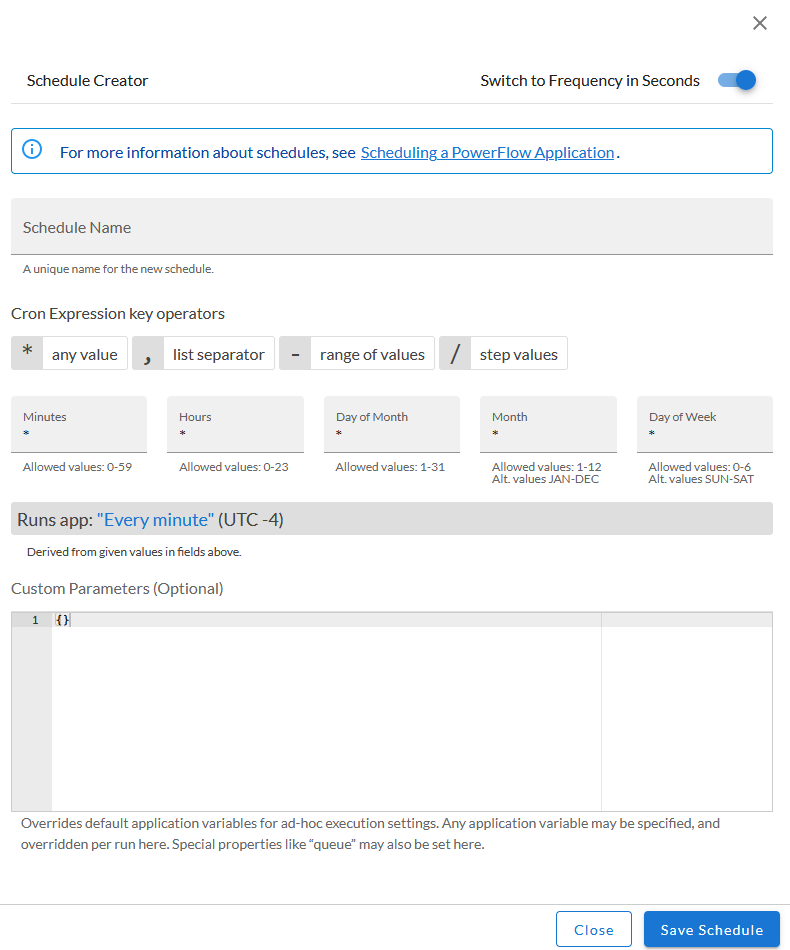
To use a cron expression, click the Switch to Cron Expression toggle to turn it blue. If you select this option, you can create complicated schedules based on minutes, hours, the day of the month, the month, and the day of the week:
As you update the cron expression, the Schedule window displays the results of the expression in more readable language, such as Runs app: "Every 0 and 30th minute past every hour on Sat", based on 0,30 in the Minutes field and 6 in the Day of Week field.
-
Click . The schedule is added to the Schedule List pane. Also, on the Applications page, the Schedule button now displays with a dark blue background:

After you create a schedule, it continues to run until you delete it. Also, you cannot edit an existing schedule, but you can delete it and create a similar schedule if needed.
To view or delete an existing schedule:
- On the Applications page, click the button for the application that contains a schedule you want to delete. The Scheduler window appears.
- Click the down arrow icon () to view the details of an existing schedule.
- To delete the selected schedule, click the Actions icon () and select .
On the Scheduler window for a Skylar Automation application, you can click the button from the Schedule List pane to make a copy of an existing schedule.
Troubleshooting the Skylar Compliance SyncPack
The following sections describe resolutions to some issues you might encounter when using the Skylar Compliance SyncPack.
Scaling Issues with the Grouping Device Count Configuration Option
The grouping_device_count configuration option in the "Skylar Compliance: Sync Devices" application allows you to define the number of devices to be onboarded per batch. By default, 500 devices will be onboarded per batch. Increasing the value in this field allows you to onboard a larger number of devices, but increases the load on Skylar Compliance due to the number of API requests. This can result in a read timeout error. To accommodate for the increased load, you can either lower the grouping_device_count value to decrease the number of devices in a batch, or increase the value in the read_timeout configuration option from the default of "30" to allow more time for Skylar Compliance to process the requests.
Sync Failures Due to Dynamic Application Configuration Options
If you experience issues with the "Skylar Compliance: Sync Devices" application, check that the globally unique identifier of the DA_Restorepoint_Connectivity configuration option matches the globally unique identifier (GUID) of the "Restorepoint Connectivity" Dynamic Application in Skylar One. If you have devices that use a second password, check to be sure that the globally unique identifier of the DA_Restorepoint_Second_Password configuration option matches the GUID of the "Restorepoint Second Password" Dynamic Application in Skylar One. If these configuration options have the incorrect GUID (or no value at all), you will experience errors when running the application.
Troubleshooting Device Sync Errors
If you receive an error that no new device was found to sync with the Skylar Compliance server, check the following:
-
If you toggled on (blue) the generate_report configuration option on the "Skylar Compliance: Sync Devices" application, you can view a report of the failed sync, including what step failed, device details, and more. To view the report, go to the Reports page (
 ), locate the "Skylar Compliance: Sync Devices" application, and look for the report that generated from the failed sync.
-
Check to be sure you have added a credential to the device you want to sync. If you do not, you will see the device listed in the log of the "Get 'Dynamic Applications' aligned with Skylar One devices" application as a warning that the device does not contain a credential.
-
Check to be sure that the credential associated with the device is an SSH credential. Otherwise you will see an error that the device is not attached to an SSH credential.
-
Check to be sure that the "Skylar Compliance Connectivity" Dynamic Application is aligned to the device. If it is not, the device will not be added to the "Skylar Compliance Devices" group and you will see an error that no devices are found in Skylar One to sync to Skylar Compliance.