
Skylar Compliance (formerly Restorepoint) is a Disaster Recovery and Secure Configuration Management appliance for network devices such as routers, switches, proxies, and firewalls. Skylar Compliance can automatically retrieve your network device configurations, detect changes and compliance violations, and report these automatically to network administrators.
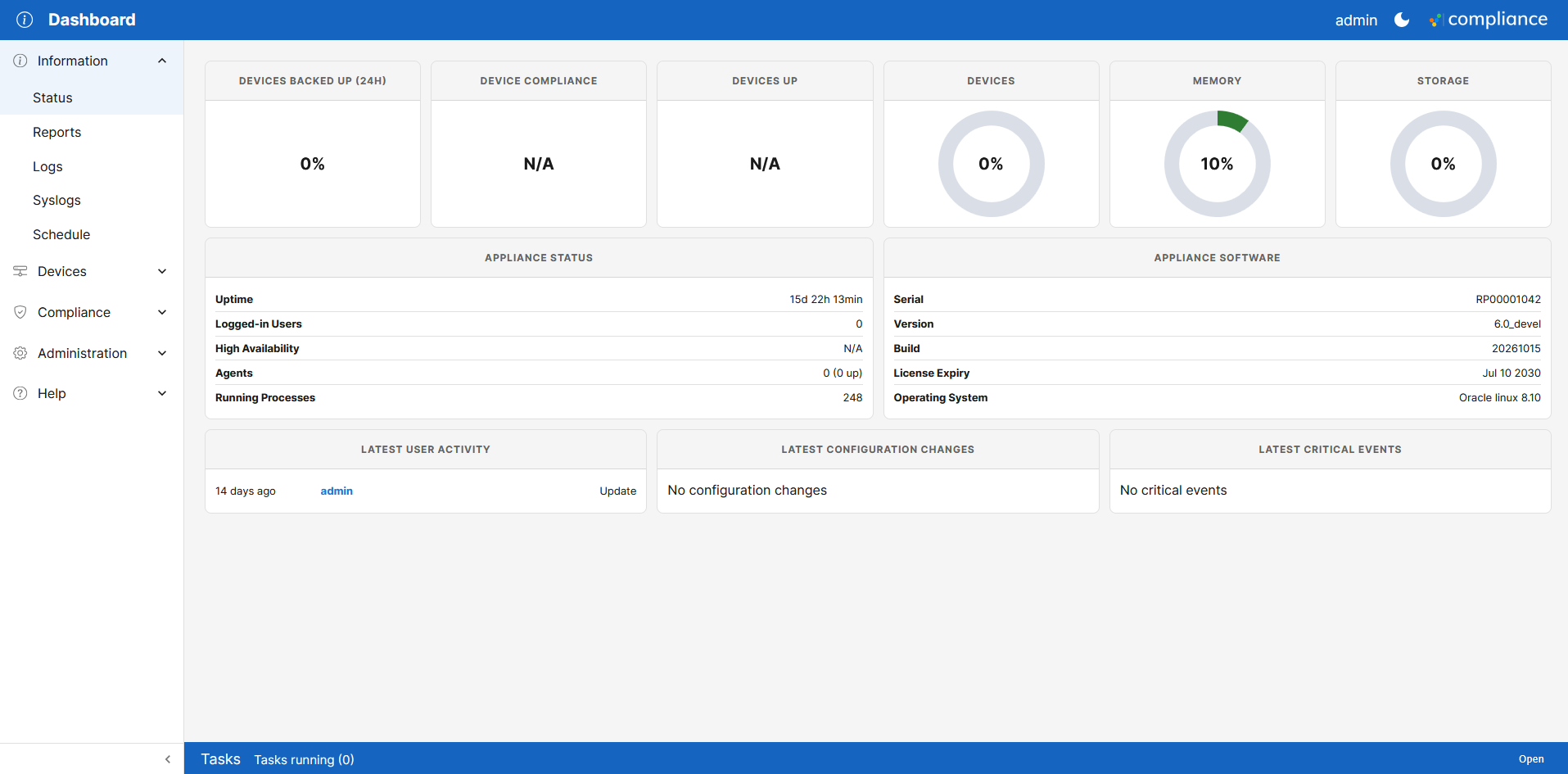
Skylar Compliance offers you the ability to add, configure, monitor, and control devices. You can perform these actions through a simple user interface that gives you access to all your devices, stored backups, user configurations, and activity logs. You can also set the backup frequency for each device individually or as a group.
When your device configurations are stored on Skylar Compliance, you can restore network devices when needed. Your devices are secure as all backups, device configurations, and passwords are encrypted and cannot be accessed by an unauthorized user.
What's New in Version 6.0
The 6.0 release of Skylar Compliance contains the following main features:
-
Added the Rule Library (Compliance > Device Policies > Rule Library tab), a central repository for creating and managing reusable compliance rules that exist independently of any single policy. Administrators can now link these library rules into multiple policies as live instances, ensuring that updates to a base rule automatically propagate across all referencing policies while still allowing for specific field overrides at the policy level. For more details, see Device Policies (Policy Library and Rules Library).
-
Added a set of quality-of-life enhancements to the Skylar Compliance user interface, including clearer error messages, improved rule testing tools, and streamlined policy navigation. These updates also feature enhanced editors and metadata filters designed to reduce day-to-day friction for advanced users.
-
Added support for the deployment of packaged compliance rules and policies. This enhancement allows pre-built compliance checks, such as those based on configurations or firmware versions, to be pushed to customer appliances in a manner similar to plugin updates, reducing the time and technical expertise required for users to establish compliance monitoring.
-
The v3 API replaces the v2 API. Any request to a v2 API is transparently rewritten to v3, but requests can error if the endpoint has received breaking changes.
-
This manual was completely reorganized for this release. Chapters were set up based on their location in the Skylar Compliance user interface.
For more information, see the Skylar Compliance Release Notes, version 6.0 Preview.
More Getting Started Information
To install Skylar Compliance, see Installing Skylar Compliance.
You can find a list of devices that are currently supported by Skylar Compliance in the Plugin Guide (Help > Plugin Guide) on the Skylar Compliance website and on the Plugins page.
Skylar Compliance also has its own RESTful API that allows you to trigger all of Skylar Compliance's operations automatically. For more information, see the Skylar Compliance API Documentation.
The Skylar Compliance User Interface
The Skylar Compliance user interface pages share some common features. These features include:
- A menu bar at the top of the page, for navigating between the different functions
- The username of the logged in user at the top right-hand side of the screen
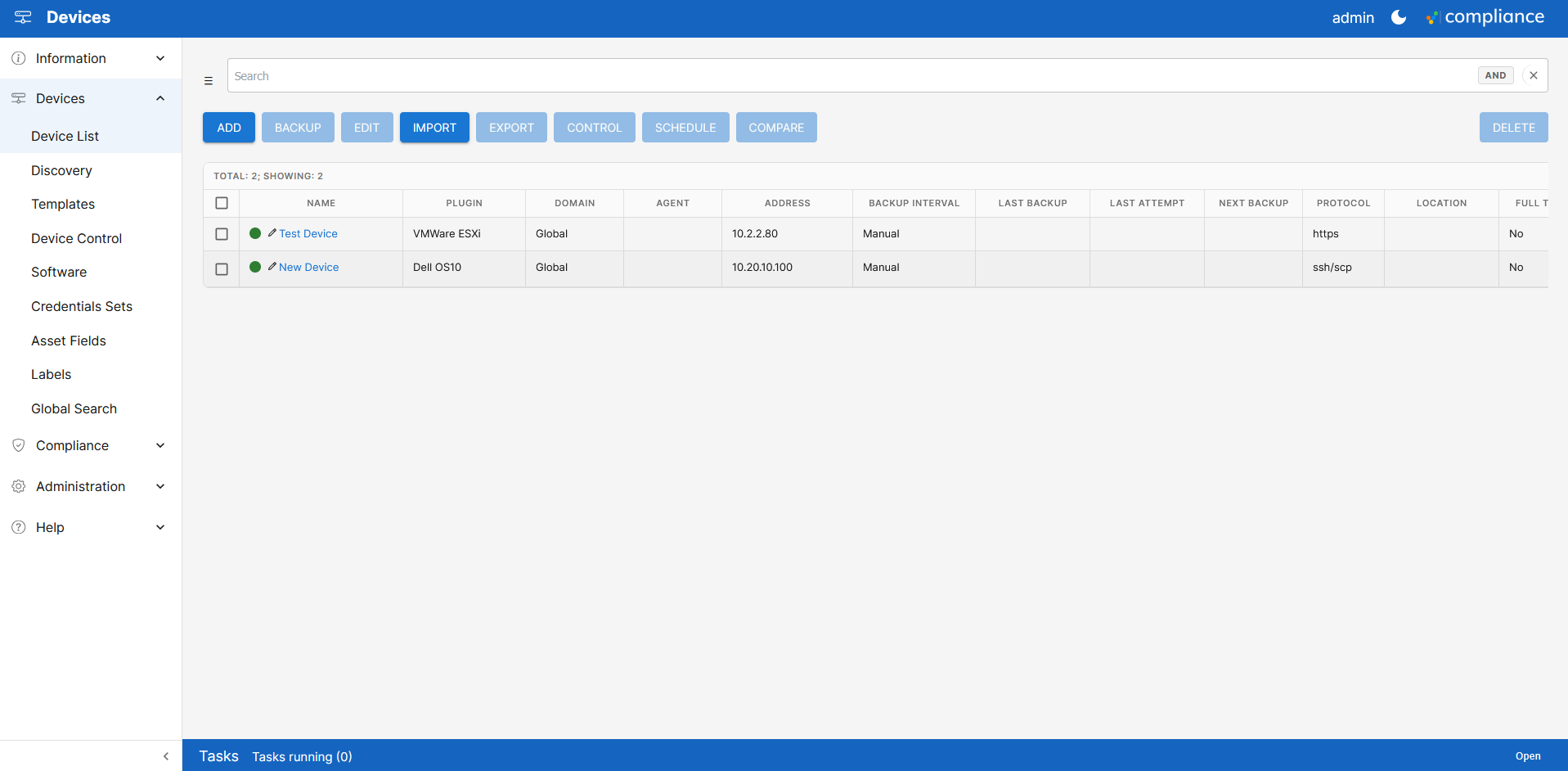
You can change column widths by clicking and dragging the heading separators. You can change the sorting criterion by clicking on a column heading. You can also perform a full text search by typing in the Search field.
Editing Views
In addition to the built-in views, every data table in Skylar Compliance can have multiple customized views. You can access these by clicking on the menu icon ( ) at the top left of a table. You can use this icon to reorder columns by clicking the up/down arrows and selecting the checkbox to show/hide columns.
You can define a name and save column orders, widths, and display settings using the button. You can delete saved views using the button.
Views stored in your browser’s local storage are only available on the browser and workstation where they were set. If you clear your browser storage, you will clear any saved views.
My Account
You can hover over the username on the top of the user interface and two options appear. A Logout option that features a clock that shows how many minutes until a user is automatically logged out, and the My Account option that allows you to edit the following user settings:
- Full Name
- New Password
- Encryption Password
- Recovery Question
- Recovery Answer
To change a password, you need to specify the Old Password.
For more information on the My Account options, see Adding a new user.
Tasks Pane
The Tasks pane displays a list of activities that are currently running. This list is displayed on every page while tasks are in progress:

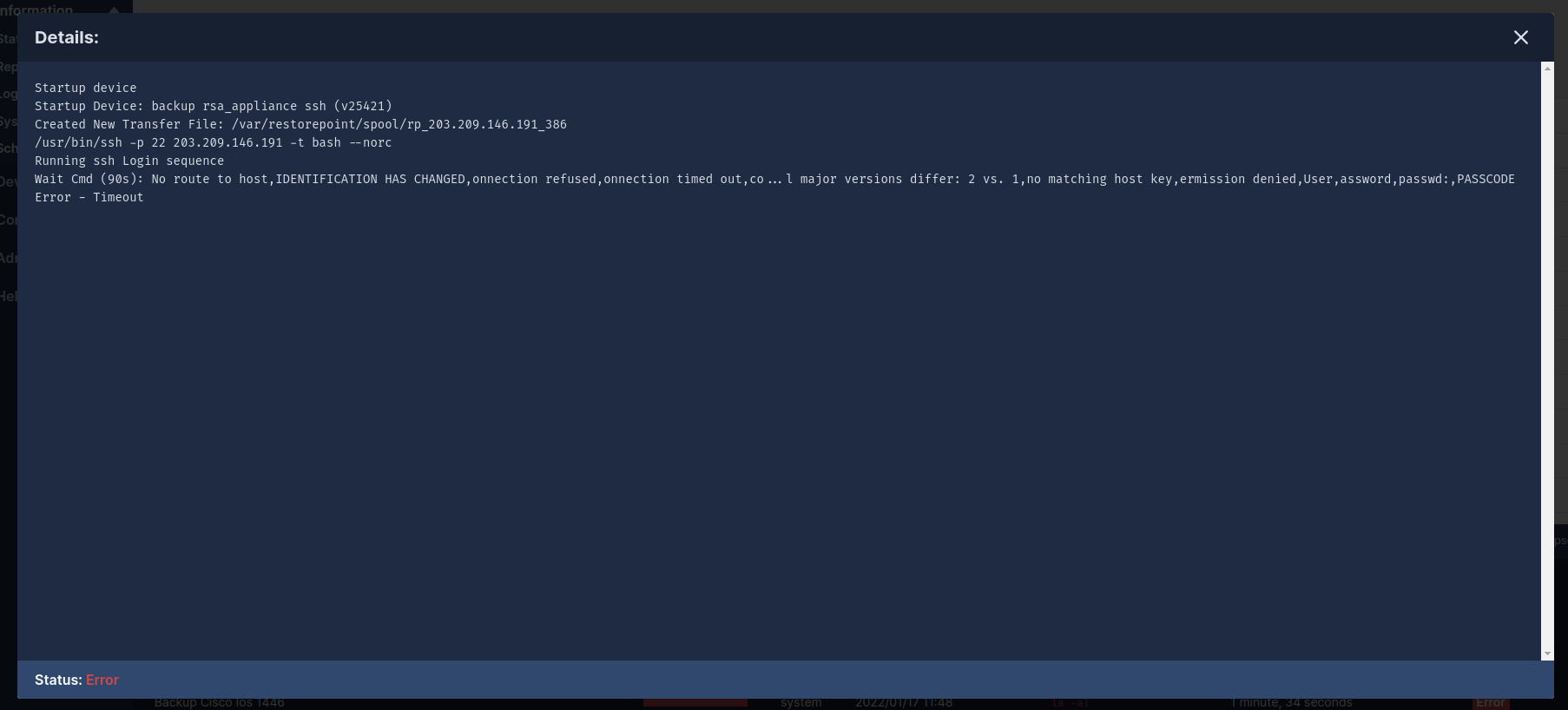
You can click on the magnifying glass icon to show the Progress Log, which displays real-time information about the running task:
Working with Skylar Compliance
You can use the Skylar Compliance user interface to add, configure, monitor, and control your devices. This section covers how you can get started with Skylar Compliance.
If you are an administrator, you can find more information about installing Skylar Compliance and connecting to Skylar Compliance for the first time inInstalling Skylar Compliance.
-
To manually add the devices you want to configure and monitor with Skylar Compliance, see Adding Devices to Skylar Compliance.
-
The Skylar Compliance device discovery engine uses a variety of methods to discover hosts on your network that can be imported to the main device list. You can also be notified by email of new devices that are installed on your network. For more information, see Device Discovery.
-
You can run manual backups or schedule automatic device backups. For more information, see Running Backups.
-
To create configuration compliance policies and assign the policies to devices, see Device Policies.
-
For additional features and processes, see the chapter in this manual that has the tab name and chapter name as the page in Skylar Compliance, such as System Settings for the System Settings page on the tab in the left-hand navigation.