
This
Custom Attributes
Custom attributes are name-value pairs. You can use custom attributes to add custom descriptive fields to assets, devices, interfaces, services, themes, and vendors. In Skylar One, you can create and update custom attributes with the API, in configuration Dynamic Applications, and on the Custom Attribute Manager page. You can use custom attributes to define device groups dynamically. You can also view custom attributes in the Custom Table widget.
There are two categories of custom attributes:
- Base Custom Attributes. These custom attributes are applied to each member of an element type. For example, a base attribute for devices would be applied to all devices.
- Extended Custom Attributes. These custom attributes are applied individually to one or more members of an element type. For example, you could apply the custom attribute cisco_ios_version only to those asset records for Cisco devices; you would not want to assign this custom attribute to all asset records.
Viewing the List of Custom Attributes
The Custom Attribute Manager page (Manage > Custom Attributes) displays a list of all the existing custom attributes created through the user interface.
You can use the Search field to find items in the list. You can do a basic search or an advanced search. For more information, see the topics Using Basic Search and Performing an Advanced Search.
The same information is available on the classic Custom Attribute Manager page (System > Manage > Custom Attributes).
For each custom attribute, the Custom Attribute Manager page displays the following information:
-
Display Name. Name for the custom attribute. This value appears in the user interface.
-
Internal Field Name (classic only). Name for the custom attribute that complies with XML naming rules. If the value in the Display Name field does not comply with XML rules, Skylar One converts the value to a name that complies with XML rules. The Internal Field Name is the unique ID of each Custom Attribute, and you cannot change it after you create the custom attribute.
Names for custom attributes must conform to XML naming standards. The attribute name can contain any combination of alphanumeric characters, a period, a dash, a combining character, or an extending character. If a value in the Display Name column does not conform to XML standards, Skylar One replaces invalid characters with an underscore, the hexadecimal value of the character, and another underscore. For example, "serial number" becomes "serial_X20_number".
- Value Type. Specifies the type of value that is saved in the custom attribute. Choices are:
- String. Non-numeric value
- Integer. Numeric value
- Attribute Type. Specifies the behavior of the custom attribute. Choices are:
- Base. A base custom attribute is automatically aligned to all members of the specified Resource Type. For example, a base custom attribute for devices would be aligned with each and every device in your Skylar One System.
- Extended. An extended custom attribute is manually assigned only to some members of the Resource Type and should not be assigned to all members of the Resource Type. For example, you could apply the custom attribute cisco_ios_version only to those asset records for Cisco devices; you would not want to assign this custom attribute to all asset records.
- Resource Type. Specifies the ScienceLogic element that uses the custom attribute. Choices are:
- Asset. The custom attribute is associated with one or more asset records.
- Device. The custom attribute is associated with one or more devices.
- Interface. The custom attribute is associated with one or more network interfaces.
- Service. The custom attribute is associated with one or more services.
- Theme. The custom attribute is associated with one or more user-interface themes.
- Vendor. The custom attribute is associated with one or more vendor records.
- Database Index. Specifies how the custom attribute is stored in the ScienceLogic database. Choices are:
-
None. Custom attribute is not indexed.
Extended custom attributes allow only the value None in this field.
- Unique. For base custom attributes, ensures that the value of each base custom attribute is unique within its Resource Type.
- Index. For base custom attributes, allows Skylar One to efficiently search for custom attributes in the ScienceLogic database.
-
Subscribers (classic user interface only). Specifies the Resource Type and number of subscribers. Possible values in this field include:
For base custom attributes, the value in the Subscribers column is always "- - " (dash dash).
-
 (Asset). Custom attribute is associated with one or more asset records. Click the icon to open the Custom Attribute Subscribers modal, where you can view details about each asset subscriber.
-
 (Device). Custom attribute is associated with one or more devices. Click the icon to open the Custom Attribute Subscribers modal, where you can view details about each device subscriber.
-
 (Interface). Custom attribute is associated with one or more network interfaces. Click the icon to open the Custom Attribute Subscribers modal, where you can view details about each interface subscriber.
-
 (Theme). Custom attribute is associated with one or more user-interface themes. Click the icon to open the Custom Attribute Subscribers modal, where you can view details about each theme subscriber.
-
 (Vendor). Custom attribute is associated with one or more vendor records. Click the icon to open the Custom Attribute Subscribers modal, where you can view details about each vendor subscriber.
- Subscriber Count (Skylar One user interface only). Lists the number of subscribers to this custom attribute.
Viewing the List of Subscribers for a Custom Attribute
To view a list of subscribers for a custom attribute:
- Go to the Custom Attribute Manager page (System > Manage > Custom Attributes).
- Click the icon in the Subscribers column.
- The Custom Attribute Subscribers modal appears.
- For (Asset), the Custom Attribute Subscribers modal displays the following for each subscriber:
- Make. Make of the asset.
- Model. Model of the asset.
- Device. If applicable, name of the device associated with the asset record.
- Asset Tag. Asset tag associated with the asset.
- Name of the custom attribute. The value assigned to the custom attribute for this subscriber.
- For (Device), the Custom Attribute Subscribers modal displays the following for each subscriber:
- DID. Device ID for the device. Skylar One automatically assigns this value to the device.
- Device Name. Name of the device.
- IP Address. If applicable, the IP address associated with the device.
- Name of the custom attribute. The value assigned to the custom attribute for this subscriber.
- For (Interface), the Custom Attribute Subscribers modal displays the following for each subscriber:
- Device Name. Name of the device associated with the interface.
- IF Name. Name of the interface.
- IF Port. Port number associated with the interface.
- Alias. Alias associated with the interface.
- Name of the custom attribute. The value assigned to the custom attribute for this subscriber.
- For (Theme), the Custom Attribute Subscribers modal displays the following for each subscriber:
- ID. Unique ID associated with the theme. Skylar One automatically assigns this value to the theme.
- Theme Name. Name of the theme.
- HTML Header/Title. HTML header associated with the theme.
- Name of the custom attribute. The value assigned to the custom attribute for this subscriber.
- For (Vendor), the Custom Attribute Subscribers modal displays the following for each subscriber:
- ID. Unique ID associated with the vendor. Skylar One automatically assigns this value to the vendor.
- Vendor Name. Name of the vendor.
- Name of the custom attribute. The value assigned to the custom attribute for this subscriber.
Creating Custom Attributes
You can create custom attributes on the Custom Attributes page (or on the Custom Attribute Manager page in the classic Skylar One user interface), with the ScienceLogic API, or by using a configuration Dynamic Application. The following rules apply to the creation of custom attributes:
- If you define a base custom attribute for devices on the Custom Attributes page (or on the Custom Attribute Manager page in the classic Skylar One user interface), that base custom attribute is aligned with each device in your system. The value of the base custom attribute is null until you assign a value for each device.
- If you define an extended custom attribute for devices on the Custom Attributes page (or on the Custom Attribute Manager page in the classic Skylar One user interface), that extended custom attribute is not aligned with any devices.
- You can use the Attributes page in the Device Administration panel to assign a value or edit the value for each custom attribute aligned with a device. For more information, see the section on Managing a Single Device with the Device Administration Panel.
- You can use configuration Dynamic Applications to create custom attributes and/or assign values to custom attributes for devices. For more information, see the section on Using a Dynamic Application to Create and/or Populate Custom Attributes.
- If you create a base custom attribute for asset records, network interfaces, themes, and vendor records, those custom attributes appear in the ScienceLogic API for the specified entity. Initially, the value of the base attribute is null. You cannot use the Skylar One user interface to assign a value to these base custom attributes. You must use the ScienceLogic API to assign values to these base custom attributes. For more information, see the section on Custom Attributes in the ScienceLogic API.
- If you create an extended custom attribute for asset records, network interfaces, themes, and vendor records, those custom attributes can be aligned and populated using the ScienceLogic API. You cannot use the Skylar One user interface to assign a value to these extended custom attributes. You must use the ScienceLogic API to assign values to these extended custom attributes. For more information, see the section on Custom Attributes in the ScienceLogic API.
- If you create a new "unique" custom attribute, you cannot assign the same value for that custom attribute to multiple devices. Each device must have a unique value for that custom attribute.
-
You can use an API call to remove the extended custom attribute from interfaces. For example:
curl -k -v -H 'X-em7-beautify-response:1' http://em7admin:<password>@10.2.15.81/api/device/1/interface/1 -H 'content-type:application/json' -d '{"c-apple_ext_test":null}'
In this example the custom attribute is called apple_ext_test, and you need to add c- at the start of the name in the API call to match how it is stored in the database. In the example above, the Device ID is 1, the Interface ID is also 1, and the Custom Attribute unique name or ID is c-apple_ext_test. This call sets the custom attribute to null, which unsubscribes the interface. In the command, replace <password> with your password.
To create a custom attribute from the Custom Attribute Manager page:
- Go to the Custom Attribute Manager page (System > Manage > Custom Attributes).
- In the bottom-most row, enter a value in each field.
- Click the Save icon (
 ).
Deleting One or More Custom Attributes
From the Custom Attribute Manager page, you can delete custom attributes from Skylar One. To delete one or more custom attributes:
- Go to the Custom Attribute Manager page (System > Manage > Custom Attributes).
- Select the checkbox for each custom attribute you want to delete.
- Click the Select Action field in the lower-right and select DELETE Custom Attributes.
- Click the button.
Skylar One does not delete an extended custom attribute that is aligned with one or more subscribers. If you try, Skylar One displays the error message: "Error: Some attributes have entities aligned. Unalign entity from attribute before deleting." This message appears to the right of the page title.
Adding Custom Attributes for a Device
To view detailed data about a specific device, click the device name on the Devices page ( ) to open the Device Investigator for that device.
On the tab of the Device Investigator, you can view a list of custom attributes that are already aligned with that device, and you can also add and remove extended custom attributes for the device.

Before you can add a custom attribute to a device, you might need to create that custom attribute on the Custom Attribute Manager page (Manage > Custom Attributes, or System > Manage > Custom Attributes in the classic Skylar One user interface).
To add and edit custom attributes for a device on the tab:
- On the tab for the device, click and then click . The Align Extended Attribute modal appears.
- Complete the following fields:
- Attributes. Select the name of the custom attribute.
- Attribute value. Specify a text or numeric value for the attribute, based on its value type.
If the custom attribute has a Database Index of Unique, each device must have a unique value for that custom attribute.
- Click . The custom attribute appears in the list on the tab.
- To edit an attribute in the list, click the actions icon (
 ) for that attribute and select Edit Attribute.
- To unalign an attribute, click the actions icon () for that attribute and select Unalign Attribute.
- After you add, edit, or unalign attributes, click .
After you save, your attribute changes appear in the More Attributes section of the Info drop-down menu.
Adding Custom Attributes for a Device in the Classic Skylar One User Interface
For information about how to add custom attributes for a device in the classic Skylar One user interface, see the section on Aligning Custom Attributes with a Device.
Custom Attributes in the ScienceLogic API
The ScienceLogic API lets you add custom attributes to the following resources:
- /asset
- /device
- The /interface sub-resource under /device resources
- /theme
- /vendor
When you define a custom attribute for a resource:
- For any instance of that resource (for example, a specific device), you can perform a POST operation specifying a value for that attribute for that instance.
- If you configure the attribute as a base attribute, the attribute appears in the list of fields for all instances of that resource. For example, if you define a custom attribute as a base attribute for the /device resource, the response to a GET request for any /device/device_id resource includes the custom attribute in the list of fields.
- If you configure the attribute as an extended attribute, the attribute appears in the list of fields for instances of that resource only if you specify a value for the attribute for that instance. For example, you define a custom attribute as an extended attribute for the /device resource. The response to a GET request on the /device resource index with the extended_fetch option enabled includes the custom attribute only for devices that have a value for that custom attribute.
- GET requests for the resource index can include filter and sort criteria that use that custom attribute.
When you define a value for a custom attribute by performing a POST request to a resource, the value is available through the API. You can use the value in dynamic rules for device groups and view it in the Custom Table widget.
Using the ScienceLogic API to View, Create, and Edit Custom Attributes
You can use the ScienceLogic API to view, edit, and create custom attributes. For more information, ask your ScienceLogic contact for access to the ScienceLogic API documentation.
Using a Dynamic Application to Create and/or Populate Custom Attributes
For more information on creating a Dynamic Application or creating collection objects, see
One of the ways you can create and/or populate a custom attribute for devices is through a Dynamic Application of type configuration.
In Dynamic Applications of archetype configuration, you can:
- Use a collection object to populate the value of an existing custom attribute.
- Use a pair of collection objects to create a custom attribute and provide a value for that custom attribute. You must define a collection object to name the custom attribute. This causes the Skylar One system to create a custom attribute with the name from the collection object. You must also define a second collection object to populate the value of the custom attribute.
For more information on creating and managing custom attributes,
For component devices, only assigned Collector Affinity is supported when you use a Dynamic Application to populate custom attributes. If you edit or remove a custom attribute value for a device that uses a different collector than its root device, the Dynamic Application cannot update the value on later polls unless the Dynamic Application uses assigned Collector Affinity. For more information, see the section on Collector Affinity.
On the Collection Objects page, you can use the following fields to define or populate a custom attribute with one or more collection objects:
- Align to Custom Attribute. Specify the custom attribute to associate with this collection object. The custom attribute will be populated with a value from a collection object. Choices are:
- None. This collection object is not associated with a custom attribute.
- Static. This collection object is associated with a specific custom attribute.
- Static Name. If you select Static in the Custom Attribute field, the Static Name field appears. In this field, specify the name of the custom attribute that you want to populate with the value of the collection object. You can select from a list of existing custom attributes.
- If the list does not include the custom attribute you want to align with the collection, click the plus-sign icon (
 ). The icon clears the field and allows you to manually enter a value.
- If you manually specify a custom attribute, Skylar One searches for a custom attribute with a matching name and sets its value from this collection object. If Skylar One does not find a custom attribute with a matching name, it creates an extended custom attribute for devices. The data type is integer for numeric values and string for all other values.
- Dynamic Name. You can use a pair of collection objects to populate the name and value of a custom attribute. You must define each collection object separately. When you select Dynamic Name in the Custom Attribute field, the name of the custom attribute is populated with the value of the collection object. If Skylar One does not find a custom attribute with a matching name, Skylar One creates the custom attribute. If Skylar One does not find a custom attribute with a matching name and therefore creates the custom attribute, the new custom attribute is an extended custom attribute for devices. The data type is integer (for numeric values) or string (for all other value types).
If you select Dynamic Name in the Custom Attribute field, you must create a second collection object that will populate the value of the custom attribute.
Names for custom attributes must conform to XML naming standards. The attribute name can contain any combination of alphanumeric characters, a period, a dash, a combining character or an extending character. If a collected value for an attribute name does not conform to XML standards, Skylar One replaces invalid characters with an underscore, the hexadecimal value of the character, and another underscore. For example, "serial number" becomes "serial_X20_number". The attribute label uses the original, non-converted value ("serial number").
- Dynamic Value. The value of the custom attribute selected in the Dynamic Name field is populated with the value of the collection object.
- Dynamic Name. If you selected Dynamic Value in the Custom Attribute field, the Dynamic Name field appears. Select from the list of collection objects that have a Custom Attribute value of Dynamic Name.
The collection object assigned to the Dynamic Value is added to the same Group as the collection object assigned to the associated Dynamic Name. If the collection object for Dynamic Name is not assigned to a Group, you will be prompted to select a Group for both the collection object for Dynamic Name and the collection object for Dynamic Value.
Each group can contain only one collection object that is assigned to a Dynamic Value and only one collection object that is assigned to a Dynamic Name. The group can contain other collection objects, but must not contain more than one collection object assigned to a Dynamic Value nor more than one collection object assigned to a Dynamic Name.
Using Custom Attributes to Define Device Groups
A device group is a set of devices that you manage together. You can use custom attributes to define membership in a device group. Only devices that have a specific value for a custom attribute are included in the device group.
You can add devices to a device group either explicitly or dynamically.
- You can create static device groups, where you explicitly assign one or more devices to a device group.
- You can create dynamic device groups, where you define rules for the device group. Each device that meets the criteria in the rule is automatically included in the device group. For example, suppose that you define a rule that specifies "include all devices in the System organization, with an IP address that starts with '10.100.100' ". Skylar One automatically assigns all devices from the System organization with an IP of "10.100.100.*" to the new device group. When a new device is added to the System organization with an IP that begins with "10.100.100.*", that device is also included in the device group. If a device with an IP that starts with "10.100.100" is removed from the System organization, that device is also removed from the device group.
- You can create a device group that includes both explicitly assigned devices and also includes a dynamic rule. This device group includes both the explicitly assigned devices and all devices that meet the criteria in the dynamic rule.
On the Device Group Rule Editor page, the Active Selectors field includes an entry for each custom attribute you have defined with the API or with a Dynamic Application. When you select a custom attribute, the Selector Definitions pane displays a field in which you can enter a string. Skylar One uses the string to search for devices that have a matching value for this custom attribute.
In the example above, you select the custom attribute Device:Color and specify the value red. Your device group includes only devices that have the value red assigned to the Device:Color custom attribute.
For more information on defining device groups and device group rules, see the
Viewing Custom Attributes in the Custom Table Widget
A dashboard is a page that displays one or more graphical reports, called widgets. Skylar One includes predefined widgets that you can customize and display on the Dashboards page. Each widget appears in its own pane and displays graphs, tables, or text.
To define a widget, select a predefined widget definition. Then enter values in the option fields to customize what the widget displays.
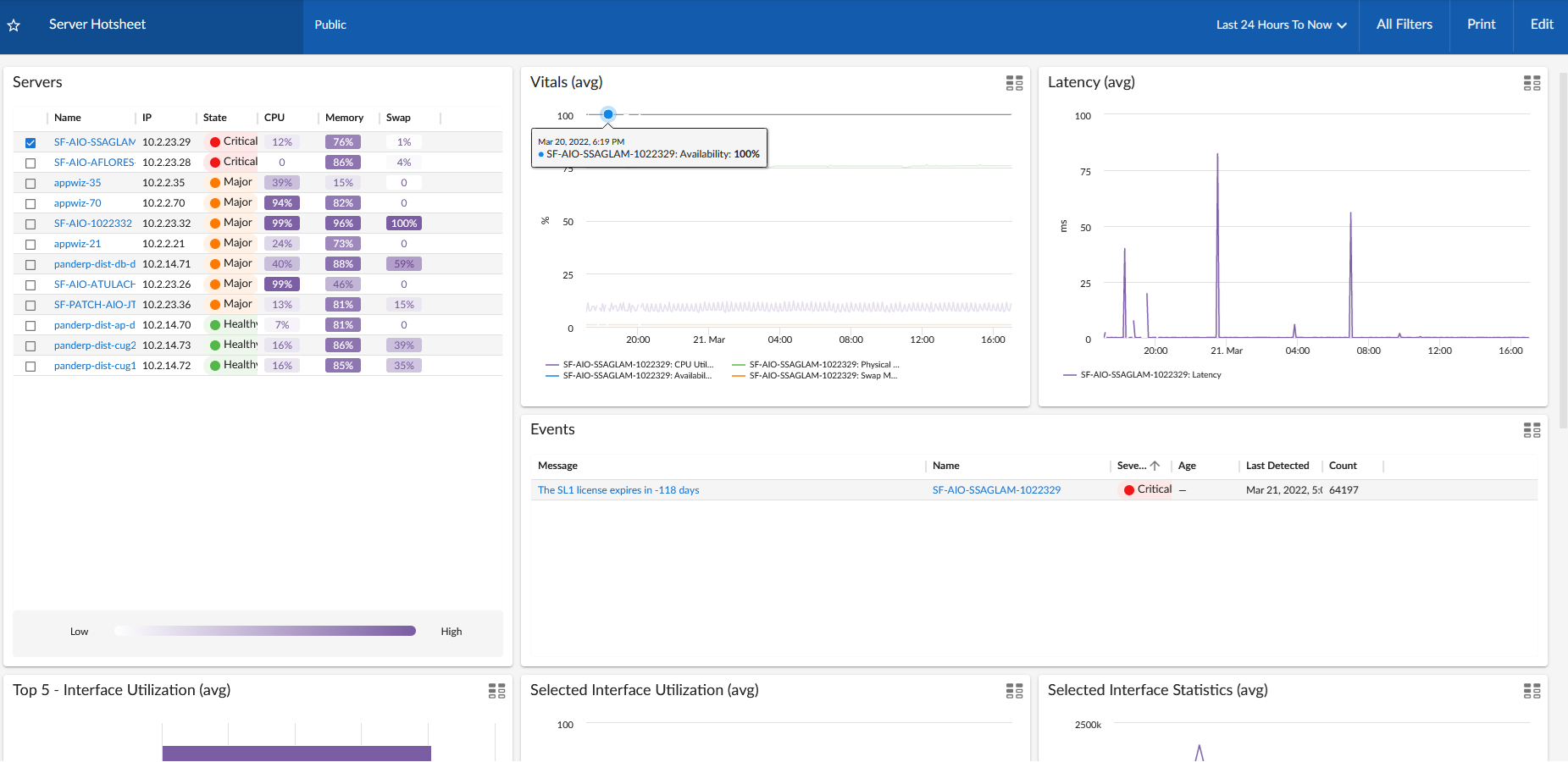
The Custom Table widget displays multiple instances of an entity in a table. The Custom Table widget can display a list of devices, device classes, device groups, or other entities.
The generated table displays information about each entity in the list. You can configure which information is included in the table in the Layout Editor pane during configuration.
The Layout Editor pane displays the columns that the widget displays.
In the example above, Color and Device Location are custom attributes for devices.
If you select Device, Asset, or Interface in the Entity Type field of the Custom Table widget, the Layout Editor pane includes columns for the custom attributes defined in your system for that entity type.
- By default, the columns for the custom attributes are excluded from the configuration.
- If an extended custom attribute is defined in your system but has not been assigned a value for any asset, device, or interface, it does not appear in the list of columns.
To add or remove custom attributes from the layout of the widget, use the following buttons:
- <|> To move a column, click the arrow characters at the top of the column and drag the column left or right. Double-click the arrow to move the column out of the display, past the black bar to the right. You can see all disabled columns to the right of the black bar. Double-click the arrow again to move the column back into the display.
For more information on configuring the Custom Table widget, see