
What is an Internal Collection Dynamic Application (ICDA)?
Skylar One has traditionally used SNMP and an internal process called "internal collection" to collect the following data for each device:
- Availability and latency
- System description, system uptime, and system local
- Filesystem inventory and performance
- Interface inventory and performance
However, you might need to monitor device data that is partially available through SNMP, or not available at all through SNMP.
For devices that do not support SNMP, Skylar One provides an additional method to collect this data called Internal Collection Dynamic Applications (ICDAs). ICDAs combine the efficiency of internal collection with the flexibility of dynamic applications, ensuring uniform data across Skylar One.
How Do ICDAs Work?
Internal Collection Dynamic Applications align to devices in the same way as other Dynamic Applications. If the ICDA includes a discovery object, the ICDA automatically aligns with devices during discovery. You can also manually align ICDAs to devices and include ICDAs in device templates.
When Skylar One begins an internal collection, it checks to see if any ICDAs are aligned. If ICDAs are aligned, Skylar One performs an "Extended Internal Collection". The platform combines data it collected using ICDAs with data it collected using an internal SNMP process, and then the platform completes the collection process.
The following illustration highlights the ICDA functionality in the collection process:
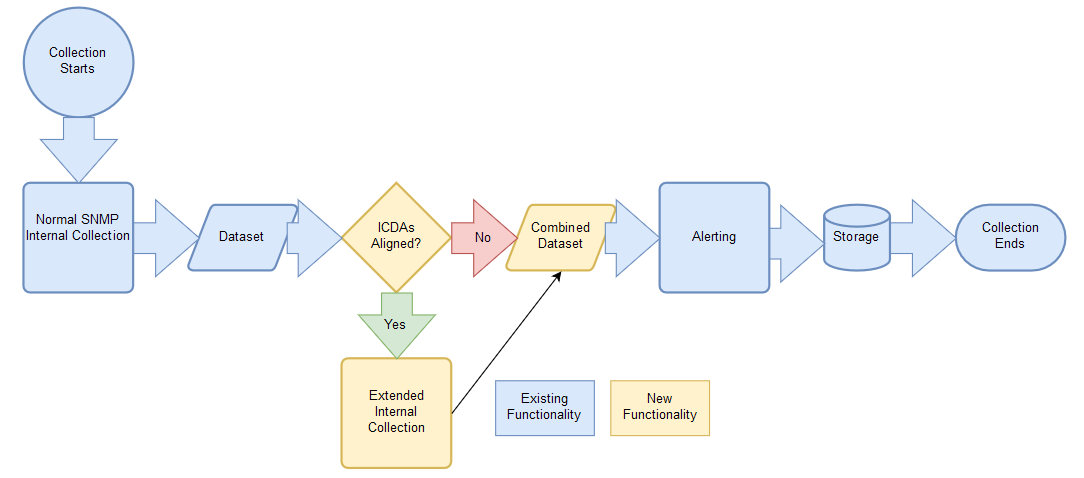
If Skylar One collects this data using the SNMP-based internal collection and also collects this data using ICDAs, the data from ICDAs takes precedence.
The ICDA data that Skylar One collects is stored in a database that is separate from the dynamic application database. ICDA results are stored where the corresponding internal collection would store its results.
ICDAs do not include presentation objects, thresholds, or alerts. Skylar One evaluates alerts and events in exactly the same way as for standard internal collection.
Types of ICDAs
There are two types of Internal Collection Dynamic Applications:
- Internal Collection Inventory. These ICDAs collect configuration data about filesystems, such as storage size, filesystem type, and storage used. These ICDAs also collect configuration data about interfaces, such as physical address, operational status, and IP addresses. In Skylar One, the available Data Models for this Application Type are Filesystem Inventory and Interface Inventory. Use these ICDAs to monitor inventory processes, like process_collect.py, which runs every 2 hours.
- Internal Collection Performance. Collects data about availability and latency, device information (system description, system uptime, system local), filesystem performance, and interface performance. In Skylar One, the available Data Models for this Application Type are Availability, Filesystem Performance, SNMP Detail (includes Uptime, Description, and Locale), and Interface Performance. Use these ICDAs to monitor performance collection processes, like process_check.py, which runs every 5 minutes.
The names for the ICDA Data Models follow the existing naming conventions used by the internal collection processes.
Snippets and Execution Environments
Internal Collection Dynamic Applications collect data by executing one or more blocks of Python code, called snippets. Skylar One passes credential and other configuration information to the snippet, and at the end of execution, the snippet must pass collected data back to Skylar One. The Dynamic Application developer defines snippet code that collects data and processes data.
One way in which Dynamic Applications that use snippets are unique from most other types of Dynamic Applications is that they can be aligned with a specific execution environment.
In the Skylar One user interface, an execution environment is a list of one or more ScienceLogic libraries. When a Dynamic Application snippet, Run Book Automation snippet, or credential test is executed, the execution environment defines a virtual Python environment that is deployed on-demand and includes all of the ScienceLogic libraries aligned with it for use during snippet execution.
When you create an Internal Collection Dynamic Application, you must select an execution environment to align with that Dynamic Application. All of the snippets contained in the Dynamic Application will then use that execution environment whenever the Dynamic Application runs. If you do not specify an execution environment, Skylar One will align the Dynamic Application with the default System environment.
You can create and manage execution environments on the Environment Manager page (System > Customize > ScienceLogic Libraries > Actions > Execution Environments). For more information about creating and managing execution environments, see
Data Collected by ICDAs
This section lists the collection objects included in each type of Data Model.
NOTE: For each Data Model, this list also describes how to index the collection objects so they can be merged with values from the internal, SNMP-based collection process. Ensure that you follow the indexing format. Improper indexing could result in duplicated entities if the two types of data cannot be merged.
The ICDA data takes precedence over any data collected during SNMP-based internal collection.
Internal Collection Inventory Application Types
Use these ICDAs to monitor inventory processes, like process_collect.py, which runs every 2 hours.
Filesystem Inventory
Index: Filesystem Name, such as /dev/sda1.
Objects:
- Storage Size. Measured in storage units.
- Filesystem Type. Type of filesystem, such as ext4.
- Storage Used. Measured in storage units.
- Storage Units. Measured in bytes per storage units.
- Media Type. Type of media, such as CD, hard drive, or flash drive.
Interface Inventory
Index: SNMP interface index or user-defined unique index if only ICDA collects the data for the interface.
Objects:
- Name. String.
- Alias. String.
- Descr. String.
- Type. Interface type as defined in IF-MIB.
- Phys Address. String for the MAC Address.
- Speed. Measured in bps.
- High Speed. Measured in Megabits per second, or Mbps.
- Admin Status. Integer: up [1], down [2], testing[3].
- Operational Status. Integer: up [1], down [2], testing[3], unknown [4], dormant [5], not present [6], lower layer down [7].
- Connector Present. Integer.
- 64-bit Support. True or false.
- Blade. Blade number.
- Port. Port number.
- IP Addresses. IP Address and Subnet, such as [(1.2.3.4, 255.255.255.0), (2.3.4.5, 255.255.255.128)].
Internal Collection Performance Application Types
Use these ICDAs to monitor performance collection processes, like process_check.py, which runs every five minutes.
Availability
Index: None (this impacts the entire device, so there can only be only value per index).
Objects:
- Availability. True or false, depending on whether the device is available.
- Latency. Measures uptime in 10 millisecond increments.
SNMP Detail
Index: None (this impacts the entire device, so there can only be only value per index).
Objects:
- System Description. String.
- System Uptime. Measured in 10-millisecond increments.
- System Locale. String.
Filesystem Performance
Index: Filesystem Name, such as /dev/sda1.
Objects:
-
Storage Used. Measured in storage units.
- Storage Units. Measured in bytes per storage units.
- Percent Used. Measured in percentage of storage used.
Interface Performance
Index: SNMP interface index or user-defined unique index if only ICDA collects data for the interface.
Objects:
- Phys Address. String for the MAC Address.
-
Admin Status. Integer: up [1], down [2], testing[3].
- Operational Status. Integer: up [1], down [2], testing[3], unknown [4], dormant [5], not present [6], lower layer down [7].
- ifInOctets. Interface Inbound Traffic in octets.
- ifOutOctets. Interface Outbound Traffic in octets.
- ifInDiscards. Interface Inbound Discards.
- ifOutDiscards. Interface Outbound Discards.
- ifOutErrors. Interface Outbound Errors.
- ifInErrors. Interface Inbound Errors.
Port Performance
Index: Data pair of port number and port protocol: TCP (0), UDP (1)
Objects:
- State. Port state, up or down.
Process Inventory
NOTE: ICDA process data does not merge with agent-collected data.
Index: Process Pid number
Objects:
- Name. String for the Process Name.
- Arguments. String for the Process Arguments.
- Path. String for the Process Path.
- User. String for the Process User.
- CPU Time. Integer.
- Memory Use. Integer.
- State. Integer.
Process Performance
NOTE: ICDA process data does not merge with agent-collected data.
Process Performance
Objects:
- Name. String for the Process Name.
- Arguments. String for the Process Arguments.
- Path. String for the Process Path.
- User. String for the Process User.
- CPU Time. Integer.
- Memory Use. Integer.
- State. Integer.
Service Inventory
Index: Service Name
Objects:
- Start Mode. String: Auto, Manual, Disabled, Anything Else.
- State. Integer: 0 (running), 1 (not running).
Service Performance
Index: Service Name
Objects:
- Start Mode. String: Auto, Manual, Disabled, Anything Else.
- State. Integer: 0 (running), 1 (not running).
Creating Internal Collection Dynamic Applications (ICDAs)
Internal Collection Dynamic Applications (ICDAs) enable you to gather and monitor data from devices that do not support SNMP or other standard protocols. ICDAs are particularly useful for collecting both configuration data (such as filesystem and interface inventory) and performance metrics including availability, latency, device information, and interface statistics.
This section covers the elements specific to building ICDAs, the supported data types and archetype options, and the workflow for creating and managing these applications within Skylar One.
Viewing the List of ICDAs
You can view all Internal Collection Dynamic Applications on the Dynamic Applications Manager page (System > Manage > Dynamic Applications) by typing "Internal" in the Type filter-while-you-type field:
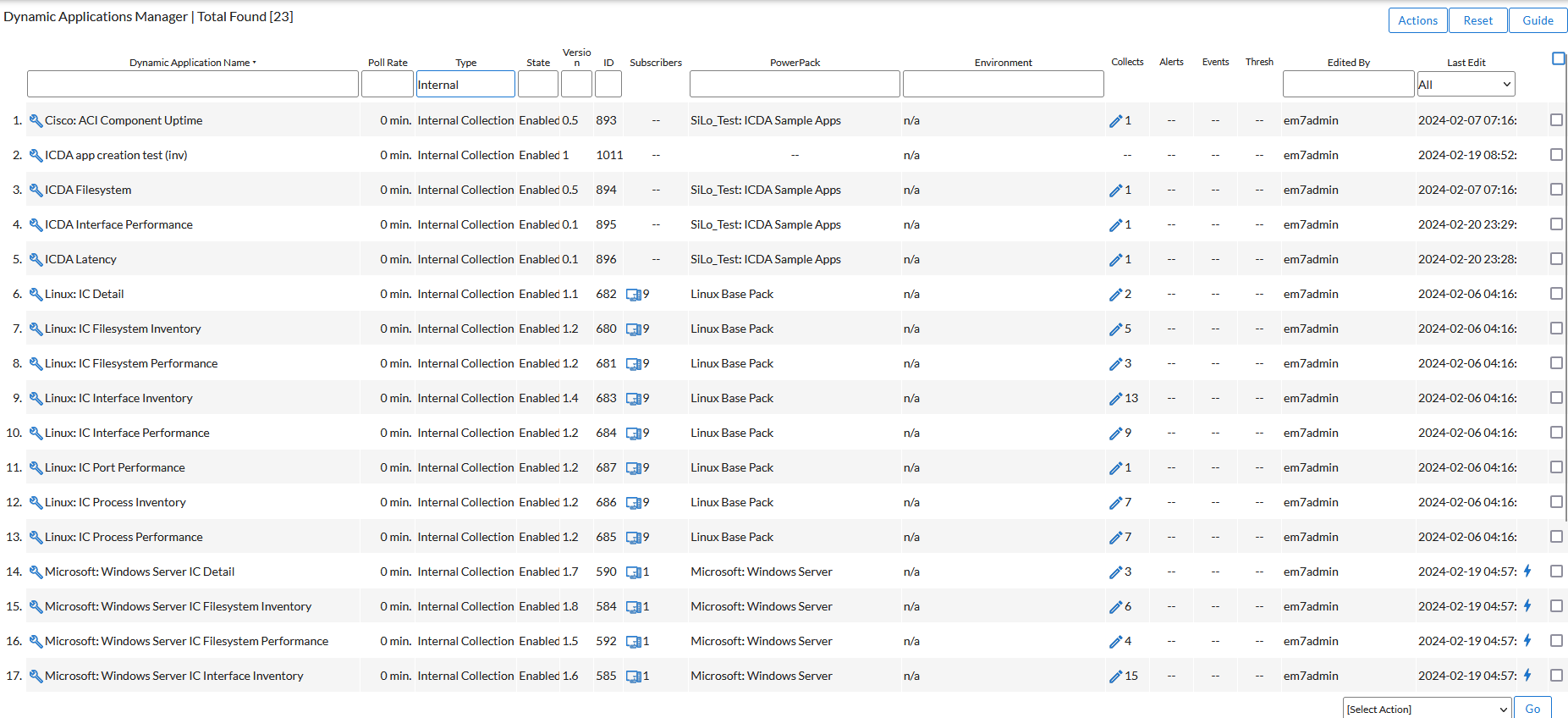
To ensure the consistency of your data, do not use an ICDA to collect data on a device that was previously monitored by another type of Dynamic Application.
Creating an ICDA
You can create custom Internal Collection Dynamic Applications (ICDAs) to gather data on devices that do not support SNMP. Currently, ICDAs support only the snippet protocol.
If you create an ICDA with a Data Model of Interface Inventory and the ICDA includes a discovery Collection Object, the ICDA aligns with the device after the platform discovery runs. As a result, Skylar One does not discover interfaces until either the nightly discovery runs or the user re-discovers the device manually by running the discovery session again, creating a new discovery session, or initiating an ad hoc discovery.
To create an ICDA:
- Go to the Dynamic Applications Manager page (System > Manage > Applications).
- Click the button and select Create New Dynamic Application. The Dynamic Applications Create New Application page appears.
- Complete the following fields:
- Application Name. Type a name for this ICDA.
- Application Type. Your options for ICDAs include Internal Collection Inventory or Internal Collection Performance.
- Click the button. The tab updates to show the relevant fields for the ICDA.
- In the Data Model drop-down list, select the type of data you want to collect with this ICDA. The values in the drop-down are dependent on the value in the Application Type field. The value in the Data Model field list determines the available options in the Object Link drop-down list on the tab. For example, if you select Availability for the Data Model, then you can choose only Availability or Latencyin the Object Link drop-down list.
- If you selected Internal Collection Inventory as the Application Type, the Data Model drop-down includes:
- Filesystem Inventory. Monitors Storage Size, Filesystem Type, Storage Used, Storage Units, or Media Type.
- Interface Inventory. Monitors Name, Alias, Description, Type, Physical Address, Speed, High Speed, Admin Status, Operational Status, Connector Present, 64-bit Support, Blade, Port, or IP Address.
- If you selected Internal Collection Performance as the Application Type, the Data Model drop-down includes:
- Availability. Monitors Availability or Latency.
- Filesystem Performance. Monitors Storage Used, Storage Units, or Percentage Used.
- SNMP Detail. Monitors System Description, System Uptime, or System Locale.
- Interface Performance. Monitors Octets In, Octets Out, Errors In, Errors Out, Discards In, Discards Out, Physical Address, Admin Status, or Operational Status.
- Update the remaining fields as needed, and then click the button.
- Next, create a container for your ICDA snippet code.
Creating a Container for the ICDA Snippet
In Snippet Dynamic Applications, each collection object must be associated with a snippet. Therefore, in ICDAs you must create the container for the snippet code before creating the collection objects for this ICDA.
To create a container for the snippet code:
- Click the tab.
- Complete the following fields:
- Snippet Name. The name of the snippet.
- Active State. Specifies whether the snippet should be executed by Skylar One when performing collection for the ICDA.
- Required. Specifies whether this snippet is required for successful collection of all other snippet requests. Choices are:
- Required - Stop Collection. If this snippet request fails, the platform will not attempt to execute any other snippet requests in this ICDA. Dynamic Applications that consume the cache of this ICDA will halt collection.
- Not Required - Continue Collection. If this snippet request fails, the platform will continue executing all remaining snippet requests in this ICDA. Dynamic Applications that consume the cache of this ICDA will continue collection.
- Snippet Code. The python code that will be executed when Skylar One performs collection for this ICDA. You will add the snippet code later.
- Click the button.
- Repeat this process for each collection you want to use in conjunction with a snippet.
- Next, create the collection objects for your ICDA.
Creating the Collection Objects
To create the collection object or objects for this ICDA:
- Click the tab.
- Complete the following fields to create the collection object:
- Object Name. Type the name of the collection object.
- Snippet Arguments. Specify any arguments you want to pass to the snippet.
- Class Type. Depending on the type of collection object you want to create, select [33] ICDA Object or [100] Discovery.
- String Type. Define the string type for this snippet. Select Standard or Hex Code.
- Object Link. Select the specific type of data you want to collect with this ICDA. The options in this drop-down list are based on your selection for the Data Model field on the tab.
- Snippet. Select the name of the snippet you created in the previous process.
- Update the remaining fields as needed, and then click the button.
- Repeat these steps to create additional collection objects you want to use in conjunction with a snippet.
- Next, add the snippet code for your new ICDA.
Adding the Snippet Code
To add the snippet code to a new ICDA:
- Click the tab.
- In the Snippet Registry pane, select the relevant snippet and click its wrench icon (
 ). Information about that snippet appears in the top pane:
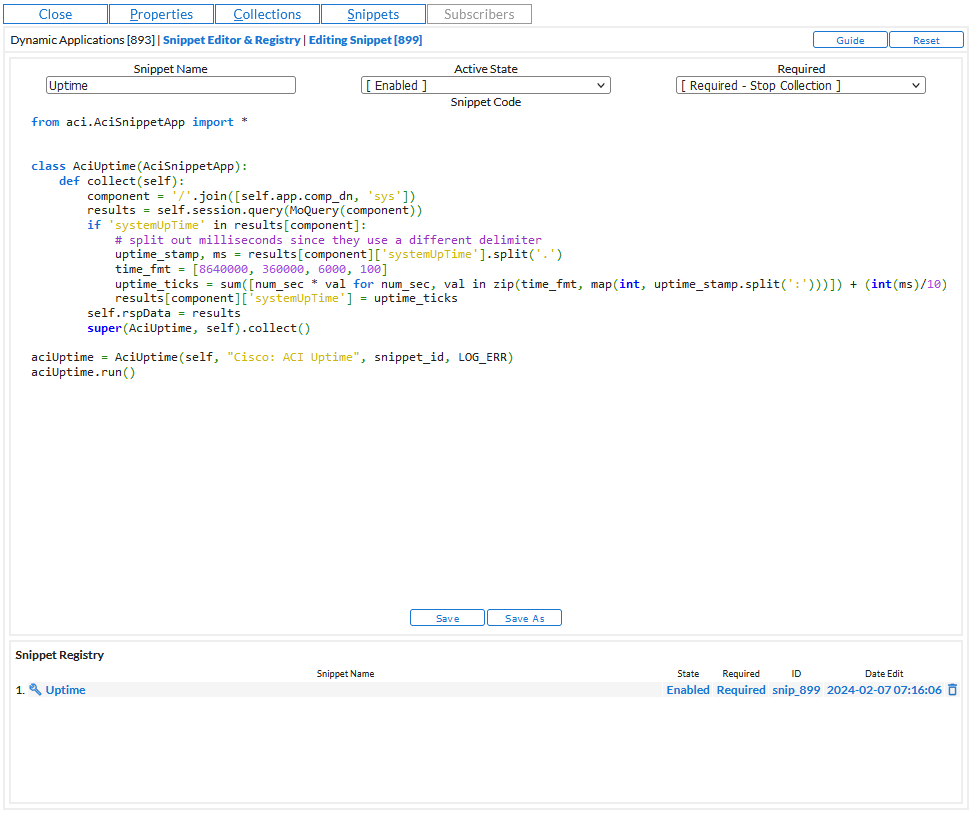
- In the Snippet Code field, type or paste your python code for the collection object.
- Click the button and close the modal page for the ICDA.
Snippet Examples for ICDAs
The following snippets were created by ScienceLogic to use as sample snippets for ICDAs.
Availability
from silo_builtin_caching import get_cached_request_result
Windows_Server_Uptime_REQ_GUID = '32CA377A59190A6AB83DC5EDB05CA7E7'
result = {
'if': get_cached_request_result(self, Windows_Server_Uptime_REQ_GUID)
}
print "********************************************************"
print result
for grp_id, grp in self.oids.iteritems():
for obj_id, obj in grp.iteritems():
try:
(req, oid) = obj['oid'].split('.')
result_list = result[req].get(oid, {}).values()
except ValueError:
self.logger.ui_debug('Skipping OID %d' % obj_id)
continue
if len(result_list) >= 1 and float(result_list[0]) > 0.0:
obj['result'] = [(0, True)]
#obj['result'] = [(0, True if len(result_list) >= 1 and float(result_list[0]) > 0.0 else False)]
print obj
Discovery
from sl_credentials.constant import CRED_SSH
import paramiko
if self.cred_details['cred_type'] == CRED_SSH:
host = self.cred_details['cred_host']
user = self.cred_details['cred_user']
passwd = self.cred_details['cred_pwd']
timeout = self.cred_details['cred_timeout'] / 1000
port = self.cred_details['cred_port']
ssh = paramiko.SSHClient()
ssh.set_missing_host_key_policy(paramiko.AutoAddPolicy())
ssh.connect(host, username=user, password=passwd, port=port, timeout=timeout)
stdin, stdout, stderr = ssh.exec_command("uname")
os = stdout.readlines()
if os[0].startswith("Linux"):
result_handler['disc'] = True
ssh.close()
else:
self.logger.debug("ICDA Filesystem | DID %s: Incorrect credential type aligned, must be SSH" % self.did)
Filesystem Inventory
from silo_builtin_caching import get_cached_request_result
import re
#Enum to translate drive type to string
FS_ENUM_TYPES={
0: 'Unknown',
1: 'No Root Directory',
2: 'Removable Disk',
3: 'Local Disk',
4: 'Network Drive',
5: 'Compact Disc',
6: 'RAM Disk'
}
result = get_cached_request_result(self, WINDOWS_SERVER_DISK_CONFIGURATION_REQ_GUID)
indexes = set()
units_object = {}
for grp_id, grp in self.oids.iteritems():
for obj_id, obj in grp.iteritems():
oid = obj['oid']
result_list = result.get(oid, {}).items()
#Keep track of all the indexes (which are the filesystem names)
#Rewrite the results list to clean up filesystem names
for (i, (k, v)) in enumerate(result_list):
#An empty string index will attempt to use the label first,
#and fall back to " " if there is no label
if k == '':
k = result.get('label',{}).get('',' ')
result_list[i] = (k, v)
#Add a backslash to drive letters to match the output from SNMP
elif re.match('[A-Z]:$', k):
k += '\\'
result_list[i] = (k, v)
indexes.add(k)
#If this is the 'units' object, set it aside for later processing
if obj['oid'] == 'units':
units_object = obj
continue
#Translate the drivetype enum to a string
if obj['oid'] == 'drivetype':
result_list = [(index, FS_ENUM_TYPES.get(int(value), value)) for index, value in result_list]
obj['result'] = result_list
#Do the processing for the units object (all units are 1 - bytes)
units_object['result'] = [(i, 1) for i in indexes]
Filesystem Type
from sl_credentials.constant import CRED_SSH
import paramiko
if self.cred_details['cred_type'] == CRED_SSH:
host = self.cred_details['cred_host']
user = self.cred_details['cred_user']
passwd = self.cred_details['cred_pwd']
timeout = self.cred_details['cred_timeout'] / 1000
port = self.cred_details['cred_port']
ssh = paramiko.SSHClient()
ssh.set_missing_host_key_policy(paramiko.AutoAddPolicy())
ssh.connect(host, username=user, password=passwd, port=port, timeout=timeout)
stdin, stdout, stderr = ssh.exec_command("df --output=target,fstype", timeout=timeout)
results = []
lines = stdout.readlines()[1:]
for line in lines:
fs_name, fs_type = map(lambda line: line.strip(), line.split(' ', 1))
results.append((fs_name, fs_type))
result_handler['fs_type'] = results
ssh.close()
else:
self.logger.debug("ICDA Filesystem | DID %s: Incorrect credential type aligned, must be SSH" % self.did)
Interface Octets
from sl_credentials.snmp import snmph_from_cred_array
from sl_snmp.silo_snmp import SnmpError
OID_ifInOctets = '.1.3.6.1.2.1.2.2.1.10'
results = []
try:
snmp_h = snmph_from_cred_array(self.cred_details, self.ip)
octets_in_walk = snmp_h.walk(OID_ifInOctets)
for oid, value in octets_in_walk:
if_index = oid.split('.')[-1]
# offset to make this differentiable from the value returned by normal internal collection
if_in_octets = int(value) + 100000
results.append((if_index, if_in_octets))
except SnmpError, err:
self.logger.ui_debug("An SNMP error occurred during interface performance collection")
finally:
result_handler['ifInOctets'] = results
Latency
from silo_collect.tools import latency_ping
from silo_common.network import ip
ip_obj = ip(self.ip)
# add large offset to make ICDA data stand out
result_handler['latency'] = [('0', latency_ping(ip_obj, logger=self.logger) + 5000)]