
You should be familiar with the common elements and concepts of Dynamic Applications before reading
What is a Snippet Dynamic Application?
A Snippet Dynamic Application is a Dynamic Application that performs collection by executing one or more discrete blocks of Python code, called Snippets. Snippets provide the logic for the collection and manipulation of data. Skylar One passes credential and other configuration information to the snippet, and at the end of execution, the snippet must pass collected data back to Skylar One. The Dynamic Application developer defines snippet code that collects data and processes data. Snippet Dynamic Applications allow for data collection that cannot be implemented using other Dynamic Application types. For example, you could use a Snippet Dynamic Application if you need Skylar One to collect data from a proprietary system that does not support the other types of Dynamic Applications or if you need Skylar One to perform complex data manipulation before collected values are stored.
There are five types of Snippet Dynamic Applications:
- Snippet Configuration. Snippet Configuration Dynamic Applications use custom-written Python code to collect configuration data from a device. If a Snippet Configuration Dynamic Application is aligned to multiple devices, the snippet code is executed separately for each device.
- Snippet Journal. Snippet Journal Dynamic Applications use custom-written Python code to collect log data from a device.
- Snippet Performance. Snippet Performance Dynamic Applications use custom-written Python code to collect performance data from a device. If a Snippet Performance Dynamic Application is aligned to multiple devices, the snippet code is executed separately for each device.
- Bulk Snippet Configuration. Bulk Snippet Configuration Dynamic Applications use custom-written Python code to collect configuration data from multiple component devices. The configuration of a Bulk Snippet Configuration Dynamic Application specifies the maximum number of devices for which data can be collected during a single execution of the snippet code. If a Snippet Configuration Dynamic Application is aligned to multiple devices, Skylar One will automatically calculate the number of times the snippet code must be executed (based on the maximum number of devices) and will automatically assign multiple devices to each execution.
- Bulk Snippet Performance. Bulk Snippet Performance Dynamic Applications use custom-written Python code to collect performance data from multiple component devices. The configuration of a Bulk Snippet Performance Dynamic Application specifies the maximum number of devices for which data can be collected during a single execution of the snippet code. If a Snippet Performance Dynamic Application is aligned to multiple devices, Skylar One will automatically calculate the number of times the snippet code must be executed (based on the maximum number of devices) and will automatically assign multiple devices to each execution.
Relationship Between the Dynamic Application Builder and Snippet Dynamic Applications
The Dynamic Applications Builder supports multiple snippet‑based Dynamic Applications types.
Snippet Framework Dynamic Applications define collection as an ordered sequence of framework steps supplied by toolkits (for example, Syntax, Requestor, and Processor steps). These applications do not require custom Python snippet code and are configured primarily through snippet arguments. This manual describes how to configure both application types using the Builder. It does not replace developer documentation for Python‑based snippet applications.
For more information, see the Snippet Framework manual.
Common Dynamic Application Elements
For comprehensive information on elements that apply to Snippet Dynamic Applications, see theDynamic Application Development
Execution Environments
One way in which Snippet Dynamic Applications are unique from most other types of Dynamic Applications is that they can be aligned with a specific execution environment.
In the Skylar One user interface, an execution environment is a list of one or more ScienceLogic libraries. When a Dynamic Application snippet, Run Book Automation snippet, or credential test is executed, the execution environment defines a virtual Python environment that is deployed on-demand and includes all of the ScienceLogic libraries aligned with it for use during snippet execution.
When you create a Snippet Dynamic Application, you must select an execution environment to align with that Dynamic Application. All of the snippets contained in the Dynamic Application will then use that execution environment whenever the Dynamic Application runs. If you do not specify an execution environment, Skylar One will align the Dynamic Application with the default System environment. For more information about selecting an execution environment for a Dynamic Application, see
You can create and manage execution environments on the Environment Manager page (System > Customize > ScienceLogic Libraries > Actions > Execution Environments). For more information about creating and managing execution environments, see
Prerequisites
You should be familiar with the common elements and concepts of Dynamic Applications before reading
About this Section
This
- Performance & Configuration Snippets. Describes how to configure collection objects and how to create snippets in performance and configuration Snippet Dynamic Applications and bulk performance and bulk configuration Snippet Dynamic Applications.
- Journal Snippets. Describes how to configure collection objects in journal Snippet Dynamic Applications; how to create Snippets in journal Snippet Dynamic Applications; and how to create presentation objects in journal Snippet Dynamic Applications.
- Caching and Cache Consuming Snippets. Describes how to write a Snippet that caches results and how to write a Snippet that consumes cached results.
- Excluded Modules and Platform Wrappers. Describes which python modules cannot be used in Snippets and includes information about specific functions that can be used in Snippets.
Performance and Configuration Snippets
This
- Snippet Configuration
- Snippet Performance
- Bulk Snippet Configuration
- Bulk Snippet Performance
All other elements of these Dynamic Applications, such as presentation objects and alerts, behave in the same manner as other Dynamic Application types.
Collection Objects
Similar to other Dynamic Application types, Snippet Dynamic Applications contain collection objects. Collection objects for Snippet Dynamic Applications have characteristics common to collection objects for other Dynamic Application types, such as naming, data typing, and grouping.
Collection objects for Snippet Dynamic Applications have the following unique elements:
- Snippet Arguments. When a snippet is executed by Skylar One, the snippet is passed information about each collection object defined in the Dynamic Application, including the name and class type for the collection object. The Snippet Arguments field is used to provide additional parameters to indicate to the snippet code how to perform collection for that collection object. For example, if the snippet code is using the SNMP protocol to collect data from the device, the Snippet Arguments might define the OID to walk for each collection object.
- Snippet. Because a Snippet Dynamic Application can contain multiple snippets, each collection object in a Snippet Dynamic Application must be associated with a specific snippet that is responsible for collecting that collection object.
Snippet Code
Snippet Dynamic Applications must have one or more snippets defined under the tab in the Dynamic Application pane. Snippets have the following properties:
- Snippet Name. The name of the snippet.
- Active State. Specifies whether the snippet should be executed by Skylar One when performing collection for the Dynamic Application. Choices are:
- Enabled. Skylar One will execute this snippet when performing collection for the Dynamic Application.
- Disabled. Skylar One will not execute this snippet when performing collection for the Dynamic Application.
- Required. Specifies whether this snippet is required for successful collection of all other snippet requests. Choices are:
- Required - Stop Collection. If this snippet request fails, the platform will not attempt to execute any other snippet requests in this Dynamic Application. Dynamic Applications that consume the cache of this Dynamic Application will halt collection.
- Not Required - Continue Collection. If this snippet request fails, the platform will continue executing all remaining snippet requests in this Dynamic Application. Dynamic Applications that consume the cache of this Dynamic Application will continue collection.
- Snippet Code. The python code that will be executed when Skylar One performs collection for this Dynamic Application.
The snippet code must be a block of valid python code that performs collection and passes collected values to Skylar One using the dictionary called result_handler. This section describes:
- Using the result_handler dictionary.
- The variables available to snippet code.
- How to use aligned credentials.
- How to log collection problems in snippet code.
Populating Collection Objects
To pass collected values back to Skylar One, snippet code must populate the result_handler dictionary.
NOTE: The legacy self.oids dictionary is no longer supported but will continue to work for older Dynamic Applications. ScienceLogic recommends using result_handler for all Dynamic Applications.
The snippet code must populate the result_handler dictionary. Before each snippet is executed, Skylar One populates result_handler with information about all the collection objects in the current snippet. Some elements in the dictionary are left undefined and must be populated by your snippet code.
For Snippet Performance and Snippet Configuration Dynamic Applications, result_handler has the following structure:
oid: {'prime': , 'error_msg': , 'enum': , 'name': ,
'oid': , 'string_type': , 'class': , 'wm_walk_length': , 'oid_time': , 'result': , 'oid_type': , 'factor': '', 'trend_col': '', 'monitor_config': },
}
.
.
oid: {'prime': , 'error_msg': , 'enum': , 'name': ,
'oid': , 'string_type': , 'class': , 'wm_walk_length': , 'oid_time': , 'result': , 'oid_type': , 'factor': '', 'trend_col': '', 'monitor_config': },
}
For Bulk Snippet Performance and Bulk Snippet Configuration Dynamic Applications, result_handler has the following structure:
(device id, oid): {'prime': , 'error_msg': , 'enum': , 'name': ,
'oid': , 'string_type': , 'class': , 'wm_walk_length': , 'oid_time': , 'result': , 'oid_type': , 'factor': '', 'trend_col': '', 'monitor_config': },
}
.
.
(device id, oid): {'prime': , 'error_msg': , 'enum': , 'name': ,
'oid': , 'string_type': , 'class': , 'wm_walk_length': , 'oid_time': , 'result': , 'oid_type': , 'factor': '', 'trend_col': '', 'monitor_config': },
}
For Snippet Performance and Snippet Configuration Dynamic Applications, result_handler uses the oid value (Snippet Argument) as a key for each collection object. For Bulk Snippet Performance and Bulk Snippet Configuration Dynamic Applications, result_handler uses a tuple of the device ID and the oid value (Snippet Argument) as a key for each collection object, i.e. result_handler includes an entry for every collection object for every device that the snippet code has been assigned.
Each entry in result_handler has a dictionary that contains the following keys:
- oid. The value defined in the Snippet Arguments field in the Collection Objects page for this collection object.
- prime. The value defined for the Index checkbox in the Collection Objects page for this collection object.
- error_msg. An optional error message associated with this collection object. Snippets should set this value to an error message string if this object cannot be collected.
- enum. The value defined in the Enums field in the Collection Objects page for this collection object.
- name. The value defined in the Object Name field in the Collection Objects page for this collection object.
- oid. The value defined in the Snippet Arguments field in the Collection Objects page for this collection object.
- string_type. This value refers to the internal operation of Skylar One's collection process. Do not modify this value.
- class. The value defined in the Class Type field in the Collection Objects page for this collection object. class is set to the integer value that appears at the beginning of each Class Type option.
- wm_walk_length. This value refers to the internal operation of Skylar One's collection process. Do not modify this value.
- oid_time. Your snippet can optionally set this value to the amount of time in seconds it took to collect the object.
- result. The collected value or values for this collection object. Your snippet code must populate result with a list of tuples. Each result tuple must contain two values: an index followed by a result string. The index can be any scalar type, but no two tuples can have the same index value.
- oid_type. The ID number of the snippet responsible for collecting this collection object. Your snippet should use this value to determine whether the snippet should collect this object, i.e. compare this value to the value in the snippet_id variable.
- factor. This value refers to the internal operation of Skylar One's collection process. Do not modify this value.
- trend_col. This value refers to the internal operation of Skylar One's collection process. Do not modify this value.
- monitor_config. This value refers to the internal operation of Skylar One's collection process. Do not modify this value.
To update the result value for a collection object using the result_handler dictionary, assign a value directly to the key for that collection object. Remember that the keys in result_handler are::
- For Snippet Performance and Snippet Configuration Dynamic Applications, the value in the Snippet Arguments field.
- For Bulk Snippet Performance and Bulk Snippet Configuration Dynamic Applications, a tuple that includes a device ID and the value in the Snippet Arguments field.
For example:
result_handler['cpu'] = [(0,0),]
- cpu. This is the Snippet Argument, used to uniquely identify the collection object
- 0,0. At index zero, set the value to zero.
You can update the result value for all the collection objects at the same time by using the update() function of result_handler. For example:
result_handler.update(results)
The results parameter must be a dictionary that has the same keys as result_handler. Each key in the supplied dictionary must reference that value to be set as the result value for that collection object.
Available Variables
The following local variables are available to use in your snippet code for Snippet Performance and Snippet Configuration Dynamic Applications:
-
snippet_id. The ID number for this snippet.
-
this_device. A named tuple that contains information about the device for which collection is being performed.
-
parent_device. This variable is available for component devices and merged devices. A named tuple that contains information about the direct parent of the component device for which collection is being performed.
-
root_device. This variable is available only for component devices. A named tuple that contains information about the root device of the component device for which collection is being performed.
If a Dynamic Application includes snippet code with a root_device tuple, its Collector Affinity setting should be set to Root Device Collector. For more information, see
-
self.cred_details. A dictionary that contains information about the credential aligned with the Dynamic Application. For information about the structure of credential dictionaries, see the section Using Credential Dictionaries.
-
self.device_ip.The IP address of the target device for which collection is being performed. This variable is available for component or merged devices.
-
self.device_hostname. The hostname of the target device for which collection is being performed. This variable is available for component or merged devices.
-
self.device_pdu_packing. A boolean value indicating if PDU Packing is enabled on the target device for which collection is being performed. This variable is available for component or merged devices. PDU packing enables quicker collection of voluminous SNMP data. For more information, see
-
self.root_ip. The IP address of the root device of the component device for which collection is being performed. This variable is available for component or merged devices.
-
self.root_hostname. The hostname of the root device of the component device for which collection is being performed. This variable is available for component or merged devices.
-
self.root_pdu_packing. A boolean value indicating if PDU Packing is enabled on the root device of the component device for which collection is being performed. This variable is available for component or merged devices. PDU packing enables quicker collection of voluminous SNMP data. For more information, see
The this_device, parent_device, and root_device named tuples include the following values:
-
did. The device ID for the device.
-
name. The name of the device.
-
ip. The primary management IP address of the device.
-
snmp_cred_id. The ID of the SNMP read credential assigned to the device.
-
root_did. For component devices, the device ID of the root device associated with the device.
-
parent_did. For component devices, the device ID of the direct parent for the device.
-
unique_id. For component devices, the unique identifier of the component device. This variable is equivalent to the %U component identifier substitution variable for WMI, XSLT, and SOAP Dynamic Applications.
-
guid. For component devices, the globally unique identifier of the component device. This variable is equivalent to the %G component identifier substitution variable for WMI, XSLT, and SOAP Dynamic Applications.
For example, to use the name of the root device of the component device for which collection is being performed, you would use the variable root_device.name.
Available Variables for Bulk Performance and Bulk Configuration Snippets
The following local variables are available to use in your snippet code for Bulk Snippet Performance and Bulk Snippet Configuration Dynamic Applications:
- snippet_id. The ID number for this snippet.
- self.cred_details. A dictionary that contains information about the credential aligned with the Dynamic Application. For information about the structure of credential dictionaries, see the Using Credential section.
- devices. A dictionary that contains information about the devices for which collection is being performed. During each collection, the platform will automatically assign one or more devices to each execution of your snippet code. The keys in the devices dictionary are the device IDs of the devices assigned to the snippet. The values in the devices dictionary are named tuples with the following values:
- device. A named tuple that contains information about the component device for which collection is being performed.
- parent_device. Contains the device ID of the direct parent of the component device for which collection is being performed.
The device named tuples in the devices dictionary include the following values:
- did. The device ID for the device.
- name. The name of the device.
- ip. The primary management IP address of the device.
- snmp_cred_id. The ID of the SNMP read credential assigned to the device.
- root_did. For component devices, the device ID of the root device associated with the device.
- parent_did. For component devices, the device ID of the direct parent for the device.
- unique_id. For component devices, the unique identifier of the component device. This variable is equivalent to the %U component identifier substitution variable for WMI, XSLT, and SOAP Dynamic Applications.
- guid. For component devices, the globally unique identifier of the component device. This variable is equivalent to the %G component identifier substitution variable for WMI, XSLT, and SOAP Dynamic Applications.
For example, to use the name of the device with ID 16, you would use the variable devices[16].device.name.
Using Credentials
When information about a credential is passed by Skylar One to snippet code in a variable, the credential information is stored in a dictionary. This section describes the structure of credential dictionaries. Snippet Dynamic Applications can use any type of credential.
TIP: If your snippet code requires that a specific credential type be aligned with the Dynamic Application, you can examine the cred_type field and generate an appropriate error message if an incorrect credential is aligned. This check will ensure that your snippet code does not reference an entity in the credential dictionary that does not exist in the aligned credential.
Several elements in the credential dictionary are common to all credential types, and each credential type (other than Basic/Snippet) has unique elements that appear only in the credential dictionary for that credential type. The following elements are common to every type of credential dictionary:
- cred_id. Integer. Unique credential ID.
- cred_type. Integer. Type of credential .
- 1 SNMP. SNMP credentials allow Skylar One to access SNMP data on a managed device.
- 2 DB. Database credentials allow Skylar One to access data on a database on a managed device.
- 3 SOAP/XML. SOAP/XML credentials allow Skylar One to access a web server on a managed device.
- 4 LDAP. LDAP or Active Directory credentials allow Skylar One to access data on an LDAP server or Active Directory server.
- 5 Snippet. Basic/Snippet credentials define standard authentication parameters, but are not tied to a specific authentication protocol.
- 6 SSH. SSH/Key credentials specifies the hostname or IP address of the system you want to monitor, the port number used to access that system, and the private key used for authentication.
- 7 PowerShell. PowerShell credentials allow Dynamic Applications to retrieve data from Microsoft devices.
- cred_host. String. Host name or IP address (%D substitution string).
- cred_port. Integer. TCP/IP port for connections.
- cred_pwd. String. Password (encrypted in the database, stored as clear text in the dictionary).
- cred_user. String. Username.
- cred_timeout. Integer. Timeout in milliseconds.
NOTE: For more information,
The following elements are unique for SNMP credentials:
- snmp_version. Integer. SNMP version, values 1, 2, 3.
- snmp_ro_community. String. Read-only community string.
- snmp_rw_community. String. Read/Write community string.
- snmp_retries. Integer. Number of retries.
- snmpv3_auth_proto. String. V3 auth. protocol,. Can be either MD5 or SHA.
- snmpv3_sec_level. String. V3 security. Can be noAuthNoPriv, AuthNoPriv, or AuthPriv.
- snmpv3_priv_proto. String. V3 privacy protocol. Can be : DES or AES.
- snmpv3_priv_pwd. String. V3 password encrypted in the database and stored as clear text in the dictionary.
- snmpv3_context. String. V3 context.
The following elements are unique for Database credentials:
- db_type. Integer.
- 1 MySQL
- 2 MSSQL
- 3 Oracle
- 4 Postgress
- 5 DB2
- 6 Sybase
- 7 Informix
- 8 Ingress).
- db_name. String. Initial database name.
- db_sid. String. Database SID (Oracle only).
- db_connect. String. Database connect string (Oracle only).
The following elements are unique for SOAP/XML credentials:
- curl_url. String. URL.
- curl_proxy_ip. String. Proxy server IP address.
- curl_proxy_port. Integer. Proxy server TCP/IP port.
- curl_proxy_acct. String. Proxy server account.
- curl_proxy_passwd. String. Proxy server password.
- curl_encoding. String. Encoding method (eg text/xml).
- curl_post_or_get. Integer. HTTP method 0 – GET, 1- POST.
- curl_http_version. HTTP version: 10 = 1.0, 11 = 1.1.
- curl_request_sub_1. String. Substitution value to substitute into Snippet code.
- curl_request_sub_2. String. Substitution value to substitute into Snippet code.
- curl_request_sub_3. String. Substitution value to substitute into Snippet code.
- curl_request_sub_4. String. Substitution value to substitute into Snippet code.
- curl_headers. List of Strings. Each string is a HTTP key/value pair.
- curl_opts. Dictionary of Curl options comprising a series of pairs of string key and corresponding string value.
Reporting Collection Status
Your snippet code must report when collection was successful. The following local variables are defined for this purpose:
- COLLECTION_PROBLEM. By default, this variable is automatically instantiated. Its default value is False. When your snippet code completes, you can set this variable to True to indicate that there was a problem with collection (i.e. indicating a missed poll). When your snippet code completes, you can set this variable to False to indicate that collection was successful. This variable is set to True at the start of each collection; you must set this variable to False to report a successful collection.
- PROBLEM_STR. This variable can be used with the COLLECTION_PROBLEM variable, to provide a description of the problem with collection. If you set the COLLECTION_PROBLEM variable to True (indicating a missed poll), you can additionally specify why the collection failed by assigning a string value to the PROBLEM_STR variable. Skylar One will use the string value of PROBLEM_STR to generate an alert.
Generating Alerts
As with other Dynamic Application types, you can use alert formulas and linked event policies to generate events in response to Snippet polling of remote systems. You might also need to generate logs and events about the collection process itself. For example, you might want to generate an alert if an external device does not respond or if the supplied credential is invalid. There are three methods you can use to generate these logs:
- Generate an internal alert for the problem. The alert will be associated with the device the Dynamic Application is currently collecting data from. Skylar One includes event policies that will trigger if a snippet generates an internal alert.
- Generate a custom alert for the problem. A custom alert does not have to be associated with the device the Dynamic Application is currently collecting data from; a custom alert can be associated with entity types other than devices, for example, an Organization or an Asset. You can define your own custom event policies for custom alerts.
- Create one or more collection objects within your Dynamic Application to specifically monitor collection problems.
Generating an Internal Alert
Generating an internal alert is the method used to log collection problems in the examples in this document. During collection, Skylar One maintains a list of internal alerts that are processed and can trigger events after collection is complete.
The data structure for internal alerts is a Python list of tuples. Each tuple has two elements: a message ID and supporting message text. You can use the following values for the message ID element:
- 257. Triggers a "General Collection Problem" event, which has a severity of "Major".
- 519. Triggers a "Dynamic Snippet Exception" event, which has a severity of "Minor".
- 518. Triggers a "Dynamic Snippet Message" event, which has a severity of "Notice".
To generate an event for a collection problem using the built-in method, append a tuple with your message to the self.internal_alerts list. For example:
self.internal_alerts.append((257, "Cannot connect to remote device"))
Generating a Custom Alert
To generate a custom alert, you can use the following function:
em7_snippets.generate_alert(message, xid, xtype, yid, ytype, yname, value, threshold)
You can define an event based on the alert; the event must have a Source of API and use pattern matching to match the alert. The arguments for the function are:
- message. Required argument. The message text for the alert.
- xid = value. Required argument. The entity to associate with the alert. Supply the numeric ID of an entity. For example, if you supply '1' in the xtype argument, supply a device ID in this argument.
- xtype = value. Required argument. The type of entity for which you specified an ID in the xid argument. Supply one of the following integer values:
- 0. Organization
- 1. Device
- 2. Asset
- 4. Network
- 5. Interface
- 6. Vendor
- 7. User Account
- 8. Virtual Interface
- 9. Device Group
- 10. IT Service
- 11. Ticket
- yid = value. The sub-entity to associate with the alert. Supply the numeric ID of a sub-entity. For example, if you supply '3' in the ytype argument, supply a file system ID in this argument.
- ytype = value. Optional argument. The type of sub-entity for which you specified an ID in the yid argument. Supply one of the following integer values:
- 9. News Feed (if xtype is 0) or Process (if xtype is 1).
- 1. CPU. Can be specified only if xtype is 1 (Device).
- 2. Disk. Can be specified only if xtype is 1 (Device).
- 3. File System. Can be specified only if xtype is 1 (Device).
- 4. Memory. Can be specified only if xtype is 1 (Device).
- 5. Swap. Can be specified only if xtype is 1 (Device).
- 6. Hardware Component. Can be specified only if xtype is 1 (Device).
- 7. Interface. Can be specified only if xtype is 1 (Device).
- 10. Port. Can be specified only if xtype is 1 (Device).
- 11. Windows Service. Can be specified only if xtype is 1 (Device).
- 12. Web Content. Can be specified only if xtype is 1 (Device).
- 13. Email Monitor. Can be specified only if xtype is 1 (Device).
- yname = value. Optional argument. The name of the sub-entity for which you specified an ID in the yid argument.
- value= string. Optional argument. A value that will be passed with the alert message. This value is available in the %V substitution character for event policies.
- threshold= string. Optional argument. A threshold value that will be passed with the alert message. This threshold value is available in the %T substitution character for event policies.
For example:
em7_snippets.generate_alert('Attempted File System Cleanup', '60', '1', '150', '3')
will generate an alert with the message "Attempted File System Cleanup" associated with the file system with ID 150 on the device with ID 60.
Self-Reporting Collection Objects
The self-reporting method uses one or more collection objects (that you define in your Dynamic Application) to report application-specific failures. You can additionally define alerts that evaluate the values returned for these collection objects.
For example, you might define a single un-grouped collection object called "Collection Status" and assign it a value specific to your collection method. If your snippet executes successfully, the snippet would set the value to "OK"; otherwise the snippet would set the value to a failure message, such as "authentication failed" or "connection timeout". Each of these can then be handled separately with appropriate alert definitions and associated event policies.
Writing Debug Information to silo.log
Using the following function, you can configure your snippet to write messages to silo.log:
em7_snippets.logger(filename)
For example:
logger=em7_snippets.logger(filename='/var/log/em7/silo.log')
Your snippet code will then write messages to the log file using the following syntax:
logger.debug("message")
Starting with Skylar One version 11.3.0, you can no longer use this process to specify a "filename" for output. Instead Skylar One will write to /var/log/sl1/snippets.log.
Debug messages will appear in the specified file on the Data Collector or All-In-One Appliance that runs the snippet. When Skylar One executes snippet code for configuration Snippet and performance Snippet Dynamic Applications, the snippet code writes debug logs to silo.log regardless of the Debug Mode setting for the process "Data Collection: Dynamic App". Therefore, to avoid debug logging on production systems, you must use debug logging only when developing snippet code in a test environment, then remove or comment out debug statements when you have completed development and testing.
Developing a Journal Snippet Dynamic Application
This example describes the development of a Journal Snippet Dynamic Application that collects data from ScienceLogic access logs. Each collected journal entry contains information about a single user session in a Skylar One system. This example demonstrates how to use available variables, create, populate, and update journal entries, and how to report collection problems.
This example Dynamic Application is for demonstration purposes only. The data collected by this Dynamic Application is already available in Skylar One in the Access Sessions page (System > Monitor > Access Logs).
Requirements
The Dynamic Application developed in this example has the following requirements:
- The snippet must run once a minute.
- The snippet must use a MySQL credential to collect data from the following fields in the master_access.access_log table in a ScienceLogic database:
- session_id. The unique key Skylar One uses to identify a user session. The Dynamic Application must use this value as the key for each journal entry.
- state. The state of the user session in the Skylar One system. The Dynamic Application must use this value as the state for each journal entry, using the following mapping:
- 0. Represents the "Logged Out" state in Skylar One. Must map to the journal entry state "Closed".
- 2. Represents the "Logged In" state in Skylar One. Must map to the journal entry state "Open".
- 3. Represents the "Expired" state in Skylar One. Must map to the journal entry state "Abandoned".
- user. The ScienceLogic username for the user session. The Dynamic Application must store this value in a collection object for every journal entry.
- login_time. The time that the user session started. The Dynamic Application must store this value in a collection object for every journal entry.
- logout_time. The time that the user session ended. The Dynamic Application must store this value in a collection object for every abandoned or closed journal entry.
- For each collection period, the snippet must query the master_access.access_log table for all user sessions that have started since the previous collection period. If the time of the previous collection period is unknown, the snippet must query the master_access.access_log table for all user sessions that have started in the last 60 seconds. The new entries must be stored in a new journal entry, with information stored for all available collection objects.
- For each collection period, the snippet must determine which existing journal entries are still open, query the master_access.access_log table for those user sessions, and abandon or close the journal entry if the user session is in an expired or logged out state.
- If a query on the master_access.access_log table for an existing journal entry indicates that information about the user session is no longer in the table, the journal entry must be set to the Error state.
- The snippet must handle the following potential exceptions:
- If the aligned credential is not a MySQL Database credential, the snippet must report a missed poll and not attempt collection.
- If Skylar One cannot connect to the database , the snippet must report a missed poll and not attempt collection.
- If a serialization or deserialization exception occurs in meta data storage/retrieval, the snippet must generate a minor event, but not report a missed poll.
- If an error occurs when querying for new user sessions and an error occurs when querying for existing user sessions, the snippet must report a missed poll.
- If an error occurs when querying for new user sessions, but querying for existing user sessions is successful, the snippet must generate a minor event, but not report a missed poll.
- If querying for new user sessions is successful, but an error occurs when querying for existing user sessions, the snippet must generate a minor event, but not report a missed poll.
Creating the Dynamic Application
To create this example Dynamic Application, perform the following steps:
- Go to the Dynamic Applications Manager page (System > Manage > Dynamic Applications).
- Click the button, then select Create New Dynamic Application. The Create New Application page is displayed.
- Supply values in the following fields:
- Application Name. The name of the Dynamic Application. This example is called "Snippet Journal Example".
- Application Type. This example is a Snippet Journal. Select Snippet Journal in this field.
- Poll Frequency. To meet requirement one, select Every 1 Minute in this field.
- This example does not have specific requirements for the other settings defined in this page. You can leave the remaining fields set to the default values.
- Click the button.
Because collection objects are assigned a specific snippet, you must create the container for the snippet code before creating the collection objects for this Dynamic Application. To create a container for the snippet code, perform the following steps:
- Click the tab.
- Supply values in the following fields:
- Snippet Name. The name of the snippet. The snippet in this example is called "Collect Login Data".
- Active State. To ensure that the snippet code is run by Skylar One, select Enabled in this field.
- Snippet Code. Leave this field blank. You will add the snippet code later in this example.
- Click the button.
Creating the Collection Objects
To meet requirement two, this Dynamic Application must have three collection objects: username, login time, and logout time. Each journal entry will have a value stored for each of these collection objects. To create the collection objects for this Dynamic Application, perform the following steps:
- Click the tab in the Dynamic Application Editor pane.
- Supply values in the following fields to create the username object:
- Object Name. The name of the collection object. Enter "Username" in this field.
- Variable Name. The name of the variable the snippet will use to store values for this collection object. Enter "Username" in this field.
- Class Type. The collected values for the username collection object will be text strings. Select 22 Journal Character in this field.
- Snippet. There is only one snippet for this Dynamic Application. Select Collect Login Data in this field.
- Click the button, then click the button to clear the values you entered.
- Repeat steps two and three for the login time collection object using the following values:
- Object Name. Enter "Login Time".
- Variable Name. Enter "Login".
- Class Type. Select 30 Journal Date & Time.
- Snippet. Select Collect Login Data.
- Repeat steps two and three for the logout time collection object using the following values:
- Object Name. Enter "Logout Time".
- Variable Name. Enter "Logout".
- Class Type. Select 30 Journal Date & Time.
- Snippet. Select Collect Login Data.
Snippet Code
After creating the Dynamic Application and the collection objects, you must write the snippet code. This section walks through all the snippet code used in this example.
The initial section of snippet code imports the MySQLdb module, then initializes variables used to track collection problems:
import MySQLdb
COLLECTION_PROBLEM = False
create_error = False
update_error = False
The following Boolean values are used to track collection problems:
- COLLECTION_PROBLEM. The variable used to tell Skylar One whether a missed poll has occurred. At the start of execution, this value is "True". The snippet initially changes this value to False (collection was successful), and will later change the value back to True if an exception (as described in requirement six) occurs.
- create_error. The snippet will use this variable to track whether there was a query error when collecting new journal entries. The snippet initially sets this variable to "False" (no error). Before the snippet completes, this variable will be used to determine how to report errors (as described in requirement six).
- update_error. The snippet will use this variable to track whether there was a query error when collecting existing journal entries. The snippet initially sets this variable to "False" (no error). Before the snippet completes, this variable will be used to determine how to report errors (as described in requirement six).
The snippet will use the Dynamic Application metadata functions to store the date and time of the last successful query for new journal entries. The next section of code retrieves the stored metadata in a TRY/EXCEPT block:
try:
meta = get_app_instance_meta_data()
except DeserializationError as e:
INTERNAL_ALERTS.append((519, "Could not deserialize stored meta data for did:%s, app id:%s, error: %s" % (app_id, did, e)))
To meet requirement six, if a deserialization error occurs, the snippet generates an internal alert using alert id 519 (snippet exception). Alert ID 519 generates a minor event. To meet requirement three, the snippet will continue with collection if a deserialization error occurs, but will query for all new user sessions from the last 60 seconds.
The snippet outputs the credential and collection object information passed in by Skylar One:
logger.debug("Credential: %s" % (cred_details,))
logger.debug("Collection objects: %s" % (collection_objects,))
If the snippet encounters problems, this information might be useful when diagnosing the issue.
To meet the first item in requirement six, the snippet checks the credential passed in by Skylar One:
if cred_details['cred_type'] != 2:
COLLECTION_PROBLEM = True
PROBLEM_STR = "Database credential not aligned"
else:
As described in the Performance and Configuration Snippets section, the 'cred_type' key in the cred_details dictionary contains the type of credential. The snippet checks that the credential is of the correct type, '2' (database). If the credential is not for a database, the snippet sets COLLECTION_PROBLEM to "True" to report a missed poll, and sets the PROBLEM_STR to an appropriate error message. If this condition occurs, Skylar One will generate a minor event that contains the error message in PROBLEM_STR. If the credential is incorrect, the snippet must finish execution without attempting to collect data; therefore, the remainder of the snippet code is inside the ELSE block.
Similar to the test for the credential type, the snippet attempts to create a MySQL connection using the credential and continues execution only if no exception occurs. The remainder of the snippet code is inside the IF block:
try:
conn = MySQLdb.connect(user=cred_details['cred_user'], passwd=cred_details['cred_pwd'], host=cred_details['cred_host'], port=cred_details['cred_port'])
cur = conn.cursor()
except MySQLdb.Error, e:
COLLECTION_PROBLEM = True
PROBLEM_STR = "Database connection error: %s: %s" % (e.args[0], e.args[1])
if COLLECTION_PROBLEM == False:
If an exception occurs, the snippet sets COLLECTION_PROBLEM to "True" to meet requirement six. When writing a snippet, you must use TRY/EXCEPT blocks around any calls that might cause an exception; if an exception occurs outside of a TRY/EXCEPT block, the snippet will immediately terminate.
The next section of code executes the database query that will populate new journal entries. The snippet uses an IF/ELSE block to determine whether the time of the last query is available. To meet requirement three, if the time of the last query is available, it is used in the WHERE clause of the new query. If the time of the last query is unavailable, a timestamp for 60 seconds ago is used in the WHERE clause:
if meta is not None and meta.has_key('time'):
logger.debug("Have valid meta data, using last query time in WHERE clause")
try:
cur.execute("""(SELECT session_id, state, user, UNIX_TIMESTAMP(login_time) as login, UNIX_TIMESTAMP(logout_time) as logout_time FROM master_access.access_log WHERE login_time > FROM_UNIXTIME(%s)) UNION (SELECT UNIX_TIMESTAMP(NOW()),UNIX_TIMESTAMP(NOW()),UNIX_TIMESTAMP(NOW()),UNIX_TIMESTAMP(NOW()),UNIX_TIMESTAMP(NOW())) ORDER BY login DESC""", (meta['time'],))
except MySQLdb.Error, e:
create_error = True
create_problem = "%s: %s" % (e.args[0], e.args[1])
else:
logger.debug("No valid meta data, using 60 seconds ago in WHERE clause")
try:
cur.execute("""(SELECT session_id, state, user, UNIX_TIMESTAMP(login_time) as login, UNIX_TIMESTAMP(logout_time) as logout_time FROM master_access.access_log WHERE UNIX_TIMESTAMP(login_time) > (UNIX_TIMESTAMP() - 60)) UNION (SELECT UNIX_TIMESTAMP(NOW()),UNIX_TIMESTAMP(NOW()),UNIX_TIMESTAMP(NOW()),UNIX_TIMESTAMP(NOW()),UNIX_TIMESTAMP(NOW())) ORDER BY login DESC""")
except MySQLdb.Error, e:
create_error = True
create_problem = "%s: %s" % (e.args[0], e.args[1])
The query selects the fields listed in requirement two. The query uses a UNION statement in conjunction with an ORDER BY to make the first row in the result set always return all NOW() timestamps. Again, the snippet uses TRY/EXCEPT blocks to catch any errors. All time values are converted to UNIX timestamps; storing UNIX timestamps for the login time and logout time allow the presentation options to convert to human-readable timestamps based on the user's preferences. To meet requirement six, collection of journal entry updates must still be performed if this query fails; therefore, instead of using COLLECTION_PROBLEM and PROBLEM_STR, the snippet uses the variables create_error and create_problem to track errors from this query.
If the query is successful, the first row, which contains the NOW() timestamp, is stored as meta data:
if create_error == False:
now = cur.fetchone()
last_query = now[3]
if last_query:
meta_data = {'time':last_query}
logger.debug("Setting Meta Data: %s" % meta_data)
try:
set_app_instance_meta_data(meta_data)
except SerializationError as e:
INTERNAL_ALERTS.append((519, "Could not serialize meta data for storage for did:%s, app id:%s, error: %s" % (app_id, did, e)))
logger.debug("SerializationError when setting meta data: %s" % e)
Similar to the retrieval of this meta data, the set_app_instance_meta_data call is in a TRY/EXCEPT block, and the snippet generates an internal alert if a serialization error occurs.
The snippet now fetches all remaining rows from the result of the query. Each row is used to create a new journal entry. This section of code is inside the "if create_error == False" block:
results = cur.fetchall()
for row in results:
if row[1] == 0:
entry = create_entry(row[0], JOURNAL_STATE_CLOSED)
entry_collections = {'Username':row[2], 'Login':row[3], 'Logout':row[4]}
elif row[1] == 3:
entry = create_entry(row[0], JOURNAL_STATE_ABANDONED)
entry_collections = {'Username':row[2], 'Login':row[3], 'Logout':row[4]}
else:
entry = create_entry(row[0], JOURNAL_STATE_OPEN)
entry_collections = {'Username':row[2], 'Login':row[3]}
#logger.debug(entry_collections)
entry.update_collected_data(entry_collections)
EM7_RESULT.append(entry)
For each row, the snippet calls the create_entry method. The snippet uses the session_id field from the database as the journal key and determines the state of the new journal entry by using the mapping in requirement two. The snippet creates a dictionary called entry_collections that contains all available collection objects. For journal entries in an open state, the logout time is not included. The entry_collections dictionary uses the variable names used for each collection object as keys. To associate the collected data with the journal entry, the snippet calls update_collected_data using the entry_collections dictionary as the parameter. To pass the journal entry to Skylar One for storage, the snippet appends the new journal entry to EM7_RESULT.
To get a list of journal entries that must be checked for updates, the snippet calls the bulk_get_open_entries function. The snippet iterates through the list of returned journal entries, querying for each user session:
open_entries = bulk_get_open_entries()
for entry in open_entries:
try:
cur.execute("""SELECT session_id, state, logout_time FROM master_access.access_log WHERE session_id = %s""", (entry.entry_key,))
except MySQLdb.Error, e:
update_error = True
update_problem = "%s: %s" % (e.args[0], e.args[1])
The snippet uses the key for each journal entry the WHERE clause of the query. Similar to how errors in the query for new entries are recorded, the update_error and update_problem are used to record errors in this query.
If the query is successful, the snippet checks the state of the user session to see if the corresponding journal entry must change state:
if update_error == False:
result=cur.fetchone()
if result is None:
entry.set_state(JOURNAL_STATE_ERROR)
EM7_RESULT.append(entry)
elif result[1] == 0:
entry.close()
entry_collections = {'Logout':result[2]}
entry.update_collected_data(entry_collections)
EM7_RESULT.append(entry)
elif result[1] == 3:
entry.abandon()
entry_collections = {'Logout':result[2]}
entry.update_collected_data(entry_collections)
EM7_RESULT.append(entry)
To meet requirement five, if the query returns no rows (i.e. the user session no longer in the table), the snippet sets the journal entry to the error state. To meet requirement four, if the user session is in state 0 or 3 (logged out or expired), the snippet sets the journal entry to the closed or abandoned state, respectively. If the journal entry is set to a closed or abandoned state, the snippet adds the value for the logout time collection object to the journal entry. If the journal entry has been updated, the snippet appends the updated object to the EM7_RESULT list to pass the updated information back to Skylar One.
The snippet has finished collecting new and existing journal entries. To meet requirement six, the snippet must check the create_error and update_error variables for the different error combinations:
if update_error == True and create_error == True:
COLLECTION_PROBLEM = True
PROBLEM_STR = "No database queries successful: %s: %s" % (create_problem, update_problem)
elif update_error == True:
INTERNAL_ALERTS.append((519, "Query failure when updating journal entries, but new entry creation successful. did:%s, app id:%s, error: %s" % (app_id, did, update_problem)))
elif create_error == True:
INTERNAL_ALERTS.append((519, "Query failure when creating journal entries, but entry update successful. did:%s, app id:%s, error: %s" % (app_id, did, create_problem)))
If both the query to collect new journal entries and a query to collect an existing journal entry failed, the snippet sets COLLECTION_PROBLEM to "True" to report a missed poll, and populates PROBLEM_STR with an appropriate error message. If either the query to collect new journal entries or the queries to collect an existing journal entry were successful, the snippet does not report a missed poll, but does generate an internal alert. The internal alert uses alert ID 519, which will trigger a minor event.
To add this snippet code to the example Dynamic Application you created, perform the following steps:
- Click the tab in the Dynamic Application Editor pane.
- Click the wrench icon (
 ) for the "Collect Login Data" snippet.
 - Insert the snippet code in the Snippet Code field. A full listing of the snippet code is included in the last section.
- Click the button.
Creating the Presentation Objects
To display the collection objects in the Journal View page for this Dynamic Application, the Dynamic Application must include one or more presentation objects. Presentation objects define how collected data will be displayed for each journal entry in the Journal View page. This example will use three presentation objects, one for each collection object. To create the presentation objects for this Dynamic Application:
- Click the tab in the Dynamic Application Editor pane.
- Supply values in the following fields to create a presentation object for the username collection object:
- Report Name. The name of the presentation object. This name will be displayed as a column heading in the table of journal entries in the Journal View page. Enter "Username" in this field.
- Summarization State. Specifies whether Skylar One should display this presentation object in the Journal View page. Select Enabled in this field.
- Column Order. Specifies the order in which the columns for each presentation object will be displayed in the Journal View page. Columns are displayed in ascending Column Order, from left to right. For this example, the Username presentation will be the first column on the left. Enter "1" in this field.
- Column Width Type. Specifies whether Skylar One should display the column with a width relative to the other columns or using a fixed width in pixels. This example uses relative column widths. Select Relative width (x) in this field.
- Column Width. Specifies the width of the column in the Journal View page, either relative to the other columns or by number of pixels. This example uses relative column widths, with the username column displayed at half the width of the other two presentation object columns. Enter "1" in this field.
- Column data type. Specifies the data type of the values displayed in this column. Usernames are text strings. Select String template in this field.
- Indexing and sorting. Specifies whether the table of journal entries can be sorted by the values in this column. This example allows sorting on all columns. Select Enabled (column can be sorted according to data type) in this field.
- Display formula. Specifies the collection objects to display in this column. Select Username in the select list below the Display formula field, then click the button.
- Click the button, then click the button to clear the values you entered.
- Repeat steps two and three to create a presentation object for the login time collection object. Use the following values:
- Report Name. Enter "Login Time" in this field.
- Active State. Select Enabled in this field.
- Column Order. For this example, the Login Time presentation will be the second column. Enter "2" in this field.
- Column Width Type. This example uses relative column widths. Select Relative width (x) in this field.
- Column Width. This example uses relative column widths, with the username column displayed at half the width of the other two presentation object columns. Enter "2" in this field.
- Column data type. Specifies the data type of the values displayed in this column. Login time is stored as a UNIX timestamp. Select Date and time in this field. Skylar One will convert the collected values to human-readable timestamps based on each user's preferences.
- Indexing and sorting. This example allows sorting on all columns. Select Enabled (column can be sorted according to data type) in this field.
- Display formula. Specifies the collection objects to display in this column. Select Login Time in the select list below the Display formula field, then click the button.
- Repeat steps two and three to create a presentation object for the logout time collection object. Use the following values:
- Report Name. Enter "Logout" in this field.
- Active State. Select Enabled in this field.
- Column Order. For this example, the Logout Time presentation will be the third column. Enter "3" in this field.
- Column Width Type. This example uses relative column widths. Select Relative width (x) in this field.
- Column Width. This example uses relative column widths, with the username column displayed at half the width of the other two presentation object columns. Enter "2" in this field.
- Column data type. Specifies the data type of the values displayed in this column. Logout time is stored as a UNIX timestamp. Select Date and time in this field. Skylar One will convert the collected values to human-readable timestamps based on each user's preferences.
- Indexing and sorting. This example allows sorting on all columns. Select Enabled (column can be sorted according to data type) in this field.
- Display formula. Specifies the collection objects to display in this column. Select Logout Time in the select list below the Display formula field, then click the button.
Creating a Credential and Using the Dynamic Application
To use the example Dynamic Application, you must first create a database credential to align with the Dynamic Application. Perform the following steps to create a database credential for a ScienceLogic Database:
- Go to the Credential Management page (System > Manage > Credentials).
- Click the menu, then select Create Database Credential. The Credential Editor page appears.
- Supply values in the following fields:
- Profile Name. Enter a name for the credential.
- DB Type. Specifies which type of database the credential can be used for. Select MySQL in this field.
- DB Name. Specifies the default database for the credential. The example snippet does not use this field, but a value must be specified. Enter "master" in this field.
- DB User. Specifies the username to use when connecting to the database. Enter "root" in this field.
- Password. Specifies the password to use when connecting to the database. Enter the password for the "root" user on your ScienceLogic Database in this field.
- Hostname/IP. Specifies the hostname or IP address to connect to. If you are aligning this Dynamic Application to a ScienceLogic Database modeled as a device in your system, enter "%D" in this field to use the IP address of the aligned device. If you are not aligning this Dynamic Application to a ScienceLogic Database modeled as a device in your system, enter the hostname or IP address of your ScienceLogic Database in this field.
- Port. Specifies the port to connect to. Enter "7706" in this field.
- Click the button.
To align this Dynamic Application to a device, perform the following steps:
If you entered "%D" in the Hostname/IP field for your credential, you must align the Dynamic Application to a ScienceLogic Database.
- Go to the Device Manager page (Devices > Classic Devices, or Registry > Devices > Device Manager in the classic user interface).
- Click the wrench icon () for the device you want to align with the Dynamic Application. The Device Properties page appears.
- Click the tab. The Dynamic Application Collections page appears.
- Click the Action menu and select Add Dynamic Application.
- In the Dynamic Application Alignment modal page, select our example Dynamic Application, Snippet Journal Example. Select the credential you created for your ScienceLogic Database.
- Click the button. The page refreshes, and the Snippet Journal Example Dynamic Application appears in the list of Dynamic Applications.
For the Dynamic Application to collect at least one journal entry, a user must log in to the system after the Dynamic Application has been aligned to the device. Log out, then log in to the Skylar One system. To view collected data for this Dynamic Application:
- Go to the Device Manager page (Devices > Classic Devices, or Registry > Devices > Device Manager in the classic user interface).
- Click the graph icon (
 ) for the device you aligned with the Dynamic Application. The Device Summary page appears.
 - Click the tab. The Journal View page appears.
- If multiple Journal Dynamic Applications are aligned with this device, click Snippet Journal Example in the left Navbar.
- By default, only closed journal entries are displayed. Remove "closed" from the State search filter. All collected journal entries appear on the Journal View page.
Full Snippet Code Listing
import MySQLdb
COLLECTION_PROBLEM = False
create_error = False
update_error = False
try:
meta = get_app_instance_meta_data()
except DeserializationError as e:
INTERNAL_ALERTS.append((519, "Could not deserialize stored meta data for did:%s, app id:%s, error: %s" % (app_id, did, e)))
logger.debug("Credential: %s" % (cred_details,))
logger.debug("Collection objects: %s" % (collection_objects,))
if cred_details['cred_type'] != 2:
COLLECTION_PROBLEM = True
PROBLEM_STR = "Database credential not aligned"
else:
try:
conn = MySQLdb.connect(user=cred_details['cred_user'], passwd=cred_details['cred_pwd'], host=cred_details['cred_host'], port=cred_details['cred_port'])
cur = conn.cursor()
except MySQLdb.Error, e:
COLLECTION_PROBLEM = True
PROBLEM_STR = "Database connection error: %s: %s" % (e.args[0], e.args[1])
if COLLECTION_PROBLEM == False:
if meta is not None and meta.has_key('time'):
logger.debug("Have valid meta data, using last query time in WHERE clause")
try:
cur.execute("""(SELECT session_id, state, user, UNIX_TIMESTAMP(login_time) as login, UNIX_TIMESTAMP(logout_time) as logout_time FROM master_access.access_log WHERE login_time > FROM_UNIXTIME(%s)) UNION (SELECT UNIX_TIMESTAMP(NOW()),UNIX_TIMESTAMP(NOW()),UNIX_TIMESTAMP(NOW()),UNIX_TIMESTAMP(NOW()),UNIX_TIMESTAMP(NOW())) ORDER BY login DESC""", (meta['time'],))
except MySQLdb.Error, e:
create_error = True
create_problem = "%s: %s" % (e.args[0], e.args[1])
else:
logger.debug("No valid meta data, using 60 seconds ago in WHERE clause")
try:
cur.execute("""(SELECT session_id, state, user, UNIX_TIMESTAMP(login_time) as login, UNIX_TIMESTAMP(logout_time) as logout_time FROM master_access.access_log WHERE UNIX_TIMESTAMP(login_time) > (UNIX_TIMESTAMP() - 60)) UNION (SELECT UNIX_TIMESTAMP(NOW()),UNIX_TIMESTAMP(NOW()),UNIX_TIMESTAMP(NOW()),UNIX_TIMESTAMP(NOW()),UNIX_TIMESTAMP(NOW())) ORDER BY login DESC""")
except MySQLdb.Error, e:
create_error = True
create_problem = "%s: %s" % (e.args[0], e.args[1])
if create_error == False:
now = cur.fetchone()
last_query = now[3]
if last_query:
meta_data = {'time':last_query}
logger.debug("Setting Meta Data: %s" % meta_data)
try:
set_app_instance_meta_data(meta_data)
except SerializationError as e:
INTERNAL_ALERTS.append((519, "Could not serialize meta data for storage for did:%s, app id:%s, error: %s" % (app_id, did, e)))
logger.debug("SerializationError when setting meta data: %s" % e)
results = cur.fetchall()
for row in results:
if row[1] == 0:
entry = create_entry(row[0], JOURNAL_STATE_CLOSED)
entry_collections = {'Username':row[2], 'Login':row[3], 'Logout':row[4]}
elif row[1] == 3:
entry = create_entry(row[0], JOURNAL_STATE_ABANDONED)
entry_collections = {'Username':row[2], 'Login':row[3], 'Logout':row[4]}
else:
entry = create_entry(row[0], JOURNAL_STATE_OPEN)
entry_collections = {'Username':row[2], 'Login':row[3]}
#logger.debug(entry_collections)
entry.update_collected_data(entry_collections)
EM7_RESULT.append(entry)
open_entries = bulk_get_open_entries()
for entry in open_entries:
try:
cur.execute("""SELECT session_id, state, logout_time FROM master_access.access_log WHERE session_id = %s""", (entry.entry_key,))
except MySQLdb.Error, e:
update_error = True
update_problem = "%s: %s" % (e.args[0], e.args[1])
if update_error == False:
result=cur.fetchone()
if result is None:
entry.set_state(JOURNAL_STATE_ERROR)
EM7_RESULT.append(entry)
elif result[1] == 0:
entry.close()
entry_collections = {'Logout':result[2]}
entry.update_collected_data(entry_collections)
EM7_RESULT.append(entry)
elif result[1] == 3:
entry.abandon()
entry_collections = {'Logout':result[2]}
entry.update_collected_data(entry_collections)
EM7_RESULT.append(entry)
if update_error == True and create_error == True:
COLLECTION_PROBLEM = True
PROBLEM_STR = "No database queries successful: %s: %s" % (create_problem, update_problem)
elif update_error == True:
INTERNAL_ALERTS.append((519, "Query failure when updating journal entries, but new entry creation successful. did:%s, app id:%s, error: %s" % (app_id, did, update_problem)))
elif create_error == True:
INTERNAL_ALERTS.append((519, "Query failure when creating journal entries, but entry update successful. did:%s, app id:%s, error: %s" % (app_id, did, create_problem)))
Caching and Cache-consuming Snippets
Configuration and performance Snippet Dynamic Applications can:
- Cache a single object that can be pickled. To cache an object, a configuration or performance Snippet Dynamic Application must have Cache Results selected in the Caching drop-down list in the Dynamic Applications Properties Editor. The cached object can be used by other configuration or performance Snippet Dynamic Applications that have Consume Cached Results selected in the Caching drop-down list in the Dynamic Applications Properties Editor.
- Use the cached results from one or more requests or snippets in Dynamic Applications that have Cache Results selected in the Caching drop-down list in the Dynamic Applications Properties Editor. To use the cached results from other Dynamic Applications, a configuration or performance Snippet Dynamic Application must have Consume Cached Results selected in the Caching drop-down list in the Dynamic Applications Properties Editor. Each snippet can consume one cached result. Unlike other Dynamic Application types that can consume cached results:
- Snippet Dynamic Applications can consume any type of cached result.
- The snippets defined in Snippet Dynamic Applications that consume cached results are not limited to using only the contents of the cached response. When you configure a Snippet Dynamic Application to consume cached results, your snippet code can still perform other collection and data processing in addition to using the cached response.
For more information about caching, see
Caching a Result in a Snippet
When a Snippet Dynamic Application is configured to Cache Results, you can use the following global function to cache an object:
em7_cache_result(object)
When you cache an object using the em7_cache_result() function:
- The em7_cache_result() function takes a single argument. You should pass the single object that you want to cache.
- Skylar One will pickle the passed object before the object is stored. Python must be able to pickle the object you pass to the em7_cache_result() function. Do not pickle the object in your snippet code before passing it to the em7_cache_result() function.
NOTE: Remember, the collection objects defined in a Dynamic Application that caches its results are no longer collected at a regular frequency. You must not define collection objects that are used to generate configuration tables or performance graphs in a Dynamic Application that caches results. Typically, Dynamic Applications that cache results will contain only a discovery object.
Using a Cached Result in a Snippet
When a Snippet Dynamic Application is configured to Consume Cached Results, the Cached object drop-down list appears in the Dynamic Applications Snippet Editor & Registry ( tab) for that Dynamic Application.
The Cached object drop-down list will contain all requests defined for Dynamic Applications that have Cache Results selected in the Caching drop-down list in the Dynamic Applications Properties Editor. Select the cached result you want to use in your snippet code.
Remember, the Dynamic Application that populates the cache must be aligned to the same device (or for component devices, the root device) as the Dynamic Application that consumes the cache.
When a request is selected in the Cached object drop-down list, the variable EM7_CACHED_OBJECT will be available to the snippet code. The EM7_CACHED_OBJECT variable will contain the cached result. The structure of EM7_CACHED_OBJECT is different based on the type of cached result:
- For results cached by Snippet Dynamic Applications, the contents of EM7_CACHED_OBJECT is the object that was cached using the em7_cache_result() function. Skylar One will automatically unpickle the object; you do not need to unpickle the object in your snippet code.
- For results cached by SOAP, XML, and XSLT Dynamic Applications, the contents of EM7_CACHED_OBJECT is the returned XML document. For XSLT Dynamic Applications, the XML document is the response from the device before the transformation is applied.
- For results cached by WMI Dynamic Applications, EM7_CACHED_OBJECT is a dictionary of values:
- The keys in the EM7_CACHED_OBJECT dictionary are the property names (columns) from the response.
- For convenience, each property has two keys in the EM7_CACHED_OBJECT dictionary: one is the unmodified property name, one is the property name converted to all lowercase. The values associated with the unmodified and lowercase keys will be identical for the same property name.
- Each value in the dictionary is a list of values returned for that property. The key for each value in the list is the corresponding WMI Object Key value.
Excluded Modules and Additional Functions
This section contains a list of Python modules and other functions that are not permitted in Snippet Dynamic Applications.
Excluded Python Modules
To maintain security and maximize performance, the following Python modules are not permitted in Snippet Dynamic Applications:
- os
- os.path
- pickle
- shelve
- platform
- thread
- threading
- dummy_thread
- dummy_threading
- posix
- pwd
- spwd
- grp
- termios
- pipes
- posixfile
- resource
- commands
- subprocess
- signal
- popen2
- imp
Snippet Functions for Database, SNMP, and CURL Handles
Skylar One includes APIs that return database, SNMP, and CURL handles. You must supply a credential ID to the API, and the API returns the handle.
Database Handles
You can use the following method to obtain a database handle:
em7_snippets.dbc_from_cred_id(cred_ID)
The dbc_from_cred_id method takes the following arguments:
- cred_ID. Supply a numeric ID for a credential. This is the credential for the database for which you want to retrieve a handle.
The dbc_from_cred_id method can generate three types of exceptions:
- If the credential is not a database credential, the method returns the ValueError "Credential Type is not database (2)."
- If the credential does not exist, the method returns the ValueError "Credential %s does not exist."
- If the API cannot connect to the database, the method will generate a runtime error.
The method returns a cursor that adheres to the specification in the Python DB API 2.0. For information on the methods that are supported by cursors that adhere to the Python DB API 2.0, see http://www.python.org/dev/peps/pep-0249/.
NOTE: The API uses the cursor_wrapper function. The cursor_wrapper allows cursors to use auto-fetch methods.
SNMP Handles
You can use the following method to obtain an SNMP handle:
snmph_from_cred_id(cred_ID, IP, write=False)
The snmph_from_cred_id method takes the following arguments:
- cred_ID. Supply a numeric ID for a credential. This is the SNMP credential for which you want to retrieve a handle.
- IP. Supply an IP address for the device for which you want to retrieve an SNMP handle.
- write=false. Optional argument. Specifies whether the credential is an SNMP write credential. Default value is "false".
The snmph_from_cred_id method can generate two types of exceptions:
- If the credential is not an SNMP credential, the API returns the ValueError "Credential Type is not SNMP (1)."
- If the credential does not exist, the API returns the ValueError "Credential %s does not exist."
The returned handle supports the following methods:
- .get(oid). Takes an SNMP OID as a parameter, returns the response from an SNMP get request. On error, returns None.
- .walk(oid). Takes an SNMP OID as a parameter, returns the response from an SNMP walk request. Returns a list of tuples. Each tuple includes the SNMP index and the returned value from an OID in the response.
- .set(oid, datatype, value). Takes an SNMP OID, an SNMP datatype, and a value to set as parameters. Performs an SNMP set request on the specified OID using the specified value. Returns the response from the SNMP agent.
cURL Handles
You can use the following method to obtain a cURL handle:
curlh_from_cred_id(cred_ID, IP, hostname, logger=none)
The curlh_from_cred_id method takes the following arguments:
- cred_ID. Supply a numeric ID for a credential. This is the CURL credential for which you want to retrieve a handle.
- IP. Supply an IP address. The API will replace the %D variable in the credential URL with the IP address.
- hostname. Supply a hostname. The API will replace the %N variable in the credential URL with the hostname.
The curlh_from_cred_id method can generate four types of exceptions:
- If the credential is not a CURL credential, the API returns the ValueError "Credential Type is not CURL(3)."
- If the credential does not exist, the API returns the ValueError "Credential %s does not exist."
- If the CURL options are invalid, the API generates a TypeError.
- If the CURL options are invalid, the API generates a pycurl.error.
The method returns a cURL object using the pycurl library. For more information about the methods that are supported by cURL objects provided by the pycurl library, see http://pycurl.sourceforge.net/.
Snippet Functions for Polling Nagios Agents
Because command-line system calls are blocked in snippet code, Skylar One provides access to the check_nrpe and check_nt command line tools through wrapper functions. The check_nrpe and check_nt tools can be used to poll Nagios agents running on external systems.
For Linux-based external systems, you can use the following method:
em7_snippets.call_nrpe(host, command, arglist, use_ssl, critical_timeout, port, timeout)
The call_nrpe method takes the following arguments:
- host. The IP address of the external system.
- command. The command option to use. The external system must have the NPRE daemon configured to associate this command option with a specific plug-in command.
- arglist. An iterable list of arguments to pass to the command. If this argument is not passed, the default value is "None".
- use_ssl. A boolean that specifies whether SSL should be used. If this argument is not passed, the default value is "True".
- critical_timeout. A Boolean that specifies whether timeouts should return CRITICAL (critical_timeout=True) or UNKNOWN (critical_timeout=False). If this argument is not passed, the default value is "True".
- port. The port that should be used to connect to the external system. If this argument is not passed, the default value is 5666.
- timeout. The number of seconds to wait for a response before a timeout occurs. If this argument is not passed, the default value is 10.
For Windows-based external systems, you can use the following method:
em7_snippets.call_nrpe_nt(host, variable, port, password, warning_threshold, critical threshold, params, timeout, unknown_timeout)
The call_nrpe_nt method takes the following arguments:
- host. The IP address of the external system.
- variable. The variable to use when collecting data from the NSClient service.
- port. The port that should be used to connect to the external system. If this argument is not passed, the default value is 1248.
- password. The password for the external system. If this argument is not passed, the default value is "None".
- warning_threshold. The threshold value to use when determining whether the response should indicate a warning state. If this argument is not passed, the default value is "None".
- critical_threshold. The threshold value to use when determining whether the response should indicate a critical state. If this argument is not passed, the default value is "None".
- params. Parameters to pass to the external system. If this argument is not passed, the default value is "None".
- timeout. The number of seconds to wait for a response before a timeout occurs. If this argument is not passed, the default value is 10.
- unknown_timeout. A boolean that specifies whether timeouts should return CRITICAL (unknown_timeout=False) or UNKNOWN (unknown_timeout=True). The default value if this argument is not passed is "False".
Both em7_snippets.call_nrpe and em7_snippets.call_nrpe_nt return the following tuple:
(return code, stdout, stderr)
Skylar One does not process the return code, output, or error. The values in the returned tuple are the values returned by the check_nrpe or check_nt command line tool.
Snippet Functions for Performing WMI and WBEM Requests
Because command-line system calls are blocked in snippet code, Skylar One provides a wrapper function that provides access to a command line tool for performing WMI and WBEM requests. This wrapper function can be used by snippet code in Performance & Configuration Dynamic Applications.
Both wrapper functions require the parameter cred_details. The cred_details parameter must be a dictionary with the same structure as self.cred_details. If the credential aligned with the Dynamic Application is a Basic/Snippet credential that can be used to perform WMI requests, you can pass self.cred_details in the cred_details parameter. If you are constructing a new dictionary to pass in the cred_details parameter, you must include the following keys:
- cred_host. The hostname or IP address of the device for which the snippet is collecting.
- cred_port. The TCP port that will be used to connect to the WMI or WBEM agent.
- cred_user. The username to use to perform the request.
- cred_pwd. The password for the user specified in cred_user.
- cred_timeout. The timeout to use for the request.
To perform a WMI request, use the following method:
em7_snippets.wmi_request(did, app_id, ip, cred_details, query, key, delimiter, namespace)
The wmi_request method takes the following arguments:
- did. The device ID of the device for which the snippet is collecting. Pass self.did for this parameter.
- app_id. The ID for this Dynamic Application. Pass self.app_id for this parameter.
- ip. The IP address of the device the method will query. To use the IP address of the device the Dynamic Application is currently collecting from, pass self.ip for this parameter.
- cred_details. The credential the method will use to perform the request. You must pass a dictionary with the same structure as self.cred_details.
- query. The WMI query to execute.
- key. The unique key for each instance (row) returned by the request. This unique key must be a property name, and the request must include that property (column) and return values from that property name (column).
- delimiter. When making a request, the command-line utility must specify a string of characters that will be used to separate the values returned in the response. Specify that string of characters in this parameter. The string of characters you pass must not appear in any value that could be included in the response. To use the default delimiter, "$$$", pass "WMI_DELIMITER" in this parameter.
- namespace. Specify the namespace for the request.
To perform a WBEM request, use the following method:
em7_snippets.wbem_request(did, app_id, ip, cred_details, query)
The wbem_request method takes the following arguments:
- did. The device ID of the device for which the snippet is collecting. Pass self.did for this parameter.
- app_id.The ID for this Dynamic Application. Pass self.app_id for this parameter.
- ip. The IP address of the device the method will query. To use the IP address of the device the Dynamic Application is currently collecting from, pass self.ip for this parameter.
- cred_details. The credential the method will use to perform the request. You must pass a dictionary with the same structure as self.cred_details.
- query. The WBEM query to execute.
Both the wmi_request and wbem_request methods return a dictionary:
- The keys in the dictionary are the property names (columns) from the response.
- Each value in the dictionary is a list of values returned for that property. For WMI requests, the key for each value in the list is the corresponding value returned by the property (column) you specified in the key parameter. For WBEM requests, the key for each value in the list is the corresponding value from the Name property (column).
For example, suppose you requested two properties, Name and Value, and specified Name in the key parameter. Suppose that the response includes the following three rows:
| Name | Value |
| Bulbasaur | Grass |
| Charmander | Fire |
| Squirtle | Water |
The returned dictionary has the following structure:
{
'Name': {'Bulbasaur':'Bulbasaur', 'Charmander':'Charmander', 'Squirtle':'Squirtle'},
'Value': {'Bulbasaur':'Grass', 'Charmander':'Fire', 'Squirtle':'Water'}
}
Caching Results Between Polling Periods
Skylar One includes an API that allows snippets to save values to a cache and make those values available for use in the same snippet in the same Dynamic Application.
This is most useful for storing values between polling periods. For example:
- You could store the last collection time between poll periods and use that last collection time during the following poll.
- Some APIs, such as the VMware vSphere API, allow you to perform an initial request that includes all available information and then perform subsequent requests that return only the values that have changed since the previous request. You could use the cache_result API to store the results of the initial request and update the results during each subsequent execution of the snippet.
- You could use the cache_result API to store a session handle for a SOAP web service.
Caching Values
To instantiate the cache, use the following method:
cache = em7_snippets.cache_api(self)
Each entry in the cache is associated with a key. The key is used to retrieve an entry from the cache. If you are storing only a single object in the cache, you can use the default key, which is created using the ID of the Dynamic Application and the ID of the device for which collection is being performed. You can create a custom key using the following method:
cache.generate_key(app_id=None, did=None, timestamp=None, use_timestamp=True, **kwargs)
The key is generated using the values for Dynamic Application ID, Device ID, current timestamp, and optional custom arguments. To retrieve a value from the cache, the same key must be supplied. You can control the values that are used to generate the key by supplying values for the following arguments when calling the generate_key method:
- app_id. The Dynamic Application ID to use instead of the current Dynamic Application ID.
- did. The device ID to use instead of the current device ID.
- timestamp. The timestamp to use instead of the current timestamp.
- use_timestamp. A boolean that controls whether the timestamp will be used to generate the key.
- **kwargs. You can specify multiple additional parameters that will be used to generate the key.
You can then use the following method to store values in the cache:
cache.cache_result(result, ttl=None, commit=False, key=None)
The cache_result method takes the following arguments:
- result. The object to be cached.
- ttl. Optional argument. The default value is None. The number of seconds this value should live in the cache. If you supply the value "0", the object will be cached indefinitely.
- commit. Optional argument. The default value is False. Specifies whether you want to save the object to cache immediately. Choices are:
- commit=True. Save the object to cache immediately.
- commit=False. Do not save the object to cache immediately.
- key. Optional argument. The default value is None. Specifies whether to override the cache key. Choices are:
- key=None. Accept the default cache key.
- key=keyname. Override the cache key and use the specified cache key instead.
If you do not commit a value to the cache using the arguments for the cache_result method, you can use the following method to commit all uncommitted values to the cache:
cache.commit()
Retrieving Cached Values
To retrieve a cached value, you must have instantiated the cache:
cache=em7_snippets.cache_api(self)
You can use the following methods to retrieve a value from the cache:
cache.get(key)
cache.get_multi(keys)
The get method allows you to retrieve a single value from the cache and takes the following argument:
- key. Specify the name of the key associated with the object you want to retrieve.
The get_multi method allows you to retrieve multiple values from the cache and takes the following argument:
- keys. Specify a list of keys including a key for each object you want to retrieve from the cache.
Example Snippet Dynamic Applications
This section walks through three practical examples of Snippet Dynamic Applications, each demonstrating a different approach to collection.
The first example builds a simple Performance Snippet Dynamic Application that generates random numbers within a defined range, making it a useful starting point for understanding how snippet arguments, collection objects, and the result_handler dictionary work together without the complexity of a network connection.
The second example shows how to use snippet code to perform SNMP collection, useful for cases where Skylar One's built-in SNMP collection isn't flexible enough, such as when OIDs need to be dynamically assembled from the results of earlier polls.
The third example demonstrates how to collect performance data from a device over a Telnet connection, showing how snippets can interact with devices that only expose data through a command-line interface.
Together, these examples cover a range of snippet development patterns and can serve as starting points for your own collection workflows.
Example 1: A Random Number Generator Dynamic Application
This example describes the development of a Performance Snippet Dynamic Application that generates a random number within a specified range. The results are then presented in a graph. For simplicity, this example does not use credentials or network connections.
Creating the Dynamic Application
To create this example Dynamic Application, perform the following steps:
- Go to the Dynamic Applications Manager page (System > Manage > Dynamic Applications).
- In the Dynamic Applications Manager page, select the button, then select Create New Dynamic Application. The Create New Application page is displayed.
- Supply values in the following fields:
- Application Name. The name of the Dynamic Application. This example is called "Snippet Random Number Example".
- Application Type. This example is a Snippet Performance Dynamic Application. Select Snippet Performance in this field.
- Poll Frequency. To see data as quickly as possible, select Every 1 Minute in this field.
- This example does not have specific requirements for the other settings defined in this page. You can leave the remaining fields set to the default values.
- Select the button.
Because each collection object is assigned a specific snippet, you must create the container for the snippet code before creating the collection objects for this Dynamic Application. To create a container for the snippet code, perform the following steps:
- Select the tab.
- Supply values in the following fields:
- Snippet Name. The name of the snippet. The snippet in this example is called "Generate Random Number".
- Active State. To ensure that the snippet code is run by Skylar One, select Enabled in this field.
- Snippet Code. Leave this field blank. You will add the snippet code later in this example.
- Select the button.
Creating the Collection Objects
Each collection object defines a nuermic range by specifying a high value and low value within which the random number must fall. This example will include two collection objects:
- Random 17-20. The snippet will generate random numbers between 17 and 20.
- Random 30-50. The snippet will generate random numbers between 30 and 50.
For each collection object, the argument will specify the range the random number must fall within for that collection object.
To create the collection objects for this Dynamic Application, perform the following steps:
- Select the tab in the Dynamic Application Editor pane.
- Supply values in the following fields to create the Random 17-20 object:
- Object Name. The name of the collection object. Enter "Random 17-20" in this field.
- Snippet Arguments. The arguments to pass to the snippet. Enter "17 20" in this field.
- Class Type. The collected values for this collection object will be numeric values that can go up or down. Select 4 Performance Gauge in this field.
- Snippet. There is only one snippet for this Dynamic Application. Select Generate Random Number in this field.
- This example does not have specific requirements for the other fieldss. You can accept the default values for the remaining fields.
- Select the button, then select the button to clear the values you entered.
- Repeat steps two, three, and four for the Random 30-50 collection object using the following values:
- Object Name. Enter "Random 30-50".
- Snippet Arguments. Enter "30 50".
- Class Type. Select 4 Performance Gauge.
- Snippet. Select Generate Random Number.
Snippet Code
When the snippet in this Dynamic Application begins execution, the items to be collected are in the result_handler dictionary. The result_handler dictionary includes the following:
- For each collection object argument (the "oid" value), the result_handler dictionary includes a key. The key has the has the same name as the argument. The argument is defined in the Snippet Arguments field for each collection object.
- For each key, there is a dictionary of collection object attributes. Each attribute is a tuple that contains two values: an index followed by a result string.
- Often the only attribute of interest are the result_handler dictionary keys themselves.
The result_handler dictionary for this Dynamic Application has the following structure, with the Object Name and Snippet Argument values highlighted in blue:
{
'30 50': {'prime': 0, 'error_msg': '', 'enum': '', 'name': 'Random 30-50',
'oid': '30 50', 'string_type': 0, 'class': 4, 'wm_walk_length': '', 'oid_time': '0', 'result': '', 'oid_type': 9, 'factor': '', 'trend_col': '', 'monitor_config': 0},
'17 20': {'prime': 0, 'error_msg': '', 'enum': '', 'name': 'Random 17-20',
'oid': '17 20', 'string_type': 0, 'class': 4, 'wm_walk_length': '', 'oid_time': '0', 'result': '', 'oid_type': 9, 'factor': '', 'trend_col': '', 'monitor_config': 0}
}
Before the end of a successful collection, the snippet code must assign the result of the collection to result_handler. The result for each collection object must be a list of tuples. Each result tuple contains two values: an index followed by a result string. The index can be any scalar type, but no two tuples can have the same index value. There are two methods for updating the result value for a collection object using the result_handler dictionary:
- Assign a value directly to the key for that collection object. Remember that the key for a collection object is the value in the Snippet Arguments field.
- Update the result value for all the collection objects at the same time by using the update() function of result_handler. The results parameter passed to the function must be a dictionary that has the same keys as result_handler. Each key in the supplied dictionary must reference that value to be set as the result value for that collection object.
This example uses the first method to return results.
The following steps walk through each section of code in this example:
Import the random module, which is needed to generate random numbers:
import random
Loop through the keys in result_handler. This will allow the snippet to operate on the arguments for each collection object in turn:
for collection in result_handler.iterkeys():
The low and high range values are extracted from the collection object. The snippet then validates the range values. The COLLECTION_PROBLEM and PROBLEM_STR variables are used to report invalid values:
range_values = collection.split()
if len(range_values) != 2 or not range_values[0].isdigit() or not range_values[1].isdigit:
COLLECTION_PROBLEM = True
PROBLEM_STR = "App:%s, Snippet:%s, Invalid collection value:%s" % (self.app_id, req_id, collection)
continue
low = int(range_values[0])
high = int(range_values[1])
If COLLECTION_PROBLEM is TRUE at the end of collection, the value of PROBLEM_STR will be used to generate an event for the associated device.
The snippet then generates the random number and assigns a list that contains a single tuple to the collection object key in result_handler. In this case there is only one value being returned for each collection object, so the index is fixed as the value 0:
rnum = str(random.randint(low, high))
result_handler[collection] = [(0, rnum),]
Using the Dynamic Application
For performance Dynamic Applications, Skylar One automatically creates presentation objects that correspond to each collection object. To add the snippet code for this example to the example Dynamic Application you created, perform the following steps:
- Select the tab in the Dynamic Application Editor pane.
- Select the wrench icon () for the "Generate Random Number" snippet.
- Insert the snippet code in the Snippet Code field. A full listing of the snippet code is included in the last section.
- Select the button.
Perform the following steps to align this Dynamic Application to a device:
- Go to the Device Manager page (Devices > Classic Devices, or Registry > Devices > Device Manager in the classic user interface).
- Select the wrench icon () for the device you want to align the Dynamic Application with. The Device Properties page is displayed.
- Select the tab. The Dynamic Application Collections page is displayed.
- Select the Action menu and choose Add Dynamic Application.
- In the Dynamic Application Alignment modal page, select our example Dynamic Application, Snippet Random Number Example. Select Default SNMP Credential.
- Select the button. The page refreshes, and the Snippet Random Number Example Dynamic Application is displayed in the list of Dynamic Applications.
The first collected value will be stored within one minute. To view collected data for this Dynamic Application:
- Go to the Device Manager page (Devices > Classic Devices, or Registry > Devices > Device Manager in the classic user interface).
- Select the graph icon () for the device you aligned the Dynamic Application with. The Device Summary page is displayed.
- Select the tab. The Device Performance page is displayed.
- Select Snippet Random Number Example in the left Navbar, then select one of the two presentations for this Dynamic Application. A performance graph will be displayed.
Full Snippet Code Listing
import random
for collection in result_handler.iterkeys():
range_values = collection.split()
if len(range_values) != 2 or not range_values[0].isdigit() or not range_values[1].isdigit:
COLLECTION_PROBLEM = True
PROBLEM_STR = "App:%s, Snippet:%s, Invalid collection value:%s" % (self.app_id, req_id, collection)
continue
low = int(range_values[0])
high = int(range_values[1])
rnum = str(random.randint(low, high))
result_handler[collection] = [(0, rnum),]
Example 2: Using Snippets to Collect SNMP Data
Snippets can be used to implement a variety of collection methods, including those that are built into Skylar One, such as SNMP collection. Although it is more convenient to use the built-in collection methods where possible, there are use cases when using a Snippet Dynamic Application for SNMP collection is appropriate. For example, you could use a Snippet Dynamic Application when you need to dynamically assemble OIDs using the results of several previous polls to gather the correct indexes to use. To create these types of OIDs with multiple indices, you can use a snippet that performs the polling and includes custom logic for assembly of special OIDs.
This section walks through snippet code that performs general purpose SNMP collection, and can be used as a starting point for special-purpose SNMP collection.
To use this example snippet code in a Dynamic Application, the value in the Snippet Argument field for each collection object must be an SNMP OID, the same way OIDs are specified for an SNMP Dynamic Application.
Creating the Dynamic Application
To create this example Dynamic Application, perform the following steps:
- Go to the Dynamic Applications Manager page (System > Manage > Dynamic Applications).
- Select the button, then Create New Dynamic Application. The Create New Application page is displayed.
- Supply values in the following fields:
- Application Name. The name of the Dynamic Application. This example is called "Snippet SNMP Example".
- Application Type. This example is a Snippet Performance Dynamic Application. Select Snippet Performance in this field.
- Poll Frequency. To see data as quickly as possible, select Every 1 Minute in this field.
- This example does not have specific requirements for the other settings defined in this page. You can leave the remaining fields set to the default values.
- Select the button.
Creating a Container for the Snippet
Because collection objects are assigned a specific snippet, you must create the container for the snippet code before creating the collection objects for this Dynamic Application. To create a container for the snippet code, perform the following steps:
- Select the tab.
- Supply values in the following fields:
- Snippet Name. The name of the snippet. The snippet in this example is called "SNMP Collection".
- Active State. To ensure that the snippet code is run by Skylar One, select Enabled in this field.
- Required. Specifies whether this snippet is required for successful collection of all other snippet requests. Select Required - Stop Collection. If this snippet request fails, the platform will not attempt to execute any other snippet requests in this Dynamic Application. Dynamic Applications that consume the cache of this Dynamic Application will halt collection.
- Snippet Code. Leave this field blank. You will add the snippet code later.
- Select the button.
Creating the Collection Objects
The snippet code for this example will retrieve SNMP data about the file systems on a device and write that data to the result_handler dictionary. Our collection objects will reference OID names from the HOST-RESOURCES-MIB that contain file system information.
To create the collection objects for this Dynamic Application, perform the following steps:
- Select the tab in the Dynamic Application Editor pane.
- Supply values in the following fields to create the first object, which will collect the values from the hrStorageDescr OID:
- Object Name. The name of the collection object. Enter "hrStorageDescr" in this field.
- Snippet Arguments. The arguments to pass to the snippet. Enter ".1.3.6.1.2.1.25.2.3.1.3" in this field. This is the numeric OID name for the OID.
- Class Type. Select 104 Label (Always Polled) in this field.
- Snippet. There is only one snippet for this Dynamic Application. Select SNMP Collection in this field.
- Group Number. Select Group 1.
- Usage Type. Select Group Index.
- For the remaining fields, accept the default values. Select the button, then select the button to clear the values you entered.
- Repeat steps two and three to create the collection object that will collect the values from the hrStorageSize OID:
- Object Name. Enter "hrStorageSize".
- Snippet Arguments. The arguments to pass to the snippet. Enter ".1.3.6.1.2.1.25.2.3.1.5" in this field.
- Class Type. Select 4 Performance Gauge in this field.
- Snippet. There is only one snippet for this Dynamic Application. Select SNMP Collection in this field.
- Group Number. Select Group 1.
- For the remaining fields, accept the default values. Select the button, then select the button to clear the values you entered.
- Repeat steps four and five to create the collection object that will collect the values from the hrStorageUsed OID:
- Object Name. Enter "hrStorageUsed".
- Snippet Arguments. The arguments to pass to the snippet. Enter ".1.3.6.1.2.1.25.2.3.1.6" in this field.
- Class Type. Select 4 Performance Gauge in this field.
- Snippet. There is only one snippet for this Dynamic Application. Select SNMP Collection in this field.
- Group Number. Select Group 1.
- For the remaining fields, accept the default values. Select the button.
Full Snippet Code
To enter the Snippet code:
- Select the tab.
- In the Snippet Registry pane, select the SNMP Collection snippet in the Snippet Name drop-down and select its wrench icon ().
- In the Snippet Code field, enter the following code:
try:
snmp_h = em7_snippets.snmph_from_cred_id(self.cred_details['cred_id'], self.ip)
except ValueError, e:
COLLECTION_PROBLEM = True
PROBLEM_STR = e
else:
for collection in result_handler.iterkeys():
if collection[-2:] == ".0":
oid_val = snmp_h.get(collection)
walk_tuple = ((oid, oid_val[0]),)
else:
walk_tuple = snmp_h.walk(collection)
result_list = []
for row in walk_tuple:
result_list.append((row[0].split('.')[-1], row[1]))
result_handler[collection] = result_list
Creating the Presentation Object
When you create a collection object in a Dynamic Application of type Performance, Skylar One automatically creates a presentation object that corresponds to that collection object. In this example, we will remove these presentation objects and create a new presentation object that displays file system usage in percent.
To create the presentation object:
- Select the tab. The Dynamic Applications Presentation Objects page appears.
- In the Dynamic Applications Presentation Objects page, the Storage Size and Storage Used collection objects have been created by default. Select each presentation object's delete icon (
 ) to delete them.
- Select the button. To create a new presentation object that displays storage used, in percent, enter values in the following fields:
- Report Name. Enter "Percentage Used" in this field.
- Summarization State. Select Enabled. Skylar One will generate a report of the presentation object.
- Data Unit. Enter "Percent" into this field.
- Abbreviation/Suffix. Enter "%" into this field.
- Show as Percent. Select Yes. The graph will display percent values.
- Formula Editor. We want our graph to display Percentage Used, so we will use the following formula:
Storage Used/Storage Size * 100
We can enter this formula manually, or by selecting the Object IDs in the Formula Editor and selecting the button. Using the Object IDs provided by Skylar One, enter the following into the Formula Editor:
(o_5511)/(o_5513)*100
NOTE: The object IDs in your Dynamic Application will be unique to your system. In the provided formula, you must replace "o_5511" and "o_5513" with the object IDs for the Storage Used and Storage Size collection objects in your system.
- In this example, you can leave the remaining fields at their default value. Select the button to save the presentation object.
Snippet Walkthrough
try:
snmp_h = em7_snippets.snmph_from_cred_id(self.cred_details['cred_id'], self.ip)
except ValueError, e:
COLLECTION_PROBLEM = True
PROBLEM_STR = e
- The snippet uses the function snmph_from_cred_id to retrieve the SNMP handle. The function stores the SNMP handle in the variable snmp_h.
- If the function snmph_from_cred_id fails, the snippet retrieves the error message from the ValueError variable and stores the error message in the variable e.
- If an exception occurs, the snippet sets the value of COLLECTION_PROBLEM to TRUE, to indicate a collection error has occurred and the snippet sets the value of PROBLEM_STR to the error message stored in the variable e.
else:
for collection in result_handler.iterkeys():
if collection[-2:] == ".0":
oid_val = snmp_h.get(collection)
walk_tuple = ((oid, oid_val[0]),)
else:
walk_tuple = snmp_h.walk(collection)
result_list = []
for row in walk_tuple:
result_list.append((row[0].split('.')[-1], row[1]))
result_handler[collection] = result_list
- If the snmph_from_cred_id function is successful, the snippet iterates over the result_handler dictionary. During each iteration "collection" is set to the key from the result_handler dictionary, which are the Snippet Arguments for each collection object. On each iteration, the collection variable will contain an SNMP OID to collect.
- If the last two characters in the collection variable are ".0", the snippet uses the snmp_h.get method (an SNMP get) to request the OID. The response is re-formatted as a list that contains a single tuple, which is the format for returned values.
- If the last two characters in the collection variable are not ".0", the snippet uses the snmp_h.walk method (an SNMP walk) to request the OID. The response is already formatted as a list of tuples, so no additional processing is required.
- The first element in each tuple in the walk_tuple list is the full OID for the collection. The platform expects the first element in each tuple returned for a collection object to be the index for that value. The indexes are used to associate collection objects in the same group. In this example, the name, size, and usage values for a given file system should have the same index assigned. The SNMP index is used for this purpose by iterating over the walk_tuple list to create a new list.
- The result for each collection object is returned by assigning the list of tuples to the appropriate key in the result_handler dictionary. The result_handler dictionary can be used because all the collection objects in this example are in the same group.
Using the Dynamic Application
To use the example Dynamic Application, you must first create an SNMP credential to align with the Dynamic Application. That SNMP credential must allow Skylar One to retrieve data from each subscriber device.
You can use an existing SNMP credential or create a new SNMP credential. In our example, we used the default SNMP credential EM7 Default V2.
To create a new SNMP credential, perform the following steps:
- Go to the Credential Management page (System > Manage > Credentials).
- Select the menu, then select Create SNMP Credential. The Credential Editor page is displayed.
- Supply values in the following fields:
- Profile Name. Name of the profile. Can be any combination of alphanumeric characters.
- SNMP Version. SNMP version. Choices are SNMP V1, SNMP V2, and SNMP V3.
- Port. Port Skylar One will use to communicate with the external device or application.
- Timeout (ms). Time, in milliseconds, after which Skylar One will stop trying to communicate with the SNMP device.
- Retries. Number of times Skylar One will try to authenticate and communicate with the external device.
SNMP V1/V2 Settings
These fields appear only if you selected SNMP V1 or SNMP V2 in the SNMP Version field. Otherwise, these fields are grayed out:
- SNMP Community (Read Only). The SNMP community string (password) required for read-only access of SNMP data on the remote device or application.
- SNMP Community (Read/Write). The SNMP community string (password) required for read and write access of SNMP data on the remote device or application.
SNMP V3 Settings
These fields appear only if you selected SNMP V3 in the SNMP Version field. Otherwise, these fields are grayed out:
- Security Name. Name used for SNMP authentication.
- Security Pass Phrase. Password used to authenticate the credential.
- Authentication Protocol. Select an authentication algorithm for the credential. Choices are MD5 or SHA.
- Security Level. Specifies the combination of security features for the credentials. Choices are:
- No Authentication / No Encryption
- Authentication Only
- Authentication and Encryption
- SNMP v3 Engine ID. The unique engine ID for the SNMP agent you want to communicate with. (SNMPv3 authentication and encryption keys are generated based on the associated passwords and the engine ID.)
- Context Name. A context is a mechanism within SNMPv3 (and AgentX) that allows you to use parallel versions of the same MIB objects. For example, one version of a MIB might be associated with SNMP Version 2 and another version of the same MIB might be associated with SNMP Version 3. For SNMP Version 3, specify the context name in this field.
- Privacy Protocol. The privacy service encryption and decryption algorithm. Choices are DES or AES.
- Privacy Protocol Pass Phrase. Privacy password for the credential.
- Select the button.
Aligning the Dynamic Application with a Device
To align this Dynamic Application to a device, perform the following steps:
- Go to the Device Manager page (Devices > Classic Devices, or Registry > Devices > Device Manager in the classic user interface).
- Select the wrench icon () for the device you want to align the Dynamic Application with. The Device Properties page is displayed.
TIP: To find a device to align with the Dynamic Application, go to the Device Hardware page (Devices > Hardware) and search for devices with Comp Type of File System.
- Select the tab. The Dynamic Application Collections page is displayed.
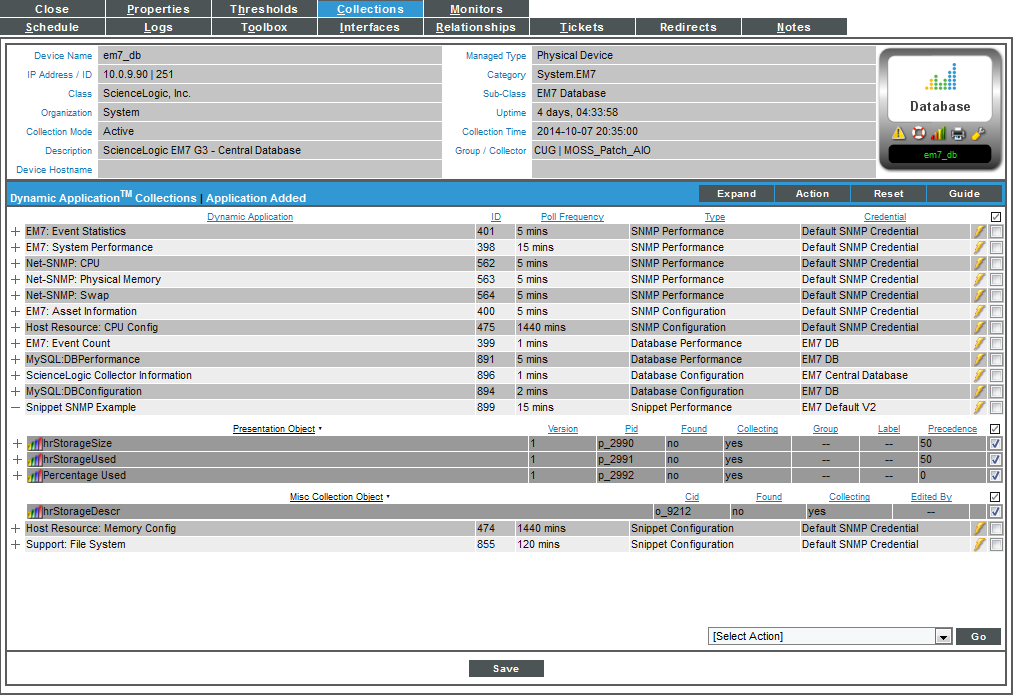
- Select the Action menu and choose Add Dynamic Application.
- In the Dynamic Application Alignment modal page, select our example Dynamic Application, Snippet SNMP Example. Select the credential you created in the previous section.
- Select the button. The page refreshes, and the Snippet SNMP Example Dynamic Application is displayed in the list of Dynamic Applications.
Viewing Performance Data
The first collected values will be stored within one minute. To view the performance data for this Dynamic Application:
- Go to the Device Manager page (Devices > Classic Devices, or Registry > Devices > Device Manager in the classic user interface).
- Select the graph icon () for the device you aligned the Dynamic Application with. The Device Summary page is displayed.
- Select the tab. The Device Performance page is displayed.
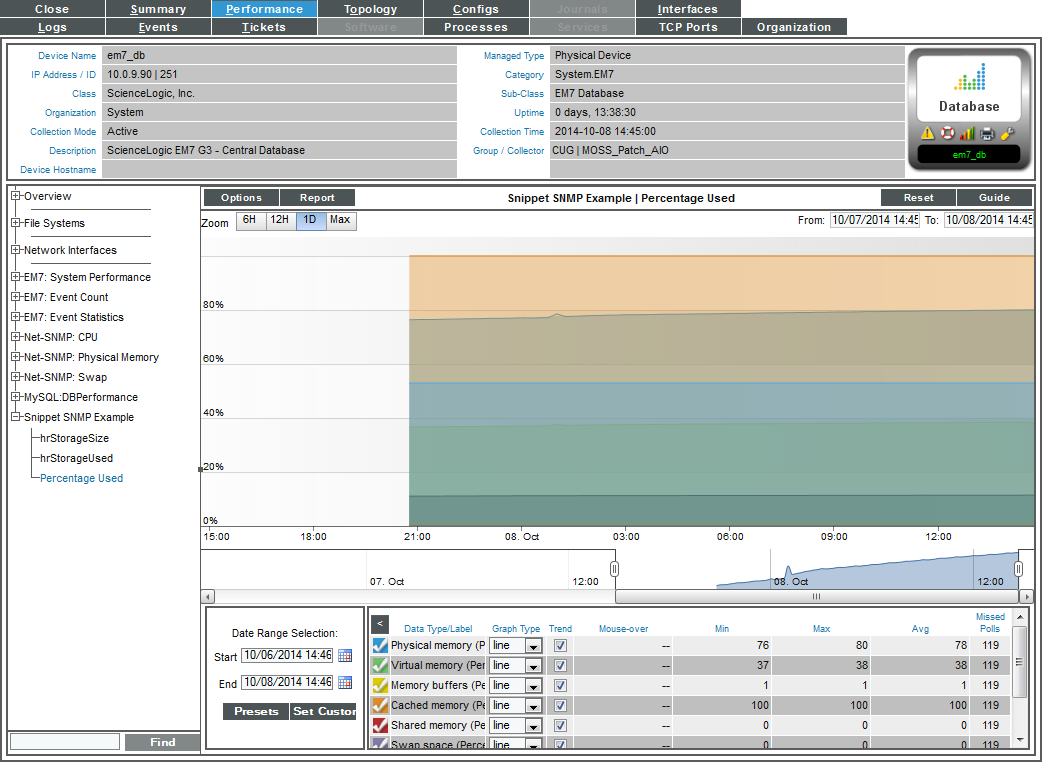
- Select Snippet SNMP Example in the left Navbar, then the Storage Percent presentation object Dynamic Application. A performance graph will be displayed.
Example 3: Using Telnet to Collect Performance Data
Some network devices expose useful pieces of performance or configuration data via a telnet interface. Telnet may be the only method to access some information, such as configuration data.
Snippets provide a convenient way to gather data via telnet, and then present, report and alert against the results.
In this example, telnet is used to connect to a Dell Ethernet switch and collect CPU statistics. From the command line, an interaction with the switch looks like this:
> telnet 192.168.1.4
Trying 192.168.1.4...
Connected to 192.168.1.4.
Escape character is '^]'.
User Name:admin
Password:************
Dell-5324b# show cpu utilization
CPU utilization service is on.
CPU utilization
---------------
five seconds:8% ;one minute:8% ;five minutes:4%
Dell-5324b# exit
Connection closed by foreign host.
>
From the command line interface access attempt, we can see that to log in, the switch presents a "User Name:" prompt, followed by a "Password:" prompt. Once logged in, commands may be submitted at the # prompt. When CPU utilization is requested, the results come back on one line showing utilization for three different collection intervals. Finally, "exit" terminates the telnet session.
Creating the Dynamic Application
To create this example Dynamic Application, perform the following steps:
- Go to the Dynamic Applications Manager page (System > Manage > Dynamic Applications).
- Select the button, then Create New Dynamic Application. The Create New Application page is displayed.
- Supply values in the following fields:
- Application Name. The name of the Dynamic Application. This example is called "Snippet Telnet Example".
- Application Type. This example is a Snippet Performance Dynamic Application. Select Snippet Performance in this field.
- Poll Frequency. To see data as quickly as possible, select Every 1 Minute in this field.
- This example does not have specific requirements for the other settings defined in this page. You can leave the remaining fields set to the default values.
- Select the button.
Because collection objects are assigned a specific snippet, you must create the container for the snippet code before creating the collection objects for this Dynamic Application. To create a container for the snippet code, perform the following steps:
- Select the tab.
- Supply values in the following fields:
- Snippet Name. The name of the snippet. The snippet in this example is called "CPU Collection".
- Active State. To ensure that the snippet code is run by Skylar One, select Enabled in this field.
- Snippet Code. Leave this field blank. You will add the snippet code later in this example.
- Select the button.
Creating the Collection Objects
The snippet code for this example will use a regular expression to extract specific CPU values from the CPU response line in the switch. The collection objects will specify the command to execute (show cpu utilization) and the specific CPU value to be extracted using a regular expression for the collection object. The command to execute the specific CPU value to collect for each object will be defined in the Snippet Arguments field, separated by a pipe ('|').
To create the collection objects for this Dynamic Application, perform the following steps:
- Select the tab in the Dynamic Application Editor pane.
- Supply values in the following fields to create the first object, which will collect the five second CPU data:
- Object Name. The name of the collection object. Enter "CPU Five Second" in this field.
- Snippet Arguments. The arguments to pass to the snippet. Enter "show cpu utilization|five second:" in this field.
- Class Type. The collected values for this collection object will be incrementing numeric values from which a delta must be taken. Select 1 Performance Counter in this field.
- Snippet. There is only one snippet for this Dynamic Application. Select CPU Collection in this field.
- This example does not have specific requirements for the other collection object settings. You can leave the remaining fields set to the default values.
- Select the button, then select the button to clear the values you entered.
- Repeat steps two, three, and four to create a collection object for the one minute CPU collection, using the following values:
- Object Name. Enter "CPU 1 Minute".
- Snippet Arguments. The arguments to pass to the snippet. Enter "show cpu utilization|one minute:" in this field.
- Class Type. The collected values for this collection object will be incrementing numeric values from which a delta must be taken. Select 1 Performance Counter in this field.
- Snippet. There is only one snippet for this Dynamic Application. Select CPU Collection in this field.
- Repeat steps two, three, and four to create a collection object for the five minute CPU collection, using the following values:
- Object Name. Enter "CPU Five Minute".
- Snippet Arguments. The arguments to pass to the snippet. Enter "show cpu utilization|five minute:" in this field.
- Class Type. The collected values for this collection object will be incrementing numeric values from which a delta must be taken. Select 1 Performance Counter in this field.
- Snippet. There is only one snippet for this Dynamic Application. Select CPU Collection in this field.
Snippet Code
This section walks through all the snippet code used in this example.
First, the telnetlib module is imported, which will be used to make the telnet connection to the switch. The regular expression module is also imported, which will be used to parse the performance data from the response:
import telnetlib
import re
The self.cred_details dictionary is used to make a connection to the switch:
host = self.cred_details['cred_host']
user = self.cred_details['cred_user']
password = self.cred_details['cred_pwd']
tn = telnetlib.Telnet(host)
tn.read_until("User Name:")
tn.write(user + "\n")
tn.read_until("Password:")
tn.write(password + "\n")
Like the snippet code in Example 1 and Example 2, this snippet iterates through the self.oids dictionary:
for group, oid_group in self.oids.iteritems():
for obj_id, oid_detail in oid_group.iteritems():
if oid_detail['oid_type'] != snippet_id:
continue
The snippet expects the arguments for each collection object to be the command to run and the value to parse from the results separated by a pipe ('|'). If the collection object the snippet is currently operating on is not in this format, the snippet generates an alert, then iterates to the next collection object:
cmd_l = oid_detail['oid'].split('|')
if len(cmd_l) != 2:
self.internal_alerts.append((518, "App:%s, Snippet:%s, Invalid collection value:%s (must be a command and a match string)" % \
(self.app_id, req_id, oid_detail['oid'])))
continue
If the collection object has valid arguments, the command is executed, then the result is parsed:
command = cmd_l[0]
match_val = cmd_l[1]
tn.read_until("#")
tn.write(command + "\n")
tn.read_until("-----------\r\n")
result = tn.read_until("\r\n")
match_regex = "(?<=%s).*?[0-9]{1,}" % (match_val)
match_obj = re.search(match_regex, result)
If a match is found, the result is stored:
if match_obj:
oid_detail['result'] = [(0, match_obj.group()),]
Using the Dynamic Application
For performance Dynamic Applications, presentation objects that correspond to each collection object are automatically created. To add the snippet code to the example Dynamic Application you created, perform the following steps:
- Select the tab in the Dynamic Application Editor pane.
- Select the wrench icon () for the "CPU Collection" snippet.
- Insert the snippet code in the Snippet Code field. A full listing of the snippet code is included in the last section.
- Select the button.
To use the example Dynamic Application, you must first create a Basic/Snippet credential to align with the Dynamic Application. Perform the following steps to create Basic/Snippet credential for a Dell Ethernet switch:
- Go to the Credential Management page (System > Manage > Credentials).
- Select the button, then select Basic/Snippet Credential. The Credential Editor page is displayed.
- Supply values in the following fields:
- Profile Name. Enter a name for the credential.
- Hostname/IP. Specifies the hostname or IP address to connect to. If you are aligning this Dynamic Application to a Dell Ethernet switch modeled as a device in your system, enter "%D" in this field to use the IP address of the aligned device. If you are not aligning this Dynamic Application to a Dell Ethernet switch modeled as a device in your system, enter the hostname or IP address of your Dell Ethernet switch in this field.
- Port. Specifies the port to connect to. Enter "23" in this field to use the default port for telnet.
- Timeout. This field is not used by the snippet code. You can leave this field blank.
- Username. Specifies the username to use when connecting to the switch. Enter the username for a user on your switch in this field.
- Password. Specifies the password to use when connecting to the switch. In this field, enter the password for the username you entered in the Username field.
- Select the button.
To align this Dynamic Application to a device, perform the following steps:
If you entered "%D" in the Hostname/IP field for your credential, you must align the Dynamic Application to a Dell Ethernet switch.
- Go to the Device Manager page (Devices > Classic Devices, or Registry > Devices > Device Manager in the classic user interface).
- Select the wrench icon () for the device you want to align the Dynamic Application with. The Device Properties page is displayed.
- Select the tab. The Dynamic Application Collections page is displayed.
- Select the Action menu and choose Add Dynamic Application.
- In the Dynamic Application Alignment modal page, select our example Dynamic Application, Dell Switch CPU Snippet. Select the Basic/Snippet credential you created for your Dell Ethernet switch.
- Select the button. The page refreshes, and the Snippet Telnet Example Dynamic Application is displayed in the list of Dynamic Applications.
The first collected value will be stored within one minute. To view collected data for this Dynamic Application:
- Go to the Device Manager page (Devices > Classic Devices, or Registry > Devices > Device Manager in the classic user interface).
- Select the graph icon () for the device you aligned the Dynamic Application with. The Device Summary page is displayed.
- Select the tab. The Device Performance page is displayed.
- Select Snippet Telnet Example in the left Navbar, then select one of the three presentations for this Dynamic Application. A performance graph is displayed.
Full Snippet Code Listing
import telnetlib
import re
host = self.cred_details['cred_host']
user = self.cred_details['cred_user']
password = self.cred_details['cred_pwd']
tn = telnetlib.Telnet(host)
tn.read_until("User Name:")
tn.write(user + "\n")
tn.read_until("Password:")
tn.write(password + "\n")
for group, oid_group in self.oids.iteritems():
for obj_id, oid_detail in oid_group.iteritems():
if oid_detail['oid_type'] != snippet_id:
continue
cmd_l = oid_detail['oid'].split('|')
if len(cmd_l) != 2:
self.internal_alerts.append((518, "App:%s, Snippet:%s, Invalid collection value:%s (must be a command and a match string)" % \
(self.app_id, req_id, oid_detail['oid'])))
continue
command = cmd_l[0]
match_val = cmd_l[1]
tn.read_until("#")
tn.write(command + "\n")
tn.read_until("-----------\r\n")
result = tn.read_until("\r\n")
match_regex = "(?<=%s).*?[0-9]{1,}" % (match_val)
match_obj = re.search(match_regex, result)
if match_obj:
oid_detail['result'] = [(0, match_obj.group()),]
Using Snippets to Collect Database Data
Snippets can be used to implement a variety of collection methods, including those that are built into Skylar One, such as Database collection. Although it is more convenient to use the built-in collection methods where possible, there are use cases when using a snippet Dynamic Application for database collection is appropriate. This section walks through snippet code that:
- Performs an SQL query to retrieve the data retention settings from a Skylar One System. This data is stored in the master.system_settings_core table. The table includes a column for each system setting and a single row that specifies the values for those system settings.
- Appends a suffix to each data retention value.
Creating the Dynamic Application
To create this example Dynamic Application, perform the following steps:
- Go to the Dynamic Applications Manager page (System > Manage > Dynamic Applications).
- Select the button, then Create New Dynamic Application. The Create New Application page is displayed.
- Supply values in the following fields:
- Application Name. The name of the Dynamic Application. This example is called "Snippet Database Example".
- Application Type. This example is a Snippet Configuration Dynamic Application. Select Snippet Configuration in this field.
- Poll Frequency. To see data as quickly as possible, select Every 1 Minute in this field.
- This example does not have specific requirements for the other settings defined in this page. You can leave the remaining fields set to the default values. Select the button.
Creating a Container for the Snippet
Because collection objects are assigned a specific snippet, you must create the container for the snippet code before creating the collection objects for this Dynamic Application. To create a container for the snippet code, perform the following steps:
- Select the tab.
- Supply values in the following fields:
- Snippet Name. The name of the snippet. The snippet in this example is called "Database Query".
- Active State. To ensure that the snippet code is run by Skylar One, select Enabled in this field.
- Required. Specifies whether this snippet is required for successful collection of all other snippet requests. Select Required - Stop Collection. If this snippet request fails, the platform will not attempt to execute any other snippet requests in this Dynamic Application. Dynamic Applications that consume the cache of this Dynamic Application will halt collection.
- Snippet Code. Leave this field blank. You will add the snippet code later.
- Select the button.
Creating the Collection Objects
The snippet code for this example will retrieve data from a database and populate the result_handler dictionary with the retrieved values. The collection objects will be the names of columns in the database. The snippet code will construct the database query and process the results using the arguments provided for each collection object, i.e. new or additional fields can be added as collection objects without editing the snippet code. This example includes collection objects for the following database fields:
- records_perf. The number of days for which raw performance data is retained.
- records_dev_logs_max. The maximum number of device logs that should be stored.
- records_access_logs. The number of months for which access log data is retained.
These three fields are included in this example were chosen to illustrate the three different ways the snippet code processes the collected values. You can add collection objects for the other data retention settings as desired. The column names for retention have the prefix "records_".
To create the collection objects for this Dynamic Application, perform the following steps:
- Select the tab in the Dynamic Application Editor pane.
- Supply values in the following fields to create the first object, which will collect the values from the records_perf column of the database:
- Object Name. The name of the collection object. Enter "Raw Performance Data" in this field.
- Snippet Arguments. The arguments to pass to the snippet. The snippet code expects the arguments for each collection object to be a field name in the master.system_settings_core table. Enter "records_perf" in this field.
- Snippet. There is only one snippet for this Dynamic Application. Select Database Query in this field.
- For the remaining fields, accept the default values. Select the button, then select the button to clear the values you entered.
- Repeat steps two and three to create the collection object that will collect the values from the records_dev_logs_max column of the database:
- Object Name. Enter "Device Logs Max".
- Snippet Arguments. The arguments to pass to the snippet. The snippet code expects the arguments for each collection object to be a field name in the master.system_settings_core table. Enter "records_dev_logs_max" in this field.
- Snippet. There is only one snippet for this Dynamic Application. Select Database Query in this field.
- For the remaining fields, accept the default values. Select the button, then select the button to clear the values you entered.
- Repeat steps four and five to create the collection object that will collect the values from the records_access_logs column of the database:
- Object Name. Enter "Access Logs".
- Snippet Arguments. The arguments to pass to the snippet. The snippet code expects the arguments for each collection object to be a field name in the master.system_settings_core table. Enter "records_access_logs" in this field.
- Snippet. There is only one snippet for this Dynamic Application. Select Database Query in this field.
- For the remaining fields, accept the default values. Select the button.
Snippet Code Walkthrough
The snippet code for this example starts by initializing three variables:
table = "master.system_settings_core"
fields = []
results = {}
- The snippet will be retrieving data from the table system_settings_core, in the database master. The table name is stored in the variable table.
- The snippet will use fields to store a list of database fields that will be included in the database query.
- The snippet will use the results to store the dictionary that will be passed to the result handler.
Next, the snippet iterates through the key values from the result_handler dictionary. The keys in the result_handler dictionary are the arguments supplied for each collection object. In this example, the arguments are the field names from the master.system_settings_core table. The field names are added to the list of fields and used to initialize the results dictionary with empty lists:
for collection in result_handler.iterkeys():
fields.append(collection)
results[collection] = []
The list of database fields is then formatted as a comma-delimited string in the variable field_list:
field_list = ','.join(fields)
Next, the snippet retrieves a database cursor using the dbc_from_cred_id method. This method is called in a try/except/else block, which will catch both types of exceptions raised by the db_from_cred_id method (ValueError and RuntimeError). If an exception is raised, the COLLECTION_PROBLEM and PROBLEM_STR variables are used to report the problem in the device log for the subscriber device:
try:
dbc = em7_snippets.dbc_from_cred_id(self.cred_details['cred_id'])
except (ValueError,RuntimeError), e:
COLLECTION_PROBLEM = True
PROBLEM_STR = e
If the db_from_cred_id method does not generate an exception, the snippet executes an SQL query using the field_list and table variables to construct a SELECT statement. The query is called in a try/except block similar to the previous section of code:
else:
sql = "SELECT %s FROM %s;" % (field_list,table)
try:
dbc.execute(sql)
db_result = dbc.fetchall()
except Error, e:
COLLECTION_PROBLEM = True
PROBLEM_STR = e
NOTE: Remember that the variable field_list contains a list of all key values in the result_handler dictionary. Remember that the variable table contains the value master.system_settings_core.
If the query executes successfully, the following block of code processes and stores the collected values:
else:
i = 0
for row in db_result:
for index, collection in enumerate(fields):
if collection == "records_dev_logs_max":
result_tuple = (i, str(row[index]) + " Records")
elif row[index] % 30 == 0 and row[index] != 30:
result_tuple = (i, str(row[index] / 30) + " Months")
else:
result_tuple = (i, str(row[index]) + " Days")
results[collection].append(result_tuple)
i += 1
result_handler.update(results)
The counter i is initialized at 0 and is incremented after each row returned by the query is processed. This counter is used to assign index values to each returned value. However, the master.system_settings_core table contains only one row, so this example returns only one index (0). This counter, and the iteration over each row in the result set, is included in this example so that the snippet code can be re-used for other database tables with only minor changes.
For each row in the result set, the snippet code iterates over the fields list. For each field, collection is the field name (also the snippet argument for the corresponding collection object) and index is the list index in the fields list. Because the fields list was used to construct the database query, the list indexes for fields match the indexes in each row.
For each field, the snippet determines the appropriate suffix:
- If the field is "records_dev_logs_max", the suffix is "Records". The retention setting for the maximum number of device logs is the only retention setting (fields with the prefix "records_") that is not stored as a number of days.
- All other retention settings are stored as a number of days. If the number of days is evenly divisible by 30 and greater than 30, the suffix is "Months".
- For all other values, the suffix is "Days".
The result_tuple variable is populated with the index (the value of the counter i) and a string value for the collection object. The tuple is then appended to list in the results dictionary that corresponds to the collection object.
Because results is a dictionary of lists that contains the same keys as the result_handler dictionary, we can return the collected data to Skylar One using the update function for the result_handler dictionary.
Adding the Snippet Code
To enter the Snippet code:
- Go to the Dynamic Applications Manager page (System > Manage > Dynamic Applications).
- Find the example Dynamic Application, Example Database Collection. Select its wrench icon ().
- Select the tab.
- In the Snippet Registry pane, find the Database Query snippet and select its wrench icon ().
- In the Snippet Code field, enter the following code
table = "master.system_settings_core"
fields = []
results = {}
for collection in result_handler.iterkeys():
fields.append(collection)
results[collection] = []
field_list = ','.join(fields)
try:
dbc = em7_snippets.dbc_from_cred_id(self.cred_details['cred_id'])
except (ValueError,RuntimeError), e:
COLLECTION_PROBLEM = True
PROBLEM_STR = e
else:
sql = "SELECT %s FROM %s;" % (field_list,table)
try:
dbc.execute(sql)
db_result = dbc.fetchall()
except Error, e:
COLLECTION_PROBLEM = True
PROBLEM_STR = e
else:
i = 0
for row in db_result:
for index, collection in enumerate(fields):
if collection == "records_dev_logs_max":
result_tuple = (i, str(row[index]) + " Records")
elif row[index] % 30 == 0 and row[index] != 30:
result_tuple = (i, str(row[index] / 30) + " Months")
else:
result_tuple = (i, str(row[index]) + " Days")
results[collection].append(result_tuple)
i += 1
result_handler.update(results)
Using the Dynamic Application
The Dynamic Application in this example can be aligned with any ScienceLogic Database Server or All-In-One Appliance.
Define the Credential
To use the example Dynamic Application, you must first create a Database credential to align with the Dynamic Application. Perform the following steps to create a new Database credential:
- Go to the Credential Management page (System > Manage > Credentials).
- Select the menu, then select Create Database Credential. The Credential Editor page is displayed.
- Supply values in the following fields:
- Profile Name. Name of the profile. Can be any combination of alphanumeric characters.
- DB Type. Select MySQL.
- DB Name. Name of the database that will be accessed with the credential. Enter master.
- DB User. Username associated with a valid account on the database. For Database Servers and All-In-One Appliances, this is typically the root user.
- Password. Password associated with the DB User account.
- Hostname/IP. Hostname or IP address of the Database Server or All-In-One Appliance. If you are aligning this Dynamic Application to a Database Server or All-In-One Appliance that is already discovered in your system, enter "%D" in this field to use the IP address associated with the device record.
- Port. Enter "7706".
- Select the button.
Align the Dynamic Application with a Device
To align this Dynamic Application to a device, perform the following steps:
NOTE: If you entered "%D" in the Hostname/IP field for your credential, you must align the Dynamic Application to the device record for a Database Server or All-In-One Appliance.
- Go to the Device Manager page (Devices > Classic Devices, or Registry > Devices > Device Manager in the classic user interface).
- Select the wrench icon () for the device you want to align the Dynamic Application with. The Device Properties page is displayed.
- Select the tab. The Dynamic Application Collections page is displayed.
- Select the Action menu and choose Add Dynamic Application.
- In the Dynamic Application Alignment modal page, select our example Dynamic Application, Snippet Database Example. Select the credential you created in the previous section. Select the button.
- The page refreshes, and the Snippet Database Example Dynamic Application is displayed in the list of Dynamic Applications.
Viewing Data
The first collected value will be stored within one minute. To view the label data for this Dynamic Application:
- Go to the Device Manager page (Devices > Classic Devices, or Registry > Devices > Device Manager in the classic user interface).
- Select the graph icon () for the device you aligned the Dynamic Application with. The Device Summary page is displayed.
- Select the tab. The Configuration Report page is displayed.
- In the left NavBar, select Snippet Database Example. The collected data is displayed.