
Click Help to display Skylar Compliance (formerly Restorepoint) documentation for your current page.
You can also click Help > Help Index to access the HTML userguide, download a PDF copy, or access the Plugin Guide (Help > Plugin Guide).
Error Messages
If you experience an error, review the descriptions and solutions below.
Errors During Backup Operations
| Error | Description | Solution |
|---|---|---|
|
Connection timeout (Cause 1) |
Skylar Compliance can’t connect to the device using the specified protocol.
|
Check that the protocol is correct and that there is connectivity to the device (e.g., no firewall is blocking the required ports). If the device uses back-connections, also check that this is not blocked, and/or NAT is correctly configured on Restorepoint. Check Help > Plugin Guide to verify the connectivity requirements for this particular device. |
|
Connection timeout (Cause 2) |
The device is not sending the expected output to Skylar Compliance within the allocated time. | Check that you have selected the correct plugin and that the device firmware/operating system is supported by Skylar Compliance. |
|
Connection failed: Device SSH key has changed |
Skylar Compliance has detected that device’s SSH key has changed |
This error typically occurs because the device has been replaced. If the device has been replaced, edit the device and click |
|
Timeout waiting for username prompt |
Skylar Compliance can connect to the device but did not receive a username prompt. | Check that you are using the correct plug-in. If the device is not configured to prompt a username, leave the Username field empty in the device definition. |
|
Timeout waiting for password prompt |
Skylar Compliance can connect to the device but did not receive a password prompt. | Check that you are using the correct plug-in and that the device username and password are correct. |
|
Timeout waiting for device prompt |
Skylar Compliance can connect to the device but did not receive the device CLI prompt. | Check that you are using the correct plug-in and that the device username and password are correct. |
|
Error creating backup |
Skylar Compliance can connect to the device but is not able to create a backup on the device. This can be caused by a number of circumstances, usually a lack of available disk space. | Connect to the device manually from your PC or from the Skylar Compliance system shell and attempt to create a backup to determine the cause of the error. |
|
Error transferring backup |
Skylar Compliance can connect to the device and create a backup on the device but is not able to transfer it back. This is usually due to a firewall blocking a required port (e.g., TFTP) between Skylar Compliance and the device. If your device has a large backup file (several Mbytes) and you are backing up over a WAN, this error message can be caused by a timeout during file transfer. | Check the Plugin Guide (Help > Plugin Guide) and ensure that the TCP or UDP ports required by your device are not blocked by any firewalls. |
|
Incorrect checksum after transfer |
Wherever possible, Skylar Compliance calculates an MD5 checksum of the backup file before and after transfer to ensure the integrity of the file. If the checksum changes, this indicates that the file got corrupted in transit. | Retry the backup. An isolated error of this type may indicate a problem on the network (e.g., faulty switches or cables). A reoccurring error may be caused by a large backup file and/or a slow network, where only part of the file is transferred. Try and reduce the size of the backup if possible; use SCP or FTP instead of TFTP wherever possible. |
|
Wrong parameter found at .^. position |
Check that you have specified the correct unit when backing up a 3Com 5500 switch. | |
|
Error backing up the device/Could not hold conversation with device |
Although a failure will normally generate a specific error message, you may occasionally encounter a generic error. | Check that the device credentials are correct, that you are using the correct device plug-in, and that the required TCP/UDP traffic is allowed between Skylar Compliance and the device. If you are still unsuccessful, contact Technical Support. |
Other Messages
It is possible to experience messages that are not included above. The following errors message may also result:
| Error | Description | Solution |
|---|---|---|
|
Cryptfs not mounted |
The encrypted storage was not mounted correctly after a reboot. This may happen if the appliance is powered off without a clean shutdown.
|
Login with your username, password, and encryption password. Skylar Compliance will attempt to check and mount the encrypted storage. If you keep receiving this message every few minutes, contact Technical Support. |
|
Couldn’t connect to update server |
Skylar Compliance needs to communicate to the update server (support.restorepoint.com) to check whether new software or device plug-ins are available. |
Check the following:
|
|
Connection failed: Device SSH key has changed |
Skylar Compliance has detected that device’s SSH key has changed |
This error typically occurs because the device has been replaced. If the device has been replaced, edit the device and click |
|
License expired |
You've either received a license has expired message or can't obtain software updates. | Contact ScienceLogic Support. |
Using the System Shell
The system shell provides some useful command line network tools that can be used to troubleshoot connectivity problems. To start the system shell, log in to the Skylar Compliance console using an admin account and select System Shell.
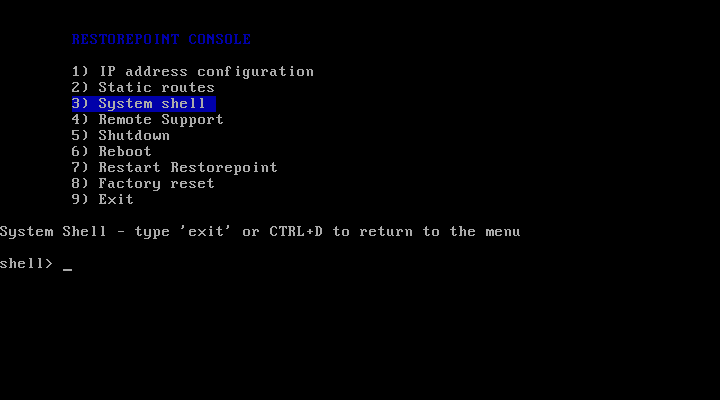
Ensure that you are familiar with these tools before using the system shell. The available commands are:
- help. Lists the available commands.
- ping. Sends an ICMP Echo Request packet to a network host.
- traceroute. Displays the route packets take to a network host.
- nslookup. Query a DNS name server.
- telnet. Connect to a host using the TELNET protocol.
- ssh. Connect to a host using the SSH protocol.
- tcpdump. Displays the network traffic.
- exit. Returns you to the main menu.
Factory Reset
If you need to reset your Restorepoint appliance to factory settings, you can follow the factory reset procedure. Note that the factory reset will permanently erase ALL of the information stored on the appliance, not just the system settings. In particular:
- The encryption key will be deleted.
- All the device data (configuration and backups) will be erased.
- All the administrators (except admin) will be deleted.
- All plugins will be deleted.
- System settings will be reset to their default values.
- The password for the admin user will be reset to
admin.
Note : To reset the appliance, you must have the admin password. If you need to reset Skylar Compliance and you do not know the admin password, contact ScienceLogic Support.
To start the factory reset procedure:
-
Log in as admin on the Skylar Compliance console.
-
Choose the Factory reset option.
-
Confirm that you understand and accept that your data will be lost and enter Yes, otherwise enter No to abort.

The system will then erase the database and reset the system settings to their default values. This can take some time, depending on how much data is stored on the appliance. Do not shut down or power off the system before the reset has completed or you may damage the appliance. Restorepoint will automatically shut down at the end of the procedure.
Skylar Compliance Plugins
All Skylar Compliance Plugins that are currently supported can be found on the ScienceLogic Support Plugins page. For more information on Plugins to enable your Skylar Compliance appliance, see Skylar Compliance Plugins. For additional information, see the Knowledge Base article https://support.sciencelogic.com/s/article/14984 .
Frequently Asked Questions
| Error | Solution |
|---|---|
|
I have forgotten my encryption password. |
See Connecting to Restorepoint after a reboot and Password Reset for more information. |
|
I cannot connect to the web interface. |
Check that you have network connectivity. The power and network LEDs on the front panel of your Restorepoint appliance should be lit. If you are in an environment using a proxy server, check that you are connecting to the device on port 443, or that your browser is set to bypass connection to the device. |
|
I cannot add a device. |
Check that the model and firmware version of the device you are adding is on the list of supported devices. The list of supported devices can be found in the Plugin Guide (Help > Plugin Guide). |
|
I do not get notifications. |
Check that the task is not paused in the Info > Schedule page. |
|
Scheduled tasks are not running. |
Check that the task is not paused in the Info > Schedule page. |
|
I have a device that is not supported but would like to see support for it. |
Contact Technical Support and let us know the vendor, product, model, and version of the device. Wherever possible, Restorepoint will endeavor to add support for your device. |
|
I still need assistance and require remote support. |
If you are having problems and need a support engineer from Skylar Compliance to help troubleshoot the issue, click the Remote Support option on the Skylar Compliance appliance to create an SSH tunnel to our support server which allows a support engineer to assist you. Alternatively, our support team can set up a web session with you (WebEx, join.me, GoToMeeting, or similar). |
Contacting ScienceLogic Support
Skylar Compliance Technical Support is now linked to ScienceLogic Support. If you need support, contact the ScienceLogic Support Portal. From there, you can search knowledge base articles and other resources, or open a case with ScienceLogic Support. Access to the portal requires registration and a valid software license.