
This  ) of the Skylar Automation user interface.
This
Skylar Automation does not have a retention policy for reports. Skylar Automation reports will remain until you manually remove them.
Viewing the List of Reports in Skylar Automation
The Reports page () contains a list of reports associated with Skylar Automation applications. You can search for a specific report by typing the name of that report in the Search field at the top of the Reports page. The user interface filters the list as you type.
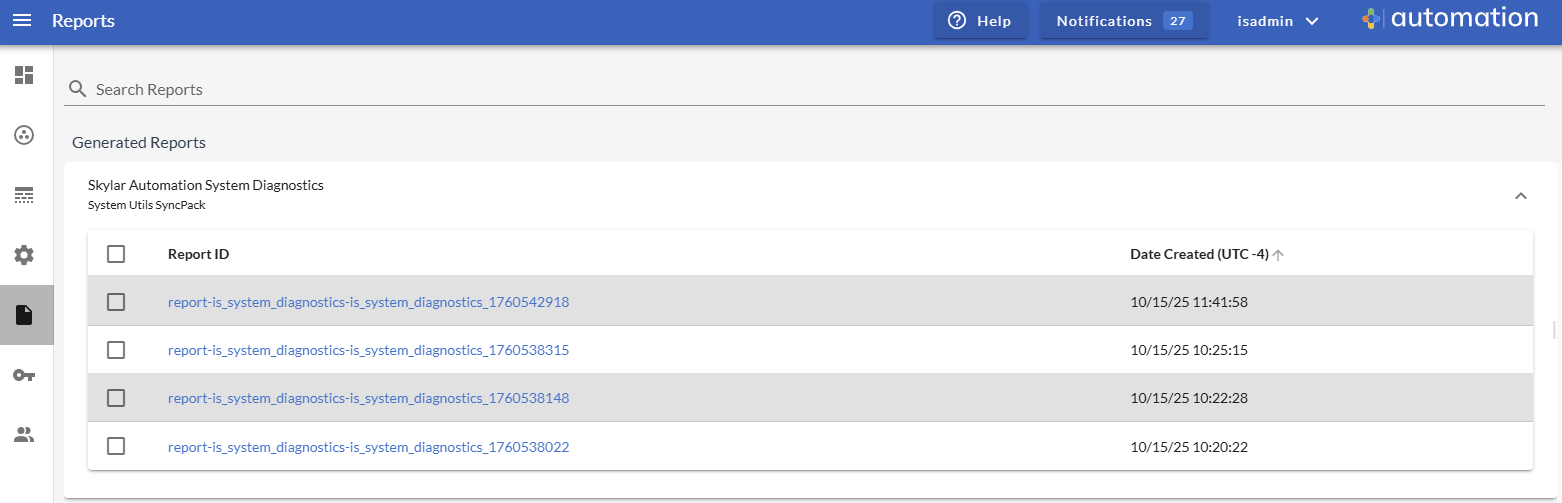
If a Skylar Automation application supports reports and the reporting feature is enabled, Skylar Automation will generate a report each time you run the application. Each report displays data only from the most recent run of the application; a report is not an aggregation of all previous runs.
From the detail page for a Skylar Automation application, click the button to go to the Reports page.
To view a report:
-
On the Reports page (
), click the name of the application or the down arrow ( ) to expand the list of reports for that application.
-
Click a report name in the Report ID column. The Report Details page appears.
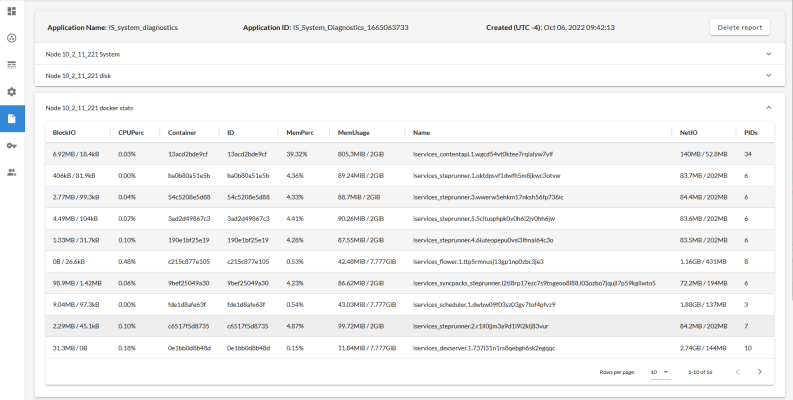
- Click the down arrow icon () to open a new section where you can view more information about an item in a report, and click the up arrow icon (
 ) to close that section.
 - To download the report, click .
- To delete the report, click .
Bulk Downloading Reports in Skylar Automation
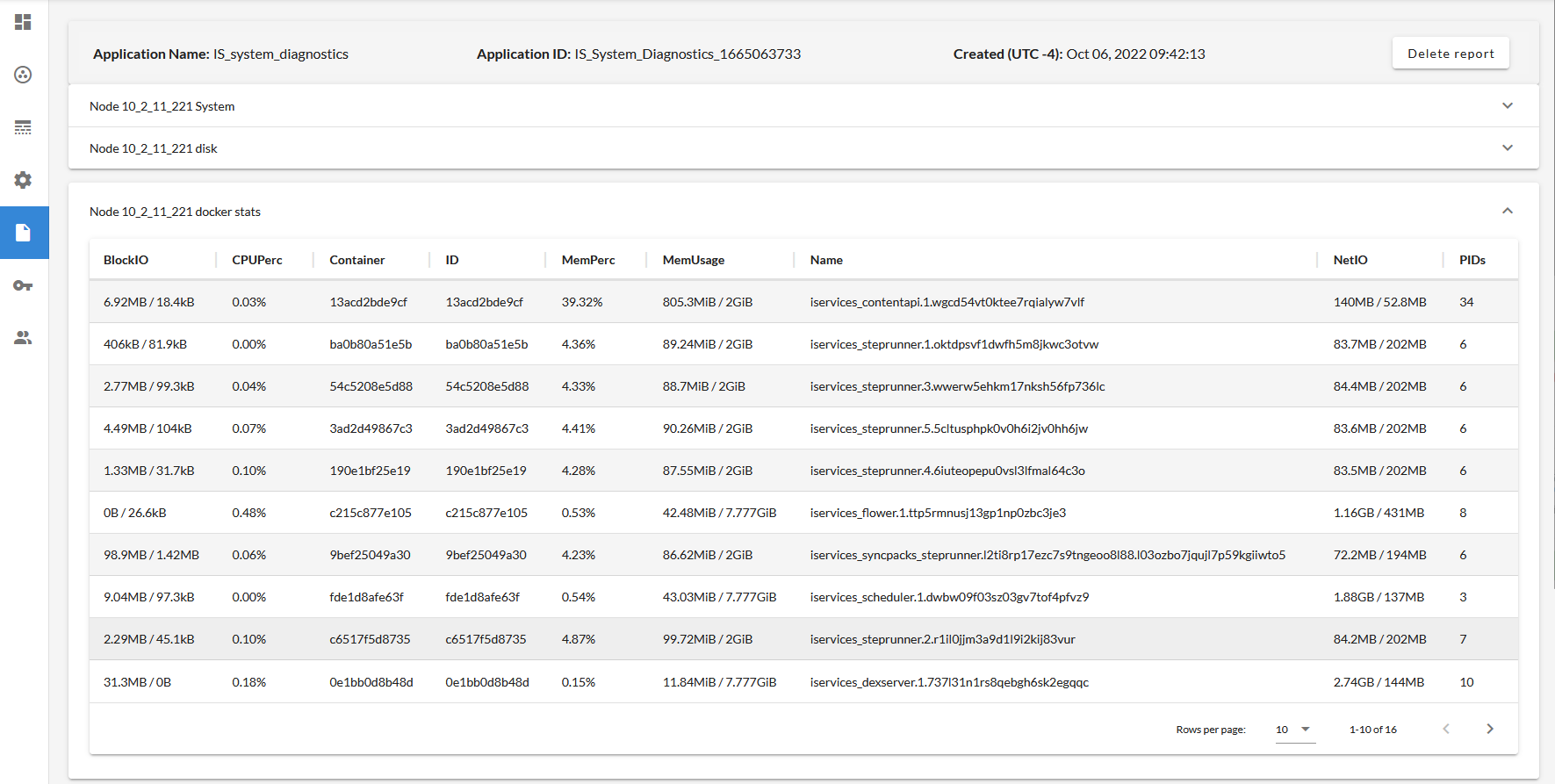
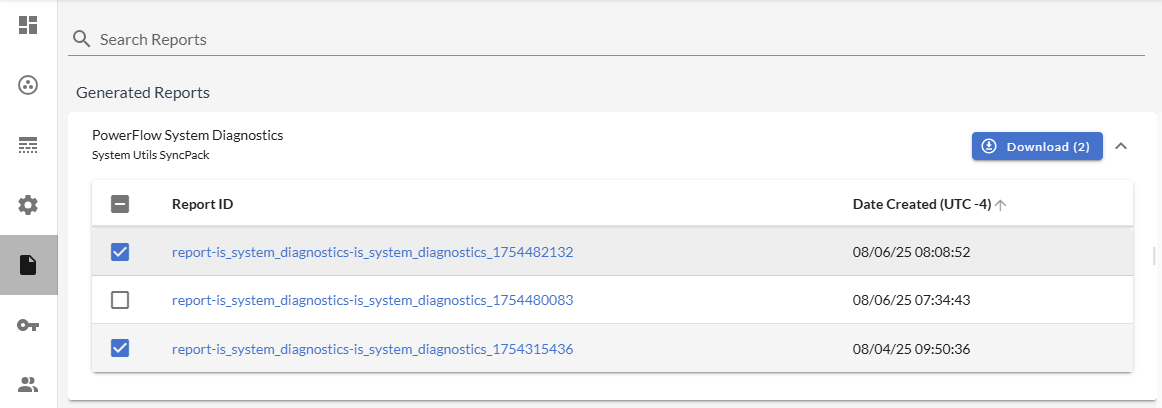
You can download any number of reports from the Reports page (). You can select a single report instance or multiple report instances for the same application to download at the same time.
To bulk download multiple report instances:
-
On the Reports page (
), locate the applications from which you want to download a report. -
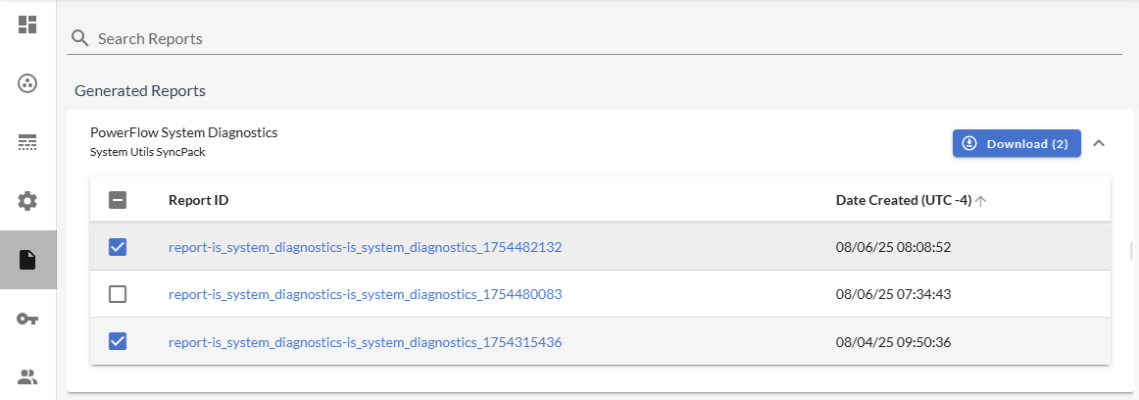
Select the checkbox at the top of an application to select all report instances of an application, or select the checkbox next to each report instance you want to download.
-
-
Click the button. The Confirm Bulk Download modal appears.
The number of selected reports displays inside the button and inside the Confirm Bulk Download modal.
-
Click to download the selected report instances.
Skylar Automation Reports
The Skylar Automation Platform includes the following reports by default:
- Skylar Automation System Diagnostics Report
- Read RBA Queue and Retry Skylar Automation Applications Report
The Skylar Automation System Diagnostics Report
The "Skylar Automation System Diagnostics" application lets you view platform diagnostics for the Skylar Automation system. You can use the information displayed in these diagnostics to help you troubleshoot issues with the different tools used by Skylar Automation.
Older versions of this application were named "Integration Service System Diagnostics" or "PowerFlow System Diagnostics".
To view the diagnostics report:
- From the Applications page, select the "Skylar Automation System Diagnostics" application. The Application page appears.
-
Click . The Configuration pane appears.
- Complete the following fields:
- Configuration. Select a configuration to align with this application. The "Skylar Automation - System Diagnostic Configuration Example" configuration object contains the structure needed for this application, and you can use that configuration object as a template. Be sure to update the configuration object with values for is_swarm_manager, is_username, and is_password.
- ssh_key. The remote SSH key you want to use in place of a password for the remote location. You will need to edit the SSH Key values in the JSON Editor for this release to ensure the key is properly set. This is a known issue that will be addressed in a future release.
- device_sync_app. Specify the name of the Incident Creation application that contains the relevant device mappings.
- incident_create_app. Specify the name of the Device Sync application that contains information about the incidents that have been created.
- api_alias. Specify the alias to reference the API internally to make calls.
- collect_docker_info. Select this option to collect Docker information.
- collect_snow_info. Select this option to collect ServiceNow information.
- use_ssh_key. Select this option if you want to use the value in the ssh_key field to authenticate to the remote system.
- Click and wait for the "App & Config modifications saved" pop-up message to appear. The Configuration pane automatically closes after this message appears.
-
On the Application page, click (
 ). The application generates a report that you can access on the Reports page ():
This diagnostic report displays overall Skylar Automation settings, such as the Skylar Automation version, Docker version, kernel version, hostname, cluster settings, scheduled applications, CPU and memory statistics, installation date, and cache information.
The Read Skylar One RBA Queue and Retry Skylar Automation Applications Report
If you are using Skylar Automation to sync incidents from a third-party application like ServiceNow or Cherwell, you can enable Run Book Action (RBA) queue retries to keep from losing any incidents if Skylar Automation is unavailable. Those pending Skylar Automation applications are added to an RBA queue that you can access to retry the applications that failed. For more information, see Enabling Run Book Automation Queue Retries.
When you configure the "Read Skylar One RBA Queue and Retry Skylar Automation Applications" application, you can enable the generate_report option from the Configuration pane to generate a report of all of the triggered Skylar Automation applications that were read from the RBA queue.
After Skylar Automation runs the application and generates the report, you can select the applications in the report to see if any child applications failed to get triggered.
The "Read Skylar One RBA Queue and Retry Skylar Automation Applications" application is available in the System UtilsSyncPack version 1.1.2 or later
SyncPack Reports
Some reports are included with a specific SyncPack. You can download the most recent version of a SyncPack from the PowerPacks & SyncPacks page at the ScienceLogic Support Center at https://support.sciencelogic.com/s/.
ServiceNow CMDB SyncPack Reports
The ServiceNow CMDB SyncPack includes the following reports:
- Report: Identify Unmapped Device Classes. For more information, see Checking for Missing Device Mappings.
- Sync File Systems from Skylar One to ServiceNow. For more information, see Syncing File Systems.
- Sync Interfaces from Skylar One to ServiceNow. For more information, see Syncing Network Interfaces.
- Sync Devices from Skylar One to ServiceNow. For more information, see Viewing Reports for Device Sync.