
This
The following workflow covers how to install and configure this SyncPack:
- Review the prerequisites and background information for this SyncPack.
- In Skylar Automation, download, import, and install the "ServiceNow CMDB" SyncPack.
- In ServiceNow, enable cross-scoped access (if needed).
- In ServiceNow, install the "ScienceLogic Skylar One: CMDB & Incident Automation" application (also called the "Scoped Application").
- In ServiceNow, create a ServiceNow Group and then create a ServiceNow User .
- In ServiceNow, install and activate the relevant plugins.
- In ServiceNow, enable the ServiceNow Identification and Reconciliation Module.
- In ServiceNow, install the "ScienceLogic Domain Separation (Global)" update set (for domain-separated ServiceNow instances only).
Prerequisites for the ServiceNow CMDB SyncPack
This section describes the prerequisites for the ServiceNow SyncPacks. For more information about the specific software versions required by a ServiceNow SyncPack, see the release notes for that SyncPack.
Administrator Access
To install this SyncPack, you must have administrator access to both Skylar One and ServiceNow. Specifically, you will need:
- ScienceLogic root SSH access
- ScienceLogic administrator access to the Administration Portal
- ServiceNow administrator access
ScienceLogic highly recommends that you disable all firewall session-limiting policies. Firewalls will drop HTTPS requests, which results in data loss.
Port Access
The following table lists the port access required by Skylar Automation and this SyncPack:
| Source | Port | Requirement |
| Skylar One API | 443 | Skylar One API Access |
| ServiceNow API | 443 | ServiceNow API Access |
| Skylar One Database | 7706 | Skylar OneDatabase Access |
Architecture Overview for ServiceNow SyncPacks
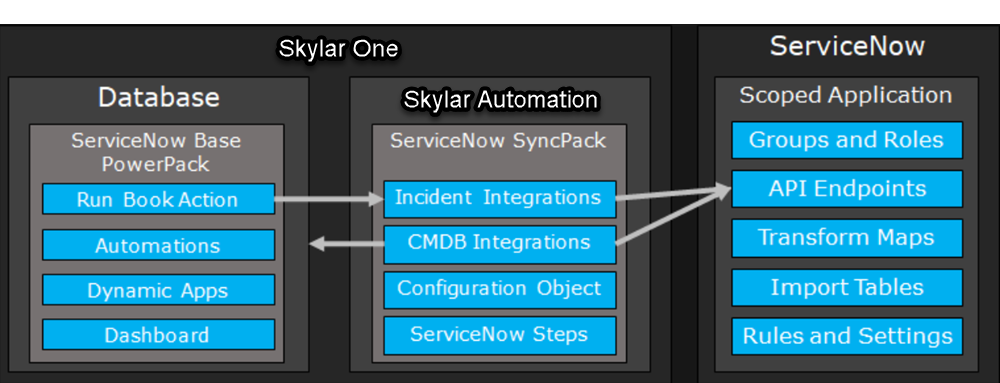
The following diagram details the various elements that are contained in Skylar One and the Skylar Automation system, and how Skylar Automation sits between the core Skylar One platform and an external data platform:
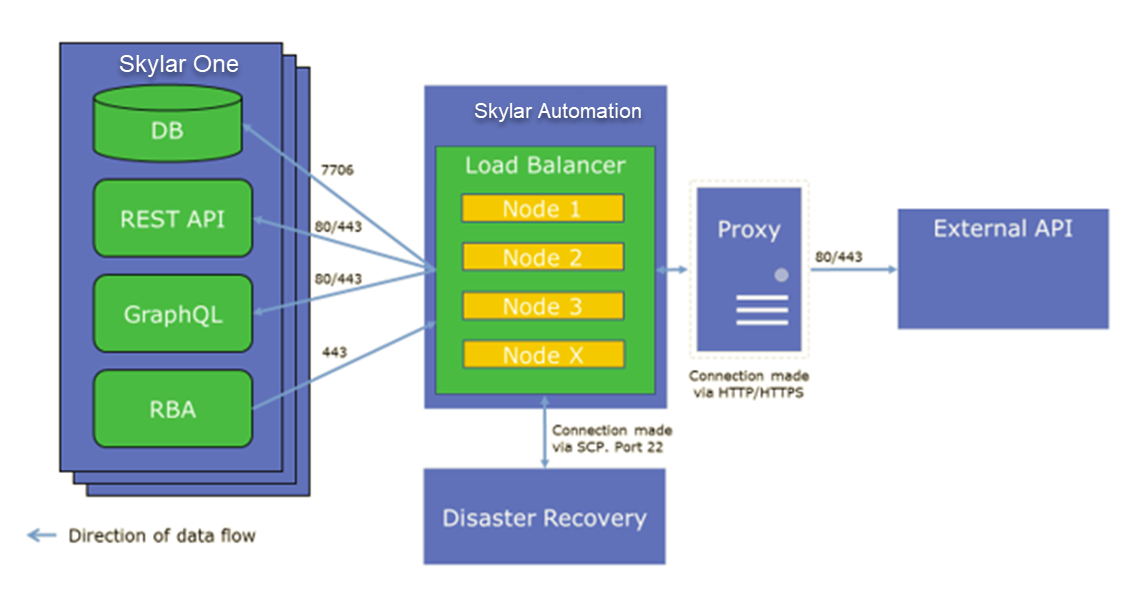
The following diagram provides an example of the high-level architecture of a Skylar Automation system with High Availability, Disaster Recovery, and a proxy configured:
Downloading, Importing, and Installing the SyncPack
A SyncPack file has the .whl file extension type. You can download the SyncPack file from the ScienceLogic Support site.
If you are planning to upgrade from an older version of this SyncPack to version 3.5.x, see Upgrading to Version 3.5.x.
Downloading the SyncPack
If you are installing or upgrading to the latest version of this SyncPack in an offline deployment, see Installing or Upgrading in an Offline Environment to ensure you install any external dependencies.
To locate and download the SyncPack:
- Go to the ScienceLogic Support Center at https://support.sciencelogic.com/s/.
- Go to the SyncPacks page (Skylar Automation > SyncPacks).
- In the Search field, search for the SyncPack and select it from the search results. The Release Version page appears.
- On the tab, click the down arrow next to the SyncPack version that you want to install, and select Show File Details. The Release File Details page appears.
- Click the button to download the SyncPack.
After you download the SyncPack, you can import it to your Skylar Automation system using the Skylar Automation user interface.
Importing the SyncPack
You must import and install the "ServiceNow Base" SyncPack before uploading and installing any of the other ServiceNow SyncPacks.
If you are upgrading to version 3.5.0 or later of this SyncPack, be sure to install and activate version 1.5.0 or later of the "Base Steps" SyncPack. Older versions of the "Base Steps" SyncPack might cause installation errors for this SyncPack.
To import a SyncPack in the Skylar Automation user interface:
- On the SyncPacks page (
 ) of the Skylar Automation user interface, click . The Import SyncPack page appears.
 - Click and select the .whl file for the SyncPack you want to install. You can also drag and drop a .whl file to the Import SyncPack page.
- Click . Skylar Automation registers and uploads the SyncPack. The SyncPack is added to the SyncPacks page.
- You will need to activate and install the SyncPack in Skylar Automation. For more information, see the following topic.
You cannot edit the content package in a SyncPack published by ScienceLogic. You must make a copy of a ScienceLogic SyncPack and save your changes to the new SyncPack to prevent overwriting any information in the original SyncPack when upgrading.
Installing the SyncPack
If you are upgrading to this version of the SyncPack from a previous version, make a note of any settings you made on the Configuration pane of the various Skylar Automation applications in this SyncPack, as these settings are not retained when you upgrade. However, any mappings you added to the attribute_mappings section for the "Sync Devices from Skylar One to ServiceNow" application are retained when you upgrade.
To activate and install a SyncPack in the Skylar Automation user interface:
-
On the SyncPacks page of the Skylar Automation user interface, click the button (
 ) for the SyncPack you want to install and select Activate & Install. The Activate & Install SyncPack modal appears.
If you try to activate and install a SyncPack that is already activated and installed, you can choose to "force" installation across all the nodes in the Skylar Automation system.
If you do not see the SyncPack that you want to install, click the Filter icon (
 ) on the SyncPacks page and select Toggle Inactive SyncPacks to see a list of the imported PowerPacks.
- Click to confirm the activation and installation. When the SyncPack is activated, the SyncPacks page displays a green check mark icon (
 ) for that SyncPack. If the activation or installation failed, then a red exclamation mark icon (
 ) appears.
 - For more information about the activation and installation process, click the highlighted version in the Installed SyncPack column for that SyncPack. For a successful installation, the "Activate & Install SyncPack" application appears, and you can view the Step Log for the steps. For a failed installation, go to the hidden "activate & Install SyncPack" application on the Applications page and check the step logs.
- If you have other versions of the same SyncPack on your Skylar Automation system, you can click the button () for that SyncPack and select Change active version to activate a different version other than the version that is currently running.
Installing or Upgrading in an Offline Deployment
Use the following procedure if you are installing or upgrading this SyncPack in an offline deployment.
This release of the SyncPack requires the following external files for an offline deployment:
- Jinja2-2.11.1-py2.py3-none-any.whl, available at this location at pypi.org.
- MarkupSafe-1.1.1-cp37-cp37m-manylinux1_x86_64.whl, available at this location at pypi.org.
To upload the required external files:
-
After downloading the two required external files, SCP the files to the master node.
-
Run the following commands on the host:
devpi use 'https://<is_username>:<is_password>@<is_hostip>:3141/isadmin/dependencies'
devpi login <is_username> --password=<is_password>
cd /tmp/
devpi upload Jinja2-2.11.1-py2.py3-none-any.whl
devpi upload MarkupSafe-1.1.1-cp37-cp37m-manylinux1_x86_64.whl –force
If you cannot run these commands on the host, you can instead run them on the pypiserver container.
-
Perform a docker copy to both files (if you are running commands in the pypiserver container):
docker cp <file1-location> $(docker ps -q -f name=iservices_pypiserver):/tmp
docker cp <file2-location> $(docker ps -q -f name=iservices_pypiserver):/tmp
-
Follow the steps in Installing the SyncPack to install and activate this SyncPack.
Allowing Cross-Scoped Access in ServiceNow
When using custom tables, you might need to configure cross-scope access for the ScienceLogic plugin. The following examples contain errors that might occur when cross-scope access is required.
Example of an API response:
{"results":[{"error":{"message":"com.glide.script.fencing.access.ScopeAccessNotGrantedException: read access to ui_test_hardware not granted","detail":""},"status":"failure"}
Example of navigating to a URL directly from a web browser when cross-scope access is required:
In this example, the table requires that you grant access to the ScienceLogic Scope to allow the API call to run correctly. In the above example, the target table is u_test_hardware.
A ServiceNow account with System Administrator is required.
To grant access to the ScienceLogic Scope in ServiceNow:
- Log in to your ServiceNow instance.
- For newer releases of ServiceNow, click the globe icon (
 ) to change the scope. On older releases, click the Settings icon (
 ) and select the Developer tab. The Developer System Settings window appears.
 - From the Application drop-down list, select ScienceLogic ServiceNow Integration.
- Close the Developer System Settings window and navigate to the Cross scope privileges page (System Applications > Application Cross-Scope Access). Make sure you are in the "ScienceLogic ServiceNow Application" scope and track these updates in an update set.
- Click the button to create a new record on the Cross scope privileges page:
- Verify that the Source Scope and Application fields are set to ScienceLogic ServiceNow Integration. If they are not, repeats steps 2-3.
- Complete the following fields:
- Target Scope. Specify the scope of the target table, such as Global. Be sure to verify the application to which the table belongs, and use that value as the target scope in this field.
- Operation. Select Read.
- Target Name. Specify the name of the target table.
- Status. Select Allowed.
- Target Type. Select Table.
- Click the button.
For more information, see the Cross-scope privilege record topic in the ServiceNow documentation.
Installing the "ScienceLogic Skylar One: CMDB Automation" Application in ServiceNow
"ServiceNow CMDB" SyncPack version 4.0.0 and later integrates with the standalone "ScienceLogic: CMDB Automation" application in ServiceNow. The previous "ScienceLogic SL1: CMDB & Incident" application is no longer utilized, as its functionality has been migrated to other standalone applications.
The "ScienceLogic SL1: CMDB & Incident Automation" application that came out with the Australia release of ServiceNow is the last version of the application that will be certified by ServiceNow. Existing customer integrations will continue to function, but new customers will need to use the standalone "ScienceLogic: CMDB Automation" application instead. Additionally, if you are synchronizing Incidents, you will need to use the standalone "ScienceLogic SL1: Incident" scoped app along with the "ServiceNow Incidents" SyncPack.
Requesting and Installing the Certified Application
You must first request the "ScienceLogic: CMDB Automation" application from the ServiceNow Store, and then you can install it. You must have a ServiceNow HI Service Account to request this application and download it onto your ServiceNow instance.
To request and install the certified application:
- Go to the ServiceNow Store at https://store.servicenow.com and search for "ScienceLogic".
- Select the "ScienceLogic: CMDB Automation" application. The detail page for the application appears.
- Click the button and log in with your HI credentials.
- After the request is approved, log in to ServiceNow as an administrator and navigate to Application Manager (System Applications > Applications or My Company Applications).
- Click in the menu header or search for "ScienceLogic".
- Click the version drop-down for the "ScienceLogic Skylar One: CMDB & Incident Automation" application listing to make sure you are using the correct version of the application that is compatible with your version of this SyncPack.
- Click the button for the application. The installation is complete when the button changes to .
- In the filter navigator, search for "ScienceLogic" and locate the application in the left-hand navigation menu to verify that the application was installed. You might need to log out of ServiceNow and log in again to see the updated left-hand navigation menu.
Creating a ServiceNow Group
For best practice and security, create a dedicated ServiceNow account that has restricted access to only the groups, access control lists (ACLs), and roles needed for ScienceLogic integration.
To create a ServiceNow Account for ScienceLogic Incident management:
- In ServiceNow, go to the Groups page (System Security > Users and Groups > Groups) and click . A New record page appears.
- In the New record page, type the group name and any additional information. Name is the only required field.
- Click .
- Select the new group from the Groups page, and at the bottom of the Group record, select the tab and click .
- Search for x_sclo_deviceire.admin and move it to the Roles List column using the arrow buttons. Older versions of the "ServiceNow CMDB" SyncPack used the x_sclo_scilogic.Admin role, but this new value replaces that older value.
- Click . Your ServiceNow Group now has an assigned Role.
- Next, create a ServiceNow user to use with this Group. See the following procedure for the details.
Creating a ServiceNow User
The ServiceNow user you create in this procedure will not be able to log into the ServiceNow user interface with the username and password you give this user. However, you will use the username and password in the relevant configuration objects in the Skylar Automation user interface to run applications. For more information about configuration objects, see Creating and Aligning a Configuration Object.
To create a ServiceNow Account:
- In ServiceNow, go to the Users page (System Security > Users and Groups > Users) and click . A New record page appears.
- Complete the following fields:
- User ID. Type a user ID. Required.
- First Name. Type the user's first name.
- Last Name. Type the user's last name.
- Password. Type a password. Required.
- Active. Select this checkbox. Required.
- Web Service Access Only. Select this checkbox. Required.
- Time Zone. Select GMT. Required.
- Date Format. Select System (yyyy-MM-dd).
- Right-click the gray header and click Save to save the user.
- Select the tab at the bottom of the record and click the button.
- Find the group you created previously and move the group to the right-hand column using the arrow buttons.
- Click . After the user has been added to the group, you can see their Roles and Groups at bottom of the record.
NOTE: As a best practice, you should use a non-administrator ServiceNow user for the Skylar Automation configuration object.
Installing and Activating ServiceNow Plugins
This SyncPack requires the "ServiceNow Configuration Management for Scoped Apps (CMDB)" plugin (com.snc.cmdb.scoped), which gives the ScienceLogic scoped application access to the Identification Engine APIs. You will need to install this plugin on your ServiceNow instance.
In addition, ScienceLogic strongly recommends that you install the "CMDB CI Class Models " plugin (sn_cmdb_ci_class). This plugin contains all new class models provided by ServiceNow.
To install and activate plugins in ServiceNow, you must have ServiceNow Instance administrator rights.
To install one or both of the plugins in ServiceNow:
- In ServiceNow, log in and navigate to Plugins (System Definition > Plugins). This page is only available with administrative rights.
-
Search for a plugin by its name or its ID (such as sn_cmdb_ci_class) and select the plugin. The options to Install or Update appear, depending on the status of the plugin:
- Install. Installs the plugin in ServiceNow if it has not been installed before. After you install the plugin, the button is grayed out and the text changed to Installed.
- Update. Shows that newer versions of the plugin are available.
-
Click Install or Update to complete the installation.
Installing the ScienceLogic Domain Separation (Global) Update Set in ServiceNow
If your ServiceNow environment is domain-separated, where the data, processes, and administrative tasks have been organized into logical groupings called domains, you will need to install the latest version of the "ScienceLogic Domain Separation (Global)" update set in ServiceNow. This update set is not included in the "ScienceLogic Skylar One: CMDB & Incident Automation" application (also called the Certified application).
Ask your ScienceLogic contact for access to this update set.
For more information about ServiceNow domain separation, see Using ServiceNow Domain Separation with Skylar Automation.
If your ServiceNow environment does not use domain separation, you can skip this topic.
Overview of the Update Set
The "ScienceLogic Domain Separation (Global)" update set contains the following items:
- Scripted REST API
- Scripted REST Resource
- Scripted REST Query Parameter
- Scripted REST Query Parameter Association
- Script Include
This update set completely separates the ServiceNow Identification Engine REST resource that is used in the "ScienceLogic ServiceNow Integration" application and all of the required resources and duplicates it in the Global scope.
A Scripted REST Service in the Global application is a direct copy of the application endpoint with a new name: api/10693/sciencelogic_domain_separation. This REST Service includes only one Resource: Device IdentificationEngine POST. This resource works exactly like the application version, but it points to the new Script Include "SciLoDomainSepUtil". This version of the REST resource takes the same formatted JSON as the Certified application.
The Script Include "SciLoDomainSepUtil" includes all of the functionality needed to run the ServiceNow Identification Engine API.
Additional resources for the ServiceNow API:
- CMDB Identification and Reconciliation
- identifyCI(String jsonString)
- createOrUpdateCI(String source, String input)
- Identification engine error messages
The only resource shared with this update set and the Certified application is the Device Properties page. These properties are located in the Certified application at ScienceLogic > Device > Device Properties.
Limitations of the Identification Engine
For more information about how the Identification Engine handles incoming payloads in domain-separated systems, see the following ServiceNow Knowledge Base article: KB0695949.
The payload and the user domain must match, or the ServiceNow Identification Engine (IDE) will by default insert the CMDB record. Safeguards within the Skylar Automation Device Sync application were put in place for payloads that have relationships. The application will drop the payload if all Configuration Items do not share the same domain.
Installing the Update Set
To install the "ScienceLogic Domain Separation (Global)" update set:
- Ask your ScienceLogic contact for access to this update set.
- In ServiceNow, navigate to the Retrieved Update Sets page (System Update Sets > Retrieved Update Sets).
- Click the Import Update Set from XML link under Related Links.
- Click and navigate to the update set XML file you downloaded. Select the XML file and click .
- After the file is uploaded, the Retrieved Update Sets page appears. Click the link for the "ScienceLogic Domain Separation (Global)" update set. The Retrieved Update Set page appears.
- Click . After the preview set runs, a status page appears.
- Ensure that "Success" appears in the Completion code field. If "Success" does not appear in the Completion code field, contact ScienceLogic Support to assist with reviewing any conflicts that might exist. Do not proceed until those conflicts are resolved and "Success" appears in the Completion code field.
- Click to commit the fix script after running the preview set.
- Before you start to sync devices, you must select the Domain Separation option on the Configuration pane in the "Sync Devices from Skylar One to ServiceNow" application. This option ensures that Skylar Automation gets re-pointed to the API endpoint after you install the "ScienceLogic Domain Separation (Global)" update set. For more information, see Running a Device Sync.
Using ServiceNow Domain Separation with Skylar Automation
To implement domain separation effectively, the "ServiceNow SL1: Service Catalog Automations" application in ServiceNow is needed to establish connections between matching companies and organizations.
The following topics provide more information about ServiceNow domain separation and how it relates to Skylar Automation.
When either multiple Skylar One stacks or multiple ServiceNow systems are involved with Skylar Automation, you should create an individual configuration object for each Skylar One stack or ServiceNow system. Next, create an individual schedule for each configuration object. Each schedule should use a configuration object that is specific to that single Skylar One stack or ServiceNow system. Creating copies of a Skylar Automation application from a SyncPack for the purpose of distinguishing between domains is not supported, and will result in issues on upgrades.
If you get an error message stating that a device or CI has no domain_sys_id value, that means that the company for that CI has no domain.
User Setup
Company and domain setup is critical for the domain separation integration to work using the Identification Engine provided by ServiceNow. This solution requires only one user and will require proper setup depending on where the user is located within the domain tree.
Example 1
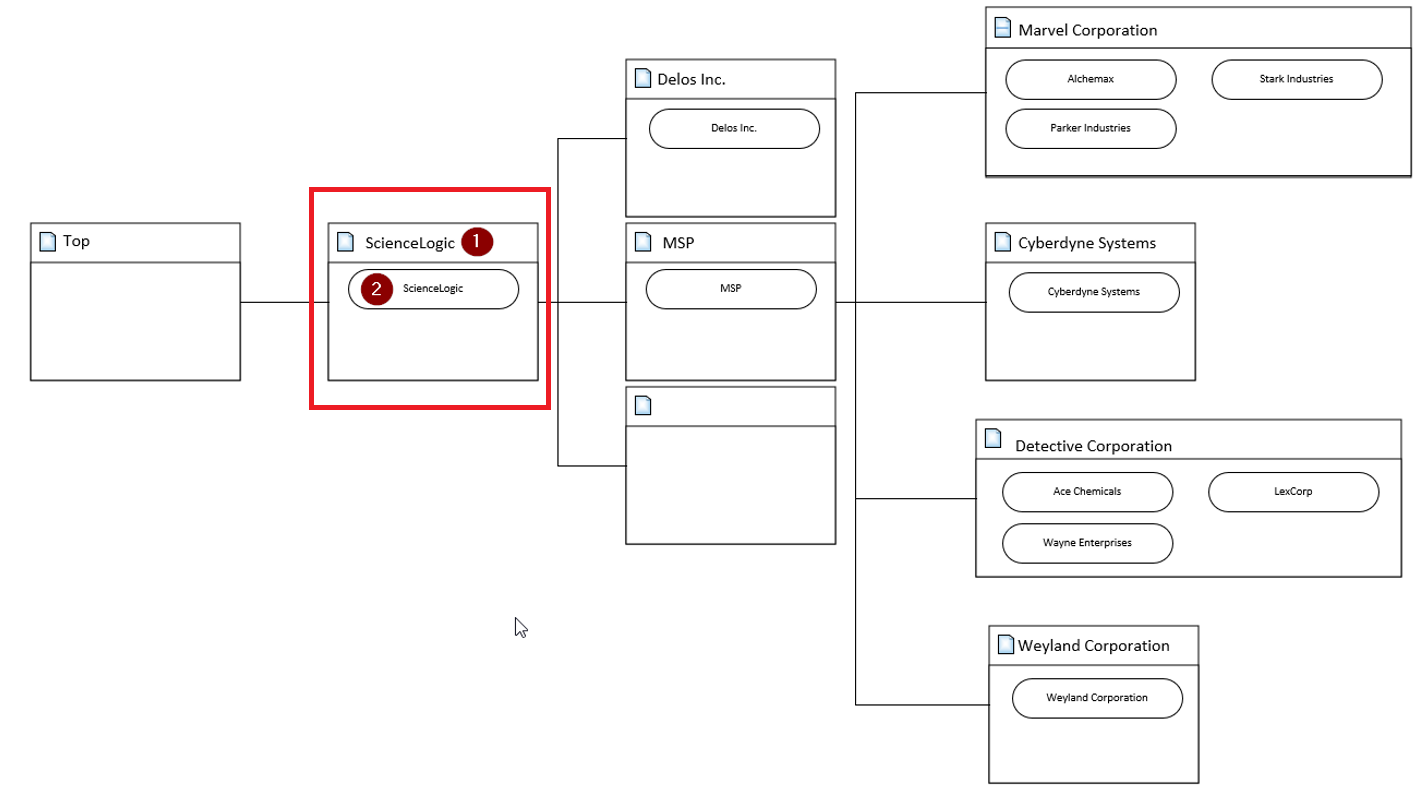
In the following example, ScienceLogic (1) is both the domain and the company. The ScienceLogic user service account is associated with ScienceLogic (2) company, and it will have access to all child domains. You do not need to set visibility to any domain. This is the best way to set up this user, because placing it in the top domain ensures that it always has access to all children:
Example 2
In the following example, Delos Inc. (1) is the company within the Delos Inc. domain. The Skylar Automation service account is associated with the Delos Inc. (1) company. The Delos Inc. domain has no children domains, and if domain visibility is not assigned, Skylar Automation will not properly update the CMDB. This setup works, but it requires that proper domain visibility is set up for the service account to work correctly.
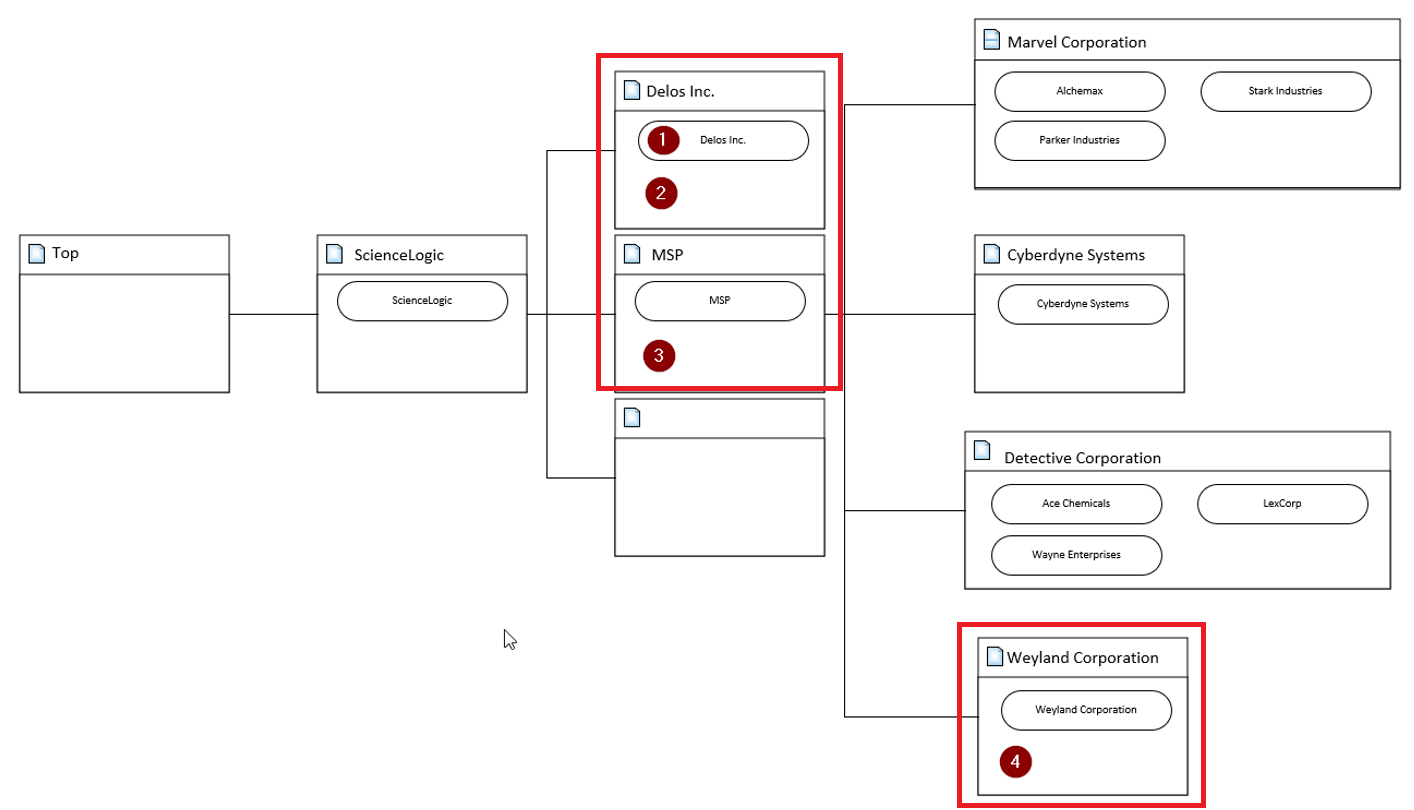
Assigning visibility to MSP (3) will grant the service account access to all child domains. Assigning visibility to Weyland Corporation (4) will only allow access to the Delos Inc. domain and the Weyland domain; all other domains will not work.