This
Prerequisites
You should be familiar with the query language used by your database before developing a database Dynamic Application. You must also be familiar with the database schema and the data you want to monitor before developing a database Dynamic Application. For help with these tasks, see your database administrator.
What is a Database Dynamic Application?
Dynamic Applications come in two broad categories, called archetypes:
- Dynamic Applications of archetype Performance. These Dynamic Applications retrieve trendable (that is, data that can be graphed) performance data from devices or applications. Only this archetype includes the tab for defining custom reports. After data has been collected, these reports can be displayed in the Device Management > Performance tab.
- Dynamic Applications of archetype Configuration. These Dynamic Applications retrieve configuration data from devices or applications. Data from this archetype can be automatically linked to fields in asset records and can also be displayed in Hardware Profile reports and the Software Found page. Skylar One can automatically monitor one or more data points from this archetype for changes. If the value of the data point changes, Skylar One can automatically trigger an event.
NOTE: Skylar One also includes Dynamic Applications of archetype Journal. The Journal archetype is available only when using the Snippet protocol. These Dynamic Applications use custom-written Python code to retrieve data from devices or applications. Skylar One will display the collected data in log format. Each log entry can contain multiple collected values and can change over time.
These archetypes contain the following types of Dynamic Applications for databases:
- Database Configuration. The Dynamic Application retrieves configuration data from a database on a managed device. The Dynamic Application includes SQL queries to retrieve data. Skylar One executes these queries against a database on each subscriber device. Skylar One displays the returned data in configuration tables for each subscriber devices.
- Database Performance. The Dynamic Application retrieves trendable performance data from a database on a managed device. The Dynamic Application includes SQL queries to retrieve data. Skylar One executes these queries against a database on each subscriber device. Skylar One displays the returned data in graphs in the tab for each subscriber device.
Skylar One also includes Dynamic Applications for the following protocols: SNMP, SOAP, Snippet (Python), WMI, XML, and XSLT. For an overview of all types of Dynamic Applications see the
How Do I Allow Skylar One to Access the Database?
For Skylar One to successfully send queries to an external database:
- Skylar One must have permission to connect to the device that is hosting the database. You might have to perform some configuration tasks on the device or on your firewalls to allow Skylar One access.
- If you want Skylar One to query an external database, you must configure the appropriate security parameters on the database to give Skylar One access to the database.
- Skylar One must use a valid database username and database password to query the database. To meet this requirement, Skylar One uses credentials.
Credentials are access profiles (username and password, plus additional information) for external systems. These profiles allow Skylar One to access external systems while maintaining the security of the access accounts. Users who need Skylar One to retrieve data from these external systems see only the name of the credential, not the username, password, and network information.
For more details on credentials, see
What Can I Monitor with a Database Dynamic Application?
With a Database Dynamic Application, you can monitor any value that can be retrieved with a database query.
However, many Database Dynamic Applications of type Performance query only performance data, like number of reads, number of writes, write time, read time, processor usage, memory usage, number of threads, and buffer cache hits.
Many Database Dynamic Applications of type Configuration query only configuration data, like buffer size, heap size, locks, and number of active users.
Can I Create My Own Database Dynamic Applications?
You can create your own Dynamic Applications to suit your environment and your needs. To create your own Dynamic Applications, you must:
- Determine the data you want to retrieve and monitor.
- Determine the queries you will use to retrieve that data. To write these queries, you must be familiar with the query syntax that is supported by your database, and you must be familiar with the location of data in your database.
Elements of a Database Dynamic Application
For comprehensive information on elements that apply to Database Dynamic Applications, see the Common Elements of a Dynamic Application section in the Dynamic Application Development chapter.
Collection Objects
A collection object is an individual data-point that will be collected by a Dynamic Application. Most Dynamic Applications collect multiple data-points. These data-points are referred to as objects.
For Database Dynamic Applications, each collection object is populated with the results of a query.
For example, suppose you want to monitor the write-speed of the database every 15 minutes. You could define your Dynamic Application to execute every 15 minutes. You could define a collection object called "write_speed". You could then define a query that retrieves the value for "write speed" (usually stored in one of the administrative tables). You could align this query with the "write_speed" object and populate the object.
NOTE:
Creating a Dynamic Application
To create a Dynamic Application, you must:
- Define the general properties of the Dynamic Application.
- Define the collection objects you want to monitor.
- Optionally, define thresholds for the values of collection objects.
- Optionally, define graphs of the values of collection objects.
- Optionally, define alerts that are triggered by the values of collection objects.
All these steps, except for defining collection objects, are the same for all types of Dynamic Applications. The steps that are the same for all types of Dynamic Applications are described in
The step that is specific to database Dynamic Applications, defining collection objects, is described in this section.
Creating Collection Objects for a Database Dynamic Application
This section describes how to define a collection object for a Dynamic Application of type Database Performance or Database Configuration. This section describes only the fields specific to a database Dynamic Application. All the remaining fields, for both performance and configuration archetypes, are described in detail in
- Go to the Dynamic Applications Manager page (System > Manage > Applications).
- If the Dynamic Application already exists, in the Dynamic Applications Manager page, find the Dynamic Application for which you want to define a new object. Select its wrench icon (
 ).
). - To create a new Dynamic Application, follow the steps in the
- Select the tab.
- In the Collection Objects page, enter a value in each field in the top pane. This section describes only the fields specific to a database Dynamic Application. All the remaining fields are described in detail in
-
SQL Query. Enter a valid database query in this field. The value retrieved by this query will be stored in the collection object. Be sure the query has been tested on the intended database before you include it in a Dynamic Application. Also, be sure the query can be resolved within the polling frequency of the Dynamic Application.
If a single query will return multiple columns, and you want to view the output from multiple columns and view graphs for multiple columns, you must create a collection object for each returned column. This means that for each collection object, you must enter the same query and define a different Object Name, Class Type, and a different Trended Column for each returned column.
- Trended Column. If a query returns multiple columns, enter the name of the column that you want to see graphed in Device Management > Performance. If a query returns multiple columns and this field is left blank for each collection object, by default only the first returned column will be graphed in the Device Management > Performance page.
- Select the button to save the new collection object.
- Repeat these steps for each collection object you want to define for the Dynamic Application.
Examples of Collection Objects
- For MySQL, we could enter one of the following queries into the SQL Query field:
- To retrieve the version number of a MySQL database:
show global variables like 'version'
- To retrieve the number of active events on the Skylar One system:
SELECT count( * ) Value FROM master_events.events_active;
- For MS SQL, we could enter one of the following queries into the SQL Query field:
- To retrieve the name of the MS SQL database:
select name from sys.databases
- To retrieve the number of logins to the database:
select cntr_value from sysperfinfo where counter_name='Logins/sec'
- For Oracle, we could enter one of the following queries into the SQL Query field:
- To retrieve the number of times a process was delayed while waiting to access the rollback segment
SELECT (Sum(waits) / Sum(gets)) * 100 FROM v$rollstat
- To retrieve the hit ratio of requests to the block buffer (versus "hits" to the physical disk):
SELECT (1 - (phys.value / (db.value + cons.value))) * 100 FROM v$sysstat phys,v$sysstat db,v$sysstat cons WHERE phys.name = 'physical reads' AND db.name = 'db block gets' AND cons.name = 'consistent gets'
Example of a Database Performance Dynamic Application
In this
The MySQL DB Performance Dynamic Application makes multiple queries to an internal table in MySQL. This internal table stores status information about the MySQL server, such as number of connections, information about index scans, information about pages in the buffer pool, reads and writes to key blocks, number of open files, information on the query cache, number of slow queries, information about table locks, and information about threads.
The MySQL DB Performance Dynamic Application includes presentation objects, threshold objects, and alert definitions that allow you to monitor the status of a MySQL server.
In this
NOTE: The MySQL DB Performance Dynamic Application includes multiple Collection Objects, Presentation Objects, Threshold Objects, and Alerts. This
Defining the Basic Properties for the Dynamic Application
To create the container for this Dynamic Application and define its general properties, perform the following:
NOTE: For details on each field and its possible options, see
- Go to the Dynamic Applications Manager page (System > Manage > Applications).
- Click the button, and then select Create New Dynamic Application. The Dynamic Applications Create New Application page appears.
- Supply values in the following fields:
- Application Name. Enter MySQL:DBPerformance.
- Application Type. The protocol Skylar One will use and the type of data that will be collected. Select Database Performance.
- Version Number. Accept the default value. You can customize this value and increment it according to your change-management policies.
- Operational State. Specifies whether Skylar One will collect data from devices using this Dynamic Application. This field also specifies whether Skylar One will automatically align this Dynamic Application to devices during discovery, re-discovery, and nightly auto-discovery. Select Enabled.
- Poll Frequency. Frequency at which Skylar One will poll devices that use this Dynamic Application. Select "Every 5 Minutes", so we can quickly view retrieved data in this example.
- Abandon Collection. Accept the default value. Specifies how many collection objects must be unavailable before the Dynamic Application should stop trying to collect data and wait until the next scheduled collection session. Default specifies a threshold of two collection objects.
NOTE: For all objects except those retrieved from a database, the timeout limit is specified in the credential. For database objects, the timeout limit is specified internally by Skylar One.
- Context. Leave this field blank.
- Click the button to save the Dynamic Application.
Defining the Discovery Object for the Dynamic Application
A discovery object is a type of collection object. If you want Skylar One to automatically align devices with a Dynamic Application during discovery, you must include a discovery object in that Dynamic Application.
NOTE: For more details on discovery objects, see
To create a discovery object for the Dynamic Application MySQL:DBPerformance, we will write a query that will return a value only if MySQL is running on a device.
To create the discovery object:
- Go to the Dynamic Applications Manager page System > Manage > Applications).
- Click the wrench icon ( ) for the Dynamic Application named MySQL:DBPerformance.
- Click the tab. The Dynamic Applications | Collections Objects page (System > Manage > Applications > Collections) appears.
- Supply values in the following fields:
- Object Name. Enter Discovery Object.
- SQL Query. This field specifies the query that Skylar One will use to collect the discovery object. We will query a value that indicates that a MySQL database exists, regardless of the status of the data in the database. Enter the following query:
show global status like 'Connections'
- This query searches an internal table that stores information about all connections to the MySQL database (show global status).
- The query retrieves the value of the status variable "Connections" (like 'Connections').
- The variable "Connections" contains the number of connection attempts (successful or not) to the MySQL server. The value can be zero ("0") or greater.
- This query will return a value even if no connections have been made previously.
- Class Type. Select [100] Discovery.
- Click the button to save the collection object. Because this collection object has been defined with a Class Type of [100] Discovery, the user interface displays additional fields that are specific to discovery objects.
- Enter values in the following fields:
- Alignment Condition. Specifies how this discovery object should be evaluated. Select Align if OID is present. This choice tells Skylar One to automatically align the Dynamic Application with each device that returns a value for the query in the SQL Query field.
- Validity Check. Leave blank.
Defining the Collection Objects
The MySQL:DBPerformance Dynamic Application on the ScienceLogic Support Site includes 27 Collection Objects. This section will walk you through the creation of only two collection objects.
NOTE: For more details on collection objects, see
In this section, we will create the following collection objects:
- Key_reads. This collection object monitors the MySQL status variable key_reads. This status variable specifies the number of times MySQL had to access the file system (instead of the key cache) to fetch database indexes. If key_reads is large, then the key buffer is probably too small.
- Key_read_requests. This collection object monitors the MySQL status variable key_read_requests. This status variable specifies the total number of requests to read a key block from the cache.
If MySQL must fetch database indexes from the filesystem, queries to that database will be slower than usual. If your MySQL server must frequently fetch database indexes from the filesystem, you should increase the size of the key buffer.
To create these two collection objects, perform the following:
- Go to the Dynamic Applications Manager page (System > Manage > Applications).
- Click the wrench icon ( ) for the Dynamic Application named MySQL:DBPerformance.
- Click the tab. The Dynamic Applications | Collections Objects page (System > Manage > Applications > Collections) appears.
- First, we will define the Key_reads collection object. This collection object monitors the MySQL status variable key_reads. This status variable specifies the number of times MySQL had to access the file system (instead of the key cache) to fetch database indexes.
- Supply values in the following fields:
- Object Name. Enter Key_reads.
- SQL Query. Enter the following:
show global status like 'Key_reads'
- This query searches an internal table that stores information about the MySQL server (show global status).
- The query retrieves the value of the status variable "Key reads" (like 'Key_reads').
- The variable Key_reads contains the number of times MySQL had to access the file system (instead of the key cache) to fetch database indexes.
- Class Type. Select 1 Performance Counter.
- Group Number. Select No Group, and leave the second drop-down as Standard.
- Trended Column. Enter Value. The query returns two columns: Variable_name, which contains the name of the variable (Key_reads) and Value, which contains the value of the variable. We are interested only in the value in the Value column. We want Skylar One to graph the value from the Value column.
- Enable Deviation Alerting. Do not select these checkboxes.
- Description. Leave blank.
- Formula. Leave blank.
- Click the button to save the new collection object.
- Next, we will define the Key_read_requests collection objects. This collection object monitors the MySQL status variable key_read_requests. This status variable specifies the total number of requests to read a key block from the cache.
- Supply values in the following fields:
- Object Name. Enter Key_read_requests.
- SQL Query. Enter the following:
show global status like 'Key_read_requests'
- This query searches an internal table that stores information about the MySQL server (show global status).
- The query retrieves the value of the status variable "Key_read_requests" (like 'Key_read_requests').
- The variable Key_read_requests contains the total number of requests to read a key block from the cache.
- Class Type. Select 1 Performance Counter.
- Group Number. Select No Group, and leave the second drop-down as Standard.
- Trended Column. Enter Value. The query returns two columns: Variable_name, which contains the name of the variable (Key_read_requests) and Value, which contains the value of the variable. We are interested only in the value in the Value column. We want Skylar One to graph the value from the Value column.
- Enable Deviation Alerting. Do not select these checkboxes.
- Description. Leave blank.
- Formula. Leave blank.
- Click the button to save the new collection object.
- In our example, you will notice that the collection objects have the following object IDs:
- Key_reads = o_5500
- Key_read_requests = o_5501
NOTE: On your Skylar One system, the collection objects will have different object IDs. Whether your have imported the Dynamic Application or are creating the Dynamic Application from the steps in this chapter, the collection objects will have different object IDs than on our example Skylar One system.
Defining the Presentation Objects
Presentation objects allow you to define how Skylar One should use the values collected by the Dynamic Application to create performance graphs.
NOTE: For more details on presentation objects, see
The MySQL:DBPerformance Dynamic Application on the ScienceLogic Support Site includes 33 Presentation Objects. This section will walk you through the creation of only two presentation objects.
In this section, we will create the following presentation objects:
- Key_reads. Displays the value of the Key_reads collection object, over time. The Key_reads collection object specifies the number of times MySQL had to access the file system (instead of the key cache) to fetch database indexes. If the value of the Key_reads collection object is large, then the key buffer is probably too small. The Key_reads presentation object will graph each collected value of the Key_reads collection object and its associated date and time.
- Key_read_requests. Displays the value of the Key_read_requests collection object, over time. The Key_read_requests collection object specifies the total number of requests to read a key block from the cache. The Key_read_requests presentation object will graph each collected value of the Key_read_requests collection object and its associated date and time.
To create these two presentation objects, perform the following:
- Go to the Dynamic Applications Manager page (System > Manage > Applications).
- Click the wrench icon ( ) for the Dynamic Application named MySQL:DBPerformance.
- Click the tab. The Dynamic Applications Presentation Objects page appears.
- First, we will define the Key_reads presentation object. The Key_reads presentation object will graph each collected value of the Key_reads collection object and its associated date and time.
- Supply values in the following fields:
- Report Name. Enter Key_reads. This name will appear in the NavBar of the Performance page for each device that subscribes to the Dynamic Application. This name will also appear as a title for the graph.
- Active State. Select Enabled. Skylar One will immediately create the graph at the next polling session.
- Data Unit. Leave blank.
- Abbreviation/Suffix. Leave blank.
- Show as Percent. Select No.
- Vitals Link. Select Disabled.
- Formula Editor. Enter the following: (o_5500)
- This formula tells Skylar One to graph each value of the collection object o_5500. In our example system, this is the object ID for the Key_reads collection object. Skylar One will graph each value of this collection object, along with its associated date and time.
NOTE: The object ID for the Key_reads collection object will be different on your Skylar One system. If you are creating a new Dynamic Application using the instructions in this chapter, please enter the object ID for the Key_reads collection object, as it appears on your Skylar One system.
- Click the button to save the new presentation object.
- Next, we will define the Key_read_requests presentation object. The Key_read_requests presentation object will graph each collected value of the Key_read_requests collection object and its associated date and time.
- Supply values in the following fields:
- Report Name. Enter Key_read_requests. This name will appear in the NavBar of the Performance page for each device that subscribes to the Dynamic Application. This name will also appear as a title for the graph.
- Active State. Select Enabled. Skylar One will immediately create the graph at the next polling session.
- Data Unit. Leave blank.
- Abbreviation/Suffix. Leave blank.
- Show as Percent. Select No.
- Vitals Link. Select Disabled.
- Formula Editor. Enter the following: (o_5501)
- This formula tells Skylar One to graph each value of the collection object o_5501. On our example Skylar One system, this is the object ID for the Key_read_requests collection object. Skylar One will graph each value of this collection object, along with its associated date and time.
NOTE: The object ID for the Key_read_requests collection object will be different on your Skylar One system. If you are creating a new Dynamic Application using the instructions in this chapter, please enter the object ID for the Key_read_requests collection object, as it appears on your Skylar One system.
- Click the button to save the new presentation object.
Defining the Threshold Objects
A threshold object is an object that you can use in the formula for an alert definition or a presentation object, just as you would use a collection object.
Threshold objects can also appear as thresholds in the Device Thresholds page (Devices > Classic Devices > wrench icon > Thresholds, or Registry > Devices > Device Manager > wrench icon > Thresholds in the classic user interface )for each device that subscribes to the Dynamic Application.
NOTE: For more details on threshold objects, see
The MySQL:DBPerformance Dynamic Application on the ScienceLogic Support Site includes seven threshold objects. This section will walk you through the creation of only one threshold object.
- Keycache_hitrate. We will use this threshold in the formula for two alerts. The initial alert is triggered when MySQL fetches database indexes from the filesystem instead of from the key cache. This threshold defines the percentage of fetches that can be from the filesystem instead of from the key cache before Skylar One generates an alert.
To create this threshold object, perform the following:
- Go to the System > Manage > Applications page (System > Manage > Applications).
- Click the wrench icon ( ) for the Dynamic Application named MySQL:DBPerformance
- Click the tab. The Dynamic Applications Threshold Objects page appears.
- Supply values in the following fields:
- Threshold Name. Enter Keycache_hitrate.
- Override Threshold Value. Select Enabled. This threshold will appear in the the Device Thresholds page (Devices > Classic Devices > wrench icon > Thresholds, or Registry > Devices > Device Manager > wrench icon > Thresholds in the classic user interfacefor devices that subscribe to the Dynamic Application.
- Numeric Range: High. Enter 100. By default, the highest possible value for this threshold will be "100". This value will appear at the high end of the slider in the the Device Thresholds page (Devices > Classic Devices > wrench icon > Thresholds, or Registry > Devices > Device Manager > wrench icon > Thresholds in the classic user interface.
- Numeric Range: Low. Enter 0. By default, the lowest possible value for this threshold will be "0". This value will appear at the low end of the slider in the the Device Thresholds page (Devices > Classic Devices > wrench icon > Thresholds, or Registry > Devices > Device Manager > wrench icon > Thresholds in the classic user interface.
- Threshold Type. Select Percentage.
- Threshold Value. Enter 99.
- Click the button to save the new threshold.
- If you imported the Dynamic Application from the ScienceLogic Support Site, you will notice that the threshold object has the following object ID:
- Keycache_hitrate = t_130
NOTE: On your Skylar One system, the threshold object will have different object IDs. Whether your have imported the Dynamic Application or are creating the Dynamic Application from the steps in this chapter, the collection objects will have different object IDs than on our example Skylar One system.
Defining the Alerts
Alerts allow you to examine and manipulate values retrieved by a Dynamic Application. An alert defines the conditions during which you would like Skylar One to insert a message in the device log. You can define events that are triggered when the alert message appears in a device log.
NOTE: For details on alerts, see
The MySQL:DBPerformance Dynamic Application on the ScienceLogic Support Site includes 14 alerts. This section will walk you through the creation of only two alerts.
In this section, we will create the following alerts:
- MySQL:Keycache_hitrate_low. This alert compares the value of the Key_reads collection object to the value of the Key_read_requests collection object. Remember that the Key_reads collection object specifies the number of times the MySQL server has had to fetch a database index from the file system instead of from the cache. The Key_read_requests object specifies the number of times the MySQL server has fetched a database index from cache. The alert says "If the number of times MySQL has had to fetch a database index from the file system is 1% or more of the number of times MySQL has fetched a database index from cache, generate an alert of severity "minor".
- MySQL:Keycache_hitrate_normal. This alert compares the value of the Key_reads collection object to the value of the Key_read_requests collection object. The alert says "If the MySQL:Keycache_hitrate_low alert is still active, and if the number of times MySQL has had to fetch a database index from the file system is less than 1% of the number of times MySQL has fetched a database index from cache, generate an alert of severity "healthy".
To create these two alerts, perform the following:
- Go to the Dynamic Applications Manager page (System > Manage > Applications.
- Click the wrench icon ( ) for the Dynamic Application named MySQL:DBPerformance.
- Click the tab. The Dynamic Applications Alert Objects page appears.
- First, we will define the MySQL:Keycache_hitrate_low alert.
- Supply values in the following fields:
- Policy Name. Enter MySQL:Keycache_hitrate_low.
- Active State. Select Enabled. Skylar One will monitor this alert.
- Log Message. If this alert evaluates to TRUE, the alert will insert the following message in the device log (on the device where the condition occurred). Enter the following:
MySQL Keycache hitrate: %V% is low. Threshold: %T.
- The %V variable says "substitute the value returned by the result function".
- The %T variable says "substitute the value returned by the threshold function".
- Maintain State. Select Yes. This alert will maintain its state until it is explicitly cleared by an event.
- Trigger Alert. Select None. This is a deprecated field.
- Formula Editor. This is where you describe the conditions under which you want Skylar One to make an entry in the device log. Enter the following:
result(100-((o_5500/o_5501)*100)) < threshold(t_191)
- This formula says: Divide the number of Key_reads by the number of Key_read_requests and convert that value to percent. If the percentage of Key_Reads is 1% or more, the alert will evaluate to TRUE. When the alert evaluates to TRUE, it makes an entry of severity "minor" in the appropriate device log.
- o_5500 is the object ID of the Key_reads collection object.
NOTE: On your Skylar One system, the Key_reads collection object will have a different object ID. Substitute the object ID from your Skylar One system.
- o_5501 is the object ID of the Key_read_requests collection object. If you have created the MySQL:DBPerformance Dynamic Application manually (instead of importing the Dynamic Application from the ScienceLogic Support Site), the Key_read_requests collection object will have a different object ID on your Skylar One system. Substitute the object ID from your Skylar One system.
NOTE: On your Skylar One system, the Keycache_hitrate threshold will have a different object ID. Substitute the object ID from your Skylar One system.
- t_191 is the object ID of the Keycache_hitrate threshold.
NOTE: On your Skylar One system, the Keycache_hitrate threshold will have a different object ID. Substitute the object ID from your Skylar One system.
- Remember that we set the Keycache_hitrate threshold to "99".
- The result function returns the value of the formula and stores the value of the formula in the %V variable.
- The threshold function returns the value of the threshold variable and stores the value of the threshold variable in the %T variable.
- Click the button to save the alert.
- In our example Skylar One system, you will notice that the alert object has the following object ID:
- MySQL:Keycache_hitrate_low = a_920
NOTE: On your Skylar One system, the alert object will have a different object ID.
- Next we will define the MySQL:Keycache_hitrate_normal alert.
- Supply values in the following fields:
- Policy Name. Enter MySQL:Keycache_hitrate_normal.
- Active State. Select Enabled. Skylar Onewill monitor this alert.
- Log Message. If this alert evaluates to TRUE, the alert will insert the following message in the device log (on the device where the condition occurred. )Enter the following:
MySQL Keycache hitrate: %V% is normal.
- The %V variable says "substitute the value returned by the result function".
- Maintain State. Select No. This alert will not maintain its state and does not need to be explicitly cleared by an event.
- Trigger Alert. Select None. This is a deprecated field.
- Formula Editor. This is where you describe the conditions under which you want Skylar One to make an entry in the device log. Enter the following:
result(100-((o_5500/o_5501)*100)) >= threshold(t_191) and active(a_920)
- This formula says: Divide the number of Key_reads by the number of Key_read_requests and convert that value to percent. If the alert MySQL:keycache_hitrate_low is still active, and if the percentage of Key_Reads is 1% or less, the alert will evaluate to TRUE. When the alert evaluates to TRUE, it makes an entry of severity "healthy" in the appropriate device log.
- o_5500 is the object ID of the Key_reads collection object.
NOTE: On your Skylar One system, the Key_reads collection object will have a different object ID. Substitute the object ID from your Skylar One system.
- o_5501 is the object ID of the Key_read_requests collection object.
NOTE: On your Skylar One system, the Key_read_requests collection object will have a different object ID. Substitute the object ID from your Skylar One system.
- t_191 is the object ID of the Keycache_hitrate threshold.
NOTE: On your Skylar One system, the Keycache_hitrate threshold will have a different object ID . Substitute the object ID from your Skylar One system.
- a_920 is the object ID of the alert MySQL:keycache_hitrate_low.
NOTE: On your Skylar One system, the Keycache_hitrate_low alert will have a different object ID. Substitute the object ID from your Skylar One system.
- Remember that we set the Keycache_hitrate threshold to "99".
- The result function returns the value of the formula and stores the value of the formula in the %V variable.
- The threshold function returns the value of the threshold variable and stores the value of the threshold variable in the %T variable.
- The active function checks the state of a specified alert. If the specified alert is still active, the active function returns the value TRUE.
- Click the button to save the alert.
- On our example Skylar One system, notice that the alert object has the following object ID:
- MySQL:Keycache_hitrate_normal = a_921
NOTE: On your Skylar One system, the alert object will have a different object ID.
Creating a Credential for the "MySQL: DBPerformance" Dynamic Application
If you want to align the MySQL:DBPerformance Dynamic Application with Skylar One's MySQL database, you must create a database credential that allows access to Skylar One's MySQL database.
Before you define the credential, you must collect the information you will need. In this case, you will need the username and password for the MySQL database. This account was defined during setup and is different than the account for logging into Skylar One.
If you can log in to the phpMyAdmin tool from the Appliance Manager page (System > Settings > Appliances), you can use the username and password you used to access the phpMyAdmin tool as the username and password in the credential. For details on accessing the phpMyAdmin tool, see
For details on the database password, see
For details on credentials, see
To create the credential for this example:
- Go to the Credential Management page (System > Manage > Credentials).
- In the the Credential Management page, click the menu. Select Database Credential.
- The Credential Editor modal page appears. In this page, you can define the new database credential. To define the new credential, supply values in the following fields:
- Profile Name. Enter EM7 DB.
- DB Type. Select MySQL.
- DB Name. Enter master.
- DB User. Username associated with a valid account on the database.
- Password. Password associated with a valid account on the database.
- Hostname/IP. Hostname or IP address where the database resides. To use the localhost, in the Hostname/IP field, enter the IP address 127.0.0.1. The credential will not work if you enter the string localhost in the Hostname/IP field.
- Port. Enter 7706.
- Click the button to save the new database credential.
Aligning the Dynamic Application with a Device
For our example, we aligned the MySQL:DBPerformance Dynamic Application with the Database Server.
There are three ways to align the MySQL:DBPerformance Dynamic Application with a device:
- During initial discovery or nightly auto-discovery. Because the MySQL:DBPerformance Dynamic Application includes a discovery object, Skylar One can automatically align this Dynamic Application with devices during discovery. For details on discovery, see
- Manual discovery for the Dynamic Application. Because the MySQL:DBPerformance Dynamic Application includes a discovery object, Skylar One can automatically align this Dynamic Application with devices. From the Dynamic Applications Manager page, you can manually execute discovery for all devices, but only for the MySQL:DBPerformance Dynamic Application. For details on how to perform this type of discovery, see
- Manually associate the Dynamic Application with an existing device. For details on how to perform this type of discovery, see
This section will walk you through the steps to manually align the MySQL:DBPerformance Dynamic Application with the Database Server or the All-In-One Appliance.
To manually align the Dynamic Application to the Database Server or the All-In-One Appliance:
- Go to the Appliance Manager page (System > Settings > Appliances). Determine the device name of the Database Server or the All-In-One Appliance.
- Go to the Device Manager page (Devices > Classic Devices, or Registry > Devices > Device Manager in the classic user interface).
- Find the device where the database resides (either the Database Server or the All-In-One Appliance). Click the device's wrench icon ().
- The Device Properties page appears. Click the tab.
- In the Dynamic Application Collections page, click the menu and select Add Dynamic Application.
- The Dynamic Application Alignment page appears. Select MySQL:DBPerformance in the Dynamic Applications pane, and select EM7 DB in the Credentials pane.
- Click the button to add the Dynamic Application to the device.
- At the next polling period, Skylar One should start collecting the data specified in the MySQL:DBPerformance Dynamic Application from the device where Skylar One's database resides.
Viewing Reports for the Dynamic Application
For our example, we aligned the MySQL:DBPerformance Dynamic Application with the Database Server on our device em7_ao.
To view the graphs for the presentation objects key_reads and key_read_requests:
- Go to the Device Manager page (Devices > Classic Devices, or Registry > Devices > Device Manager in the classic user interface).
- Find the device for which you want to edit thresholds. Click its bar-graph icon (
 ).
). - Click the tab. The Device Performance page appears.
- In the NavBar, find the entry for the MySQL:DBPerformance Dynamic Application and expand it. Select the entry for Key_reads.
- The graph for Key_reads appears.
- The graph displays the value of the Key_reads collection object in the y-axis and the date and time in the x-axis.
- In the NavBar, find the entry for the MySQL:DBPerformance Dynamic Application and expand it. Select the entry for Key_read_requests.
- The graph for Key_read_requests appears.
- The graph displays the value of the Key_read_requests collection object in the y-axis and the date and time in the x-axis.
Viewing Alerts for the Dynamic Application
To view alerts for the Dynamic Application:
- Go to the Device Manager page (Devices > Classic Devices, or Registry > Devices > Device Manager in the classic user interface).
- Find the subscriber device for which you want to edit thresholds. Click its wrench icon ().
- Click the tab. The Device Logs & Messages page appears.
- Look for alert messages from the Dynamic Application. In our example, our MySQL database did not fetch any database indexes from the file system, so only the "normal" alert appears in our device log.
Changing the Threshold for a Subscriber Device
You can change one or more threshold values for a single device. When Skylar One evaluates alerts for that device, it will use the threshold values set in the Device Threshold page instead of the threshold value set in the Dynamic Application Threshold Objects page.
To edit a threshold for a single device:
- Go to the Device Manager page (Devices > Classic Devices, or Registry > Devices > Device Manager in the classic user interface).
- Find the device for which you want to edit thresholds. Click its wrench icon ().
- Click the tab. The Device Thresholds page appears.
- In Device Thresholds page, move the sliders to edit one or more thresholds.
- To save your changes, click the button.
Example of a Dynamic Application of Type "Database Configuration"
In this
This
In this
Defining the Basic Properties for the Dynamic Application
To create the container for this Dynamic Application and define its general properties, perform the following:
NOTE: For details on each field and its possible options, see
- Go to the Dynamic Applications Manager page (System > Manage > Applications).
- Select the button, and then select Create New Dynamic Application. The Dynamic Applications Create New Application page appears.
- Supply values in the following fields:
- Application Name. Enter MySQL:DBConfiguration.
- Application Type. The protocol Skylar One will use and the type of data that will be collected. Select Database Configuration.
- Version Number. Accept the default value. You can customize this value and increment it according to your change-management policies.
- Operational State. Specifies whether Skylar One will collect data from devices using this Dynamic Application. This field also specifies whether Skylar One will automatically align this Dynamic Application to devices during discovery, re-discovery, and nightly auto-discovery. Select Enabled.
- Poll Frequency. Frequency at which Skylar One will poll devices that use this Dynamic Application. Select "Every 2 Minutes", so we can quickly view retrieved data in this example.
- Abandon Collection. Accept the default value. Specifies how many collection objects must be unavailable before the Dynamic Application should stop trying to collect data and wait until the next scheduled collection session. Default specifies a threshold of two collection objects.
NOTE: For all objects except those retrieved from a database, the timeout limit is specified in the credential. For database objects, the timeout limit is specified internally by Skylar One.
- Context. Leave this field blank.
- Select the button to save the Dynamic Application.
Defining the Discovery Object for the Dynamic Application
A discovery object is a type of collection object. If you want Skylar One to automatically align devices with a Dynamic Application during discovery, you must include a discovery object in that Dynamic Application.
To create a discovery object for the Dynamic Application MySQL: DBConfiguration, we will write a query that will return a value only if MySQL is running on a device.
To create the discovery object:
- Go to the Dynamic Applications Manager page (System > Manage > Applications).
- Select the wrench icon ( ) for the Dynamic Application named MySQL:DB Configuration.
- Select the tab. The Dynamic Applications | Collections Objects page appears.
- Supply values in the following fields:
- Object Name. Enter Discovery Object.
- SQL Query. This field specifies the query that Skylar One will use to collect the discovery object. We will query a value that indicates that a MySQL database exists, regardless of the status of the data in the database. Enter the following query:
show global variables like 'version'
- This query searches an internal table that stores configuration information about the MySQL database (show global variables).
- The query retrieves the value of the status variable "version" (like 'version').
- The variable "version" contains the version number and name of the MySQL server.
- This query will return a value only if MySQL is installed on a device. This query is not dependent on the data stored in the database.
- Class Type. Select [100] Discovery.
- Select the button to save the collection object and the page will change to appear as it does below. Because this collection object has been defined with a Class Type of [100] Discovery, Skylar One displays additional fields that are specific to discovery objects.
- Enter values in the following fields:
- Alignment Condition. Specifies how this discovery object should be evaluated. Select Align if OID is present. This choice tells Skylar One to automatically align the Dynamic Application with each device that returns a value for the query in the SQL Query field.
- Validity Check. Leave blank.
Defining the Collection Objects
This section will walk you through the creation of only six collection objects for the MySQL: DBConfiguration Dynamic Application.
NOTE: For more details on collection objects,
In this section, we will create the following collection objects:
- mysql_version. This collection object monitors the MySQL configuration variable version. This configuration variable contains the version number and version name of the MySQL software.
- auto_commit. This collection object monitors the MySQL configuration variable autocommit. This configuration variable specifies whether the autocommit mode is enabled (set to 1). If autocommit is enabled, users do not have to commit each transaction. If autocommit is not enabled, users must either commit each transaction to save it to the database.
- max_connections. This collection object monitors the MySQL configuration variable max_connections. This configuration variable specifies the maximum allowed number of client connections to the database.
- key_cache_size. This collection object monitors the MySQL configuration variable key_buffer_size. This configuration variable specifies the size of the cache where index information is stored.
- query_cache_size. This collection object monitors the MySQL configuration variable query_cache_size. This configuration variable specifies the size of the cache where query results are stored.
- thead_cache_size. This collection object monitors the MySQL configuration variable thread_cache_size. This configuration variable specifies the number of threads that should be saved in the thread cache.
To create these collection objects, perform the following:
- Go to the Dynamic Applications Manager page (System > Manage > Applications).
- Select the wrench icon ( ) for the Dynamic Application named MySQL: DBConfiguration.
- Select the tab. The Dynamic Applications | Collections Objects page appears.
- First, we will define the mysql_version collection object. This collection object monitors the MySQL configuration variable version. This configuration variable contains the version number and version name of the MySQL software.
- Supply values in the following fields:
- Object Name. Enter MySQL_version.
- SQL Query. Enter the following:
show global variables like 'version'
- This query searches an internal table that stores configuration information about the MySQL database (show global variables).
- The query retrieves the value of the status variable "version" (like 'version').
- The variable "version" contains the version number and version name of the MySQL server.
- Class Type. Select 10 Config Character. The returned value contains both numbers and letters.
- Group Number. Select Group 1 and Standard. In the Configuration Report page, this collection object will appear in table 1.
- Asset/Form Link. Leave these fields blank.
- Inventory Link. Select Disabled.
- Change Alerting. Select Disabled. Skylar One will not trigger an event if the value of this collection object changes. Notice that we will enable this option for all other collection objects in this Dynamic Application. Skylar One will then automatically generate events if the value of these collection objects change.
- Table Alignment. Select Left. This specifies that column-values will be left justified and will not be translated from hexadecimal unicode.
- Trended Column. Enter Value. The query for this collection object returns two columns: Variable_name, which contains the name of the variable (version) and Value, which contains the value of the variable. We are interested only in the value in the Value column and want that value to appear in the Configuration Report page.
- Description. Leave blank.
- Formula. Leave blank.
- Select the button to save the new collection object.
- For the remaining collection objects, enter the following and select the button for each collection object. If a field is not specified in this table, accept its default value.
|
Object Name |
SQL Query |
Class Type |
Group Number |
Change Alerting |
Trended Column |
|---|---|---|---|---|---|
| auto_commit |
show global variables like 'autocommit' |
[15] Config Numeric |
2 | Enabled | Value |
| max_connections | show global variables like 'max_connections' | [15] Config Numeric | 2 | Enabled | Value |
| key_cache_size | show global variables like 'key_buffer_size' | [15] Config Numeric | 3 | Enabled | Value |
| thread_cache_size | show global variables like 'thread_cache_size' | [15] Config Numeric | 3 | Enabled | Value |
| query_cache_size | show global variables like 'query_thread_size' | [15] Config Numeric | 3 | Enabled | Value |
Creating a Credential for the MySQL:DBConfiguration Dynamic Application
If you want to align the MySQL:DBConfiguration Dynamic Application with Skylar One's MySQL database, you must create a database credential that allows access to Skylar One's MySQL database.
For details on creating a credential for Skylar One's MySQL database, see the previous section.
Aligning the Dynamic Application with a Device
For our example, we aligned the MySQL:DBConfiguration Dynamic Application with the Database Server.
There are three ways to align the MySQL:DBConfiguration Dynamic Application with a Device:
- During initial discovery or nightly auto-discovery. Because the MySQL:DBConfiguration Dynamic Application includes a discovery object, Skylar One can automatically align this Dynamic Application with devices during discovery. For details on discovery, see
- Manual discovery for the Dynamic Application. Because the MySQL:DBConfiguration Dynamic Application includes a discovery object, Skylar One can automatically align this Dynamic Application with devices. From the Dynamic Applications Manager page, you can manually execute discovery for all devices, but only for the MySQL:DBConfiguration Dynamic Application. For details on how to perform this type of discovery, see
- Manually associate the Dynamic Application with an existing device. For details on how to perform this type of discovery, see
This section will walk you through the steps to manually align the MySQL:DBConfiguration Dynamic Application with the Database Server or the All-In-One Appliance.
To manually align the Dynamic Application to the Database Server or the All-In-One Appliance:
- Go the Appliance Manager page (System > Settings > Appliances). Determine the device name of the Database Server or the All-In-One Appliance.
- Go to the Device Manager page (Devices > Classic Devices, or Registry > Devices > Device Manager in the classic user interface).
- Find the device where the database resides (either the Database Server or the All-In-One Appliance). Select the device's wrench icon ().
- The Device Properties page appears. Select the tab.
- In the Dynamic Application Collections page, select the menu and select Add Dynamic Application.
- The Dynamic Application Alignment page appears. Select MySQL:DBConfiguration in the Dynamic Applications pane, and select EM7 DB in the Credentials pane.
- Select the button to add the Dynamic Application to the device.
- At the next polling period, Skylar One should start collecting the data specified in the MySQL:DBConfiguration Dynamic Application from the device where Skylar One's database resides.
Viewing the Configuration Report for the Dynamic Application
For our example, we aligned the MySQL:DBConfiguration Dynamic Application with the Database Server on our device em7_ao.
Skylar One automatically creates a Configuration Report on each device that is aligned with the Dynamic Application. The Configuration Report displays the latest data collected from the device by the Dynamic Application.
NOTE: For more details on the Configuration Report page and a description of the actions you can perform from the Configuration Report page, see
To view the Configuration Report for the Dynamic Application:
- Go to the Device Manager page (Devices > Classic Devices, or Registry > Devices > Device Manager in the classic user interface).
- Find the device that you aligned with the Dynamic Application. (In our example, this device is em7_ao). Select its bar-graph icon ().
- Select the tab. The Configuration Report page appears.
- In the NavBar, find the entry for the MySQL:DBConfiguration Dynamic Application and expand it.
- In the Configuration Report page, notice how the values are stored in tables as we specified in the Group field for each collection object. That is, mysql_version is displayed in the first table, auto_commit and max_connections are displayed in the second table, and key_cache_size, query_cache_size, and thread_cache_size are displayed in the third table.
Example of a Dynamic Application with an Identity-Based Relationship
In this example, we will describe how to build a pair of Dynamic Applications that create relationships between Sciencelogic Database Servers and the Data Collectors and Message Collectors in the same system.
Building Dynamic Applications with an Identity-Based Relationship
In this example, we will describe how to build a pair of Dynamic Applications that create relationships between Sciencelogic Database Servers and the Data Collectors and Message Collectors in the same system.
In this example, the data used to build the relationships is in the master.system_settings_licenses database table. This table contains information about Skylar One appliances, including the appliance type, name, IP address, etc. On a Database Server, this table contains a row for each appliance in the system. On a Data Collector or Message Collector, this table contains a row for only that Data Collector or Message Collector.
The following database fields are used in this example:
- id. The automatically assigned ID number for the appliance. This will be combined with the host name of the appliance to create a unique identifier for the relationships.
- name. The host name of the appliance configured in the System > Settings > Appliances page. This will be combined with the id of the appliance to create a unique identifier for the relationships.
- function. The type of appliance. The appliance types are stored as integer values. This field contains 5 for Data Collectors and 6 for Message Collectors.
The following database query is used in this example:
SELECT CONCAT(CAST(id AS CHAR), name) as uid,
CASE
WHEN function=5 THEN "Data Collector"
WHEN function=6 THEN "Message Collector"
END as func
FROM master.system_settings_licenses
WHERE function IN (5,6);
This query returns two values:
- uid. A string concatenation of the id and name fields. This will be used as the unique identifier for the relationships. This example assumes that this combination of fields is unique for all appliances in all Skylar One systems.
- func. A string representation of the appliance type. This will be used as the namespace for the relationships.
The query returns rows only for Data Collectors and Message Collectors.
Defining the Basic Properties for the Dynamic Application
To create the Dynamic Application that creates the identity, which will be aligned to Data Collectors and Message Collectors, perform the following steps:
NOTE: For details on each field and its possible options, see
- Go to the Dynamic Applications Manager page (System > Settings > Appliances).
- Select the button, and then select Create New Dynamic Application. The Dynamic Applications Create New Application page appears.
- Supply values in the following fields:
- Application Name. Enter "ScienceLogic Collector Identity"
- Application Type. Select Database Configuration.
- Poll Frequency. To see data as quickly as possible, select Every 1 Minute in this field.
- This example does not have specific requirements for the other settings defined in this page. You can leave the remaining fields set to the default values. Select the button to save the Dynamic Application.
Defining the Collection Objects
To create the collection objects for the Dynamic Application that creates the identity:
NOTE: For more details on collection objects,
- Select the tab. The Dynamic Applications | Collections Objects page appears.
- Supply values in the following fields to create the collection object for the relationship identifier:
- Object Name. Enter ID.
- SQL Query. Enter the database query for this example.
- Group. The namespace and identifier collection objects must be in the same group. Select Group 1 in this field.
- Usage Type. This collection object will collect the uid values from the database query, which are the identifiers for the relationships. Select Group Index in this field.
- Trended Column. This collection object will collect the uid values from the database query. Enter "uid" in this field.
- Select the button to save the new collection object.
- Select the button to clear the form fields.
- Supply values in the following fields to create the collection object for the relationship namespace:
- Object Name. Enter Appliance Type.
- SQL Query. Enter the database query for this example.
- Group. The namespace and identifier collection objects must be in the same group. Select Group 1 in this field.
- Usage Type. This collection object will collect the appliance function values from the database query, which are the namespaces for the relationships. Select Identity Namespace in this field.
- Trended Column. This collection object will collect the appliance function values from the database query. Enter "func" in this field.
- Select the button to save the new collection object.
Creating the Dynamic Application that Creates the Relationship
Both Dynamic Applications in this example collect the same data with only minor configuration differences. Therefore, to create the Dynamic Application that creates the relationship, which will be aligned to Database Servers, you can create a copy of the ScienceLogic Collector Information Dynamic Application as the starting point. To create the Dynamic Application that creates the relationship, perform the following steps:
- Go to the Dynamic Applications Manager page (System > Settings > Appliances).
- Select the wrench icon () for the "ScienceLogic Collector Identity" Dynamic Application.
- Supply values in the following fields:
- Application Name. Enter "ScienceLogic Collector Information"
- Select the button to save the new Dynamic Application.
- Select the tab. The Dynamic Applications | Collections Objects page appears.
- The difference between the collection objects in the identity-defining Dynamic Application (the previous Dynamic Application) and the relationship-defining Dynamic Application (this Dynamic Application) is the Usage Type setting for the namespace collection object. Select the wrench icon () for the Appliance Type object.
- In the Usage Type drop-down list, select Relationship Namespace.
- Select the button to save the collection object.
Aligning the Dynamic Applications
To align the example Dynamic Applications:
- Discover the Database Server, Data Collectors, and Message Collectors in a Skylar One system.
- Additionally, you must add a firewall rule to the monitored Data Collectors and Message Collectors to allow connections on port 7707 from the All-In-One Appliance or Data Collector that is performing collection.
- Align the ScienceLogic Collector Information Dynamic Application with the Database Server and use the default Central Database credential. To do this:
- Go to the Device Manager page (Devices > Classic Devices, or Registry > Devices > Device Manager in the classic user interface).
- Find the Database Server. Select its wrench icon ().
- Select the tab.
- From the menu, select Add Dynamic Application.
- In the Dynamic Application Alignment modal page, select the following:
- Dynamic Applications. Select ScienceLogic Collector Information.
- Credentials. Select EM7 Central Database. If the monitored Database Server does not use the default username and password, you must edit the credential to use the new username and password.
- Align the ScienceLogic Collector Identity Dynamic Application with the Data Collectors and Message Collectors and use the default Collector Database credential. To do this:
- Go to the Device Manager page (Devices > Classic Devices, or Registry > Devices > Device Manager in the classic user interface).
- Find the Data Collector. Select its wrench icon ().
- Select the tab.
- From the menu, select Add Dynamic Application.
- In the Dynamic Application Alignment modal page, select the following:
- Dynamic Applications. Select ScienceLogic Collector Identity.
- Credentials. Select EM7 Central Database. If the monitored Database Server does not use the default username and password, you must edit the credential to use the new username and password.
- Repeat the bulleted steps for each Data Collector and Message Collector.
Viewing Dynamic Application Relationships
If the example Dynamic Applications are configured correctly and collection is successful, the relationships are displayed in the following places:
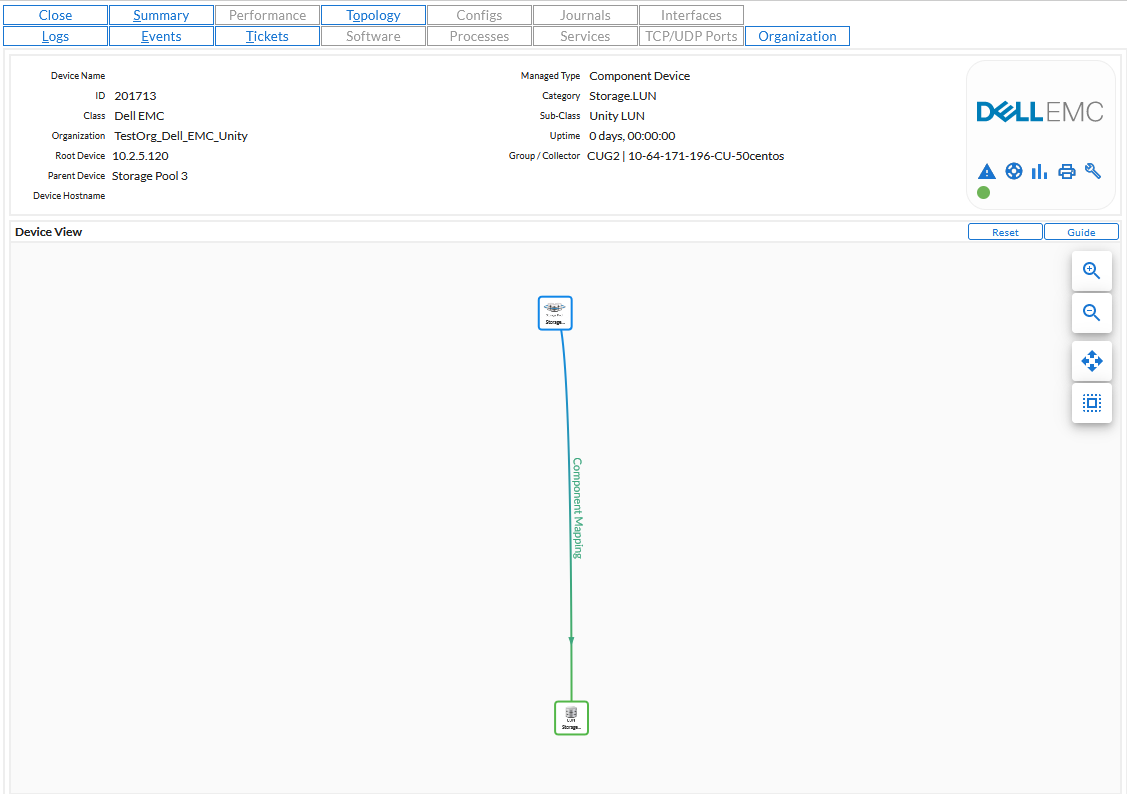
- In the tab in the Device Reports panel for the Database Server, Data Collectors, and Message Collectors:
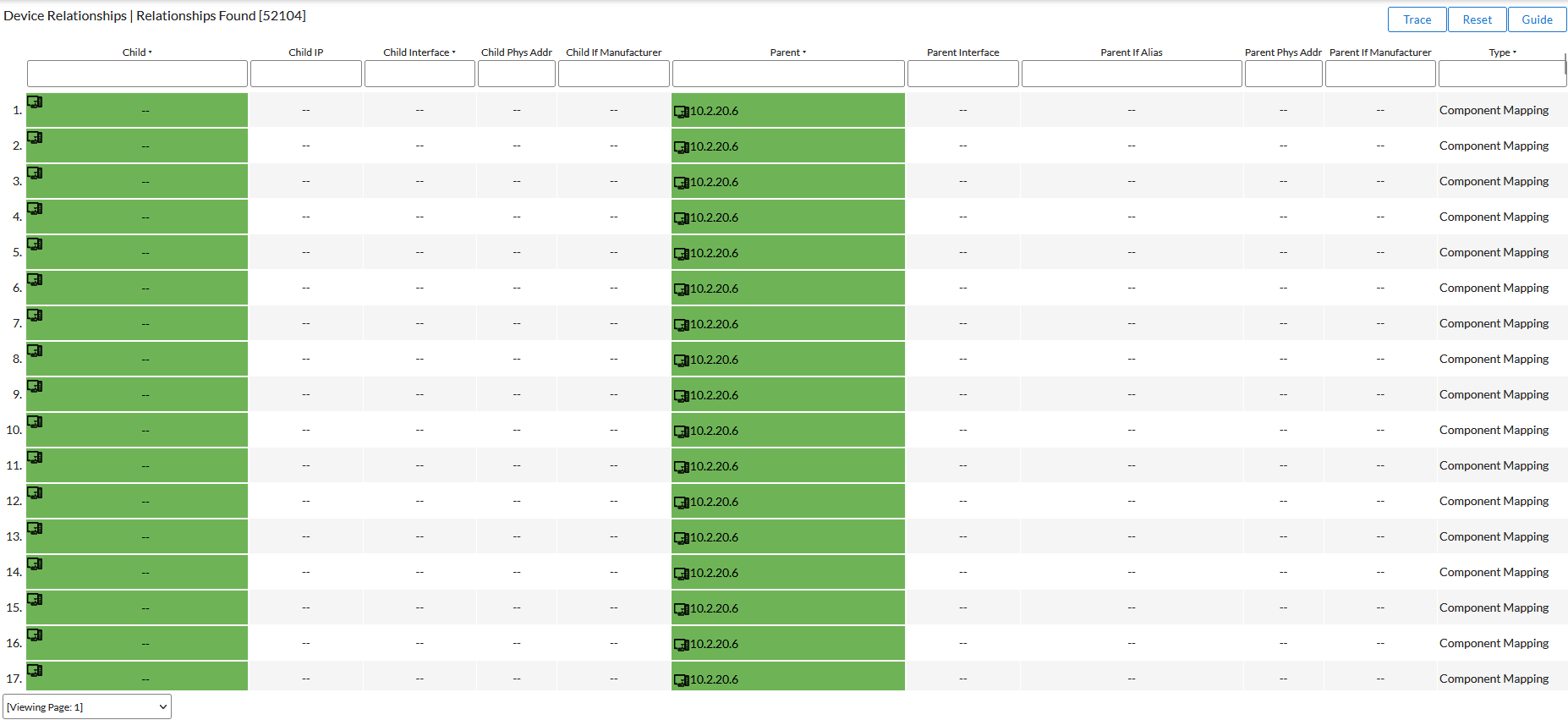
- In the Device Relationships page (Registry > Networks > Device Relationships):