
This
Skylar Automation Architecture
This topic describes the different aspects of Skylar Automation architecture.
Skylar Automation Container Architecture
Skylar Automation is a collection of purpose-built containers that are charged to pass information to and from Skylar One. Building Skylar Automation architecture in containers allows you to add more processes to handle the workload as needed.
The following diagram describes the container architecture for Skylar Automation:
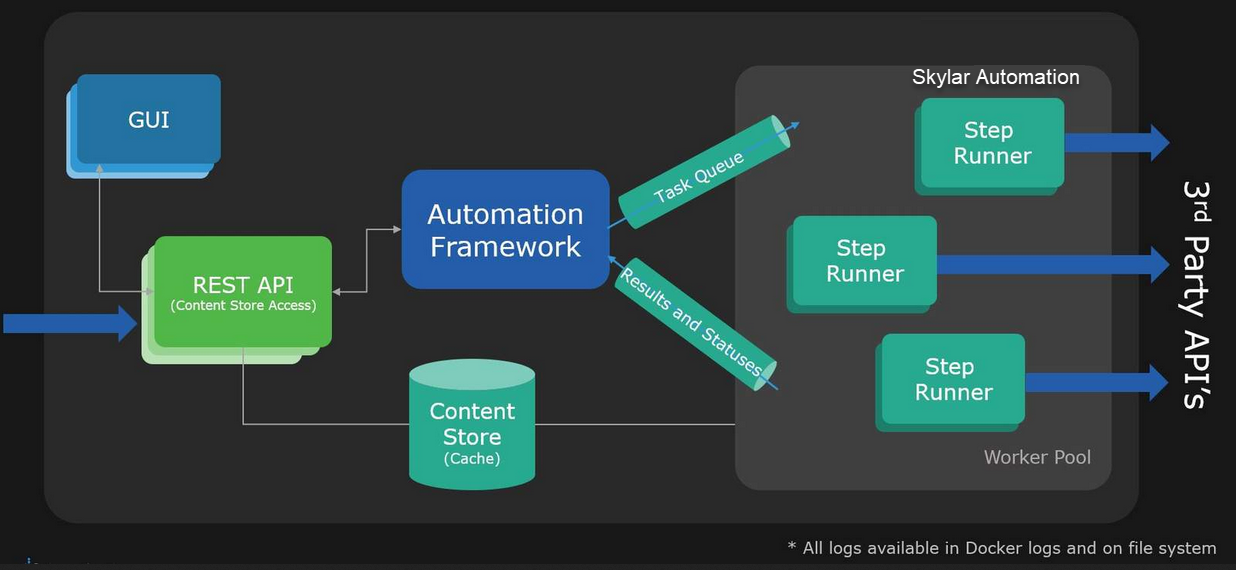
Skylar Automation includes the following containers:
- GUI. The GUI container provides the user interface for Skylar Automation.
- REST API. The REST API container provides access to the Content Store on the Skylar Automation instance.
- Content Store. The Content Store container is basically a database service that contains all the reusable steps, applications, and containers in the Skylar Automation instance.
- Step Runners. Step Runner containers execute steps independently of other Step Runners. All Step Runners belong to a Worker Pool and can run steps in order, based on the instructions in the applications. By default there are five Step Runners (worker nodes) include in the Skylar Automation platform. Skylar Automation users can scale up or scale down the number of worker nodes, based on the workload requirements.
You can use the Control Tower page in the Skylar Automation user interface to monitor the health of these containers and workers. For more information, see Using the Skylar One Skylar Automation Control Tower Page.
Integration Workflow
The following high-level diagram for a ServiceNow Integration provides an example of how Skylar Automation communicates with both the Skylar One Central Database and the third-party (ServiceNow) APIs:
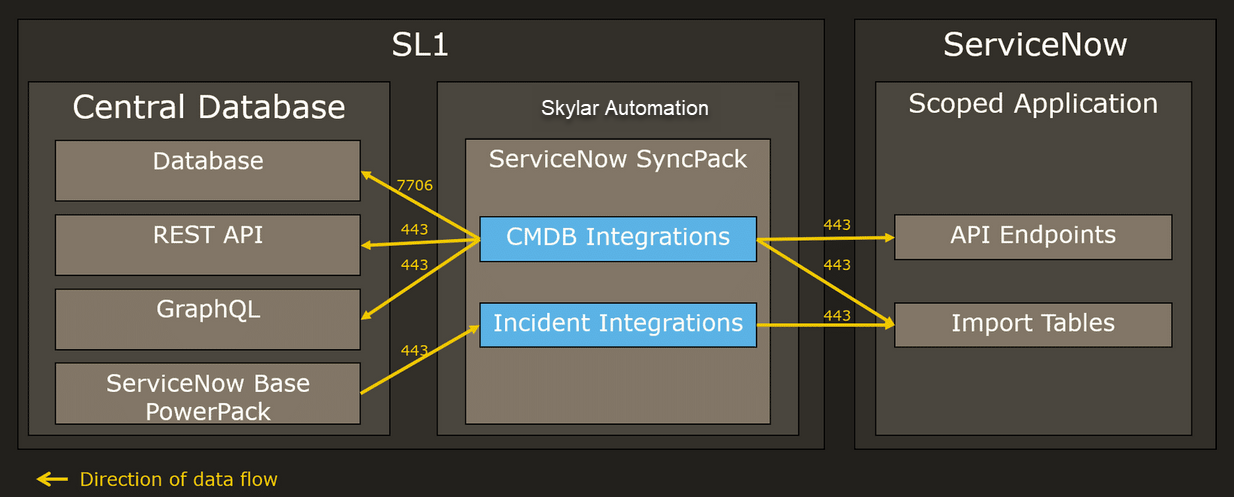
The workflow includes the following components and their communication methods:
- Skylar One Central Database. Skylar Automation communicates with the Skylar One database over port 7706.
- Skylar One REST API. Skylar Automation communicates with the Skylar One REST API over port 443.
- GraphQL. Skylar Automation communicates with GraphQL over port 443.
- ServiceNow Base PowerPack. In this example, the Run Book Automations from the ServiceNow Base PowerPack (and other Skylar One PowerPacks) communicate with Skylar Automation over port 443.
- Skylar Automation. Skylar Automation communicates with both the Skylar One Central Database and an external endpoint.
- ServiceNow API. In this example, the ServiceNow applications in Skylar Automation communicate with the ServiceNow API over port 443.
Skylar Automation both pulls data from Skylar One and has data pushed to it from Skylar One. Skylar Automation both sends and retrieves information to and from ServiceNow, but Skylar Automation is originating the requests.
High-Availability, Off-site Backup, and Proxy Architecture
You can deploy Skylar Automation as a High Availability cluster, which requires at least three nodes to achieve automatic failover. While Skylar Automation can be deployed as a single node, the single-node option does not provide redundancy through High Availability. Skylar Automation also supports off-site backup and connection through a proxy server.
The following diagram describes these different configurations:
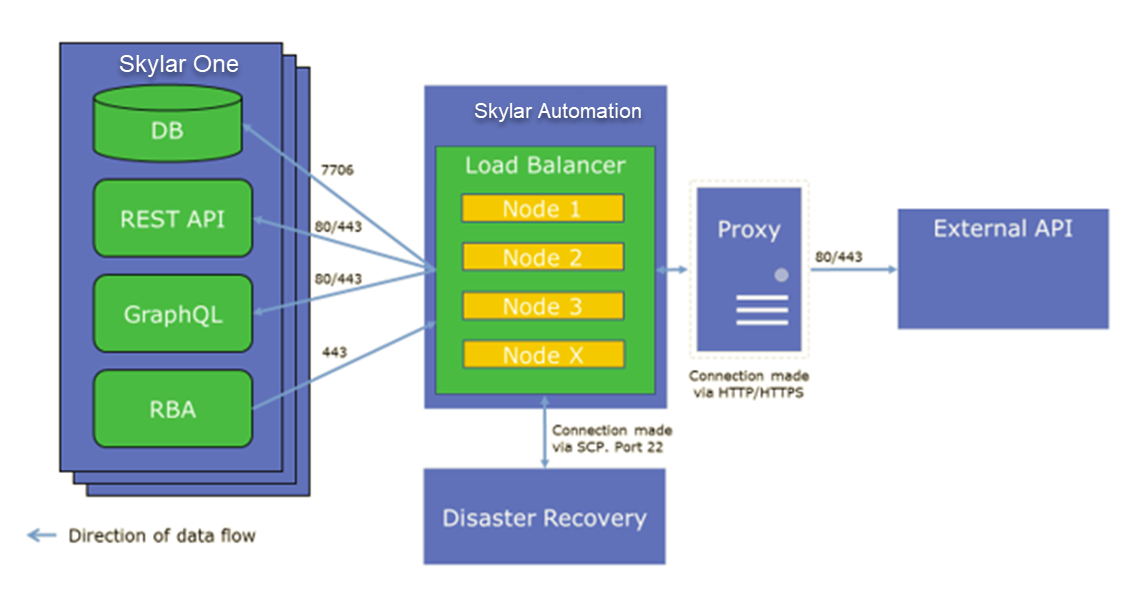
- High Availability for Skylar Automation is a cluster of Skylar Automation nodes with a Load Balancer managing the workload. In the above scenario, if one Skylar Automation node fails, the workload will be redistributed to the remaining Skylar Automation nodes. High Availability provides local redundancy. For more information, see Appendix A: Configuring Skylar Automation for High Availability.
- Off-site Backup can be configured by using Skylar Automation to back up and recover data in the Couchbase database. The backup process creates a backup file and sends that file using Secure Copy Protocol (SCP) to a user-defined, off-site destination system. You can then use the backup file from the remote system and restore its content. For more information, see Creating a Backup.
- A Proxy Server is a dedicated computer or software system running as an intermediary. The proxy server in the above scenario handles the requests between Skylar Automation and the third-party application. For more information, see Configuring a Proxy Server.
In addition, you can deploy Skylar Automation in a multi-tenant environment that supports multiple customers in a highly available fashion. After the initial High Availability (HA) core services are deployed, the multi-tenant environment differs in the deployment and placement of workers and use of custom queues. For more information, see Appendix B: Configuring Skylar Automation for Multi-tenant Environments.
There is no support for active or passive Disaster Recovery. ScienceLogic recommends that your Skylar Automation Disaster Recovery plans include regular backups and restoring from backup. For more information, see Creating a Backup.
Reviewing Your Deployment Architecture
Review the following aspects of your architecture before deploying Skylar Automation:
- How many Skylar One stacks will you use to integrate with the third-party platform (such as ServiceNow, Cherwell, or Restorepoint)?
- What is a good estimate of the number of devices across all of your Skylar One stacks?
- How many data centers will you use?
- Specify the location of each data center.
- What is the latency between each data center? (Latency must be less than 80 ms.)
- How many Skylar One stacks are in each data center?
- Are there any restrictions on data replication across regions?
- What is the location of the third-party platform (if applicable)?
- What is the VIP for Cluster Node Management?
Based on the above list, ScienceLogic recommends the following deployment paths:
- For question A, if you answered three or fewer Skylar One stacks, consider a standard High-Availability deployment. For more information, see Appendix A: Configuring Skylar Automation for High Availability.
- For question A, if you answered more than three Skylar One stacks to question A, consider configuring Skylar Automation in a multi-tenant configuration. For more information, see Appendix B: Configuring Skylar Automation for Multi-tenant Environments.
- For question G, if you answered "Yes" to data replication restrictions, consider the following deployment options:
- Deploy separate Skylar Automation clusters per region. This deployment requires more management of Skylar Automation clusters, but it ensures that the data is completely separated between regions. This deployment also ensures that if a single region goes down, you only lose operations for that region.
- Deploy a single Skylar Automation cluster in the restrictive region. This deployment is easier to manage, as you are only dealing with a single Skylar Automation cluster. As an example, if Europe has a law that requires that data in Europe cannot be replicated to the United States, but that law does not prevent data from the United States from coming into Europe, you can deploy a single Skylar Automation cluster in Europe to satisfy the law requirements.
- If you are deploying a multi-tenant configuration, check to see if your environment meets one the following:
- You have three or more data centers and the latency between each data center is less than 80 ms (question E), consider deploying a multi-tenant Skylar Automation where each node is in a separate data center to ensure data center resiliency. This deployment ensures that if a single data center goes down, Skylar Automation will remain operational.
- You have only two data centers and the latency between data centers is less than 80 ms, consider deploying a multi-tenant Skylar Automation where two nodes are in one data center and the other node is in the other data center. This deployment does not ensure data center resiliency, but it does provide standard High Availability if a single node goes down. If the data center with one node goes down, Skylar Automation will remain operational. However, if the data center with two nodes goes down, Skylar Automation will no longer remain operational.
- You have only two data centers but the latency between data centers is more than 80 ms. In this situation, you can still deploy a multi-tenant Skylar Automation, but all nodes must be located in a single data center. This deployment still provides standard High Availability so that, if a single node goes down, the other two nodes ensure Skylar Automation operations. If you require more resiliency than a single-node failure, you can deploy five nodes, which will ensure resiliency with two down nodes. However, if the data center goes down, Skylar Automation will not be operational.
- You only have one data center, you can still deploy a multi-tenant Skylar Automation, but all nodes are located in a single data center. This deployment still provides standard High Availability so that, if a single node goes down, the other two nodes ensure Skylar Automation operations. If you require more resiliency than a single-node failure, you can deploy five nodes, which will ensure resiliency with two down nodes. However, if the data center goes down, Skylar Automation will not be operational.
System Requirements
Skylar Automation itself does not have specific minimum required versions for Skylar One or AP2. However, certain Skylar Automation SyncPacks have minimum version dependencies, which are listed on the Dependencies for Skylar Automation SyncPacks page.
Ports
The following table lists the Skylar Automation ingress requirements:
| Source | Port | Purpose |
|
Skylar One host |
443 |
Skylar One run book actions and connections to Skylar Automation |
|
User client |
3141 |
Devpi access |
|
User client |
443 |
Skylar Automation API |
|
User client |
5556 |
Dex Server: enable authentication for Skylar Automation |
|
User client |
8091 |
Couchbase Dashboard |
|
User client |
15672 |
RabbitMQ Dashboard |
|
User client |
22 |
SSH access |
The following table lists the Skylar Automation egress requirements:
| Destination | Port | Purpose |
|
Skylar One host |
7706 |
Connecting Skylar Automation to Skylar One Database Server |
|
Skylar One host |
443 |
Connecting Skylar Automation to Skylar One API |
Additional Considerations
Review the following list of considerations and settings before installing Skylar Automation:
- ScienceLogic highly recommends that you disable all firewall session-limiting policies. Firewalls will drop HTTPS requests, which results in data loss.
- Starting with Skylar Automation version 3.0.0, the minimum storage size for the initial partitions is 75 GB. Anything less will cause the automated installation to stop and wait for user input. You can use the tmux application to navigate to the other panes and view the logs. In addition, at 100 GB and above, Skylar Automation (PowerFlow) will no longer allocate all of the storage space, so you will need to allocate the rest of the space based on your specific needs.
- Skylar Automation clusters do not support vMotion or snapshots while the cluster is running. Performing a vMotion or snapshot on a running Skylar Automation cluster will cause network interrupts between nodes, and will render clusters inoperable.
- The site administrator is responsible for configuring the host, hardware, and virtualization configuration for the Skylar Automation server or cluster. If you are running a cluster in a VMware environment, be sure to install open-vm-tools and disable vMotion.
- You can configure one or more Skylar One systems to use Skylar Automation to sync with a single instance of a third-party application like ServiceNow or Cherwell. You cannot configure one Skylar One system to use Skylar Automation to sync with multiple instances of a third-party application like ServiceNow or Cherwell. The relationship between Skylar One and the third-party application can be either one-to-one or many-to-one, but not one-to-many.
- The default internal network used by Skylar Automation services is 172.21.0.1/16. Please ensure that this range does not conflict with any other IP addresses on your network. If needed, you can change this subnet in the docker-compose.yml file.
For more information about system requirements for your Skylar Automation environment, see the System Requirements page at the ScienceLogic Support site at https://support.sciencelogic.com/s/skylar-automation/system-requirements.
Hardened Operating System
The operating system for Skylar Automation is pre-hardened by default, with firewalls configured only for essential port access and all services and processes running inside Docker containers, communicating on a secure, encrypted overlay network between nodes. Please refer to the table, above, for more information on essential ports.
You can apply additional Linux hardening policies or package updates as long as Docker and its network communications are operational.
The Skylar Automation operating system is an Oracle Linux distribution, and all patches are provided within the standard Oracle Linux repositories. The patches are not provided by ScienceLogic.
Additional Prerequisites for Skylar Automation
To work with Skylar Automation, ScienceLogic recommends that you have knowledge of the following:
- Linux and vi (or another text editor).
- Python.
- Postman or another API tool for interacting with the Skylar Automation API.
- Couchbase (Community Edition). For more information, see Helpful Couchbase Commands.
- Docker. For more information, see Helpful Docker Commands and https://docs.docker.com/engine/reference/commandline/cli/.
The most direct way of accessing the most recent containers of Skylar Automation is by downloading the latest RPM file from the ScienceLogic Support Portal. As a separate option, you can also access the Skylar Automation containers directly through Docker Hub. To access the containers through Docker Hub, you must have a Docker Hub ID and enable permissions to pull the containers from Docker Hub. To get permissions, contact your ScienceLogic Customer Success Manager.
Installing Skylar Automation (formerly PowerFlow)
Starting with version 2.3.0, all Skylar Automation platform releases are suitable for both MUD and non-MUD systems.
Due to the upcoming end of support for Oracle Linux 7, ScienceLogic strongly urges users to upgrade to Oracle Linux 8 (OL8). As such, only the OL8-based package and upgrade path is defined and provided. If you have extenuating circumstances and want to obtain an OL7-based install for Skylar Automation 3.0.0, please contact your CSM or ScienceLogic support.
Installing Skylar Automation for the First Time
You can install Skylar Automation for the first time in the following ways:
If you are installing Skylar Automation in a clustered environment, see Configuring the Skylar Automation System for High Availability.
Upgrading an Existing Skylar Automation System
- If you are upgrading an existing version of Skylar Automation (PowerFlow) to version 3.0.0 or later, the steps are slightly different, because you will need to convert the operating system to Oracle Linux 8. For more information, see Converting Skylar Automation to Oracle Linux 8 (OL8).
- If you are upgrading an existing version of Skylar Automation to a version before version 3.0.0, see Upgrading Skylar Automation.
The site administrator is responsible for configuring the host, hardware, and virtualization configuration for the Skylar Automation server or cluster. If you are running a cluster in a VMware environment, be sure to install open-vm-tools and disable vMotion.
Installing Skylar Automation via ISO
Due to the upcoming end of support for Oracle Linux 7, ScienceLogic strongly urges users to upgrade to Oracle Linux 8 (OL8). As such, only the OL8-based package and upgrade path is defined and provided. If you have extenuating circumstances and want to obtain an OL7-based install for Skylar Automation 3.0.0, please contact your CSM or ScienceLogic support.
Locating the ISO Image
To locate the Skylar Automation ISO image:
- Go to the ScienceLogic Support site at https://support.sciencelogic.com/s/.
- Click the tab and select Downloads. The Skylar Automation page appears.
- Click the link to the current release. The Release Version page appears.
- In the Release Files section, click the ISO link for the Skylar Automation image. A Release File page appears.
- Click at the bottom of the Release File page.
Installing from the ISO Image
When installing Skylar Automation from an ISO, you can now install open-vm-tools by selecting Yes to "Installing Into a VMware Environment" option during the installation wizard.
To install Skylar Automation via ISO image:
-
Download the latest Skylar Automation ISO file to your computer or a virtual machine center.
-
Using your hypervisor or bare-metal (single-tenant) server of choice, mount and boot from the Skylar Automation ISO. The Skylar Automation Installation window appears.
-
Select Install Skylar Automation. The Military Unique Deployment window appears.
-
Select Yes only if you require a Military Unique Deployment (MUD) of the Skylar Automation system. In most situations, you would select the default option of No. After the installer loads, the Network Configuration window appears.
-
Complete the following fields:
- IP Address. Type the primary IP address of the Skylar Automation server.
- Netmask. Type the netmask for the primary IP address of the Skylar Automation server.
- Gateway. Type the IP address for the network gateway.
- DNS Server. Type the IP address for the primary nameserver.
- Hostname. Type the hostname for Skylar Automation.
-
Press . The Root Password window appears.
-
Type the password you want to set for the root user on the Skylar Automation host (and the service account password) and press . The password must be at least six characters and no more than 24 characters, and all special characters are supported except the dollar sign ($) character.
You use this password to log into the Skylar Automation user interface, to SSH to the Skylar Automation server, and to verify API requests and database actions. This password is set as both the "Linux host isadmin" user and in the /etc/iservices/is_pass file that is mounted into the Skylar Automation stack as a "Docker secret". Because it is mounted as a secret, all necessary containers are aware of this password in a secure manner. For more information, see Changing the Skylar Automation Password.
To avoid authentication issues, do not use the dollar sign ($) character as the first character in any of the passwords related to Skylar Automation. You can use the $ character elsewhere in the password if needed.
-
Type the password for the root user again and press . The Skylar Automation installer runs, and the system reboots automatically. This process will take a few minutes.
-
After the installation scripts run and the system reboots, SSH into your system using PuTTY or a similar application. The default username for the system is isadmin.
-
To start the Docker services, change directory to run the following commands:
cd /opt/iservices/scripts
./pull_start_iservices.sh

This process will take a few minutes to complete.
-
To validate that iservices is running, run the following command to view each service and the service versions for services throughout the whole stack:
docker service ls
-
Navigate to the Skylar Automation user interface using your browser. The address of the Skylar Automation user interface is:
https://<IP address entered during installation>
-
Log in with the default username of isadmin and the password you specified in step 6.
-
After installation, you must license your Skylar Automation if you want to enable all of the features. For more information, see Licensing Skylar Automation.
If you are licensing a Skylar Automation High Availability cluster, you can run the licensing process on any node in the cluster once the cluster is ready. The node does not have to be the leader, and the licensing process does not have to be run on all nodes in the Swarm. If you are setting up High Availability for the Skylar Automation on a multiple-node cluster, see Preparing the Skylar Automation System for High Availability.
The HOST_ADDRESS value in the /etc/iservices/isconfig.yml file should be the fully qualified domain name (FQDN) of either the host if there is no load balancer, or the FQDN of the load balancer if one exists. If you change the HOST_ADDRESS value, you will need to restart the Skylar Automation stack.

Troubleshooting the ISO Installation
To verify that your stack is deployed, view your Couchbase logs by executing the following command:
docker service logs --follow iservices_couchbase
If no services are found to be running, run the following command to start them:
docker stack deploy -c docker-compose.yml iservices
To add or remove additional workers, run the following command:
docker service scale iservices_steprunner=10
ICMP is disabled by default after version 3.0.0 of Skylar Automation. If you need to enable it, run the following commands:
firewall-cmd --add-protocol=icmp --permanent
firewall-cmd --reload
systemctl restart docker
Installing Skylar Automation via RPM to a Cloud-based Environment
Due to the upcoming end of support for Oracle Linux 7, ScienceLogic strongly urges users to upgrade to Oracle Linux 8 (OL8). As such, only the OL8-based package and upgrade path is defined and provided. If you have extenuating circumstances and want to obtain an OL7-based install for Skylar Automation (PowerFlow) 3.0.0 and later, please contact your CSM or ScienceLogic support.
Considerations for the RPM Installation
- The Skylar Automation version 3.0.0, and later RPM is OL8-based. As a result, you cannot install the Skylar Automation (PowerFlow) 3.0.0 and later RPM in an OL7 environment. This is also true for Skylar Automation version 3.3.0.
- If you install the Skylar Automation 3.0.0 and later RPM on any operating system other than Oracle Linux 8, ScienceLogic will only support the running application and associated containers. ScienceLogic will not assist with issues related to host configuration for operating systems other than Oracle Linux 8 (or Oracle Linux 7 for systems before Skylar Automation (PowerFlow) version 3.0.0 and later). This is also true for Skylar Automation version 3.3.0.
- If you are deploying Skylar Automation without a load balancer, you can only use the deployed IP address as the management user interface. If you use another node to log in to the Skylar Automation system, you will get an internal server error. Also, if the deployed node is down, you must redeploy the system using the IP address for another active node to access the management user interface.
- The HOST_ADDRESS value in the /etc/iservices/isconfig.yml file should be the fully qualified domain name (FQDN) of either the host if there is no load balancer, or the FQDN of the load balancer if one exists. If you change the HOST_ADDRESS value, you will need to restart the Skylar Automation stack.
- If you are installing the RPM in a cluster configuration, and you want to distribute traffic between the nodes, a load balancer is required.
- If you install the Skylar Automation system in a cloud-based environment using a method other than an ISO install, you are responsible for setting up and configuring the requirements of the cloud-based environment.
Locating the RPM file
To locate the Skylar Automation RPM file:
- Go to the ScienceLogic Support Center at https://support.sciencelogic.com/s/.
-
Click the tab and select Downloads. The Skylar Automation page appears.
- Click the link to the current release. The Release Version page appears.
- In the Release Files section, click the RPM link for the Skylar Automation image. A Release File page appears.
- Click at the bottom of the Release File page.
Installing from the RPM File
You can also install Skylar Automation on other cloud-based environments, such as Microsoft Azure. For other cloud-based deployments, the process is essentially the same as the following steps: Skylar Automation provides the containers, and the cloud-based environment provides the operating system and server.
You can install Skylar Automation version 3.0.0 or later, or Skylar Automation version 3.3.0 on any Oracle Linux 8 (OL8) operating system, even in the cloud, as long as you meet all of the operating system requirements. These requirements include CPU, memory, Docker and a docker-compose file installed, and open firewall settings. When these requirements are met, you can install the RPM and begin to deploy the stack as usual.
Skylar Automation version 3.0.0 and later RPM is OL8-based. As a result, you cannot install the Skylar Automation (PowerFlow) 3.0.0 and later RPM in an OL7 environment. Previous versions of Skylar Automation (PowerFlow) before version 3.0.0 and later can use Oracle Linux 7.x, but ScienceLogic strongly recommends that you convert the operating system to OL8 as soon as possible. The steps below are specific for Skylar Automation version 3.0.0 or later. For more information, see Converting Skylar Automation to Oracle Linux 8 (OL8).
XFS is the default file system for Oracle operating systems, and OverlayFS is the default storage driver for Docker. For them to be compatible, the d_type=true option must be enabled. You can validate that setting with the xfs_info command, which is documented https://docs.docker.com/storage/storagedriver/overlayfs-driver/.
For a clustered Skylar Automation environment, you must install the Skylar Automation RPM on every server that you plan to cluster into Skylar Automation. You can load the Docker images for the services onto each server locally by running /opt/iservices/scripts/pull_start_iservices.sh. Installing the RPM onto each server ensures that the Skylar Automation containers and necessary data are available on all servers in the cluster. For a High Availability Skylar Automation system, run the steps below to install Skylar Automation on three different nodes, and then run the steps in Automating the Configuration of a Three-Node Cluster.
The following procedure describes how to install Skylar Automation via RPM to Amazon Web Service (AWS) EC2. The ec2-user must belong to the iservices group.
To install a single-node Skylar Automation version 3.0.0 via RPM to a cloud-based environment (using AWS as an example):
-
In Amazon Web Service (AWS) EC2, click . The Launch an instance page appears.
If you are installing Skylar Automation to another cloud-based environment, such as Microsoft Azure, set up the operating system and server, and then go to step 7.
-
Deploy a new Oracle Linux 8.0 virtual machine by searching for 131827586825 (the Oracle AWS Owner ID) in the Search our full catalog field in the Application and OS Images section.
-
Press . The Choose an Amazon Machine Image (AMI) page appears.
-
Click the tab and click for the AMI file. The AMI used should be the latest available OL8 AMI published by Owner ID 131827586825.
-
From the Choose an Instance Type page, select at least a t2.xlarge AMI instance, depending on your configuration:
- Single-node deployments. The minimum is t2.xlarge (four CPUs with 16 GB memory), and ScienceLogic recommends t2.2xlarge (8 CPUs with 32 GB memory).
- Cluster deployments. Cluster deployments depend on the type of node you are deploying. Refer to the separate multi-tenant environment guide for more sizing information. ScienceLogic recommends that you allocate at least 50 GB or more for storage.
- Go to the Step 6: Configure Security Group page and define the security group:
-
Inbound port 443 needs to be exposed to any of the systems that you intend to integrate.
-
For access to the Skylar Automation user interface, add the following ports to the security group:
- 15672 TCP for RabbitMQ
- 5556 for Dex Server authentication
- 3141 for Devpi access
For more information about ports, see the System Requirements.
-
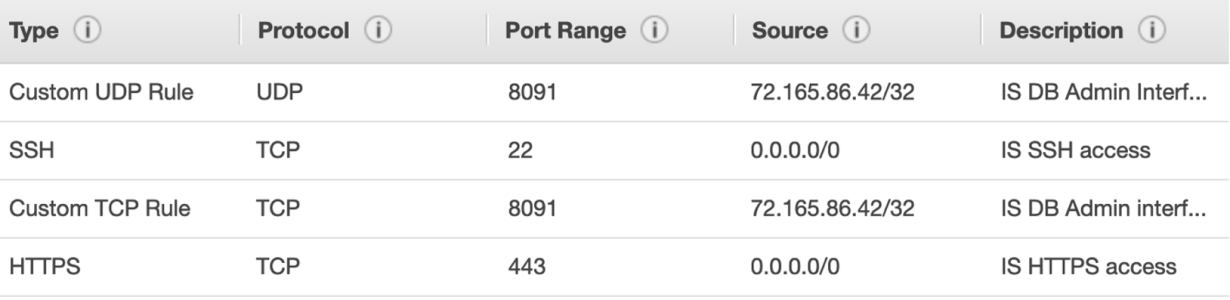
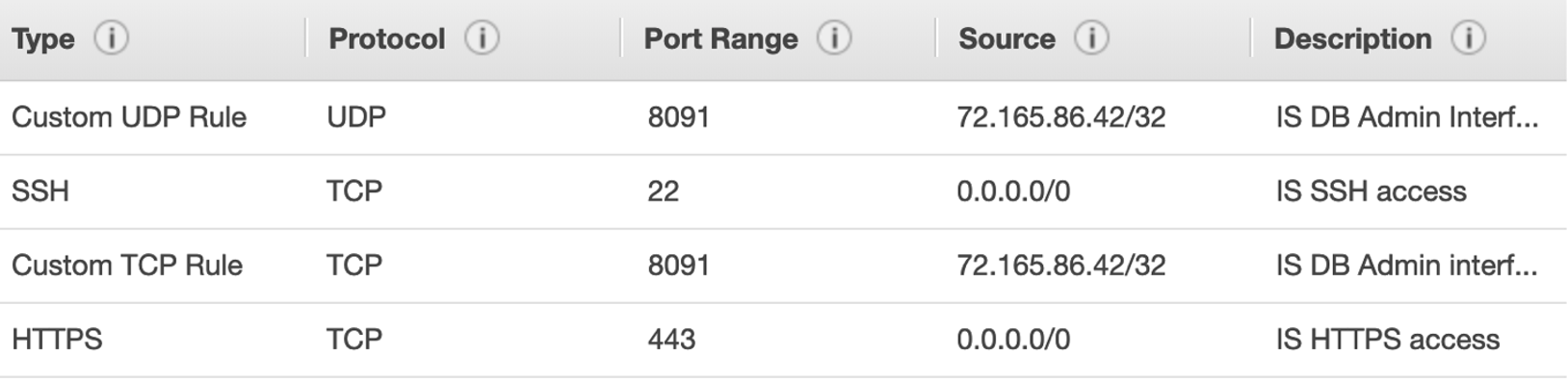
Port 8091 is exposed through https. ScienceLogic recommends that you make port 8091 available externally to help with troubleshooting:
-
Upload the sl1-powerflow-3.x.x-1.el8.x86_64.rpm file to the Skylar Automation server using SFTP or SCP.
-
Enable the necessary repositories by running the following commands on the Skylar Automation system:
Be sure to remove old OL7 repositories configuration from the /etc/yum.repos.d directory as they can cause errors while running the dnf update in step 9.
sudo dnf install yum-utils
sudo dnf config-manager --enable ol8_baseos_latest
sudo dnf config-manager --enable ol8_appstream
sudo dnf config-manager --enable ol8_addons
-
Run the following commands on the server instance to upgrade to Python 3.11 and install the cffi package:
If proxies are used, be sure to export the environment variables with the corresponding proxy information (http_proxy, https_proxy) so python packages can be installed
Do not change the version of pip from 21.3.1 This version is required for Skylar Automation (PowerFlow).
sudo dnf update
sudo dnf remove -y python3 python3-pip python3-setuptools
sudo dnf install python3.11-pip
sudo dnf install python3.11-cffi
sudo pip3 install --upgrade pip==21.3.1
-
Ensure that the latest required packages are installed by running the following commands on the server instance:
sudo dnf install wget
sudo dnf config-manager --add-repo https://download.docker.com/linux/rhel/docker-ce.repo
wget --no-check-certificate https://download.docker.com/linux/rhel/8/x86_64/stable/Packages/containerd.io-2.3.3-1.el8.x86_64.rpm
wget --no-check-certificate https://download.docker.com/linux/rhel/8/x86_64/stable/Packages/docker-ce-29.7.2-1.el8.x86_64.rpm
wget --no-check-certificate https://download.docker.com/linux/rhel/8/x86_64/stable/Packages/docker-ce-cli-29.7.2-1.el8.x86_64.rpm
wget --no-check-certificate https://download.docker.com/linux/rhel/8/x86_64/stable/Packages/docker-ce-rootless-extras-29.7.2-1.el8.x86_64.rpm
wget --no-check-certificate https://download.docker.com/linux/rhel/8/x86_64/stable/Packages/docker-compose-plugin-5.4.0-1.el8.x86_64.rpm
wget --no-check-certificate https://download.docker.com/linux/rhel/8/x86_64/stable/Packages/docker-buildx-plugin-0.36.1-1.el8.x86_64.rpm
sudo dnf install -y containerd.io-2.3.3-1.el8.x86_64.rpm docker-ce-29.7.2-1.el8.x86_64.rpm docker-ce-cli-29.7.2-1.el8.x86_64.rpm docker-ce-rootless-extras-29.7.2-1.el8.x86_64.rpm docker-compose-plugin-5.4.0-1.el8.x86_64.rpm docker-buildx-plugin-0.36.1-1.el8.x86_64.rpm
You might need to remove spaces from the code that you copy and paste from this manual. For example, in instances such as the wget command, above, line breaks were added to long lines of code to ensure proper pagination in the document.
You will need to update both instances of the Docker version in this command if there is a more recent version of Docker CE on the Docker Download page: https://download.docker.com/linux/centos/7/x86_64/stable/Packages/.
-
Create the Docker group:
sudo groupadd docker
-
Add your admin user to the Docker group and the wheel group:
sudo usermod -aG docker $USER
sudo usermod -aG wheel $USER
where $USER is the isadmin user name or the ec2-user in AWS. The ec2-user should belong to the iservices group, which is created as part of this RPM installation process.
-
Log out and log back in to ensure that your group membership is re-evaluated.
-
Run the following commands for the configuration updates. If selinux is already disabled skip this step.
sudo setenforce 0
sudo vi /etc/selinux/config
SELINUX=permissive
If changing the SELINUX=permissive configuration does not work, replace it with SELINUX=disabled.
-
Run the following firewall commands as "sudo" Be sure the firewalld service is up and running using sudo systemctl status firewalld:
For Microsoft Azure environments, the firewalld service may be down and masked. Unmask it using sudo systemctl unmask firewalld, enable and start it.
sudo firewall-cmd --add-port=2376/tcp --permanent
sudo firewall-cmd --add-port=2377/tcp --permanent
sudo firewall-cmd --add-port=7946/tcp --permanent
sudo firewall-cmd --add-port=7946/udp --permanent
sudo firewall-cmd --add-port=4789/udp --permanent
sudo firewall-cmd --add-protocol=esp --permanent
sudo firewall-cmd --reload
To view a list of all ports, run the following command: firewall-cmd --list-all.
If you copy and paste any of the commands with a --, make sure the two hyphens are entered as hyphens and not special characters.
-
Install the remaining Python packages needed for the Skylar Automation RPM file:
sudo dnf update
sudo rpm -qa|grep python3-pyyaml
sudo dnf remove python3-pyyaml
sudo pip3 install --no-build-isolation wheel
sudo pip3 install requests==2.27.1
sudo pip3 install --no-build-isolation pyyaml==5.4.1
sudo pip3 install --no-build-isolation MarkupSafe
sudo pip3 install --no-build-isolation docker-compose==1.27.4
-
Copy the Skylar Automation RPM to the instance of installation and install the RPM. Use the complete location of the RPM file if you are located in another directory.
If proxies are used be sure to export the environment variables with the corresponding proxy information http_proxy, https_proxy so python packages can be installed.
sudo dnf install sl1-powerflow-3.X.X-1.el8.x86_64.rpm
sudo systemctl restart docker
If an OL8 (hardened) image was used, the /tmp mount point might have been mounted using the noexec flag. If that is the case, run the following steps to install the RPM:
mkdir -p $HOME/tmp
sudo TMPDIR=$HOME/tmp dnf install sl1-powerflow-3.X.X-1.el8.x86_64.rpm
sudo systemctl restart docker -
Add the user to the iservices group. Then, log out and log back in to ensure that your group membership is re-evaluated and the user was added to the iservices group using groups.
sudo usermod -aG iservices $USER
-
Create a password for Skylar Automation. Be sure the group of that file is iservices.
printf '<password>' > /etc/iservices/is_pass
sudo chown root:iservices /etc/iservices/is_pass
where <password> is a new, secure password.
-
Before starting the Skylar Automation (PowerFlow) application, make sure the HOST_ADDRESS in the isconfig.yml file is set as expected. The public IP or DNS should be used.
-
Pull and start iservices to start Skylar Automation:
If an error related to installing syncpacks is displayed at the end, please wait a few moments and rerun 'pfctl init-sps', or manually install the syncpacks through the Skylar Automation (PowerFlow) user interface.
sudo /opt/iservices/scripts/pull_start_iservices.sh
For an AWS deployment, ScienceLogic recommends that you switch to an Amazon EC2 user as soon as possible instead of running all the commands on root.
After installation, you must license your Skylar Automation system to enable all of the features. Licensing is required for production systems only, not for test systems. For more information, see Licensing Skylar Automation.
Troubleshooting a Cloud Deployment of Skylar Automation
After completing the AWS setup instructions, if none of the services start and you see the following error during troubleshooting, you will need to restart Docker after installing the RPM installation.
sudo docker service ps iservices_couchbase --no-trunc
"error creating external connectivity network: Failed to Setup IP tables: Unable to enable SKIP DNAT rule: (iptables failed: iptables --wait -t nat -I DOCKER -i docker_gwbridge -j RETURN: iptables: No chain/target/match by that name."
Installing Skylar Automation on AWS
There are two options to install Skylar Automation on AWS:
-
Follow the instructions for installing the RPM in cloud environments
Or
-
Use the Skylar Automation AMI (Amazon Machine Image)
What are the ScienceLogic AMIs?
An instance is a virtual server that resides in the AWS cloud. An Amazon Machine Image (AMI) is the collection of files and information that AWS uses to create an instance. A single AMI can launch multiple instances.
For details on AMIs, see http://docs.aws.amazon.com/AWSEC2/latest/UserGuide/AMIs.html.
The ScienceLogic AMIs are defined by ScienceLogic. ScienceLogic has created an AMI for each type of ScienceLogic appliance. You can use a ScienceLogic AMI to create Elastic Compute Cloud (EC2) instances for each type of ScienceLogic appliance.
NOTE: Elastic Compute Cloud (EC2) instances are virtual servers that come in a variety of configurations and can be easily changed as your computing needs change. For more information on EC2, see http://docs.aws.amazon.com/AWSEC2/latest/UserGuide/concepts.html.
The ScienceLogic AMIs are private and are for ScienceLogic customers only. After you collect specific information about your AWS account, you can send a request (and the collected information) to ScienceLogic, and ScienceLogic will share the ScienceLogic AMIs with you.
Getting the Skylar Automation AMI
To get access to the Skylar Automation AMIs:
- Contact ScienceLogic Support to obtain the Skylar Automation AMIs.
- To view the ScienceLogic AMIs in your AWS account, go to the AWS Management Console page. Under the heading Compute, click .
- In the EC2 Dashboard page, go to the left navigation bar. Under the heading Images, click .
- In the main pane, under Filters, click and then select Private images.
- You should see AMIs with names that begin with "ScienceLogicSkylar Automation" and end with the current release number for Skylar Automation (formerly PowerFlow).
- If you do not see AMIs with names that begin with "ScienceLogicSkylar Automation", your EC2 Dashboard might have a default region that does not match the region for the ScienceLogicSkylar Automation AMIs. To change the current region in the EC2 dashboard, click the region pull-down in the upper right and choose another region. Do this until you find the ScienceLogicSkylar Automation AMIs.
A region is a geographic location. AWS has data centers that include multiple regions. You can specify that an instance reside in a specific region. For more details on regions, see http://docs.aws.amazon.com/AWSEC2/latest/UserGuide/using-regions-availability-zones.html.
Launching the New Instance
To launch the new EC2 instance from the ScienceLogic AMI:
-
Go to the EC2 Dashboard.
-
Select the Skylar Automation AMI. Click the button.
-
In the Choose Instance Type page, select at least a t2.xlarge AMI instance, depending on your configuration.
-
For single-node deployments, the minimum is t2.xlarge (four CPUs with 16 GB memory), however ScienceLogic recommends t2.2xlarge (8 CPUs with 32 GB memory).
-
For cluster deployments, the instance type depends on the type of node you are deploying. ScienceLogic recommends allocating at least 100 GB or more for storage.
-
-
Click the button.
-
A security group is a reusable set of firewall rules. In the Configure Security Group page, do the following:
-
Assign a security group. Select Create a new security group.
-
Security group name. Enter a name or accept the default name.
-
Description. Accept the default value in this field.
-
-
Use the table below to create security rules for each type of Skylar Automation appliance. After completing each row, click the button.
Inbound port 443 must be exposed to any systems you want to integrate. Port 8091 is exposed through https. ScienceLogic recommends that you make port 8091 available externally to help with troubleshooting.
For access to the Skylar Automation user interface, add the following ports to the security group:
-
Rabbit MQ: 15672 TCP
-
Dex Server authentication: 5556
-
Devpi access: 3141
| Type | Protocol | Port Range | Source | Description |
| Custom UDP Rule | UDP | 8091 |
If you will always log in from a single IP address, select My IP. If you will log in to the instance from multiple IP addresses, enter those IP addresses, separated by commas, in this field. |
Couchbase Administrator Dashboard |
| SSH (edit the default SSH rule) | TCP | 22 |
If you will always log in from a single IP address, select My IP. If you will log in to the instance from multiple IP addresses, enter those IP addresses, separated by commas, in this field. |
SSH. For SSH sessions from the user workstation to the appliance. |
| Custom TCP Rule | TCP | 8091 |
If you will always log in from a single IP address, select My IP. If you will log in to the instance from multiple IP addresses, enter those IP addresses, separated by commas, in this field. |
Couchbase Administrator Dashboard |
| HTTPS | TCP | 443 |
If you will always log in from a single IP address, select My IP. If you will log in to the instance from multiple IP addresses, enter those IP addresses, separated by commas, in this field. |
Skylar Automation HTTPS access |
- Click the button.
- In the Add Storage page, select the checkbox in the Delete on Termination column.
- In the Add Storage page, set the disk space as needed. For more information about resource recommendations, see CPU and Memory Requirements for Skylar Automation.
- In the Add Storage page, select gp3 for the Volume Type.
- Click the button.
- In the Configure Instance Details page, define the following:
- Number of Instances. Enter "1".
- Request Spot Instances. Do not select.
- Network. For VPC-enabled accounts, specify the network where the instance will reside. If you are unsure of the network, accept the default.
- Subnet. For VPC-enabled accounts, specify the subnet where the instance will reside. If you are unsure of the subnet, accept the default.
- Auto-assign Public IP. If you select Enable, AWS will assign an IP address from the public pool to this instance. If you select Disable, you must assign an Elastic IP Address (EIP) to the instance.
NOTE: If you select Enable in the Auto-assign Public IP field, the IP address will change each time the instance is stopped or terminated. For All-In-One Appliances and for Administration Portals, you might want to use an Elastic IP address (EIP), which is a persistent IP address. See the section on Elastic IP Addresses (EIP) for details.
NOTE: For more information on Elastic IP Addresses, see http://docs.aws.amazon.com/AWSEC2/latest/UserGuide/elastic-ip-addresses-eip.html.
- IAM role. If your organization uses IAM roles, select the appropriate role.
- Configure the remaining settings according to your organization's requirements, or leave them with the default values.
- Click the button and review the details of the new instance. Fix any problems to meet the requirements of your organization.
- Click the button.
Because the root user is disabled for SSH access, you must reset the password for isadmin before using any SSH key.
Accessing the Appliance Using SSH
Before following the steps below, you should have already received the ScienceLogic Skylar Automation AMIs and created an EC2 instance based on the ScienceLogicSkylar Automation AMI. You also need access to SSH on the command line (for UNIX users) or have installed PuTTY (for Windows users).
Gathering Information Required for Accessing the Appliance Using SSH
To gather the required information:
-
Navigate to the EC2 Dashboard.
-
Select Instances from the lefthand navigation menu.
-
Click the row that contains the Skylar Automation appliance instance.
-
The lower pane contains information about the instance. Take note of the Public DNS and Public IP, as you will need them later.
If you are using AWS instances to create a Skylar Automation Cluster, perform the steps above for each AWS instance you want to include in the Skylar Automation Cluster.
Configuring SSH
You can connect to your Skylar Automation instance using the SSH command line (for UNIX users) or PuTTY (for Windows users).
-
Use the following credentials the first time you attempt to access the Skylar Automation appliance instance. The system will immediately prompt you to change the password after accessing the system.
-
username: isadmin
-
password: isadminisadminisadmin
-
-
If you need to use an SSH key, you can add it after resetting the password. For information on adding or replacing a public key on your Linux instance, see Amazon's documentation at docs.aws.amazon.com.
-
Enter the following to get the public key: ssh-keygen -y -f /path_to_key_pair/my-key-pair.pem
-
Set the file ~/.ssh/authorized_keys with the expected permissions chmod 700 ~/.ssh/ and chmod 600 ~/.ssh/authorized_keys.
-
Deploying the Skylar Automation Application
Once you have access to the EC2 Instance follow the steps below to deploy the Skylar Automation application.
-
Update the hostname as needed. The default hostname is powerflow. For more information about updating the hostname, see Oracle's documentation at docs.oracle.com.
-
Create the password file. Execute these commands as a superuser (sudo -i) for MUD environments.
printf "<newpassword>" > /etc/iservices/is_pass
chmod 660 /etc/iservices/is_pass
-
Create isconfig.yml and encryption_key by executing the following command as a superuser.
/opt/iservices/scripts/system_updates/recreate_configs.sh
For MUD environments only, execute the following:
echo 'MUD_ENABLED: true' >> /etc/iservices/isconfig.yml
Be sure to set the correct value for the HOST_ADDRESS in the /etc/iservices/isconfig.yml file. If this doesn't have the public IP set, the Skylar Automation application user interface will not be accessible.
-
Restart Docker.
systemctl restart docker
docker info
-
Deploy the Skylar Automation system. If the stack needs to be configured as a cluster environment, please follow the steps for Configuring Skylar Automation for High Availability.
/opt/iservices/scripts/pull_start_iservices.sh
Additional Configuration Steps
The minimum size of the EBS volume used for the Skylar Automation deployment is 100 GB. If a bigger size is used, the partition can be resized and the LVM can be extended as needed.
The following is an example to extend the root file system with 10 extra GB, if the EBS volume size was ~110GB.
lsblk # To check the real disk size and the partition that needs to be resized. It would be xvda2, as it should not be the boot partition
parted /dev/xvda
(parted) print
(parted) resizepart 2 100%
(parted) quit
pvresize /dev/xvda2
vgs # This will show you how much storage is left for allocation
lvextend -L +10G /dev/isvg/root
xfs_growfs /dev/mapper/isvg-root
df -h # To see the final result
Converting Skylar Automation to Oracle Linux 8 (OL8)
Starting with version 3.0.0 of Skylar Automation, you can convert your Skylar Automation system to Oracle Linux 8. ScienceLogic strongly recommends you make the conversion to OL8 as soon as possible, as OL7 is End of Life (EOL) as of the end of 2024.
The Oracle Linux automated scripts for converting Skylar Automation from OL7 to OL8 have been deprecated as of version 3.2.0 of Skylar Automation. You must run a backup, install, and restore using a separate system.
Complete the upgrade steps in the following order:
- If needed (see the tables, below), back up the Skylar Automation system.
- Install Skylar Automation version 3.0.0 or later using the .iso file.
- If needed, restore the Skylar Automation system.
Upgrade Options for Converting from Skylar Automation 2.x (OL7) to Skylar Automation 3.x or Later (OL8)
Select one of the following options to upgrade from an older version of Skylar Automation (PowerFlow) running OL7 to Skylar Automation version 3.0.0 or later running OL8:
| Upgrade Option | Requirements | Implications, Downtime, Other Considerations |
|
Backup, install, and restore, using a separate system |
Identical, secondary environment for installing the Skylar Automation 3.0.0 .iso file
|
This approach allows for the existing Skylar Automation system to continue running while you deploy and configure a new OL8 based system. Once data is fully restored on the new system, you may switch the load balancer configuration to point to the new system, virtually eliminating downtime. This approach also allows you to use the old Skylar Automation system as a fallback or rollback option. |
|
Backup, re-install, and restore, using the same system |
A separate file store where backup and configuration files can be stored temporarily |
This approach will incur downtime as your existing system will be re-installed to Skylar Automation 3.0.0 and restored with the data from the previous version. This approach does not allow you to roll back or switch back over to the older version of Skylar Automation. |
Upgrade Paths Based on Skylar Automation Environments
Your upgrade options depend on your Skylar Automation environment, so review the following table before beginning the upgrade and conversion process.
| Environment Type | Upgrade Options | Recommended Option | Additional Notes |
|---|---|---|---|
|
Internet-connected, on-premises |
Run a back up, re-install, and restore. |
Run a back up, re-install, and restore. |
None
|
|
Offline on-premises |
Run a back up, re-install, and restore. |
Run a back up, re-install, and restore. |
None
|
|
MUD installation (FIPS-enforced) |
Run a back up, re-install, and restore. |
Run a back up, re-install, and restore. |
None. |
|
AWS-based cloud installation |
Run a back up, re-install, and restore.
|
Run a back up, re-install, and restore.
|
None |
| Azure-based cloud installation | Run a backup, install, and restore using a separate system. | Run a backup, install, and restore using a separate system. |
None |
Back Up, Re-install, and Restore Your Skylar AutomationSystem
If you are backing up, installing, and restoring using the same system, you will need a separate file store where backup and configuration files can be stored temporarily. This approach will incur downtime as your existing system will be re-installed to 3.0.0 and restored with the data from previous. This approach does not allow you to roll back or switch back over to the older version.
If you are backing up, installing, and restoring using a separate system, you will need an identical, secondary environment for installing the Skylar Automation 3.0.0 .iso file. This approach allows for the existing PF system to continue running/operating while you deploy and configure a new OL8 based system. Once data is fully restored on the new system, you may switch load balancer config to point to the new system, virtually eliminating downtime. This approach also allows you to use the old system as a fallback/rollback option
Use the following steps to back up your current Skylar Automation configuration after you have converted the operating system to OL8, but before you upgrade to Skylar Automation version 3.0.0 or later:
-
Use the "Skylar Automation Backup" application in the Skylar Automation user interface to create a backup file and send that file using secure copy protocol (SCP) to a destination system. For more information, see Backing up and Restoring Skylar Automation Data.
The backup and restore applications are application-level backup and restore tools. For full-system backups, you will need to do a filesystem-level backup to ensure that you get the encryption key that was used to encrypt configuration objects as well as other files used to describe the environment, including the /etc/iservices directory, the docker-compose.yml file and the docker-compose-override.yml file.
-
Install a "fresh" version of Skylar Automation using the .iso file. For more information, see Installing Skylar Automation via ISO.
After installing the ISO, but before deploying Skylar Automation using the script /opt/iservices/scripts/pull_start_iservices.sh or using pfctl autocluster, you must copy the old system encryption_key and is_pass files to the new nodes.
-
Use the "Skylar Automation Restore" application in the Skylar Automation user interface to retrieve your backup file (from step 1, above) from the remote system and restore its content. For more information, see Restoring Skylar Automation Data.
Upgrading to Couchbase Version 6.6.0
This section contains a set of upgrade considerations for moving to Couchbase version 6.6.0 (Community Edition). Version 2.6.0 of the Skylar Automation Platform includes Couchbase version 6.6.0 (Community Edition).
Skylar Automation (PowerFlow) Supported Upgrade Paths
The following constraints are based on the Couchbase version used by the different versions of Skylar Automation. For more information, see Couchbase Supported community upgrade paths.
| Starting Versions | Path to Current Versions |
|
Skylar Automation (PowerFlow) 2.0.x (Couchbase 5.1.1) |
2.0.x (Couchbase 5.1.1) -> 2.1.x to 2.5.x (Couchbase 6.0.2) -> 2.6.0(Couchbase 6.6.0) |
|
Skylar Automation (PowerFlow) 2.1.x (Couchbase 6.0.2) |
2.1.x (Couchbase 6.0.2) -> 2.6.0 (Couchbase 6.6.0) |
Logs Buckets
When upgrading to Couchbase version 6.6.0, the number of documents in the logs bucket could make the upgrade take longer, as a namespace upgrade is needed.
ScienceLogic recommends that you flush the logs bucket if there are more than 300,000 documents that are taking up close to 2 GB of space in every node. Flushing the logs bucket will speed up the upgrade process. Otherwise, migrating a logs bucket of that size would take two to three minutes per node.
Do not interrupt the upgrade process, as that can corrupt documents. Please wait until the upgrade finishes running.
Run the following command to flush the logs bucket after the Skylar Automation (PowerFlow) version 2.6.0 RPM was installed, but before redeploying the Skylar Automation (PowerFlow) Stack:
pfctl --host <hostname><host_password>:<password> node-action --action flush_logs_bucket
Alternately, you can flush the logs bucket manually using the Couchbase user interface.
Downgrading
Downgrades from Couchbase 6.6.x are not supported because the namespace is upgraded.
Upgrading from Skylar Automation 3.x to the latest Skylar Automation3.x Version
This topic is only relevant for users that are upgrading an existing version of Skylar Automation 3.x.x to the latest Skylar Automation 3.x.x version.
ScienceLogic releases a major update to Skylar Automation (formerly PowerFlow) every six months. ScienceLogic also releases a monthly maintenance release (MMR) as needed to address major customer-facing bugs. If there are no major bugs to be addressed via MMR, the MMR will not be produced for the month. Security updates are included in an MMR only if an MMR is planned to be released.
You should always upgrade to the most recent release of Skylar Automation.
If you need the most recent, stable version of the Oracle Linux 8 operating system (OS) packages, you can upgrade them either using dnf update or by mounting the latest ISO to an existing Skylar Automation system. For more information, see Upgrading OS Packages.
Deploying Skylar Automation as a MUD System (Optional)
Starting with Skylar Automation version 2.3.0, you can deploy Skylar Automation as a Military Unique Deployment (MUD) system. Please note the following criteria:
- You cannot convert a non-MUD Skylar Automation system to a MUD system.
- If you want to upgrade from an older (non-MUD) Skylar Automation system to a MUD system, you will need to run a backup and restore to the new deployment.
- If you want to upgrade from an older 2.x MUD system to the latest 3.x line, you will need to run a backup and restore to the new deployment.
- Upgrading from a 3.x MUD system to the latest 3.x system is fully supported.
Considerations for Upgrading from Skylar Automation 3.x
-
Skylar Automation version 3.1.x brings Python3.11 inside its containers. Upgrading SyncPack virtual environments from Python3.8 to Python3.11 is done automatically by the syncpacks_steprunner service after re-deploying the Skylar Automation stack. This upgrade could take a moment. While upgrading, the steprunners could fail to execute some tasks because the SyncPack virtual environments won't be in place immediately. To avoid this, the steprunners replicas can be set to 0 temporarily in the docker-compose.yml file.
-
If you made any modifications to the nginx configuration or to other service configuration files outside of the docker-compose.ymlfile, you will need to modify those custom configurations before upgrading, or contact ScienceLogic Support to prevent the loss of those modifications.
-
If you are deploying Skylar Automation without a load balancer, you can only use the deployed IP address as the management user interface. If you use another node to log in to the Skylar Automation system, you will get an internal server error. Also, if the main deployed node is down, you must redeploy the system using the IP address for another active node to access the management user interface.
-
For Military Unique Deployment (MUD) systems, ScienceLogic recommends using the --resolve-image=never argument when deploying the stack for a faster deployment:
-
docker stack deploy --resolve-image never -c /opt/iservices/scripts/docker-compose.yml iservices
-
If PoweFlow 3.0.0 was installed using the official Skylar Automation (PowerFlow) ISO, the free space on the isvg-root(/) filesystem may need to be increased for installing the Skylar Automation 3.x.x RPM, as this RPM requires approximately 9GB for its installation. When checking the current free space on the isvg-root filesystem use df -h . If the free space is less than 9GB use one or both of the following options to make space for the RPM installation.
Option 1: Increase the size of the isvg-root(/) filesystem
-
Run the command sudo vgs. This will show you how much storage is left for allocation.
-
If VFree is not more than 10Gg, you can do the following:
-
Increase the size of the physical disk. This depends on the virtualization solution you are using.
-
Run commands for Option 2 instead.
-
-
Run the command sudo lvextend -L +10G /dev/isvg/root.
-
Run the command sudo xfs_growfs /dev/mapper/isvg-root.
-
Verify that there is at least 9G of storage for the isvg-root filesystem with the command df -h.
Option 2: Remove the Old Skylar Automation Images from the /opt/iservices/images directory
-
Remove the old compressed images from the /opt/iservices/images directory.
-
Verify that you have at least 9G storage for the new images with the command df -h.
-
If there is not enough storage, you will have to find other directories and files to remove to free up space.
Pre-Upgrade Steps
Before upgrading a Skylar Automation system to Skylar Automation, check to ensure the system is up and healthy.
-
Be sure that the gui service is constrained to, and is running the nodes that are expected to receive traffic.
-
Run the powerflowcontrol(pfctl) healthcheck and autoheal actions to make sure the system is healthy.
-
For cluster environments, verify that there are three nodes in the Couchbase and RabbitMQ user interfaces.
-
If you have made custom changes, ensure they have been added to the docker-compose-override.yml file. Otherwise, they will be lost during the upgrade process. For more information, see the Configuring Skylar Automation Services section.
-
If you enabled the broker_load_from_backend setting, make sure it is present in the docker-compose-override.yml file. After upgrading, make sure the setting is still enabled.
-
When upgrading from Skylar Automation version 3.0.0 to the latest version of Skylar Automation, the steprunners docker healthcheck in the docker-compose-override.yml file must be updated to the following, which is compatible with Skylar Automation version 3.0.0 and later, as well as Skylar Automation version 3.3.0 and later:
-
["CMD-SHELL", "celery -A ipaascommon.celeryapp:app inspect ping -d celery@$${HOSTNAME}"]
-
-
Be sure to run the powerflowcontrol(pfctl) autoheal action to copy the compose files to all nodes in cluster environments.
-
-
Create the following backups:
-
Use the "Backup" application. For more information, see the Backing up and Restoring Skylar Automation Data section.
-
Make backups of the /etc/iservices/, /opt/iservices/scripts/docker-compose.yml, and /opt/iservices/scripts/docker-compose-override.yml files.
-
Locating the RPM or ISO File for Upgrading
As a best practice, you should always upgrade to the most recent version of Skylar Automation that is currently available at https://support.sciencelogic.com/s/.
To locate and download the Skylar Automation RPM file:
- Go to the ScienceLogic Support site at https://support.sciencelogic.com/s/.
-
Click the tab and select Downloads. The Skylar Automation page appears.
- Click the link to the current release. The Release Version page appears.
- In the Release Files section, click the RPM or ISO link. A Release File page appears.
- Click at the bottom of the Release File page.
Upgrading OS Packages
If you need the most recent, stable versions of the Oracle Linux 8 operating system (OS) packages, you can upgrade them either using the dnf update command or by mounting the latest Skylar Automation ISO to an existing Skylar Automation system. For more information, see the section on Upgrading OS Packages (for Offline Deployments Only).
When a dnf update is performed, there is no risk of Skylar Automation operations being affected as long as Docker or networking services are not included in the updates. If these packages are updated, you must restart Docker in all nodes.
Upgrading OS Packages (for Offline Deployments Only)
Upgrading OS packages for an offline deployment requires you to mount the ISO and update the packages that are shipped with the ISO.
-
Mount the Skylar Automation ISO onto the system:
mkdir /mnt/tmp_install_mount
mount -o loop /dev/cdrom /mnt/tmp_install_mount
-
After you mount the ISO, add a new repository file to access the ISO as if it were a yum repository. Create a /etc/yum.repos.d/localiso.repo file with the following contents:
[ol8_baseos_latest_offline]
name=Oracle Linux 8 BaseOS Latest PF ISO
gpgkey=file:///etc/pki/rpm-gpg/RPM-GPG-KEY-oracle
baseurl=file:///mnt/tmp_install_mount/BaseOS
gpgcheck=0
enabled=1

[ol8_appstream_offline]
name=Oracle Linux 8 Application Stream PF ISO
gpgkey=file:///etc/pki/rpm-gpg/RPM-GPG-KEY-oracle
baseurl=file:///mnt/tmp_install_mount/AppStream
gpgcheck=0
enabled=1
After you create and save this file, the Linux system can install packages from the Skylar Automation ISO.
-
To disable other repos except the local ISO mount repo, run the following command:
dnf --disablerepo="*" --enablerepo="ol8_baseos_latest_offline,ol8_appstream_offline" update
Upgrading from Skylar Automation Version 3.x.x to Skylar Automation 3.4.1
Depending on your Skylar Automation (PowerFlow) environment and your company's requirements, select one of the following upgrade options:
-
Single-node Upgrade
-
Cluster Upgrade with Short Downtime
-
Rolling Cluster Upgrade with No Downtime
Perform the steps in the following procedure in the order listed below to ensure a proper upgrade.
Single-node Upgrade
To upgrade a single-node Skylar Automation (PowerFlow) system from 3.x.x:
-
Make a copy of the docker-compose file that you used to deploy Skylar Automation (PowerFlow) (in case you need to roll back to the previous version). Follow the pre-upgrade steps.
-
Either go to the console of the Skylar Automation (PowerFlow) system or use SSH to access the server.
-
Log in as isadmin with the appropriate (root) password. You must be root to upgrade using the RPM file.
-
Download the Skylar Automation RPM and copy the RPM file to the Skylar Automation (PowerFlow) system.
-
Type the following in the command line, where <full_path_of_rpm> is the name and path of the RPM file, such as /home/isadmin/skylar-automation-3.x.x-1.x86_64.rpm:
sudo dnf upgrade <full_path_of_rpm>
If you are installing in an offline environment, see the Upgrading OS Packages (for Offline Deployments Only) section or run the sudo rpm -Uvh <full_path_of_rpm> command.
If the disk space to install the new RPM is not enough in the root partition, try removing the old images from the directory /opt/iservices/images or increase the size of the isvg-root(/) filesystem. For more information, see the section on Considerations for Upgrading from 3.x
-
After the RPM is installed, run the following Docker command:
docker stack rm iservices
After running this command, the stack is no longer running.
If you want to upgrade your services in place, without bringing them down, you may skip this step. Please note that skipping this step might cause the services to take longer to update. For MUD environments, you must remove the stack, as there are temporal volumes that need to be recreated.
-
If the upgrade process recommends restarting Docker, run the following command:
systemctl restart docker
If you restart Docker for this step, you should skip step 10, below.
-
Re-deploy the Docker stack to update the containers:
docker stack deploy -c /opt/iservices/scripts/docker-compose.yml iservices
-
After you re-deploy the Docker stack, the services automatically update themselves. Wait a few minutes to ensure that all services are updated and running before using the system.
-
If the upgrade process recommends restarting Docker, run the following command:
systemctl restart docker
-
To view updates to each service and the service versions for services throughout the whole stack, type the following at the command line:
docker service ls
Each service now uses the new version of Skylar Automation. Make sure to run the skyautocontrol (skyautoctl) healthcheck and autoheal actions to finish the upgrade process.
Cluster Upgrade with Short Downtime
If you are running Skylar Automation in a clustered environment, you should install the RPM on all nodes in the cluster for the upgrade. The order in which you install the RPM on the nodes does not matter. Installing the RPM on each node makes the latest Skylar Automation container images and scripts available to the system.
Please note that installing the RPM on the nodes does not change the version of the currently running Skylar Automation application stack. The new version of Skylar Automation is only deployed when you run the docker stack deploy command on the new docker-compose file that is generated after you install the RPM.
The following upgrade procedure for a clustered Skylar Automation environment results in only five to ten minutes of downtime.
For more information, including extensive examples, seeSkylar Automation Multi-tenant Upgrade Process in Appendix B: Configuring the Skylar Automation System for Multi-tenant Environments.
To perform a cluster upgrade with short downtime:
-
Make a copy of the docker-compose file that you used to deploy Skylar Automation (in case you need to roll back to the previous version). Follow the pre-upgrade steps.
-
Use SSH to access the node.
-
Log in as isadmin with the appropriate (root) password. You must be root to upgrade using the RPM file.
-
Copy the RPM file to each node.
-
Install the RPM on all nodes in the cluster by typing the following command at the command line for each node:
sudo dnf upgrade <full_path_of_rpm>
where full_path_of_rpm is the name and path of the RPM file, such as /home/isadmin/skylar-automation-3.x.x-1.x86_64. For more information, see Installing the Skylar Automation RPM. If there is not enough space to install the new RPM in the root partition, try removing the tar images from the directory /opt/iservices/images.
If you are installing in an offline environment, see the Upgrading OS Packages (for Offline Deployments Only) section or run the sudo rpm -Uvh <full_path_of_rpm> command.
Installing the RPM on all the nodes makes the containers available and updates the docker-compose file on each node, but the existing Skylar Automation version will continue running.
-
After you have installed the RPM on all of the nodes, open the new docker-compose.yml file at /opt/iservices/scripts/ and confirm that the versions of Couchbase, RabbitMQ, and any custom workers are using the latest, updated version numbers.
-
After the RPM is installed on the nodes, run the following Docker command:
docker stack rm iservices
After you run this command, the stack is no longer running.
If you want to upgrade your services in place, without bringing them down, you may skip this step. Please note that skipping this step might cause the services to take longer to update.
-
If the upgrade process recommends restarting Docker, run the following command:
systemctl restart docker
If you restart Docker for this step, you should skip step 11, below.
-
Re-deploy the Docker stack with the docker-compose file you reviewed in step 6:
docker stack deploy -c /opt/iservices/scripts/docker-compose.yml iservices
The time between removing the old version of the stack and deploying the new version of the stack is the only period of down time.
-
After you re-deploy the Docker stack, the services automatically update themselves. Wait a few minutes to ensure that all services are updated and running before using the system.
-
If the upgrade process recommends restarting Docker, run the following command:
systemctl restart docker
-
To view updates to each service and the service versions for services throughout the whole stack, type the following at the command line:
docker service ls
Each service now uses the new version of Skylar Automation.
Rolling Cluster Upgrade with No Downtime
For a clustered Skylar Automation environment, the following rolling cluster update results in no downtime, but the process requires intermediate compose updates.
For more information, including extensive examples, see Skylar Automation Multi-tenant Upgrade Process in Appendix B: Configuring the Skylar Automation System for Multi-tenant Environments.
To perform a rolling cluster upgrade with no downtime:
-
Make a copy of the docker-compose file that you used to deploy Skylar Automation (in case you need to roll back to the previous version). Follow the pre-upgrade steps.
-
Use SSH to access the node.
-
Log in as isadmin with the appropriate (root) password. You must be root to upgrade using the RPM file.
-
Copy the RPM file to each node.
-
Install the RPM on all nodes in the cluster by typing the following command at the command line for each node:
sudo dnf upgrade <full_path_of_rpm>
where full_path_of_rpm is the name and path of the RPM file, such as /home/isadmin/skylar-automation-3.x.x-1.x86_64. For more information, see Installing the Skylar Automation RPM.
If you are installing in an offline environment, see the Upgrading OS Packages (for Offline Deployments Only) section or run the sudo rpm -Uvh <full_path_of_rpm> command.
Installing the RPM on all the nodes makes the containers available and updates the docker-compose file on each node, but the existing Skylar Automation version will continue running.
-
After the RPM is installed on the nodes, remove the "core nodes" one by one to cause a failover, and then re-add a new version of the same node without taking down the stack:
-
Access the Couchbase user interface at https://<IP of PowerFlow>:8091.
-
On the tab, select a single database node and click Failover. Select Graceful Failover. Manually failing over before updating ensures that the system is still operational when the container comes down.
-
Modify the /opt/iservices/scripts/docker-compose.yml file at that you used to deploy Skylar Automation, and change just one of the Couchbase services and RabbitMQ services to use the new version (the same Couchbase server you previously failed over).
-
Deploy the docker-compose file with the new updated Couchbase server.
-
Wait for the new instance of Couchbase to join the existing cluster as the latest version. When it has joined, that core node is updated.
-
- Continue failing over nodes and re-deploying them with the new Skylar Automation version until all core nodes are updated.
- After the core nodes are updated, you can proceed similarly with each individual worker nodes. You can update these nodes in groups if that is faster. You do not need to fail over the worker nodes; you can just change the services and images.
- At the end of the node-by-node upgrade, your existing docker-compose should contain all of the new versions specified by the latest docker-compose file shipped with the RPM.
Validating the Skylar Automation System Post-Upgrade
Perform the following tasks to ensure the cluster configuration is valid for this version of Skylar Automation:
-
Be sure that the gui service is accessible.
-
Run the skyautocontrol (skyautoctl) healthcheck and autoheal actions to make sure the system is healthy.
-
Restart the contentapi service if the skyautocontrol (skyautoctl) autoheal action suggests to do so.
-
Check that you can access the Couchbase(8091) and RabbitMQ(15672) services, and the expected nodes are there. For cluster environments 3 nodes should be present.
-
Check the Couchbase logs. If there are errors with the load powerflow content command, execute the following command:
skyautoctl --host <host_IP_1> user:host_password node-action --action upload_syncpack_default_content
OR
docker exec -it $(docker ps -q -n 1 --filter name=iservices_couchbase) couchcontrol load powerflow-content
-
Check the RabbitMQ logs. If they are not present in the user interface, restart node one by executing the following command:
-
docker service update --force iservices_rabbitmq
-
ScienceLogic recommends installing the latest version of the base SyncPacks that were uploaded during the upgrade:
-
Base Steps SyncPack
-
Skylar OneSkylar Automation System Utils SyncPack
-
Skylar OneSkylar Automation Skylar Automation Control Command-Line Utility SyncPack
-
Troubleshooting Upgrade Issues
The following topics describe issues that might occur after the upgrade to version 2.2.0 or later, and how to address those issues.
After upgrading, the syncpacks_steprunner service fails to run
This error flow tends to happen when the syncpacks_steprunner service is deployed, but the database is not yet updated with the indexes necessary for the SyncPack processes to query the database. In most deployments, the index should be automatically created. If the index is not automatically created, which it might do in a clusterd configuration, you can resolve this issue by manually creating the indexes.
In this situation, if you check the logs, you will most likely see the following message:
couchbase.exceptions.HTTPError: <RC=0x3B[HTTP Operation failed. Inspect status code for details], HTTP Request failed. Examine 'objextra' for full result, Results=1, C Source=(src/http.c,144), OBJ=ViewResult<rc=0x3B[HTTP Operation failed. Inspect status code for details], value={'requestID': '57ad959d-bafb-46a1-9ede-f80f692b0dd7', 'errors': [{'code': 4000, 'msg': 'No index available on keyspace content that matches your query. Use CREATE INDEX or CREATE PRIMARY INDEX to create an index, or check that your expected index is online.'}], 'status': 'fatal', 'metrics': {'elapsedTime': '5.423085ms', 'executionTime': '5.344487ms', 'resultCount': 0, 'resultSize': 0, 'errorCount': 1}}, http_status=404, tracing_context=0, tracing_output=None>, Tracing Output={":nokey:0": null}>
To address this issue, wait a few minutes for the index to be populated. If you are still getting an error after the database has been running for a few minutes, you can manually update the indexes by running the following command inside the couchbase container:
couchcontrol index update-secondary --file /tmp/scripts/couchbase_index.json
Creating a primary index is only for troubleshooting, and primary indexes should not be left on the system.
SyncPack virtual environments were not recreated
This error can occur if the database was up when the SyncPack steprunners were starting. This is likely to occur after restoring a backup. In this situation, if you check the logs for steprunners, you will likely see the following errors:
ipaascommon.ipaas_exceptions.MissingModule: Step requires module system_utils_syncpack but it's not available in the environment
Execute the following commands to restart the syncpacks_steprunner so that the SyncPack virtual environments can be recreated:
docker service rm iservices_syncpacks_steprunner
docker stack deploy -c /opt/iservices/scripts/docker-compose.yml iservices --resolve-image=never
SyncPacks cannot be installed after upgrading from Skylar Automation version 3.0.0
In environments where network latency is high, the database may not be able to initialize and apply the new content updates needed for installing SyncPacks. You will see the following error in the steprunners logs when trying to install a SyncPack using the user interface:
|   File "InstallSyncpack", line 181, in install_syncpack
|   File "/usr/local/lib/python3.11/site-packages/couchbase/logic/wrappers.py", line 102, in wrapped_fn
|            ^^^
|   File "InstallSyncpack", line 181, in install_syncpack
|     raise excptn from None
| couchbase.exceptions.InternalSDKException: InternalSDKException(<message='SubDocOp' object is not subscriptable>)
|   File "/usr/local/lib/python3.11/site-packages/couchbase/logic/wrappers.py", line 102, in wrapped_fn
|     raise excptn from None
| couchbase.exceptions.InternalSDKException: InternalSDKException(<message='SubDocOp' object is not subscriptable>)
Execute the following command in the main node to upload the content, or run the skyautocontrol(skyautoctl) autoheal action:
docker exec -it $(docker ps -q -n 1 --filter name=iservices_couchbase) couchcontrol load powerflow-content
Validate that the content was uploaded successfully by executing the following command:
pfctl --host <host_IP_1> user:host_password node-action --action verify_install_syncpack_content
The Skylar Automationuser interface displays an unauthorized user error
The Content API service may have started before the database started. You can run the skyautocontrol(skyautoctl) autoheal actions and restart the API service.
Licensing Skylar Automation
Before users can access all of the features of Skylar Automation, the Administrator user must license the Skylar Automation instance through the ScienceLogic Support site. For more information about accessing Skylar Automation files at the ScienceLogic Support site, see the following Knowledge Base article: Skylar One Skylar Automation Download and Licensing.
When you log in to the Skylar Automation system, a notification appears at the bottom right of the screen that states how much time is left in your Skylar Automation license. The notification displays with a green background if your license is current, yellow if you have ten days or less in your license, and red if your license has expired. You need to click the Close icon ( ) to close this notification.

You can also track your licensing information on the About page (username menu > About). You can still log into a system with an expired license, but you cannot create or schedule Skylar Automation applications.
The administrator and all users cannot access certain production-level capabilities until the administrator licenses the instance. For example, users cannot create schedules or upload Skylar Automation applications and steps that are not part of a SyncPack until Skylar Automation has been licensed.
If you are not deploying Skylar Automation on a production or pre-production environment, you can skip the licensing process.
If you are licensing a Skylar Automation High Availability cluster, you can run the following licensing process on any node in the cluster. The node does not have to be the leader, and the licensing process does not have to be run on all nodes in the Swarm.
Licensing a Skylar Automation System
To license a Skylar Automation system:
-
Run the following command on your Skylar Automation system to generate the .iskey license file:
iscli --license --customer "<user_name>" --email <user_email>
where <user_name> is the first and last name of the user, and <user_email> is the user's email address. For example:
iscli --license --customer "John Doe" --email jdoe@sciencelogic.com
-
Run an ls command to locate the new license file: customer_key.iskey.
-
Using WinSCP or another utility, copy the .iskey license file to your local machine.
-
Go to the Skylar Automation License Request page at the ScienceLogic Support Center: https://support.sciencelogic.com/s/licensing/skylar-automation-license-request
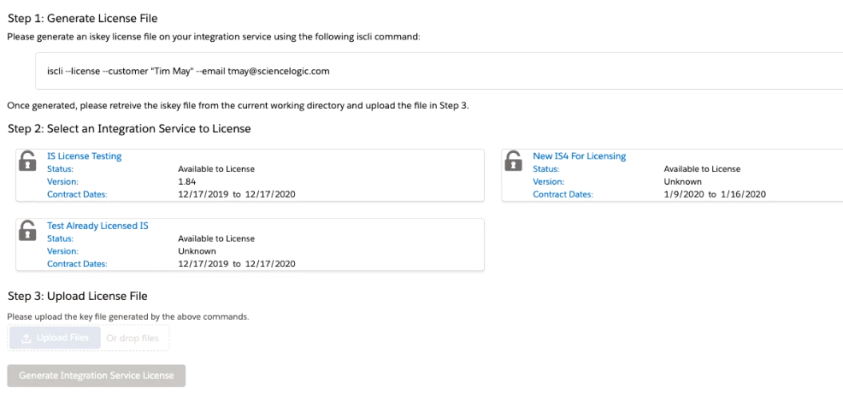
-
For Step 2 of the "Generate License File" process, select the Skylar Automation record you want to license.
You already covered Step 1 of the "Generate License File" process in steps 1-3 of this procedure.
-
Scroll down to Step 3 of the "Generate License File" process and upload the .iskey license file you created in steps 1-3 of this procedure.
-
Click .
-
After uploading the license file, click . A new Licensing page appears:
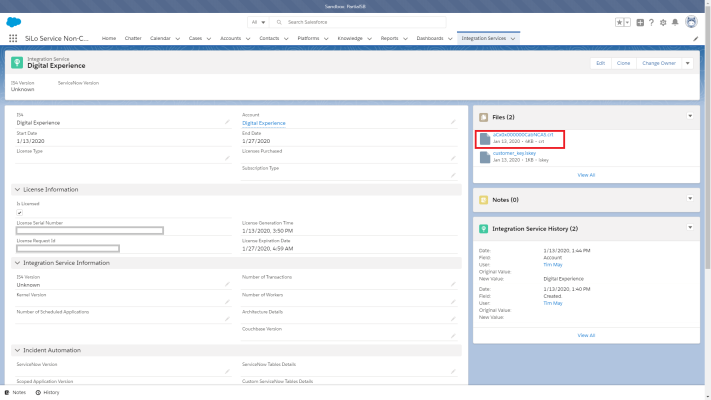
-
Click the .crt file in the Files pane to download the new .crt license file.
-
Using WinSCP or another file-transfer utility, copy the .crt license file to your Skylar Automation system.
-
Upload the .crt license file to the Skylar Automation server by running the following command on that server:
iscli -l -u -f ./<license_name>.crt -H <IP_address> -U <user_name> -p <user_password>
where <license_name> is the system-generated name for the .crt file, <IP_address> is the IP address of the Skylar Automation system, <user_name> is the isadmin application user name, and <user_password> is the isadmin application user password. For example:
iscli -l -u -f ./aCx0x000000CabNCAS.crt -H 10.2.33.1 -U isadmin -p passw0rd
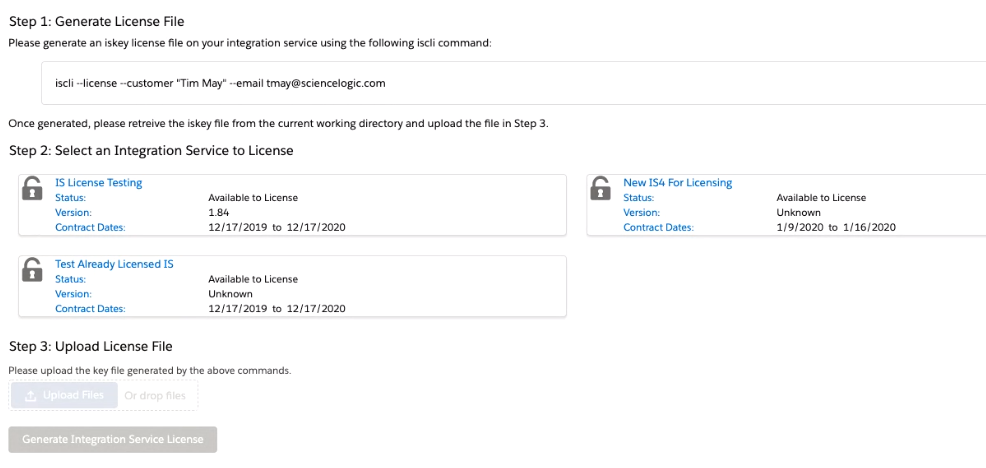
ScienceLogic determines the duration of the license key, not the customer.
If you have any issues licensing your Skylar Automation, please contact your ScienceLogic Customer Success Manager (CSM) or open a new Service Request case under the "Integration Service" category.
Licensing Solution Types
The licensing for the Skylar Automation platform was separated into three solution types:
-
Standard: This solution lets you import and install SyncPacks published by ScienceLogic and ScienceLogic Professional Services, and to run and schedule Skylar Automation applications from those SyncPacks. You cannot customize or create Skylar Automation applications or steps with this solution type. Features that are not available display in gray text in the user interface.
-
Advanced: This solution contains all of the Standard features, and you can also build your own SyncPacks and upload custom applications and steps using the command-line interface. You can create Skylar Automation applications using the Skylar Automation command-line interface, but you cannot create and edit applications or steps using the Skylar Automation builder in the user interface.
-
Premium: This solution contains all of the Advanced features, and you can also use the Skylar Automation builder, the low-code/no-code, drag-and-drop interface, to create and edit Skylar Automation applications and steps.
A yellow text box appears in the Skylar Automation user interface when the license is close to expiring, displaying how many days are left before the license expires. The license status and expiration date also displays on the About page in the Skylar Automation user interface.
An unlicensed system will not be able to create Skylar Automation applications, steps, or schedules. Unlicensed systems will only be able to run applications that are installed manually through SyncPacks.
Features that are locked by licensing solution type are grayed out. If you click on a grayed-out feature, the user interface will display a notification prompting you to upgrade your license.
Configuring Skylar Automation Services
Skylar Automation systems use docker-compose and docker-compose-override files to deploy the Docker swarm with Skylar Automation services. The default compose and override files are available when the Skylar Automation ISO or RPM is installed, and are located in the /opt/iservices/scripts directory.
Skylar Automation uses the docker-compose-override.yml file to persistently store user-specific configurations for containers, such as proxy, replica, and additional node settings, as well as deployment constraints. User-specifc changes are kept in this file so that they can be reapplied when the /opt/iservices/scripts/docker-compose.yml file is completely replaced during an RPM upgrade, ensuring that no user-specific configurations are lost. By default, only core services are included in the docker-compose-override.yml file. If extra services need to be added, they should be included as needed.
Applying User-Specific Configurations
To apply user-specific configurations:
-
Either go to the console for the Skylar Automation system, or use SSH to access the Skylar Automation server.
-
Log in as an isadmin using the appropriate password.
-
Using a text editor, edit the /opt/iservices/scripts/docker-compose-override.yml file. For information about editing the compose-override file, see the Updating the docker-compose-override File section.
-
Save the settings in the file, and then run the /opt/iservices/scripts/compose_override.sh script.
The compose_override.sh script validates that the configured docker-compose.yml and docker-compose-override.yml files are syntactically correct. If the settings are correct, the script applies the settings to the existing docker-compose.yml file that is used to actually deploy.
This script also updates the images to use jinja2 syntax, in order to avoid mismatching versions of the Couchbase, RabbitMQ and steprunners services, all of which are services that can have more than one service defined, especially for High Availability environments.
-
Redeploy the updated services by executing the following commands. For example, if the steprunner service was updated:
-
docker service rm iservices_steprunner
-
docker stack deploy -c /opt/iservices/scripts/docker-compose.yml iservices
Updating the docker-compose-override File
When creating a cluster using the skyautocontrol (skyautoctl) autocluster action, configurations for a three node cluster deployment are added to the compose-override file, so that configurations are not lost during an upgrade. The skyautoctl autoheal action also applies some other configurations as needed.
Adding User-Specific Configurations
Check the docker-compose file for the syntax of the services being used. Also check the official Docker documentation to be familiar with the syntax used.
Scenario 1
To add configurations to services that already exist in the compose-override file, edit the file, go to the service, and add the configuration. For example, when adding an extra environment variable to the contentapi service:
services:
  contentapi:
    environment:
      db_host: couchbase.isnet,couchbase-worker.isnet,couchbase-worker2.isnet
      broker_load_from_backend: 'true'
    deploy:
      replicas: 3
Scenario 2
If the service to which the new configuration needs to be added is not in the compose-override file, add it as a new service, and add the configuration needed. Be sure the tree level is set as expected. For example, when adding the syncpacks_steprunner with an environment variable:
services:
  syncpacks_steprunner:
    environment:
      db_host: couchbase.isnet,couchbase-worker2.isnet,couchbase-worker.isnet
Scenario 3
To add a new service recommended by Skylar Automation, such as custom steprunners, use the steprunner service as a base and edit configurations, such as user_queues. The custom service name must start with the prefix steprunner_, and the image name must be set as '{{ services.steprunner.image }}' so the correct image version is used. For example, when adding the steprunner_custom service using a custom queue called custom_queue that has 15 replicas:
  steprunner_custom:
    deploy:
      placement:
        max_replicas_per_node: 5
      replicas: 15
      resources:
        limits:
          memory: 2G
    environment:
      PIP_CONFIG_FILE: /usr/tmp/pip.conf
      additional_worker_args: ' --max-tasks-per-child 1 '
      broker_url: pyamqp://guest@rabbit//
      db_host: couchbase.isnet,couchbase-worker2.isnet,couchbase-worker.isnet
      logdir: /var/log/iservices
      result_backend: redis://redis:6379/0
      user_queues: custom_queue
    image: '{{ services.steprunner.image }}'
    networks:
      isnet: {}
    read_only: true
    secrets:
    - source: encryption_key
    - source: is_pass
    volumes:
    - /var/log/iservices:/var/log/contentapi:rw
    - /var/log/iservices:/var/log/iservices:rw
    - read_only: true
      source: syncpacks_virtualenvs
      target: /var/syncpacks_virtualenvs
      type: volume
The examples above use Jinja2 syntax for the image, which allows the file to be flexible and prevents mismatches during future upgrades. For more complex examples of how to use Jinja2 in the docker-compose-override.yml file, see the Using Jinja2 in the compose-override File section.
To add a new service that is not present in the Skylar Automation documentation, you must specify the name of the image and a unique service name for all needed configurations.
Using Jinja2 in the compose-override File
For detailed information on Jinja2 syntax, see the official Jinja2 documentation. Before using Jinja2 syntax in the compose-override file, be aware of the following points:
-
The docker-compose.yml file serves as data that the Jinja2 template uses for rendering information.
-
Only the docker-compose-override.yml file can include Jinja2 syntax.
-
Basic Jinja2 syntax, such as replacing strings, arrays, and numbers will work as expected, but more complex configurations should be tested before use. You can test configuration updates by running the /opt/iservices/scripts/compose_override.sh script, which will show an error if the configuration did not work.
An example using Jinja syntax
The docker-compose.yml file, acting as the data file:
  steprunner:
    .... ....
    image: registry.scilo.tools/sciencelogic/pf-worker:rhel3.2.0
    healthcheck:
      interval: 1m
      retries: 5
      start_period: 2m
      test:
      - CMD-SHELL
      - celery -A ipaascommon.celeryapp:app inspect ping -d celery@$${HOSTNAME}
      timeout: 20s
The docker-compose-override.yml file, acting as the template file. It will render the image and healthcheck configuration for the new steprunner_custom service:
  steprunner_custom:
    ... .. ..
    healthcheck: {{ services.steprunner.healthcheck }}
    image: '{{ services.steprunner.image }}'
The resulting docker-compose.yml file, after running the /opt/iservices/scripts/compose_override.sh script:
  steprunner_custom:
    .......
    healthcheck:
      interval: 1m
      retries: 5
      start_period: 2m
      test:
      - CMD-SHELL
      - celery -A ipaascommon.celeryapp:app inspect ping -d celery@$${HOSTNAME}
      timeout: 20s
    image: registry.scilo.tools/sciencelogic/pf-worker:rhel3.2.0
Configuring a Proxy Server
To configure Skylar Automation to use a proxy server:
-
Either go to the console of the Skylar Automation or use SSH to access the Skylar Automation server.
-
Log in as isadmin with the appropriate password.
-
Using a text editor like vi, edit the file /opt/iservices/scripts/docker-compose-override.yml.
Skylar Automation uses a docker-compose-override.yml file to persistently store user-specific configurations for containers, such as proxy settings, replica settings, additional node settings, and deploy constraints. The user-specific changes are kept in this file so that they can be re-applied when the /opt/iservices/scripts/docker-compose.yml file is completely replaced on an RPM upgrade, ensuring that no user-specific configurations are lost. By default only main core services are included in the docker-compose-override.yml file, if extra services need to be added they should be included as needed.
-
In the environment section of the steprunner service, add the following lines:
services:
  steprunner:
    environment:
	https_proxy: "<proxy_host>"
	http_proxy: "<proxy_host>"
	no_proxy: ".isnet"
If your proxy appears to only use HTTP and not HTTPS, you will need to use http in both https_proxy environment variables.
If you do not want to use more than one proxy location, you can use the no_proxy setting to specify all of the locations, separated by commas and surrounds by quotation marks. For example: no_proxy: ".isnet,10.1.1.100,10.1.1.101"
If you want to access external pypi packages while using a proxy, be sure to include pypi.org and files.pythonhosted.org to this section to ensure the proxy enables those locations.
-
In the environment section of the syncpacks_steprunner service, add the following lines. Add the syncpacks_steprunner service to the docker-compose-override.yml file if it's not present there::
services:
  syncpacks_steprunner:
    environment:
	https_proxy: "<proxy_host>"
	http_proxy: "<proxy_host>"
	no_proxy: ".isnet"
If your proxy appears to only use HTTP and not HTTPS, you will need to use http in both
https_proxyenvironment variables.If you want to access external pypi packages while using a proxy, be sure to include pypi.org and files.pythonhosted.org to this section to ensure the proxy enables those locations.
-
Save the settings in the file and then run the /opt/iservices/scripts/compose_override.sh script.
The compose_override.sh script validates that the configured docker-compose.yml and docker-compose-override.yml files are syntactically correct. If the settings are correct, the script applies the settings to your existing docker-compose.yml file that is used to actually deploy.
-
Re-deploy the steprunners to use this change by typing the following commands:
docker service rm iservices_steprunner
docker stack deploy -c /opt/iservices/scripts/docker-compose.yml iservices
Changing the Skylar Automation System Password
The Skylar Automation (formerly PowerFlow) system uses two primary passwords. For consistency, both passwords are the same after you install Skylar Automation, but you can change them to separate passwords as needed.
To avoid authentication issues, do not use the dollar sign ($) character in any of the passwords related to Skylar Automation.
Skylar Automation uses the following passwords:
-
The Skylar Automation Administrator (isadmin) user password. This is the password that you set during the Skylar Automation ISO installation process, and it is only used by the default local Administrator user (isadmin). You use this password to log in to the Skylar Automation user interface and to verify API requests and database actions.
This password is set as both the "Linux host isadmin" user and in the /etc/iservices/is_pass file that is mounted into the Skylar Automation stack as a "Docker secret". Because it is mounted as a secret, all necessary containers are aware of this password in a secure manner.
Alternatively, you can enable third-party authentication, such as LDAP or AD, and authenticate with credentials other than isadmin. However, you will need to set the user policies for those LDAP users first with the default isadmin user. For more information, see Managing Users in Skylar Automation. -
The Linux Host OS SSH password. This is the password you use to SSH and to log in to isadmin. You can change this password using the standard Linux passwd command or another credential management application to manage this user.
You can also disable this Linux user and add your own user if you want. The Skylar Automation containers and applications do not use or know this Linux login password, and this password does not need to be the same between nodes in a cluster. This is a standard Linux Host OS password.
Updating the Skylar Automation Administrator (isadmin) user password
There are two ways to update the Skylar Automation Administrator (isadmin) user password. ScienceLogic recommends using the skyautocontrol (skyautoctl) tool if possible.
Starting in Skylar Automation version 3.0.0, you can use the following command to update the Skylar Automation Administrator (isadmin) user password:
pfctl --host pf_node_ip '<isadmin:host_password>' password set -p '<new_password>'
The old application (UI) password for the Skylar Automation (PowerFlow) Administrator (isadmin) does not need to be provided in the command.
You can use the following command to update the Skylar Automation Administrator (isadmin) user password in cluster environments. Use all of the Skylar Automation nodes in the command.
For example, if you have 3 nodes, provide the hosts, users, and passwords of the 3 nodes .
pfctl ---host node1_ip '<isadmin:host_password>' ---host node2_ip '<isadmin:host_password>' ---host node3_ip '<isadmin:host_password>' password set -p '<new_password>'
The password must be at least six characters, no more than 24 characters, and all special characters are supported except the dollar sign ($) character.
This command replaces the ispasswd script from earlier releases of Skylar Automation, which was found in /opt/iservices/scripts/ispasswd. The ispasswd script will be deprecated in a future release.
The /etc/iservices/is_pass file is automatically updated in all the nodes that were provided in the pfctl command.
After the password is correctly updated, make sure the stack is removed and redeployed:
-
Remove the stack using the following command:
docker stack rm iservices
-
Wait until the services are down. Check with the following command:
watch docker ps
-
Redeploy the stack using the following command:
docker stack deploy --resolve-image=never -c /opt/iservices/scripts/docker-compose.yml iservices
Next, run the powerflowcontrol (pfctl) healthcheck and autoheal node or cluster actions to make sure the application is healthy.
Updating the Skylar Automation Administrator (isadmin) User Password with the ipasswd Script
To change the Skylar Automation Administrator (isadmin) user password using the ispasswd script:
-
You can change the mounted isadmin password secret (which is used to authenticate via API by default) and the Couchbase credentials on the Skylar Automation stack by running the ispasswd script on any node running Skylar Automation in the stack:
/opt/iservices/scripts/ispasswd
-
Follow the prompts to reset the password. The password must be at least six characters and no more than 24 characters, and all special characters are supported except the dollar sign ($) character.
Running the ispasswd script automatically changes the password for all Skylar Automation application actions that require credentials for the isadmin user.
-
If you have multiple nodes, copy /etc/iservices/is_pass file, which was just updated by the ispasswd script, to all other manager nodes in the cluster. You need to copy this password file across all nodes in case you deploy from a different node than the node where you changed the password. The need to manually copy the password to all nodes will be removed in a future release of Skylar Automation.
Configuring Security Settings
This topic explains how to change the HTTPS certificate used by Skylar Automation, and it also describes password and encryption key security.
Changing the HTTPS Certificate
The Skylar Automation user interface only accepts communications over HTTPS. By default, HTTPS is configured using an internal, self-signed certificate.
You can specify the HTTPS certificate to use in your environment by mounting the following two files in the user interface (gui) service:
- /etc/iservices/is_key.pem
- /etc/iservices/is_cert.pem
The SSL certificate for the Skylar Automation system only requires the HOST_ADDRESS field to be defined in the certificate. That certificate and key must be identical across all nodes. If needed, you can also add non-HOST_ADDRESS IPs to the Subject Alternative Name field to prevent an insecure warning when visiting the non-HOST_ADDRESS IP.
If you are using a load balancer, the certificates installed on the load balancer should use and provide the hostname for the load balancer, not the Skylar Automation nodes. The SSL certificates should always match the IP or hostname that exists in the HOST_ADDRESS setting in /etc/iservices/isconfig.yml. If you are using a load balancer, the HOST_ADDRESS must also be the IP address for the load balancer.
If you are using a clustered configuration for Skylar Automation, you will need to copy the key and certificate to the same location on the node.
To specify the HTTPS certificate to use in your environment:
-
Copy the key and certificate files to all Skylar Automation hosts that are part of the cluster.
-
Ensure the ownership of the key and certificate files are set to UID 998 and GID 996, as required inside the gui container, and modify the permissions to 640 to grant access to the specified user and group. Execute the following command in the Skylar Automation host:
sudo chown 998:996 key_file_path cert_file_path
sudo chmod 640 key_file_path cert_file_path
-
Modify the /opt/iservices/scripts/docker-compose-override.yml file and mount a volume to the gui service. The following code is an example of the volume specification:
volumes:
  - "<path to IS key>:/etc/iservices/is_key.pem"
  - "<path to IS certificate>:/etc/iservices/is_cert.pem"
where:
-
<path to IS key> is the path to the key in the Skylar Automation host
-
<path to IS certificate> is the path to the certificate in the Skylar Automation host
Do not change the text after the colons (:/etc/iservices/is_key.pem and :/etc/iservices/is_cert.pem), which are the paths to the key and certificate within the container.
The location of the key and certificate files in the Skylar Automation host does not need to be the same as within the container. It can be in a different location, such as /home/isadmin.
-
-
Run the following script to validate and apply the change to the /opt/iservices/scripts/docker-compose.yml file:
/opt/iservices/scripts/compose_override.sh
The compose_override.sh script validates that the configured docker-compose.yml and docker-compose-override.yml files are syntactically correct. If the settings are correct, the script applies the settings to your existing docker-compose.yml file that is used to actually deploy.
-
Review the /opt/iservices/scripts/docker-compose.yml file and make sure the new volume is set for the gui service.
-
Re-deploy the gui service by running the following commands:
docker service rm iservices_gui
docker stack deploy --resolve-image=never -c /opt/iservices/scripts/docker-compose.yml iservices
Using Password and Encryption Key Security
When you install the Skylar Automation platform, you specified the Skylar Automation root password. This root password is also the default isadmin password:
- The root/admin password is saved in a root read-only file here: /etc/iservices/is_pass
- A backup password file is also saved in a root read-only file here: /opt/iservices/backup/is_pass
The user-created root password is also the default Skylar Automation password for couchbase (:8091) and all API communications. The Skylar Automation platform generates a unique encryption key for every platform installation:
- The encryption key exists in a root read-only file here: /etc/iservices/encryption_key
- A backup encryption key file is also saved in a root read-only file here: /opt/iservices/backup/encryption_key
This encryption key is different from the HTTPS certificate key discussed in the previous topic.
You can use the encryption key to encrypt all internal passwords and user-specified data. You can encrypt any value in a configuration by specifying "encrypted": true, when you POST that configuration setting to the API. There is also an option in the Skylar Automation user interface to select encrypted. Encrypted values use the same randomly-generated encryption key.
User-created passwords and encryption keys are securely exposed in the Docker containers using Docker secrets at https://docs.docker.com/engine/swarm/secrets/ to ensure secure handling of information between containers.
The encryption key must be identical between two Skylar Automation systems if you plan to migrate from one to another. The encryption key must be identical between High Availability or Disaster Recovery systems as well.
Configuring Additional Elements of Skylar Automation
If you have multiple workers running on the same Skylar Automation system, you might want to limit the amount of memory allocated for each worker. This helps prevent memory leaks, and also prevents one worker using too many resources and starving other workers. You can apply these limits in two ways:
- Set a hard memory limit in Docker (this is the default)
- Set a soft memory limit in the worker environment
Setting a Hard Memory Limit in Docker
Setting a memory limit for the worker containers in your docker-compose.yml file sets a hard limit. If you set a memory limit for the workers in the docker-compose file and a worker exceeds the limit, the container is terminated via SIGKILL.
If the currently running task caused memory usage to go above the limit, that task might not be completed, and the worker container is terminated in favor of a new worker. This setting helps to prevent a worker from endlessly running and consuming all memory on the Skylar Automation system.
You can configure the hard memory limit in the steprunner service of the docker-compose.yml file:
deploy:
resources:
limits:
memory: 2G
Setting a Soft Memory Limit in the Worker Environment
You can set the memory limit for a worker application, and not at the Docker level. Setting the memory limit at the application level differs from the hard memory limit in Docker in that if a worker exceeds the specified memory limit, that worker is not immediately terminated via SIGKILL.
Instead, if a worker exceeds the soft memory limit, the worker waits until the currently running task is completed to recycle itself and start a new process. As a result, tasks will complete if a worker crosses the memory limit, but if a task is running infinitely with a memory leak, that task might consume all memory on the host.
The soft memory limit is less safe from memory leaks than the hard memory limit.
You can configure the soft memory limit with the worker environment variables. The value is in KiB (1024 bytes). Also, each worker instance contains three processes for running tasks. The memory limit applies to each individual instance, and not the container as a whole. For example, a 2 GB memory limit for the container would translate to 2 GB divided by three, or about 700 MB for each worker:
steprunner:
image: repository.auto.sciencelogic.local:5000/is-worker:2.6.0
environment:
additional_worker_args: ' --max-memory-per-child 700000'
Skylar Automation Task Processing and Memory Handling
Review the settings in this section to prevent an "Out of Memory" error, also called an "Oomkill" error or exit code 137. These errors occur when a container uses more memory than the container has been allotted.
This section will help you to recognize and diagnose these situations, and determine what additional configurations are available when working with a Skylar Automation system that is running out of memory.
Background
By default steprunner containers have a 2 GB memory limit with three process threads by default. Limits for containers are set in the docker-compose file.
Use the docker stats command to see what the current memory usage of containers are in Skylar Automation, along with current memory usage for those containers.
CPU and Memory Requirements for Skylar Automation
The following table lists the CPU and memory requirements based on the number of synced objects for a Skylar Automation system:
|
Minimum Number of Synced Objects |
CPU Cores |
Memory RAM (GB) |
Hard Disk (GB) |
|---|---|---|---|
|
30,000 |
8 |
24 |
100 |
|
65,000 |
8 |
32 |
100 |
|
100,000 |
8 |
64 |
200 |
Typical Skylar Automation Deployments:
-
Standard Single-node Deployment (1 Node): One node, 8 CPU, 24 GB memory minimum, preferably 34 GB to 56 GB memory, depending on workload sizes.
-
Standard Three-node Cluster (3 Nodes): Three nodes, 8 CPU, 24 GB memory minimum, preferably 34 GB to 56 GB memory, depending on workload sizes.
-
3+ Node Cluster with Separate Workers (4 or More Nodes): Three nodes, 8 CPU, 24 GB memory minimum, preferably 34 GB to 56 GB memory, depending on workload sizes.
Recommended Memory Allocation of Skylar Automation Nodes
The following sizings will automatically be applied if you run skyautocontrol (skyautoctl) actions such as apply 16GB overrides and apply 32GB overrides. These commands should only be run in a Software-as-a-Service (SaaS) environment. For more information about the pfctl actions, see apply_<n>GB_override, verify_<n>GB_override.
|
Template Size |
Device Load |
|---|---|
|
16 GB |
25,000 to 30,000 |
|
32 GB |
30,000 to 70,000 |
|
64 GB |
70,0000 to 350,000 |
|
128 GB |
350,000 and above |
SaaS Deployments
The following settings are specifically for Software-as-a-Service (SaaS) environments, and they ensure full replication of all services in any failover scenario.
Example Code: docker-compose for SaaS
 Click to expand the code example
services:
  dexserver:
    deploy:
      placement:
        max_replicas_per_node: 1
      replicas: 3
      restart_policy:
        condition: any

  couchbase-worker:
    environment:
      AUTO_REBALANCE: 'true'

  couchbase-worker2:
    environment:
      AUTO_REBALANCE: 'true'

  scheduler:
    deploy:
      resources:
        limits:
          memory: 200M
      restart_policy:
        condition: any

  steprunner:
    healthcheck:
      interval: 1m
      retries: 5
      start_period: 2m
      test:
        - CMD-SHELL
        - celery -A ipaascommon.celeryapp:app inspect ping -d celery@$${HOSTNAME}
      timeout: 20s
16 GB Deployments
The following settings support up to approximately 25,000-30,000 devices, depending on relationship depth.
Example Code: docker-compose for 16 GB Deployments
Click to expand the code example
services:
  redis:
    deploy:
      resources:
        limits:
          memory: 5G
    environment:
      MAXMEMORY: 3000mb

  steprunner:
    deploy:
      replicas: 3
      placement:
        max_replicas_per_node: 1
      resources:
        limits:
          memory: 3G

  contentapi:
    deploy:
      resources:
        limits:
          memory: 1G
    environment:
      uwsgi-workers: 5
Allocations (per node):
- Swarm leader: between 2 to 4 GB left over on node
- Couchbase: reserves 1.5 GB memory, uses 1.5 to 4 GB, depending on operation
- Flower, pypiserver, dexserver, scheduler: no limit by default, never use more than 100 MB
- RabbitMQ: no limit, typically low usage (less than 100 MB), might spike with heavy loads
- Contentapi: 1 GB memory limit
- Redis: 3 GB soft limit, 5 GB hard limit; after 5 GB, Redis will automatically eject older data for new (reduced)
- 1x steprunners: 3 GB memory limit each (steprunner count decreased, memory limit increased)
Total limits/max expected memory usage: 4 GB + 4 GB + 500 MB + 1 GB + 3 GB +3 GB = 15.5GB/16GB
32 GB Deployments
The following settings support up to approximately 70,000 devices, depending on relationship depth.
Example Code: docker-compose for 32 GB Deployments
Click to expand the code example
# 32GB specific pfctl action:
  steprunner:
    environment:
      worker_threads: 2
    deploy:
      placement:
        max_replicas_per_node: 2
      replicas: 6
      resources:
        limits:
          memory: 7G

  contentapi:
    deploy:
      resources:
        limits:
          memory: 2G

  redis:
    deploy:
      resources:
        limits:
          memory: 5G
    environment:
      MAXMEMORY: 3000mb
Allocations (per node):
- Swarm leader: between 2-4 GB left over on node
- Couchbase: reserves 1.5 GB memory, uses 1.5 to 4GB, depending on operation
- Flower, pypiserver, dexserver, scheduler: no limit by default, never uses more than 100 MB
- RabbitMQ: should anticipate for 1 GB at larger sizes
- Contentapi: 2 GB memory limit (in a healthy running environment, should be less than 100 MB)
- Redis: 3 GB soft limit, 5 GB hard limit; after 3 GB, Redis will automatically eject older data for new (reduced)
- 2x steprunners: 7 GB memory limit each (steprunner count decreased, memory limit increased)
Total limits/max expected memory usage: 4 GB + 4 GB + 200 MB + 1 GB + 2 GB + 4 GB +7(2) GB = 29.2/32GB
64 GB Deployments
The following settings support over 70,000 devices, depending on relationship depth.
Example Code: docker-compose for 64 GB Deployments
Click to expand the code example
  steprunner:
    deploy:
      placement:
        max_replicas_per_node: 4
      replicas: 12
      resources:
        limits:
          memory: 2G


  steprunner_xl:
    hostname: xlworker-{{.Task.ID}}
    healthcheck:
      interval: 1m
      retries: 5
      start_period: 2m
      test:
        - CMD-SHELL
        - celery -A ipaascommon.celeryapp:app inspect ping -d celery@$${HOSTNAME}
      timeout: 20s
    deploy:
      placement:
        max_replicas_per_node: 1
      replicas: 3
      resources:
        limits:
          memory: 15G
      restart_policy:
        condition: any
        delay: 10s
    environment:
      worker_threads: 2
      user_queues: xlsync
      additional_worker_args: ' --max-tasks-per-child 1 '
      broker_url: pyamqp://guest@rabbit//
      db_host: couchbase.isnet,couchbase-worker2.isnet,couchbase-worker.isnet
      logdir: /var/log/iservices
      result_backend: redis://redis:6379/0
    image: sciencelogic/pf-worker:rhel2.4.1
    networks:
      isnet: {}
    secrets:
    - source: encryption_key
    - source: is_pass
    volumes:
    - /var/log/iservices:/var/log/contentapi:rw
    - /var/log/iservices:/var/log/iservices:rw
    - syncpacks_virtualenvs:/var/syncpacks_virtualenvs:ro

  redis:
    deploy:
      resources:
        limits:
          memory: 5G
    environment:
      MAXMEMORY: 3000mb
If you use the following format for the names of the custom steprunners, they will display on the Skylar AutomationControl Tower page: steprunner_<name>.
Other actions needed:
- Increase Couchbase Allocations: increase data bucket allocation by 5 GB, and increase index allocation by 5 GB
- Update the current Device Sync or Interface Sync applications, and specify them to run on the xlsync queue
Allocations (per node):
- Swarm leader: between 2 to 4 GB left over on node
- Couchbase: reserves 1.5 GB memory, uses 1.5 to 4 GB standard; add 10 GB for heavy scale readiness (5 GB to data bucket 5 to index), up to 14 GB
- Flower, pypiserver, dexserver, scheduler: no limit by default; never uses more than 100 MB
- RabbitMQ: anticipate for 4 GB at extremely larger sizes
- Contentapi. 2 GB memory limit (in a healthy running environment, should be less than 100 MB)
- Redis : 3 GB soft limit, 5 GB hard limit
- 4x steprunners: 2 GB memory limit each (steprunner count decreased, memory limit increased), 8 GB total
- 1x steprunner: 15 GB memory limit (xlqueue steprunner), 15 GB total
Total limits/max expected memory usage: 4GB + 14GB +100mb + 4gb + 2GB + 5GB + 8GB + 15GB = 52GB/64
There is still approximately 12 GB to be allocated to needed services. This configuration and allotment may change depending on future assessment of customer systems.
128 GB Deployments
This deployment template is only to be used for customers with a very large number of devices, such as over 350,000 devices. For a deployment this large, you will need append additional customizations and queues to the following template. This is just a baseline; discuss with ScienceLogic if you plan to use a 128 GB deployment.
Example Code: docker-compose for 128 GB Deployments
Click to expand the code example
    steprunner:
    deploy:
      placement:
        max_replicas_per_node: 24
      replicas: 72
      resources:
        limits:
          memory: 2G


  steprunner_xl:
    hostname: xlworker-{{.Task.ID}}
    healthcheck:
      interval: 1m
      retries: 5
      start_period: 2m
      test:
        - CMD-SHELL
        - celery -A ipaascommon.celeryapp:app inspect ping -d celery@$${HOSTNAME}
      timeout: 20s
    deploy:
      placement:
        max_replicas_per_node: 1
      replicas: 3
      resources:
        limits:
          memory: 15G
      restart_policy:
        condition: any
        delay: 10s
    environment:
      worker_threads: 2
      user_queues: xlsync
      additional_worker_args: ' --max-tasks-per-child 1 '
      broker_url: pyamqp://guest@rabbit//
      db_host: couchbase.isnet,couchbase-worker2.isnet,couchbase-worker.isnet
      logdir: /var/log/iservices
      result_backend: redis://redis:6379/0
    image: sciencelogic/pf-worker:rhel2.4.1
    networks:
      isnet: {}
    secrets:
    - source: encryption_key
    - source: is_pass
    volumes:
    - /var/log/iservices:/var/log/contentapi:rw
    - /var/log/iservices:/var/log/iservices:rw
    - syncpacks_virtualenvs:/var/syncpacks_virtualenvs:ro

  redis:
    deploy:
      resources:
        limits:
          memory: 12G
    environment:
      MAXMEMORY: 6000mb
Differences from 64 GB Deployments
- The default queue worker count was tripled. These additional workers may be dedicated to any other queue as needed by your customizations.
- Increased redis limits to allow for more processing.
Allocations (per node)
- Swarm leader: Between 2-4 GB left over on node.
- Couchbase: Reserves 1.5 GB memory, uses 1.5 – 4 GB standard, +10 GB for heavy scale readiness (5 GB to data bucket, 5 GB to index): up to 14 GB
- Flower, pypiserver, dexserver, scheduler: No limit by default. Never uses more than 100 MB.
- Rabbitmq: Should anticipate 6 GB at extremely larger sizes.
- Contentapi: 2 GB memory limit. Iin a healthy running environment, should be less than 100 MB.
- Redis: 6 GB soft limit, 12 GB hard limit.
- 24x steprunners: 2 GB memory limit each (steprunner count decreased, memory limit increased): 48 GB
- 1x steprunner: 15 GB memory limit (xlqueue steprunner): 15 GB
Total limits/max expected memory usage:
4 GB + 14 GB +100 MB + 6 GB + 2 GB + 12 GB + 48 GB + 15GB = 101 GB/128
Identifying Oomkills
Typically Oomkills occur only on Skylar Automation systems with over 8,000 devices with many relationships or 30,000 interfaces that are being synced.
To identify Oomkills:
-
Use the healthcheck action with the skyautocontrol (skyautoctl) command-line utitlity to identify the occurrence. Sample feedback that shows an Oomkill situation:

-
Log in to the node where the container failed.
-
From the node where the container failed, run the following command:
journalctl -k | grep -i -e memory -e oom
-
Check the result for any out of memory events that caused the container to stop. Such an event typically looks like the following:
is-scale-03 kernel: Out of memory: Kill process 5946 (redis-server) score 575 or sacrifice child
Common Causes of High Memory and Oomkills
- Large-scale Device Sync, Attribute Sync, and Interface Syncs can cause out of memory events. The following situations might need more than the default limit allocation:
- Device Sync for about 9,000 to 12,000 devices, with large amounts of relationships
- A large-scale Attribute Sync with large numbers of devices
- An large-scale Interface Sync with about 10,000 or more interfaces
- Python can be very resource-intensive, especially when it comes to loading or dumping large JSON files. JSON dumps and JSON loads can be inefficient and use more memory than expected. To avoid Oomkill in these situations, instead of using JSON for serialization, you can "pickle" the dict() object from Python and then dump or load that.
- A cursor size issue can occur when GraphQL responses contain extremely large cursor sizes, increasing the amount of data returned by Skylar One when making API requests. This issue was resolved in Skylar One 11.1.2 and later.
Questions to Ask when Experiencing Oomkills
- How many devices or interfaces are being synced?
- How often are the devices or interfaces being synced?
- What does the schedule look like? How many scheduled large integrations are running at the same time?
- What is the likelihood that those schedules are hitting double large syncs on one worker?
- If this is a custom SyncPack, should the workload be using this much memory? Can I optimize, or maybe paginate?
Avoiding Oomkills
The following table explains how to configure your Skylar Automation system if you are encountering Oomkills:
|
Configuration |
Steps |
Requirements |
Impact |
|---|---|---|---|
|
Review all scheduled application syncs and make sure you do not schedule two very large syncs to run at the same time of day. |
None. |
Separate timings of large-scale runs. |
|
|
Increase the memory limit (SaaS only, not on-premises Skylar Automation systems) |
Increase the memory in the docker-compose file. |
Host must have enough additional memory to allocate. |
More rooms for tasks to run concurrently on one worker, increased memory allocation to host. |
|
Reduce worker thread count |
Set worker_threads=1 for the steprunner environment variable in the docker-compose file. |
None. |
More room for large tasks to run, but fewer concurrent tasks (throughput). |
|
Create dedicated queues for certain workloads to run on only designated workers. |
Additional nodes are needed. |
Provides dedicated resources for specific workflows. Generally used for very environment-demanding workloads. |
After making any of the above configuration changes, be sure to run the healthcheck and autoheal actions with theskyautocontrol (skyautoctl) command-line utility before you log out of Skylar Automation and redeploy the Skylar Automation stack. For more information, see healthcheck and autoheal.
Avoiding Node Exhaustion
Node exhaustion occurs when more memory is allocated to containers than is available on the host. If memory is exhausted on the Swarm leader node and the cluster operations cannot process, all containers will restart. You will see "context deadline exceeded" in docker logs if you run journalctl –-no-page |grep docker |grep err.
The following table explains how to configure you Skylar Automation system to prevent node exhaustion from occurring again:
|
Configuration |
Steps |
Requirements |
Impact |
|---|---|---|---|
|
Reduce steprunner replica count |
Reduce the replica count of the steprunner in the docker-compose file. |
None. |
Fewer concurrent processes, less memory usage on host. |
|
Reduce redis memory limits |
Set the MAXMEMORY environment variable in the docker-compose file for redis (soft limit), reduce memory limit in docker-compose (hard limit) |
None. |
Less possible room for cached data in very large syncs, less ability for heavy concurrent runs at the same time, less ability to view result data in the user interface. |
|
Create dedicated queues for certain workloads to run on only designated workers |
Additional nodes are needed. |
Provides dedicated resources for specific workflows. Generally used for very environment-demanding workloads. |
|
|
Similar to dedicated worker nodes. This offloads swarm management work to another node. |
Additional (smaller) nodes are needed. |
Eliminates possibility of cluster logic failure due to memory exhaustion. Alternatively, just make sure the existing nodes have enough room. |
After making any of the above configuration changes, be sure to run the healthcheck and autoheal actions with theskyautocontrol (skyautoctl) command-line utility before you log out of Skylar Automation and redeploy the Skylar Automation stack. For more information, see healthcheck and autoheal.
Best Practices for Running Skylar Automation with Production Workloads
If you are running Skylar Automation in a Software-as-a-Service (SaaS) environment in the cloud, consider the following best practices to avoid failed Skylar Automation Syncs and memory issues.
Avoid Debug Logging for Large-scale Runs
When you run a large-scale Device Sync or Interface Sync in Debug mode, Skylar Automation logs all of the data that is requested, compared, and sen. Using Debug mode in this way moight cause the Skylar Automation system to appear to be unresponsive for a period of time, or until the issue is identified and resolved by ScienceLogic Support.
If you need detailed logs for a large number of events, you should use the Info log level instead.
Additional Queues Might be Needed for Large-scale Runs
SaaS environments for Skylar Automation are configured by default with a single queue. All Syncs and tasks run in a "first-in, first-out" (FIFO) manner. If an extremely large event spike occurs, or if a backlog of tasks are triggered, Skylar Automation will backlog all tasks until the queue is processed. This default is more than sufficient for most Skylar Automation environment, and it provides a consistent balance of throughput, scale, and replication for each of your Syncs.
If you want to separate workloads for large-scale environments, such as Device Sync and Incident Sync, you can allocate additional dedicated queues or nodes. To request additional dedicated queues, contact ScienceLogic Support.
Avoid Running Large-scale Syncs Simultaneously
ScienceLogic recommends that you do not simultaneously run multiple Device Syncs or Interface Syncs in large-scale environments (over 15,000 devices). Querying for all devices or interfaces in both ServiceNow and Skylar One might have a large performance impact on the Skylar Automation system and other systems involved.
If you want to ensure continually optimized performance, run only one large Sync at a time, and schedule the Syncs to run a different times.
For customers of a Managed Service Provider (MSP), ScienceLogic can provide a dedicated node for processing multiple Device Syncs. If you are interested in this deployment, contact ScienceLogic Support.
Skylar Automation Management Endpoints
This section provides technical details about managing Skylar Automation. The following information is also available in the PowerPacks in Using Skylar One to Monitor Skylar Automation.
Flower API
Celery Flower is a web-based tool for monitoring Skylar Automation tasks and workers. You can access Flower at https://<IP of Skylar Automation>/flower/workers.
Flower lets you see task progress, details, and worker status:
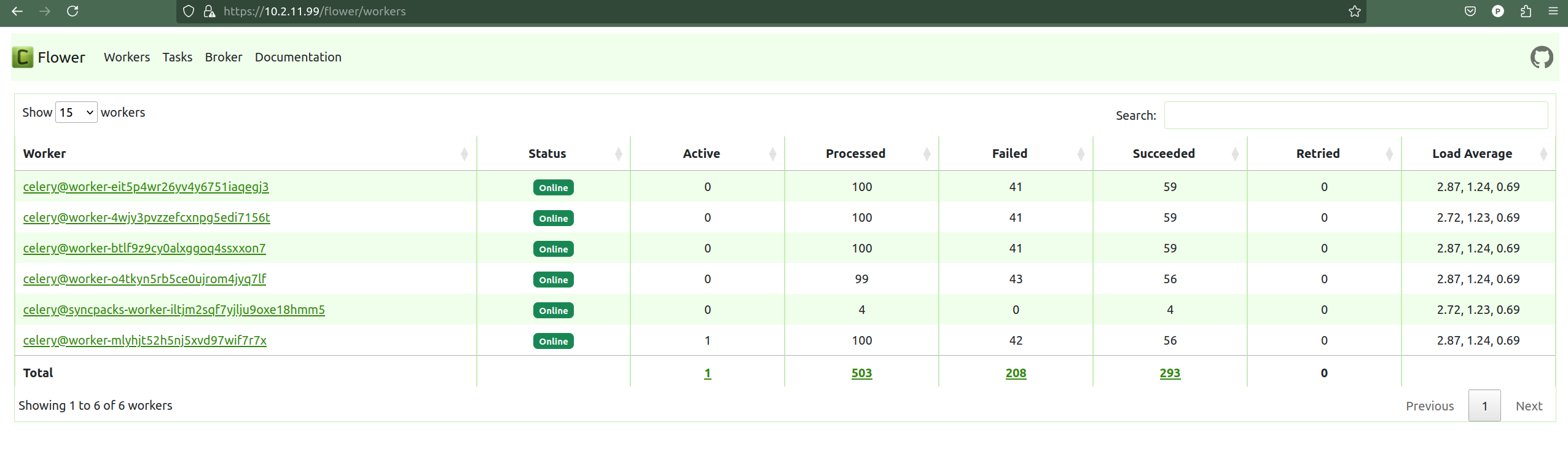
The following Flower API endpoints return data about the Flower tasks, queues, and workers. The tasks endpoint returns data about task status, runtime, exceptions, and application names. You can filter this endpoint to retrieve a subset of information, and you can combine filters to return a more specific data set.
/flower/api/tasks. Retrieve a list of all tasks.
/flower/api/tasks?app_id={app_id}. Retrieve a list of tasks filtered by app_id.
/flower/api/tasks?app_name={app_name}. Retrieve a list of tasks filtered by app_name.
/flower/api/tasks?started_start=1539808543&started_end=1539808544. Retrieve a list of all tasks received within a time range.
/flower/api/tasks?state=FAILURE|SUCCESS. Retrieve a list of tasks filtered by state.
/flower/api/workers. Retrieve a list of all queues and workers
For more information, see the Flower API Reference at https://flower.readthedocs.io/en/latest/api.html.
If you use the ScienceLogic: Skylar Automation PowerPack to collect this task information, the PowerPack will create events in Skylar One if a Flower task fails. For more information, see Using Skylar One to Monitor Skylar Automation.
Couchbase API
The Couchbase Server is an open-source database software that can be used for building scalable, interactive, and high-performance applications. Built using NoSQL technology, Couchbase Server can be used in either a standalone or cluster configuration.
The following image shows the CouchBase user interface, which you can access at port 8091, such as https://<IP of Skylar Automation: 8091:
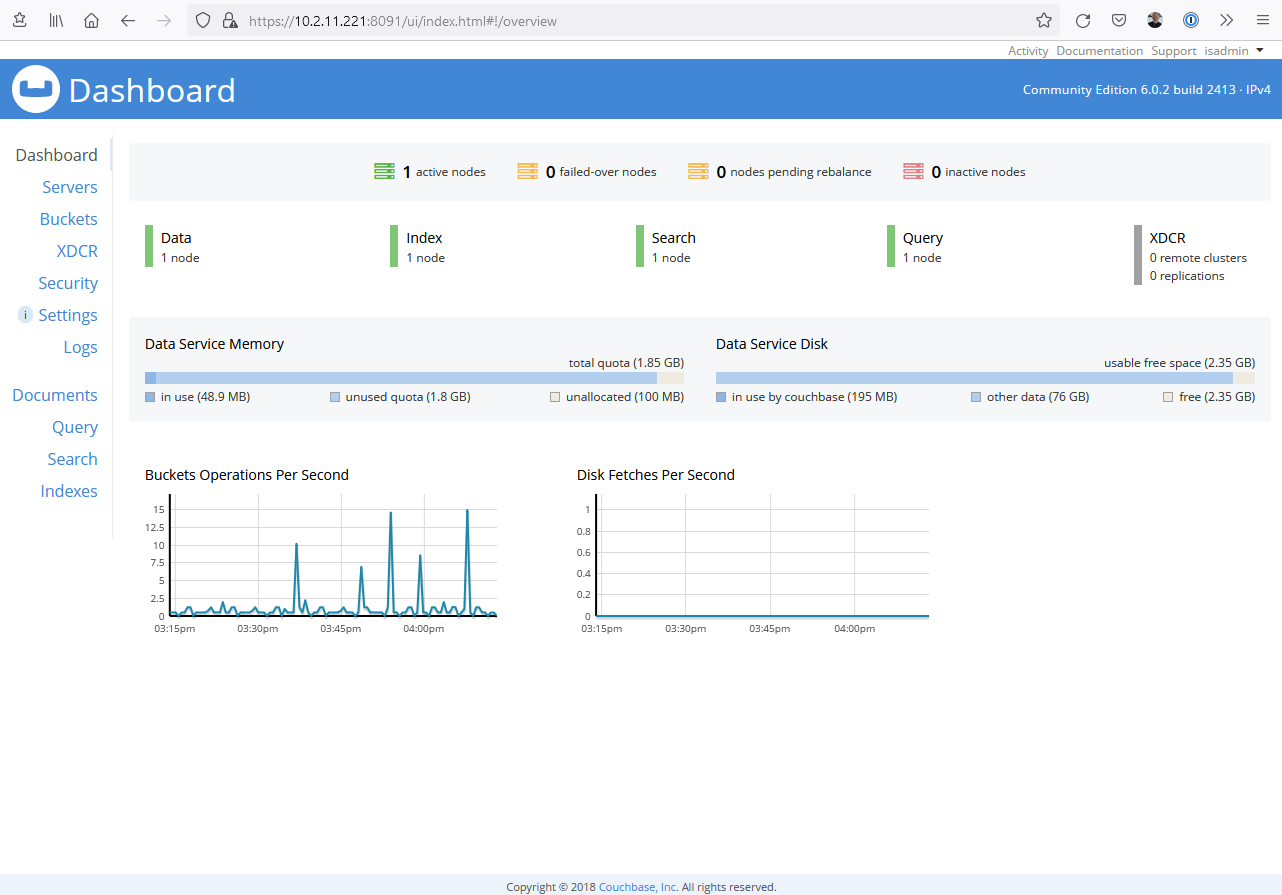
The following Couchbase API endpoints return data about the Couchbase service. The pools endpoint represents the Couchbase cluster. In the case of Skylar Automation, each node is a Docker service, and buckets represent the document-based data containers. These endpoints return configuration and statistical data about each of their corresponding Couchbase components.
<hostname_of_Skylar Automation_system>:8091/pools/default. Retrieve a list of pools and nodes.
<hostname_of_Skylar Automation_system>:8091/pools/default/buckets. Retrieve a list of buckets.
For more information, see the Couchbase API Reference.
You can also use the Couchbase PowerPack to collect this information. For more information, see Using Skylar One to Monitor Skylar Automation.
RabbitMQ
RabbitMQ is an open-source message-broker software that originally implemented the Advanced Message Queuing Protocol and has since been extended with a plug-in architecture to support Streaming Text Oriented Messaging Protocol, Message Queuing Telemetry Transport, and other protocols.
The following image shows the RabbitMQ user interface, which you can access at port 15672, such as https://<IP of Skylar Automation: 15672:
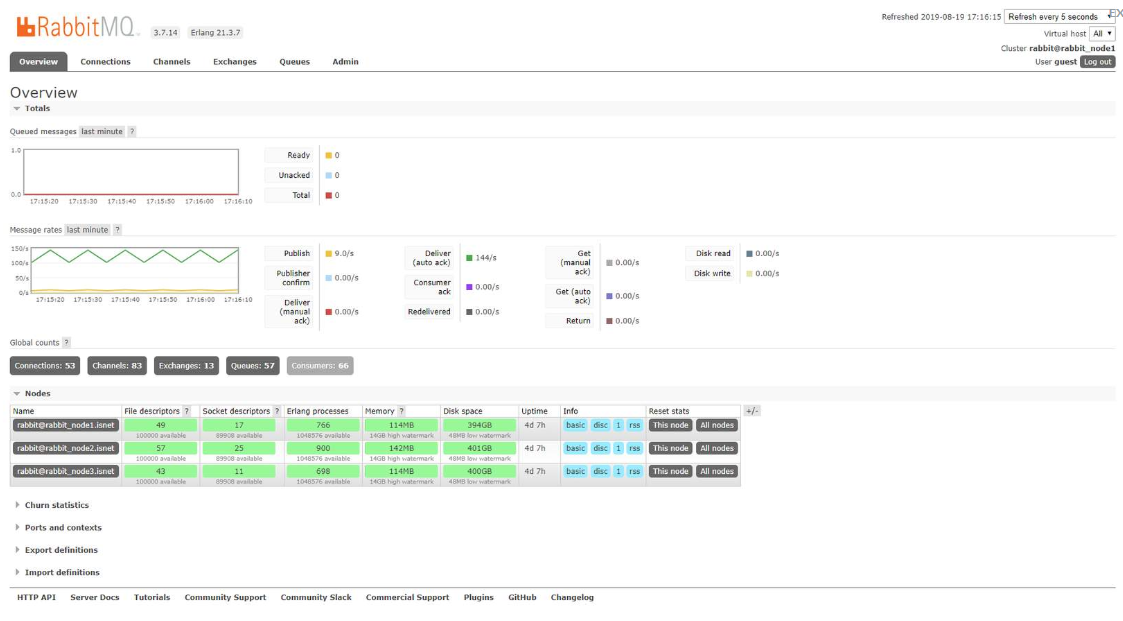
Docker Statistics
You can collect Docker information by using SSH to connect to the Docker socket. You cannot currently retrieve Docker information by using the API.
To collect Docker statistics:
-
Use SSH to connect to the Skylar Automation instance.
-
Run the following command:
curl --unix-socket /var/run/docker.sock http://docker<PATH>
where <PATH> is one of the following values:
- /info
- /containers/json
- /images/json
- /swarm
- /nodes
- /tasks
- /services
You can also use the Docker PowerPack to collect this information. For more information, see Using Skylar One to Monitor Skylar Automation.