
This
Viewing the List of All Dynamic Applications in Skylar One
The Dynamic Applications Manager page (System > Manage > Dynamic Applications) displays a list of all existing Dynamic Applications. For each Dynamic Application, the page displays the following columns:
You can sort the list by a column's values by clicking its column heading. You can also filter the items on the page by typing or selecting filter options in one or more of the filters found above the columns. For more information, see the topic on Filtering Inventory Pages.
- Dynamic Application Name. Name of the Dynamic Application, as defined on the Dynamic Applications Properties Editor page.
- Poll Rate. Frequency, in minutes, at which Skylar One polls all devices that use this Dynamic Application. The Poll Rate column displays the default poll frequency for the Dynamic Application, as defined on the Dynamic Applications Properties Editor page. You can define a custom poll frequency for one or more devices in a device template. The poll frequency defined in the device template overrides the poll frequency defined for the Dynamic Application. Devices to which the device template is applied use the poll frequency defined in the device template.
- Type. Type of Dynamic Application. The choices are:
- Bulk Snippet Configuration. A single instance of the Dynamic Application uses custom-written Python code to collect static configuration data from multiple devices. This is useful for systems that include a large number of component devices. For details on creating bulk snippet Dynamic Applications,
- Bulk Snippet Performance. A single instance of the Dynamic Application uses custom-written Python code to collect trendable performance data from multiple devices. This is useful for systems that include a large number of component devices. For details on creating bulk snippet Dynamic Applications,
- Database Configuration. The Dynamic Application retrieves configuration data from a database application. The Dynamic Application uses SQL queries. The queried device returns table data. For details on creating database Dynamic Applications,
- Database Performance. The Dynamic Application retrieves trendable performance data from a database application. The Dynamic Application uses SQL queries. The queried device returns table data. For details on creating database Dynamic Applications,
- Internal Collection Inventory. The Internal Collection Inventory Dynamic Application (ICDA) retrieves configuration data about filesystems and interfaces. For filesystems, an ICDA Inventory can retrieve data such as storage size, filesystem type, and storage used. These ICDAs can also collect configuration data about interfaces, such as physical address, operational status, and IP addresses. For details on creating ICDAs,
- Internal Collection Performance. The Internal Collection Performance Dynamic Application (ICDA) retrieves data about availability and latency, device information (system description, system uptime, system locale), filesystem performance, and interface performance. For details on creating ICDAs,
- IT Service. A special type of Dynamic Application that Skylar One uses to monitor IT Services. When you create and edit an IT Service on the IT Service Editor page, Skylar One automatically creates and maintains a Dynamic Application for that IT Service. Dynamic Applications for IT Services appear on the Dynamic Applications Manager page. However, if you want to edit the settings for an IT Service, do not edit the Dynamic Application for that IT Service. Instead, use the IT Service Editor page to edit IT Services. For details on creating IT Service policies,
- PowerShell Configuration. The Dynamic Application uses PowerShell commands to collect static configuration data from a Windows device. For details on creating PowerShell Dynamic Applications,
- PowerShell Performance. The Dynamic Application uses PowerShell commands to collect trendable performance data from a Windows device. For details on creating PowerShell Dynamic Applications,
- Snippet Configuration. The Dynamic Application uses custom-written Python code to collect configuration data from a device. For details on creating snippet Dynamic Applications,
- Snippet Journal. The Dynamic Application uses custom-written Python code to collect data formatted as log entries from a device. For details on creating snippet Dynamic Applications,
- Snippet Performance. The Dynamic Application uses custom-written Python code to collect trendable performance data from a device. For details on creating snippet Dynamic Applications,
- SNMP Configuration. The Dynamic Application uses SNMP to retrieve static, configuration data from devices or applications. For details on creating SNMP Dynamic Applications,
- SNMP Performance. The Dynamic Application uses SNMP to retrieve trendable performance data from devices or applications. For details on creating SNMP Dynamic Applications,
- SOAP Configuration. The Dynamic Application uses XML and SOAP to retrieve static configuration data from a SOAP server. The queried device returns XML data. For details on creating SOAP Dynamic Applications,
- SOAP Performance. The Dynamic Application uses XML and SOAP to retrieve trendable performance data from a SOAP server. The queried device returns XML data. For details on creating SOAP Dynamic Applications,
- WMI Configuration. The Dynamic Application retrieves configuration information from either WMI or WBEM running on a managed device. WMI Dynamic Applications use a query format to request data from a managed device. WBEM Dynamic Applications use wbemcli and HTTP to request data from a managed device. For details on creating WMI Dynamic Applications,
- WMI Performance. The Dynamic Application retrieves trendable performance data from either WMI or WBEM running on a managed device. WMI Dynamic Applications use a query format to request data from a managed device. WBEM Dynamic Applications use wbemcli and HTTP to request data from a managed device.
- XML Configuration. The Dynamic Application uses HTTP GET queries. The queried device returns static configuration data in XML format. For details on creating XML Dynamic Applications,
- XML Performance. The Dynamic Application uses HTTP GET queries. The queried device returns trendable performance data in XML format. For details on creating XML Dynamic Applications,
- XSLT Configuration. The Dynamic Application uses XML and SOAP to retrieve static configuration data from a SOAP server. The requests used to retrieve data are generated by performing an XSLT transformation on an XML document that contains data already collected by the Dynamic Application. The queried device returns XML data, which must be changed to a specific format by performing a second XSLT transformation. For details on creating SOAP Dynamic Applications,
- XSLT Performance. The Dynamic Application uses XML and SOAP to retrieve trendable performance data from a SOAP server. The requests used to retrieve data are generated by performing an XSLT transformation on an XML document that contains data already collected by the Dynamic Application. The queried device returns XML data, which must be changed to a specific format by performing a second XSLT transformation. For details on creating SOAP Dynamic Applications,
- State. Specifies whether the Dynamic Application is Enabled or Disabled.
- Version. Version number to assign to the Dynamic Application. You can customize this value and increment it according to your change management policies.
- ID. Unique application ID, assigned by Skylar One.
- Subscribers. Number of devices on which the Dynamic Application is enabled to collect data. Clicking on the icon leads to the Application Subscribers modal, where you can view the list of devices and access other pages for each subscriber device. You can also access this page by clicking the wrench icon (
 ) for a Dynamic Application and clicking the tab.
- PowerPack. Specifies whether or not the Dynamic Application is included in a PowerPack.
- Environment. The execution environment to which the Dynamic Application is aligned, if it is a snippet or internal collection Dynamic Application. If it is not a snippet or internal collection Dynamic Application, then this column displays "n/a".
- Collects. Number of objects included in the Dynamic Application. Clicking on the icon (
 ) leads to the Collection Objects page, where you can view the list of collection objects and edit their properties.
- Alerts. Number of custom alerts defined for the Dynamic Application. Clicking on the icon () leads to the Alert Objects page, where you can view and edit each alert defined for the Dynamic Application.
- Events. Number of events associated with the Dynamic Application. Clicking on the icon () leads to the Event Policy Manager page, where you can view information about each event definition associated with the Dynamic Application definition and edit each event definition.
- Thresh. Number of threshold objects defined for the Dynamic Application. Clicking on the icon () leads to the Threshold Objects page, where you can view and edit information about each threshold object defined for the Dynamic Application.
- Edited By. Username of the person who created or last edited the Dynamic Application.
- Last Edit. Date that the Dynamic Application was created or last edited.
Managing the Dynamic Applications Aligned to a Device
To view detailed data about a specific device, click the device name on the Devices page ( ) to open the Device Investigator for that device.
The tab of the Device Investigator displays a list of the Dynamic Applications associated with the device.
This section describes how to view and manage the Dynamic Applications associated with a device using the tab of the Device Investigator.
Even if you turn off data collection for a device, that device still consumes a single ScienceLogic device license. For more information on non-billable devices, see the Non-billable Devices section.
Viewing the List of Dynamic Applications Aligned to a Device
On the tab of the Device Investigator, you can view a list of the Dynamic Applications associated with the device.
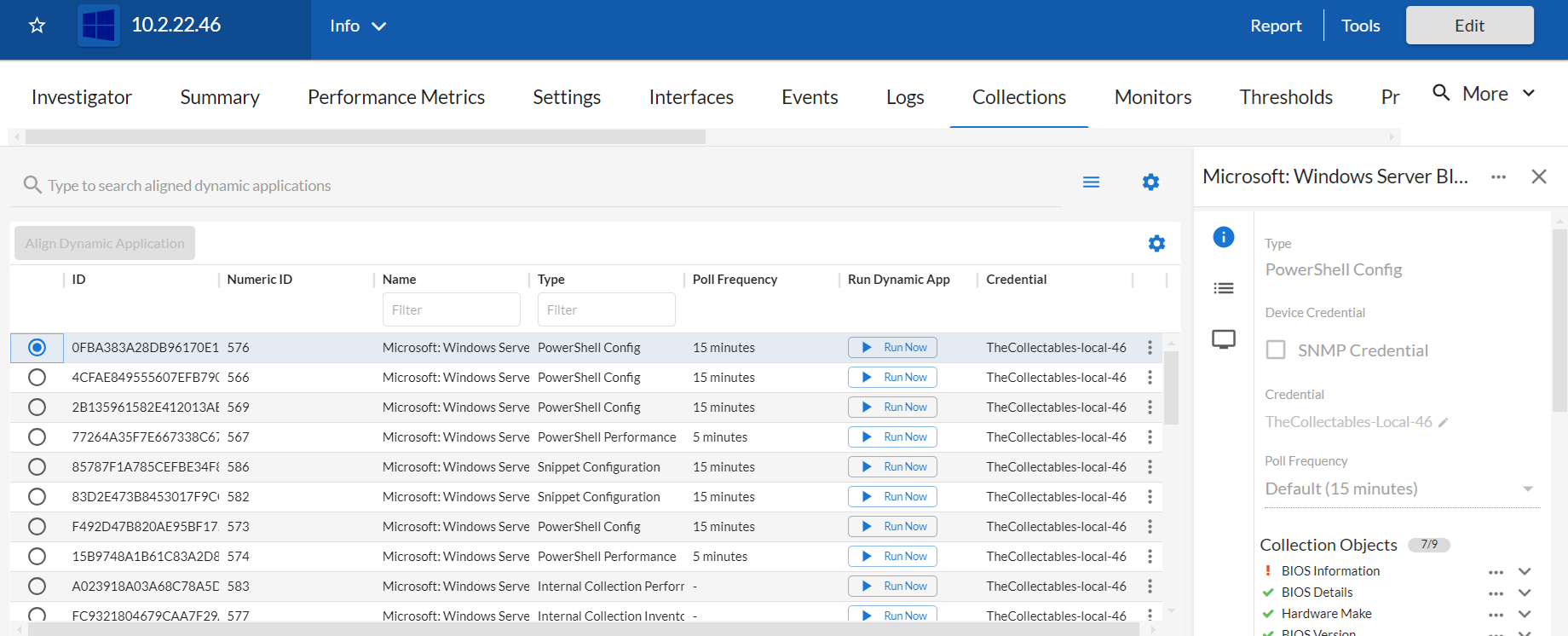
You can sort the list by a column's values by clicking its column heading. You can also filter the items on the page by typing or selecting filter options in one or more of the filters found above the columns. For more information, see the topic on Filtering Inventory Pages.
You can adjust the size of the rows and the size of the row text on this inventory page. For more information, see the topic on Adjusting the Row Density.
For each Dynamic Application in the list, the tab displays the following information:
- ID. The globally unique ID number (GUID) assigned to the Dynamic Application by Skylar One.
- Numeric ID. The numeric integer ID number for the Dynamic Application, which can be used to correlate Dynamic Applications to system log messages.
- Name. Name of the Dynamic Application.
- Type. The protocol used by the Dynamic Application (Database [SQL], Internal Collection Inventory or Internal Collection Performance (ICDA), Snippet [Python], SNMP, SOAP, WMI, XML, or XSLT) and the type of data collected by the Dynamic Application (Configuration, Performance, or Journal).
- Credential. Name of the credential that Skylar One uses to access the device and retrieve the data specified in the Dynamic Application.
Cache-consuming Dynamic Applications do not require a credential. If you aligned a cache-consuming Dynamic Application in the Align Dynamic Application modal, the Credential field displays N/A and is grayed out. You do not have to select a credential in the Align Dynamic Application modal.
- Poll Frequency. Frequency at which Skylar One queries the device to retrieve the data specified in the Dynamic Application. Each Dynamic Application includes a default frequency. On the tab, if you have the proper user permissions, you can change the poll frequency for a Dynamic Application on the current device. This edited poll frequency overrides the default frequency for the Dynamic Application and the poll frequency defined for a Dynamic Application in one or more device templates.
You can rearrange the columns in the list by clicking and dragging the column to a new location. You can adjust a column's width by clicking and dragging the right edge of the column. For more information on editing and adding columns, see the topic on Editing the Settings for an Inventory Page.
On the tab, you can:
- View information about a Dynamic Application
- Change the credential for a Dynamic Application
- Update the poll frequency for a Dynamic Application
- Align or unalign Dynamic Applications with the device
- View the collection status for a Dynamic Application
- Enable or disable collection for the device's Dynamic Applications
- Enable or disable collection for individual collection objects within a Dynamic Application
- Run a Dynamic Application
Viewing Information about a Dynamic Application Aligned to a Device
To view more information about a Dynamic Application that is aligned to the device, select that Dynamic Application from the list on the tab. An information pane with details about that Dynamic Application appears on the right side of the page.
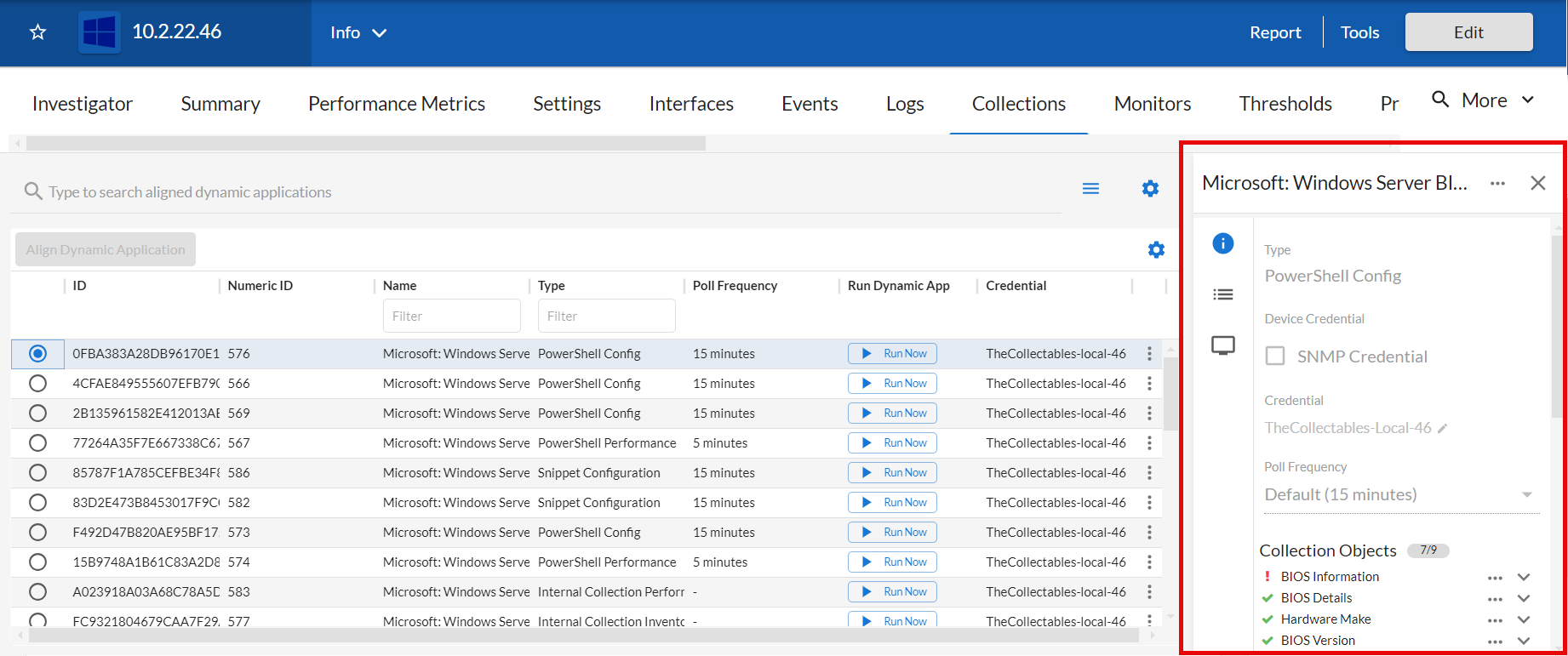
This information pane includes three sections:
- Info (
 ). This section provides basic information about the Dynamic Application. From here, if you have the proper user permissions, you can also change the Dynamic Application's credential and update its poll frequency.
- Collection Objects (
 ). This section lists the Dynamic Application's collection objects. Each collection object in a Dynamic Application specifies a data point that Skylar One attempts to collect.
- Presentation Objects (
 ). This section lists the Dynamic Application's presentation objects. Presentation objects define how Skylar One presents data for performance or journal Dynamic Applications.
You can click the expand icon ( ) next to each collection object and presentation object to see additional information about that object, including its collection status. For more information, see the section on Viewing the Status of a Dynamic Application.
If you have the proper user permissions, you can also enable or disable collection for certain collection objects. For more information, see the section on Enabling and Disabling Collection for Specific Collection Objects.
Changing the Credential for a Dynamic Application Aligned to a Device
If you have the proper user permissions, you can use the information pane for a Dynamic Application listed on the tab to change the credential aligned to that Dynamic Application.
To change the credential for a Dynamic Application aligned to a device:
- On the tab of the Device Investigator, click and select the Dynamic Application you want to update. The information pane for the Dynamic Application appears.
- If SNMP Credential is selected in the Device Credential field, clear the checkbox. The Credential field appears below it.
- In the Credential field, click the edit icon (
 ). The Choose Credential modal appears.
- In the Choose Credential modal, search for the credential you want to align with the Dynamic Application. Select it from the list. Click . Your selected credential appears in the Credential field.
- Click .
Updating the Poll Frequency for a Dynamic Application Aligned to a Device
If you have the proper user permissions, you can use the information pane for a Dynamic Application listed on the tab to change the default poll frequency at which the Dynamic Application queries the device for data.
To change the poll frequency for a Dynamic Application:
- On the tab of the Device Investigator, click and select the Dynamic Application you want to update. The information pane for the Dynamic Application appears.
- From the Poll Frequency drop-down list, select how often you want the Dynamic Application to collect data from the device. Your options range from 1 minute to 24 hours, or you can select Default to not change the frequency.
- Click .
Manually Aligning a Dynamic Application to a Device
If you have the proper user permissions, you can manually align a new Dynamic Application to a device or unalign a currently aligned Dynamic Application from a device.
To align a Dynamic Application to a device:
- On the tab of the Device Investigator, click and then click . The Align Dynamic Application modal appears.
- Click Choose Dynamic Application. The Choose Dynamic Application modal appears.
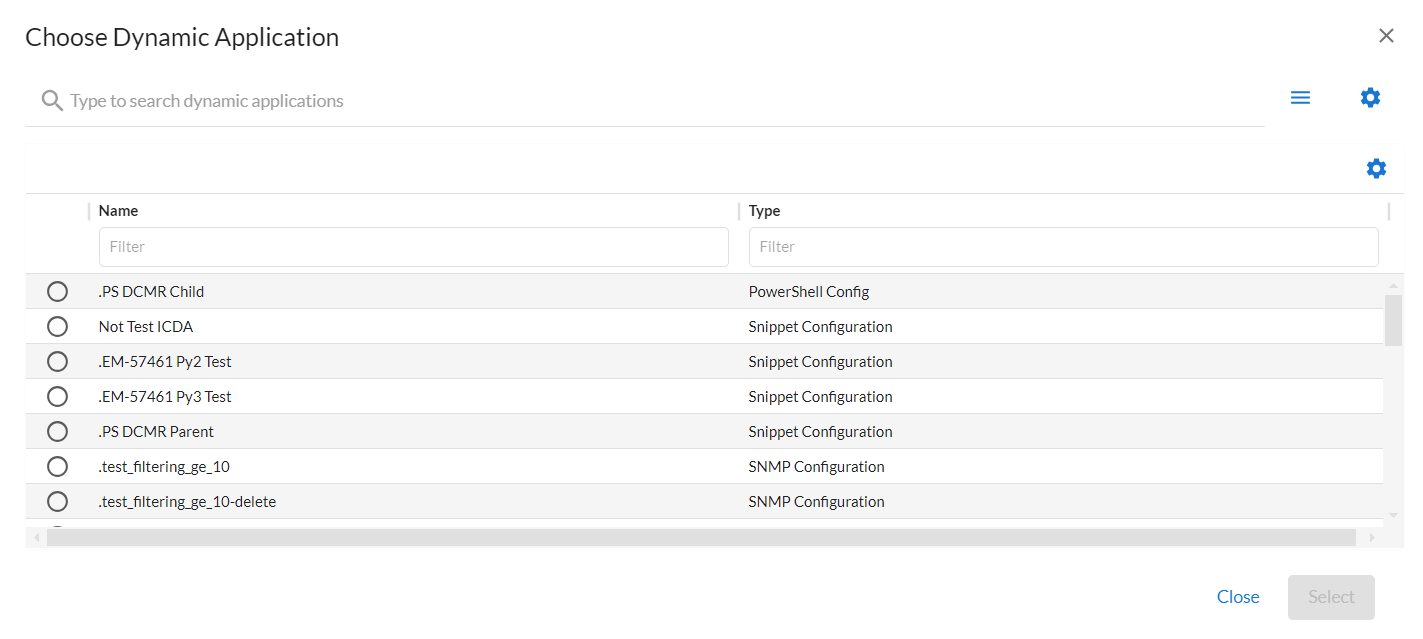
You can sort the list by a column's values by clicking its column heading. You can also filter the items on the page by typing or selecting filter options in one or more of the filters found above the columns. For more information, see the topic on Filtering Inventory Pages.
You can adjust the size of the rows and the size of the row text on this inventory page. For more information, see the topic on Adjusting the Row Density.
- Select the Dynamic Application you want to align and click . The name of the selected Dynamic Application appears in the Align Dynamic Application modal.
- If a default credential is listed below the Dynamic Application and you want to use that credential, skip ahead to step 7. Otherwise, clear the checkbox next to the credential name.
- Click Choose Credential. The Choose Credential modal appears.
- Select the credential for the Dynamic Application and click the button. The name of the selected credential appears in the Align Dynamic Application modal.
- Click the button. When the Dynamic Application is successfully aligned, it appears on the tab. A confirmation message appears at the bottom of the tab.
To unalign a Dynamic Application from a device, click the button ( ) for that Dynamic Application and select Unalign Dynamic App. When you unalign a Dynamic Application, you also delete the data it has collected.
Viewing the Status of a Dynamic Application Aligned to a Device
The tab of the Device Investigator displays the status of each collection object within each Dynamic Application aligned to a device.
The following icons represent the different collection statuses.
| Icon | Status |
|---|---|

|
Found and collecting |

|
Found and not collecting |

|
Not found and collecting |
For more information on these statuses, see the sections on the Found status and the Collecting status.
Before determining which collection objects defined in a Dynamic Application are collected, Skylar One determines whether the Dynamic Application itself should be collected. Dynamic Applications are not collected for devices that are unavailable (because of a failed availability check) or have collection disabled (either manually by a user or because of maintenance scheduled in Skylar One), regardless of the Collecting value of the objects.
Understanding the Found Status
The Found status for a collection object indicates whether data has ever been successfully collected for that object from that specific device.
For a presentation object, the Found status indicates whether every collection object used by that presentation object has a Found value of Yes.
After Found is set to Yes for an object, Skylar One never automatically changes the value of Found for this object.
The value of Found is used by Skylar One to determine whether icons, tabs, and navigation bar links that lead to the or tab where the collection object is used should be active.
After the Dynamic Application is enabled, its Discovery Object displays as Not found and collecting in the Skylar One user interface, with a yellow question mark icon () next to it. No further action is needed in this situation.
Understanding the Collecting Status
The Collecting status for a collection object indicates whether Skylar One attempts to collect data for this object when collection for this Dynamic Application occurs. For more information on how Skylar One determines the Collecting status, see the section on How Skylar One Manages the Collection Status for Dynamic Applications.
If you have the proper user permissions, you can disable or enable collection for individual collection objects. For more information, see the section on Enabling and Disabling Collection for Specific Collection Objects.
For a presentation object, the Collecting status indicates whether every collection object used by that presentation object has a Collecting value of Yes. If a collection object has a Collecting value of No, then every presentation object that uses that collection object also has a Collecting value of No.
Conversely, the Collecting status for a presentation object has no effect upon its collection objects. If you manually change the Collecting status for a presentation object, the Collecting status for the collection objects used by the presentation object does not change.
Enabling and Disabling Dynamic Application Data Collection for a Device
If you have the proper user permissions, you can disable data collection for a particular Dynamic Application on a specific device. This affects collection only for that Dynamic Application on that device. For all other subscriber devices, Skylar One continues to use the Dynamic Application to collect data.
To disable or enable all collection for a Dynamic Application:
- On the tab for the device, click .
- To disable collection for a Dynamic Application, click the button (
 ) for that Dynamic Application and select Disable Collection. To enable collection for a disabled Dynamic Application, click the button () and select Enable Collection.
- Click .
Even if you turn off data collection for a device, that device still consumes a single ScienceLogic device license. For more information on non-billable devices, see the Non-billable Devices section.
Enabling and Disabling Collection for Specific Collection Objects
If you have the proper permissions, you can disable data collection for specific collection objects within a Dynamic Application that is aligned to a device. This affects collection only for that collection object within that Dynamic Application on that specific device. The collection status does not change for any other collection objects, Dynamic Applications, or devices. For all other devices, Skylar One uses the default list of objects from the Dynamic Application's definition or uses the list of objects defined on the tab for that device.
To disable or enable collection for specific collection objects within a Dynamic Application:
- On the tab for a device, click and select the Dynamic Application you want to update. The information pane for the Dynamic Application appears.
- To disable collection for an individual collection object, click the button () for that object in the information pane and select Disable Collection. To enable collection for a disabled object, click the button () and select Enable Collection.
- Click .
Running a Dynamic Application on a Device
On a single device, you can perform a test run of collection with a single Dynamic Application, if you have the proper user permissions. During this test run, Skylar One displays details of each step of the collection process. This information can be very helpful for troubleshooting and debugging.
During a test run of a collection with a Dynamic Application, Skylar One does not store the collected data or generate alerts. Skylar One continues to collect data and generate alerts using the selected Dynamic Application at the frequency defined in the Dynamic Application.
To execute a test run of collection with a single Dynamic Application:
- On the tab for the device, do one of the following:
- Click the button in the Run Dynamic App column.
- Click the button () for the Dynamic Application that you want to run and select Run Now.
- Select the Dynamic Application from the list to open its information pane. In the information pane, click the button () and then select Run Now.
- A status dialog appears and displays the status and relevant logs for the Dynamic Application.
Managing the Dynamic Applications Associated with a Device in the Classic Skylar One User Interface
This section describes how to view and manage the Dynamic Applications associated with a device using the Dynamic Application Collections page in the classic Skylar One user interface.
Viewing the Dynamic Applications Associated with a Device in the Classic Skylar One User Interface
To view the Dynamic Applications associated with a device:
- Go to the Device Manager page (Devices > Classic Devices, or Registry > Devices > Device Manager in the classic user interface).
- On the Device Manager page, find the device for which you want to view Dynamic Applications. Click its wrench icon ().
- In the Device Administration panel, click the tab.
- The Dynamic Application Collections page appears and displays a list of all Dynamic Applications aligned with the current device. For each Dynamic Application, the Dynamic Application Collections page displays the following read-only information:
- Plus Sign (
 ). Click this icon to display a list of all presentation objects included in Dynamic Applications that have the "Performance" or "Journal" type or a list of all collection objects included in Dynamic Applications that have the "Configuration" type. You can click on the plus sign next to each presentation object to see all the collection objects included in the presentation object.
- Minus Sign (
 ). Click this icon to collapse a Dynamic Application and hide the display of Presentation Objects and Collection Objects.
- Dynamic Application. Name of the Dynamic Application.
- ID. Numeric ID for the Dynamic Application.
- Poll Frequency. Frequency at which Skylar One queries the device to retrieve the data specified in the Dynamic Application. Each Dynamic Application includes a default frequency. From this page (Dynamic Application Collections), you can change the poll frequency for a Dynamic Application on the current device. This edited poll frequency overrides the default frequency for the Dynamic Application and the poll frequency defined for a Dynamic Application in one or more device templates.
- Type. The protocol used by the Dynamic Application (Database [SQL], Internal Collection Inventory or Internal Collection Performance (ICDA), Snippet [Python], SNMP, SOAP, WMI, XML, or XSLT) and the type of data collected by the Dynamic Application (Configuration, Performance, or Journal).
- Credential. Name of the credential that Skylar One uses to access the device and retrieve the data specified in the Dynamic Application.
Cache-consuming Dynamic Applications do not require a credential. If you aligned a cache-consuming Dynamic Application in the Dynamic Application Alignment modal, the Credential field displays N/A and is grayed out. You do not have to select a credential in the Dynamic Application Alignment modal.
- Collector. Name of the specific Data Collector used to collect data from the Dynamic Application.
Based on the Dynamic Application's Collector Affinity settings, the Dynamic Application might be assigned to a different Data Collector than the Data Collector that is assigned to the device on the Device Properties page (Devices > Classic Devices > wrench icon). On the Dynamic Application Collections page, hover your mouse over the Collector name for any of the Collection Objects to view a tool tip that explains why the Dynamic Application is assigned to its particular Data Collector.
- Run Dynamic Application (
 ). Performs a test run of data collection for the selected Dynamic Application on the current device.
If a device is currently unavailable, the lightning bolt icon () is grayed out for each Dynamic Application aligned with the device.
- Checkbox (
 ). Apply an action from the Select Action field to this instance of the Dynamic Application.
Manually Aligning a Dynamic Application with a Device in the Classic Skylar One User Interface
From the Dynamic Application Collections page, you can manually align a new Dynamic Application with a device.
To manually align a Dynamic Application with a device:
- Go to the Device Manager page (Devices > Classic Devices, or Registry > Devices > Device Manager in the classic user interface).
- On the Device Manager page, find the device you want to associate with a Dynamic Application. Click its wrench icon ().
- In the Device Administration panel, click the tab.
- On the Dynamic Application Collections page, click the menu and select Add Dynamic Application.
- The Dynamic Application Alignment modal appears. To align a Dynamic Application with a device in this page:
-
Select the Dynamic Application you want to align with the device in the Dynamic Applications field. You can filter the list of Dynamic Applications using the search field above the Dynamic Applications field.
-
After selecting a Dynamic Application, you must select a credential. Select a credential in the Credentials field. You can filter the list of credentials using the search field above the Credentials field.
Your organization memberships might affect the list of credentials you can see in the Credentials field.
Cache-consuming Dynamic Applications do not require a credential. If you selected a cache-consuming Dynamic Application in the Dynamic Application Alignment modal page, the Credential field displays N/A and is grayed out. You do not have to select a credential in the Dynamic Application Alignment modal.
- Click the button in the Dynamic Application Alignment modal to align the Dynamic Application and the credential to the device.
- Skylar One aligns the Dynamic Application with the device and immediately attempts to collect the data specified in the Dynamic Application using the selected credential.
- After the first, immediate collection, Skylar One collects the data at the frequency defined in the Poll Frequency field on the Application Configuration Editor page for the Dynamic Application.
Editing the Credential Associated with a Dynamic Application in the Classic Skylar One User Interface
From the Dynamic Application Collections page, you can change the credential associated with a Dynamic Application. Skylar One uses this credential for this specific Dynamic Application on this specific device. For all other devices, Skylar One uses the default credential associated with the device or the credential defined on the Dynamic Application Collections page for each device.
Cache-consuming Dynamic Applications do not require a credential. If you aligned a cache-consuming Dynamic Application with this device (you do this in the Dynamic Application Alignment modal), the Credential field displays N/A and is grayed out.
To change the credential associated with a Dynamic Application for a device:
-
Go to the Device Manager page (Devices > Classic Devices, or Registry > Devices > Device Manager in the classic user interface).
-
On the Device Manager page, find the device for which you want to define a credential. Click its wrench icon (
). -
In the Device Administration panel, click the tab.
-
On the Dynamic Application Collections page, find the Dynamic Application for which you want to change the credential. Select its checkbox. To apply a credential to multiple Dynamic Applications, select the checkbox for each Dynamic Application.
-
From the Select Action drop-down list, select the credential from the list of all credentials that you can use, and then click the button.
Your organization memberships might affect the list of credentials you can see in the Select Action drop-down list.
If this Dynamic Application has already been aligned with a credential to which you do not have access, the Credential column displays the value Restricted Credential. If you align the device with a different credential, you cannot realign the device with the Restricted Credential.
- Your change appears in the Credential column on the Dynamic Application Collections page.
Viewing the Status of a Dynamic Application Associated with a Device in the Classic Skylar One User Interface
For each device, Skylar One maintains the collection status for each collection object in each Dynamic Application aligned with that device. The Dynamic Application Collections page displays the status of each collection object for a device as represented by two values: Found and Collect. The Dynamic Application Collections page also displays the Found and Collect values for each presentation object, which are derived from the status of each collection object used by the presentation object.
Found
The Found status for a collection object has two possible values:
- Yes. Data has been successfully collected from this device for this object. Found is set to Yes the first time data is successfully collected from this device for this object.
- No. Data has never been successfully collected from this device for this object. No is the initial value of Found for every object when a Dynamic Application is initially aligned with a device.
The Found status for a presentation object also has two possible values (Yes and No).
- If the presentation object uses only one collection object, the presentation object always has the same default Found and default Collect values as that collection object.
- If a presentation object uses multiple collection objects, the default Found value for the presentation object is Yes only if all the collection objects used by the presentation object have a Found value of Yes.
After Found is set to Yes for an object, Skylar One never automatically changes the value of Found for this object.
The value of Found is used by Skylar One to determine whether icons, tabs, and navigation bar links that lead to the or tab where the collection object is used should be active.
Collect
The Collect status for a collection object has two possible values:
- Yes. Skylar One attempts to collect data for this object when collection for this Dynamic Application occurs. Yes is the initial value for Collect for every object when a Dynamic Application is initially aligned with a device.
- No. Skylar One does not attempt to collect data for this object when collection for this Dynamic Application occurs. Skylar One might set Collect to No automatically if no data has been collected.
- If a collection object has a Collect value of No, all presentation objects that use that collection object will also have a Collect value of No.
For more information on how Skylar One determines the Collect status, see the section on How Skylar One Manages the Collection Status for Dynamic Applications.
If you have the proper user permissions, you can enable or disable collection for certain collection objects. For more information, see the section on Enabling and Disabling Collection Objects.
The Collect status for a presentation object also has two possible values (Yes and No).
- If the presentation object uses only one collection object, the presentation object always has the same default Found and default Collect values as that collection object.
- If a presentation object uses multiple collection objects, the default Collect value for the presentation object is Yes only if all the collection objects used by the presentation object have a Collect value of Yes. If one or more collection objects used by the presentation object have a Collect value of No, the presentation object also has a default Collect value of No.
- The Collect status for a presentation object has no effect on its collection objects. If you manually change the Collect status for a presentation object, the Collect status for the collection objects used by the presentation object does not change.
Before determining which collection objects defined in a Dynamic Application are collected, Skylar One determines whether the Dynamic Application itself should be collected. Dynamic Applications are not collected for devices that are unavailable (because of a failed availability check) or have collection disabled (either manually by a user or because of maintenance scheduled in Skylar One) regardless of the Collect value of the objects.
Performing Other Administrative Tasks for an Aligned Dynamic Application in the Classic Skylar One User Interface
You can perform the following other administrative tasks for an aligned Dynamic Application on the Dynamic Application Collections page:
- Enable or disable one or more collection objects or presentation objects.
- Stop data collection for the whole Dynamic Application.
- Reset the statistical data that has been stored for standard deviation alerting.
- Reset persistent session objects that have been collected and stored for a Dynamic Application.
- Test collection for a Dynamic Application.
- Remove all data collected using the Dynamic Application and optionally unalign the Dynamic Application from the device.
To perform one of these tasks:
- Go to the Device Manager page (Devices > Classic Devices, or Registry > Devices > Device Manager in the classic user interface).
- On the Device Manager page, find the device for which you want to perform an administrative task. Click its wrench icon ().
- In the Device Administration panel, click the tab.
- On the Dynamic Application Collections page, find the Dynamic Application for which you want to perform an administrative task. The following sections describe how to perform each task.
Enabling or Disabling Objects
From the Dynamic Application Collections page, you can customize the collection performed by the Dynamic Application for the current device. Skylar One uses this customization only for this specific device. For all other devices, Skylar One uses the default list of objects from the Dynamic Application's definition or the list of objects defined on the Dynamic Application Collections page for that device.
If a collection object has a Collect value of No, all presentation objects that use that collection object also have a Collect value of No.
To enable or disable collection for one or more objects in a Dynamic Application:
- To disable collection for one or more collection objects, clear the checkbox for each object for which you want to disable collection.
- For each unselected object, the Collect column now displays No.
- To enable collection for one or more collection objects, select the checkbox for each object for which you want to enable collection.
- For each selected object, the Collect column now displays Yes.
- Click the button.
If a user manually sets the Collect status of a collection object or presentation object to No, Skylar One will not attempt to re-collect the object once a day and will not automatically set the Collect status to Yes.
Restarting Automatic Maintenance of Collection Objects
If a user manually sets the Collect status of a collection object or presentation object, Skylar One does not automatically change the Collect status of that object as described in the How Skylar One Manages Collect Status section.
To have Skylar One restart automatic maintenance of the objects in a Dynamic Application:
- On the Dynamic Application Collections page, select the checkbox for the Dynamic Application for which you want to restart automatic collection maintenance. To restart automatic collection maintenance for multiple Dynamic Applications, select the checkbox for each Dynamic Application.
- From the Select Action drop-down list, select Restore System Control of Collection State and then click the button.
- Automatic collection maintenance for all objects in the Dynamic Application now occurs. The Collect status of the objects in the Dynamic Application does not change immediately.
Editing the Poll Frequency for a Dynamic Application on the Current Device
Poll Frequency is the frequency at which Skylar One queries the device to retrieve the data specified in the Dynamic Application. Each Dynamic Application includes a default frequency.
From the Dynamic Application Collections page, you can change the poll frequency for a Dynamic Application on the current device. For the current device, the edited poll frequency overrides:
- the default frequency for the Dynamic Application
- the poll frequency defined for a Dynamic Application in one or more device templates
To edit the poll frequency for a Dynamic Application on the current device:
- On the Dynamic Application Collections page, select the checkbox for the Dynamic Application for which you want to change the poll frequency. To change the poll frequency for multiple Dynamic Applications, select the checkbox for each Dynamic Application.
- From the Select Action drop-down list, select Poll Frequency from the list of poll frequencies and then click the button.
- Your change appears in the Poll Frequency column on the Dynamic Application Collections page.
Stopping Data Collection for a Dynamic Application
You can stop data collection for a Dynamic Application on the current device. This affects collection only for this specific device. For all other subscriber devices, Skylar One continues to use this Dynamic Application to collect data.
To stop data collection for a Dynamic Application on this device:
- Select the checkbox of each Dynamic Application for which you want to stop data collection.
- From the Select Action drop-down list, select the following:
- Disable All Collection Objects. For all collection objects in each selected Dynamic Application, the Collect value changes to No.
- Click the button.
If a user manually sets the Collect status of a collection object or presentation object to No, Skylar One does not attempt to re-collect the object once a day and does not set the Collect status to Yes.
Resetting Statistical Data for a Dynamic Application
Skylar One examines the value of an object and triggers an alert if that value falls outside the range of "normal" values for that object at that hour of the day on that day of the week. Use the deviation function to define such alerts.
To use the deviation function, you must configure Skylar One to store and calculate the mean values and standard deviation for an object. You do this by selecting the Enable Deviation Alerting field on the Collection Objects page. You then specify the minimum and maximum number of weeks to collect deviation data for the object. Skylar One must have already collected at least the minimum number of weeks' worth of values for an object before Skylar One can evaluate alert formulas that use the deviation function. To use the deviation function, you must specify a minimum value of at least two weeks.
In some cases, you might want to delete all the collected statistics for an object and start over. This is useful if known circumstances change the value of an object, and you no longer want to use the old data to calculate the "normal" ranges. You can do this by "resetting" the statistical data for an object.
For example, suppose you were monitoring bandwidth usage with a standard deviation alert. Suppose your company previously ran on a 09:00 to 17:00 work schedule. Suppose your company has recently added a night shift to the schedule. In this circumstance, you might want to reset the statistical data to determine the new "normal" usage patterns.
When you reset the statistical data for an object, you are telling Skylar One to ignore all previously collected values and to use only values from today onward. When you reset the statistical data for an object, the Dynamic Application Collections page again displays a message like:
Note: object 123 not ready for deviation alerting.
This message displays until enough data has been collected to again calculate standard deviation for the object. Skylar One starts collecting the minimum number of weeks of data for the object again (as specified in the Enable Deviation Alerting field on the Collection Objects page) and calculates the "normal" ranges for those objects for each hour at each day of the week.
To delete all current statistical data for an object:
- In the Dynamic Application, find the object for which you want to reset data.
- In that Dynamic Application, find the object for which you want to reset data. Select its checkbox.
- From the Select Action drop-down list, select the following option:
- Reset Statistical Data. Removes all previously collected statistical data for the selected object. Skylar One starts collecting the minimum number of weeks of data for the object again (as specified in the Enable Deviation Alerting field on the Collection Objects page) and calculates the "normal" ranges for those objects for each hour at each day of the week.
- Click the button.
- The Dynamic Application Collections page displays a message like:
Note: object 123 not ready for deviation alerting.
Resetting Persistent Session Objects for a Dynamic Application
SOAP or XSLT Dynamic Applications can contain a collection object that stores a Session ID. The value for this collection object can be defined as a persistent value. If Skylar One has already retrieved and stored a value in the collection object for the Session ID, Skylar One does not collect a new value for the collection object until a SOAP fault occurs. You can force Skylar One to re-collect a Session ID collection object by deleting the current persistent value.
To delete the current persistent value for a session object:
-
In the Dynamic Application, find the object for which you want to reset data. Select its checkbox.
-
From the Select Action drop-down list, select Reset Persistent Session Objects. This option removes the stored value for collection objects with the type SOAP/XSLT Session ID. SOAP/XSLT Session ID objects are persistent across collection periods; Skylar One does not collect a SOAP/XSLT Session ID object if a collected value is available from a previous poll. After you select this option, Skylar One deletes the existing value for the object and collects a new value during the next collection.
-
Click the button.
Testing Data Collection for a Dynamic Application
On a single device, you can perform a test run of collection with a single Dynamic Application. During this test run, Skylar One displays details of each step of the collection process. This information can be very helpful for troubleshooting and debugging.
During a test run of a collection with a Dynamic Application, Skylar One does not store the collected data or generate alerts. Skylar One continues to collect data and generate alerts using the selected Dynamic Application at the frequency defined in the Dynamic Application.
To execute a test run of collection with a single Dynamic Application:
-
Locate the device on which you want to test the Dynamic Application and click its wrench icon (
). -
Click the tab.
-
Find the Dynamic Application for which you want to test collection and click its lightning bolt icon (
). If a device is currently unavailable, the lightning bolt icon (
) is grayed out for each Dynamic Application aligned with the device. -
Skylar One displays a Session Logs modal that includes details about each step of the collection process and diagnostic details about alerts in the Dynamic Application. This information can be helpful during troubleshooting.
Removing Data Collected by a Dynamic Application
You can remove the data retrieved with a Dynamic Application from the current device. You have three options for removing Dynamic Application data associated with a device:
- Remove all previously collected data, but continue to collect data at the specified poll frequency.
- Remove all normalized data, but retain all raw collected data and continue to collect data at the specified poll frequency.
- Remove all previously collected data and stop collecting data with this Dynamic Application. This unaligns the device from the Dynamic Application. The device is no longer a subscriber to the Dynamic Application.
To remove Dynamic Application data associated with a device:
- On the Dynamic Application Collections page, select the checkbox of the Dynamic Application for which you want to remove data. To remove data for multiple Dynamic Applications, select the checkbox for each Dynamic Application.
- From the Select Action drop-down list, select one of the following options:
- Remove Data. Removes all previously collected data, but data collection continues at the specified poll frequency.
- Remove Normalized Data. Removes all normalized data, but all raw collected data remains and data collection continues at the specified poll frequency.
- Stop Collection and Remove Data. Removes all previously collected data and stops collection of data with this Dynamic Application. This unaligns the device from the Dynamic Application. The device is no longer considered a subscriber to the Dynamic Application. If you select this option and later want to subscribe to this Dynamic Application again, you must re-align the device with the Dynamic Application.
- Click the button.
How Skylar One Manages the Collection Status for Dynamic Applications
This section describes how Skylar One manages collection for Dynamic Applications, including the conditions under which it might automatically stop or restart collection. It also describes the types of collection objects for which it never automatically changes the collection status.
Stopping Collection
One of the ScienceLogic hourly maintenance tasks checks the last collection time for every collection object being collected from every device. If the last collection time for an object on a device is more than 48 hours ago, collection stops for that collection object on that device. Skylar One sets the Collect status of that object to No.
If a device is in maintenance mode, is unavailable, or has been manually disabled by a user, Skylar One does not automatically set the Collect status of objects to No. Skylar One automatically sets the Collect status of objects to No only if the device is up and running, but Skylar One still cannot collect the object.
When Skylar One sets the Collect status of that object to No, Skylar One generates an event. The event includes the name of the device, the name of the Dynamic Application, the name of the collection object, and the collection object IDs. By default, this event has a severity of "notice".
For Dynamic Applications that have the Component Mapping checkbox selected on the Dynamic Applications Properties Editor page, Skylar One never automatically sets the Collect status to No for any of the collection objects in the Dynamic Application.
For Dynamic Applications that have the Caching fields set to either Cache Results or Consume cached results in the Dynamic Applications Properties Editor page, Skylar One never automatically sets the Collect status to No for any of the collection objects in the Dynamic Application.
Starting Collection
For each object that has the Collect status of No, Skylar One attempts to re-collect the object once a day. If re-collection is successful, Skylar One automatically sets the Collect value for that object to Yes.
If a user manually sets the Collect status of a collection object or presentation object to No, Skylar One will not attempt to re-collect the object once a day and will not set the Collect status to Yes.
Collection Objects that are Excluded from Maintenance
The Collect status of the following collection objects never changes automatically:
- Collection objects in Dynamic Applications that have the Component Mapping checkbox selected on the Dynamic Applications Properties Editor page
- Collection objects in Dynamic Applications that have the Caching fields set to either Cache Results or Consume cached results on the Dynamic Applications Properties Editor page
- Collection objects that have the Disable Object Maintenance setting enabled.
- Collection objects that have a Collect status defined by a user, that is, collection objects that a user manually enabled or disabled.
Status of Objects for Deviation
Skylar One examines the value of an object and triggers an alert if that value falls outside the range of "normal" values for that object at the hour of the day on that day of the week. Use the deviation function to define such alerts.
To use the deviation function, you must configure Skylar One to store and calculate the mean values and standard deviation for an object. You do this by selecting the Enable Deviation Alerting field on the Collection Objects page. You then specify the minimum and maximum number of weeks to collect deviation data for the object. Skylar One must have already collected at least the minimum number of weeks' worth of values for an object before Skylar One can evaluate alert formulas that use the deviation function. To use the deviation function, you must specify a minimum value of at least two weeks.
If a Dynamic Application on the Dynamic Application Collections page contains one or more alerts that use the deviation function, the Dynamic Application Collections page displays the status of the collection objects.
For example, suppose an alert in a Dynamic Application applies the deviation function to object "o_123". Suppose that you specified that Skylar One must collect at least two weeks' worth of deviation data for this object. Suppose that Skylar One contains only one week's worth of values for object "o_123". In this case, the Dynamic Application Collections page displays the following message:
Note: object 123 not ready for deviation alerting.
When Skylar One contains at least two weeks' worth of values for object "o_123", the Dynamic Application Collections page displays the following message:
All objects ready for deviation alerting.
Bulk Unaligning Dynamic Applications
The Application Subscribers page contains a drop-down field in the lower right called Select Action. You can use this field to unalign a Dynamic Application from one or more subscriber devices.
To unalign a Dynamic Application from one or more devices:
- Go to the Dynamic Applications Manager page (System > Manage > Dynamic Applications).
- On the Dynamic Applications Manager page, find an application with a subscriber icon (
 ) in the Subscribers column. Click the icon.
- The Application Subscribers page appears.
- On the Application Subscribers page, select the checkbox for each device you want to apply the action to. To select all checkboxes for all devices, select the checkbox at the top of the page.
- In the Select Action drop-down list, select Unalign Device and Remove Collection Data. This option unaligns the device from the Dynamic Application and deletes all data collected by the Dynamic Application from the device. The device is no longer a subscriber to the Dynamic Application. If you select this option and later want to subscribe to this Dynamic Application again, you must re-align the device with the Dynamic Application.
- Click the button to apply the action to all selected devices.
Setting Thresholds for Dynamic Applications
If a Dynamic Application includes one or more thresholds, you can change the threshold value on a per-device basis. To change a Dynamic Application threshold for a device:
-
Go to the Device Manager page (Devices > Classic Devices, or Registry > Devices > Device Manager in the classic user interface).
-
On the Device Manager page, find the device for which you want to define a threshold. Click its wrench icon (
). -
In the Device Administration panel, click the tab.
-
The Device Thresholds page appears and displays a list of thresholds defined for each Dynamic Application that is aligned to the device. To change a threshold, move the slider for that threshold or enter a value in the number field for that threshold.
-
After changing one or more thresholds, click the button to save your changes.
If you change a threshold on the Device Thresholds page, the change affects only the current device. The threshold values defined in the Dynamic Application remain unchanged.
Dynamic Applications and Discovery
Discovery is the ScienceLogic tool that automatically discovers devices in your network. You supply the discovery tool with a range or list of IP addresses, and the discovery tool determines if a device exists at each IP address. The discovery tool also determines which (if any) Dynamic Applications to align with the device. If the discovery tool finds Dynamic Applications to align with the device, the discovery tool triggers collection for each aligned Dynamic Application.
For more information on discovery, see the Discovery and Credentials manual.
How Does Skylar One Align Dynamic Applications During Discovery?
Most Dynamic Applications include a discovery object. Skylar One uses the discovery object to determine which devices to align with a Dynamic Application.
During discovery, Skylar One:
- Searches the list of Dynamic Applications.
- If a Dynamic Application includes a discovery object, Skylar One adds that Dynamic Application to the list of Dynamic Applications to try to align during discovery.
- For each Dynamic Application that includes a discovery object, Skylar One checks the current discovery session for an appropriate credential. For example, for each database Dynamic Application, Skylar One looks for one or more database credentials that have been selected for the discovery session.
- For each discovered device, both those that support SNMP and those that do not, discovery tries to determine which Dynamic Applications to align. For each discovered device, Skylar One tries to align each Dynamic Application in the list of Dynamic Applications to try during discovery. For each Dynamic Application in the list, Skylar One tries to connect to each device with each of the appropriate credentials (until Skylar One finds a working credential) and then tries to find the discovery object. If Skylar One is able to connect to a device with one of the credentials and can then retrieve the discovery object, Skylar One aligns the Dynamic Application with the device.
Skylar One also includes more sophisticated logic that you can use to define multiple discovery objects, validate the value of the discovery object, and align the Dynamic Application if a discovery object is not available. However, the most common use of a discovery object is as described above (discovery object exists).
- If discovery aligns a Dynamic Application with a device, immediately after discovery completes Skylar One starts the first collection from that device using the aligned Dynamic Application. This step does not apply to Dynamic Applications that meet all three of the following criteria:
- Has a collection frequency of 1 minute, 2 minutes, 3 minutes, or 5 minutes
- Does not have component mapping enabled (does not discover component devices)
- Is aligned with a component device
During discovery, Skylar One tries each SNMP credential specified in the discovery session on each discovered device, to determine if Skylar One can collect SNMP details from the device. Later in the discovery session, during alignment of Dynamic Applications, discovery again tries each SNMP credential specified in the discovery session. If one of the SNMP credentials times out three times without any response, discovery stops using that SNMP credential to align SNMP Dynamic Applications. Note that "no response" means that a device did not respond at all. Note that if a device reports that "no OID was found" or "the end of the OID tree was reached", these are considered a legitimate response and do not cause Skylar One to abandon the credential.
Queuing Discovery from the Dynamic Applications Manager Page
From the Dynamic Applications Manager page, you can manually run the Dynamic Application alignment portion of discovery for all devices in the system using one or more selected Dynamic Applications.
To manually queue discovery from the Dynamic Applications Manager page:
-
Go to the Dynamic Applications Manager page (System > Manage > Dynamic Applications).
-
On the Dynamic Applications Manager page, select the checkbox for each Dynamic Application you want to use for discovery.
-
In the Select Action drop-down list, select Discover Applications. Click the button.
-
You can also run the Dynamic Application alignment portion of discovery for all devices in the system using a single Dynamic Application. To do this, click the lightning bolt icon (
) for that Dynamic Application.